
How to fix OneDrive error 0x8007017C in Windows?

Prefer to fix it yourself? The manual steps follow.
- 9methods
- 2 to 30 minutes
- Intermediate
Applies to The OneDrive sync app on Windows 11 and Windows 10 22H2, personal and work or school accounts; the same code in Work Folders and third-party sync apps that use the Windows Cloud Files API
9 methods in this guide
- What the error means
- How cloud files open
- Causes, ranked
- The fixes
- 1. Restart OneDrive and the PC
- 2. Turn CldFlt back on
- 3. Reset OneDrive
- 4. Get the file right now
- 5. Download all files
- 6. Update OneDrive and Windows
- 7. Check other file filters
- 8. Reinstall OneDrive
- 9. Repair system files
- Other sync apps
- Still broken
- Prevent it
- FAQ
I can't copy many of my files, like JPG or PDF, that I keep on OneDrive. The error code is 0x8007017C and the message says "An unexpected error is keeping you from copying the file. If you continue to receive this error, you can use the error code to search for help with this problem." Please help.
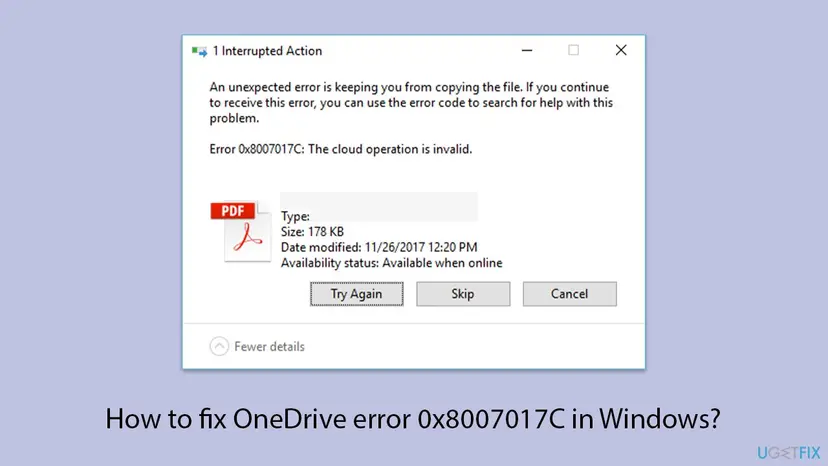
Error 0x8007017C, "The cloud operation is invalid", appears when Windows asks OneDrive for an online-only file and the request is refused. Your files are safe in the cloud: the broken part is the link on this PC between File Explorer, the Cloud Files filter driver and the OneDrive app. Start with OneDrive itself and a restart.
Nothing is deleted. Windows could not download an online-only file because OneDrive or the Cloud Files filter driver (CldFlt) did not answer. Make sure OneDrive is running and signed in, then restart the PC (Fix 1). If the error stays, check that CldFlt is set to start automatically (Fix 2) and reset OneDrive (Fix 3). Need the file now? Download it from onedrive.com (Fix 4).
| Error | 0x8007017C: "The cloud operation is invalid." Windows error 380 (hex 0x17C), named ERROR_CLOUD_FILE_INVALID_REQUEST in the Windows SDK. |
|---|---|
| Where it appears | A 1 Interrupted Action box when you copy, move or open a file in your OneDrive folder in File Explorer, usually a file with the blue cloud icon (Available when online). |
| Main cause | The request for the file content never reaches a working OneDrive: the app is closed, signed out or stuck, or the Windows Cloud Files filter driver is not loaded. |
| Fastest fix | Start OneDrive, sign in, restart the PC (Fix 1). Then check the CldFlt start value (Fix 2) and reset OneDrive (Fix 3). |
| Also written as | 0x8007017c, 0x80070017C (a common typing slip), "the cloud operation failed", and the same code in Portuguese (erro), Italian (errore), French (erreur) and German (Fehler) messages. |
| Affects | Windows 11 and Windows 10. OneDrive updates now need Windows 10 22H2 or Windows 11. Also seen in Work Folders, Nextcloud and SeaDrive, which use the same Windows API. |
| Vendor status | Microsoft's OneDrive error code page lists the sister code 0x8007016A but not 0x8007017C (checked 14 October 2026). The only Microsoft article on 0x8007017C covers a Work Folders bug fixed in February 2021. |
| Your files | Safe. The content stays in OneDrive online, and a OneDrive reset or reinstall does not delete files, according to Microsoft. |
| Time to fix | 2 minutes for a restart, 5 to 10 minutes for the driver check and the reset, plus a full resync in the background. |
Facts checked on 14 October 2026. Steps written for Windows 11 (25H2 and 26H2) and Windows 10 22H2 with the OneDrive sync app, builds 26.x.
What error 0x8007017C "The cloud operation is invalid" means
The code has two halves. 0x8007 says it is an ordinary Windows error wrapped in the longer HRESULT format, and 017C is that Windows error: number 380. In the Windows SDK header winerror.h, 380 is ERROR_CLOUD_FILE_INVALID_REQUEST, and its text is the line you see: "The cloud operation is invalid."
So the code does not come from OneDrive's servers. It comes from the part of Windows that handles cloud files, the Cloud Files API. OneDrive, Work Folders, Nextcloud and other sync apps all plug into it, which is why the same code shows up in all of them.
| What you see | When | What it tells you |
|---|---|---|
1 Interrupted Action and "An unexpected error is keeping you from copying the file" with Error 0x8007017C: The cloud operation is invalid. | Copying or moving files out of the OneDrive folder | Windows tried to download the file content first, and the download request was refused. |
| The same code when you double-click a file, often with a brown or grey box next to the icon | Opening an online-only file, for example on a new PC right after signing in | No file content is on the PC yet, and OneDrive did not deliver it. |
Only some file types fail, such as .exe files | Opening files you downloaded earlier | Users report this after an update; a restart fixed it in the case we read. |
0x8007017C in Work Folders, Nextcloud or SeaDrive | Syncing with those apps | The same Windows API error in another sync app; see the section on other sync apps below. |
It is not a full OneDrive, a damaged file or a virus. Microsoft describes online-only files as placeholders that are "only available if the sync service is available". The file is intact online; the PC just cannot fetch it at the moment.
Why an online-only file can fail to open: the chain behind 0x8007017C
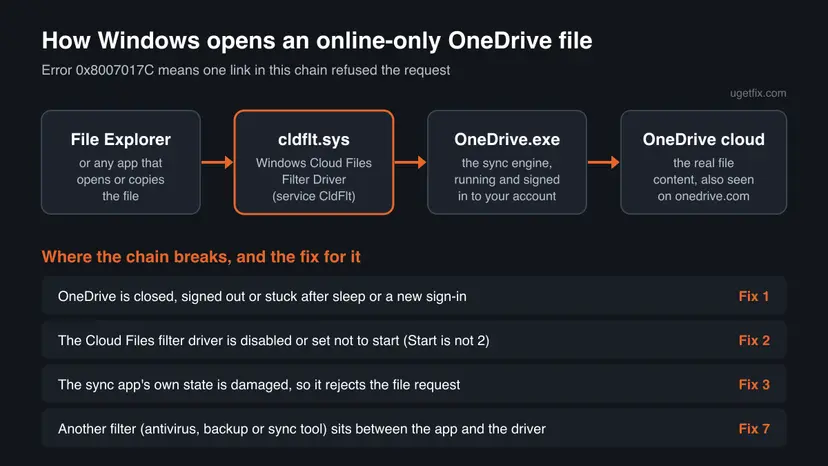
Since OneDrive build 23.066, Files On-Demand is on by default. Most files in your OneDrive folder are placeholders: about 1 KB on the disk that look like real files. When an app reads one, Windows has to fetch the content from the cloud first, which Microsoft calls hydration.
Microsoft's developer documentation names the part in the middle: a file system minifilter driver called cldflt.sys, which "acts as a proxy between the user's applications and your sync engine". For OneDrive the sync engine is OneDrive.exe. If either of them is missing, the request fails and Explorer shows 0x8007017C.
| Icon in File Explorer | State | Can it raise 0x8007017C? |
|---|---|---|
| Blue cloud | Online-only: nothing stored on the PC | Yes, this is where the error almost always appears. |
| Green check mark | Locally available: downloaded when you opened it | Rarely, when Windows has to talk to OneDrive about the file. |
| Green circle with a white check | Always available: you chose Always keep on this device | Very rarely: the content is already on the disk. |
What causes OneDrive error code 0x8007017C, most common first
Microsoft has no support article for 0x8007017C in OneDrive, so this ranking comes from Microsoft's documents on Files On-Demand and its sister code 0x8007016A, and from the cases on Microsoft Q&A and Windows forums we read on 14 October 2026.
| How often | Cause | Signs | Fix |
|---|---|---|---|
| Most often | OneDrive is not running, is signed out, paused or stuck | No cloud icon in the taskbar, a grey cloud, or the error right after sleep, an update or the first sign-in on a new PC | Fix 1 |
| Often | The Cloud Files filter driver is set not to start, so it is not loaded | Every online-only file fails, the error comes back after each restart, or Files On-Demand is missing in OneDrive settings | Fix 2 |
| Often | OneDrive's local sync state is damaged | OneDrive runs and the driver is loaded, but some files still fail | Fix 3, then Fix 5 |
| Less often | An outdated OneDrive or Windows build | Your OneDrive build is far below the one in Microsoft's release notes | Fix 6 |
| Less often | Antivirus, backup or another sync tool with an old file filter | The error started after installing or updating such a tool | Fix 7 |
| Rarely | A damaged OneDrive install or damaged Windows system files | All of the above fail | Fixes 8 and 9 |
For 0x8007016A ("The cloud file provider is not running"), Microsoft's own steps are: update Windows, turn Files On-Demand off, reset OneDrive, then turn Files On-Demand back on. Both codes belong to the same Windows family of cloud file errors, which is why Fixes 3, 5 and 6 follow the same idea.
How to fix OneDrive error 0x8007017C
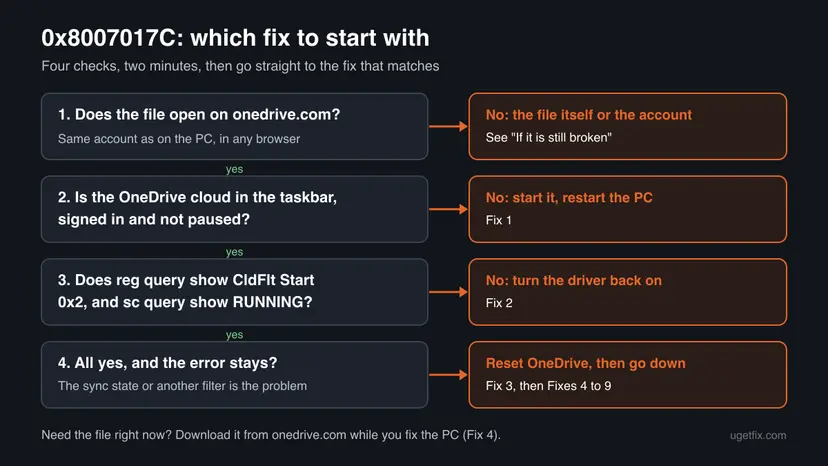
Fixes 1 to 3 solve most cases and take about ten minutes together. Fix 4 gets you the file today even if the PC is not fixed yet. Fixes 5 to 9 are for errors that survive a reset. Use the table to skip straight to your case.
| What you see or have | Start with |
|---|---|
| No OneDrive cloud in the taskbar, a grey cloud, or a sign-in prompt | Fix 1 |
| The error came after sleep, a Windows update or on a new PC | Fix 1, then Fix 2 |
| Every online-only file fails, and it comes back after each restart | Fix 2 |
| OneDrive runs normally, but some files still fail | Fix 3 |
| You need one file right now, for a deadline or a print | Fix 4 |
| The error started after installing antivirus, backup or another sync app | Fix 7 |
| The file does not open on onedrive.com either | The section "If OneDrive error 0x8007017C is still there" |
Fix 1. Make sure OneDrive is running and signed in, then restart the PC
2 to 5 minutesNo riskEveryone, first: it takes two minutes and fixes the most common cause.
An online-only file can only be fetched while OneDrive.exe runs under your account. After sleep, an update or a first sign-in the app may be closed or stuck, and a full restart also reloads the Cloud Files filter driver.
- Look for the OneDrive cloud in the notification area at the far right of the taskbar. If you do not see it, select the Show hidden icons arrow.
- If there is no cloud at all, select Start, type OneDrive and open the OneDrive desktop app.
- Select the cloud. If OneDrive asks you to sign in, sign in with the account that holds the files, personal or work or school.
- If the panel says syncing is paused, open the gear icon and resume syncing.
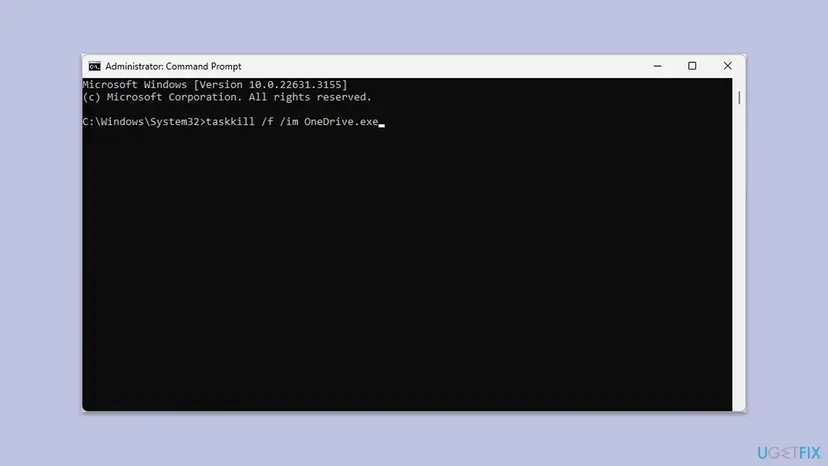
- If OneDrive does not respond at all, close it by force. Open Command Prompt, type the command below, press Enter, then start OneDrive again as in step 2.
taskkill /f /im OneDrive.exe - Restart Windows: select Start, then Power, then Restart. Do not use Shut down, which may keep part of the old session with Fast Startup.
- After you sign in, wait until the OneDrive cloud stops showing sync arrows, then open or copy the file again.
It worked if: The file downloads, its icon turns into a green check mark and it opens or copies without the dialog.
If not: If the error is back after the restart, or every cloud file fails, go to Fix 2. If OneDrive runs and only some files fail, go to Fix 3.
Fix 2. Turn the Windows Cloud Files filter driver (CldFlt) back on
5 minutes and a restartLow riskEvery online-only file fails, the error returns after each restart, or Files On-Demand is missing from OneDrive settings.
Microsoft's OneDrive admin documentation says Files On-Demand needs the "Windows Cloud Files Filter Driver" start type set to 2 (automatic). With any other value the driver is not loaded at startup, and Windows has nothing to pass the file request to.
Reading the value changes nothing. Setting it writes one value under HKLM\SYSTEM, which needs an administrator account. Back up the registry first: Back up the registry before editing it. Change only the value shown here. On a work or school PC, ask your IT department before you change it.
- Select Start, type cmd, right-click Command Prompt and select Run as administrator. Select Yes in the User Account Control box.
- Read the start value of the driver:
reg query HKLM\SYSTEM\CurrentControlSet\Services\CldFlt /v Start - Look at the line that starts with Start and REG_DWORD.
0x2is the value Microsoft documents. Any other number means the driver is not set to load with Windows. - Check that the driver is running now:
sc query cldflt - Look at the STATE line. If it says RUNNING and Start is
0x2, the driver is fine: go to Fix 3. - If Start is not
0x2, set it with this command (the same value Microsoft lists in its OneDrive policy documentation):reg add HKLM\SYSTEM\CurrentControlSet\Services\CldFlt /v Start /t REG_DWORD /d 2 /f - Restart the PC. A driver that starts automatically is loaded when Windows starts, so the new value only works after a restart.
- Run
sc query cldfltagain. The STATE line should now read RUNNING. Then open the file.
Microsoft does not say what turns this value off on a home PC. On Microsoft Q&A, an administrator of a managed Windows 11 25H2 fleet reported in May 2026 that the value kept changing from 2 to 4 (disabled) on one PC after another, and nobody could name the cause. If your value goes back after a restart, see Fix 7 and the section on what to send to support.
It worked if: reg query shows Start 0x2, sc query cldflt shows RUNNING after the restart, and online-only files open again.
If not: If the value was already correct and the driver runs, reset OneDrive (Fix 3). If the value changes back by itself, go to Fix 7.
Fix 3. Reset OneDrive with Microsoft's reset command
5 minutes, then a full syncLow riskOneDrive runs and the driver is loaded, but some or all cloud files still fail.
A reset rebuilds the local sync database. During a reset OneDrive deletes its DAT file and builds it again on the next start, so a damaged record about a file can no longer make OneDrive refuse the request for it.
Microsoft says plainly that you won't lose files or data by resetting OneDrive: it only disconnects the sync connections and then syncs everything again. Two things change: if you chose to sync only some folders, choose them again afterwards, and a large OneDrive can take hours to resync.
- Open the Run box. Press the Windows key and R at the same time.
- Reset the Microsoft Store cache. Type the command below and select OK. A blank Command Prompt window opens and closes, then the Microsoft Store opens. Close it. This is the first step in Microsoft's instructions. If OneDrive still does not sync, continue.
wsreset.exe - Run the OneDrive reset command. Press the Windows key and R again. Copy the command below, paste it into the box and select OK.
%localappdata%\Microsoft\OneDrive\onedrive.exe /reset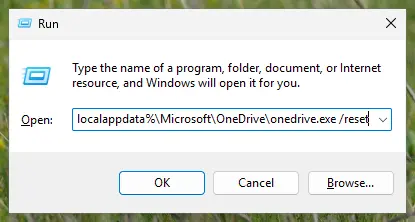
Type the reset command in the Run box and select OK. Screenshot: Windows 11 26H2. - If Windows cannot find it, try the second path. If you see a message that starts with Windows cannot find, open the Run box again and use this command instead.
C:\Program Files\Microsoft OneDrive\onedrive.exe /reset - If that fails too, try the third path. If you still see Windows cannot find, use this command. If none of the three works, the OneDrive sync app is not installed on this PC.
C:\Program Files (x86)\Microsoft OneDrive\onedrive.exe /reset - Start OneDrive again. Select Start, type OneDrive in the search box and select the OneDrive desktop app. OneDrive then starts a full sync.
These steps were written for Windows 11 25H2 and 26H2, Windows 10 22H2. The full page with the other versions and what each result means: How to reset OneDrive in Windows
If none of the three reset commands is found, the PC has no OneDrive sync app, only the Store app OneDrive by Microsoft Corporation, which shows your files but does not sync them. In that case install the sync app as in Fix 8.
It worked if: The OneDrive cloud disappears for a minute, comes back, syncs, and the file that failed downloads when you open it.
If not: If the same files still fail after the sync has finished, go to Fix 5. If you need the file now, use Fix 4 first.
Fix 4. Get the file now: keep it on the device or download it from onedrive.com
2 minutesNo riskYou need a file today and the PC is not fixed yet, or only a few files fail.
Pinning a file tells OneDrive to download it in the background instead of on the first read, which works around a request that fails at open time. The web download skips the PC's Cloud Files layer completely.
- In File Explorer, right-click the file or its folder and select Always keep on this device.
- Wait until the icon changes from the blue cloud to a green circle with a white check mark, then open or copy the file.
- For many files at once, open Command Prompt and pin the folder with the
attribcommand Microsoft documents for Files On-Demand. Put your own folder in the quotes.attrib +p "%UserProfile%\OneDrive\Documents" /s /d - If pinning fails with the same error, open onedrive.com in a browser and sign in with the same account.
- Select the file or files with their round check boxes and select Download. Several files arrive as one ZIP file.
- Save the copy outside your OneDrive folder, for example in Downloads, so OneDrive does not sync a second copy.
Later, to free the space again, right-click the folder and select Free up space, or run attrib +u on it. Microsoft notes that you must set an online-only file to "always available" first before it can become "locally available".
It worked if: The file opens from the green-circle copy on the PC, or from the copy you downloaded from onedrive.com.
If not: If the file does not open on onedrive.com either, the problem is the file or the account, not your PC: see "If OneDrive error 0x8007017C is still there".
Fix 5. Download all files for a while, then switch Files On-Demand back
10 minutes plus download timeRead the warningThe error survives a reset, and the disk has room for your whole OneDrive.
With Download all files every file is stored on the PC, so nothing has to be fetched on demand. It mirrors Microsoft's steps for 0x8007016A and its Work Folders workaround for 0x8007017C, which both turn on-demand access off.
All of your OneDrive is downloaded. If it is larger than the free space, the disk fills up and Windows and other apps can fail to save. Compare the storage used at the bottom of OneDrive Settings with the free space of drive C: in This PC first, and free up space if needed: Free up disk space and delete temporary files.
- Select the OneDrive cloud in the notification area, then the gear icon, then Settings.
- Open the Sync and back up tab and expand Advanced settings.
- Under Files On-Demand, select Download all files and confirm.
- Leave the PC on and connected until the download is finished.
- Open the files that failed before.
- When everything works, you can go back to Free up disk space in the same place to save space again.
It worked if: The download completes, the icons turn green and the files open without 0x8007017C.
If not: If the download itself stops with errors, update OneDrive and Windows (Fix 6) and check filters from other software (Fix 7).
Fix 6. Update the OneDrive app and Windows
10 minutesLow riskYour OneDrive build is older than the one in Microsoft's release notes, or Windows has pending updates.
The only 0x8007017C bug Microsoft has documented was in Windows itself: an API change in update KB4592449 broke Work Folders and was fixed by later updates. OneDrive release notes also list reliability fixes in almost every build.
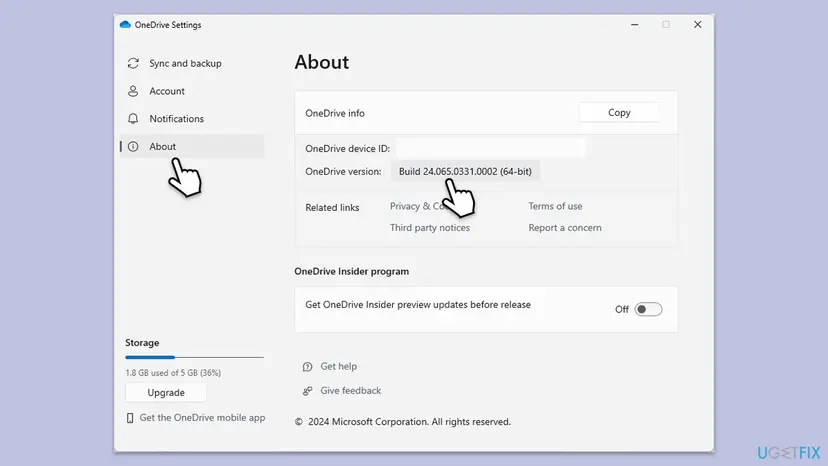
- Select the OneDrive cloud, the gear icon, then Settings, and open the About tab.
- Read the build next to OneDrive version, for example Build 26.178.0913.0007 (64-bit).
- Compare it with Microsoft's OneDrive release notes. On 14 October 2026 the Production ring was at 26.178.0913.0007, with 26.183.0920.0005 rolling out.
- If your build is lower, run the OneDrive installer that Microsoft's error code page points to. Press Win + R, paste this path, select OK and double-click OneDriveSetup.exe.
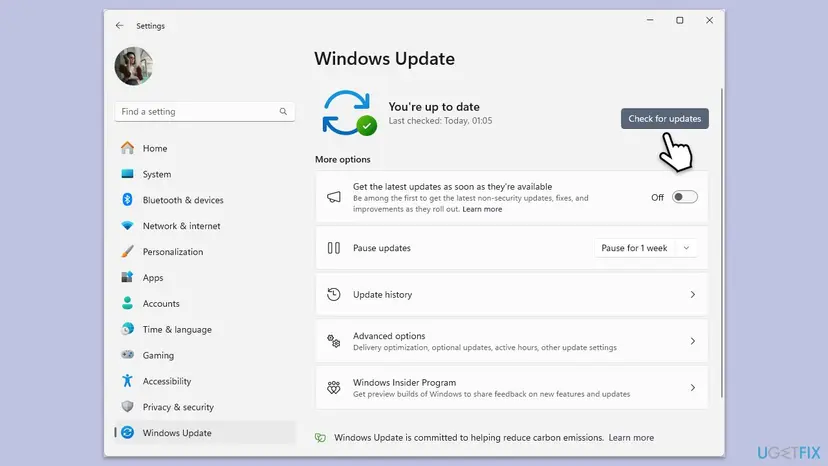
%localappdata%\Microsoft\OneDrive\update - Then open Settings > Windows Update and select Check for updates. Install what is offered, including optional quality updates, and restart.
Windows 10 reached the end of support on 14 October 2025. Microsoft's release notes say the OneDrive sync app needs Windows 10 22H2 or Windows 11 to get updates, and older Windows 10 versions stay on their current build after 15 August 2026.
It worked if: The About tab shows the current build, Windows Update says you are up to date, and the files open.
If not: If you are up to date and the error stays, go to Fix 7.
Fix 7. Rule out antivirus, backup and other sync software
15 minutesLow riskThe error began after you installed or updated antivirus, backup or another cloud sync app, or the CldFlt value keeps changing.
Microsoft says Files On-Demand "might not be compatible with some third-party antivirus solutions" and that legacy filters in some antivirus software can block the Files On-Demand service. Such a filter sits in the same file path as cldflt.sys.
- Open Settings > Apps > Installed apps and note every antivirus, backup, encryption and cloud sync app (Google Drive, Dropbox, Nextcloud and similar).
- Update each of them from inside the app or from the publisher's website. Microsoft's own advice for this conflict is to update the antivirus, because that updates its filter.
- Restart the PC and test the file again.
- If it still fails, pause the protection for one test only, open the file, then turn protection back on: Turn off Microsoft Defender protection for a moment. For a third-party antivirus, use its own pause option.
- To test everything at once, start Windows with only Microsoft services in a clean boot: How to perform a clean boot in Windows.
- If the file opens in the clean boot, turn the other apps back on in small groups until the error returns. The last group holds the conflicting app.
- Update, reconfigure or replace that app, then return Windows to a normal start.
Pausing the antivirus is a test, not a fix. Turn it back on right after the test, even if the file opened, and solve the conflict with an update or the publisher's support.
It worked if: The file opens in the test, you find the app that blocks it, and the error does not return once that app is updated.
If not: If the error happens even in a clean boot, the problem is in OneDrive or Windows itself: go to Fix 8.
Fix 8. Unlink, uninstall and reinstall the OneDrive app
15 minutes, then a full syncLow riskReset and updates did not help, or the reset commands are not found.
A reinstall replaces every OneDrive program file and sets up the sync connection from scratch. Microsoft states that uninstalling OneDrive does not lose data, because the files stay online.
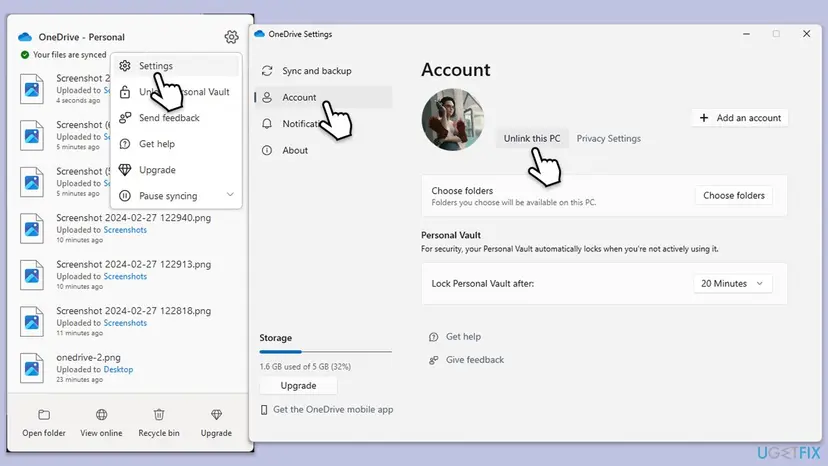
- Select the OneDrive cloud, the gear icon, then Settings, and open the Account tab.
- Select Unlink this PC, then Unlink account.
- Uninstall Microsoft OneDrive in Settings > Apps > Installed apps. Leave OneDrive by Microsoft Corporation (the Store app) alone. Step by step: Uninstall a program or app in Windows.
- Restart the PC.
- Download the OneDrive sync app from Microsoft's OneDrive download page (linked from Microsoft's Reinstall OneDrive article) and run it.
- Sign in, keep the same OneDrive folder location when asked, and wait for the sync to finish.
- If you synced only some folders before, choose them again in Settings > Account > Choose folders.
It worked if: OneDrive installs, signs in, syncs your folder again, and online-only files open on demand.
If not: If a fresh install still gives 0x8007017C, repair Windows system files (Fix 9).
Fix 9. Repair Windows system files with DISM and SFC
20 minutesLow riskEverything above failed, or sc query cldflt reports that the driver cannot start.
cldflt.sys is part of Windows, not of OneDrive, so reinstalling OneDrive cannot replace it. DISM and SFC check Windows' own files, the driver included, and restore damaged ones from a clean copy.
- Open an elevated command window. Right-click Start and select Terminal (Admin), or type cmd in the search box, right-click Command Prompt and select Run as administrator. Select Yes when Windows asks for permission.

Search for cmd and choose Run as administrator. Screenshot: Windows 11 26H2. - Run DISM first. Type the command below and press Enter. DISM downloads clean copies of damaged components from Windows Update, so it can take several minutes. Wait until it says The operation completed successfully.
DISM.exe /Online /Cleanup-Image /RestoreHealth
DISM /RestoreHealth running. Screenshot: Windows 11 26H2. - Run System File Checker. In the same window, type the command below and press Enter. Do not close the window until the verification reaches 100%.
sfc /scannow
sfc /scannow at 100%. Screenshot: Windows 11 26H2. - Read the result and restart. Compare the last message with the table below this guide, then restart the PC so that repaired files are loaded.

The result line tells you what SFC did. Screenshot: Windows 11 26H2.
These steps were written for Windows 11 24H2 and 25H2. The full page with the other versions and what each result means: Run DISM and SFC to repair Windows system files
After the scan, restart and run sc query cldflt once more. If SFC repaired files, test the OneDrive file again before you try anything bigger.
It worked if: SFC reports that it found and repaired files, or found no integrity violations, and after a restart the cloud files open.
If not: Read "If OneDrive error 0x8007017C is still there" for what to collect and when a Windows repair install makes sense.
0x8007017C in Work Folders, Nextcloud and other sync apps
Because the code comes from the Windows Cloud Files API, it is not limited to OneDrive. If you saw it in another app, the cause is usually that app's sync client, and the OneDrive steps above do not apply.
| App | What is known | What to do |
|---|---|---|
| Work Folders (Windows 10) | Microsoft: update KB4592449 of 8 December 2020 changed an API, so Work Folders with on-demand file access failed to sync with 0x8007017C. | Install a later update. Fixed by KB4601383 (1809), KB4601380 (1909) and KB4601382 (2004 and 20H2), all February 2021. Workaround: clear Enable on-demand file access in Control Panel > System and Security > Work Folders. |
| Nextcloud desktop | GitHub issue 6876: multiple 0x8007017C errors after updating to version 3.13.1, when opening virtual files. | Update the client; the issue links a code change in the client that removed an unneeded call. |
| SeaDrive | A forum report of 0x8007017C with SeaDrive 2.0.21. | Update SeaDrive and ask the vendor's support; we found no vendor statement. |
In every one of these cases the fix came from the sync app or a Windows update, not from settings on the PC. Check the vendor's release notes before you change anything else.
If OneDrive error 0x8007017C is still there
We found no Microsoft documentation of a log entry for this code, so the useful evidence is what you can check yourself. Collect these four facts before you contact support or your IT department:
- Does the file open on onedrive.com? If not, the problem is the file or the account. Check the recycle bin and version history online: Restore deleted or older files in OneDrive.
- The output of
reg query HKLM\SYSTEM\CurrentControlSet\Services\CldFlt /v Startandsc query cldflt, before and after a restart. A value that keeps changing back points to software or a policy that changes it. - Your OneDrive build from Settings > About, and your Windows version from
winver. - What changed just before: a new PC, a Windows update, a new antivirus, backup or sync app.
- Home users: in OneDrive, select the gear icon and Get help to reach Microsoft support from inside the app, and include the four facts.
- Work or school PC: contact your IT department. If CldFlt flips back to a disabled value on managed PCs, that is a fleet issue they must trace; you cannot fix it for good on your own.
- Last resort: one user on a Windows 11 forum reported that only a Windows reset from the cloud ended a 0x8007017C that returned after every restart. Back up first and prefer a repair install that keeps your files: Reinstall Windows without losing files.
How to keep 0x8007017C from coming back
- Keep Always keep on this device on the folders you need offline or at short notice.
- Let OneDrive start with Windows and stay signed in; check the cloud icon after major updates.
- Install Windows and OneDrive updates; OneDrive updates itself unless policy blocks it.
- Keep antivirus, backup and sync tools current, and run only one tool per job.
- Note the CldFlt start value when everything works, so you can compare later.
- Do not use "tweak" or "debloat" tools that disable services and drivers you do not recognise.
- Do not move online-only files out of OneDrive while it shows sync errors.
- Do not leave real-time protection off after a test.
- Do not switch to Download all files on a nearly full disk.
Debloat scripts are worth naming because CldFlt looks like an optional extra in a list of drivers. It is the part of Windows that makes Files On-Demand work, and turning it off breaks every online-only file at once.
Frequently asked questions
What does error 0x8007017C mean?
It means "The cloud operation is invalid": Windows asked a cloud sync app for a file and the request was refused. 0x8007 marks a Windows error in HRESULT form, and 017C is Windows error 380, ERROR_CLOUD_FILE_INVALID_REQUEST. With OneDrive it nearly always appears for online-only files, the ones with a blue cloud icon, when OneDrive or the Cloud Files filter driver is not working. Start with Fix 1.
Is error 0x8007017C dangerous, and will I lose my files?
No. The file content stays in OneDrive online, and you can check that by opening the file on onedrive.com. Microsoft says resetting or reinstalling OneDrive does not delete files or data. The error is not a sign of malware either. The only real risk is to act in a hurry: do not delete the OneDrive folder or files that will not open, because deleting an online-only file deletes it on all devices.
Why do I get error 0x8007017C on Windows 11?
The cause is the same on Windows 11 and Windows 10: the OneDrive app or the Windows Cloud Files filter driver did not answer a request for an online-only file. On Windows 11 it is often seen right after the first sign-in on a new PC, when OneDrive is still setting up, or after an update. Since OneDrive build 23.066 Files On-Demand is on by default, so most files are online-only and the error is more visible.
Why can I open some OneDrive files but not others?
Files you opened recently are already on the disk, so they open without asking OneDrive for anything. Files with the blue cloud icon have to be downloaded at the moment you open them, and that is the request that fails. If only one file type fails, such as .exe files, users report that a restart fixed it; if not, an antivirus that checks program files on access is a likely suspect (Fix 7).
Why does 0x8007017C come back after every restart?
Something resets the setup each time Windows starts. Check the CldFlt start value (Fix 2) before and after a restart. If it changes from 2 to another value, a tool or a policy changes it, often a tuning or security tool, or company management on a work PC. If the value stays at 2, a startup app is the more likely trigger: use the clean boot test in Fix 7 to find it.
Can I just turn off Files On-Demand to avoid the error?
Yes, as long as the disk has room. In OneDrive Settings > Sync and back up > Advanced settings, choose Download all files. Every file is then stored on the PC and nothing is fetched on demand, so this error has nothing to fail on. The cost is disk space equal to your whole OneDrive. Fix 5 explains how to do it safely and how to switch back.
What is the difference between 0x8007017C, 0x8007016A, 0x8007017D and 0x8007017E?
They are neighbours in the same family of Windows cloud file errors. In the Windows SDK, 0x16A (362) is "cloud file provider not running", 0x17C (380) is "invalid request", 0x17D (381) is "read-only volume" and 0x17E (382) is "connected provider only". Microsoft documents 0x8007016A for OneDrive with steps similar to Fixes 3, 5 and 6 here. A different code points to a different cause, so read the code before you pick a fix.
Is "erro", "errore", "erreur" or "Fehler" 0x8007017C the same error?
Yes. Those are the Portuguese, Italian, French and German words for "error" in the same Windows message, and the code means exactly the same in every language version of Windows. The menu names in the steps above are translated in those versions, but their place is the same: OneDrive settings under the cloud icon, Command Prompt under Start. The commands in the code boxes work unchanged in every language.
Does 0x8007017C happen with Work Folders or Nextcloud too?
Yes, because those apps use the same Windows Cloud Files API. Microsoft documented a Work Folders case caused by update KB4592449 in December 2020 and fixed it in the February 2021 updates. Nextcloud users reported the code after desktop client 3.13.1, and it was handled in the client. For those apps, update the client and Windows first; the OneDrive reset does not apply to them.
Do I need a repair tool or a registry cleaner to fix 0x8007017C?
No. Every fix on this page uses tools built into Windows and OneDrive: a restart, two commands to check the driver, OneDrive's own reset, Windows Update and DISM with SFC. A registry cleaner cannot set the one value that matters here any better than the reg add command in Fix 2, and an aggressive one can do harm by removing entries other programs need.
Sources
- Microsoft Support: 0x8007017C error when Work Folders syncs files in Windows 10 (support.microsoft.com)
- Microsoft Support: What do the OneDrive error codes mean? (0x8007016a, Couldn't start Files on Demand) (support.microsoft.com)
- Microsoft Support: Save disk space with OneDrive Files On-Demand for Windows (support.microsoft.com)
Did this fix work?
One click, no account. It tells the next reader which guides are worth their time.
Questions and experiences: fix OneDrive error 0x8007017C in Windows
Still broken, or found a fix we did not cover? Ask here: members and our editors answer. Reading is open; writing needs a free account.
…