
How to fix OneDrive error code 0x8004e4bf in Windows?

Prefer to fix it yourself? The manual steps follow.
- 7methods
- 5 to 30 minutes, plus the wait for your IT department
- Easy
Applies to The OneDrive sync app on Windows 11 and Windows 10, mostly with a work or school account, sometimes with a personal Microsoft account
7 methods in this guide
Hi, I'm running Windows 11 and recently started having issues with OneDrive. Every time I try to sign in, I get a message saying that OneDrive can't connect, with error code 0x8004e4bf. I've restarted my PC and checked my internet connection, which is working fine, but nothing seems to help. I haven't changed anything in my Microsoft account, and this just started happening after a recent Windows update.
OneDrive error code 0x8004e4bf appears with You don't have access to this service. For help, contact your IT department. It means a sign-in rule refused the account, usually a Conditional Access policy of a work or school organisation, not a broken PC. Check the account on onedrive.com first, then send the error details to whoever manages the account.
0x8004e4bf is an access block, not a network fault. Sign in at onedrive.com with the same account (Fix 1): the web page shows the full reason. With a work or school account, send the Correlation ID and Timestamp from the error to your IT department (Fix 2), because only an administrator can change the policy. If you are the only admin, read the sign-in log yourself (Fix 3).
| Error | 0x8004e4bf under There was a problem connecting to OneDrive and You don't have access to this service. For help, contact your IT department. Microsoft Q&A users also report Access denied for the resource. |
|---|---|
| Where it appears | In the Microsoft OneDrive sign-in window when the sync app starts or when you add an account. The browser sign-in can show the same block with more detail. |
| Main cause | A Conditional Access policy in Microsoft Entra ID that blocks this sign-in: untrusted location, a device that does not meet the rules, or a failed multi-factor check. |
| Fastest fix | Copy the Correlation ID and Timestamp from the error and send them to your IT admin (Fix 2). They can see the exact policy in the sign-in log. |
| Also written as | 8004e4bf, error code 0x8004e4bf, one drive error code 0x8004e4bf, onedrive error 0x8004e4bf, OneDrive 0x8004E4BF. |
| Affects | Windows 11 and Windows 10. Mostly work or school accounts in Microsoft 365, including one-person business tenants. Reports with personal accounts exist too. |
| Vendor status | Not an app bug. A Microsoft moderator on Microsoft Q&A tied the code to an organisational security policy. No OneDrive version fixes it. |
| Your files | Safe. The block stops the sign-in, not the storage. Files already on the PC stay there. |
| Time to fix | 5 minutes on your side. Lifting the block depends on your IT department. |
Facts checked on 15 October 2026. Steps written for Windows 11 (25H2 and 26H2) and Windows 10 22H2 with the current OneDrive sync app.
What OneDrive error code 0x8004e4bf means
Error code 0x8004e4bf means the sign-in service refused this account for OneDrive. The OneDrive app reached Microsoft, asked for access and got a clear no. That is why the message tells you to contact your IT department and not to check your connection.
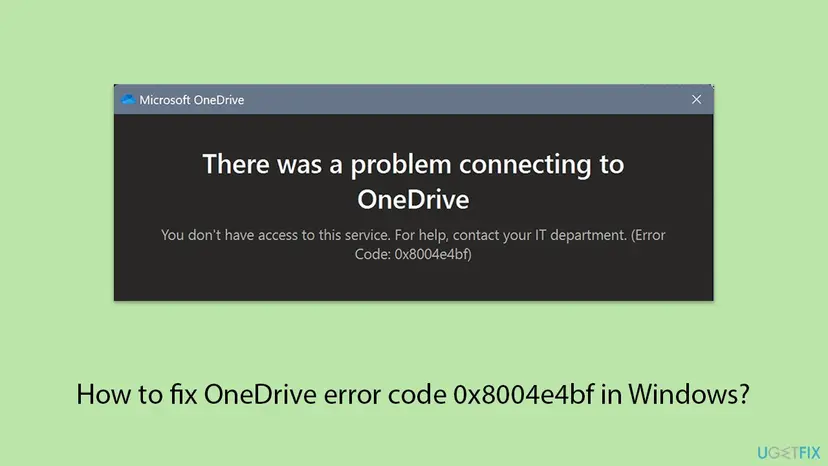
- The usual form: a Microsoft OneDrive window that says There was a problem connecting to OneDrive and You don't have access to this service. For help, contact your IT department. (Error Code: 0x8004e4bf).
- With details: some sign-in windows add Access denied for the resource and a details block with Correlation ID and Timestamp. Those two lines are what your administrator needs.
- Spellings people search: 0x8004e4bf, 8004e4bf, error code 0x8004e4bf, one drive error code 0x8004e4bf and onedrive error 0x8004e4bf. All of them are this error.
Many pages, including an older version of this one, treat 0x8004e4bf as a connection problem and suggest Winsock resets, TLS settings and the network troubleshooter. The error text says the opposite: OneDrive connected and was refused. Network repairs cannot lift an access block.
Why OneDrive shows 0x8004e4bf: the causes, most common first
A Microsoft moderator on Microsoft Q&A explained the code with the full message: the sign-in is blocked on purpose by a security policy, almost always a Conditional Access policy in Microsoft Entra ID (formerly Azure Active Directory). Microsoft's Conditional Access guide lists the matching block reasons an administrator sees in the sign-in log.
| How often | Cause | Typical sign | Fix |
|---|---|---|---|
| Most often | A Conditional Access policy blocks the sign-in from this place or this device. | Work or school account. The message names the IT department. | Fix 2 or Fix 3 |
| Often | A multi-factor check did not complete. | No Authenticator prompt arrives, or the phone code fails. | Fix 4 |
| Sometimes | You sign in from a network or country the organisation does not trust. | It works in the office and fails at home, on a VPN or abroad. | Fix 4 |
| Sometimes | The PC does not meet the organisation's device rules. | It works on a company laptop and fails on your own PC. | Fix 2 |
| Rarely | The OneDrive app keeps an old or wrong sign-in. | onedrive.com works with the same account, only this PC fails. | Fix 5 to Fix 7 |
| Rarely | A personal account cannot pass its own security check. | Personal account, the phone or email code does not work. | Fix 1 |
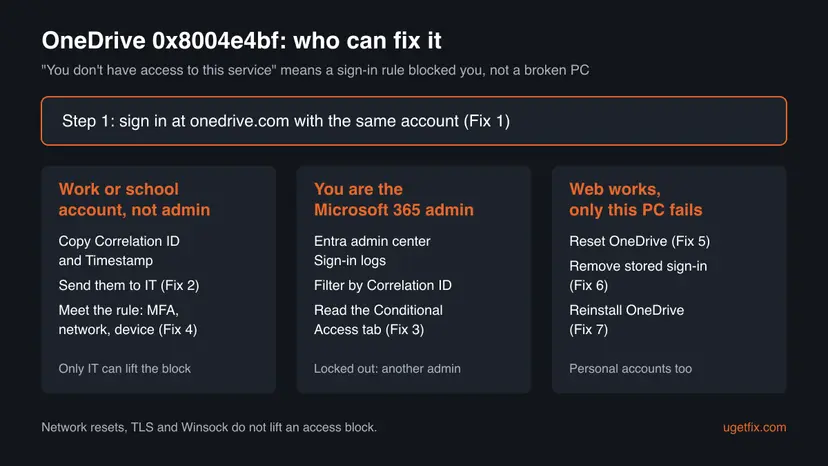
The person who asked the question above blamed a Windows update. An update can coincide with the error, for example when a policy starts to require a newer or managed device, but no source ties the code to a specific update. Treat the update as timing, not as the cause.
How to fix OneDrive error code 0x8004e4bf
Fix 1 tells you which kind of problem you have. Fixes 2 to 4 deal with the access block, which is the usual case. Fixes 5 to 7 are for the rarer case where the account works everywhere except in the OneDrive app on this PC.
| What you see or what happened | Start with |
|---|---|
| You do not know yet whether the account itself is blocked. | Fix 1 |
| Work or school account, the message names your IT department. | Fix 2 |
| You own the Microsoft 365 business account and are its only admin. | Fix 3 |
| No Authenticator prompt, or it works only on the office network. | Fix 4 |
| onedrive.com and the mobile app work, only the PCs fail. | Fix 5 |
| Personal account and the security code never arrives. | Fix 1, then Microsoft's account recovery |
Fix 1. Sign in on onedrive.com to see the full reason
3 minutesNo riskEvery reader, with a work, school or personal account, before any other fix.
Microsoft's Conditional Access guide says a browser sign-in usually shows a detailed error page that often names the problem, while the OneDrive app shows only the short message. The web test also splits an account block from a PC problem.
- Open a browser and go to
onedrive.com. Select Sign in. - Type the same address you use in the OneDrive app. Check that it is the right kind: a company or school address, or a personal outlook.com, hotmail.com or live.com address.
- If a block page appears, read it in full. Messages such as a compliant device being required tell you exactly which rule failed.
- Select More details on the error page if it is there. Copy the lines it shows, including the Correlation ID and the time.
- If the web sign-in works and you see your files, note it. The block then hits only the desktop app or this PC.
It worked if: Either a block page with a reason, or a working sign-in on the web. Both tell you where to go next.
If not: A block page on a work or school account: go to Fix 2, or Fix 3 if you are the admin. Web works: go to Fix 5. A personal account that fails its security check: use Microsoft's account recovery form.
Fix 2. Send the Correlation ID and Timestamp to your IT department
5 minutes, then the waitNo riskWork or school accounts where you are not an administrator.
The moderator's answer on Microsoft Q&A is direct: you do not have the permissions to change these security policies. With the Correlation ID and Timestamp an administrator can find your exact sign-in attempt and the policy that blocked it.
- In the OneDrive error window, look for the details block. Copy the Correlation ID and the Timestamp lines exactly.
- If the window shows no details, take the same lines from the browser block page of Fix 1.
- Note what is different from a normal day: your location, a VPN, a new or personal PC, a new phone for the Authenticator app.
- Send all of this to your help desk with the error code 0x8004e4bf.
- Wait for their answer before you reset or reinstall anything. A reset does not change a policy.
The Microsoft moderator pointed to Microsoft's support article How do I find my Microsoft 365 admin? It explains where to see the admin's contact in your account. In a small business it is often the person who bought the subscription.
It worked if: Your IT department finds the blocking policy, changes it or tells you which condition to meet, and OneDrive signs in.
If not: If IT asks you to meet a condition (MFA, a trusted network, a managed device), do Fix 4. If you are the admin, go to Fix 3.
Fix 3. If you are the admin: find the blocking policy in the Entra sign-in logs
15 minutesRead the warningYou run the Microsoft 365 business account yourself, for example a one-person company.
A Microsoft Q&A user with a one-person business account had exactly this case. Microsoft's Conditional Access guide shows how to find the failed sign-in by its Correlation ID and see which policy interrupted it, and why.
A careless change to Conditional Access can lock everyone out, including you. Microsoft warns against policies that Block access for all users and all resources. Note the current settings of a policy before you edit it, so you can put them back.
- Sign in to the Microsoft Entra admin center at
entra.microsoft.comwith an admin account (at least Reports Reader to view). - Go to Entra ID > Monitoring & health > Sign-in logs.
- Add the filter Correlation ID and paste the ID from the OneDrive error. Or filter by Username and Date.
- Open the failed sign-in and select the Conditional Access tab. It names the policy or policies that interrupted it.
- Read the Troubleshooting and support tab. It often gives the plain reason, such as a device that is not compliant.
- Select the Policy Name to open the policy. Exclude the case you need, or fix the condition, and save.
- Ask OneDrive to sign in again on the PC.
| Code in the sign-in log | What Microsoft calls it |
|---|---|
53000 | DeviceNotCompliant |
53001 | DeviceNotDomainJoined |
53002 | ApplicationUsedIsNotAnApprovedApp |
53003 | BlockedByConditionalAccess |
53004 | ProofUpBlockedDueToRisk |
It worked if: The sign-in log shows the policy that blocked the attempt, and after the change OneDrive signs in.
If not: If no admin can sign in because a policy locks everyone out, Microsoft says to ask another admin who is not blocked, or to open a support request with Microsoft, which can change the policy after it confirms ownership.
Fix 4. Meet the sign-in rule: finish the multi-factor check and use a trusted network
10 minutesLow riskIT told you which condition failed, or no Authenticator prompt arrives, or it works only in the office.
The moderator listed three usual block reasons: an unrecognised location, a device that does not meet the rules, and a multi-factor requirement that fails. The first and the last are often in your own hands.
- Restart both the PC and the phone with the Microsoft Authenticator app. This is the first step the Microsoft moderator gave for a missing prompt.
- On the phone, make sure the internet works and Bluetooth is on, then open Microsoft Authenticator.
- Start the OneDrive sign-in again and approve the request in Authenticator, or type the number it shows.
- If you use a VPN, disconnect it and try again. A VPN can make you look like you are in another country.
- If the rule needs the office network or a company device, sign in from there, or ask IT how to register your PC.
One Microsoft Q&A user turned off multi-factor sign-in and the error stayed. Removing a security check does not lift a Conditional Access block, and it leaves the account weaker. Keep MFA on.
It worked if: The Authenticator prompt arrives, you approve it, and OneDrive finishes the sign-in.
If not: If the prompt never arrives after this, send the details to IT (Fix 2). If the web works and only the PC app fails, go to Fix 5.
Fix 5. Reset OneDrive and sign in again
5 minutes, then a full syncLow riskonedrive.com and the mobile app work with the same account, or IT already lifted the block and the app still shows the old error.
After the account is allowed again, the OneDrive app can still hold its last failed sign-in. A reset clears OneDrive's settings and disconnects its sync connections, so the next start asks for the account from zero.
- Open the Run box. Press the Windows key and R at the same time.
- Reset the Microsoft Store cache. Type the command below and select OK. A blank Command Prompt window opens and closes, then the Microsoft Store opens. Close it. This is the first step in Microsoft's instructions. If OneDrive still does not sync, continue.
wsreset.exe - Run the OneDrive reset command. Press the Windows key and R again. Copy the command below, paste it into the box and select OK.
%localappdata%\Microsoft\OneDrive\onedrive.exe /reset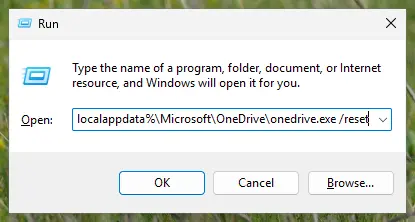
Type the reset command in the Run box and select OK. Screenshot: Windows 11 26H2. - If Windows cannot find it, try the second path. If you see a message that starts with Windows cannot find, open the Run box again and use this command instead.
C:\Program Files\Microsoft OneDrive\onedrive.exe /reset - If that fails too, try the third path. If you still see Windows cannot find, use this command. If none of the three works, the OneDrive sync app is not installed on this PC.
C:\Program Files (x86)\Microsoft OneDrive\onedrive.exe /reset - Start OneDrive again. Select Start, type OneDrive in the search box and select the OneDrive desktop app. OneDrive then starts a full sync.
These steps were written for Windows 11 25H2 and 26H2, Windows 10 22H2. The full page with the other versions and what each result means: How to reset OneDrive in Windows
When the Set up OneDrive window appears, type the same address that worked on onedrive.com. If you synced only some folders, choose them again: the reset forgets that choice.
It worked if: OneDrive asks for your address, accepts the sign-in and starts to sync without the 0x8004e4bf window.
If not: If the old error comes back at once, go to Fix 6.
Fix 6. Remove the stored OneDrive sign-in from Credential Manager
10 minutesLow riskThe reset did not help, or OneDrive keeps signing in with an old or wrong account.
Windows keeps saved sign-ins for apps in Credential Manager. If OneDrive picks up an old entry, perhaps an account that has no access, it repeats the refused sign-in. Removing the OneDrive entries forces a fresh one.
- Quit OneDrive: select the OneDrive cloud icon, the gear Help & Settings, then Pause syncing > Quit OneDrive. If only the error window is open, close it.
- Select Start, type Credential Manager and open it. Select Windows Credentials.
- Under Generic Credentials, expand each entry whose name contains OneDrive and select Remove. Leave other entries alone.
- Restart the PC.
- Open OneDrive from Start and sign in with the account that works on onedrive.com.
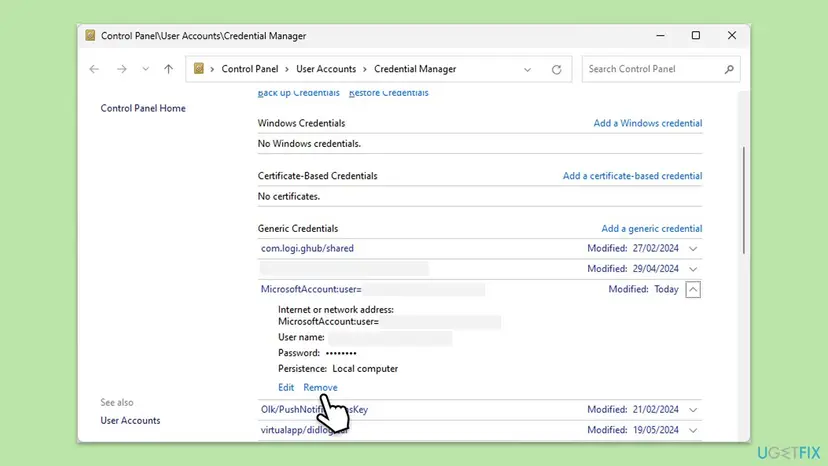
We could not find a Microsoft page that lists the exact names of OneDrive's entries in Credential Manager. Removing only entries with OneDrive in the name keeps the sign-ins of your other apps.
It worked if: OneDrive asks for the account again and signs in with the one you type.
If not: Go to Fix 7 for a clean reinstall.
Fix 7. Reinstall OneDrive and install the current version
20 minutesLow riskThe account works on the web, Fixes 5 and 6 did nothing, or OneDrive will not open.
A Microsoft Q&A user with this code reported that a reinstall brought the sign-in screen back. A new installation drops whatever the old app kept, so the next sign-in reaches the service with a clean state.
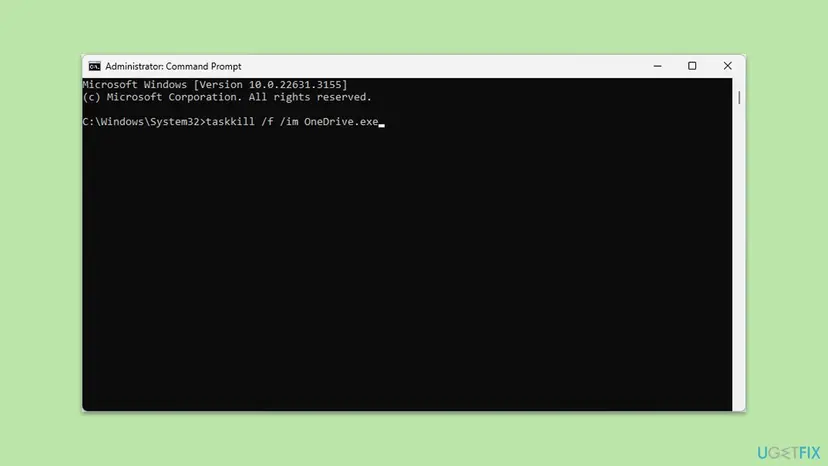
- Right-click Start and select Terminal (Admin) on Windows 11 or Command Prompt (Admin) on Windows 10. Select Yes.
- Type the command below and press Enter to stop every OneDrive process.
taskkill /f /im OneDrive.exe - Select Start > Settings > Apps > Installed apps (on Windows 10: Apps & features). Find Microsoft OneDrive, select the three dots and Uninstall.
- Restart the PC.
- Download OneDrive from Microsoft's OneDrive download page, run the file and sign in.
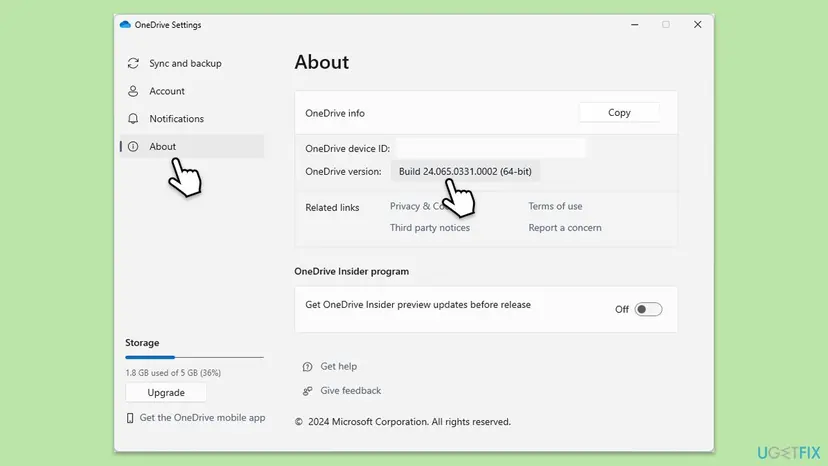
- Open the gear Help & Settings > Settings > About and note the OneDrive version.
Other ways to uninstall, and what to do when the uninstaller fails: Uninstall a program or app in Windows
It worked if: The new OneDrive asks for your account and signs in without the error.
If not: If the same message returns, the block is on the account side after all. Collect the details below and send them to IT or Microsoft.
If OneDrive still shows 0x8004e4bf: what to collect and who can help
Nobody can do much with 0x8004e4bf alone. The administrator's sign-in log holds the real reason, and the details below let them find it in a minute.
- Correlation ID and Timestamp: from the details block of the OneDrive window or the browser block page. Microsoft's guide uses them to find the exact sign-in.
- The account type: work or school, or personal, and whether onedrive.com works in a browser.
- Where you were: office, home, a VPN, another country.
- Which device: a company PC or your own, and whether it worked on this PC before.
- What changed: a new phone for Authenticator, a new PC, a password change, a Windows update.
Work or school account: your IT department or help desk, because only an administrator can see and change Conditional Access policies. Admin locked out: another admin, or a support request to Microsoft. Personal account that cannot pass its own verification: Microsoft's account recovery form.
Are your OneDrive files safe while 0x8004e4bf blocks the sign-in?
Yes. The block stops the sign-in, not the storage. Files that synced before stay in the OneDrive folder on the PC, and the cloud copy stays in the account. A reset or a reinstall of the OneDrive app does not delete files either.
- Files you change while blocked stay on the PC and upload when the sign-in works again.
- Online-only files, the ones with a cloud icon in File Explorer, cannot open until OneDrive runs. Open them on onedrive.com if the web sign-in works.
- On a company account, the policy may also block the web. Then only IT can give you access to the files.
How to keep 0x8004e4bf from coming back
The error returns whenever a sign-in falls outside the rules of the organisation. Most of those cases can be planned.
- Ask IT before you work from a new country, a new PC or through a VPN.
- Move Microsoft Authenticator to a new phone before you reset the old one.
- Keep the phone number and backup email of the account up to date.
- Let OneDrive and Windows update themselves.
- Do not switch off multi-factor sign-in to get past a block.
- Do not run network resets for this code: they do not touch the cause.
- Do not delete random entries in Credential Manager.
- Do not create a broad Block access policy for all users as an admin.
Frequently asked questions
What does error code 0x8004e4bf mean?
It means the sign-in service refused the account for OneDrive. The message is You don't have access to this service. For help, contact your IT department. A Microsoft moderator on Microsoft Q&A explained it as a deliberate block by an organisational security policy, almost always a Conditional Access policy in Microsoft Entra ID. It is not a wrong password and not a fault of the OneDrive app. The fix is to find out which rule blocked you and either meet it or have an administrator change it.
Is OneDrive error 0x8004e4bf caused by my internet connection?
No. The error appears after OneDrive has reached Microsoft and been refused, so the connection works. Network fixes such as netsh winsock reset, TLS settings in Internet Options and the network troubleshooter do not change an access decision. The one network detail that can matter is location: a VPN or a trip abroad can make the sign-in come from a place the organisation does not trust. Disconnect the VPN and try again, as in Fix 4.
I own a one-person business account. Who is my IT department?
You are. A Microsoft Q&A user asked exactly this after the error appeared on a standalone business account. As the administrator you can open the Microsoft Entra admin center, go to the sign-in logs, filter by the Correlation ID from the error and read the Conditional Access tab, as described in Fix 3. If a policy locks you out of the admin center as well, Microsoft says to open a support request, and its support can change the policy.
Why does OneDrive work on my phone and in the browser but not on my PC?
A Microsoft Q&A user reported exactly that: the account worked on mobile and on the web but failed on three PCs. Conditional Access policies can apply to some apps or device platforms and not others, so the Windows sync app may be blocked while the browser is allowed. It can also be a stale sign-in in the app. Ask IT whether a policy covers the desktop app, then reset OneDrive (Fix 5) once that is cleared.
The Authenticator prompt never arrives. What can I do?
Restart both the PC and the phone, check that the phone is online and Bluetooth is on, then open Microsoft Authenticator and approve the request again. Those are the steps a Microsoft moderator gave for this case. If the prompt still does not arrive, the account may not be set up for your current phone. On a work account, IT can reset your sign-in methods. On a personal account, use Microsoft's account recovery form.
Will I lose my files if I reset or reinstall OneDrive?
No. A reset clears the OneDrive app's settings and makes it sync again, and an uninstall removes the program, not your files. Files already on the PC stay in the OneDrive folder, and the cloud copy stays in the account. If you synced only some folders, choose them again after the reset. Be aware that neither step lifts a policy block, so do them only when the web sign-in works or IT has cleared the account.
Can I fix 0x8004e4bf without an administrator?
Only when the block depends on something you control: finishing the multi-factor check, signing in without a VPN, or using a device the organisation accepts. If the policy itself blocks you, only an administrator can change it. The Microsoft moderator's answer says the same: you do not have the permissions to change these policies yourself. Send the Correlation ID and Timestamp so IT can act quickly.
What about OneDrive error 0x8004e4f6?
This page is about 0x8004e4bf. We found no Microsoft description of 0x8004e4f6 in the sources we read, so we cannot say what it means. It belongs to the same family of OneDrive sign-in codes. If it appears with a message about access or your IT department, follow Fixes 1 and 2 here. If it appears with a sign-in failure and no access message, the OneDrive error 0x8004e4be guide is a better start.
Is error code 0x8004e4be the same as 0x8004e4bf?
No. The codes differ by one character and belong to the same family, but they report different failures. 0x8004e4be appears with There was a problem signing you in. It usually means the sign-in state on the PC is damaged, which a reset or a repair of the Windows sign-in parts fixes. 0x8004e4bf says You don't have access to this service, which is an access decision. Our 0x8004e4be guide covers that error.
What is OneDrive error code 4?
We found no Microsoft description of a OneDrive error code 4. Searches for one drive error code 4 often seem to be a shortened form of a longer code such as 0x8004e4bf, typed from memory. Look at the full message in the OneDrive window. If it says You don't have access to this service, use this page. If the code is different, search for it in full, because each OneDrive code points to a different cause.
Sources
- Microsoft Learn: Troubleshoot sign-in problems with Conditional Access (learn.microsoft.com)
- Microsoft Q&A: Unable to sign in to OneDrive, error code 0x8004e4bf (moderator answer) (learn.microsoft.com)
- Microsoft Q&A: Onedrive 0x8004e4bf, unable to login to my account (user reports) (learn.microsoft.com)
Did this fix work?
One click, no account. It tells the next reader which guides are worth their time.
Questions and experiences: fix OneDrive error code 0x8004e4bf in Windows
Still broken, or found a fix we did not cover? Ask here: members and our editors answer. Reading is open; writing needs a free account.
…