
How to fix OneDrive error code 0x8004e4be in Windows?

Prefer to fix it yourself? The manual steps follow.
- 8methods
- 5 to 30 minutes
- Intermediate
Applies to The OneDrive sync app on Windows 11 and Windows 10, with a personal Microsoft account or a work or school account
8 methods in this guide
How can I fix the 0x8004e4be error in OneDrive? It appears every time I try to log in to OneDrive. This happened out of nowhere. I used OneDrive with no problems for years before. Could you help me with this?
OneDrive error code 0x8004e4be appears when the OneDrive app on your PC cannot finish signing you in, usually with the message There was a problem signing you in. Your account and your files are fine in almost every case: the broken part is the sign-in state stored on this PC. Reset OneDrive first, then repair the Windows sign-in components if the error returns.
First open onedrive.com in a browser. If you can sign in there, the account is fine and the fault is on this PC. Reset the OneDrive app with Microsoft's /reset command and sign in again (Fix 1). If the error comes back, or a work account shows Something went wrong [1001], re-register the Windows sign-in packages with Microsoft's PowerShell commands (Fix 2). After a BIOS update or a TPM warning, go to Fix 5.
| Error | 0x8004e4be in the OneDrive sign-in window, under There was a problem signing you in and Please try again in a few minutes. Work accounts can see Something went wrong [1001] with the same code. |
|---|---|
| Where it appears | When the OneDrive sync app on Windows starts, asks you to sign in, or tries to add an account. The web version on onedrive.com usually still works. |
| Main cause | The sign-in state on this PC: OneDrive's own stored sign-in, or the Windows account broker that hands OneDrive its token. Less often the TPM chip that protects those tokens. |
| Fastest fix | Reset OneDrive with %localappdata%\Microsoft\OneDrive\onedrive.exe /reset, start it and sign in again (Fix 1). |
| Also written as | 8004e4be, error code: 0x8004e4be, OneDrive login error 0x8004e4be, OneDrive sign in error 0x8004e4be. |
| Affects | Windows 11 and Windows 10, personal and work or school accounts. User reports on Microsoft Q&A date from 2023 and 2024, a Framework forum report from 2025. |
| Vendor status | Not listed on Microsoft's page of OneDrive error codes (read 14 October 2026). No fixed OneDrive version is named anywhere by Microsoft. |
| Your files | Safe. Microsoft says you do not lose files by resetting, unlinking or uninstalling OneDrive. |
| Time to fix | 5 minutes for Fix 1 and Fix 2, up to 30 minutes for a clean reinstall. |
Facts checked on 14 October 2026. Steps written for Windows 11 (25H2 and 26H2) and Windows 10 22H2 with the current OneDrive sync app.
What OneDrive error code 0x8004e4be means
Error code 0x8004e4be is OneDrive's own code for a failed sign-in in the desktop app. The app asked Windows for a valid sign-in token, did not get one it could use, and stopped. The code itself says nothing more: Microsoft does not list it on its official page of OneDrive error codes, so the text around it and what happened just before are your real clues.
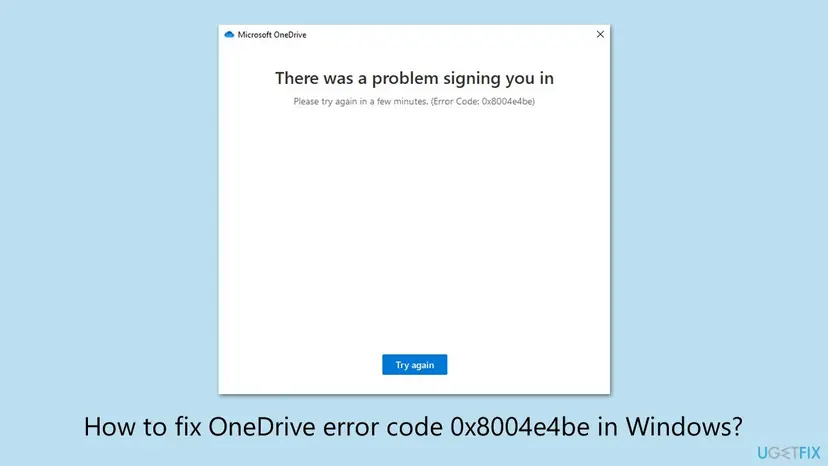
- The usual form: a Microsoft OneDrive window that says There was a problem signing you in and Please try again in a few minutes. (Error Code: 0x8004e4be).
- Work or school accounts: users on Microsoft Q&A report Something went wrong [1001] followed by error code: 0x8004e4be right after they type their company address.
- Repeat sign-in prompts: OneDrive acts as if no account is set up after every restart, and adding the account fails with the same code.
- Spellings people search: 0x8004e4be, 8004e4be, error code: 0x8004e4be and, with a typo, ox8004e4be. All of them are the same error.
Some sign-in windows show a details block under the message, with the lines Correlation Id, Timestamp, DPTI, Error Tag and Error Code. That second Error Code is a standard Windows code and is far more useful than 0x8004e4be. The table shows the ones that users have posted with this error and what Microsoft's own error lists say they mean.
| Second code in the details | What Windows says it means | Start with |
|---|---|---|
-2147221231 (0x80040111, CLASS_E_CLASSNOTAVAILABLE) | "ClassFactory cannot supply requested class": a Windows component that OneDrive called was not available. | Fix 2 |
1067 (ERROR_PROCESS_ABORTED) | "The process terminated unexpectedly": a helper process of the sign-in ended. | Fix 2, then Fix 3 |
80090016 or Keyset does not exist | The keys the sign-in expects are not in the TPM chip. Dell ties it to a replaced system board. | Fix 5 |
| No details at all | Nothing more to read. Use the chooser below. | Fix 1 |
Why OneDrive shows 0x8004e4be: the causes, most common first
OneDrive does not sign you in by itself. It asks Windows, and Windows asks its account broker (Web Account Manager) for a token, which is protected on many PCs by the TPM chip. A break anywhere in that chain ends in 0x8004e4be. The order below follows what fixed the error in the reports on Microsoft Q&A and what Microsoft and Dell document.
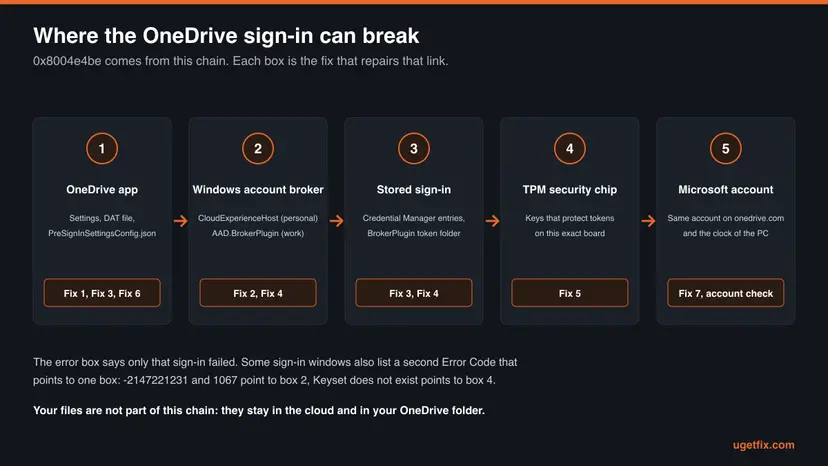
| How often | Cause | Typical sign | Fix |
|---|---|---|---|
| Most often | OneDrive's own sign-in state is damaged. | Personal account, came out of nowhere, onedrive.com works. | Fix 1 |
| Often | A Windows account broker package is missing or broken. | Work account with [1001], or details code -2147221231. | Fix 2 |
| Often | An old stored sign-in keeps coming back. | Sign-in works after a reinstall and fails again after a restart. | Fix 3 |
| Sometimes | The token cache of a work account is stale. | Outlook or Teams also keep asking for a password. | Fix 4 |
| Sometimes | The TPM keys changed after a BIOS update, a board swap or a TPM failure. | Your computer's Trusted Platform Module has malfunctioned or a BitLocker recovery screen. | Fix 5 |
| Rarely | A damaged OneDrive installation. | Reset does nothing, or OneDrive will not start. | Fix 6 |
| Rarely | The PC clock is far off. | Wrong time or date on the taskbar. | Fix 7 |
| Rarely | The Windows user profile itself. | Everything above failed on one user only. | Fix 8 |
Open onedrive.com in a browser and sign in with the same account. If that fails too, the problem is the account or the service, not your PC: check Microsoft's service status page, reset the password, or ask your IT admin for a work account. If the web sign-in works, every fix below applies.
![Chart that matches what you see with OneDrive error 0x8004e4be, such as [1001], -2147221231, a TPM warning or a failing web sign-in, to the fix to start with](/pic/w828q75/uploads/guides/b3-od4be-which-fix.png.webp)
How to fix OneDrive error code 0x8004e4be
Fixes 1 to 3 work on any PC and solve most cases in a few minutes. Fixes 4 and 5 are for work accounts and for PCs whose TPM changed. Fixes 6 to 8 are the last steps when the error survives everything else.
| What you see or what happened | Start with |
|---|---|
| Personal account, onedrive.com works, nothing else changed. | Fix 1 |
| Work or school account with Something went wrong [1001]. | Fix 2 |
| The details show Error Code: -2147221231 or 1067. | Fix 2 |
| Sign-in works after a reinstall but fails again after a restart. | Fix 3 |
| Outlook or Teams also ask for your password again and again. | Fix 4 |
| Trusted Platform Module has malfunctioned, Keyset does not exist, or a BitLocker key prompt after a BIOS update. | Fix 5 |
| onedrive.com in a browser fails as well. | Not a PC problem: see the account check under the causes. |
Fix 1. Reset OneDrive and sign in again
5 minutes, then a full syncLow riskEveryone, and first of all personal accounts where onedrive.com still works.
Microsoft's reset deletes OneDrive's DAT file and disconnects every sync connection, so the next start begins the sign-in from zero instead of reusing the damaged state. It is the first step that Microsoft Community moderators and helpers on Q&A gave for this exact code.
- Open the Run box. Press the Windows key and R at the same time.
- Reset the Microsoft Store cache. Type the command below and select OK. A blank Command Prompt window opens and closes, then the Microsoft Store opens. Close it. This is the first step in Microsoft's instructions. If OneDrive still does not sync, continue.
wsreset.exe - Run the OneDrive reset command. Press the Windows key and R again. Copy the command below, paste it into the box and select OK.
%localappdata%\Microsoft\OneDrive\onedrive.exe /reset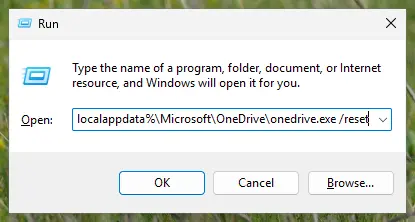
Type the reset command in the Run box and select OK. Screenshot: Windows 11 26H2. - If Windows cannot find it, try the second path. If you see a message that starts with Windows cannot find, open the Run box again and use this command instead.
C:\Program Files\Microsoft OneDrive\onedrive.exe /reset - If that fails too, try the third path. If you still see Windows cannot find, use this command. If none of the three works, the OneDrive sync app is not installed on this PC.
C:\Program Files (x86)\Microsoft OneDrive\onedrive.exe /reset - Start OneDrive again. Select Start, type OneDrive in the search box and select the OneDrive desktop app. OneDrive then starts a full sync.
These steps were written for Windows 11 25H2 and 26H2, Windows 10 22H2. The full page with the other versions and what each result means: How to reset OneDrive in Windows
When OneDrive starts, the Set up OneDrive window asks for your email address. Use the same account that works on onedrive.com. If you synced only some folders, choose them again: Microsoft notes the reset forgets that choice.
It worked if: OneDrive accepts your email address and password, shows the OneDrive folder location and starts syncing without the 0x8004e4be window.
If not: If the same window comes back, go to Fix 2. If it comes back only after the next restart, go to Fix 3.
Fix 2. Re-register the Windows sign-in packages with PowerShell
5 minutesLow riskWork or school accounts with Something went wrong [1001], details code -2147221231 or 1067, or when Fix 1 did not help.
OneDrive gets its token from two Windows packages: the Live ID package for personal accounts and the Microsoft Entra WAM plugin for work accounts. Microsoft's article on failing Microsoft 365 sign-ins re-registers them, and Q&A users who had [1001] with 0x8004e4be reported that it fixed the PCs they tested.
- Close OneDrive: select the OneDrive cloud icon, then the gear Help & Settings, then Pause syncing > Quit OneDrive. If you only see the sign-in window, close it.
- Right-click Start and select Terminal (Admin) on Windows 11 or Windows PowerShell (Admin) on Windows 10. Select Yes when Windows asks for permission.
- For a personal account (outlook.com, hotmail.com, live.com and similar), paste the first command below and press Enter.
- For a work or school account, paste the second command below and press Enter. If you use both kinds of account, run both.
- Read the result. A list of package details with Name, Version and InstallLocation means the package is registered. Red text means it failed: copy it for Microsoft or your IT admin.
- Start OneDrive from Start and sign in again.
Personal Microsoft account (Live ID package):
if (-not (Get-AppxPackage Microsoft.Windows.CloudExperienceHost)) { Add-AppxPackage -Register "$env:windir\SystemApps\Microsoft.Windows.CloudExperienceHost_cw5n1h2txyewy\Appxmanifest.xml" -DisableDevelopmentMode -ForceApplicationShutdown } Get-AppxPackage Microsoft.Windows.CloudExperienceHostWork or school account (Microsoft Entra WAM plugin):
if (-not (Get-AppxPackage Microsoft.AAD.BrokerPlugin)) { Add-AppxPackage -Register "$env:windir\SystemApps\Microsoft.AAD.BrokerPlugin_cw5n1h2txyewy\Appxmanifest.xml" -DisableDevelopmentMode -ForceApplicationShutdown } Get-AppxPackage Microsoft.AAD.BrokerPluginWindows registers these packages for the account that runs the command. Microsoft's article opens an administrator PowerShell, which is right when your own account is an administrator. One administrator on Microsoft Q&A reported that the commands worked only when run in the affected user's own session, without elevation. If your daily account is a standard user, run the commands in a normal PowerShell window of that account first.
It worked if: The command prints the package details without red text, and OneDrive signs in after the restart of the app.
If not: If the error stays on a personal account, go to Fix 3. On a work account that also has Outlook or Teams prompts, go to Fix 4.
Fix 3. Remove the stored OneDrive sign-in and link the PC again
10 minutesLow riskSign-in works for a while, or after a reinstall, and fails again after a restart.
When the error returns after every restart, OneDrive keeps loading an old sign-in from disk. Microsoft's own fix for expired OneDrive credentials deletes the file PreSignInSettingsConfig.json, and unlinking the PC removes the account link that points to that old sign-in.
- If OneDrive opens at all, select the OneDrive cloud icon, the gear Help & Settings, then Settings. On the Account tab select Unlink this PC, then Unlink account.
- Quit OneDrive: gear Help & Settings > Pause syncing > Quit OneDrive.
- Press Win + R, paste the path below and select OK. In the folder that opens, delete the file PreSignInSettingsConfig.json.
%localappdata%\Microsoft\OneDrive\settings - Select Start, type Credential Manager and open it. Select Windows Credentials.
- Under Generic Credentials, expand each entry whose name contains OneDrive and select Remove. Leave every other entry alone.
- Restart the PC, open OneDrive from Start and sign in. When it asks for the folder location, choose your old OneDrive folder so files that did not change are not downloaded again.
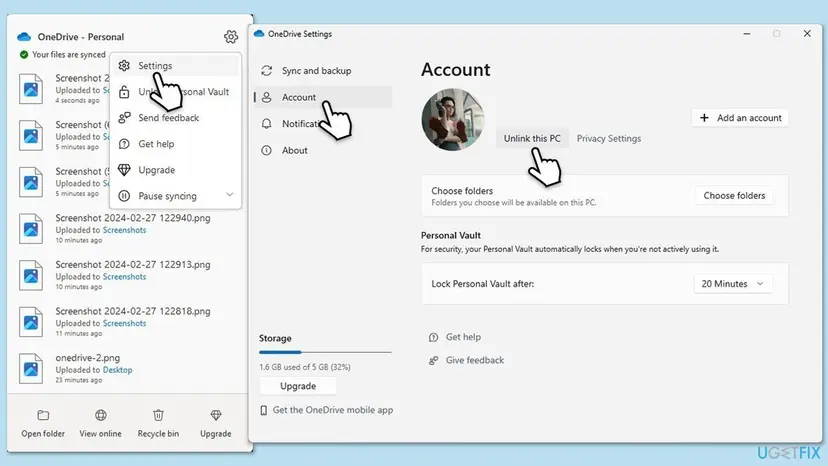
We could not find a Microsoft page that lists the exact names of OneDrive's entries in Credential Manager on Windows. On a Mac, Microsoft names the matching Keychain entry OneDrive Cached Credential. Removing only entries with OneDrive in the name keeps the sign-ins of other apps.
It worked if: OneDrive signs in, and it is still signed in after the next restart.
If not: On a work or school account go to Fix 4. On a personal account go to Fix 6 for a clean reinstall.
Fix 4. Rebuild the token cache of a work or school account
15 minutesRead the warningWork or school accounts, especially when Outlook or Teams also ask for the password again.
Work accounts keep their tokens in the folder of the Microsoft Entra broker, not in OneDrive. Dell's article for sign-in errors in Microsoft 365 apps renames that folder so Windows builds a new one, and reconnects the work account, which clears tokens that no longer match.
On a PC that your organisation set up, Disconnect under Access work or school can remove the PC from the organisation and cut you off from company apps and files. Only use the first two steps on your own PC where you added a work account. Renaming the broker folder signs you out of Office, Teams and OneDrive. Your mail and files stay on the server, so you lose nothing, but you need your password and your multi-factor sign-in at hand.
- Close Outlook, Teams, Word, Excel and OneDrive.
- Your own PC only: select Start > Settings > Accounts > Access work or school, select the work account and select Disconnect. Restart, return to the same page, select Connect and sign in.
- Press Win + R, paste the path below and select OK.
%localappdata%\Packages - Right-click the folder Microsoft.AAD.BrokerPlugin_cw5n1h2txyewy, select Rename and add
.oldto the end of the name. - If Windows says the folder is in use, sign out of Windows, sign in with another administrator account and rename the folder under
C:\Users\<your user name>\AppData\Local\Packages. - Restart the PC, sign in as yourself, open Outlook or Word and sign in once. Windows builds a new broker folder.
- Open OneDrive from Start and sign in.
It worked if: Office and OneDrive accept one new sign-in and stop asking, and OneDrive syncs again.
If not: If the sign-in window mentions the TPM, go to Fix 5. Otherwise send the details of the error to your IT admin, as described under the still-broken section.
Fix 5. Check the TPM after a BIOS update, a board replacement or a BitLocker prompt
15 minutesRead the warningThe error started after a BIOS or firmware update, a repair, or a TPM or BitLocker warning.
Windows protects sign-in tokens with keys in the TPM chip. Dell explains that a new system board brings a new TPM, so the old tokens can no longer be checked. Users report the same OneDrive failure after a TPM fault and after a beta BIOS update.
If BitLocker or device encryption is on, a TPM change can make Windows ask for the 48-digit recovery key at start-up. Find it first: it is stored in your Microsoft account, with your IT department, or on a printout or USB stick you saved. Microsoft warns that clearing the TPM loses every key in it, including a sign-in PIN and virtual smart cards, so clearing is not part of this fix.
- Press Win + R, type the command below and select OK to open TPM Management on Local Computer.
tpm.msc - Read Status. The TPM is ready for use means the chip works and only the old keys are gone. Anything else, or Compatible TPM cannot be found, points to firmware or hardware.
- If the TPM is ready, rebuild the stored tokens: do Fix 3 for a personal account, or Fix 4 for a work or school account. This is the order in Dell's article.
- If the TPM is not ready after a BIOS update, check the PC maker's support page for that BIOS version. Leave Secure Boot and the TPM switched on: switching them off does not repair the sign-in.
- If the PC was repaired or the board replaced, a work PC may have to be registered again in Microsoft Entra ID. Dell lists
dsregcmd /statusfor the administrator to check the join state.
It worked if: TPM Management shows The TPM is ready for use, and OneDrive signs in after Fix 3 or Fix 4.
If not: If the TPM is not found or not ready, contact the PC maker or your IT department. This is no longer a OneDrive problem.
Fix 6. Uninstall OneDrive cleanly and install the current version
20 minutesLow riskFixes 1 to 3 did nothing, or OneDrive itself will not start.
A reset keeps the program files. A support answer for this error on Microsoft Q&A moved the user's OneDrive folder in AppData aside, uninstalled the app, restarted and installed the newest build, so no damaged file of the old installation is reused.
- Quit OneDrive: gear Help & Settings > Pause syncing > Quit OneDrive.
- Press Win + R, paste the path below and select OK. Go up one level to Microsoft, then move the OneDrive folder to your desktop instead of deleting it.
%localappdata%\Microsoft\OneDrive - Select Start > Settings > Apps > Installed apps (on Windows 10: Apps & features). Find Microsoft OneDrive, select the three dots and Uninstall.
- Restart the PC.
- Download the OneDrive app from Microsoft's OneDrive download page and run the file. Sign in when the setup asks.
- When OneDrive runs, open the gear Help & Settings > Settings > About and note the OneDrive version. Compare it with the top of Microsoft's OneDrive release notes.
- When OneDrive syncs again, delete the old folder from your desktop.
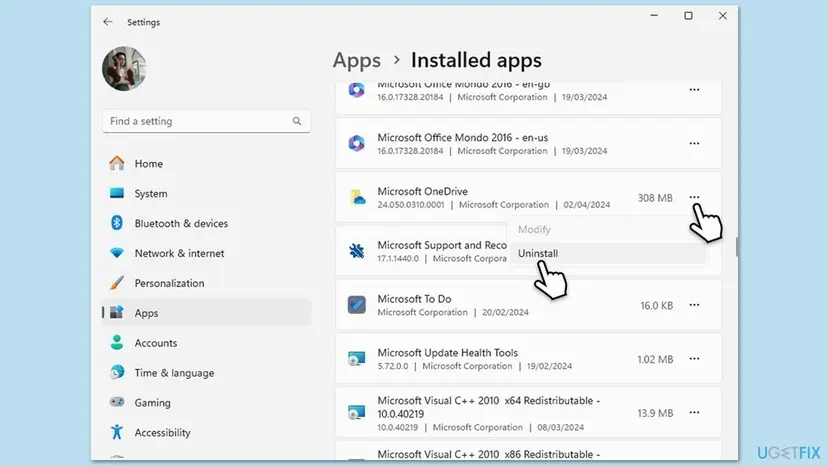
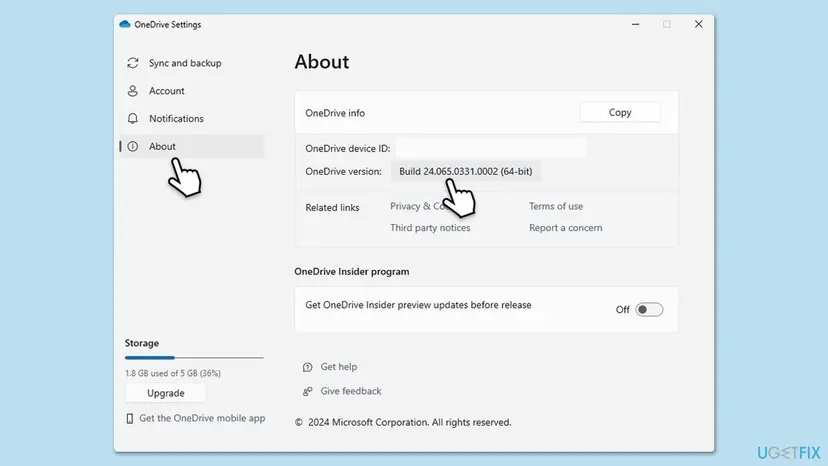
Other ways to uninstall, and what to do when the uninstaller fails: Uninstall a program or app in Windows
It worked if: The new OneDrive asks for your account, signs in and keeps the sign-in after a restart.
If not: Check the clock with Fix 7, then test a new Windows user with Fix 8.
Fix 7. Set the PC clock and time zone automatically
3 minutesNo riskThe taskbar shows the wrong time or date, or the battery of an old PC is flat.
Sign-in tokens carry a validity window, and a clock that is far off makes a valid token look expired or not yet valid. It is rarely the cause of 0x8004e4be, but it takes three minutes to rule out.
- Open Date & time. Select Start > Settings > Time & language > Date & time.
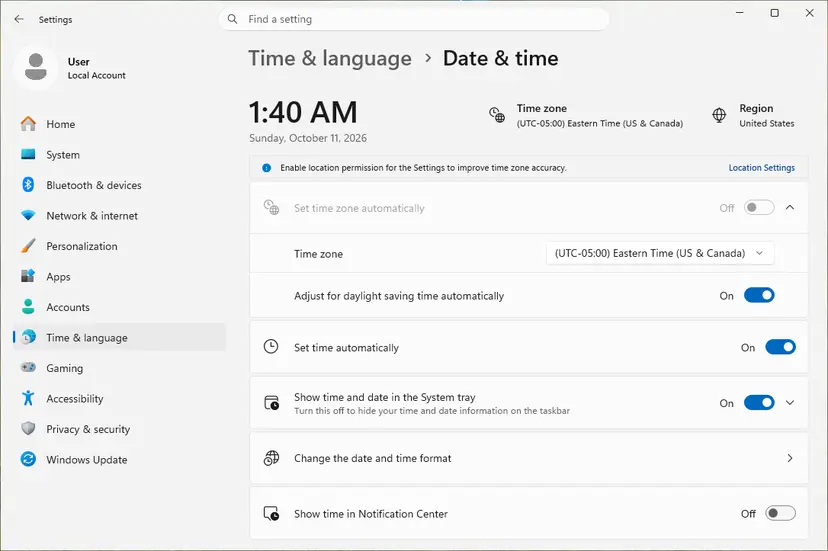
Date & time: the time zone and Set time automatically. Screenshot: Windows 11 26H2. - Turn on automatic time. Make sure Set time automatically is On.
- Check the time zone. A clock that is wrong by exactly one or more hours has the wrong time zone. Turn Set time zone automatically On, or turn it Off and pick your zone in the list next to Time zone.
- Sync the clock now. Under Additional settings, select Sync now. Windows asks the time server for the current time and corrects the clock.
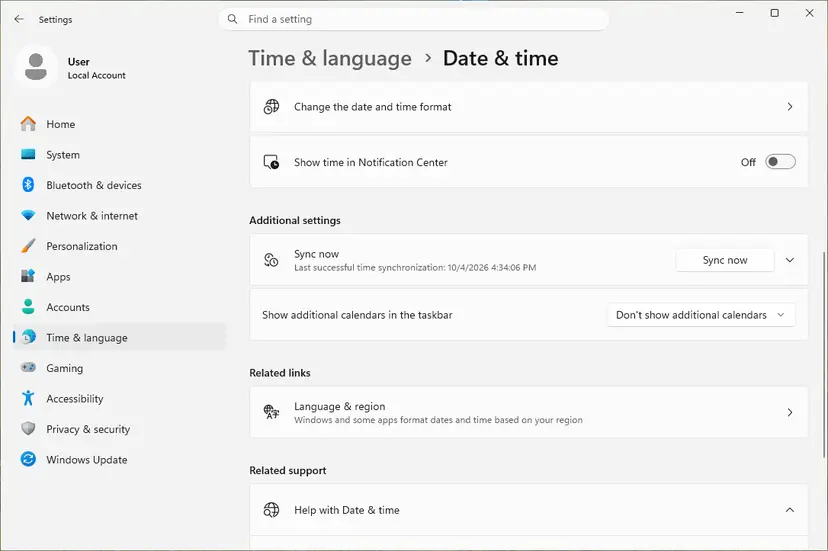
Sync now is under Additional settings. Screenshot: Windows 11 26H2.
These steps were written for Windows 11 25H2 and 26H2. The full page with the other versions and what each result means: How to fix the date and time in Windows
It worked if: The taskbar clock matches your phone, and OneDrive signs in on the next attempt.
If not: If the clock was already correct, go to Fix 8.
Fix 8. Test OneDrive in a new Windows user account
15 minutesLow riskNothing above worked and you want to know whether the problem is in your Windows profile.
Every Windows user has its own OneDrive settings, broker packages and stored sign-ins. The same support answer on Microsoft Q&A suggested a new user as the last test: if OneDrive signs in there, the fault is in the old profile, not in Windows or the account.
- Open Other users. Open Settings > Accounts > Other users. You can also press Windows key + R and run the command below.
ms-settings:otherusers - Add an account. Next to Add other user, select Add account.
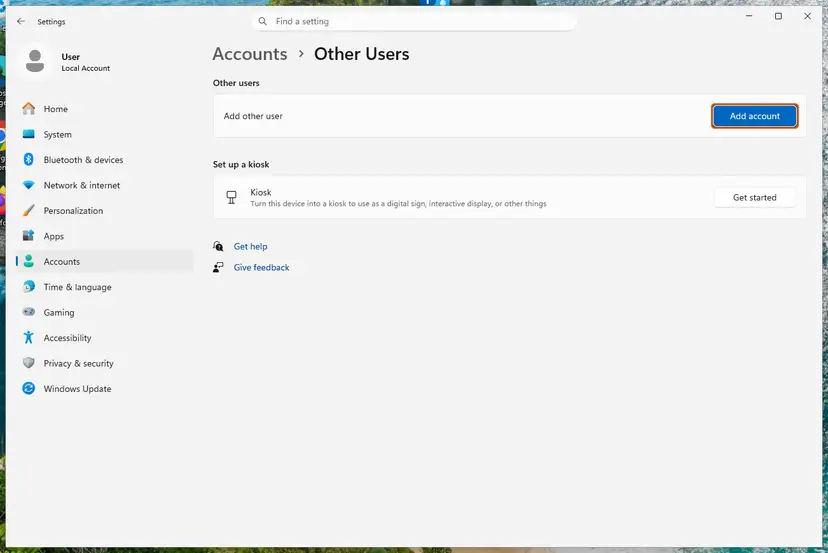
Add account is next to Add other user. Screenshot: Windows 11 26H2. - Skip the Microsoft account. Select I don't have this person's sign-in information.
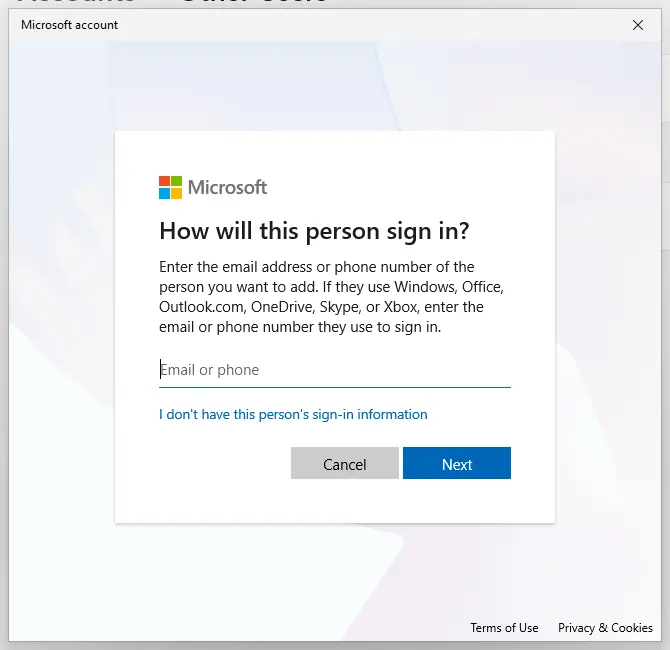
The link for a local account is under the email box. Screenshot: Windows 11 26H2. - Choose a local account. Select Add a user without a Microsoft account.
- Name the account. Type a user name and, if you want one, a password. If you set a password, Windows also asks for answers to security questions. Select Next.
- Make it an administrator (optional). Back in Other users, select the new account, then Change account type next to Account options. Choose Administrator and select OK. For testing a problem, a standard account is usually enough.
- Sign in to the new account. Open Start, select your account picture and choose the new account. The first sign-in takes a few minutes while Windows sets up the profile.
These steps were written for Windows 11 24H2, 25H2 and 26H2. The full page with the other versions and what each result means: Create a new user account to test a problem
In the new account, open OneDrive from Start and sign in with your usual Microsoft or work account. Do not move any files yet: this is only a test.
It worked if: OneDrive signs in without error in the new account. Your profile is the problem, and you can move your work to the new account.
If not: If it fails in the new account too, collect the details as described below and contact Microsoft or your IT admin.
If OneDrive still shows 0x8004e4be: what to collect and who can help
Support cannot do much with 0x8004e4be alone. The details below the error and the Windows sign-in log tell them which link failed. Collect them before you ask, so you do not have to reproduce the error twice.
- The details block: copy the Correlation Id, Timestamp, Error Tag and Error Code lines from the sign-in window. The Correlation Id lets Microsoft find the failed attempt on its side.
- The account type: personal (outlook.com, hotmail.com, live.com) or work or school, and whether onedrive.com works in a browser.
- What changed: a Windows update, a BIOS update, a repair, a new password, or a new work account added to the PC.
- The OneDrive version: gear Help & Settings > Settings > About, if OneDrive still opens.
- The Windows sign-in log (work accounts): open Event Viewer and go to Applications and Services Logs > Microsoft > Windows > AAD > Operational. Microsoft's Entra documentation says error events of the cloud sign-in are written there. Note the errors at the time of the failed sign-in.
With a work or school account, your IT admin is the right contact: only an administrator can open a Microsoft 365 support ticket and check the device registration. With a personal account, use Contact Microsoft Support at the bottom of Microsoft's OneDrive help pages. If the TPM is not ready in Fix 5, contact the maker of the PC.
Are your OneDrive files safe while 0x8004e4be blocks the sign-in?
Yes. The error stops the sync, not the storage. Everything you synced before is still in the OneDrive folder on the PC and in the cloud, and onedrive.com shows the cloud copy. Microsoft states that you do not lose files or data by disabling, uninstalling or unlinking OneDrive, and that a reset only disconnects the sync connections.
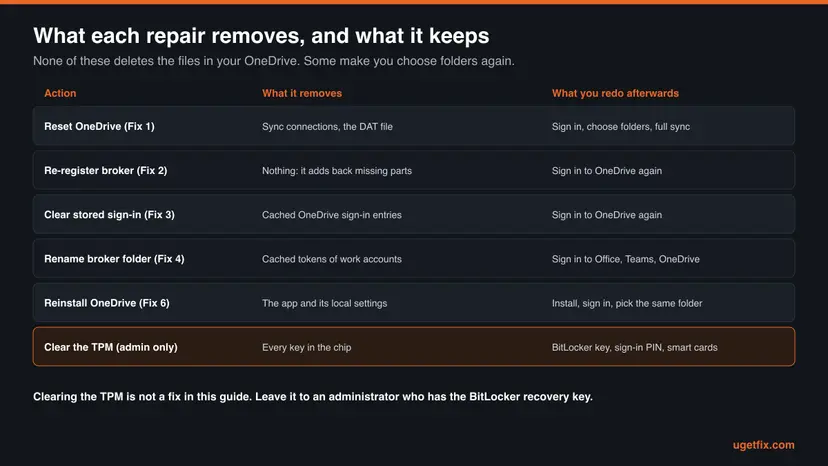
- Changes you make while signed out stay on the PC and upload when OneDrive signs in again.
- Files that are online-only (the cloud icon in File Explorer) cannot open until OneDrive runs. Open them on onedrive.com meanwhile.
- After a reset or reinstall, point OneDrive at the same folder. Files that did not change are then not downloaded again.
How to keep 0x8004e4be from coming back
The error comes back when one link of the sign-in chain changes under OneDrive. Most of those changes can be planned.
- Keep OneDrive and Windows updated, and let OneDrive update itself.
- Save the BitLocker recovery key before a BIOS update or a repair.
- After a password change, sign in to OneDrive once when it asks, instead of closing the window.
- Use one personal account per Windows user in OneDrive.
- Do not install beta BIOS versions on a PC you rely on for work.
- Do not clear the TPM to fix a sign-in error.
- Do not delete random entries in Credential Manager or folders in AppData\Local\Packages.
- Do not disconnect a work account on a company PC without IT.
Frequently asked questions
What does error code 0x8004e4be mean?
It means the OneDrive desktop app on Windows could not finish signing you in. OneDrive asked Windows for a sign-in token and did not get a usable one. The account and the files are normally fine, because the same account still signs in on onedrive.com. Microsoft does not describe the code on its list of OneDrive error codes, so the message around it matters more: a second code in the details, a [1001] note for work accounts, or a TPM warning point to different fixes. Start with a reset of OneDrive.
Why does OneDrive keep asking me to sign in after every restart?
OneDrive loads an old, stored sign-in at every start, finds it no longer valid and shows 0x8004e4be again. A reinstall can hide this for a day, because the new app has no state yet, but the stored sign-in in Windows comes back. Delete PreSignInSettingsConfig.json, remove the OneDrive entries in Credential Manager and link the PC again (Fix 3). On a work account the stale tokens sit in the broker folder, which Fix 4 rebuilds. One user on Microsoft Q&A reported that clearing OneDrive's data and reinstalling ended the restart loop.
Will I lose my files if I reset or reinstall OneDrive?
No. Microsoft states that resetting, unlinking, disabling or uninstalling OneDrive does not delete files or data, and that you can always reach them on onedrive.com. A reset disconnects the sync connections and makes OneDrive compare everything again, which can take a while with many files. If you synced only some folders, choose them again after the reset. When OneDrive asks for a folder location, choose the old one so unchanged files are not downloaded again.
Is 0x8004e4be a OneDrive outage on Microsoft's side?
Usually not. In the reports on Microsoft Q&A, the web version of OneDrive kept working while the desktop app failed, and often only one person in an organisation was affected. That points to the PC, not the service. To be sure, sign in to onedrive.com with the same account and look at Microsoft's service status page. If the web sign-in fails too, wait for the service or fix the account first. If it works, follow the fixes on this page.
What is Something went wrong [1001] with error code 0x8004e4be?
That form appears with work or school accounts. The [1001] message comes from the Windows sign-in window that Microsoft 365 apps use, and it means the broker could not return a token to OneDrive. Microsoft pointed users in that case to its article on failing Microsoft 365 sign-ins, which re-registers the Microsoft Entra WAM plugin with one PowerShell command. That is Fix 2 on this page. If Outlook and Teams also fail, rebuild the broker cache with Fix 4 after talking to your IT admin.
Can a BIOS update or a new motherboard cause OneDrive error 0x8004e4be?
Yes. Windows protects sign-in tokens with keys in the TPM chip. Dell explains that a new system board brings a new TPM, so tokens created with the old one fail with Keyset does not exist or error 80090016. A Framework laptop owner reported the same OneDrive failure after a beta BIOS update, and a Microsoft Q&A post describes it after a TPM fault with a BitLocker prompt. Check the TPM status and rebuild the stored tokens, as described in Fix 5.
Do I need to run SFC, DISM or a clean boot for this error?
Not as a first step. None of the reports and Microsoft answers for 0x8004e4be name damaged system files or a conflicting startup program as the cause, so this page does not use them. The fault sits in the sign-in state of OneDrive and Windows. If the PowerShell commands in Fix 2 print errors about the package itself, a system file repair can help before you try again: Run DISM and SFC to repair Windows system files
Does OneDrive error 0x8004e4be also happen on a Mac?
This page covers the Windows app. On a Mac, Microsoft documents a similar fix for sign-in errors with stored credentials: open Keychain Access, search for OneDrive and delete the entry named OneDrive Cached Credential, then start OneDrive again. For a full reset, Microsoft's Mac steps run ResetOneDriveApp.command from inside the OneDrive app package (Show Package Contents > Contents > Resources). If that does not help, uninstall OneDrive and install the latest version from Microsoft.
What about similar codes such as 0x8004e4bf, 0x8004e4f1 or 0x8004e4d4?
They belong to the same family of OneDrive codes but are not the same error. Microsoft lists 0x8004e4f1 for a blank OneDrive settings page and says engineering is working on it. We found no Microsoft description of 0x8004e4bf or 0x8004e4d4. If one of them appears at sign-in, Fixes 1 to 3 are a safe start because they only rebuild sign-in state. Other OneDrive codes have their own pages, for example OneDrive error 0x8007017c, which is a different problem with the cloud files.
Is this page available in German or other languages?
This page is in English, but the error and the fixes are the same in every language of Windows. People search for it as OneDrive Fehlercode 0x8004e4be in German, erro 0x8004e4be in Portuguese and foutcode 0x8004e4be in Dutch. Menu names differ by language, so look for the same place: the OneDrive gear for Settings, Credential Manager in the Control Panel, and Terminal (Admin) on the Start button's right-click menu. The commands and paths work unchanged.
Sources
- Microsoft Support: What do the OneDrive error codes mean? (support.microsoft.com)
- Microsoft Support: Reset OneDrive (support.microsoft.com)
- Microsoft Support: Can't sign in to OneDrive (support.microsoft.com)
Did this fix work?
One click, no account. It tells the next reader which guides are worth their time.
Questions and experiences: fix OneDrive error code 0x8004e4be in Windows
Still broken, or found a fix we did not cover? Ask here: members and our editors answer. Reading is open; writing needs a free account.
…