
How to fix OneDriveSetup.exe - Entry Point not Found error in Windows?

Prefer to fix it yourself? The manual steps follow.
- 6methods
- 5 minutes to 2 hours
- Easy
Applies to Windows 10 versions older than 1709 (1507, 1511, 1607, LTSB 2016 and IoT 1607), Windows Server 2016, and other OneDrive Entry Point Not Found windows on Windows 10 and 11
6 methods in this guide
Hello. I need help with the "OneDriveSetup.exe - Entry Point not Found" error. This appears from time to time on my PC and it is really annoying. Is there anything I can do to fix it?
The OneDriveSetup.exe - Entry Point not Found window means the OneDrive updater needs a Windows function, GetUserDefaultGeoName, that your Windows does not have. Microsoft added it in Windows 10 version 1709, so the window shows up on older builds such as 1607. Check your version with winver first, then update Windows or stop the updater.
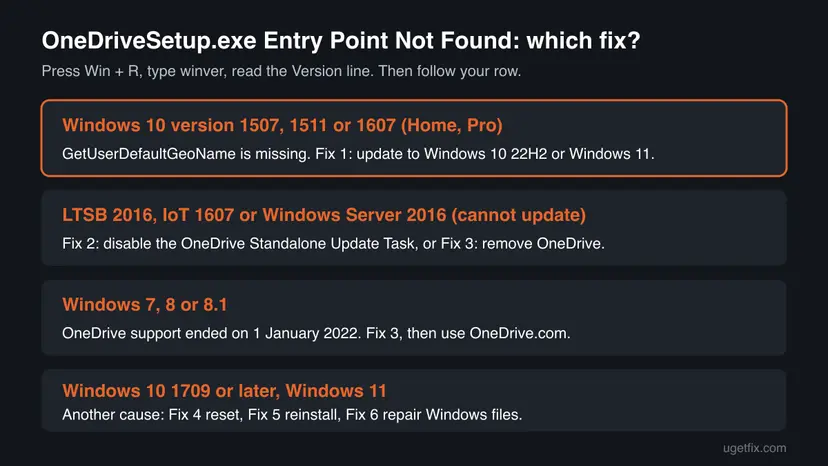
Press Win + R, type winver and read the version. If it is older than 1709, OneDrive's updater calls a function your Windows lacks. Update to Windows 10 22H2 or Windows 11 (Fix 1). If the PC cannot be updated, such as LTSB 2016 or Server 2016, disable the OneDrive Standalone Update Task (Fix 2). On Windows 10 1709 or later, reset OneDrive (Fix 4).
| Error | OneDriveSetup.exe - Entry Point not Found: "The procedure entry point GetUserDefaultGeoName could not be located in the dynamic link library", followed by the path of OneDriveSetup.exe. |
|---|---|
| Where it appears | At sign-in or at random moments, when OneDrive's scheduled updater runs OneDriveSetup.exe from %localappdata%\Microsoft\OneDrive\Update. |
| Main cause | Windows is too old for the current OneDrive. Microsoft lists Windows 10 version 1709 as the minimum client for GetUserDefaultGeoName, which lives in Kernel32.dll. |
| Fastest fix | Update Windows to Windows 10 22H2 or Windows 11 (Fix 1). Where that is not possible, disable the OneDrive Standalone Update Task (Fix 2). |
| Also written as | OneDrive.exe entry point not found, OneDrive entry point not found, one drive entry point not found, OneDrive.exe - Entry Point Not Found, OneDrive.Sync.Service.exe - Entry Point Not Found. |
| Affects | Windows 10 1507, 1511 and 1607, including LTSB 2016 and IoT 1607 terminals, and Windows Server 2016 (version 1607), in user reports from 6 March 2024 on. |
| Microsoft's status | No fix for old builds. OneDrive updates stopped for Windows 7, 8 and 8.1 on 1 January 2022. Windows 10 itself left support on 14 October 2025. |
| Not affected | Your files. The window comes from the updater, and files already synced stay in your OneDrive online. |
| Time to fix | 5 minutes for Fix 2. One to two hours for a Windows feature update (Fix 1). |
Facts checked on 15 October 2026. Steps written for Windows 11 (25H2 and 26H2) and Windows 10 22H2.
What the OneDriveSetup.exe Entry Point not Found error means
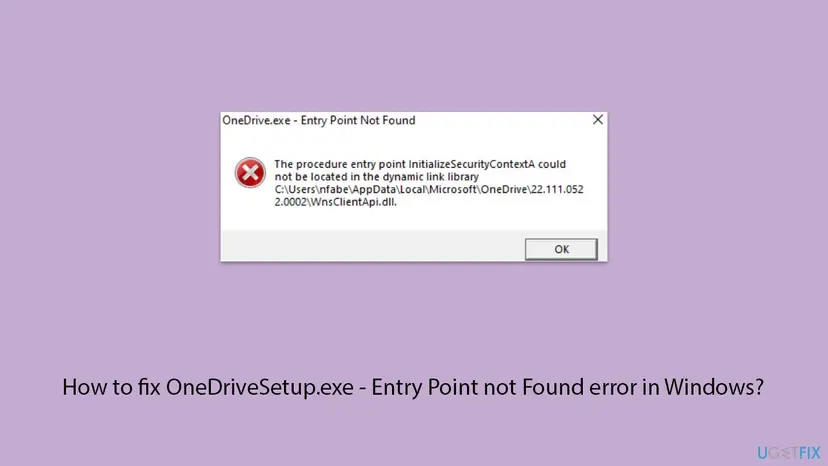
Every program asks Windows for ready-made functions stored in system DLLs. An Entry Point Not Found window means the program asked for a function by name, and the DLL that should hold it does not. The program cannot go on, so Windows stops it and shows the name of the missing function.
The window as a user typed it on Microsoft Q&A (March 2024, Windows 10)
OneDriveSetup.exe - Entry Point not Found
The procedure entry point GetUserDefaultGeoName could not be located in the dynamic link library
C:\Users\USERNAME\AppData\Local\Microsoft\OneDrive\Update\OneDriveSetup.exe
The path at the end is confusing: it names OneDriveSetup.exe, not a DLL. That is the program that made the call. The function it wanted, GetUserDefaultGeoName, reads the country set in your Windows region settings. Microsoft's documentation lists it in Kernel32.dll with Windows 10, version 1709 as the minimum supported client and Windows Server 2016 as the minimum server.
- OneDriveSetup.exe is the OneDrive installer and updater. OneDrive keeps a copy in
%localappdata%\Microsoft\OneDrive\Updateand starts it on a schedule to install new versions. When the new version needs a newer Windows, this updater is what fails. - OneDrive.exe - Entry Point Not Found is the same kind of window from the OneDrive app itself, usually with a different function and DLL. It is read the same way: the function name tells you what is missing.
- Spellings people search. OneDrive entry point not found, one drive entry point not found, onedrive.exe entry point not found windows 10 and onedrivesetup.exe entry point not found all mean this family of windows.
Check your Windows version before you fix the OneDrive entry point error
The version decides everything. On a PC with Windows 10 version 1709 or later, or any Windows 11, GetUserDefaultGeoName exists, so the GetUserDefaultGeoName window cannot come from a missing function there. On an older build it always will, whatever you repair.
- Press Win + R, type
winverand press Enter. - Read the line that starts with Version, for example Version 1607 (OS Build 14393.6709).
- Read the first line too: it names the edition, such as Windows 10 Enterprise LTSB or Windows Server 2016.
What causes the OneDrive Entry Point not Found error, from most to least common
Most often, a new OneDrive build is installed on a Windows 10 build older than 1709. Less often, the PC runs Windows 7 or 8.1, which OneDrive no longer supports at all. Rarely, on current Windows, damaged OneDrive or Windows files produce a similar window with a different function name.
| Cause | How often | How to tell | Fix |
|---|---|---|---|
| OneDrive's updater needs Windows 10 1709 or later. | Most often | GetUserDefaultGeoName in the window, winver shows 1507, 1511 or 1607. | Fix 1, or Fix 2 if you cannot update |
| The PC runs Windows 7, 8 or 8.1. | Sometimes | winver shows Windows 7 or 8.1. | Fix 3 |
| A damaged OneDrive install. | Rarely | Windows 10 1709 or later, a OneDrive DLL in the path. | Fix 4, then Fix 5 |
| A damaged Windows system file. | Rarely | A file in C:\Windows\System32 in the path, or other programs also fail. | Fix 6 |
- Why it started one morning. Users on Microsoft Q&A report the window on many Windows 10 PCs from the morning of 6 March 2024, with no change on their side. OneDrive updates itself, so a new build arrived, and its updater called a function older builds do not have. More than 200 people marked the thread as "same question".
- Why it comes back. The updater is started by a scheduled task. Each run tries again and fails again, so the window returns at sign-in or every few hours until Windows is newer or the task is off.
- It is not a virus. The path points to OneDrive's own folder, and the function is a real Windows function. Only a OneDriveSetup.exe outside the OneDrive folders, for example in Downloads or Temp, deserves a scan with How to scan for malware with Microsoft Defender.
How to fix the OneDriveSetup.exe and OneDrive.exe Entry Point not Found error
Fixes 1 to 3 are for the GetUserDefaultGeoName window on old Windows, the common case. Pick by your Windows version. Fixes 4 to 6 are for an Entry Point window on Windows 10 1709 or later and Windows 11, where the cause is a damaged file.
| What you see or what your PC has | Start with |
|---|---|
GetUserDefaultGeoName, Windows 10 Home or Pro version 1507, 1511 or 1607 | Fix 1 |
GetUserDefaultGeoName, LTSB 2016, IoT 1607, Windows Server 2016 or a PC you may not upgrade | Fix 2 |
| Any OneDrive Entry Point window on Windows 7, 8 or 8.1 | Fix 3 |
| Windows 10 1709 or later, or Windows 11, a OneDrive file in the path | Fix 4, then Fix 5 |
A file in C:\Windows\System32, or other programs show Entry Point errors too | Fix 6 |
Fix 1. Update Windows 10 to version 22H2 or upgrade to Windows 11
1 to 2 hoursLow riskwinver shows Windows 10 version 1507, 1511 or 1607 on a Home or Pro PC.
The missing function is part of Windows, not of OneDrive. Any Windows 10 build from 1709 on includes GetUserDefaultGeoName, so after the update the OneDrive updater finds it and the window stops.
A feature update keeps your files and apps, but it replaces Windows itself. On an old PC that has not been updated for years, copy important files to an external drive or OneDrive.com before you start: Back up your files (Windows Backup, File History, Time Machine)
- Connect the PC to power and make sure drive C: has at least 20 GB free: Free up disk space and delete temporary files
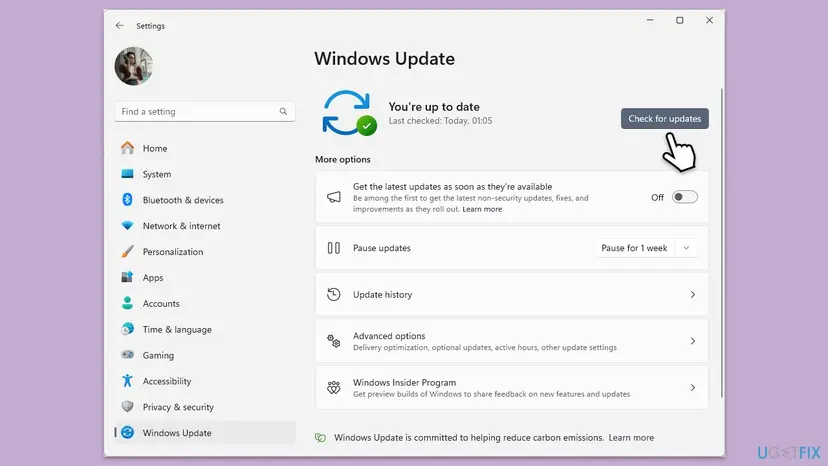
- Open Settings > Update & Security > Windows Update on Windows 10 and select Check for updates.
- Install every update offered, restart, and check again until the page offers the Feature update to Windows 10, version 22H2 or Windows 11. Select Download and install.
- If Windows Update offers no feature update, download the update tool from Microsoft's Windows download page and choose Upgrade this PC now.
- After the last restart, run
winveragain and confirm a version of 1709 or later. - Sign in and wait a few minutes. OneDrive's updater runs again, this time without the window.
- Windows 10 support has ended. Windows 10 left support on 14 October 2025. If the PC meets the Windows 11 requirements, upgrading to Windows 11 is the better end point. If not, Windows 10 22H2 still fixes this window.
- When an update keeps failing, the Windows Update troubleshooter is the first step: Run the Windows Update troubleshooter
It worked if: winver shows version 1709 or later, and the OneDriveSetup.exe window does not appear at the next sign-ins.
If not: If you are not allowed to update this PC, use Fix 2. If the window still names GetUserDefaultGeoName on 1709 or later, go to Fix 5.
Fix 2. Disable the OneDrive Standalone Update Task when Windows cannot be updated
5 minutesLow riskLTSB 2016, IoT 1607 terminals, Windows Server 2016 version 1607, or any PC that must stay on its build.
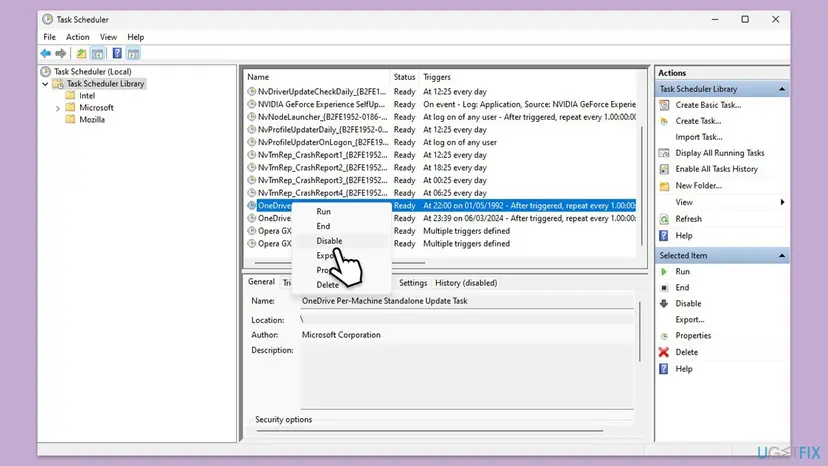
The window comes from the scheduled updater, not from the OneDrive you already have. Users on Microsoft Q&A with Server 2016 and IoT 1607 report that disabling the tasks named OneDrive Standalone Update Task stops the window, while the installed OneDrive keeps running.
- Press Win + R, type
taskschd.mscand press Enter. - Select Task Scheduler Library in the left pane.
- In the middle list, find every task whose name starts with OneDrive Standalone Update Task. Some PCs also have OneDrive Per-Machine Standalone Update Task.
- Right-click each one and select Disable. The Status column changes to Disabled.
- Close Task Scheduler and restart the PC.
With the task off, OneDrive no longer updates itself. We could not confirm how long an old OneDrive build keeps syncing on these systems. Check now and then that the cloud icon says your files are up to date, and enable the task again with Enable if the PC is ever upgraded.
It worked if: The task shows Disabled, and no OneDriveSetup.exe window appears after the restart or the next day.
If not: If the window still appears, check that every OneDrive update task is disabled, including the per-machine one. If you do not need OneDrive on this PC, remove it with Fix 3.
Fix 3. Remove OneDrive from Windows 7, 8.1 or a PC that does not need it
10 minutesLow riskWindows 7, 8 or 8.1, or an old Windows 10 terminal, kiosk or server where nobody uses OneDrive.
Microsoft stopped OneDrive updates on Windows 7, 8 and 8.1 on 1 January 2022, and personal OneDrive there stopped syncing on 1 March 2022. A OneDrive that cannot sync or update only produces windows like this one. Without the app, there is nothing left to call the missing function.
- Check that nothing waits to upload: open the OneDrive cloud icon, or compare your important files with OneDrive.com.
- Open Control Panel > Programs and Features on Windows 7 and 8.1, or Settings > Apps > Apps & features on Windows 10.
- Select Microsoft OneDrive and choose Uninstall. Confirm.
- Restart the PC.
- Use OneDrive.com in a browser to reach your files from now on.
All the ways to uninstall a program, including when it is not listed: Uninstall a program or app in Windows
It worked if: Microsoft OneDrive is gone from the list of programs, and no OneDrive window appears after the restart.
If not: If you need syncing, the only lasting answer is a supported Windows: Windows 10 22H2 or Windows 11 (Fix 1).
Fix 4. Reset OneDrive when the window appears on current Windows
5 minutesLow riskWindows 10 1709 or later or Windows 11, and the window names OneDrive.exe or a OneDrive file.
On current Windows the function exists, so the likely cause is a OneDrive install whose files or settings are out of step after an interrupted update. A reset restarts OneDrive cleanly and lets it finish its own update. Your files stay where they are.
- Press Win + R to open the Run box.
- Paste this command and select OK. Wait one or two minutes.
%localappdata%\Microsoft\OneDrive\onedrive.exe /reset - If you see a message that Windows cannot find onedrive.exe, use this command instead.
C:\Program Files\Microsoft OneDrive\onedrive.exe /reset - If the cloud icon does not come back, select Start, type OneDrive and open the app.
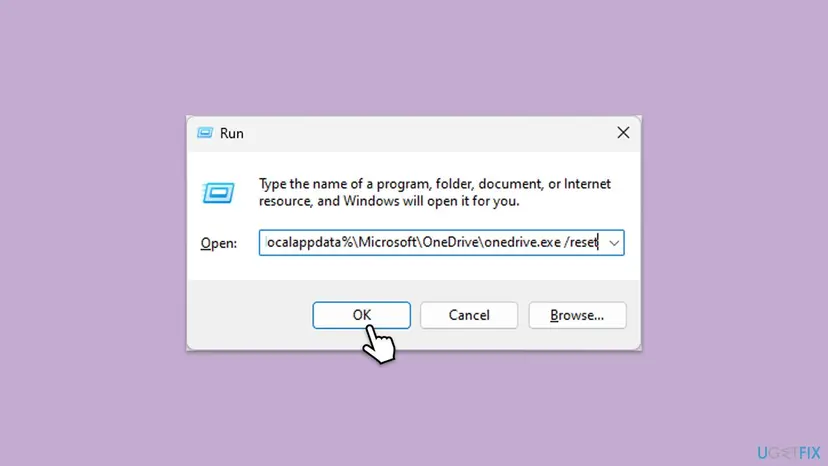
Microsoft's full reset steps, with all the paths: How to reset OneDrive in Windows
It worked if: OneDrive restarts, the cloud icon returns near the clock, and the Entry Point window does not come back.
If not: If the window returns, replace OneDrive's files with a clean install in Fix 5.
Fix 5. Uninstall OneDrive and install a fresh copy
15 minutes plus the resyncLow riskWindows 10 1709 or later or Windows 11, and the reset did not stop the window.
A reinstall replaces every OneDrive file, including OneDriveSetup.exe and the DLLs in the version folder. If one of them is damaged or mixed from two versions, the fresh copy ends the window.
- Check that the OneDrive cloud icon says your files are up to date.
- Open Settings > Apps > Installed apps on Windows 11 or Settings > Apps > Apps & features on Windows 10.
- Find Microsoft OneDrive, select the three dots or the entry, then Uninstall.
- Restart the PC.
- Download OneDrive from microsoft.com/microsoft-365/onedrive/download and run the file.
- Sign in and choose the same OneDrive folder as before, so that files already on the PC are not downloaded again.
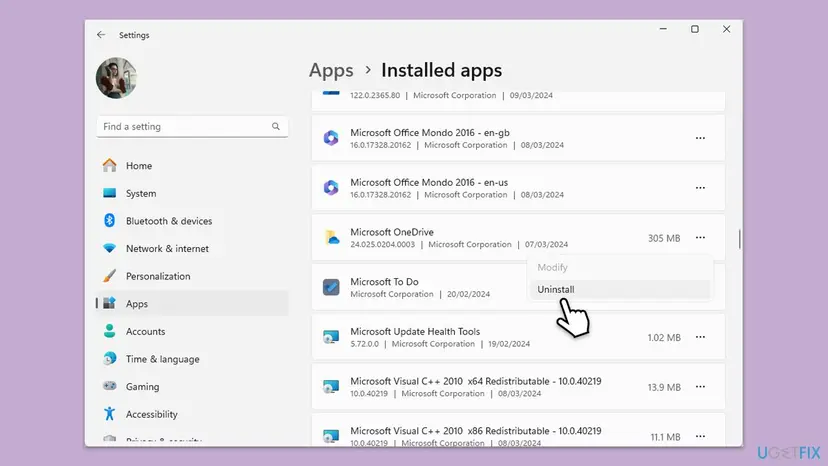
Uninstalling OneDrive does not delete the files in your OneDrive online. The general steps: Uninstall a program or app in Windows
It worked if: The new OneDrive signs in, syncs, and the Entry Point window does not appear at the next sign-in.
If not: If the same window appears on a fresh install, the broken file is part of Windows: go to Fix 6.
Fix 6. Repair Windows system files with DISM and SFC
20 to 30 minutesNo riskThe window names a DLL in C:\Windows\System32 or SysWOW64, or other programs show Entry Point errors too, on Windows 10 1709 or later or Windows 11.
When Windows is new enough but a system DLL is damaged, the function is missing from that copy of the file. DISM repairs the store of Windows components, and SFC replaces the damaged file from it. This does not help on Windows 10 1607, where the function was never there.
- Open an elevated command window. Right-click Start and select Terminal (Admin), or type cmd in the search box, right-click Command Prompt and select Run as administrator. Select Yes when Windows asks for permission.

Search for cmd and choose Run as administrator. Screenshot: Windows 11 26H2. - Run DISM first. Type the command below and press Enter. DISM downloads clean copies of damaged components from Windows Update, so it can take several minutes. Wait until it says The operation completed successfully.
DISM.exe /Online /Cleanup-Image /RestoreHealth
DISM /RestoreHealth running. Screenshot: Windows 11 26H2. - Run System File Checker. In the same window, type the command below and press Enter. Do not close the window until the verification reaches 100%.
sfc /scannow
sfc /scannow at 100%. Screenshot: Windows 11 26H2. - Read the result and restart. Compare the last message with the table below this guide, then restart the PC so that repaired files are loaded.

The result line tells you what SFC did. Screenshot: Windows 11 26H2.
These steps were written for Windows 11 24H2 and 25H2. The full page with the other versions and what each result means: Run DISM and SFC to repair Windows system files
It worked if: SFC reports no integrity violations or that it repaired files, and OneDrive starts without the window after a restart.
If not: Collect the details in "If the OneDrive Entry Point window is still there" and contact Microsoft support.
If the OneDrive Entry Point window is still there
Stop and collect the facts that decide the next step: the exact title, the function name, the path, and the Windows version. Most cases that survive the fixes above turn out to be a PC on an older build than its owner thought.
- Take a photo of the window with the function name and the path visible.
- Run
winverand note the version and the OS build. - Note the OneDrive version from the cloud icon, the gear icon, Settings, About.
- Open Event Viewer > Windows Logs > Application and look for errors from the same minute that name OneDrive or OneDriveSetup.exe.
- On a work PC, send this to your IT department. OneDrive and its updates may be managed centrally.
| What you find | What it points to |
|---|---|
| Version 1607 or older, GetUserDefaultGeoName | Windows is too old. Fix 1 or Fix 2, nothing else. |
| Version 1709 or later, a OneDrive DLL in the path | A damaged OneDrive install. Fix 5. |
| A System32 DLL, and other programs fail too | Damaged Windows. Fix 6, then check the disk: Check a disk for errors (chkdsk) |
How to keep the OneDrive Entry Point error from coming back
OneDrive moves with current Windows and will keep using newer functions. The window returns whenever the app gets ahead of the system it runs on.
- Keep Windows on a supported version and install feature updates.
- On terminals that must stay on an old build, keep the OneDrive update tasks disabled or remove OneDrive.
- Check
winverbefore you trust any fix for an Entry Point window. - Let OneDrive finish its updates and restart when Windows asks.
- Do not download Kernel32.dll or another system DLL from a DLL website.
- Do not copy DLLs from a newer PC into System32.
- Do not delete the OneDrive Update folder by hand while OneDrive runs.
- Do not run registry cleaners on OneDrive entries.
Frequently asked questions
What is OneDriveSetup.exe?
OneDriveSetup.exe is Microsoft's installer and updater for the OneDrive sync app. Windows ships a copy, and OneDrive keeps its own in C:\Users\<your name>\AppData\Local\Microsoft\OneDrive\Update, from where a scheduled task starts it to install new versions. It is signed by Microsoft. It does not need to run all the time: it starts, checks for a new version, installs it and quits. A file with this name in Downloads, Temp or C:\Windows that you did not download from Microsoft deserves a scan with Microsoft Defender.
Why did the OneDriveSetup.exe error suddenly appear?
Because OneDrive updates itself. Users on Microsoft Q&A report the window on many Windows 10 PCs from the morning of 6 March 2024, with no change on their side. A new OneDrive build arrived, and its updater calls GetUserDefaultGeoName, a function Microsoft lists for Windows 10 version 1709 and later. PCs on 1607 and older builds, including LTSB 2016, IoT terminals and Server 2016, cannot provide it. It was not caused by a Windows update, and nothing on your PC broke.
I use Windows 10. Why does OneDrive.exe say entry point not found?
Check your version first with winver. If it shows 1507, 1511 or 1607, your Windows 10 is older than OneDrive now expects, and the window will keep coming until you update Windows or disable the OneDrive update task. If it shows 1709 or later, such as 22H2, the missing function exists, so the window points to a damaged OneDrive or Windows file instead. Then reset OneDrive, reinstall it, and run DISM and SFC, in that order.
Can OneDrive be fixed without updating Windows?
The window can be stopped, but OneDrive cannot be made to use a function Windows does not have. Disable the tasks whose names start with OneDrive Standalone Update Task in Task Scheduler. The installed OneDrive then stays on its current version and the updater no longer runs. We could not confirm how long such an old build keeps syncing. On systems that must stay on 1607, such as LTSB 2016 terminals and Server 2016, users report that this is the practical answer.
Does running SFC or DISM fix the GetUserDefaultGeoName error?
No. SFC and DISM repair Windows files that are damaged, and on Windows 10 1607 nothing is damaged: the function was simply added later, in version 1709. The older version of this page suggested them first, which was wrong for this window. They help only when an Entry Point window appears on Windows 10 1709 or later or Windows 11 and names a Windows DLL. Then run DISM first and SFC after it, as Fix 6 shows.
What about OneDrive.Sync.Service.exe - Entry Point Not Found?
OneDrive.Sync.Service.exe is a background helper of the same OneDrive app, and its Entry Point window is read the same way. One reported form names CfGetPlaceholderStateFromAttributeTag, a function of the Windows cloud files system that OneDrive uses for files on demand. We could not confirm from Microsoft which Windows version added it. Check winver: on an old Windows 10 build, follow Fix 1 or Fix 2. On a current build, reset OneDrive (Fix 4) and reinstall it if needed (Fix 5).
Windows cannot find onedrive.exe when I run the reset. What now?
The reset command points to the usual place of OneDrive for one user, %localappdata%\Microsoft\OneDrive\onedrive.exe. If OneDrive was installed for all users, it sits in C:\Program Files\Microsoft OneDrive or C:\Program Files (x86)\Microsoft OneDrive, so run the same command with that path and /reset. If none of the three paths exists, OneDrive is not installed. Then download it from Microsoft's OneDrive page, but only on Windows 10 1709 or later or Windows 11.
Will I lose my files if I disable or uninstall OneDrive?
No. Disabling the update task changes only the updater, and uninstalling the app removes the program, not your files in the cloud. Files you synced earlier stay in your OneDrive online and can be opened at OneDrive.com. Before you uninstall, make sure the cloud icon says your files are up to date, so nothing that exists only on this PC is waiting to upload. Files in your local OneDrive folder also stay on the disk after an uninstall.
Does this happen on Windows 7 and Windows 8.1?
OneDrive no longer supports them. Microsoft stopped OneDrive desktop app updates on Windows 7, 8 and 8.1 on 1 January 2022, and personal OneDrive on these systems stopped syncing on 1 March 2022. Any OneDrive window there is a leftover of an app that can no longer work. Uninstall OneDrive and use OneDrive.com in the browser, or move to a supported Windows. We could not confirm that the window on Windows 7 names the same function.
The message says 'no se encuentra el punto de entrada' or 'точка входа не найдена'. Is it the same error?
Yes. Windows translates the title and the sentence into the language of the PC. The Spanish no se encuentra el punto de entrada del procedimiento GetUserDefaultGeoName and the Russian точка входа не найдена are the same window as Entry Point Not Found in English. The function name and the path are never translated. Read those two and your winver version, and follow the same fixes on this page.
Sources
- Microsoft Learn: GetUserDefaultGeoName function (Kernel32.dll, minimum Windows 10 version 1709, Server 2016) (learn.microsoft.com)
- Microsoft Support: OneDrive sync app no longer supported on Windows 7, 8 or 8.1 (support.microsoft.com)
- Microsoft Q&A (user reports): OneDriveSetup.exe - Entry Point not found, Windows 10 1607, Server 2016, update task workaround (learn.microsoft.com)
Did this fix work?
One click, no account. It tells the next reader which guides are worth their time.
Questions and experiences: fix OneDriveSetup.exe - Entry Point not Found error in Windows
Still broken, or found a fix we did not cover? Ask here: members and our editors answer. Reading is open; writing needs a free account.
…