
How to fix OneNote error code 0x803d0005 in Windows?

Prefer to fix it yourself? The manual steps follow.
- 8methods
- 5 to 30 minutes
- Easy
Applies to OneNote for Windows 10 (the Microsoft Store app) and OneNote for Microsoft 365, OneNote 2024, 2021 and 2016 on Windows 11 and Windows 10, with notebooks on OneDrive or SharePoint
8 methods in this guide
OneNote for Windows 10 displayed a permissions error that prevented the sync feature from working. I attempted to sign out and then back in without success. Restarting the application led to a blank screen showing the OneNote logo and a loading bar instead of my notes. Then I got the error "Couldn't load: Error code 0x803D0005". Any idea how to fix this?
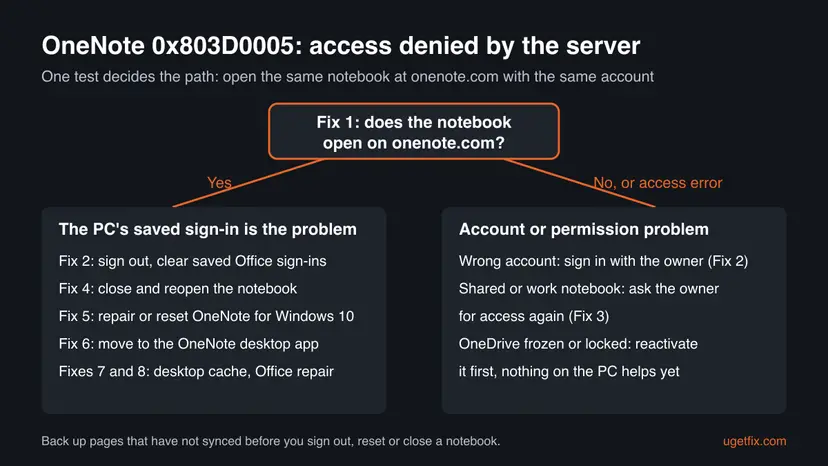
OneNote error 0x803D0005 means the OneNote service refused access to your notebooks: the sign-in OneNote sent was turned down. It is an account or permission problem, not a broken PC. Open the same notebook at onenote.com with the same account first; that one test tells you which fix to use.
Error 0x803D0005 means the OneNote service denied access to the account OneNote signed in with. Open the notebook at onenote.com/notebooks with the same account (Fix 1). If it opens there, the saved sign-in on the PC is stale: sign out, remove the saved Office sign-ins and sign in again (Fix 2), then reset the app (Fix 5). If the web refuses too, fix the account or ask the notebook's owner for access (Fix 3).
| Error | Couldn't load with Error code 0x803D0005. Before it, OneNote often shows a permission or sync warning. |
|---|---|
| Where it appears | When OneNote opens or loads a notebook, most often in OneNote for Windows 10, the Microsoft Store app. The app may hang on the OneNote logo and a loading bar. |
| Main cause | The OneNote service refused the sign-in: a stale saved sign-in on the PC, the wrong Microsoft account, or lost access to a shared notebook. |
| Fastest fix | Open the notebook at onenote.com/notebooks with the same account (Fix 1), then sign out and clear the saved Office sign-ins (Fix 2). |
| What the code is | A Windows Web Services code: WS_E_ENDPOINT_ACCESS_DENIED, "the remote endpoint indicates that access was denied". |
| Also written as | 0x803d0005, 0x803D0005, Error code: 0x803D0005. Related: 0xE0001075 (appears after a retry), 0x80070005 ("You no longer have permission to this notebook"). |
| Affects | OneNote on Windows 11 and Windows 10. Windows 10 left support on 14 October 2025. |
| Vendor status | Microsoft has no OneNote page for this code. OneNote for Windows 10 reached end of support on 14 October 2025 and gets no more fixes. |
| Risk of data loss | Pages that have not synced live only on this PC. Signing out, resetting or closing a notebook can lose them. |
| Time to fix | 5 minutes when the sign-in is stale. Longer when a notebook owner has to give you access again. |
Facts checked on 16 October 2026. Steps written for Windows 11 (25H2 and 26H2) and Windows 10 22H2.
What OneNote error code 0x803D0005 means
OneNote shows Couldn't load and, under it, Error code 0x803D0005. Often a permission or sync warning comes first, and the app then hangs on its logo with a loading bar instead of your notes. Signing out and back in inside the app does not always clear it.
The code itself is not a OneNote invention. Codes that start with 0x803D belong to Windows Web Services, the layer OneNote uses to talk to Microsoft's servers. Microsoft's list of these codes names this one WS_E_ENDPOINT_ACCESS_DENIED: the server says access was denied, and Windows only returns it when the server itself said so.
Your PC reached the OneNote service and the service answered "no". So the network is working. The problem is the sign-in OneNote sent, or the rights of that account to the notebook. Microsoft's reference page prints the value as 0x804D0005; the code family and the name are the same.
| Code | What it means | Where to go |
|---|---|---|
| 0x803D0005 | The server denied access to this account | This page |
| 0xE0001075 | "Something went wrong and we can't do what you asked", often after you retry 0x803D0005 | OneNote error 0xE0001075 |
| 0x80070005 | "You no longer have permission to this notebook" or "To sync this notebook, sign in to OneNote" | Fixes 2 to 4 here |
| 0x803D0010 | No route or network connection to the server | Check the internet connection first |
Why OneNote shows error 0x803D0005: causes ranked
Microsoft publishes no cause list for this code. The ranking below follows what the code means, the answers of Microsoft's support staff in its Q&A threads about 0x803D0005 and the related 0x80070005, and what the reader's question above describes.
| How often | Cause | Typical sign | Fix |
|---|---|---|---|
| Most often | The sign-in saved on the PC is stale or damaged | The notebook opens on onenote.com, only the app fails | Fix 2, then Fix 5 |
| Often | OneNote uses a different Microsoft account than the one that owns the notebook | You have a personal and a work account, or two personal ones | Fix 2 |
| Often | The notebook is shared or on SharePoint and your access was removed or changed | onenote.com shows the same permission error | Fix 3 |
| Less often | The app's link to one notebook broke | Other notebooks load, one does not | Fix 4 |
| Less often | OneNote for Windows 10 has damaged app data, and it no longer gets updates | Sign-out and sign-in in the app change nothing | Fix 5, then Fix 6 |
| Rarely | A damaged desktop OneNote cache or Office install | Only the desktop OneNote fails, other Office apps misbehave too | Fix 7 and Fix 8 |
Microsoft's support staff warn that notes that have not synced get lost when you close a notebook or sign out. If the app still shows any recent pages, copy them into a Word file or an email before Fix 2, Fix 4, Fix 5 or Fix 7.
How to fix OneNote error code 0x803D0005 in Windows
Fix 1 is a two-minute test that decides the path. Fixes 2 to 5 cover the sign-in and permission causes behind most reports. Fix 6 is the long-term answer for OneNote for Windows 10, and Fixes 7 and 8 are for the desktop OneNote that comes with Microsoft 365 or Office.
| What you see or have | Start with |
|---|---|
| Couldn't load, Error code 0x803D0005, and you do not know why | Fix 1 |
| The notebook opens on onenote.com, not in the app | Fix 2 |
| You have more than one Microsoft account | Fix 2 |
| The notebook was shared with you, or is a work or school notebook on SharePoint | Fix 3 |
| Only one notebook fails in the desktop OneNote | Fix 4 |
| You use OneNote for Windows 10 and Fix 2 did not help | Fix 5, then Fix 6 |
| Retrying gives 0xE0001075 instead | Fix 1, then the 0xE0001075 guide |
Fix 1. Open the notebook on onenote.com with the same account
5 minutesNo riskEveryone with 0x803D0005. It takes two minutes, changes nothing and shows whether the PC or the account is the problem.
The code says the server denied access. If the server lets the same account in through a browser, the account is fine and the PC's saved sign-in is at fault. If the browser is refused too, nothing on the PC will help yet.
- In a browser, open
https://www.onenote.com/notebooks. - Sign in with the Microsoft account you use in the OneNote app. Check the address shown at the top right.
- Look for the notebook that fails in the app and open it.
- Check that your latest pages are there and that no permission message appears.
- If the notebook is not in the list, open Shared with me or the SharePoint site where your team keeps it.
- It opens and shows your latest pages: the account is fine. Go to Fix 2.
- It opens, but under another address than the one in the app: the app uses the wrong account. Go to Fix 2.
- It shows a permission or access message: go to Fix 3.
- OneDrive or onenote.com says the account is frozen or locked: follow the steps on that page to reactivate it, and see the 0xE0001075 guide.
It worked if: You know whether the notebook opens on the web, and under which account.
If not: If the web works, go to Fix 2. If the web refuses access, go to Fix 3.
Fix 2. Sign out, clear the saved Office sign-ins and sign in with the right account
10 minutesRead the warningThe notebook opens on onenote.com but the app shows 0x803D0005, or you have more than one Microsoft account.
0x803D0005 is the server refusing the sign-in the app sent. Signing out alone can leave the old saved sign-in in Windows Credential Manager, so the app sends it again. Removing it makes OneNote ask for a fresh one.
Pages that never reached the server are lost when you sign out. Compare the app with onenote.com from Fix 1 and copy any page that is missing on the web into a Word file first.
- In the desktop OneNote, select File > Account > Sign out. In OneNote for Windows 10, select Settings and More (the three dots) > Settings > Accounts, pick the account and select Sign out.
- Close OneNote and every other Office app.
- Press Win, type Credential Manager and open it.
- Select Windows Credentials and scroll to Generic Credentials.
- Expand each entry whose name starts with MicrosoftOffice16 or MicrosoftOffice15 and select Remove.
- Open OneNote and sign in with the address that showed your notebooks on onenote.com in Fix 1.
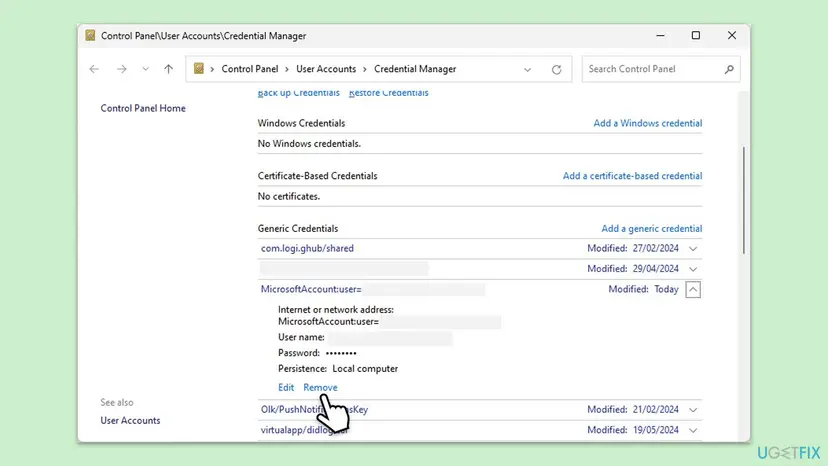
Removing these entries does not delete notes or files. Office only asks you to sign in again. We could not confirm on a Microsoft page which entry OneNote for Windows 10 uses, so if the Store app still fails, its own reset in Fix 5 clears its saved sign-in.
It worked if: OneNote asks for your account, loads the notebook list and opens the notebook without Couldn't load.
If not: If the error stays with OneNote for Windows 10, go to Fix 5. If only one notebook fails in the desktop OneNote, go to Fix 4.
Fix 3. Check your access to a shared or work notebook
5 to 30 minutesNo riskThe notebook was shared with you, belongs to a team, or sits on a SharePoint site, and onenote.com refuses access too.
When the web shows the same refusal, Microsoft's support staff say the notebook's permissions are the cause. Access denied is then a true answer, and only the owner or the site admin can change it.
- Open the SharePoint site where the notebook lives. If you cannot open the site at all, contact the site owner.
- Select Site contents > Site Assets and try to open the notebook from there.
- If it still refuses, send the owner the notebook's name and the account you sign in with.
- Ask the owner to open Manage access > Advanced > Check Permissions and enter your account.
- If the check finds no access, the owner grants it under Manage access.
- Open the notebook from the web again, then in the app.
For a notebook a friend shared from a personal OneDrive, ask them to share it again with the exact address you use in OneNote. A share sent to another address of yours will not let this account in.
It worked if: The notebook opens on the web without a permission message, and the app loads it after a restart.
If not: If you have access on the web and the app still fails, go back to Fix 2 and sign in with the account that has the access.
Fix 4. Close the notebook and open it again from the web
10 minutesRead the warningYou use the desktop OneNote, other notebooks load, and one notebook shows 0x803D0005 or a permission error.
Microsoft's support staff give this as the first step for the permission error on a notebook. Reopening it from onenote.com makes the app build a new link to the notebook with your current sign-in.
Closing a notebook drops its local copy. Copy any page that is missing on onenote.com into another notebook, a Word file or an email first.
- In OneNote, right-click the notebook in the notebook list and select Close This Notebook.
- In a browser, open the notebook at onenote.com as in Fix 1.
- On the ribbon, select Open in Desktop App.
- Allow the browser to open OneNote when it asks.
- Wait until every section has loaded before you edit.
It worked if: The notebook loads in the app with all sections and no error.
If not: If sections stay unloaded or the error returns, go to Fix 7 to clear the desktop cache.
Fix 5. Repair or reset OneNote for Windows 10
10 minutesRead the warningYou use OneNote for Windows 10 (no File menu), and signing out and in did not help.
Microsoft's support staff suggest repair, then reset, for 0x803D0005 in OneNote for Windows 10. Reset wipes the app's saved sign-in and local data, which is where a stale sign-in hides in the Store app.
Repair keeps your data. Reset removes OneNote's data on this PC, including notes that have not synced. Notebooks already on OneDrive are not touched. Try Repair first.
Use Repair first, open OneNote and test. Only if the error stays, come back and use Reset, then sign in with the right account.
- Open Installed apps. Select Start > Settings > Apps > Installed apps.
- Open the app's advanced options. Find the app in the list, select the three dots next to it and select Advanced options. Some apps do not have this option: for those, see the section about desktop programs below.
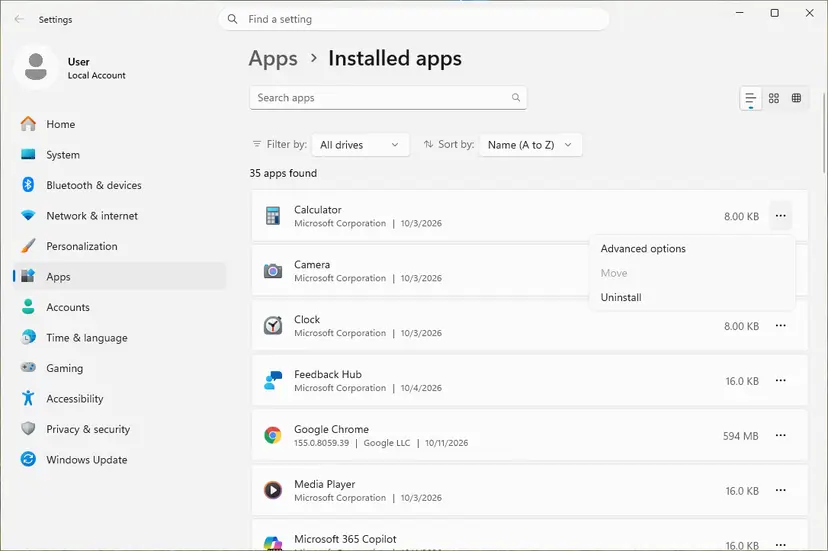
The three dots next to an app open Advanced options. Screenshot: Windows 11 26H2. - Repair first. On the page that opens, select Repair if it is there. The app's data stays. Open the app and check whether it works.

Repair keeps the app data. Reset deletes it. Screenshot: Windows 11 26H2. - Reset if Repair did not help. Select Reset. This deletes the app's data on this PC, including sign-in details and settings. Open the app and set it up again.
These steps were written for Windows 11 25H2 and 26H2. The full page with the other versions and what each result means: How to repair or reset an app in Windows
It worked if: OneNote opens, asks you to sign in, and loads your notebooks.
If not: If the Store app still shows 0x803D0005 after a reset, move to the desktop OneNote with Fix 6.
Fix 6. Move from OneNote for Windows 10 to the OneNote desktop app
15 minutesLow riskYou use OneNote for Windows 10 and the notebook opens on the web, but the app keeps failing.
OneNote for Windows 10 reached end of support on 14 October 2025, so its sign-in errors will not be fixed. The desktop OneNote opens the same notebooks from OneDrive with a different, maintained sign-in.
- Check that your notebooks open on onenote.com/notebooks (Fix 1).
- If you have Microsoft 365, press Win, type OneNote and open the app that has a File menu.
- If you do not, download OneNote for Windows from
https://www.onenote.com/download. - Sign in with the account that owns the notebooks.
- Select File > Open and open each notebook from OneDrive.
- When every notebook is open and up to date, uninstall OneNote for Windows 10.
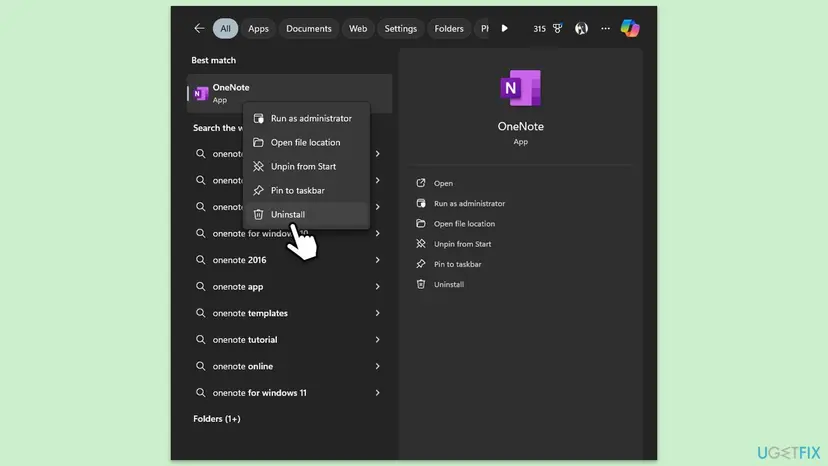
Microsoft's staff also suggest reinstalling the Store app for this code. Now that it is out of support, moving is the better use of the same time; the full move is in our 0xE0001075 guide.
It worked if: The desktop OneNote opens your notebooks and syncs them without an error.
If not: If the desktop app shows 0x803D0005 too, the account side is the cause: go back to Fix 1 and Fix 3.
Fix 7. Clear the desktop OneNote cache and sign in again
15 minutesRead the warningThe desktop OneNote fails while the notebook works on the web, and Fixes 2 and 4 did not help.
Microsoft's support staff give this as the next step when the web works and the desktop app still cannot sync. The cache folder holds the app's local copy and state, and a clean one is rebuilt from the server.
Any change that has not reached the server is lost with the cache. Copy missing pages out first, as in Fix 2. To be safe, rename the folder instead of deleting it, and delete it only when everything works.
- In OneNote, select File > Account > Sign out, then close OneNote.
- Press Win + R, paste
%localappdata%\Microsoft\OneNote\16.0and press Enter. - Right-click the cache folder and rename it to cache.old.
- Open OneNote and sign in with the account that has access to the notebooks.
- Wait while OneNote downloads the notebooks again.
It worked if: OneNote rebuilds the cache folder, and the notebooks load and sync.
If not: If the error returns, repair Office with Fix 8.
Fix 8. Repair Microsoft Office
10 to 30 minutesLow riskThe desktop OneNote that comes with Microsoft 365 or Office still fails after the fixes above.
If Office's own sign-in parts are damaged, OneNote keeps sending a sign-in the server refuses. A repair replaces those program files without touching your notebooks.
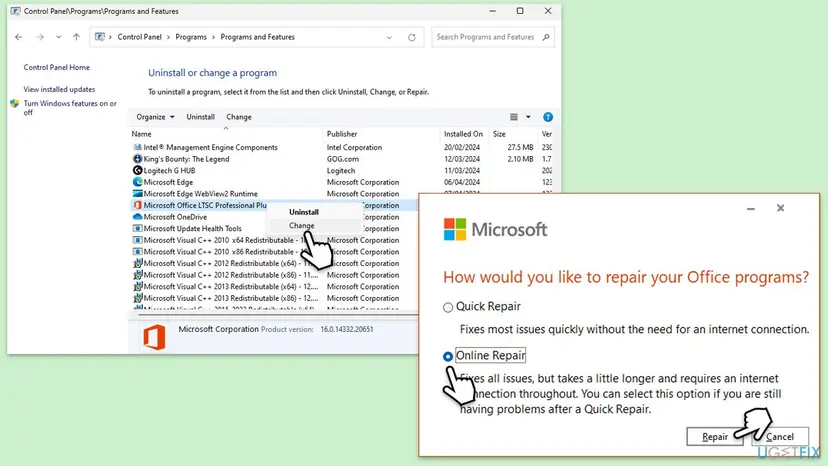
Try Quick Repair first; it works offline. If the error stays, run Online Repair, which reinstalls Office and needs the internet.
- Open Installed apps. Right-click the Start button and select Installed apps.
- Find Microsoft 365 or Office. Find your Microsoft 365 or Office product in the list. If you have a standalone app such as Visio or Project, search for it by its own name.
- Open the repair window. Select the three dots next to the product and select Modify.
- Start with Quick Repair. In the repair window, select Quick Repair, then Repair. It is the faster option: it finds damaged files and replaces them.
- Finish and test. Follow the instructions on the screen until the repair is done. Restart the PC if you are asked to, then open the app that had the problem.
- Run Online Repair if the problem is still there. Open the same repair window again and select Online Repair, then Repair. Microsoft recommends this option to make sure everything gets fixed. It takes longer than Quick Repair.
These steps were written for Windows 11 25H2 and 26H2. The full page with the other versions and what each result means: How to repair Microsoft 365 or Office
It worked if: OneNote opens after the repair, asks you to sign in and loads the notebooks.
If not: Collect the details in the next section and contact Microsoft support, or your IT admin for a work account.
OneNote still shows 0x803D0005: what to collect
The refusal comes from Microsoft's server, so no Windows log on your PC explains it. The useful facts are in OneNote and on the web. Collect them before you contact Microsoft support or your IT admin.
- The exact message and code, and any code that follows a retry, such as 0xE0001075.
- Which app you use: OneNote for Windows 10 or the desktop OneNote, and its version under File > Account > About OneNote.
- Whether the notebook opens at onenote.com with the same account.
- Where the notebook lives: your OneDrive, someone else's OneDrive, or a SharePoint site.
- Whether the same notebook opens on a phone or another PC.
If onenote.com refuses the notebook in every browser and on every device, the PC is not the cause. Only the notebook's owner, Microsoft support or, for a work or school account, your admin can change access. A hardware fault does not produce this code.
How to avoid OneNote error 0x803D0005 next time
- Use one Microsoft account for OneNote on every device, and check which one before you sign in.
- Keep personal and work notebooks apart, and add a second account in OneNote instead of switching back and forth.
- When someone shares a notebook, ask them to share it with the exact address you use in OneNote.
- Move from OneNote for Windows 10 to the desktop OneNote, now that the Store app is out of support.
- Let a notebook finish syncing before you sign out, close it or shut the laptop.
- Sign in to onedrive.live.com from time to time and act on any notice about the account.
None of this changes how Microsoft's servers decide access. It removes the causes on your side that show up most often in reports of this code.
Frequently asked questions
What is error code 0x803D0005?
It is a Windows Web Services code named WS_E_ENDPOINT_ACCESS_DENIED. Microsoft's reference says it means the remote endpoint, here the OneNote service, indicated that access was denied. Windows only returns it when the server itself said no. In OneNote it shows as Couldn't load with Error code 0x803D0005. Your connection works; the sign-in or the account's rights to the notebook were refused. Start with the web test in Fix 1.
How do I fix OneNote error 0x803D0005?
Open the notebook at onenote.com/notebooks with the same account. If it opens there, the PC's saved sign-in is stale: sign out of OneNote, remove the MicrosoftOffice entries in Credential Manager and sign in again (Fix 2). In OneNote for Windows 10, repair or reset the app (Fix 5) or move to the desktop OneNote (Fix 6). If the web refuses access too, ask the notebook's owner for access (Fix 3).
Why does OneNote get stuck on the logo and a loading bar?
The app is waiting for notebooks the server will not give it. When the sign-in is refused, OneNote for Windows 10 can sit on its logo and a loading bar, and then show Couldn't load with 0x803D0005. Restarting the app sends the same saved sign-in again, so it hangs again. Clearing that sign-in (Fix 2) or resetting the app (Fix 5) breaks the loop.
Is 0x803D0005 the same as 0xE0001075?
No, but they come together. In a Microsoft Q&A thread, OneNote for Windows 10 showed 0x803D0005 at start, and after a retry it showed 0xE0001075. 0x803D0005 is the server refusing access. 0xE0001075 is OneNote's general "Something went wrong" error when it cannot reach your notebooks. Fix 1 here is the first step for both; our 0xE0001075 guide covers the frozen OneDrive and disabled OneDrive causes.
What does "You no longer have permission to this notebook" mean?
It means the account OneNote uses has no access to that notebook any more, and it usually comes with error 0x80070005. Microsoft's staff tie it to shared and SharePoint notebooks, where the owner or the site settings control access. Check the notebook on the web: if the web shows the same message, the owner must give access again (Fix 3). If the web works, close and reopen the notebook (Fix 4).
Will I lose my notes if I sign out or reset OneNote?
Notes that already synced stay safe on OneDrive or SharePoint. Notes that never reached the server live only on this PC, and signing out, a reset, closing the notebook or clearing the cache can delete them. Microsoft's support staff warn about this too. Before Fix 2, Fix 4, Fix 5 or Fix 7, compare the app with onenote.com and copy any missing page into a Word file or an email.
Should I turn off the firewall or flush DNS for 0x803D0005?
No. The old version of this guide suggested both, but this code means the server answered and refused access. A blocked or broken connection gives a different code, 0x803D0010, "no route or network connectivity to the endpoint". Turning off protection weakens the PC and does not change a refusal from the server. Fix the sign-in or the notebook access instead.
Does OneNote for Windows 10 still work after October 2025?
Microsoft ended support for OneNote for Windows 10 on 14 October 2025, and the app moves to read-only mode. It gets no more fixes, so a sign-in error such as 0x803D0005 in it will not be patched. Your notebooks are in OneDrive, so moving loses nothing: install the desktop OneNote, sign in with the same account and open the notebooks there (Fix 6).
I searched in another language: "mi dice così", "o que é esse erro", "แก้ยังไง". Is this the right page?
Yes, if OneNote shows Couldn't load with error code 0x803D0005. This page is in English only. In short: the OneNote server refused your sign-in. Open the notebook at onenote.com with the same account. If it opens, sign out of OneNote, sign in again and reset the app if needed. If it does not open, the owner of the notebook must give your account access.
Sources
- Microsoft Learn: Windows Web Services Return Values (WS_E_ENDPOINT_ACCESS_DENIED, endpoint unreachable and fault codes) (learn.microsoft.com)
- Microsoft Q&A: OneNote for Windows 10 error code 0x803D0005 and 0xE0001075 (staff answer: sign out and in, repair or reset, reinstall) (learn.microsoft.com)
- Microsoft Q&A: You no longer have permission to this notebook, error 0x80070005 (staff answers: reopen the notebook, test on the web, cache, SharePoint permissions) (learn.microsoft.com)
Did this fix work?
One click, no account. It tells the next reader which guides are worth their time.
Questions and experiences: fix OneNote error code 0x803d0005 in Windows
Still broken, or found a fix we did not cover? Ask here: members and our editors answer. Reading is open; writing needs a free account.
…