
How to fix OOBELANGUAGE error in Windows?

Prefer to fix it yourself? The manual steps follow.
8 methods in this guide
Hello. I tried setting up Windows 11, but I got the OOBELANGUAGE error once I reached the language selection part. Is there a way to fix this?
OOBELANGUAGE is the language step of the Windows first-run setup, and the error means setup could not apply the language you picked. It often follows a restart after a different language was chosen first. Select Try again, then pick the language you chose the first time, or select Skip and change the language after setup.
The OOBELANGUAGE error stops the Out-of-Box Experience (OOBE) at its first screen, the language choice. Select Try again and, if it repeats, hold the power button to restart (Fix 1). Then choose the language you picked the first time (Fix 2), or select Skip, finish setup and add your language in Settings later (Fix 3). If setup still loops, press Shift + F10 and restart setup with msoobe.exe (Fix 4).
| Error | Something went wrong / But you can try again. / OOBELANGUAGE, on a blue setup screen with Try again and Skip buttons. |
|---|---|
| Where it appears | On the first screen of the Windows setup (OOBE), where you choose the language, on a new PC, after Reset this PC or after a clean install. |
| Main cause | Setup cannot switch to the language you chose, most often because another language was picked before a restart, or because the edition holds only one display language. |
| Fastest fix | Try again, a hard restart, then the language you chose first (Fixes 1 and 2). Or Skip and change the language in Settings > Time & language later (Fix 3). |
| Also written as | oobelanguage, oobe language, OOBeLanguage, oobelanguage error. Sister codes on the same screen: OOBEREGION, OOBEKEYBOARD, OOBELOCAL, OOBEEULA. |
| Affects | Windows 11 (25H2 and 26H2) and Windows 10 22H2. Windows 10 left support on 14 October 2025. |
| Vendor status | Microsoft has no article for the OOBELANGUAGE code. Dell's knowledge base says Microsoft traced these setup failures to a timing problem inside OOBE and is narrowing it through Windows updates. |
| Your files | Fixes 1 to 7 change nothing on your files. Only Fix 8 resets or reinstalls Windows. |
| Time to fix | 5 minutes for Fixes 1 to 3, 10 to 20 minutes for Fixes 4 to 7, one to two hours for Fix 8. |
Facts checked on 15 October 2026. Steps written for Windows 11 (25H2 and 26H2) and Windows 10 22H2.
What the OOBELANGUAGE error means
OOBE stands for Out-of-Box Experience: the blue first-run screens of Windows. LANGUAGE is the name of its first step, where you choose the display language. So OOBELANGUAGE names the step that failed, not a damaged file or a missing driver.
The screen reads Something went wrong, then But you can try again., then the code OOBELANGUAGE in small letters, with Try again and Skip buttons. Some older builds word the middle line as an offer to try again or skip for now. In every case Windows is already on the disk; only the first setup is stuck.
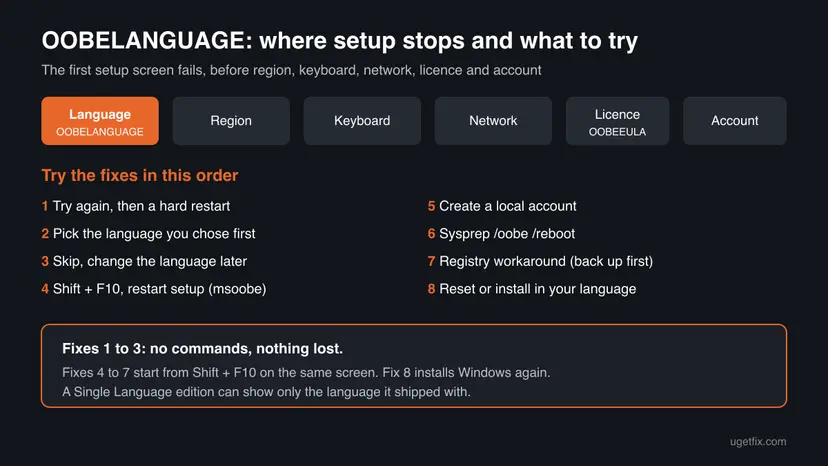
- oobelanguage, oobe language and OOBeLanguage are the same code with different spacing or capitals.
- OOBEREGION, OOBEKEYBOARD and OOBELOCAL fail on the next screens, and OOBEEULA fails at the licence terms. They are failed steps of the same setup program, so Fixes 1, 4, 5 and 6 work for them too.
- Shift + F10 (on many laptops Shift + Fn + F10) opens a Command Prompt on any setup screen. Fixes 4 to 7 start there.
What causes the OOBELANGUAGE error, most common first
Microsoft publishes no cause list for this code. The order below follows Dell's knowledge base article on failed setup screens and what owners report in Microsoft's community, where one owner picked Dutch by mistake, restarted, chose English and got OOBELANGUAGE on every try.
| Cause | How often | Start with |
|---|---|---|
| A one-time timing problem in the setup screens. Dell says Microsoft traced these failures to tasks inside OOBE waiting on each other. | Often | Fix 1 |
| A different language was chosen before a restart, and setup cannot switch away from the first choice. | Most often when the error repeats | Fix 2, then Fix 3 |
| The edition is a Single Language edition or the image holds only one language pack, so other languages are not available. | Sometimes | Fix 3, then Fix 8 |
| The saved setup state is stuck and keeps returning to the same step. | Sometimes | Fixes 4 to 7 |
| The reset or install image is damaged, or the wrong language image was used. | Rarely | Fix 8 |
Dell states that these setup failures are software only and do not point to a hardware fault. If a fresh install from USB fails at the same step, read the hardware signs under Still broken below.
How to fix the OOBELANGUAGE error
Fixes 1 to 3 use only the buttons on the screen and change nothing on the disk. Fixes 4 to 7 restart or bypass the setup from Shift + F10. Fix 8 installs Windows again in the right language.
| What you see or have | Start with |
|---|---|
| You saw the error for the first time. | Fix 1 |
| You chose one language, restarted, and now chose another one. | Fix 2 |
| You can read the first language, or you do not mind changing it later. | Fix 3 |
| Try again and Skip both bring the same screen back. | Fix 4, then Fix 5 |
| Setup restarts but stops at OOBELANGUAGE again. | Fix 6, then Fix 7 |
| Settings later says your licence supports only one display language. | Fix 8 |
| Nothing above helped, or the reset was interrupted. | Fix 8 |
Fix 1. Select Try again, then restart with the power button
5 minutesNo riskEveryone who sees the error for the first time.
Dell's support article says Microsoft traced these setup errors to a timing problem inside OOBE. A second attempt, or a hard restart that lets setup resume from a stable point, is the fix Dell gives first.
- On the error screen, select Try again and wait a full minute.
- If Something went wrong comes back, select Try again once more.
- If it fails a second time, hold the power button until the PC turns off.
- Wait about 20 seconds and turn the PC on again. Setup starts from its last stable point.
- Choose your language again and continue.
It worked if: Setup accepts the language and moves to the region screen.
If not: If OOBELANGUAGE returns after the restart, go to Fix 2.
Fix 2. Pick the same language you chose the first time
5 minutesNo riskYou chose a language, restarted or went back, and then chose a different one.
In the Microsoft community case, setup failed only when the owner switched from the first language to another one after a restart. Choosing the first language again lets setup continue, and the language can be changed once Windows is running.
- Restart the PC with the power button if the error screen is still open.
- On the language screen, choose the language you picked the first time, even if it is not the one you want.
- If you do not remember it, try the language the PC was sold with, usually the language of the country of purchase.
- Continue through region, keyboard and the other screens to the desktop.
- Change the display language afterwards as Fix 3 shows.
If you cannot read the first language, the setup screens keep the same layout in every language: the main button is at the bottom right. Keep a phone with a translator app at hand for the account and privacy screens.
It worked if: Setup moves on to the region screen in the first language.
If not: If even the first language fails, select Skip instead (Fix 3).
Fix 3. Select Skip and change the display language after setup
15 minutesNo riskTry again keeps failing, and you can finish setup in the language it falls back to.
Skip lets setup continue with the language it already has, as the owner in the Microsoft community thread found. Microsoft's support page then shows how to install any other language pack and make it the display language from Settings.
- On the error screen, select Skip. Setup continues in the language it already has.
- Finish setup and sign in to the desktop.
- Windows 11: open Settings > Time & language > Language & region and select Add a language next to Preferred languages.
- Windows 10: open Settings > Time & Language > Language and select Add a language under Preferred languages.
- Pick your language, select Next, keep Language pack checked and tick Set as my Windows display language.
- Select Install, then Sign out when Windows says it needs to sign you out to apply the new display language.
Microsoft says a Single Language edition is installed when Settings shows Only one language pack allowed or Your Windows license supports only one display language. Then the display language cannot be changed from Settings; use Fix 8 with installation media in your language.
It worked if: After you sign in again, Windows menus and Settings are in your language.
If not: If Skip brings back the same screen, restart setup from Shift + F10 (Fix 4).
Fix 4. Start the setup screens again from Shift + F10 with msoobe.exe
10 minutesLow riskTry again and Skip both return to OOBELANGUAGE, even after a restart.
msoobe.exe is the program that runs the setup screens. Starting it again from the command prompt, with the built-in Administrator turned on, gives setup a working account and a fresh start of its steps.
- On the OOBELANGUAGE screen, press Shift + F10. A Command Prompt window opens.
- Type
net user administrator /active:yesand press Enter. You should see The command completed successfully. - Type
cd %windir%\system32\oobeand press Enter. - Type
msoobe.exeand press Enter, then wait for setup to restart. - Choose your language and go through the remaining screens.
- On the desktop, open Terminal (Admin) and run
net user administrator /active:noto turn the built-in Administrator off again.
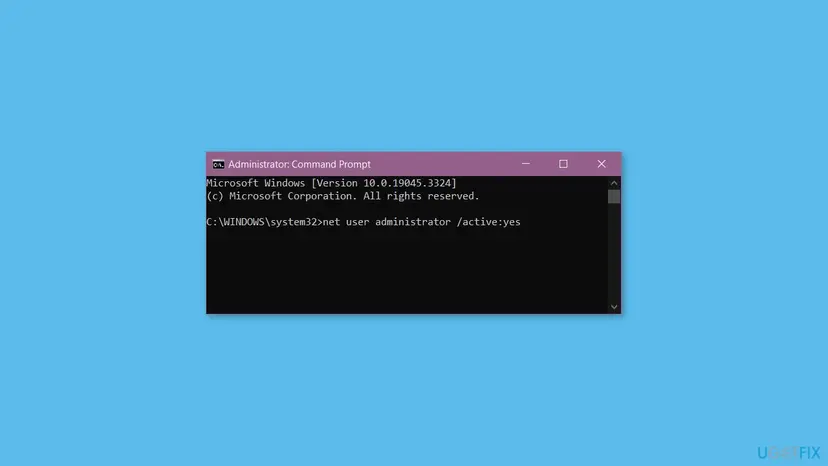
The same commands fix the licence step error too; our OOBEEULA error guide covers that code in full.
It worked if: Setup starts again from the language screen and accepts your choice.
If not: If setup fails again, create your own account so Windows can sign in without the stuck step (Fix 5).
Fix 5. Create a local administrator account from Shift + F10
15 to 20 minutesLow riskFix 4 restarts setup but it fails again.
If setup cannot get past its first step, you can create the user it would have created and sign in directly. The language is then changed from Settings like in Fix 3.
- On the error screen, press Shift + F10.
- Type
net user /add YourName YourPasswordand press Enter. Use a short name and a password you will remember. - Type
net localgroup administrators YourName /addand press Enter. - Type
cd %windir%\system32\oobe, press Enter, then typemsoobe.exeand press Enter. - Wait. If the screen stays still for more than 20 minutes, hold the power button and start the PC again.
- At the sign-in screen, sign in with the name and password you created.
- Change the display language as in Fix 3, and link a Microsoft account later in Settings > Accounts if you want one.
Making or managing a local account later from Settings, with pictures: Create a new user account to test a problem
It worked if: Windows shows a sign-in screen with your new account and opens the desktop.
If not: If the PC goes straight back to OOBELANGUAGE, restart the first-run screens with Sysprep (Fix 6).
Fix 6. Restart the first-run screens with Sysprep /oobe
15 minutesLow riskFixes 4 and 5 did not get you past the error.
Sysprep with /oobe restarts Windows into the first-run screens from their beginning. Without /generalize it keeps the installed Windows as it is, so it clears a setup state that keeps returning to the language step.
- On the OOBELANGUAGE screen, press Shift + F10.
- Type
%windir%\System32\Sysprep\sysprep.exe /oobe /rebootand press Enter. - Wait while Sysprep runs and restarts the PC. This can take a few minutes.
- Choose your language on the first screen and continue.
Some guides print the path as System32n\Sysprep, with a stray letter, and the command then fails. The folder is System32\Sysprep. Run it from Shift + F10 on the setup screen, not from the recovery Command Prompt, where %windir% points to the small recovery system on drive X:.
It worked if: The PC restarts into the language screen and setup moves on to the region screen.
If not: If Sysprep reports an error or setup stops at OOBELANGUAGE again, try the registry workaround (Fix 7).
Fix 7. Tell setup to skip its first screens in the registry
15 minutesRead the warningFixes 4 to 6 all end on the same OOBELANGUAGE screen.
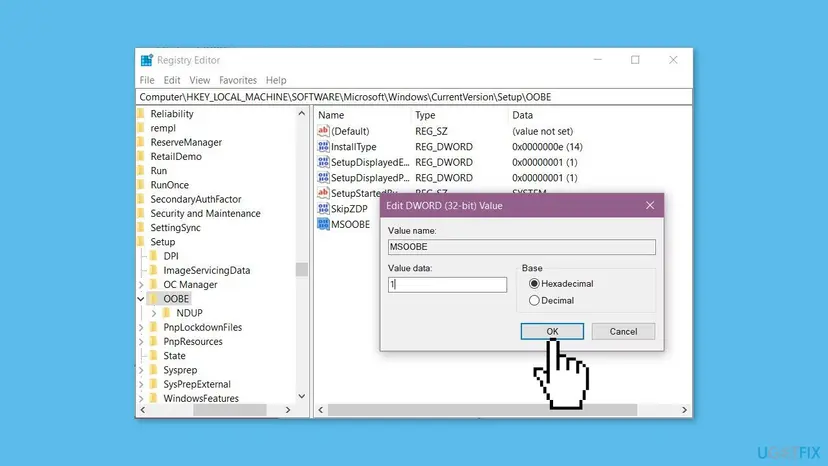
Owners report that adding an MSOOBE value under the OOBE setup key lets Windows finish setup after a restart. Microsoft does not document this value, so treat it as a workaround, back up the key first and remove the value if nothing changes.
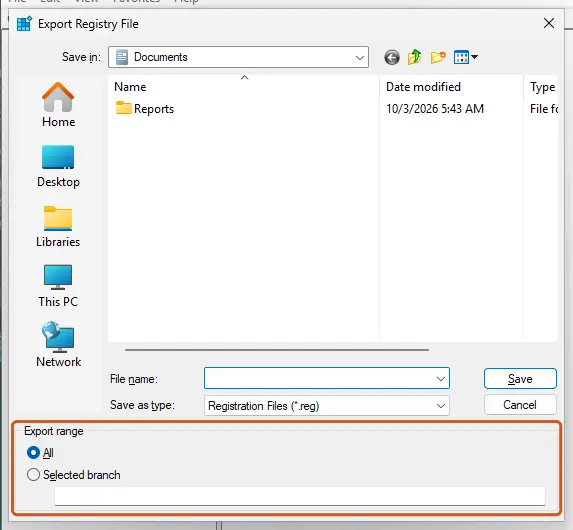
A wrong registry change can stop Windows from starting. Export the key before you add anything so you can import it again: Back up the registry before editing it. We could not confirm the MSOOBE value in Microsoft documentation.
- On the error screen, press Shift + F10, type
regeditand press Enter. - Go to
HKEY_LOCAL_MACHINE\SOFTWARE\Microsoft\Windows\CurrentVersion\Setup\OOBE. - Select File > Export, choose Selected branch and save the file.
- Right-click empty space on the right and select New > DWORD (32-bit) Value.
- Name it
MSOOBE, double-click it and set Value data to1. - Close Registry Editor and restart with
shutdown /r /t 0.
It worked if: After the restart, Windows skips the stuck step and shows the sign-in screen, where the account from Fix 4 or Fix 5 works.
If not: If nothing changes, delete the MSOOBE value or import your backup, then reset Windows (Fix 8).
Fix 8. Reset or reinstall Windows with media in your language
1 to 2 hoursRead the warningNothing above helped, the reset was interrupted, or the edition supports only one display language.
A Single Language edition or an image without your language pack can never switch the language in setup. Installation media made in your language puts that language in from the start, and a fresh install also replaces a damaged setup state.
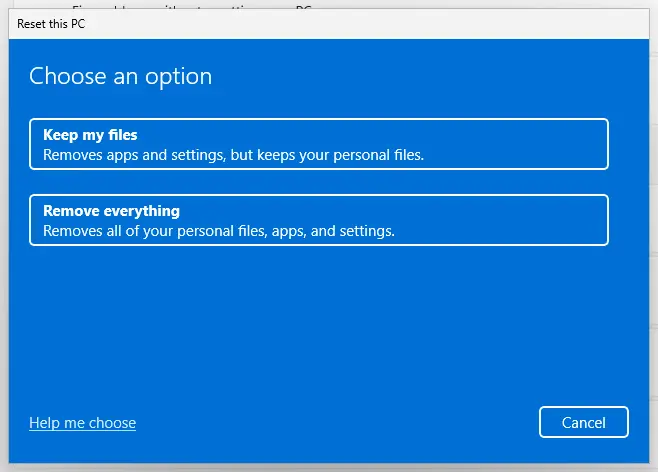
A new PC holds no files yet. After Reset this PC with Keep my files, your documents are usually still in C:\Users: copy them to a USB stick first, as the OOBEEULA guide's reset fix explains. A clean USB install erases the Windows drive. Have your BitLocker recovery key ready.
- To reset: turn the PC off during startup twice, then on the third start select Advanced options > Troubleshoot > Reset this PC.
- Choose Keep my files or Remove everything, then Cloud download for fresh files from Microsoft.
- To reinstall in another language: on another PC, open Microsoft's Download Windows 11 page and create installation media, choosing your language on the media tool's language screen.
- Start the broken PC from the USB stick (boot menu key often F12, F11, Esc or F9) and choose Custom: Install Windows only.
- In the first setup screens, choose the same language as the media.
All reinstall options with pictures: Reinstall Windows without losing files
It worked if: Setup accepts the language on the first screen and reaches the desktop.
If not: If OOBELANGUAGE appears even on a fresh install from USB, read the signs under Still broken below.
If the OOBELANGUAGE error is still there: where to look and what to send
The error screen names only the step. Setup writes the details to log files that you can open from Shift + F10 with notepad, then File > Open and All files:
| What to check | Where | What it tells you |
|---|---|---|
| Setup log | C:\Windows\Panther\setupact.log and setuperr.log | The last lines before the failure name the step and often a code. |
| Edition and languages | dism /online /get-intl from Shift + F10 | Which languages the installed image holds. |
| Disk health | chkdsk C: from Shift + F10, or the maker's disk test | Bad sectors or a failing drive. |
| What you started | Your own notes | New PC, reset (keep or remove, cloud or local) or USB install: support will ask. |
When you contact Microsoft support or the PC maker, send a photo of the error screen, the last 30 lines of setuperr.log, the PC model and the language you chose each time. Memory test steps once Windows runs: How to test your RAM with Windows Memory Diagnostic.
If OOBELANGUAGE appears on a fresh USB install, the disk check finds bad sectors, or setup freezes at random points, the drive or memory may be failing. On a new PC or one under warranty, contact the maker; Dell and HP run their own recovery tools that reinstall the factory image.
How to keep the OOBELANGUAGE error from coming back
- Read the language list slowly and pick once; the first screen has no Back button.
- Download installation media in the language you want before a reinstall.
- Keep a laptop on its charger for the whole reset and first setup.
- Check that a PC sold abroad is not a Single Language edition before you rely on another language.
- Do not turn the PC off to undo a language choice; use Skip and change it in Settings.
- Do not switch languages again and again after a restart.
- Do not leave the built-in Administrator account on after Fix 4.
- Do not download Windows images from sites other than Microsoft or your PC maker.
Most OOBELANGUAGE cases begin with a wrong pick and a forced restart. Finishing setup in any language and changing it later in Settings is quicker than fighting the first screen.
Frequently asked questions
What does the OOBELANGUAGE error mean?
It means the Windows first-run setup, the Out-of-Box Experience, failed at its first step, where you choose the language. OOBE is the setup program and LANGUAGE is the name of the step. The screen reads Something went wrong, But you can try again, and then OOBELANGUAGE. Windows is already installed by then; only the first setup is stuck. That is why the first fixes use the buttons on the same screen and nothing has to be reinstalled.
How do I fix the OOBELANGUAGE error on Windows 11?
Select Try again, and if it fails twice, hold the power button to restart (Fix 1). Then choose the language you chose the first time (Fix 2), or select Skip and add your language later in Settings > Time & language > Language & region (Fix 3). If the screen keeps coming back, press Shift + F10 and run msoobe.exe from %windir%\system32\oobe (Fix 4). Windows 11 uses the same screen and codes as Windows 10.
How do I fix the OOBELANGUAGE error on Windows 10?
The fixes are the same as on Windows 11. Only the Settings path in Fix 3 differs: on Windows 10 it is Settings > Time & Language > Language, then Add a language under Preferred languages. The Shift + F10 commands in Fixes 4 to 7 are identical. Windows 10 left support on 14 October 2025, so if you end up reinstalling, check whether the PC can run Windows 11 first.
I picked the wrong language. How do I go back?
The first setup screen has no Back button, and a forced restart is what often triggers OOBELANGUAGE. Do not keep switching. Pick the language you chose first, or select Skip, finish setup in that language and then change the display language in Settings (Fix 3). Changing it later takes about ten minutes and a sign out. The layout of every setup screen is the same in all languages, so you can follow the buttons even in a language you do not read.
Why does Windows not let me add another display language after setup?
Your PC probably has a Single Language edition. Microsoft says this is the case when Settings shows Only one language pack allowed or Your Windows license supports only one display language. Many laptops sold for one country ship with it. The display language cannot be changed from Settings on that edition. You can still add keyboard layouts, or reinstall from installation media in your language (Fix 8).
Can I just press Skip on the OOBELANGUAGE screen?
Yes, and it is often the quickest way out. Skip tells setup to keep the language it already has and move on to the region screen. Nothing is damaged by it. The only cost is that setup and the first desktop appear in that language until you change it in Settings. If Skip brings back the same error, use the Shift + F10 fixes.
Will I lose my files fixing the OOBELANGUAGE error?
Not with Fixes 1 to 7. They only use the setup buttons, the command prompt and one registry value. On a new PC there are no files yet. Only Fix 8 resets or reinstalls Windows: Keep my files keeps your documents, while Remove everything and a clean USB install erase the drive. Copy anything you need to a USB stick before Fix 8.
Is OOBELANGUAGE a virus or a hardware fault?
Neither, in almost every case. It is the name of a setup step that failed. Dell's support article says Microsoft traced these setup failures to a timing problem inside OOBE and that they do not indicate a hardware fault. Only if the same error appears on a fresh install from a USB stick, or the disk check finds bad sectors, should you suspect the drive or memory.
The question is in another language. Does this page still apply?
Yes. People search this code with questions like help me or what does it mean in Arabic, Russian, Indonesian and other languages. The code OOBELANGUAGE is the same in every language version of Windows, and so are the commands in Fixes 4 to 7. Only the button names change, such as Try again and Skip. On some non-English versions the administrators group in Fix 5 has a local name, so use the name that net localgroup lists.
Sources
- Dell: Windows Out of Box Experience fails starting your Dell computer for the first time (KB 000135587) (dell.com)
- Microsoft Support: Manage the language and keyboard/input layout settings in Windows (support.microsoft.com)
- Microsoft Q&A: Accidentally pick wrong language in Windows setup (OOBeLanguage report) (learn.microsoft.com)
Did this fix work?
One click, no account. It tells the next reader which guides are worth their time.
Questions and experiences: fix OOBELANGUAGE error in Windows
Still broken, or found a fix we did not cover? Ask here: members and our editors answer. Reading is open; writing needs a free account.
…