
How to fix Phone Link app error 37 in Windows?

Prefer to fix it yourself? The manual steps follow.
- 7methods
- 2 to 15 minutes
- Easy
Applies to Windows 11 and Windows 10 with Phone Link, Android phones with Link to Windows that support the Apps feature (for example Samsung Galaxy)
7 methods in this guide
Hi, I have a rather strange issue with the Phone Link app. It works fine when it comes to messages and calls, but it simply won't share apps, and I receive error 37 in Windows. Any ideas on this?
Phone Link error 37 appears when you open one of your Android phone's apps on the PC and the session to the phone drops. Messages and calls often keep working, because Apps needs a live Wi-Fi link. Unlock and wake both devices first, then check that they share one Wi-Fi network.
Error 37 means Phone Link lost its connection to the phone while starting an Android app. Microsoft ties this kind of error to a locked PC, a Wi-Fi problem, a phone out of range or in airplane mode. Unlock the PC, wake the phone, and open the app again (Fix 1). If it comes back, put both devices on the same Wi-Fi network (Fix 3) and turn off battery saving (Fix 4).
| Error | "Something's not quite right. Wait a few moments, then try again." with Error Code: 37, in the Phone Link window on the PC. |
|---|---|
| Where it appears | When you open an Android app from Apps in Phone Link, or from an app pinned to Start or the taskbar. Messages, Photos and Calls can still work. |
| Main cause | The PC and the phone lost the Wi-Fi session that Apps needs: a locked PC, a sleeping or distant phone, two different networks, or battery saving. |
| Fastest fix | Unlock the PC, wake and unlock the phone, keep it near the router, then open the app again (Fix 1, 2 minutes). |
| Also written as | phone link error 37, phone link error code 37, erreur 37, Phone Link will not share apps, Something went wrong in Phone Link apps. |
| Affects | Phone Link on Windows 11 and Windows 10. Windows 10 left support on 14 October 2025. Users report it on Galaxy S10 and Galaxy S22 Ultra phones. |
| Microsoft's status | Not listed as a known issue with a fix version. Microsoft's Apps troubleshooting page covers the "Something went wrong" and connection errors. |
| Not supported at all | Apps from a work profile or a second Android profile, and apps that block casting to another screen (they show black). |
| Time to fix | 2 to 5 minutes for the checks. About 10 minutes to repair or reset Phone Link and link the phone again (Fix 7). |
Facts checked on 15 October 2026. Steps written for Windows 11 (25H2 and 26H2) and Windows 10 22H2.
What Phone Link error 37 means
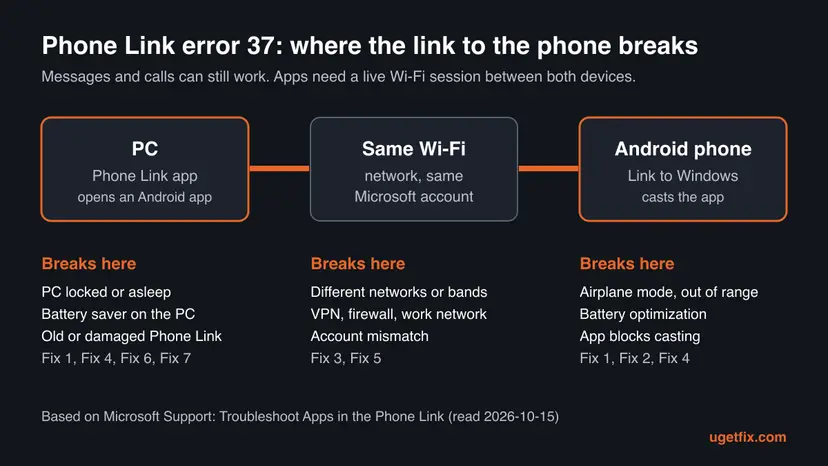
Phone Link is the Windows app that links an Android phone to the PC. On supported phones its Apps feature runs the phone's apps in a window on the PC. The phone does the work and sends the picture over Wi-Fi to the PC, through the Link to Windows app.
Error 37 shows up at the moment you open such an app. Users on Microsoft Q&A quote the message as Something's not quite right. Wait a few moments, then try again. with Error Code: 37 under it. Microsoft's own page calls the same situation a "Something went wrong" error and says it usually means the phone and the PC have lost the connection to each other.
| What you see | What it tells you |
|---|---|
| Messages and calls work, every app fails with error 37 | The Wi-Fi session for Apps does not start. Calls can use Bluetooth, so they keep working (Fix 1, Fix 3). |
| Apps work on one PC but not on another, same network | The problem is on the failing PC: its account, power settings or Phone Link copy (Fix 4 to Fix 7). |
| Only one app fails, others open | That app may block casting or live in a work profile (Fix 2). |
| Error 37 after the phone sat idle | The phone slept or battery optimization paused Link to Windows (Fix 1, Fix 4). |
Why Phone Link error 37 happens, most likely first
- Most often: one side is locked, asleep or out of reach. Microsoft lists a locked PC, a phone out of Wi-Fi range and a phone in airplane mode as reasons for this error (Fix 1).
- Often: the two devices are not on the same network. Apps works only when both are on the same Wi-Fi. A 2.4 GHz and a 5 GHz network with different names count as two, and a VPN or firewall can block the link (Fix 3).
- Often: battery saving. Microsoft asks for Battery Saver off on both devices and says battery optimization on some phones interrupts the connection (Fix 4).
- Sometimes: the app itself. Some apps block casting, and apps in a work or second profile do not appear at all (Fix 2).
- Rarely: account or app damage. A broken account in Shared experiences, an old Phone Link or Link to Windows, or a damaged Phone Link install (Fix 5, Fix 6, Fix 7).
The reader's question above says messages and calls work, and only apps fail. That fits the cause: calls run over Bluetooth, while Apps needs both devices to reach each other over Wi-Fi. A working call does not prove the Wi-Fi link is fine.
How to fix Phone Link error 37
Start with Fix 1; it is the cause Microsoft names first and takes two minutes. If only one app fails, go to Fix 2. If error 37 comes back on every try, work down from Fix 3.
| What you see or what your devices have | Start with |
|---|---|
| The PC or the phone was locked, asleep or far from the router | Fix 1 |
| Only one Android app fails, the rest open | Fix 2 |
| Every app fails, phone on mobile data or a different Wi-Fi | Fix 3 |
| Error 37 after the phone sat idle, or Battery Saver is on | Fix 4 |
| Apps work on another PC with the same phone | Fix 5 |
| It started after an update of either app | Fix 6 |
| Nothing above helped | Fix 7 |
Fix 1. Unlock the PC, wake the phone and open the app again
2 minutesNo riskError 37 appeared after the PC locked, the phone screen went dark, or the phone was in another room.
Microsoft's answer to this error is that the two devices lost the connection, and the first reasons it lists are a locked PC, a phone out of Wi-Fi range and airplane mode. Clearing those restores the session.
- Unlock the PC with your password, PIN or Windows Hello.
- Pick up the phone, wake it and unlock it.
- Check that Airplane mode is off on the phone.
- Bring the phone close to your Wi-Fi router, or at least into the same room as the PC.
- In Phone Link, close the app window that showed error 37 and open the app again from Apps.
If the phone locks while an app is open on the PC, Phone Link asks you to unlock it on the phone. Our guide Phone Link always asks to unlock on your phone explains how to see that prompt less often.
It worked if: The Android app opens in its own window on the PC within a few seconds.
If not: If only this one app fails, use Fix 2. If every app fails, use Fix 3.
Fix 2. Check whether the app itself can be shown on the PC
2 minutesNo riskOne Android app fails or shows a black window, while other apps open.
Microsoft says some apps block casting to other screens and some apps may not work in Phone Link at all. Testing a second app tells you in two minutes whether the link or the app is the problem.
- In Phone Link, open Apps and start a simple app such as the phone's own Settings or Calculator.
- If that app opens, the link is fine and the first app is the problem.
- If the failing app was pinned to Start or the taskbar, unpin it, open it once from the Apps list in Phone Link, then pin it again.
- If the app sits in a work profile or a second Android profile, open it on the phone instead.
| What Microsoft says | What it means for you |
|---|---|
| Some apps block casting to other screens | The window stays black. You cannot use that app on the PC. |
| Some applications may not work | The app does not start on the PC. Use it on the phone. |
| Only apps on your default profile display | Work profile and second profile apps are not supported. |
| Apps pinned while opening may not launch from the taskbar | Remove the pin and pin the app again. |
It worked if: The test app opens, and the problem app either opens after a fresh pin or is one that cannot be shown on the PC.
If not: If the test app also fails with error 37, the link is broken: use Fix 3.
Fix 3. Put the phone and the PC on the same Wi-Fi network
5 minutesNo riskEvery app fails, the phone may be on mobile data, or your router has two networks.
Microsoft states that Apps works only when both devices are on and connected to the same Wi-Fi network. Two band names, mobile data or a VPN put them out of reach of each other, even when both have internet.
- On the phone, open Settings > Connections > Wi-Fi, check that Wi-Fi is On and that the status says Connected. Note the network name.
- On the PC, open Settings > Network & Internet > Wi-Fi and check that Wi-Fi is On and the same network is connected.
- If your router shows two names, for example one for 2.4 GHz and one for 5 GHz, connect both devices to the same one.
- If a VPN is running on the phone or the PC, pause it for one test, open the app again, then turn the VPN back on.
- At work, school or on hotel Wi-Fi, try a home network or a phone hotspot that the PC joins.

If the PC has no internet at all, fix that first; the full set of checks is here: How to check your internet connection in Windows.
A user on Microsoft Q&A reports that Apps worked on a laptop on Wi-Fi but not on a desktop on Ethernet, on the same network. Microsoft only promises the same Wi-Fi network, so a PC on a cable is worth testing on Wi-Fi.
It worked if: Both devices show the same network name, and the Android app opens on the PC.
If not: If error 37 returns after a few minutes or after the phone sat idle, use Fix 4.
Fix 4. Turn off Battery Saver on both devices and battery optimization for Link to Windows
3 minutesNo riskError 37 comes back after a pause, or Battery Saver is on on the phone or the PC.
Microsoft asks for Battery Saver off on both sides and says battery optimization on some phones interrupts the connection. A paused Link to Windows cannot answer when Phone Link asks it to start an app.
- On the PC, open Settings > System > Power & battery (Windows 10: Settings > System > Battery) and turn Battery saver off.
- On the phone, turn Battery Saver off from the quick settings.
- On the phone, open Settings > Apps & notifications > App info > Link to Windows > Advanced > Battery > Manage Battery Usage > Battery optimization.
- Scroll to Link to Windows and select Don't optimize.
- On some phones the path is Settings > Apps > Link to Windows > Battery > Optimize battery usage. Select All, find Link to Windows and turn the toggle Off.
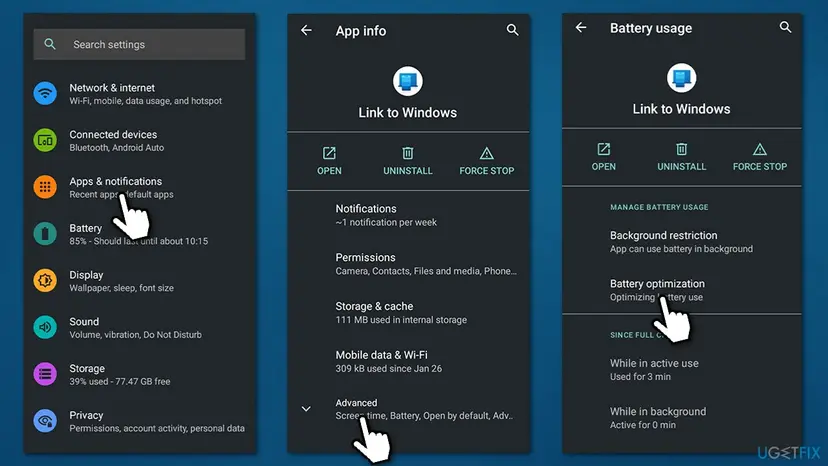
Menus differ between phone makers. If you cannot find these names, search the phone's Settings for battery optimization and look for Link to Windows in the list.
It worked if: The link stays up while you work, and apps open on the PC after a pause too.
If not: If apps work with the same phone on another PC but not on this one, use Fix 5.
Fix 5. Check the Microsoft account on both devices and in Shared experiences
3 minutesNo riskApps works with another PC, or Link to Windows may be signed in with a different account.
Microsoft requires the same Microsoft account in Link to Windows and on the PC, and its connection checklist includes the account check in Shared experiences. A broken account there stops the PC from reaching the phone.
- On the phone, open Link to Windows and note the Microsoft account it is signed in with.
- On the PC, open Settings > Accounts > Your info and check that it is the same account.
- On the PC, open Settings > System > Shared experiences, the path Microsoft gives. If your Settings shows it elsewhere, search Settings for Shared experiences.
- If you see Fix now under Accounts, select it and follow the steps.
- Phone Link is not compatible with work or school accounts, so use your personal Microsoft account on both sides.
It worked if: Shared experiences says your account works, both devices show the same account, and apps open.
If not: If it started after an update, update both apps with Fix 6.
Fix 6. Update Phone Link on the PC and Link to Windows on the phone
5 minutesNo riskError 37 began after one side updated, or one of the apps has not updated in a long time.
Apps needs Phone Link and Link to Windows to work together, and a fix on one side may need the other side updated too. Updating both is cheap and rules out a version mismatch.
- On the PC, open Microsoft Store, select Library and then Get updates.
- Install any update for Phone Link.
- On the phone, update Link to Windows from Google Play, or from the Galaxy Store on Samsung phones.
- Restart the PC and the phone, then open an app from Apps again.
It worked if: Both apps report no pending update, and the Android app opens on the PC.
If not: If error 37 is still there, repair or reset Phone Link with Fix 7.
Fix 7. Repair or reset Phone Link and link the phone again
10 minutesLow riskFixes 1 to 6 did not help, or apps fail on this PC only.
Repair fixes damaged app files and keeps Phone Link's data. Reset clears its data on this PC, including the stored link to the phone, so the next pairing starts a clean session.
Select Terminate first, then Repair, and test an app. Use Reset only if Repair does not help. After a Reset, open Phone Link and pair the phone again; your messages and photos stay on the phone.
- Open Installed apps. Select Start > Settings > Apps > Installed apps.
- Open the app's advanced options. Find the app in the list, select the three dots next to it and select Advanced options. Some apps do not have this option: for those, see the section about desktop programs below.
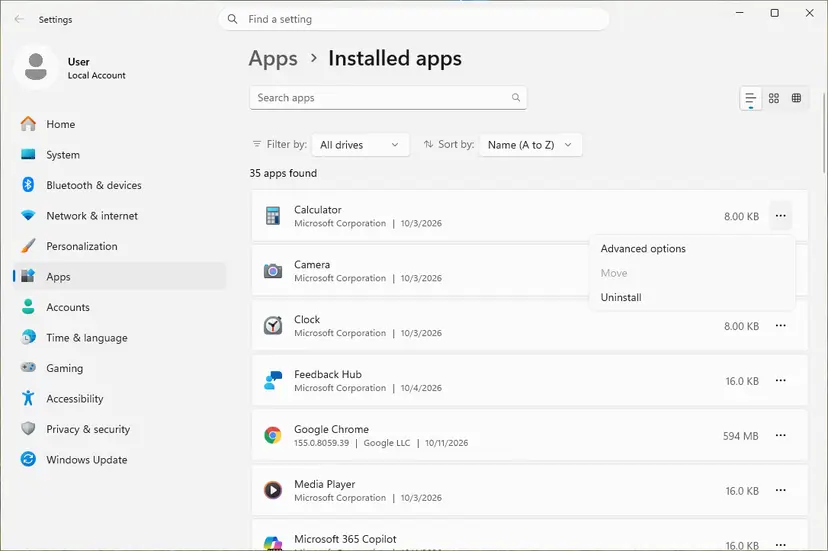
The three dots next to an app open Advanced options. Screenshot: Windows 11 26H2. - Repair first. On the page that opens, select Repair if it is there. The app's data stays. Open the app and check whether it works.

Repair keeps the app data. Reset deletes it. Screenshot: Windows 11 26H2. - Reset if Repair did not help. Select Reset. This deletes the app's data on this PC, including sign-in details and settings. Open the app and set it up again.
These steps were written for Windows 11 25H2 and 26H2. The full page with the other versions and what each result means: How to repair or reset an app in Windows
It worked if: Phone Link opens to its welcome screen, pairs with the phone again, and apps open on the PC.
If not: Collect the details listed under "Still getting error 37" below and send them to Microsoft.
Still getting Phone Link error 37: what to check
- Does the phone support Apps? Apps is only offered on some Android phones with Link to Windows. If you never had an Apps tab, the feature is not there for your phone.
- Is the network a work or public one? Microsoft says those may block the connection and suggests asking the network administrator at work.
- Does it fail on one PC only? A user on Microsoft Q&A had Apps working on a laptop and failing on a desktop. That points to the failing PC, not the phone.
- Is Samsung Smart Lock in use? Microsoft lists it as a known cause of unlock problems through Phone Link; unlock on the phone instead.
To report it, open Feedback Hub on the PC and give the exact message with Error Code: 37, the Phone Link version, the phone model and Android version, how the PC is connected (Wi-Fi or cable) and which fixes you tried. Microsoft Q&A asks for the same details.
How to keep Phone Link error 37 from coming back
- Keep the phone and the PC on the same Wi-Fi network name.
- Keep Link to Windows out of battery optimization.
- Unlock the PC and the phone before you open an app from Phone Link.
- Keep Phone Link and Link to Windows updated.
- Do not leave a VPN or firewall rule off for good to make Phone Link work; turn it back on after the test.
- Do not install third-party tools that promise to fix Phone Link errors.
- Do not expect work profile apps or apps that block casting to open on the PC.
Frequently asked questions
What is Phone Link error 37?
It is the code Phone Link shows when an Android app cannot start on the PC because the session to the phone dropped. Users quote it as "Something's not quite right. Wait a few moments, then try again." with Error Code: 37. Microsoft does not publish a description of the number itself. Its Apps troubleshooting page says this kind of error usually means the phone and the PC lost the connection: a locked PC, Wi-Fi trouble, a phone out of range or in airplane mode.
Why do messages and calls work but apps do not?
Because they use different links. Calls run over Bluetooth between the PC and the phone, while Apps sends the phone's screen to the PC over Wi-Fi, and Microsoft says both devices must be on the same Wi-Fi network for it. So Bluetooth can work while the Wi-Fi session for Apps cannot start. Check the network on both sides first (Fix 3), then battery saving (Fix 4).
What does Phone Link error code 48 mean?
We could not find a Microsoft description of a Phone Link error 48. Search results for that query mostly lead to two other problems: Device Manager's code 48, which is about driver software blocked from starting, and Phone Link blocked by an administrator on a work PC. Neither is the same as error 37. If you see code 48 inside Phone Link while opening an app, the connection checks on this page are the safe place to start.
What should I do first when Phone Link shows an error?
Unlock the PC, wake and unlock the phone, check that airplane mode is off and that the phone is near the router, then open the app again. That covers the reasons Microsoft lists first for a lost connection, and it takes about two minutes. If the error comes back, check that both devices are on the same Wi-Fi network and that battery saving is off on both. The steps are in Fix 1, Fix 3 and Fix 4.
Does Phone Link error 37 mean something is wrong with my phone or laptop?
Usually not. The error is about the link between the two devices, not a fault in either one. Both can work normally on their own and still fail to reach each other because of the network, a lock screen or battery saving. If apps work with the same phone on another PC, the problem sits on the PC that fails: its account, its power settings or its copy of Phone Link (Fix 5 to Fix 7).
Why does one app open as a black screen?
Microsoft says some apps block casting to other screens, and those apps cannot be used on the PC. The black window is not error 37 and no setting on the PC changes it. Use that app on the phone. If every app is black or fails, the problem is the link, and the fixes on this page apply.
Can I use apps from my work profile in Phone Link?
No. Microsoft says Phone Link does not support multiple Android profiles or work accounts, and only apps on your default profile appear. It is also not compatible with work or school Microsoft accounts. If the app you need lives in a work profile, open it on the phone. A work PC may also have Phone Link limited by its administrator, which this page cannot change.
Does this work with an iPhone?
No. The Apps feature that shows error 37 is for Android phones with Link to Windows. An iPhone linked to Phone Link has messages, calls and notifications, but no Apps tab, so this error does not come from it. If you see a similar error with an iPhone, it comes from another feature and the fixes here may not apply.
I searched in another language. Is this the same error?
Yes. Phone Link shows the same error in the language of Windows, so readers who search "erreur 37", "como resolver", "apareceu isso", "помоги", "điện thoại cơ", "اندرويد" or "سامسونج" with a Samsung phone reach this page with the same problem. The fixes are the same in every language; only the menu names are translated. This page is about the Phone Link error code 37, not about a website or app called code37.
Sources
Did this fix work?
One click, no account. It tells the next reader which guides are worth their time.
Questions and experiences: fix Phone Link app error 37 in Windows
Still broken, or found a fix we did not cover? Ask here: members and our editors answer. Reading is open; writing needs a free account.
…