
How to fix Phone Link not generating a QR code or PIN in Windows?

Prefer to fix it yourself? The manual steps follow.
- 9methods
- 2 to 15 minutes
- Easy
Applies to Phone Link on Windows 11 and Windows 10 (October 2022 update or later), Android 10 or later with Link to Windows, and iPhone with iOS 16 or later
9 methods in this guide
- What the problem means
- Causes, ranked
- The fixes
- 1. Restart setup from the PC
- 2. Get the QR code in a browser
- 3. Pair with a typed code
- 4. Check the Microsoft account
- 5. Same Wi-Fi network
- 6. Reset after wrong codes
- 7. iPhone and Bluetooth
- 8. Update Windows and both apps
- 9. Repair or reset Phone Link
- Still broken: what to check
- Keep it from coming back
- FAQ
Hello. When I tried setting up the Phone Link app, it would not generate a QR code or PIN, so I could not connect. What should I do?
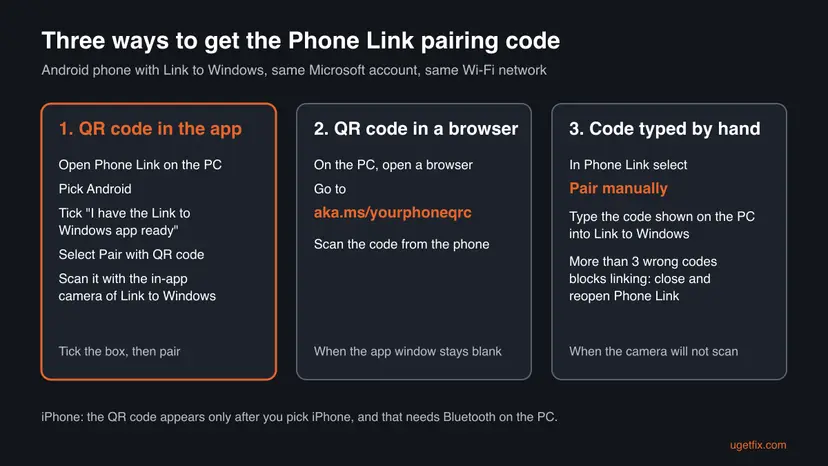
Phone Link shows its QR code only after you tick I have the Link to Windows app ready and select Pair with QR code. When that window stays empty, the usual cause is the account or the network. Open the QR code in a browser at aka.ms/yourphoneqrc, or pair with a typed code instead.
In Phone Link on the PC, choose Android, tick I have the Link to Windows app ready and select Pair with QR code (Fix 1). If no code appears, open aka.ms/yourphoneqrc in a browser on the PC and scan that code (Fix 2), or select Pair manually and type the code on the phone (Fix 3). Use the same Microsoft account and Wi-Fi on both devices.
| Error | No error text. The QR code window or the pairing code never appears in Phone Link, stays blank, or the code is refused on the phone. |
|---|---|
| Where it appears | During setup in Phone Link on the PC, after Pair with QR code or Pair manually, or when you add another phone. |
| Main cause | The setup was not started from the PC in the right order, Phone Link is not signed in, or the phone and the PC are not on the same Wi-Fi network. |
| Fastest fix | Restart setup from the PC: tick I have the Link to Windows app ready, then Pair with QR code (Fix 1, 2 minutes). |
| Also written as | phone link qr code, phonelink qr code, phone link qr code not working, link windows to phone qr code, Phone Link PIN not showing. |
| Other ways to get a code | A browser QR page at aka.ms/yourphoneqrc on the PC, or Pair manually with a code typed into Link to Windows. |
| Requirements | Windows 11, or Windows 10 with the October 2022 update or later. Android 10 or later. The same Wi-Fi network. A personal Microsoft account, not a work or school one. |
| Microsoft's status | Not listed as a known issue with a fix version. Microsoft documents a lockout after more than 3 failed code matches. |
| Time to fix | 2 to 5 minutes for the first three fixes. About 10 minutes to repair or reset Phone Link (Fix 9). |
Facts checked on 16 October 2026. Steps written for Windows 11 (25H2 and 26H2) and Windows 10 22H2.
What it means when Phone Link shows no QR code or PIN
Phone Link is the Windows app that links your phone to the PC. Its partner on Android is Link to Windows, which you install from Google Play or the Galaxy Store, or which comes preinstalled on many Samsung, HONOR, OPPO, ASUS and vivo phones. The two apps are tied together once, during setup, with a QR code or a code you type.
The QR code is made on the PC, not on the phone. Microsoft's setup order is: open Phone Link, sign in, get Link to Windows ready on the phone and sign in there with the same account, then tick I have the Link to Windows app ready and select Pair with QR code. Only then a popup with the QR code opens on the PC. The phone scans it with the camera inside Link to Windows, not with the normal camera app.
| What you see | What it tells you |
|---|---|
| Phone Link opens, but there is no Pair with QR code to select | The setup has not reached that step. The check box I have the Link to Windows app ready must be ticked first (Fix 1). |
| The QR popup opens but stays blank or keeps loading | Phone Link cannot get a code for your account. Sign in and network checks (Fix 2, Fix 4, Fix 5). |
| A QR code shows, but the phone will not scan it | You are scanning with the wrong camera, or the camera permission is off (Fix 1, Fix 3). |
| The codes on the PC and the phone do not match, linking is blocked | More than 3 failed matches lock the setup for security (Fix 6). |
| Phone Link shows a list of phones instead of a QR code | The phone is already linked to your account. Pick it from the list; no code is needed (Fix 1). |
| iPhone is greyed out under Pick your phone | Bluetooth on the PC is off or missing (Fix 7). |
Why Phone Link does not generate a QR code or PIN, most likely first
- Most often: setup started in the wrong place or order. The QR code appears on the PC only after the check box and Pair with QR code. Starting on the phone, or scanning with the phone's normal camera, gets nowhere (Fix 1).
- Often: the code window itself does not load. A browser QR page and manual pairing are two other ways Microsoft offers to get the same link (Fix 2, Fix 3).
- Often: account trouble. Phone Link may ask you to sign in, both apps must use the same Microsoft account, and work or school accounts are not supported (Fix 4).
- Sometimes: the network. Microsoft requires both devices on the same Wi-Fi network for Android (Fix 5).
- Sometimes: too many wrong codes. After more than 3 failed matches, linking is blocked until you restart setup from the PC (Fix 6).
- iPhone only: Bluetooth. iPhone pairing runs over Bluetooth, and the iPhone option is greyed out without it (Fix 7).
- Rarely: old or damaged apps. An old Windows 10 build, an outdated Link to Windows or a damaged Phone Link install (Fix 8, Fix 9).
Older guides tell you to turn off Microsoft Defender to get the QR code. Microsoft's setup and troubleshooting pages do not list the antivirus as a cause, and switching off real-time protection leaves the PC open. This guide does not ask you to do it.
How to fix Phone Link not generating a QR code or PIN
Start with Fix 1; it is Microsoft's own setup order and fixes most cases in two minutes. If no code appears even then, Fix 2 and Fix 3 give you a code another way. Use the chooser to jump straight to your case.
| What you see or what your devices have | Start with |
|---|---|
| You do not see Pair with QR code at all, or you started on the phone | Fix 1 |
| The QR window opens but stays empty or keeps loading | Fix 2 |
| The phone camera will not scan the code | Fix 3 |
| Phone Link asks you to sign in, or uses a work or school account | Fix 4 |
| The phone is on mobile data or another Wi-Fi network | Fix 5 |
| The codes do not match, or setup says linking is blocked | Fix 6 |
| You are linking an iPhone | Fix 7 |
| Windows 10, or apps not updated for a long time | Fix 8 |
| Nothing above helped | Fix 9 |
Fix 1. Start the setup from the PC and tick the check box before Pair with QR code
2 minutesNo riskYou cannot find the QR code, you started on the phone, or you scanned with the phone's normal camera.
Microsoft's setup creates the QR code only at one step: after Link to Windows is signed in and you confirm it on the PC. Doing the steps in this order brings the QR popup up.
- On the PC, type Phone Link in the taskbar search box and open the app. Sign in to your Microsoft account if it asks.
- On the phone, open a browser, go to
aka.ms/yourpcand install or open Link to Windows. - Sign in to Link to Windows with the same Microsoft account you use on the PC.
- Back on the PC, tick I have the Link to Windows app ready, then select Pair with QR code. A popup with the QR code opens.
- On the phone, in Link to Windows, tap Link your phone and PC. When it asks Is the QR code on your PC ready?, tap Continue.
- Allow the camera when asked and scan the code with the camera inside Link to Windows.
- Accept the permissions the phone asks for, tap Done and go back to the PC.
If the phone was linked to your Microsoft account before, Phone Link shows a list of your linked Android devices instead of a QR code. Pick your phone from the list and grant the permissions in Link to Windows. Microsoft says the QR code appears only when no phone is linked yet.
It worked if: A QR code fills the popup on the PC, the phone scans it, and Phone Link opens with your messages and photos.
If not: If the popup stays blank or keeps loading, get the code from a browser with Fix 2.
Fix 2. Open the Phone Link QR code in a browser on the PC
3 minutesNo riskThe QR popup in Phone Link stays empty, or you are adding another Android phone.
Microsoft gives a web address that shows the pairing QR code in a browser, outside the Phone Link window. When the app's own popup does not draw the code, the browser page is a second way to the same link.
- On the PC, open Edge or another browser.
- Type
www.aka.ms/yourphoneqrcin the address bar and press Enter. - If the page asks you to sign in, use the same Microsoft account as on the phone.
- On the phone, open Link to Windows and start linking. Use its in-app camera to scan the code on the PC screen.
- Accept the permissions on the phone, then open Phone Link on the PC.
Microsoft lists this page for adding a further Android phone to the same PC. It is also the quickest test of whether the code itself can be made for your account: if the browser shows a code and the app does not, the problem sits in the Phone Link app (Fix 8, Fix 9).
It worked if: The browser shows a QR code, the phone scans it, and Phone Link on the PC shows the phone as linked.
If not: If the camera on the phone will not scan, pair with a typed code in Fix 3. If no code shows in the browser either, check the account with Fix 4.
Fix 3. Pair manually with a code instead of the QR code
3 minutesNo riskThe QR code shows but the phone cannot scan it, the camera is broken, or you looked for the PIN.
Microsoft's setup has a second button, Pair manually, that links the devices with a code you type on the phone. This is the PIN that readers miss: it appears only when you choose this button instead of the QR code.
- On the PC, open Phone Link and go through the setup until you see Pair with QR code.
- Select Pair manually instead.
- Note the code that Phone Link shows.
- On the phone, in Link to Windows, enter the code when it asks for it.
- Accept the permissions on the phone and go back to the PC.
Type the code with care. Microsoft says more than 3 failed attempts to match the codes on the PC and the phone block linking for security. If that happens, use Fix 6.
If the phone never asks for the camera when you try the QR route, check its permission: on Android open Settings > Apps > Link to Windows > Permissions and allow Camera. Menu names differ between phone makers.
It worked if: The phone accepts the code and Phone Link on the PC moves on to the permissions step.
If not: If no code appears after Pair manually either, the account is the likely cause: use Fix 4.
Fix 4. Use the same personal Microsoft account in Phone Link and Link to Windows
3 minutesNo riskPhone Link asks you to sign in, you have more than one Microsoft account, or the PC uses a work or school account.
The pairing code belongs to a Microsoft account. Microsoft requires the same account on the PC and in Link to Windows and says Phone Link does not support work or school accounts or several Android profiles.
- On the PC, open Settings > Accounts > Your info and note the Microsoft account. A local account shows Local Account here.
- In Phone Link, sign in with your personal Microsoft account if the app asks. On a PC with a local account, Phone Link can still sign in to your Microsoft account.
- On the phone, open Link to Windows and check which account it is signed in with.
- If the two accounts differ, sign out of Link to Windows and sign in with the account the PC uses.
- Start the setup again with Fix 1.
Older advice was to create a second local Windows account with netplwiz. A local account has no Microsoft account, so it does not help Phone Link pair. Fix the account inside Phone Link and Link to Windows instead.
It worked if: Both apps show the same personal Microsoft account, and the QR code or the typed code appears.
If not: If the account is right and still no code appears, check the Wi-Fi network with Fix 5.
Fix 5. Put the phone and the PC on the same Wi-Fi network
5 minutesNo riskThe phone is on mobile data, a guest network or a different band of the router, or the PC has no internet.
Microsoft lists the same Wi-Fi network as a requirement for Android setup and asks you to keep both devices near each other and turned on. Without internet on the PC, Phone Link also cannot sign in or fetch a code.
- On the phone, open Settings > Connections > Wi-Fi (or Settings > Network & internet) and note the network name.
- On the PC, open Settings > Network & internet and check that it is connected to the same network.
- If the router shows two names, for example a 2.4 GHz and a 5 GHz one, connect both devices to the same name.
- If a VPN runs on either device, pause it for one try and turn it back on afterwards.
- Keep the phone next to the PC while you pair.
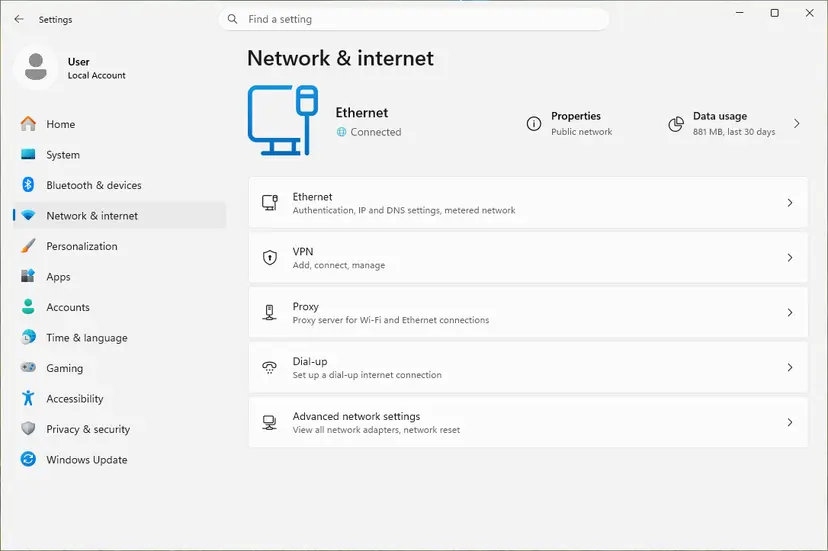
If the PC has no internet at all, fix that first: How to check your internet connection in Windows.
It worked if: Both devices show the same network name, and the QR code appears when you start setup again.
If not: If you typed a wrong code earlier and the setup refuses to continue, use Fix 6.
Fix 6. Close Phone Link and start again from the PC after codes do not match
2 minutesNo riskThe code on the PC and the code on the phone do not match, or you tried more than three times.
Microsoft blocks linking after more than 3 failed attempts to match the codes. Its fix is to close and reopen Phone Link and start from the PC, which then asks you to accept permissions instead of matching codes.
- Close Phone Link on the PC. If it keeps running, right-click its taskbar icon and select Close window.
- Open Phone Link again from the Start menu.
- Start the setup from the PC, not from the phone, as in Fix 1.
- When the phone shows a permissions prompt instead of a code, accept it.
On a phone where Link to Windows is preinstalled, Microsoft's troubleshooting page also lets you start from the prompt Is there a QR code on your PC?: tap it and select Allow so the app can use the camera.
It worked if: Phone Link opens a fresh setup and asks for permissions on the phone instead of a code match.
If not: If you are linking an iPhone, go to Fix 7. Otherwise update the apps with Fix 8.
Fix 7. iPhone: turn on Bluetooth on both devices before you pick iPhone
5 minutesNo riskYou are linking an iPhone and no QR code appears, or iPhone is greyed out under Pick your phone.
An iPhone pairs with Phone Link over Bluetooth, not Wi-Fi. Microsoft says the iPhone option is greyed out when Bluetooth on the PC is off or unavailable, and the PC needs Bluetooth Low Energy support.
- On the PC, open Settings > Bluetooth & devices (Windows 10: Settings > Devices > Bluetooth & other devices) and turn Bluetooth on.
- On the iPhone, turn Bluetooth on and keep the phone next to the PC.
- Open Phone Link, and under Pick your phone select iPhone.
- Scan the QR code on the PC with the iPhone's normal camera. This starts the Bluetooth pairing.
- Grant the permissions on the iPhone for notifications, messages and contacts.
If the scan worked but pairing failed, Microsoft suggests a reset. Remove the iPhone in Settings > Bluetooth & devices on the PC and select Forget This Device for the PC on the iPhone. Turn Bluetooth off on both for 10 seconds, turn it on again and select Try pairing again. The iPhone needs iOS 16 or later.
It worked if: iPhone can be selected, the QR code appears, and the iPhone pairs over Bluetooth.
If not: If iPhone stays greyed out with Bluetooth on, the PC may lack Bluetooth Low Energy; see the section on when it is not a software problem below.
Fix 8. Update Windows, Phone Link and Link to Windows
10 minutesNo riskThe PC runs an old Windows 10 build, or neither app has updated in months.
Microsoft requires Windows 10 with the October 2022 update or later, or Windows 11, and Android 10 or later. An older build or app version may not offer the current pairing screens.
- On the PC, open Settings > Windows Update and install the updates. Restart if asked.
- Open Microsoft Store, select Library, then Get updates, and install any update for Phone Link.
- If Phone Link is missing, open Settings, search for Phone Link, select Enable or disable Phone Link, turn the toggle on and select Install.
- On the phone, update Link to Windows in Google Play, or in the Galaxy Store on Samsung phones.
- Start the setup again with Fix 1.
Windows 10 left support on 14 October 2025. Phone Link still lists Windows 10 as supported, but a PC that no longer gets updates may fall behind the app.
It worked if: Windows and both apps report no pending updates, and the pairing screen shows the QR code.
If not: If no code appears after the updates, repair or reset Phone Link with Fix 9.
Fix 9. Repair or reset Phone Link on the PC
10 minutesLow riskThe browser QR page works but the app does not, or Fixes 1 to 8 did not help.
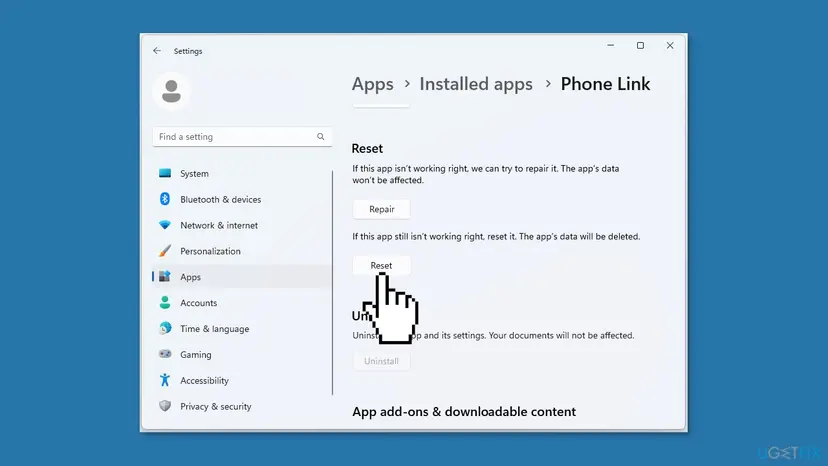
Repair fixes damaged app files and keeps Phone Link's data. Reset clears its data on this PC, including any half-finished pairing, so the next setup starts clean.
Select Terminate first, then Repair, and try the setup again. Use Reset only if Repair does not help. Your messages and photos stay on the phone.
- Open Installed apps. Select Start > Settings > Apps > Installed apps.
- Open the app's advanced options. Find the app in the list, select the three dots next to it and select Advanced options. Some apps do not have this option: for those, see the section about desktop programs below.
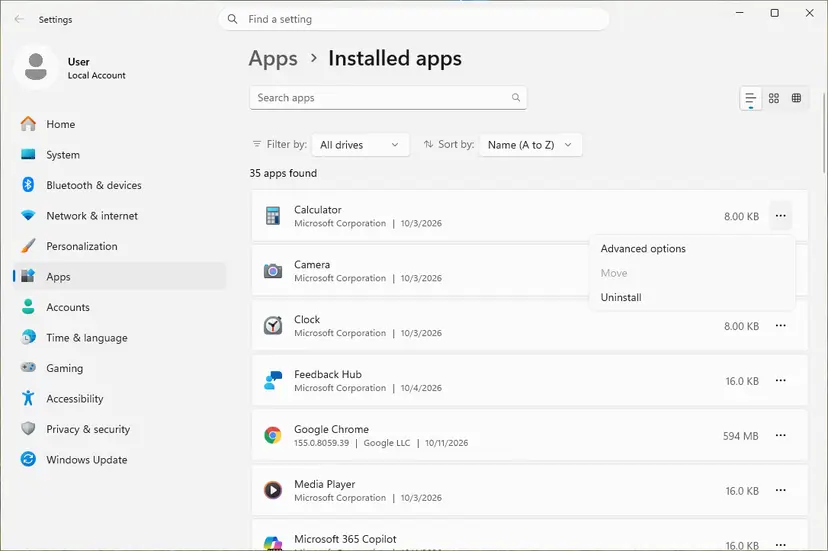
The three dots next to an app open Advanced options. Screenshot: Windows 11 26H2. - Repair first. On the page that opens, select Repair if it is there. The app's data stays. Open the app and check whether it works.
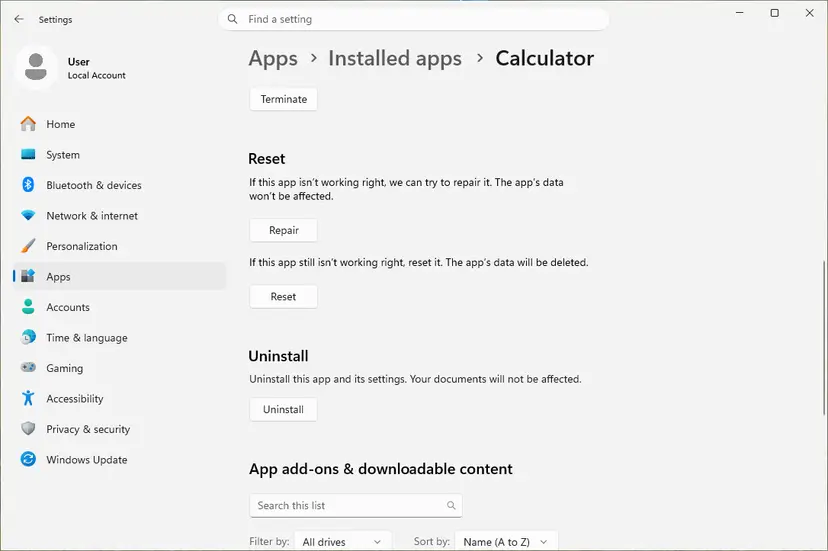
Repair keeps the app data. Reset deletes it. Screenshot: Windows 11 26H2. - Reset if Repair did not help. Select Reset. This deletes the app's data on this PC, including sign-in details and settings. Open the app and set it up again.
These steps were written for Windows 11 25H2 and 26H2. The full page with the other versions and what each result means: How to repair or reset an app in Windows
It worked if: Phone Link opens to its welcome screen, and the setup shows a QR code or a pairing code.
If not: Collect the details listed under "Still no QR code or PIN" below and send them to Microsoft.
Still no QR code or PIN in Phone Link: what to check
- Is the phone supported? Android needs version 10 or later; iPhone needs iOS 16 or later. Phone Link runs only on Windows 10 and Windows 11 PCs.
- Is it a work PC or a work account? Phone Link does not support work or school accounts, and an administrator may limit the app on a managed PC. That is not something a home fix can change.
- Does the PC have Bluetooth? For an iPhone, the PC needs Bluetooth Low Energy. A desktop without Bluetooth needs an adapter before the iPhone option works.
- Does the browser page show a code? If aka.ms/yourphoneqrc shows a code but the app never does, the Phone Link app on this PC is the problem.
To report it, open Phone Link, go to Settings and use the form under Feedback & Community, or search for Feedback Hub on the taskbar. Give the Phone Link version, the phone model and its Android or iOS version, whether the PC is on Wi-Fi or a cable, and which fixes you tried.
How to avoid QR code and PIN problems next time
- Start every new pairing from Phone Link on the PC.
- Sign in to both apps with the same personal Microsoft account.
- Keep the phone and the PC on the same Wi-Fi network while you pair.
- Scan with the camera inside Link to Windows on Android.
- Keep Windows, Phone Link and Link to Windows updated.
- Do not turn off Microsoft Defender or the firewall to get a QR code.
- Do not create a new local Windows account for Phone Link.
- Do not keep guessing codes; after 3 failed matches, restart setup from the PC.
- Do not install third-party tools that promise to fix Phone Link.
Frequently asked questions
Where is the QR code in Phone Link?
It appears on the PC, in a popup inside Phone Link, after you tick I have the Link to Windows app ready and select Pair with QR code. Before that step there is no code to scan. If the phone is already linked to your Microsoft account, Phone Link shows a list of your phones instead, and you pick one. To add another Android phone, Microsoft also shows the QR code in a browser at aka.ms/yourphoneqrc.
Why is my Phone Link QR code not working?
Most often the phone scans with the wrong camera. On Android the code must be scanned with the camera inside Link to Windows, after you tap Link your phone and PC and Continue. The normal camera app does not link the devices. Check also that Link to Windows has the camera permission, that both apps use the same Microsoft account, and that both devices are on the same Wi-Fi network. If scanning still fails, use Pair manually (Fix 3).
Where is the PIN for Phone Link?
Phone Link does not show a PIN by default. You get a code only when you select Pair manually on the PC instead of Pair with QR code, and you then enter it in Link to Windows on the phone. A second kind of code appears when Phone Link asks you to compare codes on both screens. If those do not match more than three times, Microsoft blocks linking until you close Phone Link and start again from the PC.
How do I link my phone to Windows without the QR code?
Select Pair manually in Phone Link and type the code it shows into Link to Windows on the phone. Another way: sign in to Link to Windows on the phone with your Microsoft account first. Then open Phone Link on the PC, select Android, and pick your phone from the list of devices linked to your account. Microsoft says the QR code is only shown when no phone is linked yet.
What is aka.ms/yourphoneqrc?
It is a short Microsoft web address that shows the Phone Link pairing QR code in a browser on your PC. Microsoft gives it for adding another Android phone, and it is useful when the QR popup in the Phone Link app stays empty. Open it on the PC, not on the phone, and scan the code with Link to Windows. The other short address, aka.ms/yourpc, is the one you open on the phone to get Link to Windows.
Do I need to turn off Microsoft Defender to get the QR code?
No. Microsoft's setup and troubleshooting pages for Phone Link do not name the antivirus as a cause of a missing QR code, and turning off real-time protection leaves the PC unprotected. Check the setup order, the account and the Wi-Fi network first. If you use another antivirus with a strict firewall and suspect it, pause it for one try only and turn it back on right away.
Can I link a phone with a work or school account?
No. Microsoft says Phone Link does not support work or school accounts, and it does not support several Android profiles either. Use your personal Microsoft account in both Phone Link and Link to Windows. On a company PC, an administrator may also limit Phone Link, and only that administrator can change it.
Why is iPhone greyed out in Phone Link?
Because Bluetooth on the PC is off or not available. Microsoft says the iPhone option under Pick your phone is greyed out in that case. iPhone pairing runs over Bluetooth, and the PC needs Bluetooth Low Energy support. Turn Bluetooth on in Settings, keep the iPhone next to the PC and try again. The QR code for an iPhone is scanned with the iPhone's normal camera.
Why won't Phone Link open or connect to my phone at all?
This page covers the setup step, when no QR code or PIN appears. If Phone Link does not open or the phone stopped connecting after it worked, the causes are different: the app's background permission, battery saving on the phone or a broken link. Repair or reset Phone Link (Fix 9) helps in both cases. For a phone that keeps asking to be unlocked, see Phone Link always asks to unlock on your phone.
I searched for a Phone Link error code. Is it covered here?
Only if the error appears while you pair. This page is about the QR code or PIN that does not appear during setup, and it does not decode numbered errors such as code 268, which we could not confirm in Microsoft's documentation. Readers who searched in Japanese for a QR code that does not appear, or in other languages, have the same problem: the menu names are translated, the fixes are the same.
Sources
Did this fix work?
One click, no account. It tells the next reader which guides are worth their time.
Questions and experiences: fix Phone Link not generating a QR code or PIN in Windows
Still broken, or found a fix we did not cover? Ask here: members and our editors answer. Reading is open; writing needs a free account.
…