
How to fix PhotoCaptureFileCreationFailed camera error in Windows?

Prefer to fix it yourself? The manual steps follow.
- 7methods
- 5 to 20 minutes
- Easy
Applies to Windows 11, Windows 10; the Windows Camera app with built-in laptop cameras, Surface cameras and USB webcams
7 methods in this guide
Hey. This thing is annoying and I am tired of it already. I get the camera error Photo Capture File Creation Failed (0x80270200). It also gives other codes, which appear interchangeably. I run Windows 10. Can you tell me what this is and how I should deal with it?
PhotoCaptureFileCreationFailed (0xA00F424F) means the Windows Camera app shows a live picture but cannot create the photo file when you press the shutter. The camera works; the place the photo goes to is broken. Start by recreating the Camera Roll folder and pointing the save location back to it.
PhotoCaptureFileCreationFailed is a saving error, not a camera fault: the Camera app cannot create the photo file in its Camera Roll. Most often the Camera Roll folder was deleted, moved or stopped syncing in OneDrive or Dropbox. Recreate the Camera Roll folder in Pictures (Fix 1), then set it as the save location (Fix 2 and Fix 3).
| Error | 0xA00F424F<PhotoCaptureFileCreationFailed> with a second code in brackets, for example (0x80270200) or (0x80131500). |
|---|---|
| Where it appears | In the Windows Camera app, the moment you press the photo button. The live preview works before that. |
| Main cause | The Camera app cannot create a file where it saves photos: the Camera Roll folder is missing, moved, not synced or not writable. |
| Fastest fix | Create a new Camera Roll folder in Pictures and include it in the Camera Roll library (Fix 1). |
| Also written as | photocapturefilecreationfailed, photo capture file creation failed, photo capture creation failed, 0xa00f424f photocapturefilecreationfailed, 0x80270200. |
| Video twin | 0xA00F425C<VideoCaptureFileCreationFailed>: the same failure when you record a video. The same fixes apply. |
| Affects | Windows 11 and Windows 10, laptops, Surface devices and USB webcams. Reports on Microsoft Q&A go back to 2018 and come in several languages. |
| Microsoft's status | Not in Microsoft's camera error table. Microsoft's Camera Roll page covers the close code 0xA00F4275 (camera roll missing) with the fixes used here. |
| Time to fix | 5 minutes for Fixes 1 to 3, up to 20 minutes with permissions and storage. |
Facts checked on 15 October 2026. Steps written for Windows 11 (25H2 and 26H2) and Windows 10 22H2.
What the PhotoCaptureFileCreationFailed camera error means
The Windows Camera app shows a line such as 0xA00F424F <PhotoCaptureFileCreationFailed> (0x80270200) when you try to take a photo. The name says what broke: the photo was captured, but the app could not create the file for it on the disk. That is why the preview looks normal and only the shutter button fails.
People search it as photocapturefilecreationfailed, photo capture file creation failed, photo capture creation failed, 0xa00f424f photocapturefilecreationfailed or just 0x80270200. The code and the fixes are the same on Windows 11 and Windows 10. Microsoft has not published a description of 0xA00F424F, so the name of the code is the best clue.
| What you see | What it means | Start with |
|---|---|---|
0xA00F424F<PhotoCaptureFileCreationFailed> (0x80270200) | The photo file could not be created. We could not confirm what 0x80270200 adds; it appears in most reports. | Fix 1 |
0xA00F424F<PhotoCaptureFileCreationFailed> (0x80131500) | The same failure with another second code. On Microsoft Q&A it followed a deleted Camera Roll folder on a Surface. | Fix 1, Fix 2 |
0xA00F425C<VideoCaptureFileCreationFailed> | The same failure for a video recording. | Fix 1 |
0xA00F4275 camera roll missing | Microsoft's own code for a missing Camera Roll. The fixes are the same. | Fix 1 |
0xA00F4294 Video start failed | Not this error. Microsoft lists it as a camera start problem, before any file is made. | Camera access and driver |
If the preview shows your face and only taking a photo fails, the camera, its driver and camera access all work. Driver updates and privacy switches, which most guides start with, do not touch the place where the file is saved.
Why the PhotoCaptureFileCreationFailed error appears
Most often the Camera Roll folder is gone: deleted to free space, moved, or removed from the PC by OneDrive or Dropbox sync settings. Often the save location points to an SD card or USB drive that is no longer there. Less often your account lost the right to write to the folder, or the storage is full.
| Cause | How often | How to tell | Fix |
|---|---|---|---|
| Camera Roll folder deleted or moved. | Most often | Pictures has no Camera Roll folder. | Fix 1 |
| The Camera Roll library points to a folder that is gone. | Often | The folder exists, but the error stays. | Fix 2 |
| Save location set to a removed card or drive. | Often | New photos and videos will save to shows a drive that is not plugged in. | Fix 3 |
| No Write permission on Camera Roll. | Sometimes | The folder came from another PC, a backup or another account. | Fix 4 |
| Cloud sync removed the folder, cloud storage full, or disk full. | Sometimes | Pictures is in OneDrive or Dropbox; a storage warning in the taskbar. | Fix 5 |
| Damaged Camera app. | Rarely | Everything above is in order and the error stays. | Fix 6 |
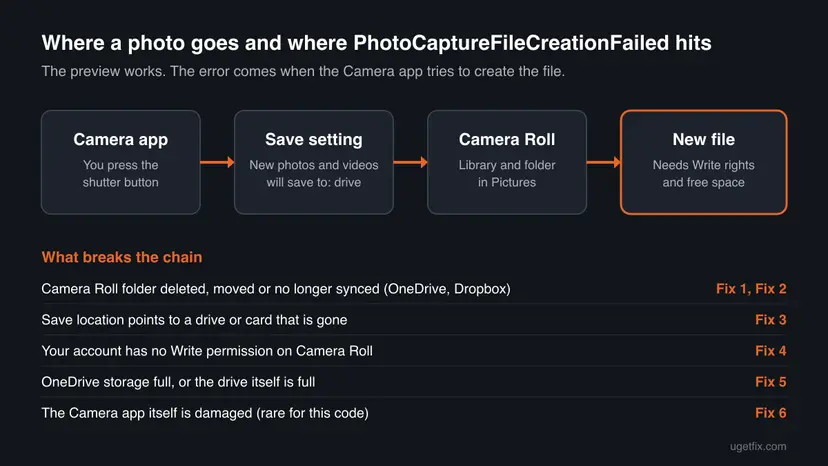
How to fix the PhotoCaptureFileCreationFailed camera error
Fixes 1 to 3 rebuild the place the Camera app saves to, in about five minutes. Fixes 4 and 5 deal with permissions, cloud sync and storage. Fix 6 repairs the app, and Fix 7 holds the general checks for when nothing else worked.
| What you see or did | Start with |
|---|---|
| You deleted or moved the Camera Roll folder, or Pictures has none. | Fix 1 |
| The folder exists, but the error stays. | Fix 2, then Fix 3 |
| Photos used to go to an SD card or USB drive. | Fix 3 |
| The folder was copied from another PC or a backup. | Fix 4 |
| Pictures is synced with OneDrive or Dropbox. | Fix 5 |
| Photos and videos both fail, and Fixes 1 to 5 found nothing. | Fix 6, then Fix 7 |
Fix 1. Create a new Camera Roll folder in Pictures
3 minutesNo riskEveryone, first. Most of all if you deleted, moved or stopped syncing the Camera Roll folder.
Microsoft says photos from the built-in camera or webcam are saved to the Camera Roll folder by default. When that folder is gone, the app has nowhere to create the file. On Microsoft Q&A, an accepted answer for this exact error was a new Camera Roll folder in Pictures.
- Open File Explorer with Win + E and select Pictures.
- On Windows 11 select New > Folder. On Windows 10 select Home > New folder.
- Name the folder Camera Roll and press Enter.
- Right-click the new folder. On Windows 11 select Show more options first.
- Select Include in library > Camera Roll.
- Open the Camera app and take a photo.
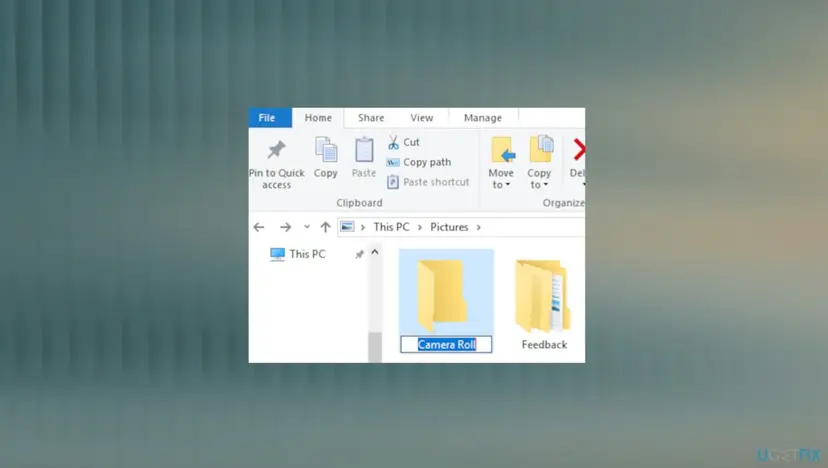
Microsoft's own steps create the folder at the top of the system drive, usually OSDisk (C:), and then include it in the library. Both places work, because the library decides where photos go. Pictures is easier to find later.
It worked if: The Camera app takes the photo, and it appears in Pictures > Camera Roll.
If not: If the error stays, make the new folder the library's save location in Fix 2.
Fix 2. Set the Camera Roll library's save location
3 minutesNo riskThe Camera Roll folder exists but the error stays, or you use OneDrive or Dropbox.
The Camera app saves into the Camera Roll library, and the library sends files to its save location. If that location still points to a folder that was deleted or moved, a new folder alone does not help. Users on Microsoft Q&A marked this as the answer that fixed the error.
- Press Win + R, paste
%APPDATA%\Microsoft\Windows\Librariesand press Enter. - Right-click Camera Roll and select Properties.
- If your Camera Roll folder is not in the list, select Add, choose the folder from Fix 1 and select Include folder.
- Select that folder in the list and then Set save location.
- Remove any listed folder that no longer exists, then select OK.
- Take a photo in the Camera app.
Path to paste in Run
%APPDATA%\Microsoft\Windows\LibrariesIt worked if: The library shows one existing folder as the save location, and the photo is saved there.
If not: If photos still fail, reset the drive Windows saves new photos to in Fix 3.
Fix 3. Reset where new photos and videos are saved
3 minutesNo riskPhotos once went to an SD card, a USB drive or a second disk, or Fixes 1 and 2 did not help.
Windows keeps one setting for where new photos and videos go. If it names a card or drive that is gone, the file cannot be created. Microsoft's fix is to switch the setting away and back, which writes it again.
- Open Settings > System > Storage.
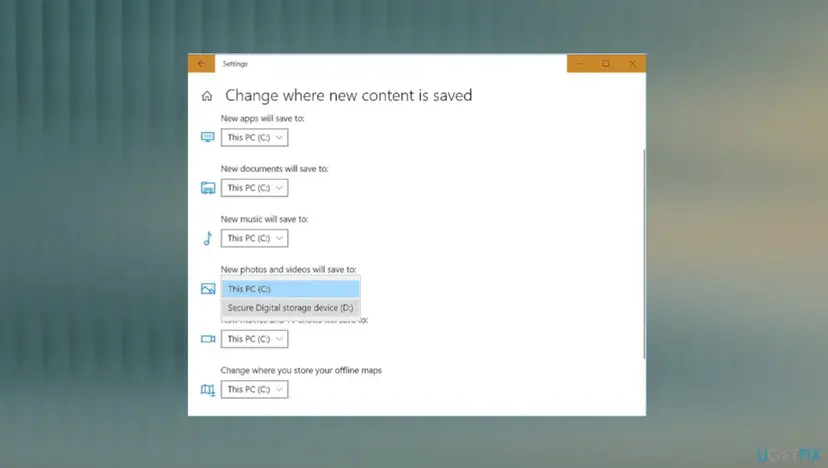
- On Windows 11 select Advanced storage settings > Where new content is saved. On Windows 10 select Change where new content is saved.
- Look at New photos and videos will save to. If it names an external drive, connect it or choose This PC (C:).
- Choose another drive, select Apply, then choose This PC (C:) again and select Apply.
- Take a photo in the Camera app.
The older Windows 10 Camera app also has a shortcut: Settings in the app, then Change where photos and videos are saved under Related settings. It asks whether you meant to switch apps; select Yes.
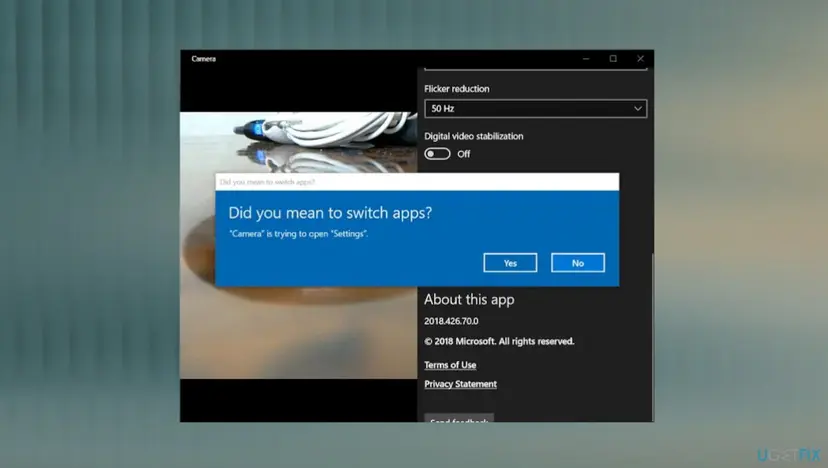
It worked if: New photos and videos will save to shows a drive that is connected, and the photo is saved.
If not: If the drive is right and the error stays, check the folder's permissions in Fix 4.
Fix 4. Give your account Write permission on Camera Roll
5 minutesLow riskThe Camera Roll folder was copied from another PC, restored from a backup or created by another account.
Creating a file needs the Write right on the folder. Microsoft lists this check for a Camera Roll the app cannot use. A folder brought from elsewhere can keep rights that do not include your account.
- In File Explorer, open Pictures, right-click Camera Roll and select Properties.
- Open the Security tab.
- Under Group or user names, select the account you are signed in with.
- Look at Write in the box below. If Allow is not ticked, select Edit, select your account, tick Allow next to Write and select OK.
- Take a photo in the Camera app.
If your account is not in the list, or the Edit button is greyed out, you are not an administrator on this PC. Create a fresh folder in Fix 1 instead, which gets your rights by default.
It worked if: Write shows Allow for your account, and the photo is saved.
If not: If permissions are right, check cloud sync and free space in Fix 5.
Fix 5. Check OneDrive, Dropbox and free disk space
10 minutesLow riskYour Pictures folder is synced with OneDrive or Dropbox, or the system drive is nearly full.
Microsoft notes that when Microsoft storage is full, new files such as the Camera Roll cannot be uploaded or synced to OneDrive. A Surface owner on Microsoft Q&A got the error after Dropbox was set to stop keeping Camera Roll on the PC.
- Select the OneDrive cloud icon in the taskbar and look for a storage full warning. If you see one, free space in OneDrive or move photos out.
- In Dropbox or another sync app, make sure Camera Roll is set to stay on this computer.
- Open File Explorer and check the folder from Fix 1 and Fix 2 is still there after sync has run.
- Open Settings > System > Storage and check that the system drive has free space.
- Take a photo in the Camera app.
If the system drive is nearly full: Free up disk space and delete temporary files
It worked if: Sync shows no warnings, the Camera Roll folder stays on the PC, and the photo is saved.
If not: If the folder, the rights and the space are all in order, repair the app in Fix 6.
Fix 6. Repair or reset the Windows Camera app
5 minutesLow riskFixes 1 to 5 found nothing wrong with the folder, its rights or the storage.
A reset clears the app's stored settings, including a save path it may remember. It rarely helps on its own: the Surface owner on Microsoft Q&A reset and reinstalled the app with no change, because the folder was the cause. So it comes after the folder checks.
- Open Settings > Apps > Installed apps. On Windows 10 open Apps > Apps & features.
- Find Camera, select the three dots or the app name, then Advanced options.
- Select Terminate, then Repair, and test the Camera app.
- If it still fails, select Reset. Photos already in Camera Roll are files and stay.

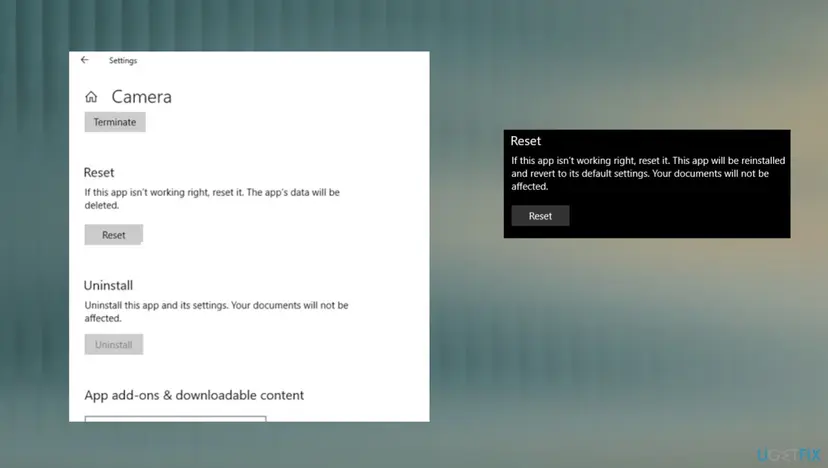
Full steps for both Windows versions: How to repair or reset an app in Windows
It worked if: The Camera app opens with default settings and saves the photo.
If not: If the error comes back, run the general checks in Fix 7.
Fix 7. Run the camera troubleshooter and check system files
20 minutesNo riskEvery fix above has failed.
The troubleshooter checks the camera setup and the Store app, and a system file check repairs damaged Windows parts. They are not specific to a missing folder, so they come last.
- On Windows 11 open Settings > System > Troubleshoot > Other troubleshooters and select Run next to Camera.
- On Windows 10 open Settings > Update & Security > Troubleshoot, select Camera and Run the troubleshooter.
- Open Settings > Windows Update, select Check for updates and install what is offered.
- Restart and take a photo.
If the error still appears, check and repair Windows system files: Run DISM and SFC to repair Windows system files
It worked if: The troubleshooter finishes, Windows is up to date, and the photo is saved.
If not: Read "If PhotoCaptureFileCreationFailed is still there" below.
If PhotoCaptureFileCreationFailed is still there
The Camera app shows only the codes, and we found no Windows log that names this error. These tests tell you where the fault is.
- Take a photo in another app, such as a browser camera test. If it saves, the camera is fine and the fault sits in the Camera app's save path.
- Create a second local account, sign in and try the Camera app there. If it works, the fault is in your profile's folders or library.
- Start Windows in safe mode and try once, to rule out sync and security programs: Start Windows or a Mac in Safe Mode
- What to send to support: the full code with the second code in brackets, where your Pictures folder lives (local, OneDrive or Dropbox), and the Windows version from Settings > System > About.
- Who to ask: Microsoft support for the Camera app and OneDrive, Dropbox support for its sync rules.
- When it is hardware: almost never for this code. If the preview shows a picture, the camera works.
How to keep the Camera Roll error from coming back
- Move photos out of Camera Roll instead of deleting the folder itself.
- Keep Camera Roll set to stay on the PC in any sync app.
- Set New photos and videos will save to back to This PC (C:) before you remove an SD card for good.
- Watch for OneDrive storage warnings if Pictures is backed up there.
- Do not delete Pictures > Camera Roll to free space.
- Do not install driver updater programs for this error: the driver is not the cause.
- Do not copy a Camera Roll folder from another PC without checking its permissions.
Windows 10 left support on 14 October 2025, so its Camera app no longer gets regular fixes. The steps above are the same on Windows 10, with Change where new content is saved in place of Advanced storage settings.
Frequently asked questions
What does PhotoCaptureFileCreationFailed mean?
It means the Windows Camera app took the picture but could not create the file for it. The full message reads like 0xA00F424F <PhotoCaptureFileCreationFailed> with a second code in brackets. The camera, its driver and camera access work, which is why the preview is normal. The fault sits in the save path: the Camera Roll folder is missing, the library or the save drive points to a place that is gone, or your account cannot write there.
How do I fix 0xA00F424F PhotoCaptureFileCreationFailed (0x80270200)?
Start with the Camera Roll folder. Open Pictures, create a folder named Camera Roll and include it in the Camera Roll library (Fix 1). Then make it the library's save location (Fix 2) and switch the save drive for new photos away and back to This PC (C:) (Fix 3). 0x80270200 appears in most reports of this error. We could not confirm its exact meaning, and it does not change the order of the fixes.
What is 0x80270200 on its own?
In the reports we read, 0x80270200 comes as the second code of the Camera app error 0xA00F424F <PhotoCaptureFileCreationFailed>. Microsoft has not published what it means, and we could not confirm it. People in Chinese and Japanese Microsoft Q&A threads report the same pair when the camera cannot save pictures. Treat it as part of the same saving error and follow the fixes on this page in order.
What is VideoCaptureFileCreationFailed 0xA00F425C?
It is the video version of the same error. 0xA00F425C <VideoCaptureFileCreationFailed> appears when the Camera app cannot create the file for a recording. The file goes to the same Camera Roll and uses the same save drive setting, so the same fixes apply. Start with a new Camera Roll folder in Pictures (Fix 1) and the library save location (Fix 2).
Is the fix the same on Windows 11 and Windows 10?
Yes. The codes and the order of fixes are the same. Only some menu names differ: Windows 11 has Advanced storage settings > Where new content is saved, Windows 10 has Change where new content is saved. Windows 11 also hides Include in library behind Show more options. Windows 10 left support on 14 October 2025, so Camera app fixes reach it less often.
Why did the error start after I cleaned up my Pictures folder?
The Camera Roll folder is not just a folder. The Camera app saves into the Camera Roll library, and that library points to the folder. If you deleted or moved the folder, or a sync app removed it from the PC, the library points nowhere. A Surface owner on Microsoft Q&A hit exactly this after telling Dropbox to stop keeping Camera Roll locally. Recreate the folder and set the save location again.
Do I need to update the camera driver for PhotoCaptureFileCreationFailed?
Usually not. If the Camera app shows a live picture, the driver delivers images, and the failure comes later, when the file is created. That is why we left the driver update of the old version of this page out. Update the driver only if the preview is black or the camera is missing from Device Manager, which is a different problem.
What does "photo capture start failed" mean, and is it the same?
No. A start failure means the camera could not begin taking the photo, before any file is made. That points to the camera, camera access or the driver, not to Camera Roll. Microsoft's camera table lists 0xA00F4294 Video start failed for this kind of problem. Check camera access and the driver steps in our guide to camera error 0xA00F429F.
What should I do about "error: failed to capture image"?
That text comes from other apps and tools, not from the Windows Camera app. If you see it in Windows Camera together with PhotoCaptureFileCreationFailed, follow this page. If it comes from another program, check that the program can write to its own save folder, and that camera access for desktop apps is on in Settings > Privacy & security > Camera.
Will I lose my photos if I reset the Camera app?
No. Reset deletes the app's settings and data, not your pictures. Photos and videos are ordinary files in Pictures > Camera Roll, or in the folder your library points to. Copy them somewhere safe first if you plan to delete or move that folder, because the folder itself is where the files live.
Sources
- Microsoft Support: Fix a missing Camera Roll in Windows (default save to Camera Roll, Where new content is saved, new Camera Roll folder with Include in library, Write permission, OneDrive storage note) (support.microsoft.com)
- Microsoft Support: Camera doesn't work in Windows (camera error code table, privacy settings, camera troubleshooter paths) (support.microsoft.com)
- Microsoft Q&A: Camera error 0xA00F424F (0x80131500) on a Surface (deleted Camera Roll after Dropbox change, accepted answers: new Camera Roll folder, library save location) (learn.microsoft.com)
Did this fix work?
One click, no account. It tells the next reader which guides are worth their time.
Questions and experiences: fix PhotoCaptureFileCreationFailed camera error in Windows
Still broken, or found a fix we did not cover? Ask here: members and our editors answer. Reading is open; writing needs a free account.
…