
How to fix 0xA00F429F camera error in Windows?

Prefer to fix it yourself? The manual steps follow.
- 8methods
- 5 to 30 minutes
- Easy
Applies to Windows 11, Windows 10; the Windows Camera app with built-in laptop cameras and USB webcams
8 methods in this guide
Hello. I recently tried to use my camera on a Windows laptop, but I received a 0xA00F429F WindowShowFailed error. How do I get rid of it?
Camera error 0xA00F429F <WindowShowFailed> means the Windows Camera app started but could not show its camera window. It often follows a Windows reinstall or upgrade, a damaged Camera app, or a camera driver that does not fit the new build. Start by freeing the camera and checking access, then repair the app and the driver.
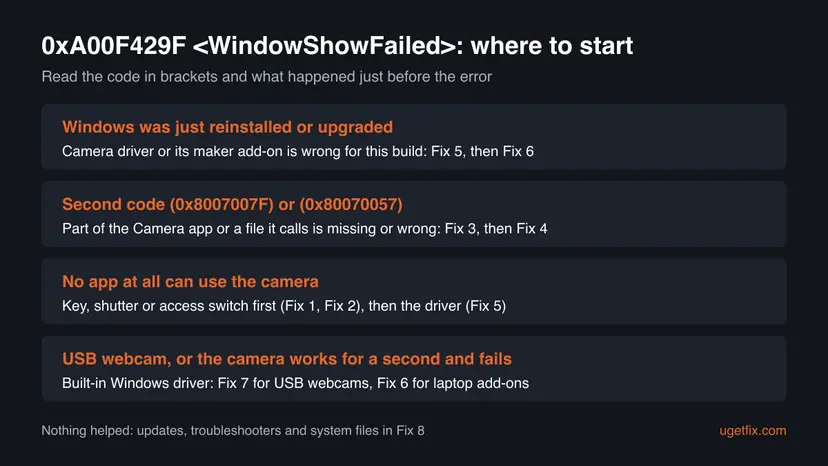
0xA00F429F <WindowShowFailed> is a Windows Camera app error: the app could not show its camera window. Press the camera key, open the shutter, close call apps and restart (Fix 1), then check camera access (Fix 2). If other apps use the camera, repair or reinstall the Camera app (Fix 3, Fix 4). If none can, or Windows was just reinstalled, fix the camera driver (Fix 5, Fix 6).
| Error | Can't start your camera with the code 0xA00F429F<WindowShowFailed> and a second code in brackets, for example (0x8007007F), (0x80070057) or (0xC00D7167). |
|---|---|
| Where it appears | In the Windows Camera app, as it opens. Sometimes it comes a second after 0xA00F429E<PageOpenFailed>. |
| Main cause | The Camera app cannot show its window with a live picture: the camera is off or blocked, the app is damaged, or the camera driver does not fit the installed Windows. |
| Fastest fix | Camera key or shutter, close call apps, restart (Fix 1), then camera access in Privacy & security (Fix 2). |
| Also written as | error code 0xa00f429f, 0xA00F429F WindowShowFailed, "windows show failed", "window show failed", 0A00F429F, oxa00f429f. |
| Affects | Windows 11 and Windows 10, built-in laptop cameras and USB webcams. Reports we read come from a Dell laptop after a clean Windows 11 install and from Windows 11 home users. |
| Microsoft's status | No public Microsoft article for 0xA00F429F. Microsoft's camera page explains other codes, such as 0xA00F4294 "Video start failed" and 0xA00F4244 "camera not detected". |
| Best clue | The second code in brackets and one test: does Teams, Zoom or a browser show the same camera? |
| Time to fix | 5 minutes for Fixes 1 and 2, up to 30 minutes for a driver change. |
Facts checked on 15 October 2026. Steps written for Windows 11 (25H2 and 26H2) and Windows 10 22H2.
What camera error 0xA00F429F <WindowShowFailed> means
The Windows Camera app shows Can't start your camera and a line such as 0xA00F429F<WindowShowFailed> (0x8007007F). WindowShowFailed names the step that broke: the app was running, but the window that holds the live preview and the shutter button could not be shown. Microsoft has not published a description of this code, so this is our reading of its name.
People type it as 0xa00f429f windowshowfailed, 0xa00f429f windows show failed, window show failed camera, error code 0xa00f429f, or with a typo as oxa00f429f or 0A00F429F. The code and the fixes are the same on Windows 11 and Windows 10. The code in brackets is a standard Windows code, and it tells you more than the first one.
| Code in brackets | What it says | Start with |
|---|---|---|
(0x8007007F) | Standard Windows text: "The specified procedure could not be found." Something the app loads is missing a part it expects. We could not confirm which file for the camera. | Fix 3, Fix 4, then Fix 5 |
(0x80070057) | Standard Windows text: "The parameter is incorrect." The app got a value it cannot use, often from the camera driver. | Fix 1, then Fix 5 |
(0x80070003) | Standard Windows text: "The system cannot find the path specified." Reported after a Windows update. | Fix 3, Fix 4 |
(0xC00D7167) | A code from the Windows media framework range. We could not confirm its exact meaning. | Fix 5, Fix 6 |
Open Teams, Zoom or a browser camera test with the same camera. Microsoft says that if the camera works in one app but not another, the problem lies with the app. Then start at Fix 3. If no app can use the camera, start at Fix 1 and go to the driver.
If you saw 0xA00F429E <PageOpenFailed> first and 0xA00F429F only a second later, the page itself never opened. That case has its own guide: Can't start your camera error 0xA00F429E.
Why camera error 0xA00F429F appears
Most often the camera is not available when the app opens its window: a key, a shutter or another app has it. Often the Camera app is damaged after an update, which the second codes 0x8007007F and 0x80070003 point at. Less often the camera driver does not fit the Windows build, which is typical after a clean reinstall or a big upgrade.
| Cause | How often | How to tell | Fix |
|---|---|---|---|
| Camera turned off with a key or shutter, or busy in another app. | Most often | A camera icon on an F key, a slider over the lens, a call app still running. | Fix 1 |
| Camera access switched off. | Often | No app can use the camera, or Camera is off in the app list after an update. | Fix 2 |
| The Camera app is damaged. | Often | Teams or a browser use the camera; the second code is 0x8007007F or 0x80070003. | Fix 3, Fix 4 |
| The camera driver is wrong or broken. | Sometimes | Warning sign in Device Manager, or the error began after an update. | Fix 5 |
| The maker's camera driver or add-on does not fit a fresh Windows. | Sometimes | Windows was just reinstalled; a generic driver works for a moment. | Fix 6 |
| A USB webcam with a poor vendor driver. | Rarely | Only that webcam fails, on any USB port. | Fix 7 |
When the camera works in Linux from a USB stick or in the maker's pre-boot diagnostics, the hardware is fine. A Dell owner who saw 0xA00F429F after a clean Windows 11 install reports exactly that, and the fault was a driver inside Windows.
How to fix camera error 0xA00F429F <WindowShowFailed>
Fixes 1 and 2 free the camera and allow it, in five minutes. Fixes 3 and 4 repair the Camera app for when other apps use the camera. Fixes 5 to 7 deal with the driver, including the case after a fresh Windows install. Fix 8 holds the general repairs.
| What you see or have | Start with |
|---|---|
| A laptop with a camera key or lens slider, or a call app was open. | Fix 1 |
| No app can use the camera, or Windows was just updated. | Fix 2, then Fix 5 |
| Teams or a browser show the camera, only Windows Camera fails. | Fix 3, then Fix 4 |
| The second code is (0x8007007F) or (0x80070003). | Fix 3, then Fix 4 |
| Windows 11 was just installed clean or the PC was reset. | Fix 5, then Fix 6 |
| A USB webcam that fails on every port. | Fix 7 |
Fix 1. Turn the camera on with its key or shutter, close call apps and restart
5 minutesNo riskEveryone, first. Most of all on laptops with a camera key or a lens slider.
The Camera app needs a live picture to show its window. A camera turned off with a key or shutter, or held by another app, gives it none. Microsoft lists these switches first, and a Microsoft advisor's first answer to 0xA00F429F was the same.
- Look at the F1 to F12 keys. If one has a camera icon, press it, or press Fn and that key.
- Look at the lens above the screen and open a privacy slider if it covers it. Check the side of the laptop for a camera switch.
- Close Teams, Zoom, Skype, OBS and browser tabs that used the camera. A program that hangs can be ended in Task Manager with Ctrl + Shift + Esc.
- For a USB webcam, plug it into another USB port on the PC itself, not a hub.
- Restart with Start > Power > Restart, then open Camera.
Microsoft notes that waking the PC from sleep is not the same as a restart. A frozen app that will not close: Close a frozen app (Task Manager, Force Quit)
It worked if: The Camera app shows a live picture and no code.
If not: If the code comes back, check camera access in Fix 2.
Fix 2. Allow camera access for the Camera app
3 minutesNo riskNo app can use the camera, or the error started after a Windows update or upgrade.
Microsoft says that after an update, some apps in newer Windows 11 versions do not get camera access by default. With access off, the app has no picture for its window.
- Open Settings > Privacy & security > Camera. On Windows 10 it is Settings > Privacy > Camera.
- Turn on Camera access and Let apps access your camera.
- Make sure Camera is switched on in the list of apps.
- Turn on Let desktop apps access your camera, so a browser or Teams can be used for the test.
- Open the Camera app again.
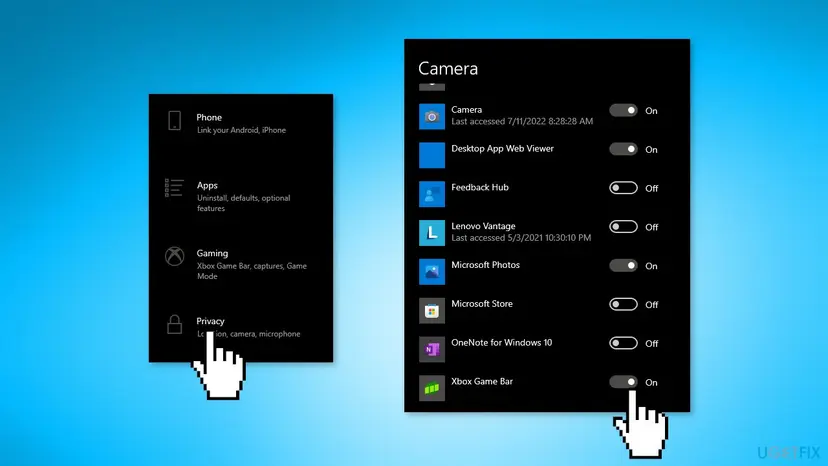
If Camera access is greyed out, Microsoft says an administrator has turned it off, and only an administrator can turn it on. On a work PC, ask your IT team.
It worked if: The switches are on and the Camera app shows the picture.
If not: If other apps now use the camera but Windows Camera still fails, go to Fix 3. If no app can, go to Fix 5.
Fix 3. Repair and reset the Windows Camera app
5 minutesLow riskTeams, Zoom or a browser show the camera and only Windows Camera fails, or the second code is 0x8007007F or 0x80070003.
When another app shows the same camera, the camera and driver work, and the app's own files are left. "Procedure not found" and "path not found" are what a damaged or half-updated app returns. Repair keeps its settings; Reset clears them.
- Open Settings > Apps > Installed apps (on Windows 10 Apps > Apps & features).
- Find Camera, select the three dots or the app name and then Advanced options.
- Select Terminate, then Repair, and open the Camera app.
- If it still fails, select Reset. Your photos and videos stay in Pictures > Camera Roll.
- Open Microsoft Store > Library, select Get updates and let the Camera app update.
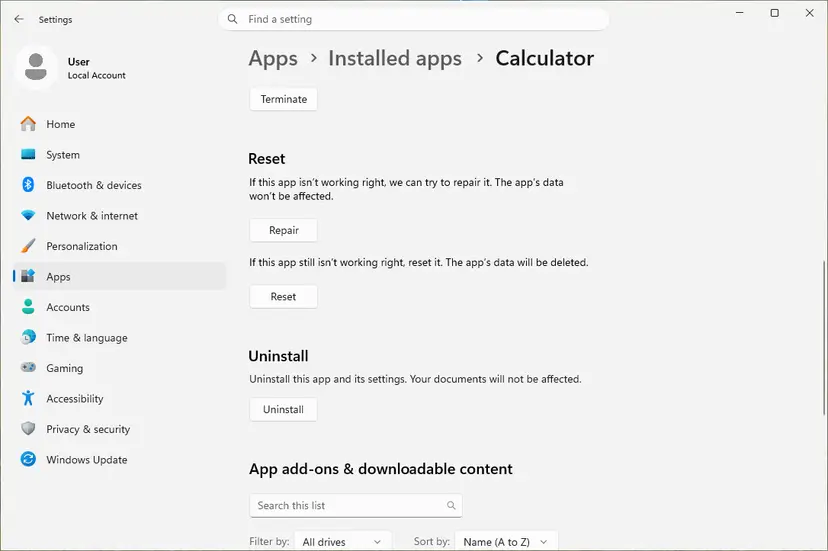
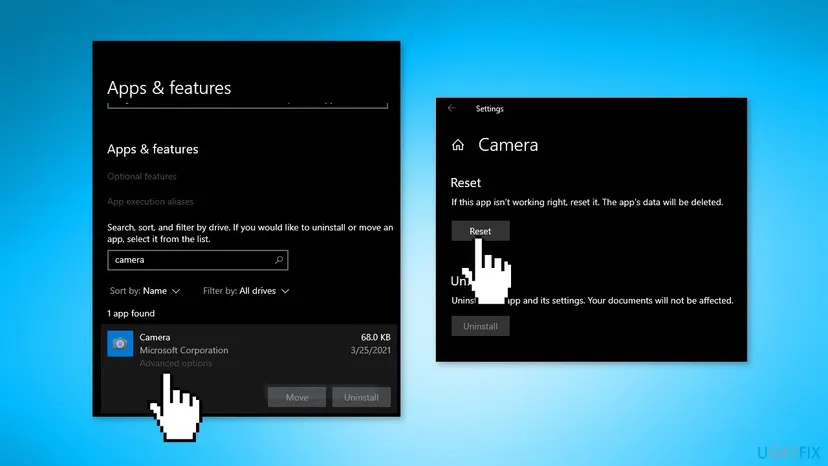
Full steps for both Windows versions: How to repair or reset an app in Windows
It worked if: The Camera app opens with default settings and shows the picture.
If not: If the same code returns, reinstall the app in Fix 4.
Fix 4. Reinstall the Windows Camera app with PowerShell
10 minutesLow riskRepair and Reset did not help, and other apps use the camera normally.
Removing the package and installing it fresh from the Microsoft Store replaces every app file at once. That covers the missing part a 0x8007007F code points at, which Repair may not find.
- Right-click Start and select Terminal (Admin) or Windows PowerShell (Admin), then Yes.
- Run the command below and wait for the prompt to return.
- Open Microsoft Store, search for Windows Camera and select Install.
- Open the Camera app and allow camera access if it asks.
Remove the Windows Camera package
Get-AppxPackage *windowscamera* | Remove-AppxPackage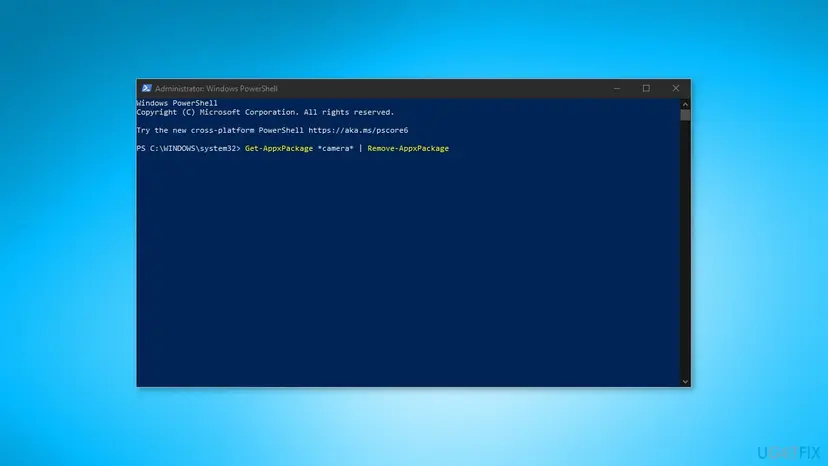
The narrower name *windowscamera* matches only Microsoft's Camera app, not a laptop maker's own camera tools. Photos and videos are files in Pictures > Camera Roll and stay. To re-register built-in apps without removing them: How to re-register Microsoft Store apps with PowerShell
It worked if: Windows Camera is installed again from the Store and shows the picture.
If not: If the fresh app shows the same code, the app is not the cause. Go to the driver in Fix 5.
Fix 5. Roll back or reinstall the camera driver
10 minutesLow riskNo app can use the camera, the camera has a warning sign in Device Manager, or the error began after an update.
If the driver hands the app a picture it cannot use, the window cannot be shown, which fits the "parameter is incorrect" code. Microsoft's order is: scan for hardware changes, roll back after an update, then uninstall and let Windows install the driver again.
- Right-click Start, select Device Manager and find the camera under Cameras, Imaging devices or Sound, video and game controllers.
- If it is missing, select Action > Scan for hardware changes.
- If the error began after an update, right-click the camera, select Properties > Driver and Roll Back Driver, then Yes.
- Otherwise select Uninstall Device, tick Attempt to remove the driver for this device and select OK.
- Select Action > Scan for hardware changes, restart and open the Camera app.
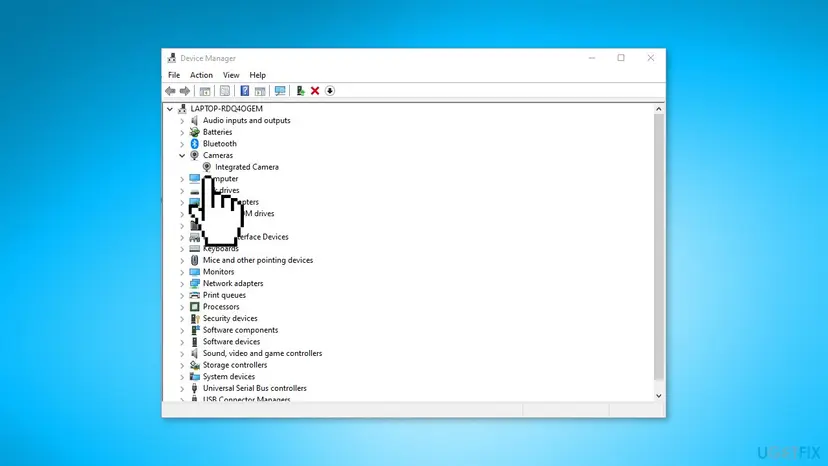
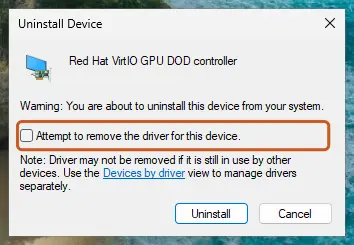
Full driver steps: Update, roll back or reinstall a driver
It worked if: The camera is listed under Cameras without a warning sign and the Camera app shows the picture.
If not: If the camera works for a moment and then fails again, go to Fix 6. For a USB webcam, go to Fix 7.
Fix 6. Install the laptop maker's camera driver, or remove its camera add-on
20 minutesRead the warningWindows was just installed clean, reset or upgraded, or the camera works for a second after Fix 5 and then fails.
A clean Windows install brings a generic camera driver, and Windows Update then adds the maker's driver and extras. A Microsoft advisor's answer to 0xA00F429F was the maker's driver. A Dell owner found the opposite: a camera effects add-on broke the app.
- Open the support page of your laptop on its maker's website, enter the model or service tag and download the camera driver for your Windows version.
- Install it, restart and open the Camera app.
- If the error stays, open Device Manager and look under Cameras and Software components for an extra camera entry, such as an AI or effects add-on.
- Right-click that entry, select Uninstall device, tick Attempt to remove the driver for this device and select Uninstall.
- Select Action > Scan for hardware changes and test the Camera app.
Removing a maker's add-on can turn off features such as background blur, auto framing or Windows Hello face sign-in. On an Inspiron 16 5645, the owner removed Dell Camera AI Effect Opt-In 1.0.0.2: the generic Integrated Webcam driver worked, but Windows Update put the Dell driver back seconds later. Another owner found it stopped again after 15 minutes.
We could not confirm a lasting fix from Dell. One owner of the same model got the camera working only after a factory recovery from the maker's image. If you meet this case, report it to the maker with the model, the driver name and version, and the steps above.
It worked if: The camera keeps working after a restart and after Windows Update has run.
If not: If the error returns after Windows Update, contact the maker's support. For a USB webcam, try Fix 7.
Fix 7. Switch a USB webcam to the USB Video Device driver
5 minutesLow riskThe camera is an external USB webcam and Fix 5 did not help.
Microsoft says most USB webcams are UVC compatible and work with the driver built into Windows, and that swapping to it may help when a webcam does not work correctly.
- Open Device Manager and find the webcam under Cameras or Imaging devices.
- Right-click it and select Update driver.
- Select Browse my computer for drivers, then Let me pick from a list of available drivers on my computer.
- Select USB Video Device, then Next and Close.
- Open the Camera app.
Microsoft warns that the built-in driver may not support every feature of the webcam, and Windows Hello face sign-in can stop working. Roll Back Driver on the Driver tab takes you back.
It worked if: The webcam appears under Cameras as a USB Video Device and the Camera app shows its picture.
If not: If USB Video Device is not offered, the webcam does not follow the standard. Ask its maker for a Windows 11 driver.
Fix 8. Install updates, run the troubleshooters and check system files
30 minutesNo riskEvery fix above has failed, or Windows has updates waiting.
Optional updates can carry a newer camera or display driver, and the troubleshooters check the camera and Store app setup. They are not specific to WindowShowFailed, so they come last.
- Open Settings > Windows Update, select Check for updates and install everything.
- Select Advanced options > Optional updates and install any camera or display driver offered. Restart.
- Open Settings > System > Troubleshoot > Other troubleshooters and select Run next to Camera.
- In the same list, run Windows Store Apps, because Windows Camera is a Store app.
- Test the Camera app again.
If the error still appears, check and repair Windows system files: Run DISM and SFC to repair Windows system files
It worked if: Windows is up to date, the troubleshooters finish, and the Camera app opens.
If not: Read "If camera error 0xA00F429F is still there" below.
If camera error 0xA00F429F is still there
The Camera app shows only the codes, and we found no Windows log that names WindowShowFailed. These three tests tell you where the fault is and who can fix it.
- Test the camera in another app. If it works there, the fault is in the Camera app: keep using that app and wait for a Camera update.
- Start Windows in safe mode and try the Camera app once, to rule out other programs: Start Windows or a Mac in Safe Mode
- For a USB webcam, try it on a second PC. For a built-in camera, run the maker's pre-boot hardware test.
- What to send to support: the full message with both codes, the camera name and driver version from Device Manager, and the Windows version from Settings > System > About.
- Who to ask: the laptop maker for a built-in camera, the webcam maker for a USB webcam, Microsoft support for the Camera app.
- When it is hardware: no app can use the camera, it is missing from Device Manager after Scan for hardware changes, and the maker's hardware test fails.
How to keep the camera error from coming back
- After a clean Windows install, take the camera driver from the laptop maker's support page.
- Keep the Camera app updated in Microsoft Store > Library.
- Restart, not just wake from sleep, after any driver change.
- Note the camera driver version before a big Windows upgrade, so you can tell what changed.
- Do not install driver updater programs from unknown sites.
- Do not edit camera registry values you found in old guides without a backup.
- Do not leave camera access switched off after a privacy check.
Windows 10 left support on 14 October 2025, so its Camera app and drivers no longer get regular fixes. On Windows 10 the paths in this guide are mostly the same, with Privacy in place of Privacy & security.
Frequently asked questions
What does 0xA00F429F WindowShowFailed mean?
It means the Windows Camera app started but could not show its camera window, the one with the live preview. The app then shows "Can't start your camera" and the code. Microsoft has not published a description of 0xA00F429F, so the name of the code is the best clue we have. The cause is either outside the app, when the camera is off, blocked or busy, or inside it, when the app or the camera driver is damaged. Test the camera in another app to find out which.
How do I fix 0xA00F429F WindowShowFailed 0x8007007F?
Start with the Camera app itself. 0x8007007F is the standard Windows code for "The specified procedure could not be found", which a damaged or half-updated app returns. Repair and then reset the Camera app in Installed apps (Fix 3). If that fails, remove it with PowerShell and install it again from the Microsoft Store (Fix 4). Only then move to the camera driver in Fix 5. Check the camera key and camera access first if no other app can use the camera either.
What does 0xA00F429F with (0x80070057) mean?
0x80070057 is the standard Windows code for "The parameter is incorrect". Together with 0xA00F429F it usually means the Camera app got something from the camera it could not use. On a Microsoft Q&A thread about exactly this pair, the advisor's steps were the camera key on the F row, the lens slider and the maker's webcam driver. That is Fix 1 and Fix 6 here, with the driver reinstall in Fix 5 between them.
Is the fix for 0xA00F429F the same on Windows 10 and Windows 11?
Yes. People search windowshowfailed camera Windows 10 and 0xa00f429f windowshowfailed Windows 10 as often as Windows 11, but the code and the fixes are the same. Only some menu names differ: Settings > Privacy > Camera on Windows 10, Settings > Privacy & security > Camera on Windows 11, and Apps & features in place of Installed apps. Windows 10 left support on 14 October 2025, so Camera app and driver fixes reach it less often.
Why does 0xA00F429F appear after reinstalling Windows 11?
A clean install brings a generic camera driver, and Windows Update then adds the maker's driver and extras that may not fit. A Dell Inspiron 16 5645 owner saw 0xA00F429F after every clean install, while the camera worked in Linux and passed Dell's hardware test. Removing the Dell camera add-on made it work until Windows Update put it back. Install the camera driver from the maker's page and see Fix 6.
Should I edit the registry with EnableFrameServerMode?
We do not recommend it for this error. Older guides, including an earlier version of this one, suggested adding an EnableFrameServerMode value under the Windows Media Foundation Platform key. We found no Microsoft source that ties this value to 0xA00F429F, and we could not confirm that it helps on current Windows 11. The fixes on this page do not need the registry. If you change it anyway, back it up first: Back up the registry before editing it
What is the difference between 0xA00F429E and 0xA00F429F?
0xA00F429E <PageOpenFailed> means the Camera app could not open its camera page. 0xA00F429F <WindowShowFailed> means it could not show its window. Users report that the two often come one after the other, first 429E and then 429F. The checks overlap, but when 429E comes first, start with the 0xA00F429E guide, which covers the Camera app and its media parts in more depth.
Is error 0xA00F429F a sign of a broken camera?
Usually not. The code comes from the Camera app, and in most reports the camera works in another app, in Linux or in the maker's hardware test. It points to hardware only when no app can use the camera, the camera is missing from Device Manager after Scan for hardware changes, and the maker's pre-boot test fails too. A USB webcam that fails on a second PC is also likely faulty.
Can I keep using the camera while the Camera app shows 0xA00F429F?
Often yes. If Teams, Zoom or a browser show the picture, the camera and driver work, and only the Camera app is affected. Keep using those apps for calls while you repair or reinstall the Camera app in Fix 3 and Fix 4. Make sure Let desktop apps access your camera is on in the camera privacy settings, because browsers and most call apps are desktop apps.
I see code erreur 0xa00f429f in French. Is this the same error?
Yes. Code erreur 0xa00f429f is the same error in a French copy of Windows, and the code is the same in every language. The menu names on your screen will be in French, but they sit in the same places. Follow the same order: the camera key and access switches, then the Camera app repair, then the driver. This page is written in English only.
Sources
- Microsoft Support: Camera doesn't work in Windows (camera switch and key, app permissions, test in another app, troubleshooter, driver roll back and reinstall, USB Video Device driver, camera error code table) (support.microsoft.com)
- Microsoft Q&A: 0xA00F429F (0x80070057), advisor's steps (camera key, privacy slider, maker's webcam driver) (learn.microsoft.com)
- Dell Community: Inspiron 16 5645, camera error 0A00F429F after Windows 11 installation (Dell Camera AI Effect Opt-In driver, generic driver workaround, unsolved) (dell.com)
Did this fix work?
One click, no account. It tells the next reader which guides are worth their time.
Questions and experiences: fix 0xA00F429F camera error in Windows
Still broken, or found a fix we did not cover? Ask here: members and our editors answer. Reading is open; writing needs a free account.
…