
How to fix "Photos can't open this file because the format is currently unsupported"?

Prefer to fix it yourself? The manual steps follow.
- 7methods
- 2 to 30 minutes
- Easy
Applies to Windows 11, Windows 10; the Microsoft Photos app opening JPG, PNG, HEIC, RAW and other photo and video files
7 methods in this guide
I keep getting "Photos can't open this file because the format is currently unsupported" whenever I attempt to open some photos using the Photos app in Windows. At first it was just some of them, and now it's the majority that result in an error. These photos used to work fine and I know that I could open them before. Any tips?
"Sorry, Photos can't open this file because the format is currently unsupported, or the file is corrupted" means the Windows Photos app could not read the picture. The message names two causes, and only a quick test tells you which one you have. Open the same file in Paint or on another device first.
Find out first whether the file or Photos is at fault: open the same file in Paint or on another device (Fix 1). If it is an iPhone photo or a .HEIC file, install HEIF Image Extensions and HEVC Video Extensions from Microsoft Store (Fix 2). If the file fails everywhere, it is incomplete or damaged, so copy it again from its source (Fix 3). Only when every file fails in Photos alone, repair the app (Fix 4).
| Error | "Sorry, Photos can't open this file because the format is currently unsupported, or the file is corrupted." |
|---|---|
| Where it appears | In the Microsoft Photos app, in place of the picture, the moment you open a photo or video from File Explorer. |
| Main cause | A file type Photos has no codec for (most often HEIC from an iPhone), or a file that is incomplete or damaged after a copy, a transfer or a recovery. |
| Fastest fix | Open the same file in Paint or on another device to see whether the file or the app is at fault (Fix 1). |
| Also written as | "Photos can't open this file because the format", "sorry photos can't open this file", "format is unsupported", and in older Photos: "It looks like we don't support this file format". |
| Affects | Windows 11 and Windows 10, the Photos app. Windows Photo Viewer and Paint show their own, different messages. |
| Microsoft's status | No Microsoft article for this exact message. Microsoft's Q&A advisors suggest repairing Photos and running system file checks, which help only when the app is the cause. |
| Time to fix | 2 minutes for the test, 5 minutes for an extension, up to 30 minutes for app repair and drive checks. |
Facts checked on 15 October 2026. Steps written for Windows 11 (25H2 and 26H2) and Windows 10 22H2.
What "Photos can't open this file because the format is currently unsupported" means
The full text reads: "Sorry, Photos can't open this file because the format is currently unsupported, or the file is corrupted." It shows inside the Photos window where the picture should be, with no error code. People search it as "sorry photos can't open this file", "photos can't open this file because the format" or "format is unsupported".
Photos gives one message for two very different problems. Either it has no way to decode this file type, or the file does not contain a complete, readable image. The fix for the first is a small extension; the second is about the file, and no app repair changes it.
| What you notice | What it usually tells you |
|---|---|
| Only .HEIC files, or photos copied from an iPhone, fail. | Photos is missing the HEIF and HEVC codecs. The file is fine. |
| The file opens in Paint, a browser or on your phone. | The file is fine; Photos or its codecs are the problem. |
| The file fails in every app and on every device. | The file is incomplete or damaged. Get it again from its source. |
| The file size is 0 KB or much smaller than its neighbours. | The copy did not finish. The picture data is not there. |
| First a few, then most photos on one drive fail. | Suspect the drive or card the photos sit on. |
File Explorer can show a thumbnail even when the full picture is damaged, because many JPG files store a small preview of their own near the start. If the thumbnail looks right but the photo will not open anywhere, the rest of the file is missing or broken.
Why Photos says the format is unsupported or the file is corrupted
Most often the picture is a .HEIC file from an iPhone, or a file renamed to .jpg that is still HEIC inside, and Windows lacks the extension to read it. Often the file is incomplete: a phone transfer that stopped, an online-only cloud file, or a file brought back by a recovery tool. Less often the Photos app itself is damaged. Rarely the disk or card is failing.
| Cause | How often | How to tell | Fix |
|---|---|---|---|
| HEIC or another format without a codec on this PC. | Most often | The file came from an iPhone, or its type is HEIC, HEIF, a camera RAW or AVIF. | Fix 2 |
| The file is incomplete or damaged. | Often | It fails in every app and on other devices; the size is 0 KB or odd. | Fix 3 |
| The Photos app is damaged or out of date. | Sometimes | Every picture fails in Photos but opens in Paint. | Fix 4, Fix 5 |
| The drive, card or USB stick is failing. | Rarely | More files on the same drive fail each week. | Fix 6 |
| Damaged Windows system files or pending updates. | Rarely | Other built-in apps misbehave as well. | Fix 7 |
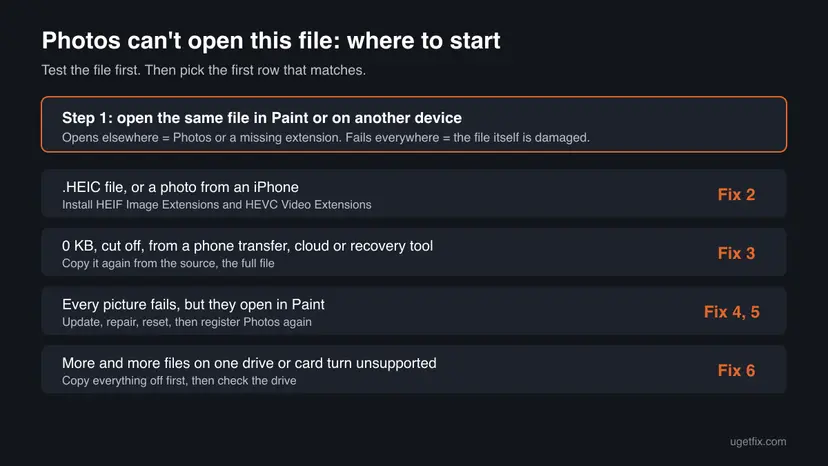
How to fix "Sorry, Photos can't open this file because the format is currently unsupported"
Fix 1 tells you whether the file or the app is at fault. Fixes 2 and 3 deal with the file and solve most cases. Fixes 4 and 5 repair Photos. Fixes 6 and 7 are the checks for the drive and for Windows.
| What you see or have | Start with |
|---|---|
| You do not know yet whether the file is fine. | Fix 1 |
| The file is .HEIC or came from an iPhone. | Fix 2 |
| The file is 0 KB, came from a transfer, a cloud folder or a recovery tool. | Fix 3 |
| Every picture fails in Photos but opens in Paint. | Fix 4, then Fix 5 |
| More and more files on one drive or card stop opening. | Fix 6 |
Fix 1. Test whether the file or the Photos app is the problem
2 minutesNo riskEveryone, first. It takes two minutes and decides which fix you need.
The message covers both an unsupported format and a damaged file. Opening the same file somewhere else separates the two, as TheWindowsClub also advises, so you do not spend time repairing an app that is fine.
- Press Win + E and find the photo that does not open.
- Right-click it and select Properties. On the General tab, read Type of file and Size. A size of 0 bytes means the copy never finished.
- Right-click the photo again, select Open with and choose Paint.
- If Paint fails too, open the file on another device: your phone, another PC, or a web browser by dragging the file into a browser tab.
- Write down the result: opens elsewhere, or fails everywhere.
| Result | Meaning | Go to |
|---|---|---|
| Type is HEIC or HEIF, it fails in Photos and Paint. | The HEIF codec is missing on this PC. | Fix 2 |
| Opens in Paint or on another device. | Photos is the problem. | Fix 4 |
| Fails everywhere, including your phone. | The file is incomplete or damaged. | Fix 3 |
Paint uses the same Windows image codecs as Photos. For HEIC files both fail until the extension from Fix 2 is installed, so a failure in Paint does not yet prove a HEIC file is damaged.
It worked if: You know whether to fix the format (Fix 2), the file (Fix 3) or the app (Fix 4).
If not: If the results are mixed, some files open elsewhere and some do not, work through Fix 2 and Fix 3 for each group.
Fix 2. Install HEIF Image Extensions and HEVC Video Extensions for iPhone photos
5 minutesNo riskThe file is .HEIC or .HEIF, or the photos came from an iPhone, even when they end in .jpg.
iPhones save photos as HEIC by default. Windows reads that format only with the HEIF Image Extensions, and the pictures inside are compressed with HEVC, which needs the HEVC Video Extensions. Without them Photos reports the format as unsupported.
- Open Microsoft Store and search for HEIF Image Extensions. Select Get or Install.
- Search for HEVC Video Extensions and install it as well. Some PCs already have a version from their maker.
- Close Photos completely, then open the HEIC file again.
- For camera RAW files, install Raw Image Extension from Microsoft Store the same way.
- To avoid HEIC next time, on the iPhone open Settings > Photos and under Transfer to Mac or PC pick Automatic, which converts photos to JPG while copying.
Get codecs only from Microsoft Store. Codec packs and "HEIC converters" from random download sites are a common way adware gets onto a PC.
It worked if: The HEIC photo opens in Photos, and File Explorer shows its thumbnail.
If not: If the photo still fails after both extensions, and it also fails on the iPhone or in iCloud, the file is damaged: go to Fix 3. If it opens elsewhere, go to Fix 4.
Fix 3. Copy the photo again from its source
10 minutesNo riskThe file fails in every app, has a size of 0 KB, or came from a phone transfer, a cloud folder, an external drive or a recovery tool.
A photo cut off during a transfer, or recovered after deletion, often has only part of its data. Photos then cannot read it and calls it corrupted. TheWindowsClub names copied and recovered files as typical cases; a fresh, complete copy is the only real fix.
- Find where the photo first came from: the phone, the camera card, a cloud service or a backup.
- Check that the original opens there. If it does not, the original is damaged too.
- Copy it to the PC again, to a local folder such as Pictures, not straight from the phone into Photos.
- For a OneDrive or Dropbox file, right-click it and choose Always keep on this device, then wait for the sync icon to turn into a green tick.
- Open the new copy in Photos.
For files brought back by a recovery tool, the missing parts may have been overwritten before recovery. A JPEG repair tool can sometimes rebuild a damaged start of a file, but no tool can bring back picture data that is no longer on the disk.
It worked if: The new copy has a normal size and opens in Photos.
If not: If the source copy opens but every copy on this PC fails, the disk may be damaging files: go to Fix 6. If there is no other copy, see "If Photos still cannot open the file" below.
Fix 4. Update, repair and reset the Photos app
10 minutesLow riskEvery photo fails in Photos, but the same files open in Paint or on another device.
When the files are fine, the app is the next suspect. An outdated or damaged Photos install can fail on formats it normally reads. Repair keeps the app's settings; Reset clears its data, not your pictures. Microsoft's Q&A advisor gives Repair as the first step.
- Open Microsoft Store > Library, select Get updates and let Microsoft Photos update.
- Open Settings > Apps > Installed apps, find Microsoft Photos, select the three dots and Advanced options. On Windows 10 it is Settings > Apps > Apps & features.
- Select Terminate, then Repair. Open the photo again.
- If it still fails, select Reset. Photos returns to its default settings; your pictures stay in their folders.
- Open the photo in Photos again.

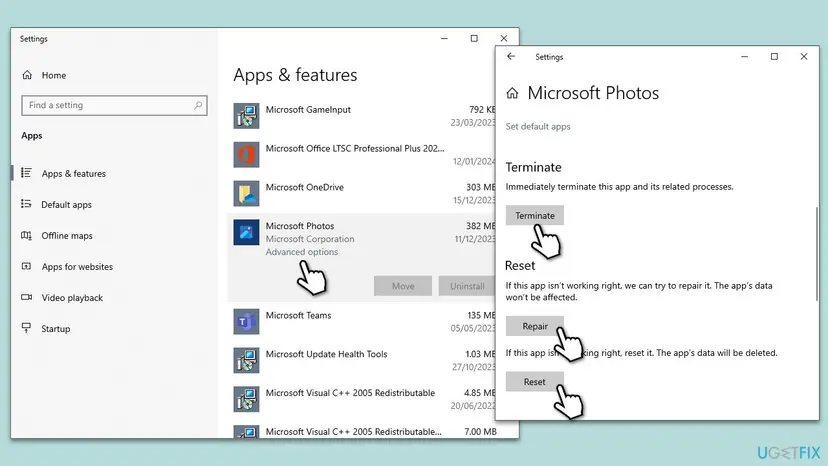
Full steps for Windows 11 and Windows 10: How to repair or reset an app in Windows
It worked if: Photos opens the pictures that Paint could already open.
If not: If Reset did not help, register the app again in Fix 5.
Fix 5. Register the Photos app again with PowerShell
5 minutesLow riskRepair and Reset did not help, and Photos fails on files that open everywhere else.
Registering Photos again rewrites its links to Windows from its own manifest, which helps when the install is damaged. It is safer than removing the app, and it leaves your pictures alone.
- Right-click Start and select Terminal (Admin) or Windows PowerShell (Admin), then Yes.
- Paste the command below and press Enter.
- Wait until the prompt comes back, then restart the PC.
- Open a photo that works in Paint and check it in Photos.
Register Microsoft Photos again
Get-AppxPackage -allusers Microsoft.Windows.Photos | Foreach {Add-AppxPackage -DisableDevelopmentMode -Register "$($_.InstallLocation)\AppXManifest.xml"}Do not use Get-AppxPackage *photo* | Remove-AppxPackage, which older guides give. The wildcard removes every app whose name contains "photo", not only Microsoft Photos. If you do remove Photos, install it again from Microsoft Store.
To register all built-in apps at once, see How to re-register Microsoft Store apps with PowerShell
It worked if: The command ends without red error lines, and after the restart Photos opens the picture.
If not: If Photos still fails on files that open elsewhere, open them in another viewer for now and go on with Fix 7.
Fix 6. Copy your photos off a failing drive, then check it
30 minutesRead the warningThe photos sit on an external drive, a memory card or a USB stick, and more files on it stop opening over time.
Photos that opened before and now fail one after another, all on the same drive, point to the drive, not to Photos. In Microsoft's Q&A, a user with photos on an external drive saw them fail on every PC, which is the sign of damaged files.
A failing drive can lose more files with every use. Copy every photo you still can to another disk first. A disk check can move damaged parts into a FOUND folder, so run it only after the copy.
- Connect a second drive with enough free space and copy the whole photo folder to it.
- Note which files fail to copy; those are the damaged ones.
- Open This PC, right-click the failing drive, select Properties > Tools and, under Error checking, select Check.
- If Windows finds errors, let it repair the drive, then copy the files again.
- Replace a drive or card that keeps showing errors.
Step by step, with the command-line check: Check a disk for errors (chkdsk)
It worked if: Your photos are safe on a second disk, and the check reports no errors or repairs them.
If not: If the drive is not recognised or the check fails, stop using it. A data recovery service is the next step for photos with no other copy.
Fix 7. Repair Windows system files and install updates
30 minutesNo riskEvery fix above failed, and other built-in apps also act up.
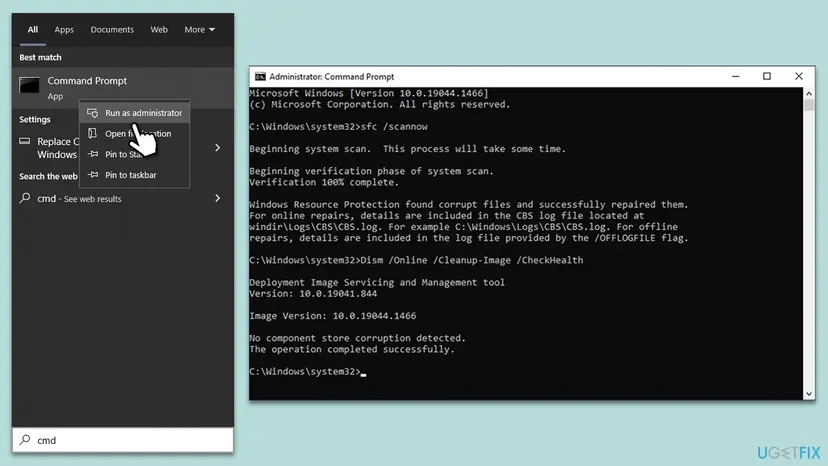
Photos uses Windows' own image components. If those are damaged, a system file check and Windows Update can restore them. Microsoft's Q&A advisor suggests SFC and DISM, but they are general repairs, so they come last.
Run the system file checker and DISM from an administrator terminal. Step by step: Run DISM and SFC to repair Windows system files
- Open Settings > Windows Update and select Check for updates.
- Install what is offered, including optional quality updates, and restart.
- Open the photo in Photos again.
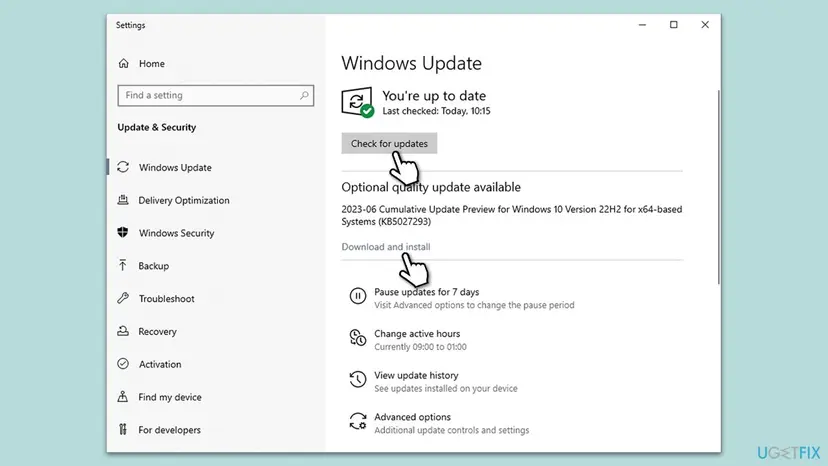
It worked if: SFC reports no problems or repairs them, Windows is up to date, and Photos opens the file.
If not: Read "If Photos still cannot open the file" below for what to try and what to send to support.
If Photos still cannot open the file
Photos writes no log entry for this message, so decide by what Fix 1 told you. If the file opens elsewhere, use another viewer for now. If it fails everywhere, the problem is in the file, and Windows cannot repair picture data.
- Use another viewer meanwhile: Paint, a web browser, or an image viewer you trust can open files that only Photos refuses.
- Damaged files with no other copy: a JPEG repair tool can sometimes rescue a file with a damaged start. Work on a copy, never on the only original.
- What to send to Microsoft: use Feedback Hub with the file type, the Photos version from the app's Settings, and your Windows version from Settings > System > About.
- When it is not software: files copied to one drive come out damaged, the drive makes noise or disconnects, or the check in Fix 6 finds errors again.
Photos can also fail when you save an edit. That is a different message with its own fixes: the Photos "Unable to save" error.
How to keep photos from turning "unsupported" again
- Keep HEIF Image Extensions and HEVC Video Extensions installed if you use an iPhone.
- Copy photos to a local folder and check a few before you delete them from the phone or card.
- Keep a second copy of your photos on another drive or in a cloud backup.
- Let Microsoft Store update Photos.
- Do not rename .HEIC files to .jpg; the content stays HEIC.
- Do not pull out a card or phone while files are still copying.
- Do not install codec packs from unknown sites.
Windows 10 left support on 14 October 2025, so its Photos app and codecs get fewer fixes. The steps above still work there, with the Windows 10 paths in the pictures.
Frequently asked questions
What does "Sorry, Photos can't open this file because the format is currently unsupported, or the file is corrupted" mean?
It means the Windows Photos app could not read the picture, either because it has no codec for the file type or because the file is incomplete or damaged. The message does not tell you which, and there is no error code. Open the same file in Paint or on another device to find out (Fix 1). If it opens there, Photos or a missing extension is the issue. If it fails everywhere, the file itself is the problem.
Why does Photos say JPG files are unsupported when they opened before?
A JPG that opened before and fails now has usually changed on the disk. It was copied again and the copy broke, it was moved to an online-only cloud folder, or the drive it sits on is damaging files. Check the file size and open it on another device (Fix 1). If many photos on one drive fail at once, copy them off first and check the drive (Fix 6). A file named .jpg can also be a HEIC file inside, which Fix 2 covers.
How do I open HEIC photos from an iPhone in Windows?
Install HEIF Image Extensions and HEVC Video Extensions from Microsoft Store, close Photos and open the file again (Fix 2). Both are needed: HEIF is the file format, and HEVC is the compression used for the picture inside it. To avoid HEIC files from now on, set the iPhone to convert photos while copying under Settings > Photos > Transfer to Mac or PC > Automatic.
The thumbnail shows the photo, so why does Photos say the file is corrupted?
Many JPG files carry a small preview image of their own near the start of the file. File Explorer can show that preview as the thumbnail even when the full-size picture after it is cut off or damaged. So a correct thumbnail with a file that will not open anywhere still means the file is incomplete. Copy it again from its source (Fix 3), or try a JPEG repair tool on a copy of it.
How do I fix an unsupported image format on my PC?
Find the file's type in Properties first. For HEIC or HEIF, install HEIF Image Extensions and HEVC Video Extensions. For camera RAW files, install Raw Image Extension. All of them come from Microsoft Store (Fix 2). For a rare professional format, convert the file to JPG or PNG with an app you trust, or open it in the program that made it. Avoid codec packs from download sites.
Is "It looks like we don't support this file format" the same error?
Yes, it is the same problem in an older version of the Photos app. Windows 10's Photos showed "It looks like we don't support this file format" for files it could not read, and some versions say "It appears that we don't support this file format". The causes and fixes are the same: test the file in Paint (Fix 1), add the HEIF extension for iPhone photos (Fix 2) or copy a damaged file again (Fix 3).
Is "Windows Photo Viewer can't open this picture" the same error?
No. Windows Photo Viewer is the older viewer, and its messages, such as "either Photo Viewer doesn't support this file format" or "the file appears to be damaged", come from that app, not from Photos. The first test is the same, though: open the file in Paint or on another device. If it opens there, the viewer is the problem. If it fails everywhere, the file is damaged and must be copied again.
Why do recovered photos say the format is unsupported?
A recovery tool finds where a deleted photo used to be, but parts of it may already be overwritten by new data. The result is a file with the right name and size that holds broken or foreign data, so Photos calls it corrupted. Neither Photos nor Windows can repair that. A JPEG repair tool sometimes rescues a file whose start is damaged; otherwise look for another copy on the phone, the card or a backup.
Will repairing or resetting Photos delete my pictures?
No. Repair keeps the app's settings and data. Reset clears the app's own settings, but your photos are ordinary files in your folders and stay where they are. Registering Photos again with PowerShell (Fix 5) leaves them alone as well. Do not use the wildcard removal command some older guides give, because it can remove other apps whose names contain the word photo.
I read this page in another language and still cannot open the file. What now?
The fixes do not depend on the language of Windows. Open the file in Paint or on your phone first (Fix 1). If it is an iPhone photo, install HEIF Image Extensions and HEVC Video Extensions from Microsoft Store (Fix 2). If the file fails everywhere, copy it again from its source (Fix 3). If only Photos fails, repair the app (Fix 4).
Sources
- Microsoft Q&A: pictures won't open anymore, file format not supported (photos on an external drive failing on every PC; advisor's steps: repair Photos, SFC and DISM) (learn.microsoft.com)
- TheWindowsClub: Photos can't open this file because the format is unsupported or the file is corrupted (the full message, check format and file, copied and recovered files, repair and update Photos) (thewindowsclub.com)
Did this fix work?
One click, no account. It tells the next reader which guides are worth their time.
Questions and experiences: fix "Photos can't open this file because the format is currently unsupported"
Still broken, or found a fix we did not cover? Ask here: members and our editors answer. Reading is open; writing needs a free account.
…