
How to fix "Unable to save" Photos app error in Windows?

Prefer to fix it yourself? The manual steps follow.
- 7methods
- 5 to 30 minutes
- Easy
Applies to Windows 11, Windows 10; the Microsoft Photos app (trim, crop and other edits), including trims started from Movies & TV
7 methods in this guide
I was trying to crop an image with Photos and received an error "Unable to save. There was an error while saving. Please try again later" when I was trying to save it. How do I resolve this?
"Unable to save" appears in the Windows Photos app when it cannot write your trimmed video or edited photo to disk. App repairs often do not help, because the file or its location is usually the problem. Copy the file to a local folder and save it as a copy there first.
Photos could not write the new file, not because your edit is wrong. Copy the photo or video to a local folder such as Desktop, open it from there and choose Save as copy (Fix 1). For phone videos, install the HEVC Video Extensions (Fix 2). If you need the clip right now, trim it in Clipchamp from the same window (Fix 3). Repairing or reinstalling Photos comes after that (Fix 4 and Fix 5).
| Error | A yellow bar in Photos: Unable to save, "There was an error while saving. Please try again later." |
|---|---|
| Where it appears | In the Microsoft Photos app, at the moment you select Save or Save as copy after a video trim or a photo edit. Trims started in Movies & TV open in Photos and fail there too. |
| Main cause | Photos cannot write the new file: the original sits in an online or removable location, the folder or file cannot be written, or the video uses a codec Photos cannot encode. |
| Fastest fix | Copy the file to Desktop, open it from there and save the edit as a copy (Fix 1). |
| Also written as | "unable to save there was an error while saving", "there was an error while saving please try again later", "Photos unable to save trim", "unable to save trimmed video". |
| Affects | Windows 11 and Windows 10, mostly video trims of MP4 files. Photo crops and other edits less often. |
| Microsoft's status | No public Microsoft article for this message. Microsoft's Q&A thread on it has more than 40 "same question" votes and no confirmed fix. |
| Time to fix | 5 minutes for the copy test, up to 30 minutes for codecs, app repair and updates. |
Facts checked on 15 October 2026. Steps written for Windows 11 (25H2 and 26H2) and Windows 10 22H2.
What "Unable to save, there was an error while saving" means in Photos
The message shows in a yellow bar at the top of the Photos window. The bold first line reads Unable to save, and below it: "There was an error while saving. Please try again later." There is no error code and no log line that names it.
It means Photos finished your edit in memory but could not write the result as a new file. Trying again later rarely helps, because the reason is still there. People search it as "unable to save there was an error while saving please try again later", "Photos unable to save trim" or "unable to save trimmed video Windows 11".
| When it appears | What it usually tells you |
|---|---|
| After Trim and Save as copy on a video. | The most common case in the reports we read. Look at the file's location and its codec first. |
| After a trim started in Movies & TV. | Movies & TV hands the trim to Photos, so it is the same Photos error with the same fixes. |
| After a crop or other photo edit. | Usually the location or the file's write permission. Fix 1 covers it. |
| On every file, in every folder. | The Photos app itself is the suspect. Go to Fix 4 and Fix 5. |
On Microsoft's Q&A forum, many users repaired, reset and reinstalled Photos, even Windows, and still saw the message. That is why this guide starts with the file and where it is saved, not with the app.
Why Photos cannot save your trimmed video or edited photo
Most often the file lives somewhere Photos cannot write a new copy to: OneDrive, a phone, a camera card, a USB stick or a network share. Often the video uses a codec Photos can play but not encode again. Less often the file itself is damaged, or the app is.
| Cause | How often | How to tell | Fix |
|---|---|---|---|
| The file is in an online, removable or protected location, or is read-only. | Most often | The path starts with OneDrive, a phone name, a card or a network drive. | Fix 1 |
| The video uses HEVC (H.265) or another codec Photos cannot encode. | Often | The clip came from an iPhone or a recent Android phone. | Fix 2, Fix 3 |
| The video file is damaged or has odd metadata inside the MP4. | Sometimes | Only this one clip fails; others trim fine. | Fix 2, Fix 3 |
| The Photos app is damaged or out of date. | Sometimes | Every photo and video fails, in every folder. | Fix 4, Fix 5 |
| Graphics, disk space or pending Windows updates. | Rarely | Long or 4K videos fail, or the drive is almost full. | Fix 6, Fix 7 |
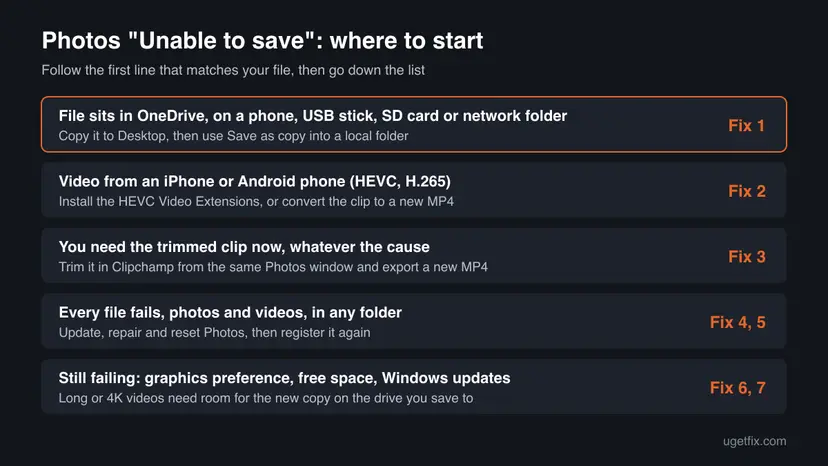
How to fix "Unable to save. There was an error while saving" in Photos
Fixes 1 to 3 deal with the file and its location, and solve most cases. Fixes 4 and 5 repair the Photos app. Fixes 6 and 7 are the general checks that are left.
| What you see or have | Start with |
|---|---|
| The file is in OneDrive, on a phone, a card, a USB stick or a network folder. | Fix 1 |
| The video came from an iPhone or an Android phone. | Fix 2 |
| You need the trimmed clip now and can fix the app later. | Fix 3 |
| Every photo and video fails, even a copy on Desktop. | Fix 4, then Fix 5 |
| Only long or 4K videos fail, or the drive is almost full. | Fix 6, then Fix 7 |
Fix 1. Copy the file to a local folder and save the edit as a copy
5 minutesNo riskEveryone, first. Especially when the file is in OneDrive, on a phone, a memory card, a USB stick or a network drive.
Photos writes a brand new file when you save. A folder it cannot write to, a file that is only online, or a read-only original stops that write. A Microsoft Q&A advisor asks users to save to the desktop or another drive as the first test.
- Close the Photos window that shows the error.
- Press Win + E, find the video or photo and copy it to Desktop (select it, press Ctrl + C, open Desktop, press Ctrl + V).
- Right-click the copy, select Properties and, on the General tab, clear Read-only if it is ticked. Select OK.
- Open the copy on Desktop in Photos.
- For a video, select Trim (Ctrl + E) and move the sliders to the new start and end.
- Select Save as copy. Do not pick Save from the menu next to it, which overwrites the original.
- For a photo, make the edit and choose the option that saves a copy, not the one that replaces the original.
If the original is in OneDrive, copying it to Desktop downloads a full local copy. A file that exists only online cannot be the source of a new copy until it is on the disk.
It worked if: The yellow bar does not appear, and a new file with the trimmed video or edited photo is next to the copy on Desktop.
If not: If the copy on Desktop fails too, and the file is a video from a phone, go to Fix 2. For a photo, go to Fix 4.
Fix 2. Install the HEVC Video Extensions or convert the video to a new MP4
10 minutesNo riskThe clip came from an iPhone or an Android phone, or only one particular video fails to save.
MP4 is only a container. The video inside can be HEVC (H.265), which many phones record. Saving a trim means encoding the video again, and without the right codec Photos can fail even when it plays the clip.
- Open Microsoft Store and search for HEVC Video Extensions. Install it if it is not installed yet.
- For photos from an iPhone, search for HEIF Image Extensions and install it as well.
- Close Photos completely, open the video again and try Trim and Save as copy.
- If it still fails, convert the clip to a new MP4 with a video converter you trust, then trim the new file in Photos.
- If the video was copied from a phone or a cloud service, copy it again from the source. A copy that broke in transfer can fail at saving.
The extensions come from Microsoft Store. Some PCs already have them from the maker. A converted file has a fresh container and codec, which is what Microsoft's Q&A answer for this error suggests when the MP4 itself is the issue.
It worked if: Photos saves the trimmed copy, or the converted MP4 trims and saves without the yellow bar.
If not: If you need the clip now, trim it in Clipchamp (Fix 3). If every file fails, go to Fix 4.
Fix 3. Trim the video in Clipchamp from the Photos window
10 minutesNo riskYou need the trimmed clip today, or Fixes 1 and 2 did not help with this video.
Clipchamp is Microsoft's video editor that Photos opens for advanced edits. It exports a fresh MP4 with its own encoder, so it does not use the Photos save step that fails.
- Open the video in Photos.
- Select Edit in Clipchamp video editor. Clipchamp opens with the video on its timeline.
- Drag the start and end of the clip on the timeline to trim it.
- Select Export and pick a quality.
- Save the exported MP4 to a local folder such as Videos or Desktop.
This is a way around the error, not a repair of Photos. If you want Photos itself to save again, go on with Fix 4.
It worked if: Clipchamp exports a new MP4 that holds only the part of the video you kept.
If not: If Clipchamp also fails, the video file is most likely damaged. Copy it again from its source (Fix 2, step 5).
Fix 4. Update, repair and reset the Photos app
10 minutesLow riskEvery photo and video fails to save, even a copy on Desktop.
When every file fails in every folder, the file is not the problem. An outdated or damaged Photos app is then the next suspect. Repair keeps your settings; Reset clears the app's data, not your pictures.
- Open Microsoft Store > Library, select Get updates and let Microsoft Photos update.
- Open Settings > Apps > Installed apps, find Microsoft Photos, select the three dots and Advanced options.
- Select Terminate, then Repair. Try to save an edit again.
- If it still fails, select Reset. Photos returns to its default settings; your photos and videos stay where they are.
- Open Photos, edit a copy on Desktop and save it.
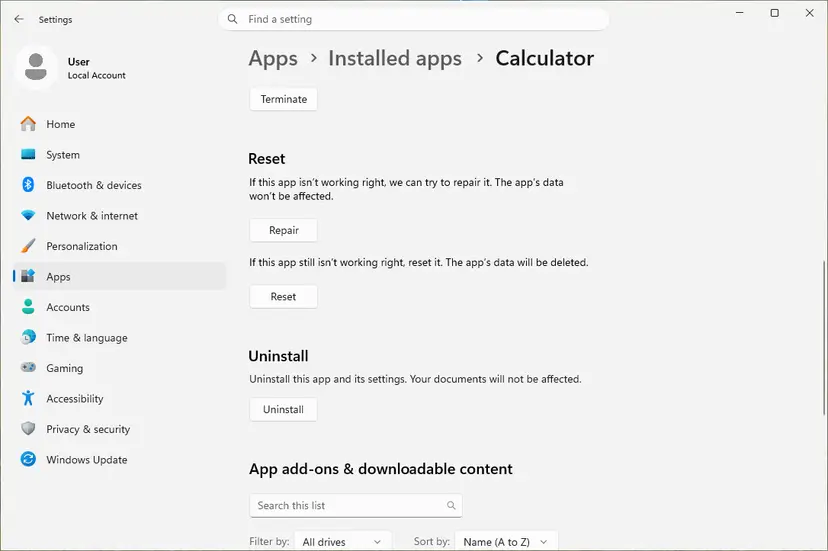
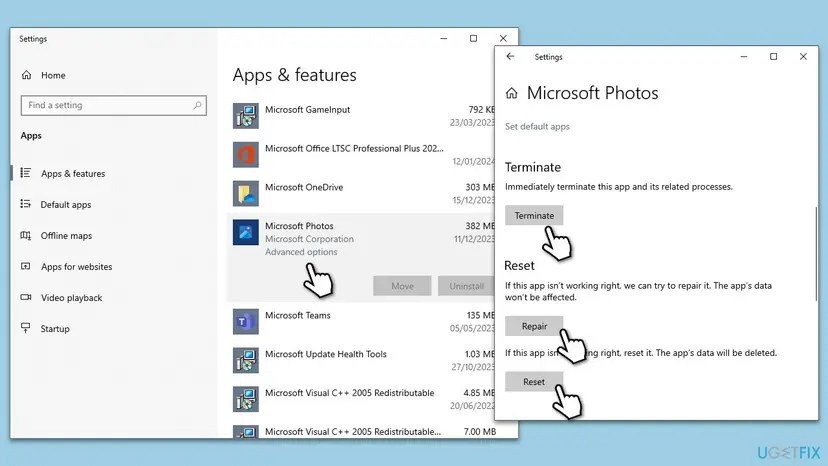
Full steps for Windows 11 and Windows 10: How to repair or reset an app in Windows
It worked if: Photos opens with default settings and saves the edited copy without the yellow bar.
If not: If Reset did not help, register the app again in Fix 5.
Fix 5. Register the Photos app again with PowerShell
5 minutesLow riskRepair and Reset did not help, and the error appears for every file.
Registering the app again rewrites its links to Windows from its own manifest file. It helps when the app's installation is damaged, but users report it does not help when the cause is the file.
- Right-click Start and select Terminal (Admin) or Windows PowerShell (Admin), then Yes.
- Paste the command below and press Enter.
- Wait until the prompt comes back, then restart the PC.
- Open Photos and save an edited copy of a file on Desktop.
Register Microsoft Photos again
Get-AppxPackage -allusers Microsoft.Windows.Photos | Foreach {Add-AppxPackage -DisableDevelopmentMode -Register "$($_.InstallLocation)\AppXManifest.xml"}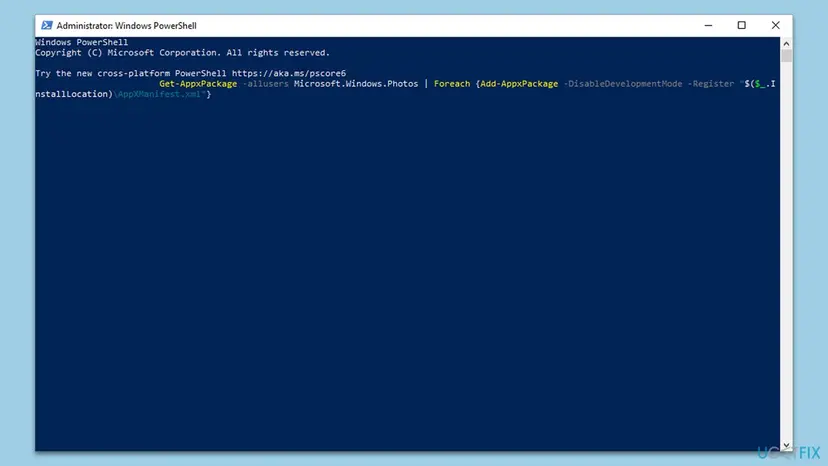
To register all built-in apps at once, see How to re-register Microsoft Store apps with PowerShell
It worked if: The command ends without red error lines, and after the restart Photos saves the edit.
If not: If the command shows errors or the save still fails, go to Fix 6.
Fix 6. Set Photos to use the high-performance graphics
5 minutesNo riskYour PC has two graphics chips, and long or high-resolution videos fail to save while short ones work.
Saving a trimmed video encodes it again, and Windows can hand that work to the graphics chip. On some laptops the power-saving chip fails where the stronger one works. One Q&A user tried this without success, so it is not a sure fix.
- Open Settings > System > Display and select Graphics.
- Find Photos in the app list. If it is not there, add it as a Microsoft Store app.
- Select Photos, then Options, and choose High performance. Select Save.
- Close Photos completely, open the video again and save the trimmed copy.
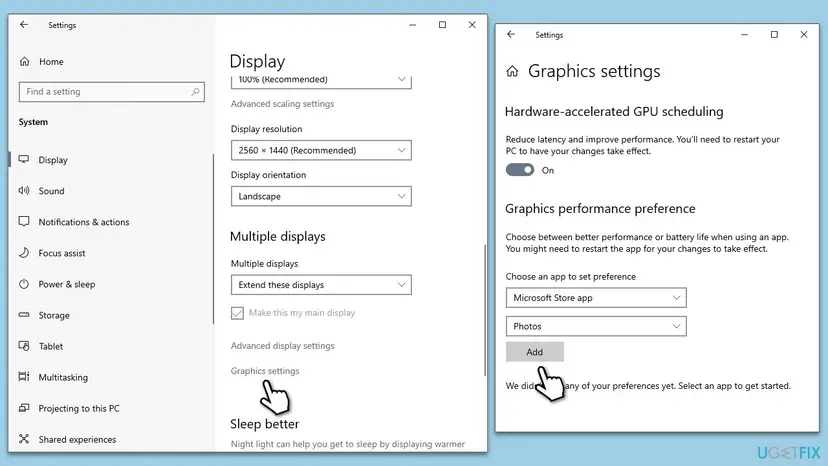
It worked if: The trimmed video saves, and Photos uses the stronger graphics chip from now on.
If not: If nothing changes, set the preference back to Let Windows decide and go to Fix 7.
Fix 7. Free disk space and install pending Windows updates
20 minutesNo riskEvery fix above failed, the drive is almost full, or Windows has updates waiting.
A trimmed video is a full new file next to the original, so a long clip needs real free space. Pending updates can also hold old media components. Both are general checks, so they come last.
- Open Settings > System > Storage and check the free space on the drive you save to.
- If it is low, free some space. Step by step: Free up disk space and delete temporary files
- Open Settings > Windows Update and select Check for updates. Install what is offered and restart.
- Open Photos and save an edited copy again.
If Windows Update itself fails, see Run the Windows Update troubleshooter
It worked if: The drive has free space, Windows is up to date, and Photos saves the copy.
If not: Read "If Photos still cannot save" below for what to try and what to send to support.
If Photos still cannot save your trimmed video or photo
Photos writes no log entry for this message, so narrow it down with a few quick tests instead. Each one tells you whether the file, the folder or the app is at fault.
- Trim a different short video, for example one recorded with the Windows Camera app. If that saves, the first file is the problem: convert it or use Clipchamp.
- Save to a second drive or a USB stick. If that works, the first drive or folder is the problem.
- Create a new local Windows account and try Photos there. If it saves, your profile's settings are the cause: Create a new user account to test a problem
- What to send to Microsoft: use Feedback Hub with the file type, where it is saved, the Photos version from Settings in the app, and your Windows version from Settings > System > About.
- What you can use meanwhile: Clipchamp for trims (Fix 3), or another video editor you trust.
- When it is not software: the drive shows read errors, files copied to it come out damaged, or the same file fails on a second PC too.
How to keep Photos from failing to save again
- Edit a copy of the file in a local folder, then move the result where you want it.
- Use Save as copy, so the original stays safe if the save fails.
- Keep the HEVC and HEIF extensions installed when you edit phone videos and photos.
- Let Microsoft Store update Photos and Clipchamp.
- Do not trim videos straight from a phone, a camera card or a network share.
- Do not edit OneDrive files that are only online.
- Do not install codec packs from unknown sites to fix this.
Windows 10 left support on 14 October 2025, so its media components get fewer fixes. The steps above still work there, with the Windows 10 paths shown in the pictures.
Frequently asked questions
What does "Unable to save, there was an error while saving, please try again later" mean?
It means the Photos app could not write your edited photo or trimmed video as a new file. Your edit worked; only the save failed. Microsoft has not published a cause for this message, and there is no error code. In the reports we read, it is mostly the file's location, a phone video codec or a damaged file. Start by copying the file to Desktop and using Save as copy (Fix 1). Waiting and trying again later rarely helps.
Why does Windows Photos say unable to save after I trim a video?
A trim makes Photos encode the kept part of the video into a new file. That fails when the original sits in OneDrive, on a phone or card, when the folder cannot be written, or when the video uses HEVC from a phone without the matching extension. Copy the clip to Desktop and save a copy there (Fix 1), then install the HEVC Video Extensions (Fix 2). If you need the clip now, trim it in Clipchamp (Fix 3).
How do I fix unable to save trimmed video on Windows 11?
On Windows 11, copy the video to Desktop, open it in Photos, select Trim with Ctrl + E and then Save as copy. If it still fails, install HEVC Video Extensions from Microsoft Store and try again. As a quick way around, open the video in Photos and select Edit in Clipchamp video editor, then export the trimmed clip. Repair, Reset and registering Photos again come after that, in Fix 4 and Fix 5.
Is this the same error in the Movies & TV app?
Yes. When you trim a clip in Movies & TV, the trim opens in the Photos app, and the yellow Unable to save bar comes from Photos. A Microsoft Q&A user describes exactly this path. So the fixes are the same: copy the file to a local folder and save a copy there, check the codec, or trim in Clipchamp. Reinstalling Movies & TV did not help the users who tried it, because Photos does the saving.
Why does Photos say unable to save when I crop an image?
For photos, the cause is almost always where the file is. A picture on a phone, a camera card, a network folder or an online-only OneDrive file cannot get a new copy written next to it. A read-only file has the same effect. Copy the image to Desktop, clear Read-only in its Properties, edit it there and save a copy (Fix 1). For iPhone pictures, also install HEIF Image Extensions (Fix 2).
What about "failed to save image" or "unable to save image" messages?
Those texts come from many different apps, not only Windows Photos, and each has its own cause. This page is about the Photos message "Unable to save. There was an error while saving." If your message is in another app, the same first test still tells you a lot: copy the file to a local folder, open it from there and save a new copy. If that works, the original location was the problem.
Is "There was a problem saving the photo. Please try again." the same error?
No. That wording comes from other apps, for example when you change a profile picture in Microsoft Teams. It is not the Photos app message this page covers. For Teams, the save happens on your account in the cloud, so check that you are signed in and that the picture is a common type like JPG or PNG. If the problem is a local edit in Photos, follow Fix 1.
Will repairing or resetting Photos delete my pictures?
No. Repair keeps the app's settings and data. Reset clears the app's own data, such as settings and sign-in, but your photos and videos are ordinary files in your folders, not app data. They stay where they are. Registering the app again with PowerShell (Fix 5) also leaves your files alone. Still, use Save as copy rather than Save while you test, so a failed save cannot damage the original.
Why did trimming work before and stop now?
In the Q&A thread on this error, users say trimming worked for months and then stopped, often after an app or Windows update. We could not confirm one update as the cause. What changes most often is the source of the video: a new phone that records HEVC, or files that moved to OneDrive. Check those first with Fix 1 and Fix 2, then update Photos in Microsoft Store (Fix 4).
I read this page in another language and it still does not work. What now?
The fixes do not depend on the language of Windows. Follow them in order: copy the file to Desktop and save a copy (Fix 1), install the HEVC Video Extensions for phone videos (Fix 2), and trim in Clipchamp if you need the clip now (Fix 3). If every file fails, repair Photos (Fix 4). If nothing helps, read the section on what to send to Microsoft through Feedback Hub.
Sources
- Microsoft Support: Edit photos and videos in Windows (Trim with Ctrl + E, Save as copy or Save, Edit in Clipchamp video editor) (support.microsoft.com)
- Microsoft Q&A: Why can't I save a trimmed clip? (the full message, Movies & TV handing trims to Photos, reports that repair and reinstall did not help) (learn.microsoft.com)
- Microsoft Q&A: Windows Photos Refuses to Save Trimmed Clips (save to another location, codecs, HEVC extensions, Clipchamp) (learn.microsoft.com)
Did this fix work?
One click, no account. It tells the next reader which guides are worth their time.
Questions and experiences: fix "Unable to save" Photos app error in Windows
Still broken, or found a fix we did not cover? Ask here: members and our editors answer. Reading is open; writing needs a free account.
…