
How to fix PIN error 0x801c044f in Windows?

Prefer to fix it yourself? The manual steps follow.
- 6methods
- 5 to 30 minutes
- Easy to medium
Applies to Windows 11 and Windows 10 PCs where setting up or changing a Windows Hello PIN fails with 0x801c044f
6 methods in this guide
Hello. I tried to change the PIN for my personal Windows computer and it would not let me. I receive the 0x801c044f error. Is there any way to fix this issue?
0x801c044f is a Windows Hello error that stops you from creating or changing a PIN. Microsoft's table of PIN errors gives the cause as Unable to obtain user token: Windows could not get a sign-in token from your Microsoft, work or school account. Try again after you sign out, sign back in and restart with the internet connected.
Error 0x801c044f means Windows could not get a sign-in token from your account while creating the PIN. Make sure the PC is online, sign out, sign back in, restart and try again (Fix 1). If it fails again, switch to a local account and back to your Microsoft account (Fix 2), or disconnect a work or school account (Fix 3). Resetting the Ngc folder (Fix 5) is the strong fix.
| Error | 0x801c044f, under Something went wrong and We weren't able to set up your PIN. Searched as error code 0x801c044f and 0x801C044F. |
|---|---|
| Where it appears | In the Windows Hello Create a PIN or Change your PIN window: in Settings, or on the first sign-in after you set up the PC or add an account. |
| Main cause | Windows could not get a user token from the account the PIN is created for. Microsoft's table names it Unable to obtain user token. |
| Fastest fix | Check the internet, sign out, sign back in, restart and create the PIN again (Fix 1). |
| Also written as | 0x801C044F, error 0x801c044f windows hello pin, PIN error 0x801c044f, We weren't able to set up your PIN 0x801c044f. |
| Not the same as | 0x801C044D (the token has no device ID) and 0x801C044E (Windows did not receive your credentials). Microsoft gives each its own fix. |
| Affects | Windows 11 and Windows 10, personal and work PCs. Windows 10 left support on 14 October 2025. |
| Microsoft's status | Listed in Microsoft's Windows Hello PIN error table with the advice: sign out and back in, check the network and credentials (checked 15 October 2026). |
| Time to fix | Five minutes for Fix 1 and Fix 2. Up to 30 minutes for the Ngc reset in Fix 5. |
Facts checked on 15 October 2026. Steps written for Windows 11 (25H2 and 26H2) and Windows 10 22H2 with a Microsoft account, a local account and a work account, read against Microsoft's Windows Hello PIN error table.
What error 0x801c044f means in Windows Hello PIN setup
A Windows Hello PIN is not a short password stored on a server. When you create one, Windows makes a key for your account on this PC, and for a Microsoft, work or school account it first asks that account for a sign-in token. Error 0x801c044f is what you see when that token does not arrive.
Users quote the window as Something went wrong with the line We weren't able to set up your PIN. and the code under it. It appears when you select Add or Change PIN under PIN (Windows Hello), and on the first sign-in, when Windows asks you to create a PIN before it shows the desktop.
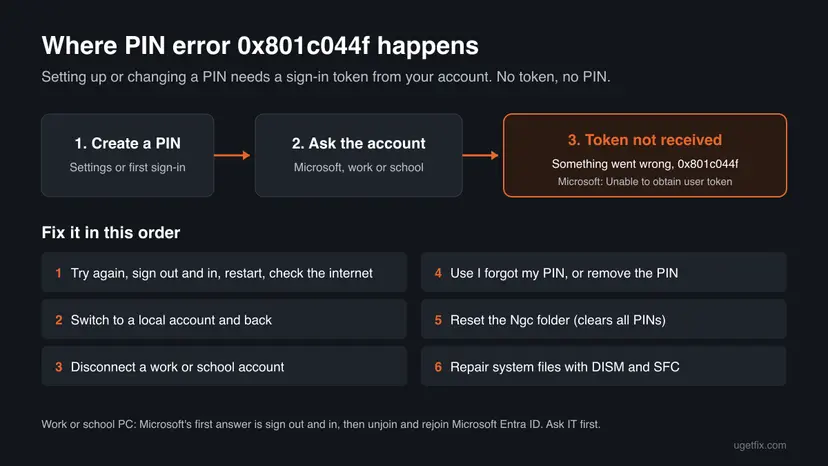
Microsoft's table of Windows Hello errors during PIN creation lists the cause Unable to obtain user token with the advice to sign out, sign in again and check network and credentials. On the current page the code cell of that row is empty, and the row sits between 0x801C044D and 0x801C044E. We match it to 0x801C044F by that position. We could not confirm the pairing in one Microsoft sentence.
What causes 0x801c044f, from the most common
Every cause below ends in the same place: Windows asks the account for a token and gets none. The ranking is our reading of Microsoft's table and of users' reports, not a statistic.
| How often | Cause | Typical sign | Fix |
|---|---|---|---|
| Most often | A short glitch in the account sign-in: no connection, an expired session, a pending restart | The PC was just set up, updated or woke from sleep. | Fix 1 |
| Often | The Microsoft account session on the PC is stale, so Windows cannot renew the token | Your account shows a warning in Settings > Accounts, or the password changed recently. | Fix 2 |
| Often | A work or school account on a personal PC, or a broken link to Microsoft Entra ID | Access work or school lists an account, or the PC was set up by an employer. | Fix 3 |
| Less often | A half-created or damaged PIN from an earlier try | Change PIN fails, but you never removed the old PIN. | Fix 4, Fix 5 |
| Rarely | Damaged Windows files used by sign-in | Other sign-in features fail too. | Fix 6 |
Microsoft lists other codes for TPM problems, for example 0x80090029 when the TPM is not set up. 0x801c044f is about the account token, so a new security chip or motherboard is not the answer.
How to fix Windows Hello PIN error 0x801c044f
The fixes start with Microsoft's own advice for this error and end with the stronger resets. You are done when the PIN is created and Windows accepts it after Win + L.
| Your situation | Start with | Then |
|---|---|---|
| First try, any PC | Fix 1 | Fix 2 |
| Personal PC with a Microsoft account | Fix 2 | Fix 4 |
| A work or school account is on the PC | Fix 3 | Fix 1 |
| PC owned and managed by an employer | Fix 1, then ask IT | Fix 3 only with IT |
| Change PIN fails but an old PIN exists | Fix 4 | Fix 5 |
| Nothing else worked | Fix 5 | Fix 6 |
Fix 1. Sign out, sign back in, restart and create the PIN again online
5 minutesLow riskEveryone, first. It is the fix Microsoft lists for this error.
Microsoft's advice for Unable to obtain user token is to sign out and in and check network and credentials. A fresh sign-in gives Windows a new session to ask for the token, and a restart finishes any pending account change.
- Check that the PC is online. Open a web page in a browser to be sure.
- Press Ctrl + Alt + Del and select Sign out.
- Sign back in with your account password, not the PIN.
- Restart the PC from Start > Power > Restart.
- Open Settings > Accounts > Sign-in options, expand PIN (Windows Hello) and select Set up or Change PIN.
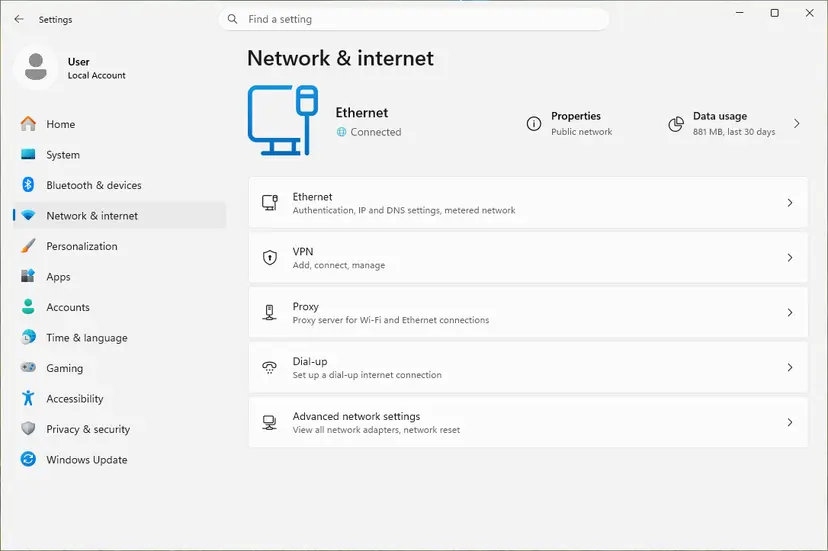
Step by step for a connection that does not work: How to check your internet connection in Windows.
It worked if: Windows asks for the new PIN twice and closes the window without an error.
If not: If 0x801c044f comes back on a personal PC, go to Fix 2. If a work or school account is on the PC, go to Fix 3.
Fix 2. Switch to a local account, then back to your Microsoft account
10 minutesLow riskA personal PC that signs in with a Microsoft account.
Leaving the Microsoft account drops the stale account session on this PC. Signing in again builds a new one, and Windows then offers to create a PIN with a fresh token, which is the step that failed.
- Open Settings > Accounts > Your info.
- Select Sign in with a local account instead and confirm with your current password or PIN if asked.
- Choose a user name and a password for the local account, select Next, then Sign out and finish.
- Sign in with the local account and restart the PC.
- Open Settings > Accounts > Your info again and select Sign in with a Microsoft account instead.
- Sign in with your Microsoft account and follow the prompt to create a PIN.
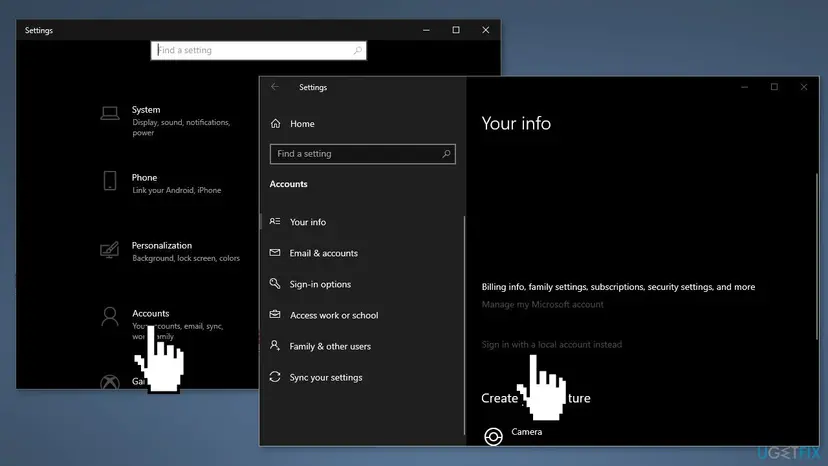
Switching the account type keeps the same profile, files and apps. Only the way you sign in changes. Have your Microsoft account password ready before you start, because you need it to switch back.
It worked if: After you sign in with the Microsoft account again, Windows offers a PIN and creates it without the error.
If not: If the link to switch is missing, a work or school account may control the PC: see Fix 3. Otherwise remove the old PIN with Fix 4.
Fix 3. Disconnect a work or school account, create the PIN, then reconnect
10 minutesRead the warningA personal PC with a work or school account under Access work or school. On a PC your employer owns, ask IT before you do this.
For the 0x801C044D row next to this one, Microsoft's fix is to unjoin the PC from Microsoft Entra ID and rejoin. Its general advice for PIN errors includes the same step, because a broken work account link blocks the token Windows asks for.
Disconnecting removes access to work email, files and apps on this PC until the account is added again. On a joined work PC you also need a local administrator account to sign in afterwards. Save your work files to OneDrive or a USB drive first, and do not unjoin a company-owned PC without IT.
- Open Settings > Accounts > Access work or school.
- Select the work or school account and choose Disconnect, then confirm.
- If the PC is joined to the organization, Microsoft's path is Settings > System > About > Disconnect from organization.
- Restart the PC and sign in with your personal account.
- Create the PIN under Settings > Accounts > Sign-in options > PIN (Windows Hello).
- Return to Access work or school, select Connect and sign in with the work account again.
It worked if: The PIN is created, and the work account works again after you reconnect it.
If not: If the error returns as soon as the work account is back, its policy controls Windows Hello: send IT the code and the time it happened. Otherwise go to Fix 4.
Fix 4. Use I forgot my PIN, or remove the old PIN and set a new one
5 minutesLow riskChange PIN fails with 0x801c044f while an old PIN still exists.
Changing a PIN reuses the existing PIN setup. I forgot my PIN proves who you are with the account itself and builds a new one, and removing the PIN clears a half-made setup from an earlier failed try.
- Open Settings > Accounts > Sign-in options and expand PIN (Windows Hello).
- Select I forgot my PIN and confirm your Microsoft account with its password and the code Microsoft sends.
- Enter the new PIN twice and select OK.
- If that fails too, select Remove in the same place and confirm with the account password.
- Restart the PC, sign in with the password and select PIN (Windows Hello) > Set up.
If Remove is grey, turn off For improved security, only allow Windows Hello sign-in for Microsoft accounts on this device under Additional settings first. Our guide to the incorrect PIN lockout shows the same Sign-in options screen.
Windows Hello face and fingerprint sign-in are added on top of a PIN. Setting up a fingerprint does not get around this error, and removing the PIN turns them off until a new PIN exists.
It worked if: A new PIN is saved and works at the next Win + L.
If not: If you still get 0x801c044f, reset the stored PIN data with Fix 5.
Fix 5. Reset the Ngc folder, where Windows stores PIN data
20 to 30 minutesRead the warningFix 1 to Fix 4 failed. You know the password of an administrator account on the PC.
The Ngc folder holds the Windows Hello data of every account on this PC. Renaming it makes Windows start the PIN setup from nothing, which clears damaged data that a normal remove cannot reach.
All accounts on the PC lose their PIN, face and fingerprint sign-in and must sign in with the password, then set them up again. Make sure you know your account password before you start. On a work PC, ask IT first. Renaming the folder, not deleting it, lets you undo the change.
- Hold Shift and select Start > Power > Restart to open the recovery screen.
- Select Troubleshoot > Advanced options > Command Prompt, and sign in with an administrator account if asked.
- Reset the folder permissions with
icacls C:\Windows\ServiceProfiles\LocalService\AppData\Local\Microsoft\Ngc /T /Q /C /RESET - Rename the folder with
ren C:\Windows\ServiceProfiles\LocalService\AppData\Local\Microsoft\Ngc Ngc.old - Close the window and select Continue to start Windows.
- Sign in with your password and create the PIN in Settings > Accounts > Sign-in options.
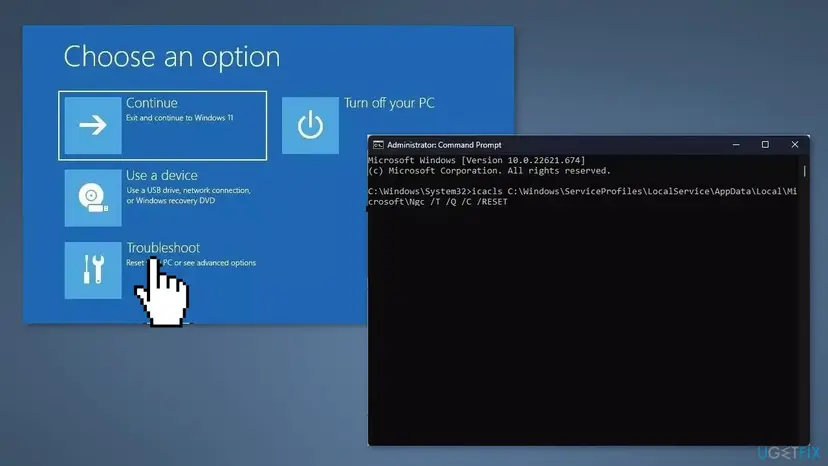
In the recovery Command Prompt the Windows drive is not always C:. If the path is not found, type dir D:\Windows and try the next letters until you find the Windows folder, then use that letter in both commands.
It worked if: Windows asks you to set up a PIN at sign-in or in Settings, and the new PIN is created without 0x801c044f.
If not: To undo, rename Ngc.old back to Ngc the same way. Then try Fix 6.
Fix 6. Repair Windows system files with DISM and SFC
20 minutesLow riskOther sign-in features fail too, or the PIN still cannot be created after a clean Ngc folder.
The token request and the PIN setup run in Windows components. If a system file they use is damaged, no account change helps, and DISM with SFC replaces damaged files without touching your data.
- Open an elevated command window. Right-click Start and select Terminal (Admin), or type cmd in the search box, right-click Command Prompt and select Run as administrator. Select Yes when Windows asks for permission.

Search for cmd and choose Run as administrator. Screenshot: Windows 11 26H2. - Run DISM first. Type the command below and press Enter. DISM downloads clean copies of damaged components from Windows Update, so it can take several minutes. Wait until it says The operation completed successfully.
DISM.exe /Online /Cleanup-Image /RestoreHealth
DISM /RestoreHealth running. Screenshot: Windows 11 26H2. - Run System File Checker. In the same window, type the command below and press Enter. Do not close the window until the verification reaches 100%.
sfc /scannow
sfc /scannow at 100%. Screenshot: Windows 11 26H2. - Read the result and restart. Compare the last message with the table below this guide, then restart the PC so that repaired files are loaded.

The result line tells you what SFC did. Screenshot: Windows 11 26H2.
These steps were written for Windows 11 24H2 and 25H2. The full page with the other versions and what each result means: Run DISM and SFC to repair Windows system files
It worked if: SFC reports that it found and repaired files, or that it found no integrity violations. Restart and create the PIN again.
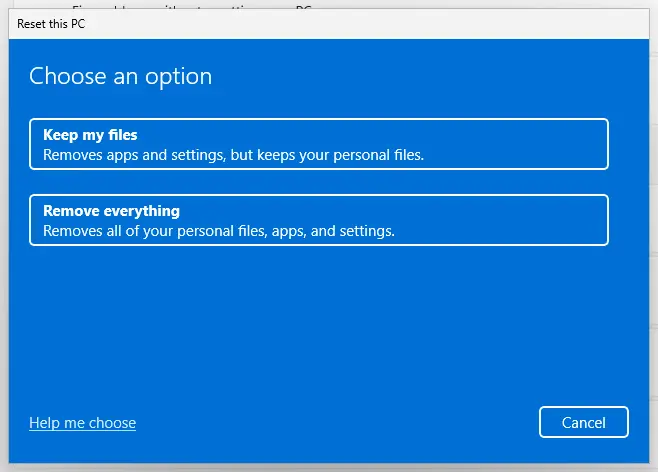
If not: If the PIN still fails, read the section below: test another account, then reinstall Windows with Keep my files.
If 0x801c044f still appears: what to check and who can help
You can keep using the PC with your password while you sort this out. A PIN is a convenience, not a requirement, so skip the PIN prompt with Skip for now if Windows offers it.
- Work or school PC: send IT the code 0x801c044f, the time it happened and whether the PC is joined to Microsoft Entra ID. Microsoft's table points administrators to the user token and the network. IT may also see policies that require a PIN.
- Personal PC: sign in to your Microsoft account in a browser and check that it is not locked and needs no verification. A blocked account cannot give Windows a token.
- Another account: create a test account and try a PIN there. Step by step: Create a new user account to test a problem. If the PIN works there, the fault is in your profile.
- Last resort: reinstall Windows and keep your files. Step by step: Reinstall Windows without losing files. Back up first: Back up your files (Windows Backup, File History, Time Machine).
How to keep Windows Hello PIN errors from coming back
- Create or change the PIN while online, so Windows can get the account token it needs.
- Keep your account password at hand and use it now and then. It is the way in whenever the PIN fails.
- Keep personal and work accounts apart. Add a work account to a personal PC only when you need it, and remove it when the job ends.
- Restart after big updates before you change sign-in settings.
- Do not delete the Ngc folder by hand while Windows runs. Use the rename in Fix 5 only when nothing else works.
Frequently asked questions
What is error code 0x801c044f?
It is a Windows Hello error during PIN creation. Microsoft's table of PIN errors gives the cause as Unable to obtain user token: Windows asked your Microsoft, work or school account for a sign-in token and did not get one, so it could not create the PIN. Microsoft's advice is to sign out and back in and to check the network and your credentials. It is not a hardware fault.
How do I fix 0x801c044f in Windows Hello PIN?
Start with Microsoft's own advice: check the internet, sign out, sign back in, restart and create the PIN again. On a personal PC, switch to a local account and back to your Microsoft account. If a work or school account is on the PC, disconnect it, create the PIN and reconnect. Removing the old PIN or resetting the Ngc folder are the stronger fixes when those fail.
Does 0x801c044f happen on Windows 11 and Windows 10?
Yes. Microsoft's PIN error page applies to both Windows 11 and Windows 10, and the fixes on this page are the same on both. The paths differ only slightly: on Windows 11 the switch to a local account sits under Account settings on the Your info page. Windows 10 left support on 14 October 2025, so a Windows 10 PC no longer gets security fixes.
Can I use a fingerprint instead of a PIN to avoid the error?
No. Windows Hello fingerprint and face sign-in are set up on top of a PIN, so Windows asks for a PIN first. Older guides suggested a registry key that enables biometrics, but it does not fix the token error and only matters on PCs where a policy turned biometrics off. Fix the PIN first, then add the fingerprint in Sign-in options.
Is it safe to delete the Ngc folder?
It is safe in the sense that Windows builds it again, but it removes the PIN, face and fingerprint sign-in of every account on the PC. Everyone must sign in with the password afterwards and set them up again. That is why this page renames the folder to Ngc.old instead of deleting it, so you can undo it, and why it comes after the account fixes.
Can I just skip the PIN and use a password?
Yes, on a personal PC. A PIN is optional, and Windows lets you sign in with your account password. When Windows asks for a PIN at first sign-in, choose Skip for now if it is shown. A work PC can have a policy that requires Windows Hello, and then only IT can change it.
Why does Change PIN fail when the PIN works for sign-in?
Signing in with a PIN uses a key already on the PC, without asking the account for anything new. Changing the PIN needs a fresh token from the account, so a stale session or a broken work account link shows up only then. Use I forgot my PIN or remove the PIN and set it up again, as in Fix 4.
Me aparece este error 0x801c044f: ¿cómo evito esto?
This page is in English. In short: el error 0x801c044f aparece cuando Windows no obtiene el token de su cuenta al crear el PIN. Compruebe la conexión a internet, cierre sesión, vuelva a iniciar sesión, reinicie el equipo y cree el PIN otra vez. Si sigue, cambie a una cuenta local y luego de nuevo a su cuenta Microsoft.
Is 0x801c044f the same as 0x801C044D or 0x801C044E?
No. They are neighbours in Microsoft's table, with different causes. With 0x801C044D the authorization token has no device ID. Microsoft's fix is to unjoin the PC from Microsoft Entra ID and rejoin. With 0x801C044E Windows did not receive your credentials. The fix there is to sign out and in. With 0x801c044f the token never arrived.
Sources
- Microsoft Learn: Windows Hello errors during PIN creation (Unable to obtain user token, 0x801C044D, 0x801C044E, general mitigations, Disconnect from organization) (learn.microsoft.com)
- Microsoft Q&A: Problems with windows PIN setup (users report the Ngc folder reset for a PIN that cannot be created) (learn.microsoft.com)
Did this fix work?
One click, no account. It tells the next reader which guides are worth their time.
Questions and experiences: fix PIN error 0x801c044f in Windows
Still broken, or found a fix we did not cover? Ask here: members and our editors answer. Reading is open; writing needs a free account.
…