
How to fix printer error 0x000007d1 in Windows 10?

Prefer to fix it yourself? The manual steps follow.
- 7methods
- 5 to 30 minutes
- Beginner to intermediate
Applies to Windows 11 and Windows 10 PCs with a USB, Wi-Fi or network printer of any brand
7 methods in this guide
Hello. I have updated my PC and now my printer is not printing. A pop-up appears and says that the operation could not be completed. It mentions drivers and displays the error code 0x000007d1. Should I update them or roll back the OS update? Help, I don't want to mess things up.
Printer error 0x000007d1 says "The specified driver is invalid": Windows no longer accepts the driver installed for your printer, most often right after a Windows update. Remove the printer together with its driver package, restart and install the maker's current driver. That is the fix Canon gives for this exact code.
0x000007d1 means "The specified driver is invalid": the printer driver on your PC is damaged or no longer fits Windows after an update. Do not start with a rollback. Remove the printer, then remove its driver and driver package in Print server properties, restart and install the maker's latest driver (Fix 1). If it returns after every update, users report that one print from Microsoft Edge clears it (Fix 2).
| Error | 0x000007d1: The specified driver is invalid, often in a box that starts with Operation could not be completed. 0x7D1 is Windows error 2001 in decimal. |
|---|---|
| Where it appears | When you print from any app, print a test page or add a printer, usually on the first print after a Windows update or feature upgrade. |
| Main cause | The installed printer driver or its driver package is damaged, or an update left it in a state Windows rejects. |
| Fastest fix | Remove the printer, then Remove driver and driver package in Print server properties, restart and reinstall the maker's driver (Fix 1). |
| Also written as | 0x7d1, 0x000007D1, error 2001, "printer error 0x000007d1", "the specified driver is invalid". |
| Affects | Windows 10 and Windows 11, older Windows 7. Reported most with Canon, Epson and Brother inkjet and laser printers, but the brand is not the cause. |
| Vendor status | Canon publishes a fix for this code (remove the driver package, reinstall). Brother calls it an issue with the Windows operating system and sends users to Microsoft. Microsoft has no fix article for it. |
| Time to fix | 10 to 15 minutes for Fix 1, one minute for Fix 2, longer when an update must be removed. |
Facts checked on 15 October 2026. Steps written for Windows 11 (25H2 and 26H2) and Windows 10 22H2.
What printer error 0x000007d1 means
Windows shows the code with one short sentence: "The specified driver is invalid." Canon's knowledge base writes it as "0x000007d1: The specified driver is invalid", and the reports on Microsoft Q&A read "Printer error 0x000007d1, The specified driver is invalid". When the print fails from a dialog, the box often begins with "Operation could not be completed", the words the reader above saw.
The code itself is plain. 0x7D1 is 2001 in decimal, and the text tells you which part failed: the printer driver, the piece of software that turns your document into something the printer understands. The printer, the cable and the network are not what the message is about. That is why the fixes below all work on the driver.
0x000007d1, 0x000007D1 and 0x7d1 are the same number; the leading zeros change nothing. People also search the text alone, "the specified driver is invalid", with Windows 10, Windows 11, Windows 7 or USB added. The cause and the fix are the same for all of them.
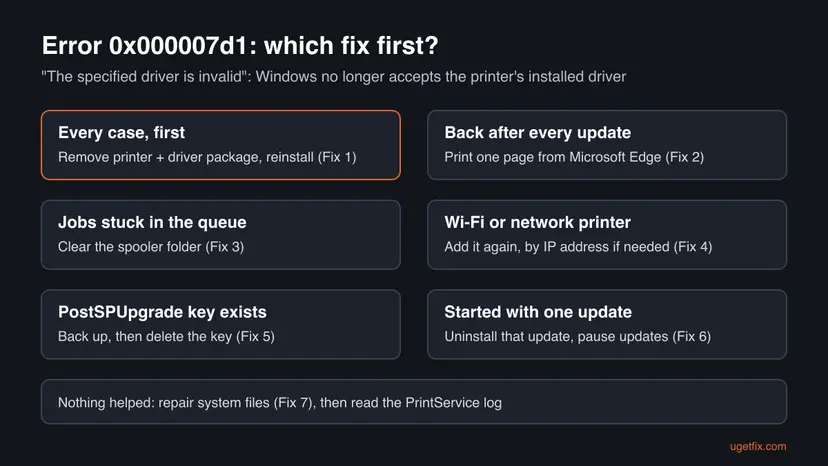
Why Windows says the specified driver is invalid: causes, ranked
The reports cluster around one moment: the first print after a Windows update. The Microsoft Q&A thread with more than 100 "same question" votes started after a Windows 10 1909 upgrade with an Epson WF-2630. A Canon MG7750 owner in the same thread wrote that it happened after every patch. These are the causes, from the most common to the rare.
| # | Cause | How to recognise it | Fix |
|---|---|---|---|
| 1 | Damaged or outdated driver package | Every app fails, a test page fails too, and reinstalling over the old driver did not help | Fix 1 |
| 2 | A one-time state after an update | It comes back after each Windows update, then works again | Fix 2 |
| 3 | Stuck jobs in the print queue | Documents wait in the queue and cannot be cancelled | Fix 3 |
| 4 | An old printer entry on a changed port | A Wi-Fi or network printer got a new IP address, or an old copy is listed | Fix 4 |
| 5 | A leftover PostSPUpgrade key | The key exists under Control\Print in the registry | Fix 5 |
| 6 | One faulty update | Printing stopped on the day one update installed and nothing else helps | Fix 6 |
| 7 | Damaged Windows print files | Several printers fail with driver errors | Fix 7 |
- Why removing the driver package matters. Removing only the printer leaves the driver package in Windows' driver store. A new install then reuses the same broken files. In the Microsoft Q&A thread, the first poster had uninstalled and reinstalled the driver "to no avail"; Canon's steps go one level deeper and remove the package too.
- Why the PostSPUpgrade key is rare. Older guides, including our own, made deleting this key a main fix. In the Microsoft Q&A thread, users on Windows 10 could not find the key at all. Look for it, but expect it to be missing.
0x000007d1 on Windows 10, Windows 11 and Windows 7
The message and the fix are the same on every version. Only the menus differ, and Windows 10 22H2 is out of support since 14 October 2025, so its printer drivers get fewer updates from makers.
| Task | Windows 11 | Windows 10 22H2 |
|---|---|---|
| Printer list | Settings > Bluetooth & devices > Printers & scanners | Settings > Devices > Printers & scanners |
| Driver list | Printers & scanners > Print server properties > Drivers | Same, under Related settings |
| Add a printer | Add device, then Add manually | Add a printer or scanner |
| Remove an update | Windows Update > Update history > Uninstall updates | Update & Security > View update history > Uninstall updates |
How to fix printer error 0x000007d1: seven fixes in order
Fix 1 is the vendor's fix and solves most cases. Fix 2 is a one-minute workaround for the error that returns after updates. Fix 3 to Fix 7 cover the queue, network printers, a registry leftover, a faulty update and damaged system files.
| What you see or have | Start with |
|---|---|
| 0x000007d1 on every print, from every app | Fix 1 |
| The error comes back after each Windows update | Fix 2 |
| Documents are stuck in the queue and will not cancel | Fix 3 |
| A Wi-Fi or network printer, or an old copy of it is listed | Fix 4 |
| Fix 1 to Fix 4 did not help and the PostSPUpgrade key exists | Fix 5 |
| Printing stopped on the day one update installed | Fix 6 |
Fix 1. Remove the printer and its driver package, then install the maker's latest driver
10 to 15 minutesLow riskFor everyone who sees 0x000007d1. You need an administrator account and the printer's exact model name.
The message says the driver is invalid, so the driver has to go, not just the printer icon. Canon's own fix for this code removes the driver and the driver package, so the next install cannot reuse the damaged files from the driver store.
- Note the exact model of your printer, then download the maker's current driver for your Windows version from the maker's support site. Do not run it yet.
- If the maker's software is listed in Settings > Apps > Installed apps, uninstall it there first.
- Open Settings > Bluetooth & devices > Printers & scanners (Windows 10: Settings > Devices > Printers & scanners), select your printer and select Remove.
- On the same page, select Print server properties. You can also press Win + R, type
printui /s /t2and press Enter. - Open the Drivers tab, select the driver of your printer and select Remove.
- Choose Remove driver and driver package, select OK and confirm with Yes.
- Restart the PC, run the driver you downloaded and connect the printer when the installer asks for it.
- Print a test page from the printer's page in Printers & scanners.
Windows refuses to remove a driver while a printer or a print job still uses it. Remove every copy of the printer first, or clear the queue with Fix 3, restart and try step 5 again.
It worked if: The test page prints and Print server properties > Drivers lists the new driver version only.
If not: If the new driver shows the same error, try the one-minute workaround in Fix 2, then Fix 3.
Fix 2. Print one page from Microsoft Edge when the error returns after updates
1 minuteLow riskThe printer worked before, and 0x000007d1 shows up again after each Windows update or upgrade.
We could not find an official explanation for this. In the Microsoft Q&A thread, a Canon MG7750 owner reported that starting one print job from Microsoft Edge after each update made Word, Outlook and Chrome print again. A second user, a computer technician, confirmed that after one page from Edge the test page printed with no error.
- Open Microsoft Edge and open any web page.
- Press Ctrl + P, choose your printer under Printer and select Print.
- When the page comes out, print from the app that failed before.
This is a workaround reported by users, not a repair. The user who found it wrote that it was needed once after every Microsoft update. If you need it often, do Fix 1 with the newest driver from the maker.
It worked if: Edge prints the page, and your other apps print without the error until the next update.
If not: If Edge fails with 0x000007d1 too, the driver itself is broken. Go back to Fix 1, or clear the queue with Fix 3.
Fix 3. Stop Print Spooler, empty the spool folder and start it again
5 minutesLow riskDocuments wait in the queue and cannot be cancelled, or Fix 1 says the driver is in use.
A job that was created with the old, broken driver stays in the spool folder and keeps calling that driver. Emptying the folder lets Windows start with the driver you installed.
- Press Win + R, type
services.mscand press Enter. - Right-click Print Spooler and select Stop.
- Open File Explorer, paste
C:\Windows\System32\spool\PRINTERSinto the address bar and select Continue if Windows asks for permission. - Delete everything inside the PRINTERS folder. Do not delete the folder itself.
- Back in Services, right-click Print Spooler and select Start.
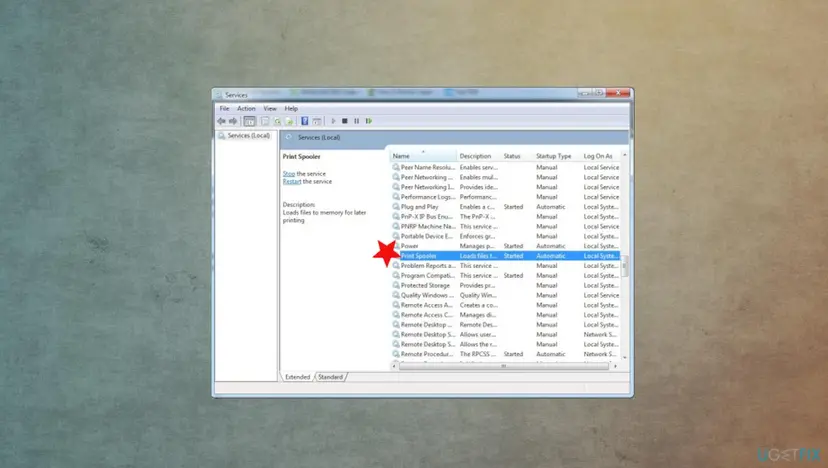
Step by step for any service: Check and restart Windows services.
It worked if: The queue is empty, Print Spooler shows Running and a new print job goes through.
If not: If the spooler stops by itself, see our guide to print spooler error 0x000006BA. Otherwise go on to Fix 4.
Fix 4. Add the printer again, by IP address if it is a network printer
10 minutesLow riskA Wi-Fi or Ethernet printer, an old copy of the printer is still listed, or Windows did not find the printer after Fix 1.
An old printer entry can keep a port and driver setting that no longer match. A fresh entry, made with the driver from Fix 1, gets a new port and a clean link to the driver.
- In Printers & scanners, remove every old copy of the printer.
- Select Add device (Windows 10: Add a printer or scanner) and wait for the list.
- If your printer is listed, select it and follow the prompts.
- If not, select Add manually (Windows 10: The printer that I want isn't listed).
- Choose Add a printer using an IP address or hostname, type the IP address shown on the printer's network page and pick the driver you installed in Fix 1.
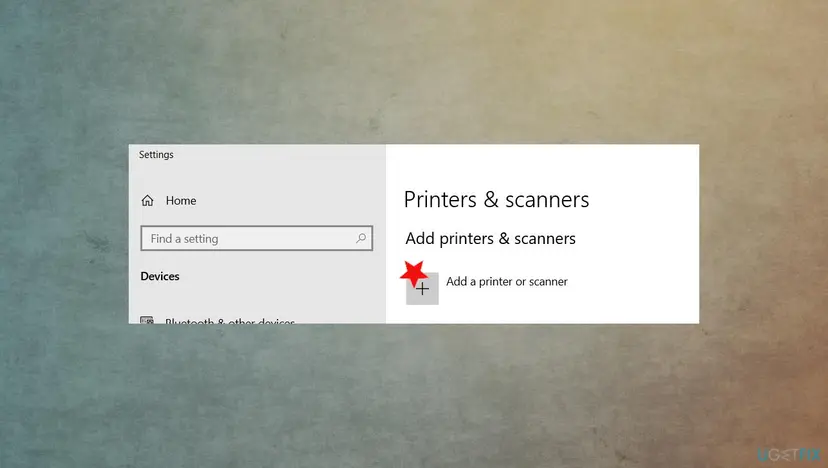
It worked if: The printer is listed once, shows as ready and prints a test page.
If not: If the error moves to a shared printer on another PC, see shared printer error 0x00000709. Otherwise try Fix 5.
Fix 5. Delete the PostSPUpgrade registry key if it exists
5 minutesRead the warningFix 1 to Fix 4 did not help. Most PCs do not have this key; if it is missing, skip this fix.
PostSPUpgrade is a leftover of an upgrade under the print settings in the registry. Our old guide made deleting it a main fix. Users in the Microsoft Q&A thread could not find it on Windows 10, so treat this as a check, not the usual answer.
A wrong delete in the registry can break printing or other parts of Windows. Export a backup with Back up the registry before editing it before you change anything, and delete only the one key named below.
- Press Win + R, type
regeditand press Enter. Approve the prompt. - Go to
HKEY_LOCAL_MACHINE\SYSTEM\CurrentControlSet\Control\Print. - Expand Print and look for a key named PostSPUpgrade. If it is not there, close the editor and go to Fix 6.
- Right-click PostSPUpgrade, select Export and save it, then right-click it again and select Delete.
- Confirm with Yes and restart the PC.
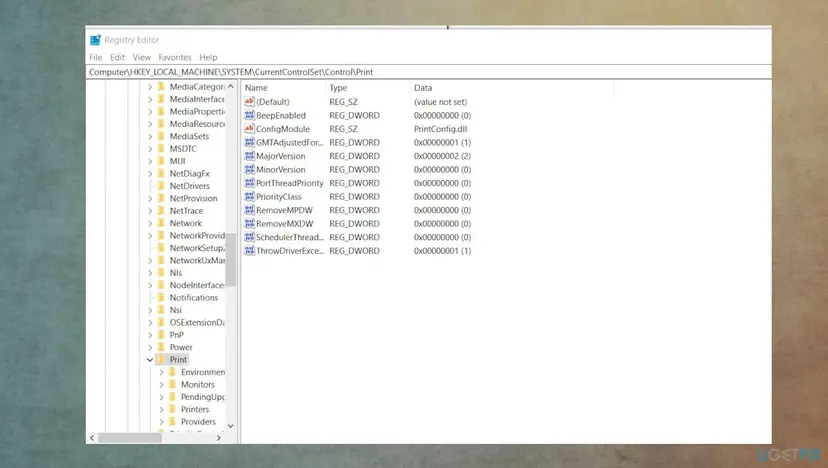
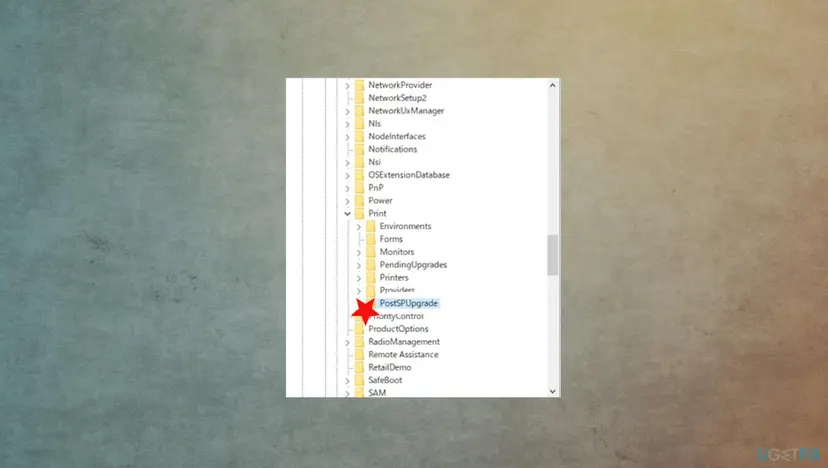
It worked if: After the restart the key is gone and the printer prints. If you saved the export, double-click it to put the key back.
If not: If nothing changed, restore the key from your export and go to Fix 6.
Fix 6. Uninstall the update that broke printing and pause updates
15 minutesRead the warningPrinting stopped on the day one update installed, and Fix 1 with the newest driver did not help.
The reader above asked whether to roll back. A rollback is the right step only when the driver fixes failed: it removes the change that broke the driver, but also that update's security fixes, so it is a pause until the maker or Microsoft ships a fix.
Removing a security update leaves its holes open until you install it again. Keep the pause short, check the maker's driver page weekly, and do not uninstall feature upgrades from the Recovery page unless you have a full backup.
- Open Windows Update. Select Start > Settings > Windows Update.
- Open the update history. Under More options, select Update history. Note the KB number and the date of the update you suspect.
- Open the list of removable updates. Scroll down to Related settings and select Uninstall updates.
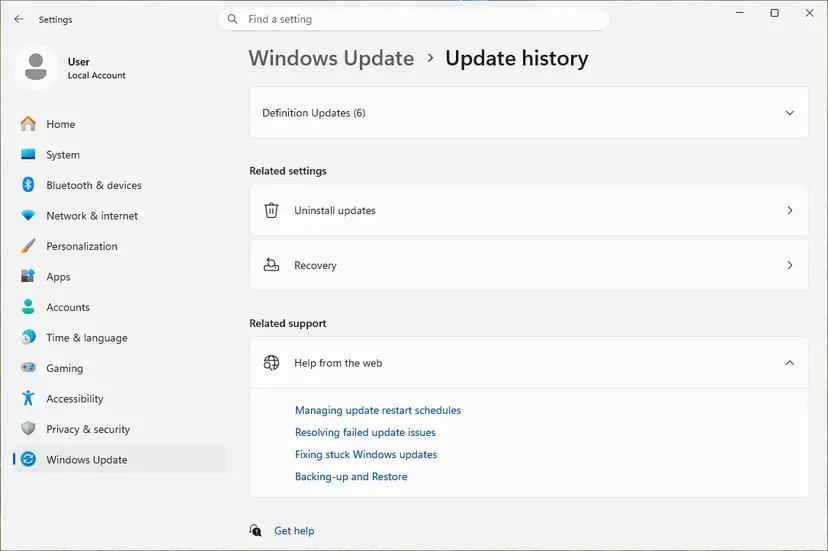
Uninstall updates is under Related settings. Screenshot: Windows 11 26H2. - Uninstall the update. Find the update in the list and select Uninstall next to it. If the update is not in the list, Windows does not allow it to be removed this way.
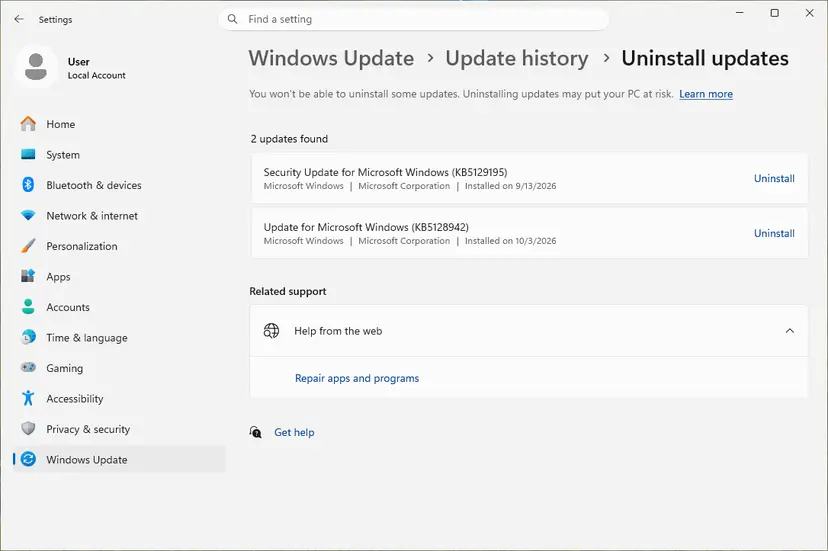
Each removable update has its own Uninstall link. Screenshot: Windows 11 26H2. - Pause updates. Go back to Settings > Windows Update and select Pick a date on the Pause updates control. If your PC shows a list there instead, select the pause length you prefer. Without a pause Windows downloads the same update again.
These steps were written for Windows 11 25H2 and 26H2. The full page with the other versions and what each result means: How to uninstall a Windows update
It worked if: After the restart the printer prints, and Update history shows the update as removed.
If not: If the error stays with the update removed, the update was not the cause. Install it again and go to Fix 7.
Fix 7. Repair Windows system files with SFC and DISM
20 to 30 minutesLow riskSeveral printers fail with driver errors, or nothing above helped.
The print system uses Windows files that the driver cannot replace. If one of them is damaged, every driver looks invalid. SFC and DISM check and restore those files from Windows' own copy.
- Open an elevated command window. Right-click Start and select Terminal (Admin), or type cmd in the search box, right-click Command Prompt and select Run as administrator. Select Yes when Windows asks for permission.

Search for cmd and choose Run as administrator. Screenshot: Windows 11 26H2. - Run DISM first. Type the command below and press Enter. DISM downloads clean copies of damaged components from Windows Update, so it can take several minutes. Wait until it says The operation completed successfully.
DISM.exe /Online /Cleanup-Image /RestoreHealth
DISM /RestoreHealth running. Screenshot: Windows 11 26H2. - Run System File Checker. In the same window, type the command below and press Enter. Do not close the window until the verification reaches 100%.
sfc /scannow
sfc /scannow at 100%. Screenshot: Windows 11 26H2. - Read the result and restart. Compare the last message with the table below this guide, then restart the PC so that repaired files are loaded.

The result line tells you what SFC did. Screenshot: Windows 11 26H2.
These steps were written for Windows 11 24H2 and 25H2. The full page with the other versions and what each result means: Run DISM and SFC to repair Windows system files
It worked if: SFC reports that it found no problems or repaired them, and after a restart Fix 1 works.
If not: Read the log in the next section and contact the printer maker with what it shows.
Still getting printer error 0x000007d1? Where the real cause is written
The pop-up only says the driver is invalid. Windows writes which driver failed in its logs. Collect these facts before you change anything else and send them to the printer maker's support.
| Check | Where | What it tells you |
|---|---|---|
| Print Service log | Event Viewer, Applications and Services Logs > Microsoft > Windows > PrintService > Admin | The driver name and the time of the failure |
| Installed driver | Print server properties > Drivers | Driver name, version and processor type |
| Recent updates | Settings > Windows Update > Update history | Which update installed on the day printing stopped |
| Your Windows | Settings > System > About | Version and system type (x64 or Arm), for the right driver download |
- Is it hardware? Almost never. The code comes from Windows before a page is sent. If the printer prints a self-test page from its own buttons, the printer is fine.
- The old printer troubleshooter. Microsoft is retiring the MSDT troubleshooters on newer Windows 11, so the printer troubleshooter may not open or may send you to Get Help. It does not replace a driver either.
- What to send to support: the printer model, how it is connected, your Windows version, the driver version and the PrintService event from the time of the error.
How to keep error 0x000007d1 from coming back
The error tends to return with the next large Windows update, when an old driver meets new Windows files. A few habits make that less likely.
- Install drivers from the printer maker's site, and check for a new one after each feature update.
- Remove the driver package, not only the printer, when you reinstall.
- Keep one copy of each printer in Printers & scanners.
- Give a network printer a fixed IP address in your router.
- Download drivers from driver-download sites or "driver updater" tools.
- Leave a security update uninstalled for weeks.
- Delete registry keys you are not told to delete.
Frequently asked questions
What does error 0x000007d1 mean on a printer?
It means "The specified driver is invalid." Windows tried to use the driver installed for your printer and rejected it, usually because its files were damaged or no longer fit Windows after an update. The code is 2001 in decimal and is about software, not the printer. The fix is to remove the printer and its driver package, restart and install the maker's current driver, as in Fix 1.
Should I update the driver or roll back the Windows update?
Update the driver first, and do it properly: remove the old driver package, then install the newest driver from the printer maker (Fix 1). That keeps your security updates. Roll back the update only when Fix 1 to Fix 5 fail and printing stopped on the day that update installed (Fix 6). Then reinstall the update once the maker or Microsoft has a fix.
Why does 0x000007d1 come back after every Windows update?
Users in the Microsoft Q&A thread report exactly that, with Canon and Epson printers. Microsoft has given no reason. Two things help. Install the maker's newest driver with Fix 1, since an older driver is the usual victim of new Windows files. And as a quick workaround, users report that one print job started from Microsoft Edge after each update makes all other apps print again (Fix 2).
Is 0x000007d1 the same on Windows 11?
Yes. The code and the message are the same on Windows 11 and Windows 10, and so are the fixes. Only the menus differ: on Windows 11 the printers are under Settings > Bluetooth & devices > Printers & scanners, and a printer is added with Add device. The table in the Windows versions section lists both paths for every step.
My Canon printer shows 0x000007d1. What does Canon say?
Canon has a knowledge base article for this exact code. Its steps: uninstall the printer drivers, remove the printer under Devices and Printers, open Print server properties, and on the Drivers tab choose Remove driver and driver package. Then restart the PC and install the latest driver from Canon's website. That is Fix 1 of this guide.
My Brother or Epson printer shows "the specified driver is invalid". What then?
Brother's help page for Windows 10 calls this message an issue with the Windows operating system and refers users to Microsoft. In practice the same steps work for every brand: remove the printer and its driver package, restart and install the maker's current driver for your model (Fix 1). The Epson WF-2630 report on Microsoft Q&A is one of the oldest threads about this code.
Does the error appear with USB printers too?
Yes. "The specified driver is invalid" shows up with USB, Wi-Fi and network printers alike, because it is about the driver, not the connection. With a USB printer, unplug it before you remove the driver package in Fix 1, and plug it in only when the maker's installer asks. Changing the USB cable or port alone does not fix this error.
Is there a 0x000007d1 fix for Windows 7?
The same steps work on Windows 7: remove the printer under Devices and Printers, remove the driver and driver package in Print server properties, restart and install the maker's driver. Windows 7 lost support in January 2020, and many makers no longer publish Windows 7 drivers, so an old driver may be the only one left.
Is www.fixprintererror.com an official site for this error?
No. This page is not connected to it, and we did not test it. For printer errors, take drivers and help only from the printer maker's own support site and from Microsoft. Pages that sell "printer repair" or remote support for a code like 0x000007d1 are not needed: the fixes above are free and take minutes.
Why does Google show this page for "ainda não"?
"Ainda não" is Portuguese for "not yet" and has nothing to do with printers. This page is about printer error 0x000007d1, "The specified driver is invalid", on Windows 10 and Windows 11. If you see that error in Portuguese, the steps are the same; the menu names are in Portuguese on your PC.
Sources
- Microsoft Q&A: Printer error 0x000007d1, The specified driver is invalid for Epson WF-2630 after Win 10 Pro 1909 Update (learn.microsoft.com)
- Canon U.S.A. knowledge base: Windows 10 Error 0x000007d1 (Specified Driver is Invalid) and Similar Errors (ART170703) (support.usa.canon.com)
- Brother USA help: "The specified driver is invalid" or "Windows can't print due to a problem with the printer setup" when attempting to print, Windows 10 (help.brother-usa.com)
Did this fix work?
One click, no account. It tells the next reader which guides are worth their time.
Questions and experiences: fix printer error 0x000007d1 in Windows 10
Still broken, or found a fix we did not cover? Ask here: members and our editors answer. Reading is open; writing needs a free account.
…