
How to fix Roblox cursor going off screen?
Prefer to fix it yourself? The manual steps follow.
6 methods in this guide
Every time I get into the first-person mode in Roblox, my cursor simply goes off-screen and instead sits on the white bar at the top of the game window. This is really annoying, and I would like you to help me fix this. I use Windows 10. Thanks in advance.
Roblox is among the most popular video games out there along with titles like Minecraft and Call of Duty. The game serves as a platform where many players can create their own games and play along with friends, which provides endless possibilities and creative options. This is probably the reason why the game is being played by more than 43 million users on a daily basis.
Unfortunately, even the most popular games sometimes might run into technical issues - more severe of those can be game crashes or inability to launch that game. However, not all problems associated with games are devastating, although can be particularly frustrating to deal with. This time, the problem lies with the mouse cursor going off-screen when playing Roblox on a Windows computer.
It seems like the issue affects all compatible versions of Windows. Despite this, the problem lies only when Roblox is being played on the Microsoft Store app. Players said that their cursor can sometimes go outside the game window boundaries, making their character not responsive and uncontrollable. Without a doubt, such issues can completely spoil the fun while playing the game, although it might be hard to tell what is causing the problem in the first place.
First of all, since the issue occurs only on the Microsoft Store app version of Roblox, it is worth trying to repair or reset the app. Likewise, trying to repair damaged system components might help you resolve the Roblox cursor issue. Before you proceed with the solutions below, we would like to recommend a potent repair software that could fix underlying Windows issues and resolve various registry errors, BSOD crashes, and similar problems.
This is not the first time that people have to deal with issues plaguing the game. We have already described and helped users fix Roblox errors such as 268, 277, or 267. At least one of the methods below should help resolve the cursor issue as well.
Solution 1. Run Windows Store Apps troubleshooter
If there are some problems with MS Store, the troubleshooter should help to resolve the issue. Try running it and see if that helps:
- Type troubleshoot in Windows search and hit Enter
- On the right side of the window, select Additional Troubleshooters
- Select Windows Store Apps from the list and click Run the troubleshooter
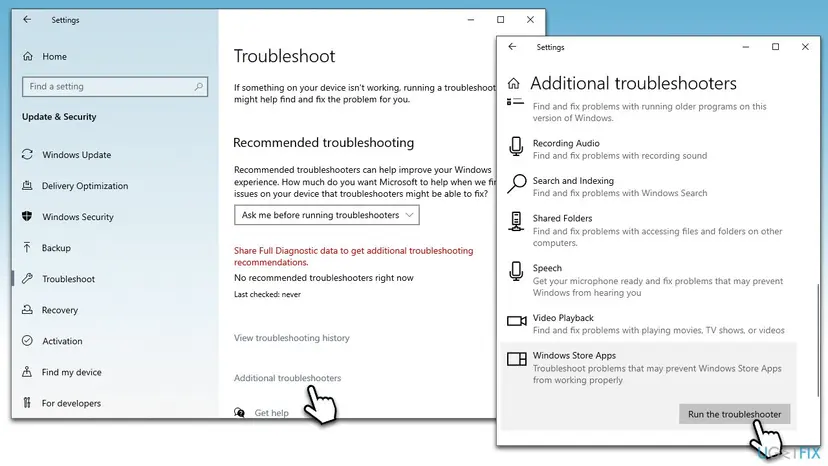
How to fix roblox cursor going off screen run troubleshooter - Wait till the process is complete, apply the suggested fixes and see if the problem is gone.
Solution 2. Reset Windows Store cache
Many issues could arise due to buggy store cache. You can reset it by using these simple steps:
- In Windows search, type in wsreset.exe and hit Enter
- At this point, a black pop-up window will show up – do not close it
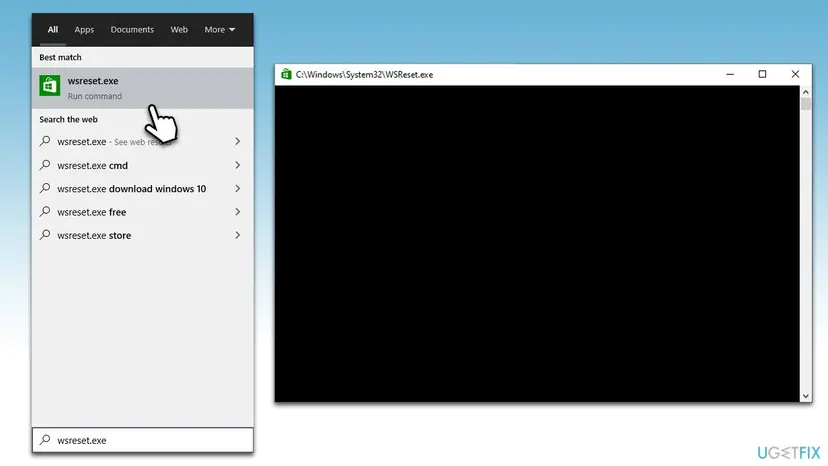
How to fix roblox cursor going off screen reset windows store cache - Once the cache reset is complete, the Store will reopen.
Solution 3. Repair or reset Windows Store
If the above method did not help, a more thorough reset might be required:
- Right-click on Start and pick Apps and Features
- Scroll down and click on Microsoft Store
- Pick Advanced options
- Here, scroll down and click Terminate
- First, try using the Repair option and check if the problem is gone
- If it is still not working for you, try using Reset instead
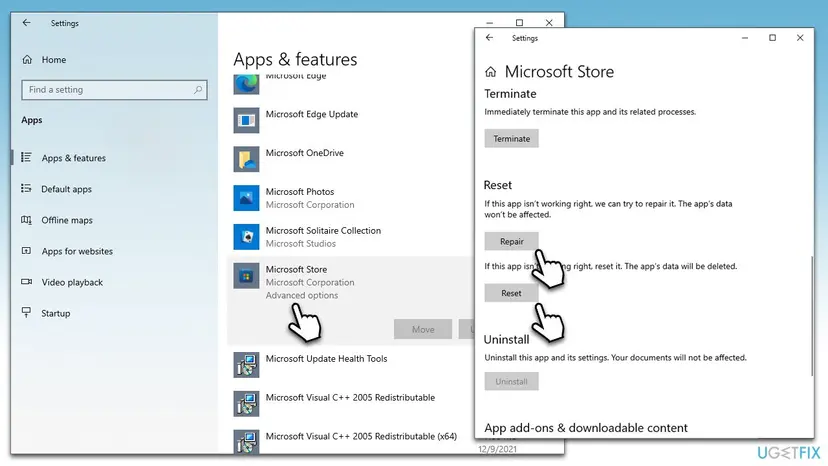
How to fix roblox cursor going off screen reset windows store - Do the same with the Roblox app.
Solution 4. Try running SFC and DISM
- Open Command Prompt as administrator as explained above
- Use the following command and press Enter:
sfc /scannow - Reboot your system
- If SFC returned an error, then use the following command lines, pressing Enter after each:
DISM /Online /Cleanup-Image /ScanHealth
DISM /Online /Cleanup-Image /RestoreHealth - Restart your PC.
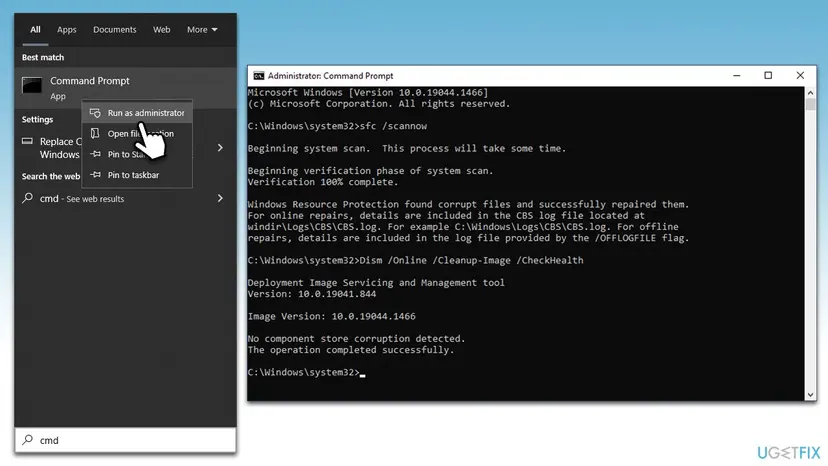
How to fix roblox cursor going off screen run sfc dism
Solution 5. Change the display scale to 100%
Many users experience the bug whenever their monitor scaling is set to above the standard 100%, e.g., 125%. Try revering this change as follows:
- Right-click anywhere on your desktop (must be empty space) and select Display settings
- Scroll down to find the Scale and layout section
- From the drop-down menu, pick 100% (Recommended)
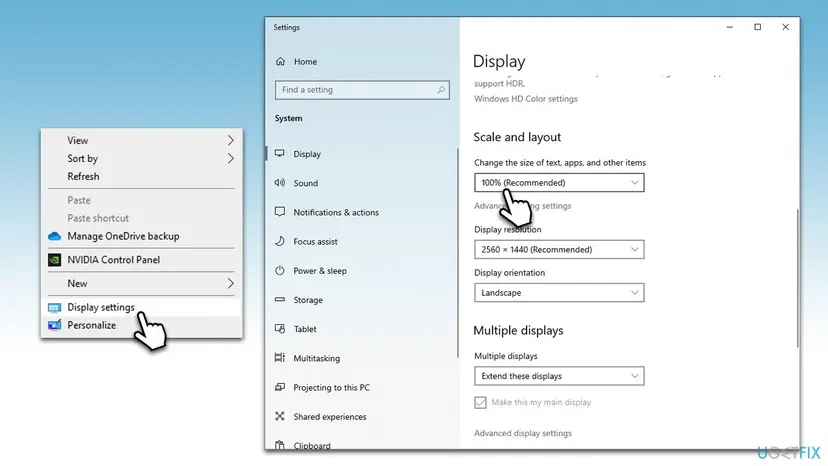
How to fix roblox cursor going off screen change scale - Open Roblox and see if that helped.
Solution 6. Use the official version of the game
While many people prefer to play Roblox directly from Microsoft Store, it can be downloaded and installed via the official website instead. Some users who were affected by the Roblox cursor issue said that none of the solutions helped them until they installed the alternative (official) version of the game. Note that you should first uninstall the version of the game you have already installed:
- Right-click on Start and select Settings
- Go to Apps
- Scroll down to locate Roblox
- Select the entry and pick Uninstall
- Wait for the process to finish.
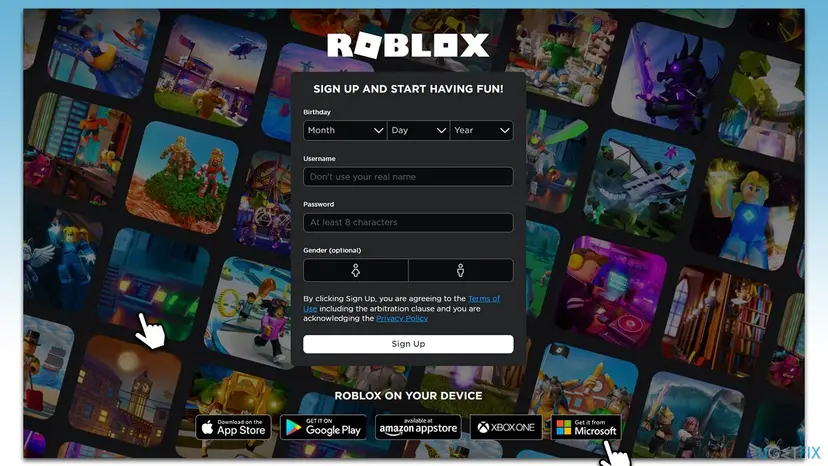
How to fix roblox cursor going off screen download app from official website
Did this fix work?
One click, no account. It tells the next reader which guides are worth their time.
Questions and experiences: fix Roblox cursor going off screen
Still broken, or found a fix we did not cover? Ask here: members and our editors answer. Reading is open; writing needs a free account.
…