
How to fix Roblox high CPU usage in Windows?

Prefer to fix it yourself? The manual steps follow.
- 8methods
- 5 minutes for the first two fixes, up to 30 minutes for driver and reinstall fixes
- Easy
Applies to The Roblox game client on Windows 11 and Windows 10; Task Manager entries named Roblox or Roblox Game Client
8 methods in this guide
For the past week or some, I've noticed that my CPU is always at 100% whenever I play Roblox. The game worked perfectly fine before, so I'm not sure what happened. The CPU usage is not that extreme when I'm playing other games or watching videos online, for example.
Roblox high CPU usage means the game keeps your processor close to 100% in Task Manager while you play, so the PC gets loud and hot and the game stutters. Roblox Support's first advice for lag is to lower Graphics Quality, so start there, then close other apps and update Roblox and your graphics driver.
Open any experience, press Esc, go to Settings, set Graphics Mode to Manual and move the Graphics Quality slider to the left (Fix 1). Then close other apps that use the CPU (Fix 2) and update Roblox and your graphics driver (Fixes 3 and 4). Setting Roblox to high priority does not lower CPU use, so it comes last.
| Error | No error message: the Roblox game window keeps the CPU at or near 100% in Task Manager, the fans spin up, and the game stutters or the frame rate drops. |
|---|---|
| Where it appears | Task Manager (Ctrl + Shift + Esc), on the Processes page, in the CPU column of the Roblox entry, and in the Performance page under CPU. |
| Main cause | Graphics Quality set higher than the PC can carry, other apps using the same CPU, or a graphics driver problem that pushes drawing work onto the processor. |
| Fastest fix | Press Esc in a game, open Settings, set Graphics Mode to Manual and move the Graphics Quality slider to the left (Fix 1). |
| Also written as | Roblox CPU usage high, Roblox game client high CPU usage, how to lower Roblox CPU usage, Roblox taking a lot of CPU. |
| Affects | Roblox on 64-bit Windows 10 and Windows 11. Windows 10 left Microsoft support on 14 October 2025. |
| Vendor status | Roblox Support has no article on high CPU use. Its lag article names graphics lag, network lag and system lag, and advises lowering Graphics Quality and closing other apps. |
| Time to fix | About 5 minutes for Fixes 1 and 2; up to 30 minutes for the driver update or a clean reinstall. |
Facts checked on 16 October 2026. Steps written for Windows 11 (25H2 and 26H2) and Windows 10 22H2, read against Roblox Support's articles on lag, Graphics Quality and system requirements.
What Roblox high CPU usage means, and when it is normal
Task Manager shows the share of your processor that each program uses. A game is allowed to use a lot of it, so 60 to 90% while a busy experience loads or runs is not a fault by itself. The problem is a Roblox entry that stays at or near 100%, with stutter, a hot laptop or a PC that was fine a week ago.
- Normal
- A short peak while an experience loads, or a high load in a crowded experience on an older PC.
- A problem
- A steady 100% in the Roblox entry, stutter that was not there before, or the fans running hard even in a simple experience.
- What Roblox says
- Roblox Support separates lag into network lag, graphics lag and system lag. High CPU belongs to the last two: a device that is not powerful enough for the graphics level, or other high-power apps taking the resources Roblox needs.
- Other spellings
- Task Manager may list the game as Roblox or Roblox Game Client. We could not confirm the exact name in Roblox's help, and it can differ between versions.
The load is high only in Roblox, and it began about a week ago on a game that ran fine. That points to something that changed: a Roblox update, a graphics driver or Windows update, a new background program, or a setting. The fixes below start with the settings and apps you can check in minutes.
What causes Roblox high CPU usage, from most to least common
Roblox does not publish a list of causes for high CPU use. The ranking below combines what Roblox Support says about lag with plain reasoning about how a game uses a processor, and it is ours, not Roblox's. Each cause points to the fix that tests it.
| How often | Cause | Sign | Fix |
|---|---|---|---|
| Most often | Graphics Quality set higher than the PC carries well, or left on Automatic. | Stutter and a hot CPU in every experience, easing in a simple one. | Fix 1 |
| Often | Other apps using the CPU at the same time: a browser with many tabs, a recorder, a launcher, a sync tool. | Task Manager shows other entries with a high CPU share while Roblox runs. | Fix 2 |
| Often | A new Roblox version that behaves differently, or an old one that was not updated. | The load changed on the day Roblox updated, or the app is behind. | Fix 3 |
| Often | A graphics driver that is old, damaged or replaced by a basic Windows one. | Low graphics use but high CPU use; the load began after a driver or Windows update. | Fix 4 |
| Less often | A hardware change, such as a new motherboard or processor, with the display on the wrong output or missing drivers. | The load began after a build or repair. | Fix 5 |
| Less often | A power plan or mode that holds the processor back, or a laptop on battery. | The load is worse unplugged. | Fix 6 |
| Rarely | A damaged Roblox install or leftover files from an older version. | Nothing else helped. | Fix 7 |
| No effect on load | Process priority. It changes who gets the CPU first, not how much Roblox asks for. | Not a cause; kept as a last option. | Fix 8 |
Roblox's system requirements page also says there have been some issues with older AMD processors. It lists a processor of 1.6 GHz or better and DirectX 10 or higher support as the minimum, and recommends a PC less than 5 years old with a dedicated video card.
Check what is really using the CPU before you change anything
Two minutes in Task Manager tell you whether Roblox is the problem or only the one you notice. This also tells you which fix to start with.
- Start Roblox and join an experience, then press Ctrl + Shift + Esc to open Task Manager.
- On the Processes page, select the CPU column heading so the biggest users sit at the top.
- Look at the Roblox entry. If another program is above it, that program is your problem, so go to Fix 2.
- Look at the GPU column. A high CPU load with a GPU load close to zero means the graphics card is hardly used, so go to Fixes 4 and 5.
- Open the Performance page and select CPU. If Speed is far below the base speed shown there while the PC is hot, the processor is slowing itself down because of heat, and the cooling needs attention.
Test in two experiences, one simple and one crowded. If only one experience is heavy, the load comes from that experience, which Fix 1 and the FAQ on a single game cover.
How to fix Roblox high CPU usage
Fixes 1 and 2 are the ones Roblox Support itself recommends and they take a few minutes. Make one change at a time, then play for a few minutes with Task Manager open and look at the Roblox entry before you move on.
| What you see or have | Start with |
|---|---|
| The CPU is high in every experience and the PC is not new. | Fix 1, then Fix 2 |
| Another program is above Roblox in the CPU column of Task Manager. | Fix 2 |
| It began the day Roblox updated, or the app has not updated for a long time. | Fix 3 |
| The CPU is high but the GPU column is close to zero. | Fix 4, then Fix 5 |
| It began after you replaced the motherboard, processor or graphics card. | Fix 5 |
| It is worse on a laptop that is not plugged in. | Fix 6 |
| Nothing helped and other games run well. | Fix 7 |
Fix 1. Lower the Graphics Quality in Roblox
2 minutesNo riskEveryone, and above all players whose PC is not new or who left the graphics on Automatic.
Roblox Support says a device that is not powerful enough shows stutter, and that a lower graphics level means the device works less to run Roblox. It is the one fix the vendor itself puts first.
- Join any experience, then press Esc or click the Roblox logo in the upper left to open the menu.
- Select the Settings tab at the top.
- Set Graphics Mode to Manual. Roblox's lag article words this as switching Graphics Quality - Auto off.
- Move the Graphics Quality slider to the left, which Roblox says is for better performance.
- Click Resume or press Esc, then play for a few minutes with Task Manager open.
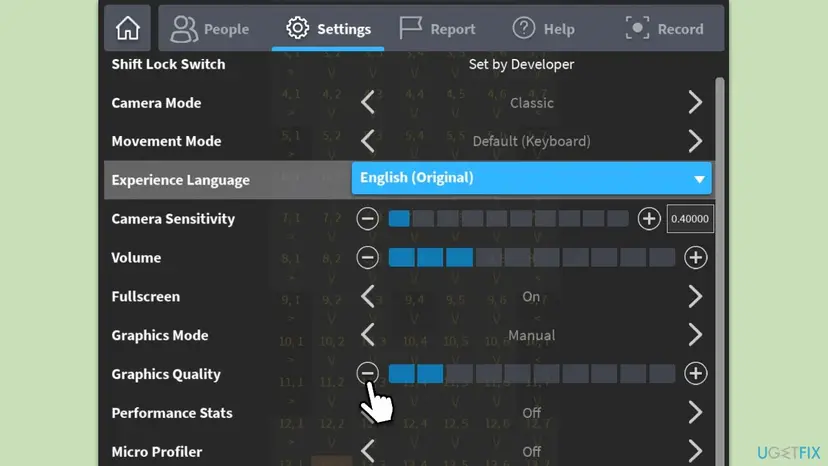
Move the slider down two or three notches at a time and check the CPU column after each change. The lowest setting makes the game look flat, and you may need only a small drop.
It worked if: The Roblox entry in Task Manager falls well below 100%, and movement in the experience is smoother.
If not: If the load did not change, something other than graphics settings is using the CPU: go to Fix 2.
Fix 2. Close other apps that use the CPU while you play
3 minutesLow riskTask Manager shows another program with a high CPU share, or you keep a browser, recorder or chat app open while you play.
Roblox Support names system lag as the next cause after graphics: other high-power apps take the resources Roblox needs, and closing the ones you do not need helps. The processor is shared, so every extra program leaves Roblox less.
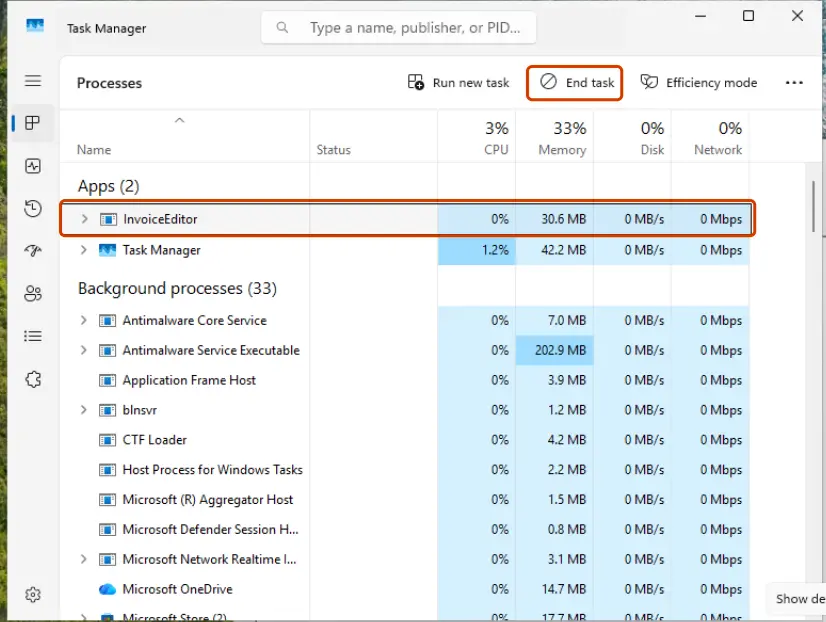
- Press Ctrl + Shift + Esc to open Task Manager.
- On the Processes page, select CPU to sort by processor use.
- Find programs you are not using that sit near the top, such as a browser with many tabs, a screen recorder, a game launcher or a file sync tool.
- Right-click each one and select End task. Do not end Windows items you do not recognise.
- Go back to Roblox and watch the CPU column again.
To stop the same programs from starting with Windows and using the CPU in the background, see Stop apps from running in the background and Stop apps from opening at startup.
It worked if: Roblox gets a larger part of the processor, and its own entry no longer competes with others for the top place.
If not: If Roblox itself is still at the top with nothing else running, go to Fix 3.
Fix 3. Update Roblox to the latest version
5 minutesNo riskThe load changed after a Roblox update, or Roblox has not been updated for a long time.
A new version can change how the game uses the processor, and an old one may lack fixes for it. The updated version is the one Roblox supports, so test with it before anything bigger.
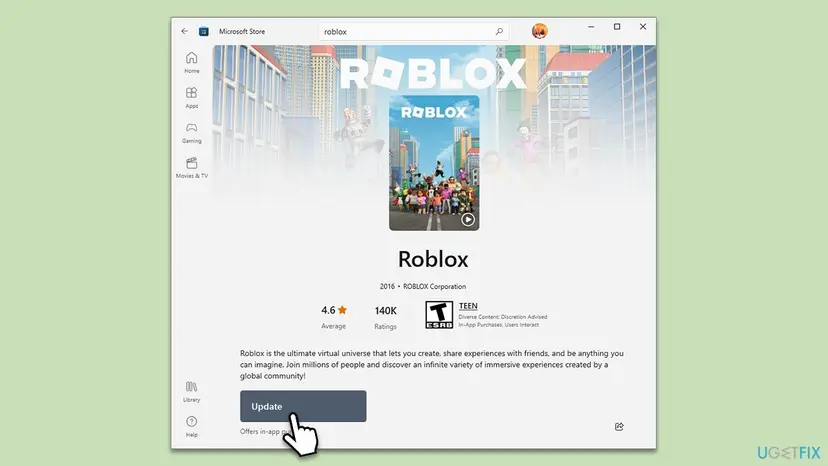
- If you installed Roblox from the Microsoft Store, open the Store and search for Roblox, or open Library and check the updates.
- On the Roblox page, select Update when it is offered, and let it finish.
- If you installed Roblox from the Roblox website, close the game completely and start it again. We could not confirm in Roblox's help how that version updates itself, so Fix 7 is the sure way to get the current one.
- Restart the PC, join an experience and look at the Roblox entry in Task Manager.
Users report that the load rose right after a Roblox update. We found no statement from Roblox about such a case. If the load rose after the newest version, update Windows and the graphics driver (Fix 4) and wait for the next version.
It worked if: The Store shows no pending update, and the Roblox entry settles to a normal load.
If not: If the load is the same on the newest version, go to Fix 4.
Fix 4. Update or reinstall the graphics driver
10 to 20 minutesLow riskThe CPU is high but the GPU column in Task Manager stays close to zero, or the load began after a driver or Windows update.
Roblox requires DirectX 10 or higher feature level support. When the driver is old, damaged or replaced by a basic Windows one, drawing work can fall back on the processor, and the CPU load goes up instead of the GPU load.
Look first in Device Manager (Win + X, then Device Manager) under Display adapters. If you see Microsoft Basic Display Adapter and not your NVIDIA, AMD or Intel graphics, the right driver is missing and this fix is the one you need.
- Open Device Manager. Right-click Start and select Device Manager.
- Open the device's Driver tab. Expand the category (for example Display adapters), right-click the device, select Properties and open the Driver tab. Driver Date and Driver Version show what is installed now.
- Update the driver. Select Update Driver and let Windows search automatically. To use a driver you downloaded from the device maker, select Browse my computer for drivers instead and point to the unpacked folder.
- Or roll back the driver. If the problem started after a driver update, select Roll Back Driver, choose a reason and select Yes. The button is greyed out when Windows has no earlier driver to return to.
- Or reinstall the driver. Select Uninstall Device. Tick Attempt to remove the driver for this device only if you want Windows to delete the driver package too, then select Uninstall.
- Restart. Restart the PC. Windows detects the device again and installs a driver for it.
- Check optional driver updates. Open Settings > Windows Update > Advanced options > Optional updates. If driver updates are listed, tick the ones you need and select Download & install.
These steps were written for Windows 11 24H2 and later. The full page with the other versions and what each result means: Update, roll back or reinstall a driver
Take the driver from the maker of your graphics card or, on a laptop, from the laptop maker. Restart the PC after the install, then join an experience and watch the GPU and CPU columns together.
It worked if: Display adapters lists your real graphics card, and the GPU column shows some load while the CPU load drops.
If not: If the driver is current and the load stays, go to Fix 5 when you changed hardware, or Fix 6 if not.
Fix 5. Check the display cable and drivers after a motherboard or processor change
15 minutesLow riskThe load began after you replaced the motherboard, processor or graphics card, or after a PC repair or new build.
Roblox has no article on this. Our reasoning is this: after a hardware swap Windows may use basic drivers, and a monitor plugged into the motherboard output instead of the graphics card makes the PC draw on the weaker built-in graphics and the processor.
- Shut the PC down and check where the monitor cable is plugged in. On a PC with a graphics card, use the output on the card itself, not the output on the back panel of the motherboard.
- Start Windows, press Win + X and open Device Manager.
- Open Display adapters. Your graphics card should be listed by name, not as Microsoft Basic Display Adapter.
- Install the chipset driver and the graphics driver from the websites of the motherboard maker and the graphics card maker.
- Restart the PC and check the Roblox entry in Task Manager again.
After a motherboard swap the BIOS usually starts with default memory speed. Check your motherboard manual for the memory speed profile before you change anything in the BIOS, because a wrong setting can stop the PC from starting.
It worked if: Device Manager shows the real graphics card, and Roblox draws on it, so the GPU load rises and the CPU load falls.
If not: If the cable and drivers are right, go to Fix 6.
Fix 6. Check the power mode, above all on a laptop
3 minutesNo riskThe load is worse on a laptop that is not plugged in, or the power plan is set to saver.
A power saver plan holds the processor at lower speed, so the same work needs more of the available CPU and Task Manager reads a high percentage. A performance mode lets the processor run at the speed the game needs.
- On Windows 11, open Start > Settings > System > Power & battery and set Power mode to Best performance while you play.
- On Windows 10, open Control Panel, then Hardware and Sound > Power Options, and select High performance. If it is not listed, select Show additional plans.
- On a laptop, plug in the charger before you test.
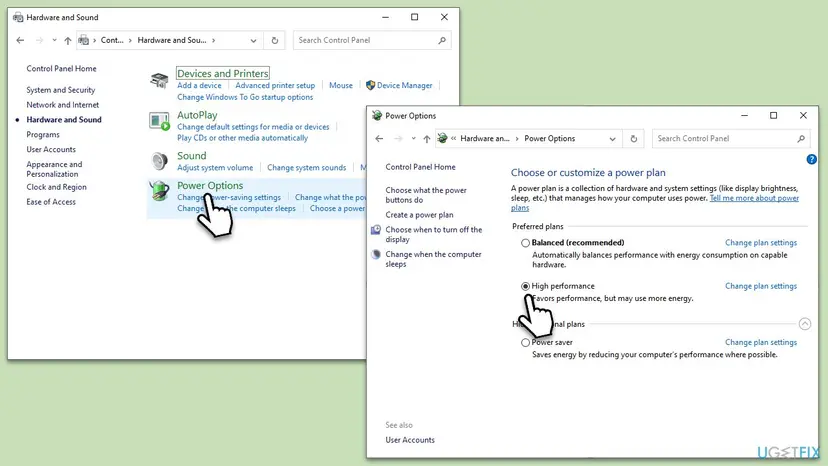
Step by step, with the Windows 11 pictures: Change the power mode
It worked if: The processor runs at a higher speed, so the Roblox entry shows a lower share of it and the frame rate steadies.
If not: If the load is the same, a damaged install may be the cause: go to Fix 7.
Fix 7. Remove Roblox completely and install it again
15 minutesLow riskThe first six fixes did not help and other games run normally.
A damaged install or leftover files from an older version can make the game do extra work. Removing the program and its folder gives you a fresh copy. Your account, Robux and game progress are kept online by Roblox, not on your PC.
Local settings, such as the graphics level, go back to defaults. If you also use Roblox Studio and it is gone after this, install it again from the Roblox website.
- Uninstall Roblox from Settings > Apps > Installed apps: Uninstall a program or app in Windows
- Restart the PC.
- Press Win + R, type
%LOCALAPPDATA%and press Enter. - If a Roblox folder is there, open it, press Ctrl + A and delete the contents. Check that you are in the Roblox folder before you delete.
- Install Roblox again, from the Microsoft Store or the Roblox website, and join an experience.
It worked if: The game starts with default settings, and the Roblox entry in Task Manager shows a normal load.
If not: If the load is the same on a clean install, the cause is the PC or one experience, not the install: read the next section.
Fix 8. Set Roblox to high priority as a last option
1 minuteLow riskRoblox stays smooth only when you stop other programs and you cannot close them, for example a video call.
Windows shares the processor between all programs, and a higher priority gives Roblox its time slices first. It does not make Roblox ask for less CPU, so it will not lower the percentage. It can help the frame rate while other programs run.
- Start Roblox and join an experience, then press Ctrl + Shift + Esc to open Task Manager.
- Open the Details page.
- Find the Roblox entry in the list.
- Right-click it and select Set priority > High, then confirm with Change priority.
- Go back to the game and play.
The Realtime priority can freeze Windows because it puts a program ahead of the system itself. Use High at most. Windows forgets the setting when Roblox closes, so you set it again each time.
It worked if: The game keeps its frame rate better when other programs are busy, though the CPU percentage stays about the same.
If not: If the game still stutters, read the next section on hardware limits.
If Roblox high CPU usage is still there
If all eight fixes failed, the cause is probably the PC's limits, heat, or one experience. Test each of these in turn.
| Sign | Meaning | What to do |
|---|---|---|
| Only one experience is heavy, other experiences are fine. | The experience itself asks for a lot, for example many scripts or objects. | Lower the graphics for it, or contact its creators, as Roblox Support describes in its article on contacting an experience's creators. |
| CPU Speed on the Performance page falls and the PC is hot. | The processor is slowing itself down because of heat. | Clean the dust from the fans and vents, and use a laptop on a hard surface. |
| The PC is much older than the 5 years Roblox recommends, or has a very slow processor. | The PC is at or under the lowest level Roblox lists: a 1.6 GHz processor and DirectX 10. | Keep the graphics low, or play on a newer device, which is also Roblox's advice for system lag. |
| Other games and videos run at a normal load too, but Roblox does not. | The cause is in Roblox, the driver or the settings. | Repeat Fixes 3, 4 and 7, then write to Roblox Support. |
When you contact Roblox Support, send your Windows version, your processor and graphics card names, the experience name, and a screenshot of Task Manager that shows the CPU and GPU columns. That is the information a support agent asks for first.
How to keep Roblox's CPU use low
- Keep Graphics Mode on Manual with a quality level your PC holds at a steady frame rate.
- Close the browser tabs, recorders and launchers you do not need before you play.
- Keep the graphics driver current, and restart the PC after Windows updates.
- Plug a laptop in and use the performance mode while you play.
- Do not set Roblox to Realtime priority.
- Do not delete system files or folders outside the Roblox folder when you clean up after an uninstall.
- Do not download tools that promise a Roblox CPU booster; Roblox Support does not list one.
- Do not turn off your antivirus to test; one short pause is enough, then turn it on again.
If you still use Windows 10, note that Microsoft stopped its security updates on 14 October 2025. Roblox lists 64-bit Windows 10 and Windows 11 as supported, but an updated Windows 11 gives you current drivers and fixes.
Frequently asked questions
Why is Roblox using 100% of my CPU?
Roblox uses all the processor it can get when the graphics level is higher than the PC carries, when other programs compete for the CPU, or when a driver sends drawing work to the processor. Roblox Support names graphics lag and system lag as the two causes on a PC. Start with Fix 1: set Graphics Mode to Manual and move Graphics Quality to the left. Then check Task Manager for other programs that use the CPU while you play.
How do I lower Roblox CPU usage?
Lower the Graphics Quality in the game's settings, then close the programs you do not need. Press Esc in an experience, open Settings, set Graphics Mode to Manual and move the Graphics Quality slider to the left. Sort Task Manager by CPU and end the other programs that use it. These are the two steps Roblox Support gives for lag. After that, update the graphics driver and set the power mode to performance.
Does setting Roblox to high priority lower CPU usage?
No. High priority makes Windows give Roblox its processor time before other programs, but it does not make the game ask for less. The CPU percentage in Task Manager stays about the same. It can help the frame rate when other programs are busy at the same time. Set it from Task Manager, Details, right-click the Roblox entry, Set priority, High, and do it again each time you start the game, because Windows forgets it.
Is Roblox high CPU usage a virus or a miner?
Probably not, because the usual causes are graphics settings, other programs and drivers. A high load that stays when no experience is running, or an entry with a name you do not know, is worth a check. Run a full scan with Microsoft Defender: How to scan for malware with Microsoft Defender. If Task Manager shows the load only while you are in a Roblox experience and it falls when you leave, it is the game and not a hidden program.
Why did Roblox take a lot of CPU after I replaced my motherboard?
The most likely reasons are a monitor plugged into the motherboard output, or basic Windows drivers in place of your own. Roblox has no article on this, so this is our reasoning. Plug the monitor into the graphics card, open Device Manager and check that Display adapters lists your real graphics card, then install the chipset and graphics drivers from the makers. Fix 5 has the steps.
How do I fix high CPU usage in Roblox Hypershot, and do I need Vulkan?
We could not confirm that you need Vulkan, and Roblox's system requirements list DirectX 10 or higher, not Vulkan. Hypershot is an experience made by its own creators, so its load comes from that experience. Lower Graphics Quality, update the graphics driver and test another experience. If only Hypershot is heavy, contact its creators with your PC details, as Roblox Support suggests for problems inside an experience.
Is it normal for Roblox to use a lot of CPU?
A high load for a short time is normal, for example while an experience loads or when many players and objects are on screen. A steady 100% with stutter is not normal on a PC that meets the requirements. Roblox recommends a computer less than 5 years old with a dedicated video card, or a laptop less than 3 years old with built-in graphics. On older hardware the load will be higher, and lowering the graphics is the remedy.
What are the system requirements for Roblox on Windows?
Roblox installs on 64-bit Windows 10 and Windows 11. Roblox Support lists DirectX 10 or higher feature level support, a recent processor with a clock speed of 1.6 GHz or better, at least 1 GB of memory and at least 300 MB of storage. It recommends 4 to 8 Mb/s of internet for one household. It also says there have been some issues with older AMD processors. These are minimums, so a PC at the minimum will run hot at high graphics.
Sources
- Roblox Support: How to Reduce Lag and Speed Up Play (en.help.roblox.com)
- Roblox Support: Graphics Quality (en.help.roblox.com)
- Roblox Support: Computer Hardware & Operating System Requirements (en.help.roblox.com)
Did this fix work?
One click, no account. It tells the next reader which guides are worth their time.
Questions and experiences: fix Roblox high CPU usage in Windows
Still broken, or found a fix we did not cover? Ask here: members and our editors answer. Reading is open; writing needs a free account.
…