
How to fix "RPC executor service threw an error!" when signing in to Google

Prefer to fix it yourself? The manual steps follow.
- 7methods
- 2 to 15 minutes
- Easy
Applies to Google Chrome and Microsoft Edge on Windows 11 (25H2, 26H2) and Windows 10 22H2, and Google sign-in on Android phones and tablets
7 methods in this guide
I have recently reset Chrome because I had some issues with it, and now I can't connect to my Google account because I keep getting the "Something went wrong. RPC Executor service threw an error!" message. How can I fix this ASAP?
"RPC executor service threw an error!" is shown by Google's own sign-in page when it refuses to finish a sign-in. It is not the Windows RPC service. In Chrome or Edge, try the sign-in in a private window first; on an Android phone after a reset, the cause is the device check.
The message comes from Google's sign-in page, so the fix is in the browser or the device, not in Windows services. Open a private window with Ctrl + Shift + N and sign in there (Fix 1). If that works, an extension such as an ad blocker or old Google cookies are the cause (Fixes 2 and 3). On an Android phone after a factory reset, see Fix 6.
| Error | RPC executor service threw an error! under the heading Something went wrong and the line Sorry, something went wrong there. Try again. |
|---|---|
| Where it appears | On Google's sign-in page, after you enter the email address or the password: in Chrome or Edge on a PC, in the setup wizard of an Android phone or tablet, and in automated browser tests. |
| Main cause | Google's sign-in service refuses to finish this attempt. Users report it with ad blockers, browsers driven by test tools and Android devices verifying the previous account after a factory reset. |
| Fastest fix | Sign in from a private window with no extensions (Fix 1), then turn off the extension that blocks the page (Fix 2). |
| Also written as | RPC executor service threw an error, RPC Executor service threw an error, executor service threw an error!, rpc executer error. |
| Not the same as | The Windows service Remote Procedure Call (RPC) and the Windows message "The RPC server is unavailable". Neither one shows Google's sign-in page. |
| Affects | Chrome and Edge on Windows 11 and Windows 10, Samsung and other Android phones and tablets, Google sign-in buttons on other websites. |
| Vendor status | Google has no help article for this message. Its Chrome Help Community thread about it is locked with 538 people marking "I have the same question" and no answer from Google staff. |
| Time to fix | 2 to 15 minutes in a browser. On a reset Android device it can take hours or need the previous account. |
Facts checked on 15 October 2026. Steps written for Chrome 155 on Windows 11 (screenshots); the message, the places it appears and the reported causes checked against Google's Chrome Help Community, Android Enthusiasts Stack Exchange and Stack Overflow on 15 October 2026.
What "RPC executor service threw an error!" means
The message is a page from Google, with the Google logo, the heading Something went wrong, the line Sorry, something went wrong there. Try again. and a Next button. Below that, in a typewriter font, stands RPC executor service threw an error!. It shows up right after you type your email address or password.
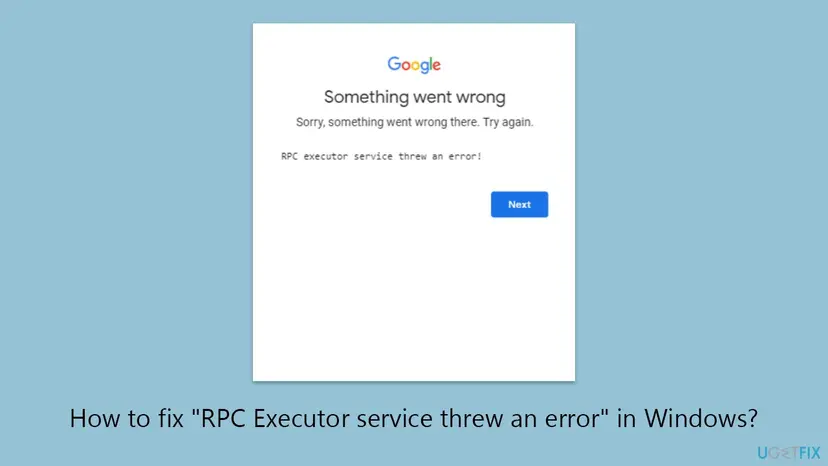
"RPC" means remote procedure call: one program asking another program, often on another computer, to do something. Here the asking program is Google's sign-in page and the other side is Google's own sign-in service. The service answered with an error instead of letting you in, and the page printed its internal name.
- Who shows it: Google's sign-in page, the same on a PC, a phone or a tablet. Windows does not produce this text.
- When: after the email address or the password step, sometimes after a verification code was accepted.
- What Google says: nothing. Google publishes no help page for this message, and its own forum thread has no staff answer.
- Other spellings people search: with or without the exclamation mark, "executor service threw an error!", or with "executer". They are the same message.
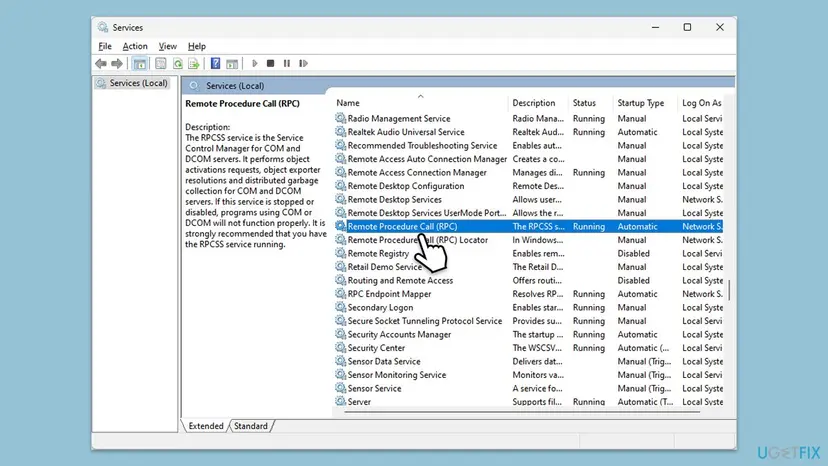
The old advice to restart Remote Procedure Call (RPC) in services.msc does not apply. On a working PC that service is always Running with Automatic start. Its own description says that if it is stopped, "programs using COM or DCOM will not function properly", so Windows itself would fail, not only Google sign-in.
Why Google's sign-in shows the RPC executor error
Google does not say which checks lead to this message. The table ranks what readers and developers report, each with the fix to try. A cause marked "reported" comes from users, not from Google.
| Cause | How often | Typical sign | Fix |
|---|---|---|---|
| An ad blocker or privacy extension blocks part of Google's sign-in page (reported) | Most often in browsers | Sign-in works in a private window or in another browser | Fix 1, Fix 2 |
| Old or broken Google cookies after a browser reset or a profile copy | Often | It started after resetting Chrome or restoring a profile | Fix 3 |
| An outdated browser | Sometimes | Chrome's About page offers an update | Fix 4 |
| A VPN, proxy or HTTPS filtering app in the path | Sometimes | It fails on one network or with one app running | Fix 5 |
| Android setup after a factory reset asks to verify the previous account (reported) | Most often on phones | The phone shows "This device was reset" and loops back to sign-in | Fix 6 |
| The browser is driven by a test tool (reported) | Developers only | Fails in Chrome and Edge under Cypress, works by hand | Fix 7 |
How to fix "RPC executor service threw an error" on Google sign-in
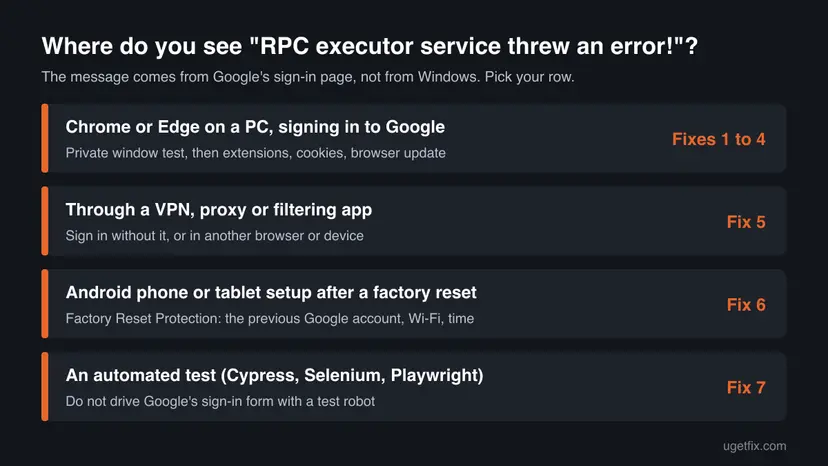
Fixes 1 to 4 are for Chrome and Edge on a PC and take a few minutes each. Fix 5 covers VPNs and proxies. Fix 6 is for an Android phone or tablet stuck in setup after a reset, and Fix 7 is for developers whose test scripts hit the message.
| What you see or have | Start with |
|---|---|
| The error shows in Chrome or Edge when you sign in to Google on a PC. | Fix 1 |
| Sign-in works in a private window but not in a normal one. | Fix 2 |
| It started after you reset Chrome or moved your browser profile. | Fix 3 |
| A VPN, proxy, school filter or security app with web scanning is running. | Fix 5 |
| An Android phone or tablet shows it during setup after a factory reset. | Fix 6 |
| Cypress, Selenium or Playwright gets it on Google's sign-in page. | Fix 7 |
Fix 1. Sign in from a private window with no extensions
2 minutesNo riskYou see the message in Chrome or Edge on a PC.
A private window starts with no cookies and, by default, no extensions. If Google lets you in there, the cause is something stored in or added to your normal profile, and you know exactly where to look next.
- In Chrome press Ctrl + Shift + N to open an Incognito window. In Edge the same keys open an InPrivate window.
- Go to
accounts.google.comand sign in with the same email address and password. - If Google asks for a code or a prompt on your phone, complete it in the same window.
- Note the result: signed in, or the same message again.
- Close the private window when you are done. Nothing from it is kept.
- Works in the private window: an extension or old cookies in your normal profile cause it. Go to Fix 2.
- Fails in the private window too: try another browser, for example Firefox, on the same PC. If that also fails, go to Fix 5.
- Fails everywhere, on every device: the account itself may be held by Google's security checks. See the section "Still getting the message" below.
It worked if: You reach your Google account in the private window, which proves the account and the password are fine.
If not: If the private window shows the same message, skip to Fix 4 and then Fix 5.
Fix 2. Turn off the ad blocker or privacy extension for Google sign-in
5 minutesLow riskSign-in works in a private window but fails in your normal window.
Google's sign-in page loads several scripts and background requests. A developer on Stack Overflow reported that the message went away after removing the uBlock and Ghostery extensions, and that sign-in kept working after adding them back.
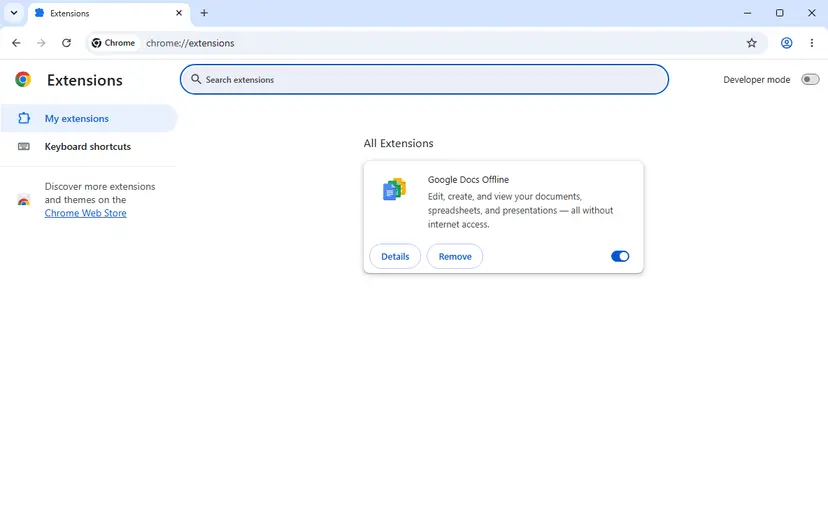
- Type
chrome://extensionsin Chrome's address bar, oredge://extensionsin Edge, and press Enter. - Turn off the switch of every ad blocker, tracker blocker, script blocker and VPN extension.
- Reload
accounts.google.comand sign in again. - If it works, turn the extensions back on one at a time and sign out and in after each, to find the one that breaks it.
- In that extension, add
accounts.google.comto its allow list or its list of trusted sites, so it stays on for every other site.
It worked if: Google signs you in with the extension turned off, and keeps working once the site is on the extension's allow list.
If not: If no extension makes a difference, clear Google's cookies in Fix 3.
Fix 3. Clear Google's cookies and the browser cache
5 minutesLow riskThe message started after you reset Chrome, restored a profile or signed in with several Google accounts.
Google's sign-in keeps state in cookies between the email, password and verification steps. Old or mixed cookies left by a reset or by several accounts can make the steps disagree, and a clean set lets the sign-in start from scratch.
Deleting cookies signs you out of most websites, so have your other passwords at hand. Step by step for Chrome, Edge and Firefox: Clear the browser cache and cookies.
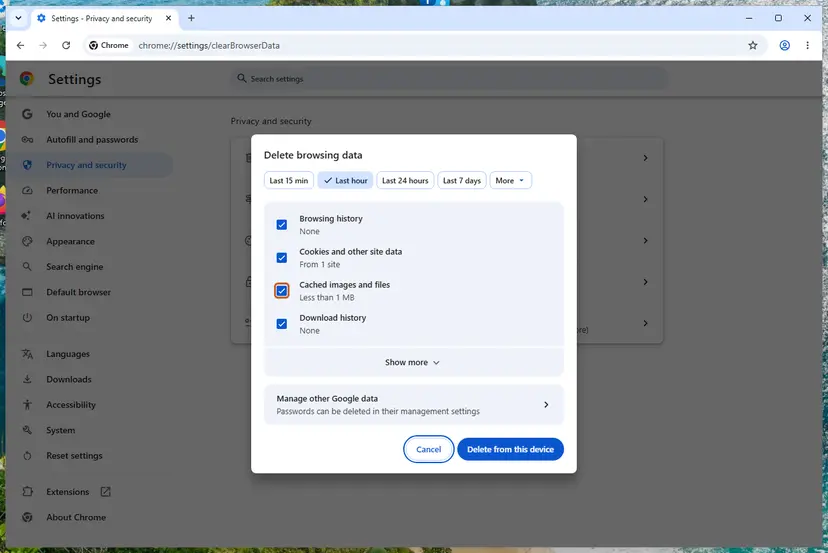
- Press Ctrl + Shift + Delete in Chrome or Edge.
- Choose All time as the time range.
- Tick Cookies and other site data and Cached images and files.
- Select Delete from this device, then close the browser fully and open it again.
- Go to
accounts.google.comand sign in again.
If Chrome asked you to sign in to a Chrome profile, open Settings > You and Google and turn sync off if it is half set up. Then close Chrome with More > Exit and start the sign-in again from a fresh window.
It worked if: After clearing, the Google sign-in page asks for your email address from the start and lets you in.
If not: If the message comes back after clearing, update the browser in Fix 4.
Fix 4. Update Chrome or Edge and relaunch it
5 minutesNo riskThe browser has not been restarted for a while or its About page shows a pending update.
Google changes its sign-in page often and tests it against current browsers. An old browser build, or one that downloaded an update but never relaunched, can fail a step the page expects to work.
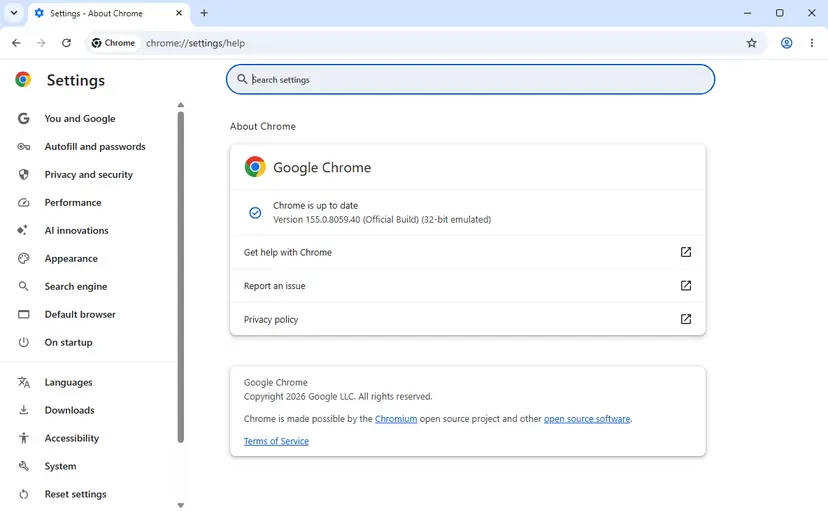
- In Chrome type
chrome://settings/helpin the address bar. In Edge typeedge://settings/help. - Wait while the browser checks for and downloads an update.
- Select Relaunch when it appears.
- Sign in to Google again in the relaunched browser.
On Windows 10, which left Microsoft's support on 14 October 2025, keep the browser updated anyway: Chrome and Edge still ship updates there, but an unpatched system is a bigger risk on a page where you type your password.
It worked if: The About page says the browser is up to date and the sign-in goes through after the relaunch.
If not: If the browser was already current, test the network path in Fix 5.
Fix 5. Sign in without a VPN, proxy or HTTPS filtering app
5 minutesLow riskA VPN, a proxy, a school or company filter, or a security app that scans web traffic is running.
Google's sign-in judges each attempt partly by where it comes from and whether the connection looks untouched. We could not confirm Google's exact rules, but a VPN exit address or a program that sits in the middle of HTTPS traffic is a cheap thing to rule out.
- Disconnect the VPN app or switch to another server location, then try again.
- In Chrome open Settings > System > Open your computer's proxy settings and check that no proxy you do not know is set.
- If your security app has web or HTTPS scanning, add
accounts.google.comto its exclusions instead of turning protection off. - Try the sign-in on another network, for example your phone's hotspot. To check the connection itself: How to check your internet connection in Windows.
- Try the same account on another device. If it works there, the PC or its network is the cause.
On phones stuck after a reset, owners in Google's community thread report that a different Wi-Fi network or a hotspot did not help. There the cause is the device check in Fix 6, not the connection.
It worked if: The sign-in goes through without the VPN or filter, or on another network.
If not: If the message follows you to every network and every browser on the PC, read the section "Still getting the message" below.
Fix 6. Android after a factory reset: verify the previous Google account
30 minutes to several hoursLow riskA phone or tablet shows the message during setup, after a factory reset, when you enter the Google account.
After a reset that was not started from the phone's settings, Android's Factory Reset Protection asks for the Google account that was on the device before. Owners of a Galaxy S21, a Galaxy Note 8 and Samsung tablets report the RPC executor message at exactly this step.
- Use the Google account that was signed in on the device before the reset, not a new one. A screen that says "This device was reset" asks for that account.
- Before the reset, check on a computer at
myaccount.google.comthat you can sign in to that account and that its password was not changed in the last days. - Keep the device on Wi-Fi and charging at the setup screen for a few hours. One answer on Android Enthusiasts points out that a reset rolls Google Play services back to the version in the firmware, and an update in the background may help.
- If the device offers the screen lock option instead ("use your PIN" or pattern), use it: it is a second way to prove you are the owner.
- If you bought the device used, the previous owner must remove it from their Google account, or sign in on it once.
Tools and videos that promise to skip Factory Reset Protection can install unknown software on the phone and may not be legal for a device you cannot prove is yours. If you are the owner and still blocked, take the device and the proof of purchase to the maker's service centre or your carrier.
It worked if: The device accepts the account or the screen lock, finishes setup and reaches the home screen.
If not: If the correct account and password still end in the same message after a day on Wi-Fi, contact the device maker's support with the proof of purchase. Users report that the carrier and Google send them back to the maker.
Fix 7. Developers: do not automate the Google sign-in form
15 minutesNo riskA Cypress, Selenium or Playwright test gets the message on Google's sign-in page.
Google's sign-in tries to tell people from robots. A developer on Stack Overflow saw the message in Chrome and Edge driven by Cypress 12.12 on Windows 10, while the same script worked in Firefox.
- Sign in to the test Google account by hand once in the test browser profile.
- Save the signed-in session or cookies and load them at the start of each test run, instead of typing into Google's form every time.
- For your own app, mock the Google sign-in or use a test login path in the test environment.
- Turn off ad blocker extensions in the test profile. The Stack Overflow reporter fixed it by removing uBlock and Ghostery, then signing in.
- Do not try to hide the automation from Google. The page can change its checks at any time and the test will break again.
It worked if: Your tests reach the signed-in state without filling Google's form, so the message no longer appears in test runs.
If not: If a real user, not a test, sees the message, go back to Fix 1.
Still getting the message: what to check and where to ask
There is no log on your PC that explains this message: the decision is made on Google's servers. What you can do is narrow it down and ask the right place.
- Another device works: the account is fine. Repeat Fixes 1 to 5 on the failing device, one at a time.
- Every device fails: use Google's account recovery page at
g.co/recoverto confirm the account and reset the password, then wait a day before trying again. - A Google Workspace account (work or school): ask your administrator. The organisation can limit where and how you sign in.
- A phone after a reset: the device maker's support, with the proof of purchase. Google's community thread shows carriers sending owners there.
- Write down the device, browser and version, the time and which step failed. Support asks for this first.
Google does not offer phone support for free personal accounts. A site or ad that gives a "Google support" phone number for this message is not Google. Never give your password or a verification code to anyone who calls you.
How to avoid the RPC executor error next time
- Keep
accounts.google.comon your ad blocker's allow list so updates to the extension do not break sign-in again. - Before a factory reset, remove the Google account from the phone in its settings, or at least write down which account was on it and check its password works.
- Keep a recovery phone number and email on your Google account, so verification steps have a way to reach you.
- Relaunch the browser when it shows an update, instead of leaving it open for weeks.
- Do not reset Chrome to fix a sign-in problem first. A private window shows in a minute whether the profile is the cause.
Frequently asked questions
What is "RPC executor service threw an error"?
It is an error message from Google's sign-in page. RPC stands for remote procedure call, a request from one program to another. Here the sign-in page asked Google's sign-in service to complete your login and got an error back, so the page shows Something went wrong and the internal name of the failing part. It is not a virus, not a Windows error and not a problem with your password as such. Google does not publish what triggers it; users report ad blockers, test tools and Android devices after a factory reset.
Does restarting the Windows RPC service fix it?
No. The Windows service Remote Procedure Call (RPC) runs all the time on every working PC and the Google sign-in does not depend on it in a way you can repair. If it were stopped, many parts of Windows would fail, not only one web page. The same message also appears on Android phones that have no Windows at all, which shows the cause is on Google's side of the sign-in. Use Fixes 1 to 5 instead.
Why does it happen after I reset Chrome?
A reset turns off extensions and clears some site data, but it does not always remove every Google cookie, and extensions come back when you turn them on again. The sign-in then mixes old and new state, or an ad blocker you re-enabled blocks part of the page. Test in a private window first (Fix 1). If that works, clear Google's cookies (Fix 3) and add accounts.google.com to your ad blocker's allow list (Fix 2).
Why does my Samsung phone show it after a factory reset?
After such a reset, Android's Factory Reset Protection asks for the Google account that was on the phone before. Owners of Galaxy S21, Galaxy Note 8 and Samsung tablets report that the message appears right at this step, sometimes after a verification code was accepted. Use the old account, try the screen lock option if the phone offers it, and leave the phone on Wi-Fi for a few hours. If nothing helps, the maker's service centre can help with a proof of purchase (Fix 6).
Is my Google account hacked or blocked when I see this?
Not by itself. The message only says Google refused that one sign-in attempt. Check from another device you trust whether you can sign in at myaccount.google.com. If you can, the account is fine and the cause is the browser or device you tried first. If you cannot sign in anywhere, use Google's account recovery at g.co/recover. Look at Security > Recent security activity after you get in, and change the password if you see something you did not do.
Can I just wait and try again later?
Sometimes it helps, mainly on a phone after a reset, where owners report that leaving the device on Wi-Fi for hours changed nothing for some and helped others. In a browser, waiting rarely fixes it, because the same extension or cookies are still there. Do the one-minute private window test first. If many people report the message on the same day, a short problem on Google's side is possible, but we could not find a status page that lists it.
The message says "real executor browser login failed". Is that the same?
This page is about Google's own message "RPC executor service threw an error!" on its sign-in page. "Executor" is also the name of script tools for games, and their "login failed" messages are a different thing that we do not cover. If your message shows the Google logo and Something went wrong, follow this guide. If it comes from another program, read that program's own help, and be careful with game script tools: they are a common way malware spreads.
What does it mean in other languages?
People search the message in Arabic, Persian, Spanish and Turkish, asking what it means. In plain words it says: Google's sign-in service ran into an error, try again. The message is shown in English even when the rest of Google's page is in your language, because it is the internal name of the failing part. The fixes do not change with the language: start with a private window on a PC (Fix 1), or with the previous Google account on a reset phone (Fix 6).
I see an RPC error in an app or a log, not on Google's page. Does this guide apply?
Only if the screen is Google's sign-in page. RPC errors are common in software, for example "The RPC server is unavailable" in Windows or failures listed in a company's incident log about aggregator or field mapping services. Those come from other systems and have other causes. Search for the exact text you see. This guide covers only "RPC executor service threw an error!" under Something went wrong when signing in to a Google account.
Sources
- Google Chrome Help Community: "RPC executor service threw an error!" While entering email during new phone set-up (locked thread, 538 same-question votes) (support.google.com)
- Android Enthusiasts Stack Exchange: "RPC executor service threw an error" when signing in with Google Account on Samsung Galaxy Note 8 (android.stackexchange.com)
- Stack Overflow: RPC Executor Service Error when automating Google sign in option (Cypress) (stackoverflow.com)
Did this fix work?
One click, no account. It tells the next reader which guides are worth their time.
Questions and experiences: fix "RPC executor service threw an error!" when signing in to Google
Still broken, or found a fix we did not cover? Ask here: members and our editors answer. Reading is open; writing needs a free account.
…