
How to fix Witcher 3 Script Compilation Errors?

Prefer to fix it yourself? The manual steps follow.
- 8methods
- 5 to 30 minutes
- Intermediate
Applies to The Witcher 3: Wild Hunt on PC (Steam, GOG, Epic Games Store, Battle.net, Xbox Play Anywhere): Remastered 5.x, Next-Gen 4.x and Classic 1.32
8 methods in this guide
- What the error means
- Read the error lines
- Causes, ranked
- Where the files are
- The fixes
- 1. Remove the named mod
- 2. Clear old mods and Workshop
- 3. Delete merges, merge again
- 4. Solve conflicts in KDiff3
- 5. Verify the game files
- 6. Add mods back one by one
- 7. Return to Classic 1.32
- 8. Clean install
- Still there: what to send
- Keep it from coming back
- FAQ
Hello. I picked up Witcher 3 recently on sale, and I loved it. I do mod my games, so I wasted no time to get it done with this one. The problem is that after some time, I started receiving Script Compilation errors, which prevented me from launching the game in the first place. I wonder if there's a way to fix this?
Script compilation errors mean The Witcher 3 could not build its scripts at startup, almost always because a mod's script does not match your game version or another mod. Each error line names the mod folder and the script file at fault. Remove or update that mod first, and after the Remastered update (5.x) clear old mods and Steam Workshop subscriptions.
The game itself is rarely broken. Select Copy to Clipboard, paste the list into Notepad and read the name in square brackets on the first Error line: it is the mod folder to remove or update (Fix 1). After the Remastered update, unsubscribe from Steam Workshop mods and take old mods out (Fix 2). If the brackets say mod0000_mergedfiles, delete that folder and merge again with a merger made for your version (Fix 3).
| Error | Script Compilation Errors: a window titled "The Witcher 3: Wild Hunt - Script Compilation Errors" with a list of Error and Warning lines and the buttons Retry Script Compilation, Copy to Clipboard and Exit Application. |
|---|---|
| Where it appears | On a PC, each time the game starts, before the main menu. CD PROJEKT RED's documentation: the scripts are compiled when the game starts, and that is when you are notified. |
| Main cause | Mods. A script made for another game version, two mods that edit the same file, or an old merge left in Mods\mod0000_MergedFiles. |
| Fastest fix | Read the folder name in the square brackets and take that mod out of the Mods folder (Fix 1). Right after the Remastered update, start with Fix 2. |
| Also written as | Script compilation error, compiling scripts error, RED Engine script compilation error, TW3 script error, Witcher 3 Remastered script compilation errors. |
| Affects | The PC versions Remastered 5.x, Next-Gen 4.x and Classic 1.32, on Steam, GOG, Epic Games Store, Battle.net and Xbox Play Anywhere. Patch 5.01 came out on 8 October 2026. |
| Vendor status | Not a game bug that waits for a patch. CD PROJEKT RED Support says mods with script, XML or w3strings files stopped working with the Remastered update, and that it cannot support issues that stem from mods. |
| Where the cause is written | In the window itself. Every line has the form Error [mod folder]path\file.ws(line): message. |
| Not the cause | Graphics drivers, Windows or hardware. The message is about text files with the extension .ws, and no CD PROJEKT RED page ties this window to drivers. |
| Time to fix | A few minutes when one mod is named. Longer when a big mod list has to be merged again or rebuilt one mod at a time. |
Facts checked on 14 October 2026. Steps written for The Witcher 3: Wild Hunt Remastered 5.01, Next-Gen 4.04 and Classic 1.32 on Windows 11 and Windows 10 PCs.
What Script Compilation Errors mean in The Witcher 3
The Witcher 3 keeps a large part of its game logic in plain text files with the extension .ws. CD PROJEKT RED's REDkit documentation says these scripts are compiled when the game starts, and that this is the moment you are told about files that cause issues. When one file cannot be compiled, the game stops before the main menu and shows the list.
The same documentation gives the usual reason in one sentence: "This error is caused because multiple mods edit the same files." Since 29 September 2026 there is a second big reason. With the Remastered update (version 5.0), script mods made for older versions stopped working.
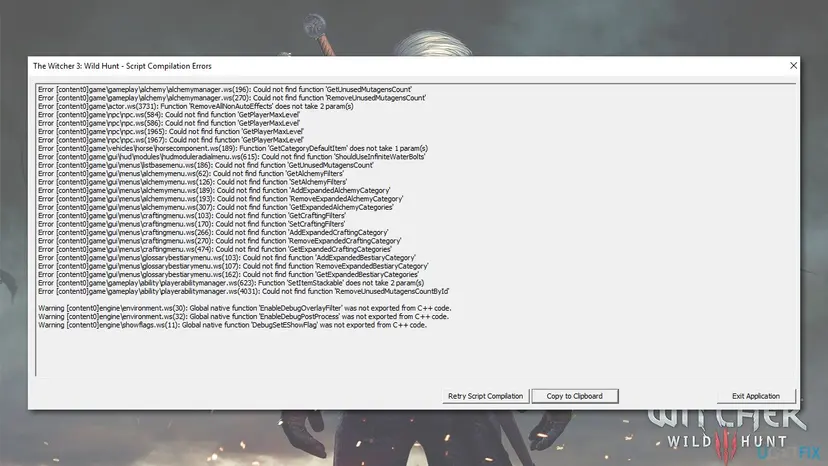
| Button | What to use it for |
|---|---|
| Copy to Clipboard | Copies every line as text. Paste it into Notepad with Ctrl + V. This is the text to read, to search for and to send when you ask for help. |
| Retry Script Compilation | Compiles again without closing the window. Use it after you changed a file. If the same list returns after you removed a mod, exit and start the game again. |
| Exit Application | Closes the game, so that you can change files in its folder. |
Script compilation error, script compilation errors, compiling scripts error and RED Engine script compilation error are the same window. The Remastered, Next-Gen and Classic versions all show it, and the way to read it is the same in each.
The community guide on the game's official mod.io hub says loose script files are not allowed on consoles, where mods come only through the in-game Mods menu. Mod folders, merges and the fixes below exist on PC only.
How to read the error lines: mod folder, script file, line number
The window looks like a wall of text, but every line is built the same way. Once you can read one line, you know which folder to open. Here are four real lines that players posted on the CD PROJEKT RED forum.
Lines from players' reports on the CD PROJEKT RED forum
Error [mod0000_mergedfiles]game\player\r4player.ws(11212): syntax error, unexpected TOKEN_VAR, near 'var'
Error [modsorteverything]game\gui\menus\alchemymenu.ws(62): Could not find function 'GetAlchemyFilters'
Error [content0]game\gameplay\alchemy\alchemymanager.ws(196): Could not find function 'GetUnusedMutagensCount'
Warning [content0]engine\environment.ws(30): Global native function 'EnableDebugOverlayFilter' was not exported from C++ code.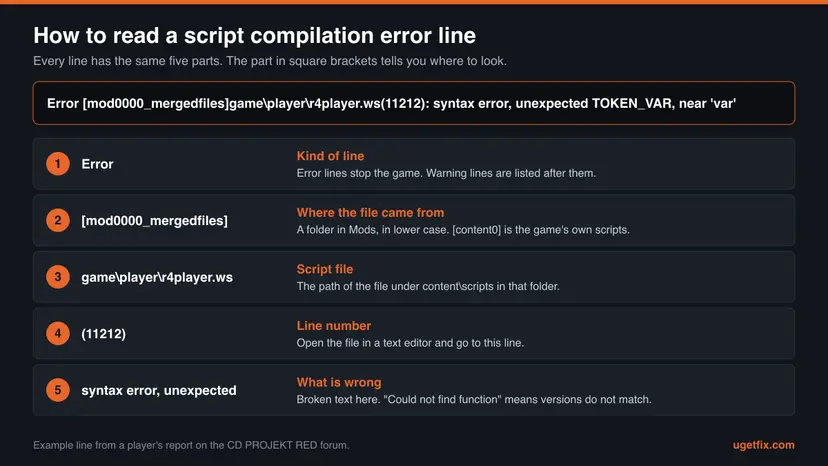
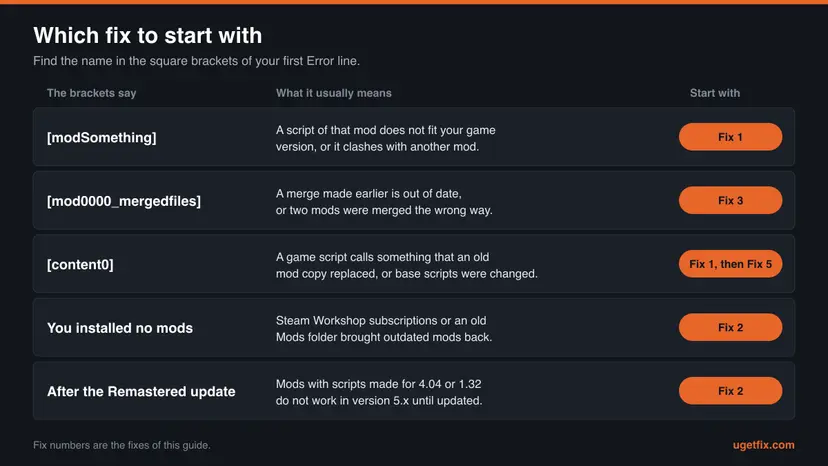
| The brackets say | Which folder that is | What to do |
|---|---|---|
A mod's name, such as [modsorteverything] | The folder of that name inside the game's Mods folder. The message prints the name in lower case. | Remove or update that mod: Fix 1. |
[mod0000_mergedfiles] | Mods\mod0000_MergedFiles, the folder that Script Merger creates for merged files. | Delete the merge and merge again: Fix 3. |
[content0] | The game's own scripts in content\content0\scripts. | Usually still a mod. Remove mods first (Fix 1 or Fix 2), then check the game files (Fix 5). |
| The message says | What it means | Typical cause |
|---|---|---|
syntax error, unexpected TOKEN_VAR, near 'var' | The text at that line is not valid script code. | A merge that put lines in the wrong place, or a script written for another game version. |
Found unexpected '}' or Unexpected end of file found after '{' at line 9 | The curly braces of the file do not match: one too many, or one missing. | A conflict solved by hand in KDiff3 that kept or dropped a brace. See Fix 4. |
Could not find function 'GetAlchemyFilters' or Function 'SetItemStackable' does not take 2 param(s) | One script calls something that the loaded copy of another script does not contain. | Mod and game versions do not match, or a mod that this mod needs is missing. |
unexpected TOKEN_MAP near 'map', unexpected TOKEN_SET near 'set' | Reported by players after the Remastered update. The words map and set became built-in types of the script language in that version. | A script written before 5.0 that uses these words as its own names. It needs an update by its author. |
Warning lines such as was not exported from C++ code | They are listed after the errors and appear in reports next to them. | We found no CD PROJEKT RED page that explains them. Solve the Error lines first. |
The Script Merger documentation states that the game loads only one version of each file and that a mod's copy overrides the rest. So when an outdated mod replaces one script, an untouched game script that calls into it can fail under the name [content0]. This is our reading of that rule, not a vendor statement. Take the mods out before you blame the game files.
Start with the first Error lines. One wrong file can produce many lines, because every script that depends on it fails too. In one forum report, 25 Error lines named only two sources: content0 and a single mod.
What causes Witcher 3 script compilation errors, from most to least common
Most often a mod's scripts were written for another version of the game. Less often two mods edit the same script and were never merged, or an old merge was left behind. Rarely the game's own script files were overwritten or damaged. Hardware and drivers are not on the list.
| Cause | How often | How to tell | Fix |
|---|---|---|---|
| Script mods made for an older game version. Since the Remastered update this covers every script mod that was not updated for 5.x. | Most often | The errors began right after the game updated. Messages such as "Could not find function" or unexpected TOKEN_MAP. | Fix 1, Fix 2 |
Steam Workshop subscriptions or an old Mods folder bring outdated mods back. | Often since 29 September 2026, according to players' reports | You did not install mods this time, yet the window appears. | Fix 2 |
An old merge in Mods\mod0000_MergedFiles, made for an earlier game version or an earlier mod list. | Often | The brackets say [mod0000_mergedfiles]. | Fix 3 |
| Two mods change the same script and were not merged, or a conflict was solved wrongly by hand. | Often on long mod lists | Syntax errors and brace errors in a merged file. | Fix 3, Fix 4 |
| A merger that was not made for your game version, for example the original Script Merger on a Remastered install. | Sometimes | Errors appear right after a merge that seemed to succeed. | Fix 3 |
| The game's base scripts were replaced by the Unification Patch or Community Patch - Base on a version they were not made for. | Sometimes | Lines marked [content0] with an empty Mods folder, or a folder named mod0000____CompilationTrigger. | Fix 5 |
| A mod that another mod requires is missing, or the wrong variant of a mod was installed. | Sometimes | "Could not find function" in the files of the mod you added last. | Fix 1, Fix 6 |
| Damaged or incomplete game files. | Rarely | Lines marked [content0] on a game that has no mods and no subscriptions at all. | Fix 5, Fix 8 |
CD PROJEKT RED Support: "Mods containing xml files, script files, or w3strings will not work upon the release of the update." The community guide on the game's mod.io hub adds the details. Text files moved from UTF-16 to UTF-8, the script language gained the types map and set, and Community Patch - Shared Imports is now part of the game. Texture and 3D model mods are not affected.
The Nexus Mods page of the Mod limit fix describes "a limit that causes the game to break with many mods". It is marked as a tool for Classic 1.32 and as incompatible with the next-gen update. We found no source that connects this limit with the script compilation window, so it is not a fix here.
Where mods, merges and the game's own scripts are stored
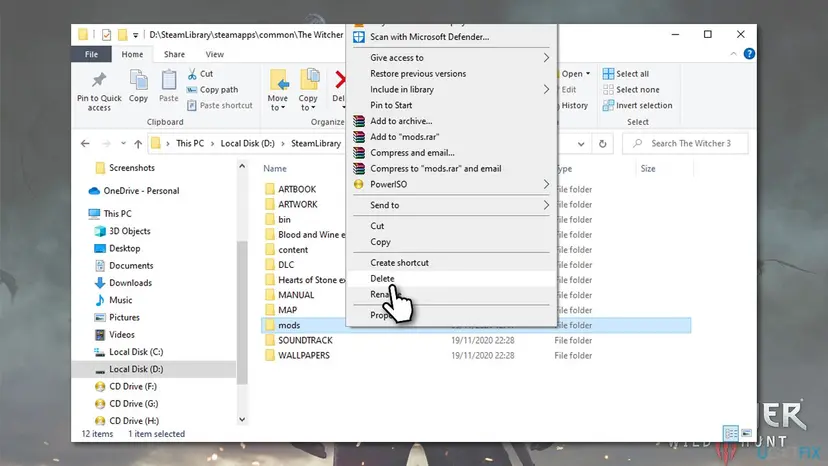
The fixes below move or delete folders, so it helps to know the places first. CD PROJEKT RED Support gives C:\Steam\steamapps\common\The Witcher 3 as an example of the game folder. In Steam you reach yours this way: right-click the game, select Properties, open Installed Files and select Browse.
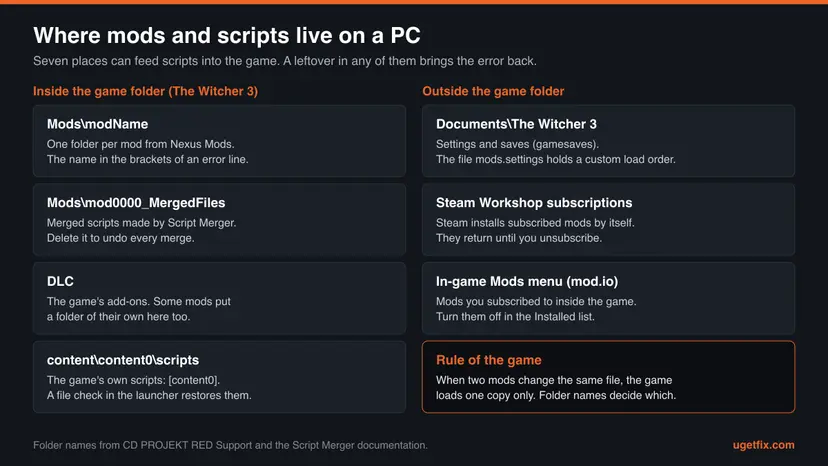
| Place | What is there | Why it matters for this error |
|---|---|---|
Mods in the game folder | One folder per mod that you installed by hand or with a mod manager. | The folder names are the names in the square brackets. |
Mods\mod0000_MergedFiles | The merged files that Script Merger creates. | It loads before every other mod. An old merge keeps old code alive. |
Mods\mod0000____CompilationTrigger | A small folder that comes with the Unification Patch and with Community Patch - Base. | A sign that the game's base scripts were overwritten by one of the two patches. |
DLC in the game folder | The game's add-ons. Some mods add a folder of their own. | Take a mod's folder out of here too when its instructions had you copy one in. |
content\content0\scripts | The game's own scripts. | Shown as [content0]. A file check in the launcher restores them. |
%userprofile%\Documents\The Witcher 3 | Settings, the save folder gamesaves and the load order file mods.settings. | It survives an uninstall. CD PROJEKT RED's clean install removes it. |
| Steam Workshop and the in-game Mods menu | Mods you subscribed to. Steam and the game download them by themselves. | They are not removed by deleting the Mods folder. You have to unsubscribe. |
The Script Merger documentation describes the default load order: folder names with numbers first, then underscores, then letters. That is why the merged folder is called mod0000_MergedFiles. A custom order can be set in mods.settings with a priority from 1 to 9999, where the lower number loads first.
How to fix Witcher 3 script compilation errors
Fixes 1 to 3 solve most cases and take a few minutes each. Fix 4 is for merges that need a decision from you. Fixes 5 and 6 restore a clean base and rebuild the mod list. Fixes 7 and 8 are the two official ways out: the older Classic version, or a clean install.
| What you see or have | Start with |
|---|---|
The first Error lines name one ordinary mod, such as [modsorteverything]. | Fix 1 |
| The errors began after the Remastered update, or you did not install any mods yourself. | Fix 2 |
The brackets say [mod0000_mergedfiles]. | Fix 3 |
| Script Merger opens KDiff3 and asks you to solve conflicts. | Fix 4 |
Every line says [content0] and the Mods folder is empty. | Fix 5 |
| Dozens of mods, and no single name stands out. | Fix 6 |
| Your mods have no Remastered version and you want to keep playing with them. | Fix 7 |
| Nothing above helped, or you want to report the problem to CD PROJEKT RED Support. | Fix 8 |
Fix 1. Remove or update the mod that the error lines name
2 to 5 minutesLow riskThe first Error lines carry the name of one mod folder in the square brackets.
The compiler prints the folder that each failing script was loaded from. When that folder is gone, the script is no longer part of the next compilation and the game uses its own copy of the file.
- In the error window select Copy to Clipboard, open Notepad and press Ctrl + V.
- Read the name in the square brackets on the first lines that start with
Error. Leave theWarninglines aside for now. - Select Exit Application.
- Open the game folder and then the
Modsfolder inside it. In Steam: right-click the game, select Properties, open Installed Files and select Browse. - Find the folder with the name from the brackets. The message prints it in lower case, the folder itself may use capitals.
- Move that folder to a place outside the game folder, for example the desktop. Do not delete it yet.
- If the mod's install instructions also had you copy a folder into
DLC, move that folder out as well. - Start the game.
- If it starts, look on the mod's page for a version made for your game version before you put the mod back.
If the brackets say mod0000_mergedfiles, do not hunt for a mod: go to Fix 3. If they say content0, remove the mods you added or updated last, and use Fix 5 only when no mods are left.
- Tags on Nexus Mods. Mod pages carry the tags Remastered Compatible, Next-Gen Update Compatible or Next-Gen Update Incompatible. A page without the first tag says that the mod may only work with older versions of The Witcher 3.
- No updated version. The community guide on mod.io asks players not to test old script mods on the Remastered version. Leave the mod out until its author updates it.
- The mod came from the in-game Mods menu. Open Mods in the main menu, go to the Installed section and clear the mod's check box, or unsubscribe.
CD PROJEKT RED Support warns that the consequences of mod usage may be kept in save files, and that you might need to load an earlier save from before the mod. Keep the removed folder until you know your save loads without it.
It worked if: The game reaches the main menu, or the list is shorter and now names a different folder.
If not: If another mod is named, repeat the steps for it. If the names keep changing or you never installed these mods, go to Fix 2.
Fix 2. Clear outdated mods and Steam Workshop subscriptions after the Remastered update
5 to 10 minutesLow riskThe errors started right after the game updated to version 5.x, or you did not install any mods this time.
CD PROJEKT RED Support states that mods with script, XML or w3strings files do not work after the Remastered update. Players report that Steam installs their old Workshop subscriptions again with the update, which explains errors on a game that looks unmodded.
Confirmed by CD PROJEKT RED: old script mods do not work in version 5.x, and a mod you subscribe to on Steam Workshop is there the next time the game boots. Reported by players and the gaming press, not by the studio: old subscriptions return on a fresh Remastered install. We could not find a statement from CD PROJEKT RED about it.
- In your Steam library select the game and open Workshop.
- Select Your Files, then Subscribed Items.
- Select Unsubscribe From All and confirm with OK. To keep some mods, unsubscribe from the others one by one.
- Restart Steam before you start the game.
- Open the game folder and move the whole
Modsfolder to a place outside it, for example the desktop. - If you use Vortex or The Witcher 3 Mod Manager, disable the mods there as well, so the manager does not put them back.
- Start the game. With no outdated scripts left it should reach the main menu.
- Add mods again only when they are made for the Remastered version: from Mods in the main menu, or one at a time from Nexus Mods.
| Kind of mod | After the Remastered update |
|---|---|
Scripts (.ws), XML files, strings (.w3strings) | Stop working until the author updates them. These are the mods behind this error. |
collision.cache, soundspc.cache, SpeedTree (.srt) files | Stop working until the mod's author updates them with the current REDkit. |
| Textures, 3D models and most other REDengine files | Not affected, according to the community guide on mod.io. |
| Mods from the in-game Mods menu (mod.io) | Checked before they are listed, according to the same guide. CD PROJEKT RED adds that an update for such a mod installs by itself when the game starts. |
Players also report a switch for mods behind the gear icon of REDlauncher, the window that opens before the game. We could not confirm it in CD PROJEKT RED's documentation. If your launcher shows the switch, turning mods off is a quick test.
It worked if: The game starts without the error window, and the Installed section of the in-game Mods menu lists only what you chose.
If not: If the window returns with lines marked content0 although no mods and no subscriptions are left, restore the game's own scripts with Fix 5.
Fix 3. Delete old merges and merge again with a merger made for your game version
10 to 20 minutesLow riskThe brackets say mod0000_mergedfiles, or you use several script mods that change the same files.
A merge is a snapshot of your mods and your game version on the day it was made. After a game update or a mod update it holds old code, and the game loads the merged folder before every other mod.
| Your game version | Mergers that state support for it | What their pages say |
|---|---|---|
| Remastered 5.x | Script Merger - Remastered 1.4.2, Script Merger - Fresh and Automated Edition 1.0.0, the Vortex edition 0.7.0 | The first is tagged Remastered Compatible on Nexus Mods. The second lists Remastered (5.x), Next-Gen (4.x) and Classic (1.32). The release notes of the third say "Support Witcher 3 5.0". |
| Next-Gen 4.x | Script Merger - Fresh and Automated Edition, the original Script Merger 0.6.5 | The original is tagged Next-Gen Update Compatible. |
| Classic 1.32 | The original Script Merger 0.6.5, Script Merger - Fresh and Automated Edition | The original was written for this version. |
Its own Nexus Mods page now carries this note: "The original Script Merger cannot be used for the Remastered version." The reason given is the change of all files from UTF-16 to UTF-8.
- Close the game. Open the game folder, then
Mods, and delete the foldermod0000_MergedFiles. The Script Merger documentation names this as the way to undo all merges. Your mods are not changed by it. - Download the merger that matches your version from its own page and extract it into a new, empty folder.
- Start
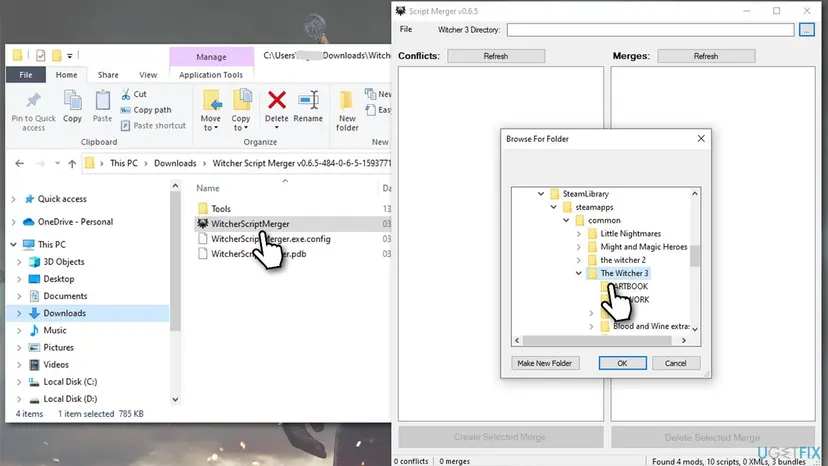
WitcherScriptMerger.exe. Enter the game's folder in the box at the top (Witcher 3 Directory), or confirm the folder that the tool found. - Select Refresh above the Conflicts list.
- Tick the versions of each file under the script conflicts and select Create Selected Merge. In the Fresh and Automated Edition, Create All Script Merges does this for every script conflict at once.
- If the tool merges without questions, close it and start the game.
- If KDiff3 opens, continue with Fix 4.
- A merge can succeed and still be wrong. The Vortex edition now warns before it merges a mod built for another game version. Its notes give an example: merging a Next-Gen copy of
r4Player.wsonto a Remastered install loses 941 lines of the game's own code, and the result looks like a successful merge. - Old mods are marked. The Fresh and Automated Edition checks for mods made for an older game version and shows them in amber. Before merging such a mod you can choose to leave it out.
- Not Mergeable is not an error. Textures, models and menus cannot be merged. The tool lists them so that you can see which mod wins.
- Do not mix mergers. Before you go back to the original Script Merger, delete
mod0000_MergedFilesfirst. Otherwise it treats the other tool's merges as a mod of their own.
It worked if: The merger shows no script conflicts that are left unmerged, and the game starts.
If not: If the game now names mod0000_mergedfiles with a syntax error, one merge went wrong. Solve that file by hand with Fix 4, or remove one of the two mods.
Fix 4. Solve the conflicts that Script Merger hands to KDiff3
10 to 30 minutesLow riskKDiff3 opens during a merge, or a merged file fails with a syntax error.
KDiff3 merges text and does not understand the code. Where two mods changed the same lines it cannot choose, and a wrong choice leaves a missing brace or a doubled line that the game reports as a syntax error.
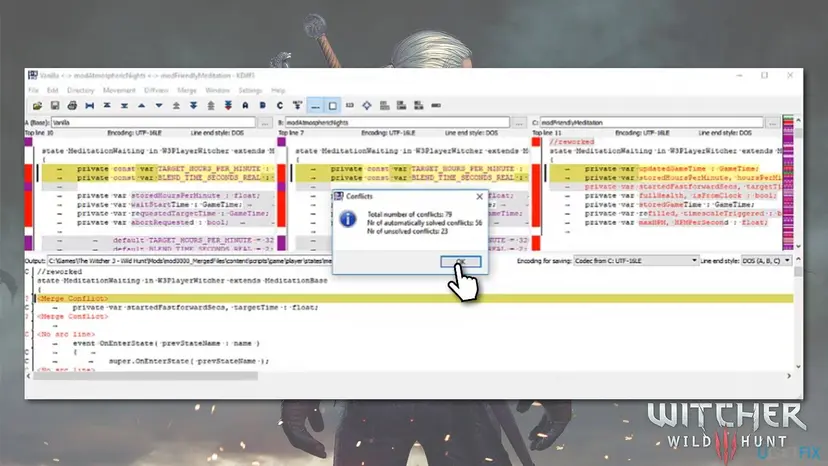
- Read the Conflicts box and select OK. It gives the total number of conflicts, how many were solved automatically and how many are unsolved.
- Know the three columns. A is the base, the game's own file. B and C are the two mods. The window below them is the merged output.
- Use the toolbar buttons that go to the previous and the next unsolved conflict. In the output, an unsolved place shows a question mark and the text <Merge Conflict>.
- For each conflict select the toolbar button A, B or C. To keep the lines of both mods, select B and then C.
- Look at the result in the output window. Every opening brace needs its closing brace, and no line should appear twice.
- Save with File > Save. KDiff3 does not let you save until every conflict is solved.
- Close KDiff3. Script Merger finishes the merge and shows its report.
- Start the game.
You do not have to solve a conflict you do not understand. The Fresh and Automated Edition names the exit in its own guide: close KDiff3 without saving, and uninstall one of the two conflicting mods.
| Error after a hand merge | What went wrong | What to do |
|---|---|---|
Found unexpected '}' | One closing brace too many. A block was taken from both mods. | Delete this merge, merge again and take the block from one side only. |
Unexpected end of file found after '{' at line 9 | A closing brace is missing somewhere after the line named. | Delete this merge and merge again. Check the braces before you save. |
syntax error, unexpected '-' and similar | A leftover line that is not code. In one forum report it was a comment line from a mod, and removing that line let the game start. | Open the merged file at the line number and compare it with the mod's own file. |
The Script Merger documentation is plain about the limits: conflicts that KDiff3 solves by itself are not guaranteed to be correct.
For Classic, the page of Community Patch - Base explains a special case. Conflicts in menu code between the GOG GOTY version and the other versions do not merge well. For conflicts that mention the GOTY message, DLC available or NG+ available, it advises to choose A, the base game.
It worked if: Script Merger reports the merge as finished, and the game starts without naming mod0000_mergedfiles.
If not: If the same file fails again, select the merge in the Merges list and use Delete Selected Merge. Then remove one of the two mods, or ask on its page for a compatibility patch.
Fix 5. Restore the game's own scripts with a file check
5 to 30 minutesLow riskEvery line says content0 and no mods are left, or you once copied the Unification Patch or Community Patch - Base over the game.
Both patches work by overwriting the base scripts in the folder content\content0\scripts, and their pages say they are not needed for the next-gen version. A file check compares the game's files with the originals and downloads the changed ones again.
- Open the game's
Modsfolder and delete the foldermod0000____CompilationTriggerif it is there. It comes with the two patches and has four underscores in its name. - Delete
mod0000_MergedFilesas well. Merges made against patched scripts do not fit the restored ones. - Run the file check in the launcher that installed the game. The steps for Steam follow.
- Restart and open Steam. Restart your computer and launch Steam.
- Open the game's menu. Right-click the game in your Library, or open the game's Library page and select the gear icon on the far right.
- Open Properties. Select Properties in the menu.
- Verify the files. Select the Installed Files tab and select Verify integrity of game files.
- Wait for the result. Steam checks the game's files. This can take several minutes.
These steps were written for Steam on Windows. The full page with the other versions and what each result means: How to verify game files in Steam, Epic Games, Xbox app, EA app, Battle.net and GOG Galaxy
- GOG GALAXY: select the game, open the customization button next to Play, then Manage installation > Verify / Repair.
- Epic Games Launcher: find the game in your Library, select the three dots, then Manage and Verify.
- Steam says that files failed to verify. Valve calls this normal for most games: these are local configuration files that are not replaced.
The check repairs the files that belong to the game. No launcher describes it as a way to remove mods, and CD PROJEKT RED's clean install deletes the game folder by hand after the uninstall. Take the mod folders out yourself, as in Fix 2.
On Classic 1.32 some mod lists still need Community Patch - Base. Its page says it stays required for the version before next-gen. Install it again by hand after the check, because the page warns that a mod manager installs only a dummy script.
It worked if: The launcher finishes the check, and the game starts with an empty Mods folder.
If not: If a checked game without mods still shows the window, go to Fix 8 and then contact CD PROJEKT RED Support with the copied text.
Fix 6. Start from zero mods and add them back one at a time
30 to 60 minutesLow riskYou run many mods and the error lines do not point at a single one.
This is the method a moderator of the CD PROJEKT RED forum gave for this error. With one new mod per launch, the launch that fails names the mod that caused it.
- Move the whole
Modsfolder out of the game folder and keep it as your archive. - Start the game once without mods to confirm that it runs. If it does not, do Fix 5 first.
- Put back the first mod that contains scripts and start the game.
- Put back the next mod. From the second mod on, run your script merger after each one and merge what it finds.
- Start the game again.
- When a launch fails, the mod you added last is the cause. Leave it out, or look for the right version or a compatibility patch.
- Go on with the rest of the list in the same way.
- The wrong variant. The moderator's own list of causes includes mods that offer different versions for users of other, specific mods. Read the Files tab of the mod before you pick one.
- A missing requirement. A mod that needs another mod fails with "Could not find function". Install the requirements that its page lists, and only those.
- Shared Imports on the Remastered version. According to the community guide on mod.io it is now part of the game. Do not add the old
modSharedImportsfolder to a 5.x install.
A mod folder with neither a content\scripts folder nor a precompiled.rsblob file carries no scripts. Texture and model mods of that kind do not need the one by one test.
It worked if: Every launch tells you whether the last mod is fine, and you end with a list that starts.
If not: If the game fails with the very first mod on a clean base, that mod does not fit your game version. Check its tags as in Fix 1.
Fix 7. Go back to the Classic version if your mods were built for it
30 minutes or more, depending on the downloadRead the warningYour mod list was made for version 1.32 and has no Remastered versions yet.
CD PROJEKT RED keeps the Classic version available as a beta branch on Steam and GOG. Mods written for 1.32 then compile against the scripts they were made for, and the version mismatch is gone.
CD PROJEKT RED Support says that only the latest version of the game is fully supported. We could not confirm whether a save made in the Remastered version loads in Classic. Copy the folder %userprofile%\Documents\The Witcher 3\gamesaves to another drive first, and expect to continue from a save that was made in Classic. How to copy a folder safely: Back up your files (Windows Backup, File History, Time Machine)
- Steam: go to your Steam Library, right-click The Witcher 3: Wild Hunt and select Properties.
- Go to BETAS and select CLASSIC. The game updates automatically.
- GOG GALAXY: open the Installed section, select the game and select Manage Installation, then Configure…
- Change Beta Channels to Classic.
- Disable the auto-updates option, choose your preferred version and select OK.
- Delete
Mods\mod0000_MergedFilesand merge again with the original Script Merger, as in Fix 3.
- The way back. On Steam select None in the BETAS menu. On GOG select Disabled in the Beta Channels menu.
- Epic Games Store. The platform only provides the latest version, so this fix is not available there.
- Next-Gen 4.04. The support page names Classic only. We could not confirm an official way to return to version 4.04.
- Launch problems. Hotfix 5.00c of 1 October 2026 fixed an issue where the Classic (1.32) version could not be launched. Let the launcher update the game first if Classic does not start.
It worked if: The launcher installs the Classic build, and the mods that worked before the update compile again.
If not: If Classic shows the same window, the cause is inside the mod list and not the version. Rebuild the list with Fix 6.
Fix 8. Do the clean install that CD PROJEKT RED Support describes
1 hour or moreRead the warningNothing else worked, or you want the state that Support asks for before a report.
For problems with third-party mods, CD PROJEKT RED Support asks for a clean install. It removes the two places where leftovers survive an ordinary uninstall: the game folder and the game's folder in Documents.
Step 5 deletes %userprofile%\Documents\The Witcher 3, and your saves are in its subfolder gamesaves. Copy that subfolder to another drive or an external device before anything else. The same folder holds your settings, which the game creates again. Step by step: Back up your files (Windows Backup, File History, Time Machine)
- Copy the folder
%userprofile%\Documents\The Witcher 3\gamesavesto another drive or an external device. - Turn off cloud saves for the game in your launcher, if they are on.
- Uninstall the game in the launcher.
- Delete The Witcher 3 folder that is left in the launcher's game directory.
- Delete The Witcher 3 folder in
%userprofile%\Documents. - Restart the PC.
- Install the game again and add no mods. Support advises a short path on the drive root, for example
C:\Steam\steamapps\common\The Witcher 3. - Start the game. If it runs, copy your saves into the new
gamesavesfolder. - Turn cloud saves back on if you want them.
Steam Workshop subscriptions belong to your Steam account and not to the PC. If you skip the Workshop steps of Fix 2, the first launch of the fresh game can bring the same mods back.
A clean game that still shows the window is the one case that belongs to CD PROJEKT RED. Use the Contact us button on the Support site and include the copied text. Support asks for any information or error code that is displayed.
It worked if: The fresh, unmodded game reaches the main menu and your saves appear in the load list.
If not: If the window appears on a clean install with no mods and no subscriptions, send the copied error text to CD PROJEKT RED Support.
If the script compilation errors are still there: what to collect and whom to ask
The error window is its own log. No separate log file is needed to find the cause: the lines say which folder, which file and which line. What helpers need is that text, complete, together with a few facts about your install.
- The full text. Use Copy to Clipboard and paste the text. A photo or a cut-off screenshot hides the first lines, which matter most.
- Game version and launcher. For example: Remastered 5.01 on Steam, or Classic 1.32 on GOG.
- The folder names in
ModsandDLC. A list of the names is enough. - The merger you use and its version. Say whether
mod0000_MergedFilesexists. - Subscriptions. Say whether you have mods from Steam Workshop or from the in-game Mods menu.
| The problem is with | Where to ask |
|---|---|
| One named mod | The Posts tab of that mod on Nexus Mods. The page of the Fresh and Automated Edition sends merging problems with specific mods there and asks for the exact error. |
| The merger itself | The Posts or Bugs tab of the merger's own page. |
| A mod from the in-game Mods menu | In the Mods menu select More… and then Report, as CD PROJEKT RED Support describes. |
| The game without any mods, after a clean install | The Contact us button on the CD PROJEKT RED Support site, with the copied text. |
| A long mod list and no idea where to start | The Mods section for The Witcher 3 on the CD PROJEKT RED forum. |
CD PROJEKT RED writes: "while mods are officially supported, we're unable to provide game support if the issue you're encountering stems from mod usage". For third-party mods on PC it points to the clean install of Fix 8. A report makes sense only after that step.
- It is not hardware. The window lists text files that failed to compile. Nothing in the sources connects these lines with a graphics card, a driver or memory.
- The game does not start and shows no such window. That is a different problem. CD PROJEKT RED's page "Game is not launching" lists the graphics driver, the Microsoft Visual C++ packages and a clean boot: Update, roll back or reinstall a driver
How to keep script compilation errors from coming back
- Read a mod's tags and its required game version before you install it.
- Add script mods one at a time and start the game after each one.
- Run the merger after every new, updated or removed script mod.
- Delete all merges and merge again after every game update.
- Keep a copy of a working Mods folder outside the game folder.
- Prefer mods built with script annotations or published in the in-game Mods menu, which are made to avoid file conflicts.
- Do not carry a Mods folder from version 4.04 or 1.32 into the Remastered version.
- Do not copy the Unification Patch or Community Patch - Base over a Next-Gen or Remastered game.
- Do not use the original Script Merger on the Remastered version.
- Do not leave old Steam Workshop subscriptions active after a big game update.
- Do not edit a merged script by hand unless you can read the code around the line.
The longer view comes from CD PROJEKT RED itself. Its documentation tells mod authors to use script overrides, introduced with the game patch of 6 June 2024, so that players only need to care about priority. A mod written that way adds to a script without replacing the whole file. Until every mod works like this, one habit prevents most of the trouble: after any change to the game or to the mod list, merge again before you play.
Frequently asked questions
What do script compilation errors mean in The Witcher 3?
They mean the game could not turn its script files into a working program when it started. CD PROJEKT RED documents that the scripts, text files with the extension .ws, are compiled when the game starts. If one file contains code the compiler cannot read, or calls something that does not exist, the game lists the problems and stops before the main menu. CD PROJEKT RED's documentation names the usual reason: several mods edit the same files. Since the Remastered update, script mods written for older versions are the other big reason. Each line of the list names the folder, the file and the line.
Why do I get Witcher 3 script compilation errors with no mods installed?
Because something is still feeding old scripts to the game. Players report that Steam installs Workshop mods they subscribed to long ago when the game updates or is installed fresh. A Mods folder from an earlier install can also survive: CD PROJEKT RED's clean install deletes the game folder by hand after the uninstall for that reason. A third case is a game whose base scripts were once overwritten by the Unification Patch or Community Patch - Base. Unsubscribe on the game's Workshop page, move the Mods folder out and run the file check of your launcher. If the window still appears, do the clean install from CD PROJEKT RED Support.
Why did the script compilation errors start after the Remastered update?
Because the update changed what script mods are built on. CD PROJEKT RED Support says that mods containing XML files, script files or w3strings do not work upon the release of the update. The community guide on the game's mod.io hub lists the changes: text files moved from UTF-16 to UTF-8 and the script language received new built-in types. The page of one merger adds that a mod made for 4.04 replaces the game's own scripts and takes out what the Remastered version changed in them. Remove such mods and install only versions marked for the Remastered version. Texture and model mods are not affected.
Which Script Merger works with The Witcher 3 Remastered?
Three mergers state support for version 5.x as of 14 October 2026. Script Merger - Remastered on Nexus Mods is tagged Remastered Compatible. Script Merger - Fresh and Automated Edition 1.0.0 lists Remastered, Next-Gen and Classic. The Vortex edition 0.7.0 on GitHub names support for Witcher 3 5.0 in its release notes. The original Script Merger 0.6.5 is not among them: its own page says it cannot be used for the Remastered version, because all files changed from UTF-16 to UTF-8. Whichever tool you choose, delete the folder mod0000_MergedFiles first and create the merges again.
How do I resolve conflicts in Witcher 3 Script Merger?
Select Refresh, tick the versions of a file and create the merge. Most conflicts merge by themselves. When two mods changed the same lines, KDiff3 opens with three columns: A is the game's file, B and C are the mods. Go to each unsolved conflict and select the toolbar button A, B or C, or B and then C to keep both mods' lines. Check that the braces still match, then save. KDiff3 does not allow saving before every conflict is solved. If you cannot judge a conflict, close KDiff3 without saving and remove one of the two mods.
Do I still need the Unification Patch or Community Patch - Base?
Not on the Next-Gen or Remastered versions. The Unification Patch is marked obsolete on its page, which states that you do not need it for the next gen (4.0+) version of the game. Community Patch - Base replaced it for Classic 1.32, and its page says the patch is no longer required for the next gen version while it stays required for the version before it. Both patches overwrite the game's base scripts, so copying them over a newer game is a known way to produce this error. If you did that, run the file check of your launcher.
What does content0 mean in a Witcher 3 script compilation error?
It is the name of the game's own base content. Lines marked content0 point at scripts in the folder content\content0\scripts inside the game folder, not at a mod. That does not prove the game files are damaged. The game loads only one copy of each script, so an outdated mod that replaces one file can make an untouched game file fail, because the two no longer fit together. Take your mods out first. Only when the Mods folder is empty and no subscriptions are left is the file check of your launcher the right step.
Can I ignore the Warning lines in the script compilation window?
Treat them as the second priority. In the reports we read, lines that start with Warning are listed after the errors, for example the ones that say a function was not exported from C++ code. We found no CD PROJEKT RED page that explains these warnings or says that they stop the game. What the reports show is that the window appears together with lines that start with Error. Solve those first, in the order they are listed. If only warnings remain and the game still does not start, copy the text and ask on the page of the mod that is named.
Will I lose my saves when I remove mods or reinstall the game?
Your saves are kept in %userprofile%\Documents\The Witcher 3\gamesaves, outside the game folder, so removing mods or uninstalling the game does not delete them. The clean install from CD PROJEKT RED Support does delete the Documents folder of the game, which is why its first step is a backup of the saves. One more caution comes from Support: the consequences of mod usage may be kept in save files, and you might need to load an earlier save from before the mod. A save that depends on a removed mod may not behave as before.
Sources
- GitHub: IDCs/WitcherScriptMerger (Vortex edition), repository and release 0.7.0 (github.com)
- CD PROJEKT RED, The Witcher 3 REDkit documentation: WS: Script Compilation Errors overrides (cdprojektred.atlassian.net)
- CD PROJEKT RED Support: Cross-Platform Mod Support - how to (support.cdprojektred.com)
Did this fix work?
One click, no account. It tells the next reader which guides are worth their time.
Questions and experiences: fix Witcher 3 Script Compilation Errors
Still broken, or found a fix we did not cover? Ask here: members and our editors answer. Reading is open; writing needs a free account.
…