
How to fix "Cloud Files Diagnostic Event Listener" failed to start with error 0xC0000022?

Prefer to fix it yourself? The manual steps follow.
- 6methods
- 2 minutes to check, 10 to 20 minutes when OneDrive itself fails
- Easy
Applies to Windows 11, Windows 10, OneDrive sync app
6 methods in this guide
Hello. Every time I reboot my computer I receive the "Cloud Files Diagnostic Event Listener" failed to start with the following error: 0xC0000022 message. What should I do?
Session "Cloud Files Diagnostic Event Listener" failed to start with the following error: 0xC0000022 is an Event Viewer entry, not a pop-up. It means Windows refused a diagnostic trace session that OneDrive asked for under your account. If OneDrive syncs normally, nothing needs repair; if OneDrive fails too, install its newest version first.
0xC0000022 means access denied. A program running under your account, in practice OneDrive, asked to start a diagnostic trace session and Windows refused it. Your files and sync are not affected by this. Check that OneDrive starts and syncs (Fix 1): if it does, you can ignore the entry. If OneDrive crashes or will not start, install the newest OneDrive over the old one (Fix 2), then check the CldFlt driver value (Fix 3).
| Error | Session "Cloud Files Diagnostic Event Listener" failed to start with the following error: 0xC0000022. Event ID 2, source Kernel-EventTracing, Task Category Session, Level Error. |
|---|---|
| Where it appears | Only in Event Viewer, under Applications and Services Logs > Microsoft > Windows > Kernel-EventTracing > Admin. Reported soon after sign-in, when OneDrive starts. |
| Main cause | A trace session started under your user account was refused: 0xC0000022 is STATUS_ACCESS_DENIED in Microsoft's NTSTATUS list. |
| Fastest fix | None needed when OneDrive works (Fix 1). When OneDrive also fails, install the newest OneDrive over the old one (Fix 2). |
| Also written as | Decimal ErrorCode 3221225506 in the event details, and the same text in every Windows language (see the table below). |
| Related entries | Session "ObserveProcs" failed to start with the error 0xC0000035 (STATUS_OBJECT_NAME_COLLISION) often appears next to it. Session "CldFltLog" is a sister session of the same Cloud Files driver. |
| Affects | Windows 11 and Windows 10 with the OneDrive sync app. Windows 10 left support on 14 October 2025. |
| Microsoft's status | No Microsoft article documents this session. In Microsoft Q&A, support staff suggest reinstalling or over-installing OneDrive, then SFC and DISM; one reporter said the entry stayed after both. |
| Time to fix | 2 minutes to check that OneDrive works. 10 to 20 minutes for a reinstall or reset, plus a resync in the background. |
Facts checked on 15 October 2026. Steps written for Windows 11 (25H2 and 26H2) and Windows 10 22H2.
What "Cloud Files Diagnostic Event Listener" failed to start with error 0xC0000022 means
The full text of the entry is Session "Cloud Files Diagnostic Event Listener" failed to start with the following error: 0xC0000022. It is Event ID 2 from Microsoft-Windows-Kernel-EventTracing in the log Microsoft-Windows-Kernel-EventTracing/Admin. Windows writes it when a program asks to start an event tracing session and the start fails.
Cloud Files is the Windows part that OneDrive uses for online-only files, with the filter driver cldflt.sys (service name CldFlt). The "Diagnostic Event Listener" is a logging session that collects diagnostic events from it. It does not move, sync or open any file.
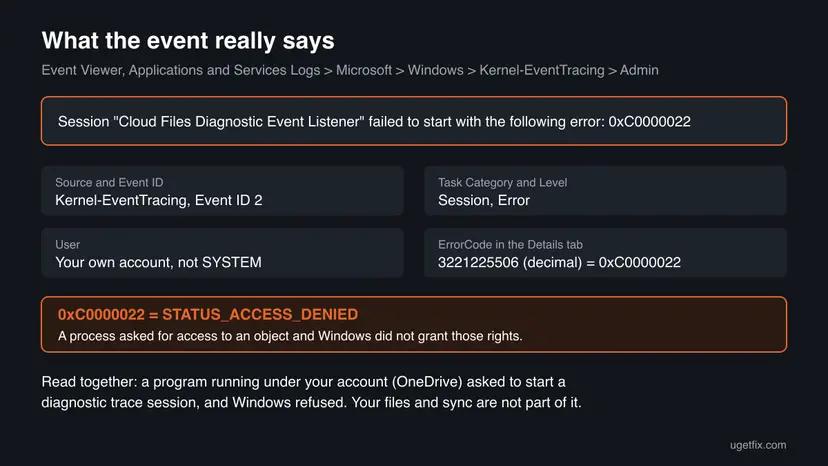
- 0xC0000022 is
STATUS_ACCESS_DENIED. Microsoft's NTSTATUS list describes it as: a process has requested access to an object but has not been granted those access rights. - User in the entry is your own account (a SID ending in a number such as 1001), not SYSTEM. In a report on Microsoft Q&A the related ObserveProcs entry came from SYSTEM, while this one came from the signed-in user.
- ErrorCode 3221225506 on the Details tab is the same code in decimal form. LoggingMode 4194560 was shown in the same report.
- It is not a pop-up. Windows shows nothing on screen. You see it only when you open Event Viewer or a tool that reads the logs.
| Language | Text of the entry |
|---|---|
| Spanish | No se pudo iniciar la sesión "Cloud Files Diagnostic Event Listener" por el siguiente error: 0xC0000022 |
| German | Beim Starten der Sitzung "Cloud Files Diagnostic Event Listener" ist der folgende Fehler aufgetreten: 0xC0000022. |
| French | Échec du démarrage de la session « Cloud Files Diagnostic Event Listener » avec l’erreur suivante : 0xC0000022 |
| Portuguese | A sessão "Cloud Files Diagnostic Event Listener" não foi iniciada com o seguinte erro: 0xC0000022 |
| Italian | Avvio della sessione "Cloud Files Diagnostic Event Listener" non riuscito con l'errore seguente: 0xC0000022 |
| Polish | Uruchomienie sesji „Cloud Files Diagnostic Event Listener” nie powiodło się z powodu następującego błędu: 0xC0000022 |
| Russian | Не удалось начать сеанс "Cloud Files Diagnostic Event Listener" из-за следующей ошибки: 0xC0000022 |
| Korean | 0xC0000022 오류로 인해 "Cloud Files Diagnostic Event Listener" 세션을 시작하지 못했습니다. |
| Chinese (Traditional) | 工作階段 "Cloud Files Diagnostic Event Listener" 無法啟動,錯誤如下: 0xC0000022 |
| Japanese | 次のエラーのため、セッション "Cloud Files Diagnostic Event Listener" を開始できませんでした: 0xC0000022 |
| Dutch | De sessie Cloud Files Diagnostic Event Listener is niet gestart met de volgende fout: 0xC0000022 |
In every language the session name "Cloud Files Diagnostic Event Listener" and the code 0xC0000022 stay the same. Everything on this page applies to all of them.
Why the Cloud Files Diagnostic Event Listener failed to start
We found no Microsoft statement of the exact cause, so the order below follows what the event itself shows and what readers report on Microsoft Q&A. The event names an access problem, not a broken file, so most PCs with this entry have nothing broken at all.
| How often | Cause | Signs | Fix |
|---|---|---|---|
| Most often | OneDrive starts under your account and asks for the diagnostic trace session; Windows denies it. OneDrive keeps working. | The entry appears soon after each sign-in or restart. OneDrive syncs normally. | Fix 1 (nothing to repair) |
| Less often | OneDrive itself is damaged or outdated and fails at the same moment. | OneDrive does not start, or the Application log shows a OneDrive.exe crash at the same time, for example exception code 0xc0000005. | Fix 2, Fix 4, Fix 5 |
| Rarely | The Cloud Files driver start value was changed by a tweak tool or a forum tip. | The CldFlt Start value is not 2. Files On-Demand or OneDrive behaves oddly after the change. | Fix 3 |
| Rarely | Damaged Windows system files. | Other Windows parts fail too, not only OneDrive. | Fix 6 |
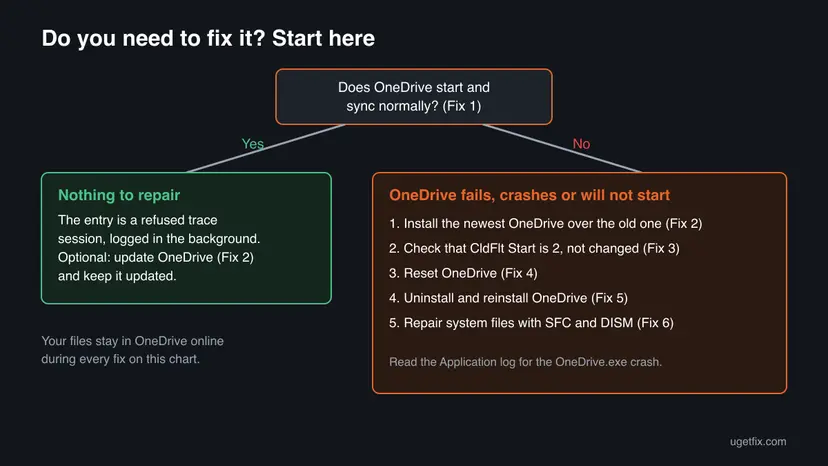
Some pages say the entry comes from duplicated application files. We found no source for that. The code means access denied, and nothing in the event points to duplicate files.
ObserveProcs 0xC0000035, CldFltLog and other entries logged next to it
The same Kernel-EventTracing log often holds a few more Event ID 2 entries at the same start. They look alarming in a list of red errors, but each names a different session and a different code.
| Entry | Code meaning | What to do |
|---|---|---|
| Session "ObserveProcs" failed to start with the following error: 0xC0000035 | STATUS_OBJECT_NAME_COLLISION: the object name already exists, so a session with that name was already running. | Nothing, when the PC works. A Microsoft Q&A reporter saw it every time OneDrive started. |
| Session "CldFltLog" failed to start with the following error: 0xC0000022 | The same access denied code for another Cloud Files logging session. | The same as this page: check OneDrive (Fix 1). |
| Application Hang, Event ID 1002, dllhost.exe with the package Microsoft.OneDriveSync | A OneDrive helper stopped responding. | OneDrive needs repair: Fix 2, then Fix 4. |
Only the last row says that something really stopped working. If you also see a OneDrive error on the network, sync or a file, our guide to OneDrive error 0x8007017C covers the Cloud Files driver from the file side.
How to fix Session "Cloud Files Diagnostic Event Listener" failed to start with error 0xC0000022
Fix 1 decides whether you need the rest. When OneDrive works, stop after it. When OneDrive fails, go through Fixes 2 to 6 in order and test OneDrive after each one.
| What you see or have | Start with |
|---|---|
| You only found the entry in Event Viewer; OneDrive syncs normally | Fix 1, then stop |
| OneDrive does not start, or closes right after start | Fix 2 |
| You changed the CldFlt Start value, or ran a tweak or debloat tool | Fix 3 |
| OneDrive starts but sync is stuck or shows errors | Fix 4 |
| The newest version and a reset did not help | Fix 5 |
| Other Windows parts also fail, not only OneDrive | Fix 6 |
Fix 1. Check that OneDrive works and confirm the entry is harmless
2 minutesNo riskEveryone who found the entry in Event Viewer.
The event reports a refused diagnostic session, not a failed sync. If OneDrive starts and syncs, the session it could not open changes nothing you can see, and there is nothing to repair.
- Look for the OneDrive cloud in the notification area at the far right of the taskbar. If you do not see it, select the Show hidden icons arrow.
- Select the cloud. The panel should say your files are up to date or show recent synced files.
- Open your OneDrive folder in File Explorer and open one file. It should open without an error.
- Press Win + R, type
eventvwr.mscand select OK. - Go to Applications and Services Logs > Microsoft > Windows > Kernel-EventTracing > Admin.
- Double-click the Event ID 2 entry with the text Session "Cloud Files Diagnostic Event Listener" failed to start with the following error: 0xC0000022.
- Compare its time with the time you signed in. An entry right after sign-in, with OneDrive working, is the harmless case.
PowerShell: list the Cloud Files entries with their time and user account
Get-WinEvent -FilterHashtable @{ LogName='Microsoft-Windows-Kernel-EventTracing/Admin'; Id=2 } -MaxEvents 100 |
  Where-Object { $_.Message -like '*Cloud Files*' } |
  Format-Table TimeCreated, UserId, Message -Wrap
If PowerShell says it cannot read the log, open Terminal (Admin) from the right-click menu of Start and run the command again. To see whether OneDrive is running at all, run Get-Process OneDrive in the same window.
You can leave the entry in the log. Clearing the log or turning the session off by hand does not make OneDrive work better, and we found no Microsoft method to switch this session off.
It worked if: OneDrive shows its cloud, your files are up to date, and the entry appears only around sign-in. No action is needed.
If not: If OneDrive does not start, crashes or shows sync errors, go to Fix 2.
Fix 2. Install the newest OneDrive over the current one
5 minutesLow riskOneDrive does not start, closes at once, or the Application log shows a OneDrive.exe crash next to the entry.
In a Microsoft Q&A case, OneDrive would not start and the Cloud Files entry came with a OneDrive.exe crash. Microsoft's support staff advised installing the current official OneDrive over it, and the reporter confirmed the fresh installer worked.
- If OneDrive is running, select the cloud, the gear icon, then Settings, and open the About tab. Note the version shown there.
- Open Microsoft's Reinstall OneDrive page and follow its link to download the OneDrive sync app.
- Run the downloaded OneDriveSetup.exe. You do not need to uninstall the old version first.
- Select Yes if Windows asks for permission.
- When setup ends, start OneDrive from Start and sign in with the same account if asked.
- Keep the same OneDrive folder location when setup asks, so nothing is downloaded twice.
- Restart the PC and check OneDrive as in Fix 1.
Do not use a OneDrive installer from another website. Only Microsoft's own download is a safe source, and an old copy can bring back the problem it was meant to fix.
It worked if: OneDrive starts, shows its cloud and syncs. The About tab shows a newer version than before.
If not: If OneDrive still does not start, check the Cloud Files driver in Fix 3.
Fix 3. Check that the Cloud Files driver (CldFlt) starts with Windows
5 minutesLow riskOneDrive fails after a tweak or debloat tool, or after you changed the CldFlt Start value yourself.
OneDrive's online-only files depend on the Cloud Files filter driver. In the Microsoft Q&A case, changing its Start value let OneDrive run but forced a full download, and Microsoft's staff advised restoring the original value first.
Reading the value changes nothing. Setting it writes one value under HKLM\SYSTEM and needs an administrator account. Back up the registry first: Back up the registry before editing it. Change only this value. On a work or school PC, ask your IT department first.
- Select Start, type cmd, right-click Command Prompt and select Run as administrator. Select Yes.
- Read the start value of the driver:
reg query HKLM\SYSTEM\CurrentControlSet\Services\CldFlt /v Start - Find the line Start REG_DWORD.
0x2means the driver starts automatically with Windows, which is what OneDrive Files On-Demand needs. - Check that the driver runs now:
sc query cldflt - If STATE says RUNNING and Start is
0x2, the driver is fine. Go to Fix 4. - If Start is any other number, set it back to 2:
reg add HKLM\SYSTEM\CurrentControlSet\Services\CldFlt /v Start /t REG_DWORD /d 2 /f - Restart the PC, run
sc query cldfltagain and check that STATE reads RUNNING.
A value of 3 (manual start) is a forum tip that turns off online-only files, so OneDrive downloads everything. To sync less, choose folders instead in OneDrive Settings > Account > Choose folders, as Microsoft's staff advised in the same thread.
It worked if: reg query shows 0x2 and sc query cldflt shows RUNNING. OneDrive starts and shows your online-only files with the blue cloud icon.
If not: If the driver is fine and OneDrive still fails, reset OneDrive in Fix 4.
Fix 4. Reset OneDrive
5 minutes, then a resyncLow riskOneDrive starts but its sync is stuck, shows errors, or the Fix 2 install changed nothing.
A reset clears OneDrive's local settings and sync state without deleting files, so damaged settings that make OneDrive fail at start are rebuilt from scratch.
- Open the Run box. Press the Windows key and R at the same time.
- Reset the Microsoft Store cache. Type the command below and select OK. A blank Command Prompt window opens and closes, then the Microsoft Store opens. Close it. This is the first step in Microsoft's instructions. If OneDrive still does not sync, continue.
wsreset.exe - Run the OneDrive reset command. Press the Windows key and R again. Copy the command below, paste it into the box and select OK.
%localappdata%\Microsoft\OneDrive\onedrive.exe /reset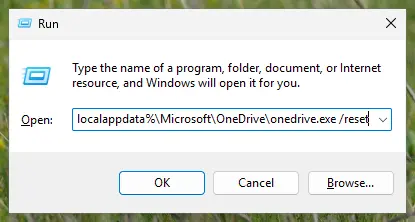
Type the reset command in the Run box and select OK. Screenshot: Windows 11 26H2. - If Windows cannot find it, try the second path. If you see a message that starts with Windows cannot find, open the Run box again and use this command instead.
C:\Program Files\Microsoft OneDrive\onedrive.exe /reset - If that fails too, try the third path. If you still see Windows cannot find, use this command. If none of the three works, the OneDrive sync app is not installed on this PC.
C:\Program Files (x86)\Microsoft OneDrive\onedrive.exe /reset - Start OneDrive again. Select Start, type OneDrive in the search box and select the OneDrive desktop app. OneDrive then starts a full sync.
These steps were written for Windows 11 25H2 and 26H2, Windows 10 22H2. The full page with the other versions and what each result means: How to reset OneDrive in Windows
After the reset OneDrive syncs everything again. If you chose only some folders before, choose them again in Settings > Account > Choose folders. A large OneDrive can take hours to finish.
It worked if: OneDrive opens with its cloud, asks you to sign in if needed and starts syncing. Your files appear again in the OneDrive folder.
If not: If OneDrive will not start after the reset, uninstall and reinstall it in Fix 5.
Fix 5. Uninstall and reinstall OneDrive
15 minutes, then a resyncLow riskThe newest version, the driver check and the reset did not get OneDrive working.
A clean uninstall removes the program files and its start entries, then a fresh install registers OneDrive with Windows Cloud Files again. Microsoft's support staff suggested this; one reporter said the event entry itself stayed afterwards.
- Select the OneDrive cloud, the gear icon, then Settings. On the Account tab select Unlink this PC, then Unlink account. Your files stay in OneDrive online.
- Close OneDrive fully. Open Command Prompt and run:
taskkill /f /im OneDrive.exe - Open Settings > Apps > Installed apps and uninstall Microsoft OneDrive. Step by step: Uninstall a program or app in Windows
- Restart the PC.
- Download OneDrive from Microsoft's Reinstall OneDrive page and run OneDriveSetup.exe.
- Sign in, keep the same OneDrive folder location and wait for the sync to finish.
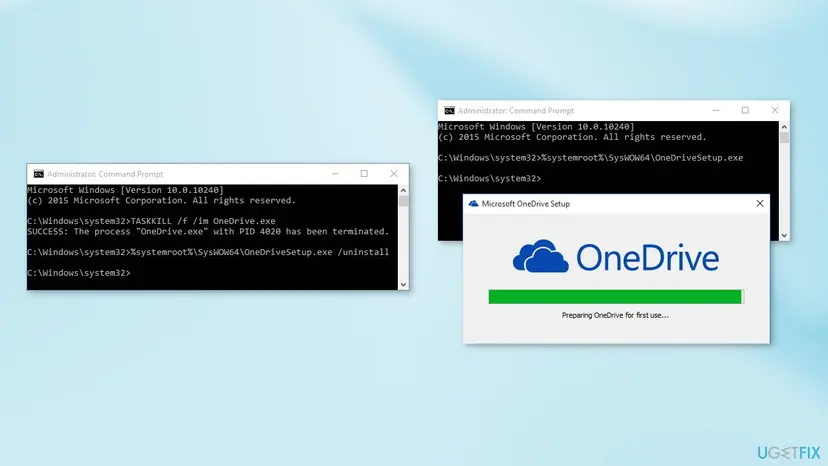
Older guides use %systemroot%\SysWOW64\OneDriveSetup.exe /uninstall. Newer OneDrive installs live in C:\Program Files\Microsoft OneDrive, as the crash report in the Microsoft Q&A case shows, so the Installed apps route is the one that fits every PC.
It worked if: OneDrive starts after sign-in, shows its cloud and syncs your files.
If not: If OneDrive fails even after a fresh install, repair Windows system files in Fix 6.
Fix 6. Repair Windows system files with DISM and SFC
20 minutesNo riskOneDrive still fails after Fix 5, or other Windows parts misbehave too.
Cloud Files and event tracing are Windows components. If their files are damaged, no OneDrive install can repair them, but DISM and SFC can. Do not expect this to remove the log entry on a healthy PC.
- Open an elevated command window. Right-click Start and select Terminal (Admin), or type cmd in the search box, right-click Command Prompt and select Run as administrator. Select Yes when Windows asks for permission.

Search for cmd and choose Run as administrator. Screenshot: Windows 11 26H2. - Run DISM first. Type the command below and press Enter. DISM downloads clean copies of damaged components from Windows Update, so it can take several minutes. Wait until it says The operation completed successfully.
DISM.exe /Online /Cleanup-Image /RestoreHealth
DISM /RestoreHealth running. Screenshot: Windows 11 26H2. - Run System File Checker. In the same window, type the command below and press Enter. Do not close the window until the verification reaches 100%.
sfc /scannow
sfc /scannow at 100%. Screenshot: Windows 11 26H2. - Read the result and restart. Compare the last message with the table below this guide, then restart the PC so that repaired files are loaded.

The result line tells you what SFC did. Screenshot: Windows 11 26H2.
These steps were written for Windows 11 24H2 and 25H2. The full page with the other versions and what each result means: Run DISM and SFC to repair Windows system files
In the Microsoft Q&A case, SFC and DISM found no damage and the entry stayed, because nothing was broken. After the scan, restart and test OneDrive again as in Fix 1.
It worked if: SFC reports that it found and repaired files, or found no integrity violations. OneDrive starts after the restart.
If not: If nothing changed, see "If the Cloud Files event or OneDrive problem continues" below.
If the Cloud Files event or OneDrive problem continues
If OneDrive works and only the entry remains, you have reached the normal state for many PCs: the entry can keep appearing after every start. If OneDrive itself still fails, the real cause is written in the Application log, not in the Kernel-EventTracing log.
- Open Event Viewer (Win + R,
eventvwr.msc) and select Windows Logs > Application. - Select Filter Current Log, type
1000,1002in the event ID box and select OK. - Look for Application Error 1000 with OneDrive.exe as the faulting application, or Application Hang 1002 with the package Microsoft.OneDriveSync.
- Note the exception code, the OneDrive version and the time.
- Send these details, plus the Cloud Files entry, to Microsoft through the Help & Settings menu of OneDrive or the OneDrive support page.
- On a work or school PC, the organisation may block or manage OneDrive with policies. Ask your IT department before you reinstall.
- Disk problems show as Disk or Ntfs errors in the System log. If you see those, check the drive with Check a disk for errors (chkdsk) before you blame OneDrive.
How to keep OneDrive errors away (and what you cannot prevent)
You cannot stop OneDrive from asking for the diagnostic session, so the harmless entry may return after updates. What you can prevent is a damaged OneDrive or a changed Cloud Files driver.
- Let OneDrive update itself and install Windows updates.
- Choose folders in OneDrive settings when you want to sync less.
- Get OneDrive only from Microsoft.
- Check the OneDrive cloud icon now and then instead of the error count in Event Viewer.
- Change the CldFlt Start value to sync less.
- Use debloat or tweak tools that turn off Windows drivers you do not know.
- Clear event logs to make errors go away.
- Reinstall Windows because of this one entry.
If you do not use OneDrive at all, unlink it and uninstall it as in Fix 5. One reporter stopped using OneDrive, and with no OneDrive starting, no program asks for its session.
Frequently asked questions
What is the Cloud Files Diagnostic Event Listener?
It is the name of an event tracing session for Windows Cloud Files, the part of Windows that OneDrive uses for online-only files through the driver cldflt.sys. A tracing session only collects diagnostic events. It does not sync, move or open files. The error entry appears when a program, in practice OneDrive, asks Windows to start that session and the start fails. If OneDrive works, the failed session has no effect you can see.
Is error 0xC0000022 in Event Viewer dangerous?
No, not by itself. 0xC0000022 is STATUS_ACCESS_DENIED: the program was not given the rights it asked for. Here that program runs under your account and asked for a diagnostic session, so it is not malware breaking in and it is not a damaged disk. It becomes worth your time only when OneDrive also fails to start or sync. Then start with Fix 2 on this page.
Why does it appear every time I restart or sign in?
OneDrive starts with your sign-in, and the entry is written when it asks for the trace session. That is why it shows up at the same moment after every restart. In a Microsoft Q&A report, the reporter saw it every time OneDrive started on Windows 11. The repeat does not mean something is getting worse. Compare the times in Event Viewer with your sign-in time to confirm the pattern.
Does it appear on Windows 11?
Yes. The entry is reported on both Windows 11 and Windows 10, with the same text and the same Event ID 2 from Kernel-EventTracing. The Microsoft Q&A case we read came from a Windows 11 desktop. The steps on this page are the same on both versions, except that Windows 10 no longer gets security updates after 14 October 2025, so a move to Windows 11 is worth planning anyway.
Should I turn off Files On-Demand to fix it?
No. Turning off Files On-Demand downloads your whole OneDrive to the PC, which can fill the disk, and we found no source showing that it stops this entry. Older guides suggested it because the entry names Cloud Files. If you want OneDrive to use less space or sync less, choose folders in OneDrive settings instead. Keep Files On-Demand on unless you really want every file stored locally.
Can I disable the session or delete the event?
We found no Microsoft method to turn this session off, and editing tracing settings in the registry can break logging you may need later. Clearing the Kernel-EventTracing log removes old entries, but OneDrive will write a new one at the next start. Neither step changes how OneDrive works. If the red errors bother you, filter Event Viewer to the logs you actually check, such as System and Application.
What does Session ObserveProcs failed to start with error 0xC0000035 mean?
It is a sister entry in the same Kernel-EventTracing log, often logged at the same start. 0xC0000035 is STATUS_OBJECT_NAME_COLLISION: the object name already exists, so a session called ObserveProcs was already running when another start was requested. In the Microsoft Q&A case it came from the SYSTEM account and appeared with the Cloud Files entry whenever OneDrive started. Like the Cloud Files entry, it needs no repair when the PC works.
Will reinstalling OneDrive delete my files?
No. Unlinking and uninstalling OneDrive removes the app from the PC, not your files in OneDrive online. Files you kept only on this PC in the OneDrive folder stay in that folder. After the reinstall, sign in with the same account and keep the same folder location, and OneDrive syncs everything again. A large OneDrive can take hours to sync, so leave the PC on and connected.
Does System Restore fix this error?
It is not needed for this entry. System Restore removes programs and drivers installed after the restore point, which is a high cost for a log entry that usually means nothing is broken. Use it only if OneDrive and other parts of Windows started failing after a specific change, such as a driver or tweak tool, and the fixes on this page did not help. Step by step: Undo recent changes with System Restore.
Sources
- Microsoft Q&A: OneDrive errors in Win11 Session "ObserveProcs" failed to start with the following error: 0xC0000035 & 0xC0000022 (full event details, support staff answer) (learn.microsoft.com)
- Microsoft Q&A (Chinese): OneDrive will not start, Event Viewer shows Session "Cloud Files Diagnostic Event Listener" 0xC0000022 (CldFlt Start value, over-install advice) (learn.microsoft.com)
- Microsoft Learn: [MS-ERREF] NTSTATUS Values (0xC0000022 STATUS_ACCESS_DENIED, 0xC0000035 STATUS_OBJECT_NAME_COLLISION) (learn.microsoft.com)
Did this fix work?
One click, no account. It tells the next reader which guides are worth their time.
Questions and experiences: fix "Cloud Files Diagnostic Event Listener" failed to start with error 0xC0000022
Still broken, or found a fix we did not cover? Ask here: members and our editors answer. Reading is open; writing needs a free account.
…