
How to fix SPLwow64.exe system error in Windows?

Prefer to fix it yourself? The manual steps follow.
- 8methods
- 15 to 40 minutes
- Easy
Applies to Windows 11, Windows 10 (64-bit); all printer brands
8 methods in this guide
- What the error means
- What splwow64.exe is
- Causes, most common first
- The fixes
- 1. Remove the driver package
- 2. Install the current driver
- 3. Find the broken printer
- 4. Clear the print queue
- 5. Shared printer rendering
- 6. Check the file is genuine
- 7. Repair Windows files
- 8. Remove a recent update
- Still broken
- Prevent it
- FAQ
Hello. I have tried to use a printer from my Windows PC, but every time I receive a pop-up window with the name "SPLwow64.exe system error". I have tried to restart my computer multiple times, but it still does not work. I used the printer recently and it was completely fine. I would appreciate any insight into what the problem could be.
splwow64.exe is the Windows print driver host that lets programs load printer drivers in a separate process. When it shows a System Error, a Bad Image or an Application Error, the Windows file is almost never the problem: a printer driver file it loads is missing or damaged. Remove that printer and its driver package, then install the current driver.
Read the line under the window title: it names a DLL, and that DLL belongs to a printer driver. Open Print server properties > Drivers, remove the printer and its driver package (Fix 1), then install the current Windows 11 or Windows 10 driver from the printer maker (Fix 2). If no DLL is named, set Microsoft Print to PDF as default to find the printer that triggers it (Fix 3). Do not download DLL files from DLL sites.
| Error | splwow64.exe - System Error: "The program can't start because x2utilVH.dll is missing from your computer. Try reinstalling the program to fix this problem." The DLL name differs from PC to PC. |
|---|---|
| Where it appears | A small Windows error window when you print, open a print dialog, or start a program that looks up the default printer, such as Word or Excel. |
| Main cause | A printer driver file in C:\Windows\System32\spool\drivers\x64\3 is missing, damaged or left over from a driver that was only partly removed. |
| Fastest fix | Remove the printer and its driver package in Print server properties, then reinstall the driver (Fix 1 and Fix 2). |
| The file | C:\Windows\splwow64.exe, a Microsoft Windows file described as Print driver host for applications. |
| Also written as | splwow64, splwow64 exe, SPLwow64.exe system error, splwow64.exe bad image, splwow64.exe application error, spl64wow.exe, spw64. |
| Affects | 64-bit Windows 11 and Windows 10, with any printer brand. The same file exists on 32-bit Windows 8 and later. |
| Vendor status | Microsoft documents splwow64.exe as a normal part of printing. There is no Microsoft bug for the DLL errors; the fix is on the printer driver side. |
| Time to fix | 15 to 30 minutes for Fix 1 and Fix 2. |
Facts checked on 15 October 2026. Steps written for Windows 11 (25H2 and 26H2) and Windows 10 22H2.
What the splwow64.exe error means
The window title names splwow64.exe because that is the process that was running when something failed. The text under the title names the real culprit. In almost every case it is a DLL of a printer driver that splwow64.exe tried to load and could not.
One common version, quoted from a reader's screen: splwow64.exe - System Error with the text "The program can't start because x2utilVH.dll is missing from your computer. Try reinstalling the program to fix this problem." On newer Windows builds the same problem reads "The code execution cannot proceed because x2utilVH.dll was not found. Reinstalling the program may fix this problem." Your DLL name may be different.
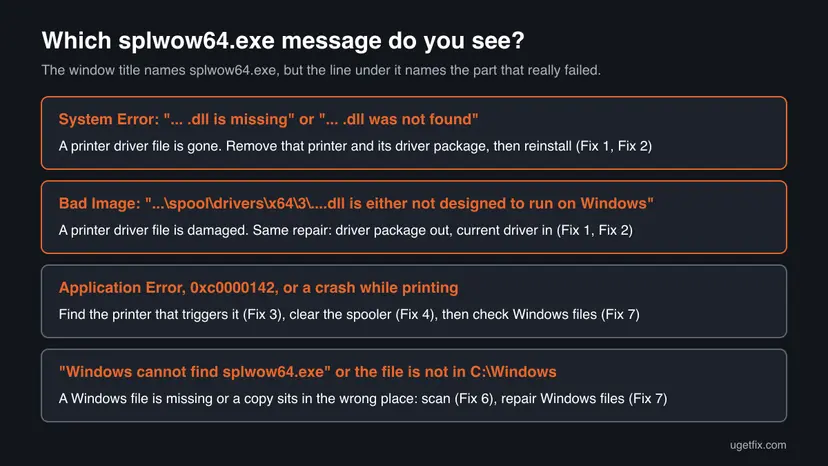
People search for this problem in many spellings. They all lead to the same repairs:
- splwow64.exe error, splwow64 error and SPLwow64.exe system error are the window above: a printer driver DLL is missing.
- splwow64.exe bad image is a damaged DLL. A Microsoft Q&A user quoted it as "C:\windows\system32\spool\drivers\x64\3\unidrvui.dll is either not designed to run on Windows or it contains an error." The path shows it is a printer driver file.
- splwow64.exe application error or the application was unable to start correctly (0xc0000142) means the process itself could not start, often because a driver crashed it while loading. We could not find a Microsoft article that ties 0xc0000142 to one cause here.
- splwow64.exe entry point not found means a DLL exists but is the wrong version for the driver: an old and a new driver are mixed.
- spl64wow.exe, spw64 and wow.exe bad image are typing variants of the same file name.
The window suggests reinstalling the program. Here the program is the printer driver, not Word, Excel or splwow64.exe. Reinstalling Office or Windows does not bring back a DLL that only the printer driver installs.
What is splwow64.exe, and is it safe?
splwow64.exe is a Windows file from Microsoft. Microsoft writes that it translates the driver model between 64-bit Windows and a 32-bit program, and that it supports the Printer Driver Isolation feature. In plain words: when a program prints, splwow64.exe loads the printer driver in its own process, so a bad driver crashes splwow64.exe and not your program.
- Location
C:\Windows\splwow64.exe- Description
- Print driver host for applications
- Publisher
- Microsoft Corporation, part of Windows
- When it runs
- Only while a program prints or reads printer settings. Microsoft says it then stays in memory for two minutes after the last print job by default.
- Driver files it loads
C:\Windows\System32\spool\drivers\x64\3on 64-bit Windows- Safe to delete?
- No. Without it, many programs cannot print.
Seeing splwow64.exe in Task Manager after you print is normal; it closes by itself. A file with the same name in any folder other than C:\Windows (or the matching WinSxS folder) is not the Windows file and should be scanned (Fix 6).
What causes the splwow64.exe error, most common first
Microsoft has no single article for this error. The order below follows from how splwow64.exe loads printer drivers and from what users report on Microsoft Q&A.
| Cause | How often | Start with |
|---|---|---|
A printer driver was partly removed or partly updated, so one of its DLLs in spool\drivers\x64\3 is missing. | Most often | Fix 1, then Fix 2 |
| A driver DLL is damaged or zero bytes in size (the Bad Image message). | Often | Fix 1, then Fix 2 |
| An old printer you no longer use is still installed, and programs load its broken driver when they list printers. | Often | Fix 3 |
| Stuck print jobs keep a broken driver busy in the Print Spooler. | Sometimes | Fix 4 |
| A shared or network printer renders jobs on your PC with a driver that does not fit. | Only with shared printers | Fix 5 |
| A Windows update replaced or broke the driver, or splwow64.exe itself is damaged or fake. | Rarely | Fix 6, Fix 7, Fix 8 |
How to fix the splwow64.exe error
Fixes 1 and 2 repair the printer driver and solve most cases. Fix 3 finds the printer when the message names no file. Fixes 4 and 5 are for spooler and shared printer problems. Fixes 6 to 8 are general repairs for the rare cases left.
| What you see or have | Start with |
|---|---|
| A DLL name with "is missing" or "was not found" under splwow64.exe. | Fix 1, then Fix 2 |
| A DLL path with "is either not designed to run on Windows or it contains an error" (Bad Image). | Fix 1, then Fix 2 |
| The window appears when Word or Excel starts, not only when you print. | Fix 3 |
| Print jobs hang in the queue and the error repeats. | Fix 4 |
| You print to a printer shared from another PC or a print server. | Fix 5 |
| splwow64.exe is missing, or runs from a folder other than C:\Windows. | Fix 6, then Fix 7 |
| The error began right after a Windows update. | Fix 8 |
Fix 1. Remove the printer and its driver package in Print server properties
10 minutesLow riskEveryone whose message names a DLL. Do this first, together with Fix 2.
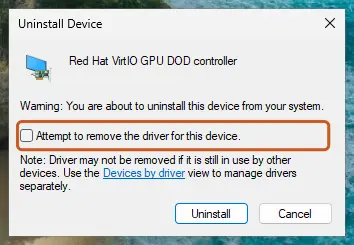
Removing only the printer leaves the driver files behind, including the broken DLL. Removing the driver package clears the whole driver from spool\drivers\x64\3 and the Driver Store, so the next install starts clean.
- Write down the DLL name from the error window. Search it on the printer maker's site if you do not know which printer it belongs to.
- Windows 11: open Settings > Bluetooth & devices > Printers & scanners. Windows 10: open Settings > Devices > Printers & scanners.
- Select the printer whose driver is broken and select Remove, then Yes.
- Scroll to Related settings and select Print server properties. You can also press Win + R and run
rundll32 printui.dll,PrintUIEntry /s /t2. - Open the Drivers tab. If the buttons are grey, select Change Driver Settings and confirm the User Account Control prompt.
- Select the driver of that printer and select Remove.
- Choose Remove driver and driver package, select OK, then Yes and Delete. Select OK when it is done.
- Restart the PC.
Open Print server properties straight on the Drivers tab (Win + R or an elevated Command Prompt):
rundll32 printui.dll,PrintUIEntry /s /t2If Windows says the driver is in use, another printer still uses it, or a job is stuck. Remove every printer that uses the same driver, or clear the queue with Fix 4, then try the removal again.
It worked if: The driver no longer appears on the Drivers tab, and the error window does not appear while the printer is removed.
If not: If the driver cannot be removed, do Fix 4 first and come back. If it was removed, go on with Fix 2.
Fix 2. Install the current printer driver for Windows 11 or Windows 10
15 minutesLow riskRight after Fix 1, or when the printer still uses a driver made for an older Windows.
A fresh package writes all the driver's DLLs at one matching version. That removes both the missing file and the Entry Point Not Found mix of old and new files.
- Open the support site of the printer maker and enter the exact model.
- Choose your Windows version (Windows 11 or Windows 10, 64-bit) and download the full driver or the basic driver package.
- Run the installer and connect the printer when it asks. For a network printer, let it search the network.
- Print a test page: open the printer in Printers & scanners, select Printer properties, then Print Test Page.
- Print from the program that showed the error.
If the maker offers no current driver, Windows Update can often add one when you add the printer in Printers & scanners. Device driver basics, such as checking the version: Update, roll back or reinstall a driver
It worked if: The test page prints and no splwow64.exe window appears when you print from Word, Excel or a browser.
If not: If the error names a different DLL now, another printer is broken: repeat Fix 1 for that one, or use Fix 3 to find it.
Fix 3. Find the printer that triggers the error with Microsoft Print to PDF
10 minutesNo riskThe message names no DLL, or the window appears when a program starts rather than when you print.
Programs such as Word and Excel ask the default printer for its settings when they start, so splwow64.exe loads that driver even before you print. Switching the default to a built-in Microsoft printer shows whether your printer's driver is the cause.
- Open Printers & scanners (see Fix 1, step 2).
- Turn off Let Windows manage my default printer.
- Select Microsoft Print to PDF and select Set as default.
- Close and open the program that showed the error, then print to PDF.
- If the error is gone, the old default printer's driver is the cause: do Fix 1 and Fix 2 for it.
- If the error stays, remove printers you no longer use one by one, such as old printers, fax drivers and printers from earlier offices, and test after each.
It worked if: With Microsoft Print to PDF as default, the program starts and prints without the splwow64.exe window, and you know which printer to repair.
If not: If the error appears even with only Microsoft printers left, the cause is in Windows: go to Fix 6 and Fix 7.
Fix 4. Clear stuck print jobs and restart the Print Spooler
5 minutesLow riskJobs hang in the queue, a driver cannot be removed because it is in use, or the error repeats after every print.
The Print Spooler keeps stuck jobs and loaded drivers in use. Stopping it and deleting the queued files releases the driver so it can be removed or loaded again.
- Press Win + R, type
services.mscand press Enter. - Double-click Print Spooler and select Stop.
- Press Win + R, type
%windir%\System32\spool\PRINTERSand press Enter. Select Continue if Windows asks for permission. - Delete every file in that folder. Do not delete the folder itself.
- Go back to Print Spooler and select Start. Keep Startup type at Automatic.
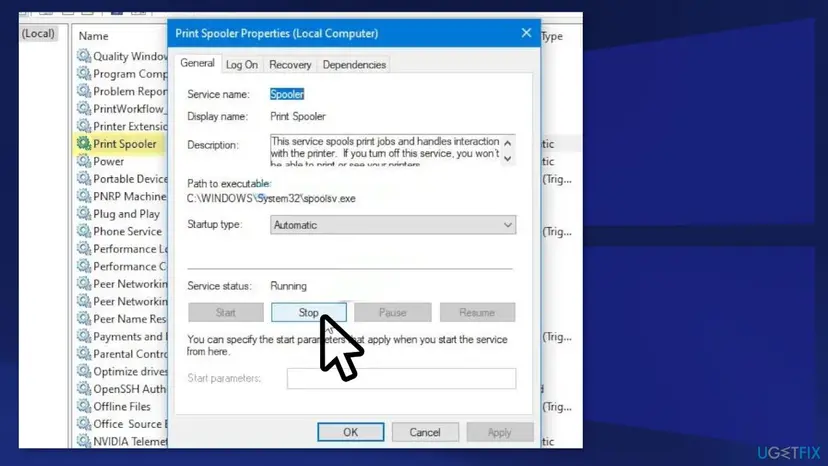
General steps for restarting a service, with screenshots: Check and restart Windows services
It worked if: The print queue is empty, Print Spooler shows Running, and a new print job goes through.
If not: If the driver was busy before, go back to Fix 1. If the error returns with a clean queue, the driver still needs Fix 2.
Fix 5. Turn off client rendering for a shared printer
5 minutesLow riskYou print to a printer shared from another PC, and you can change its settings on that PC.
With Render print jobs on client computers on, every PC builds the print job with its own copy of the driver, which loads it through splwow64.exe. Turning it off lets the PC that shares the printer do that work with its own driver.
- On the PC that shares the printer, open Control Panel and set View by to Large icons.
- Open Devices and Printers.
- Right-click the printer and select Printer properties.
- Open the Sharing tab and clear Render print jobs on client computers.
- Select Apply and OK, then print again from your PC.
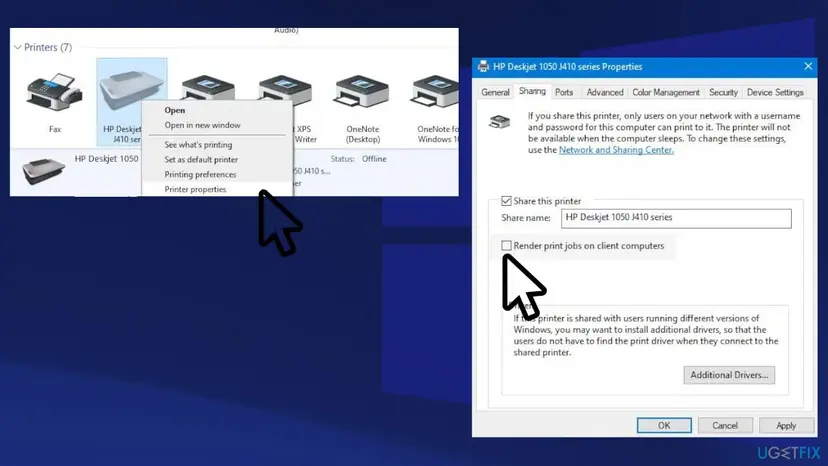
It worked if: Jobs from your PC print without the splwow64.exe window, and the shared printer's own PC renders them.
If not: If the error stays, the driver on your PC is still broken: do Fix 1 and Fix 2 on your PC.
Fix 6. Check that splwow64.exe is the real Windows file and scan the PC
15 minutesNo risksplwow64.exe runs from another folder, Windows says it cannot find it, or a security tool flags it.
Malware can borrow a known Windows name. The real file sits in C:\Windows and is signed by Microsoft; a copy elsewhere is not part of printing.
- Print something, then press Ctrl + Shift + Esc and open the Details tab.
- Right-click splwow64.exe and select Open file location. It should open
C:\Windows. - Right-click the file, select Properties and open Digital Signatures. The signer should be Microsoft Windows.
- If the folder or signer is different, run a full scan with Microsoft Defender.
Full scan and Protection history: How to scan for malware with Microsoft Defender
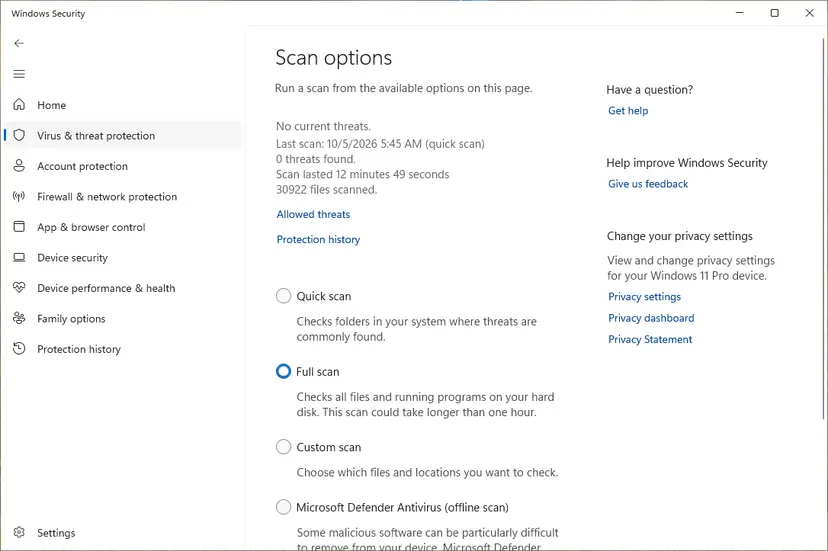
It worked if: splwow64.exe opens from C:\Windows with Microsoft's signature, or Defender found and removed the fake copy.
If not: If the real file is missing or damaged, go to Fix 7.
Fix 7. Repair Windows system files with DISM and SFC
20 minutesNo risksplwow64.exe itself is missing or damaged, or other Windows programs also fail.
splwow64.exe is a protected Windows file, so DISM and SFC can restore it. They do not restore printer driver DLLs; those come only from the driver (Fix 2).
- Type cmd in the search box on the taskbar, right-click Command Prompt and select Run as administrator.
- Run
DISM /Online /Cleanup-Image /RestoreHealthand wait until it reaches 100 %. - Run
sfc /scannowand wait for the result line. - Restart the PC and print again.
Step by step with screenshots: Run DISM and SFC to repair Windows system files
It worked if: SFC reports that it found no problems or repaired them, and printing works after the restart.
If not: If the error came with a recent Windows update, go to Fix 8.
Fix 8. Remove the Windows update that came before the error
15 minutesRead the warningPrinting worked until a Windows update installed, and Fixes 1 to 7 did not help.
An update can change print components or swap a printer driver. Removing it for a test shows whether the update is the cause.
Removing a security update leaves the PC without its fixes. Remove it only to test, and install it again once the printer maker has a driver that works with it.
- Open Settings > Windows Update > Update history. On Windows 10: Settings > Update & Security > Windows Update > View update history.
- Note the date when printing stopped working and find the update installed just before it.
- Select Uninstall updates, then Uninstall next to that update, and confirm.
- Restart the PC and test printing.
Step by step: How to uninstall a Windows update
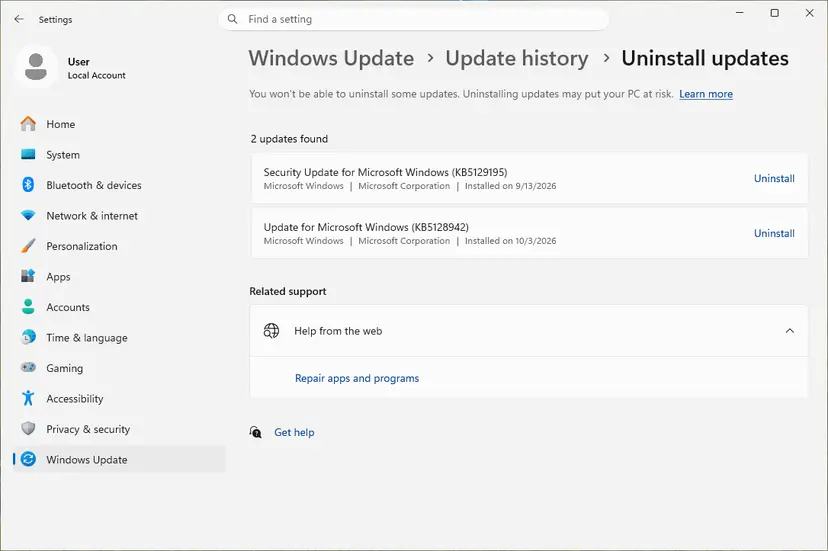
It worked if: After the restart, printing works without the splwow64.exe window.
If not: Collect the details in "Still broken" below and contact the printer maker's support.
If the splwow64.exe error is still there: where to look and what to send
The error window names the DLL, but these places tell you which driver it belongs to and what failed:
| What to check | Where | What it tells you |
|---|---|---|
| Is the DLL there? | C:\Windows\System32\spool\drivers\x64\3 | Missing or 0 KB: the driver install is broken. Present: the driver versions are mixed. |
| Which drivers are installed? | Print server properties > Drivers | Lists every printer driver with its version; old drivers of removed printers stay here. |
| Did the process crash? | Event Viewer: Windows Logs > Application, source Application Error | The entry names the faulting module, which is usually the printer driver DLL. |
| Is the Windows file real? | C:\Windows\splwow64.exe, Properties > Digital Signatures | Signed by Microsoft Windows: genuine. |
Some users on Microsoft Q&A fixed the Bad Image message by copying the same DLL from the Driver Store into spool\drivers\x64\3. That is a user report, not a Microsoft fix; reinstalling the driver (Fix 2) writes the same files the supported way. When you contact the printer maker, send the exact error text, the DLL name, the printer model, the driver version and your Windows version.
splwow64.exe errors are software errors. If the printer prints its own test page from its buttons but no PC can print, the cause is the connection or the network. If the printer cannot print its own test page, it is the printer hardware.
How to keep the splwow64.exe error from coming back
- Remove old printers with Remove driver and driver package, not only with Remove device.
- Install printer drivers made for your Windows version from the printer maker.
- Let driver installers finish, including the restart.
- Keep only the printers you use, so programs do not load old drivers.
- Download single DLL files from DLL download sites.
- Delete files from
spool\driversby hand. - Delete or rename splwow64.exe.
- Change the SplWOW64TimeOutSeconds value to fix a missing DLL; it does not.
Frequently asked questions
What is splwow64.exe?
splwow64.exe is a Windows file that Microsoft describes as the Print driver host for applications. It lives in C:\Windows. Microsoft writes that it translates the driver model between 64-bit Windows and 32-bit programs and supports Printer Driver Isolation. It loads printer drivers in a separate process while a program prints, so a broken driver crashes splwow64.exe instead of your program. It is not a virus and should not be deleted.
Is splwow64.exe a virus?
No, not when it is in C:\Windows and signed by Microsoft. It appears in Task Manager whenever a program prints and closes about two minutes after the last job. A file with the same name in your user folder, Temp or another folder is not the Windows file. Check its location and signature as Fix 6 shows, and scan it with Microsoft Defender.
Why does splwow64.exe start when I print from Excel or Word?
Office asks the printer driver for page sizes and settings when you open the print dialog or the program starts, and splwow64.exe hosts that driver. That is why the error can appear in Excel or Word before you print anything. The cause is still the printer driver. Set Microsoft Print to PDF as default to test (Fix 3), then repair the real printer's driver with Fix 1 and Fix 2.
How do I fix the splwow64.exe bad image error?
The Bad Image message names a damaged file, usually in C:\Windows\System32\spool\drivers\x64\3, such as unidrvui.dll. That file belongs to a printer driver. Remove the printer and its driver package in Print server properties (Fix 1), restart and install the current driver (Fix 2). Users report that the damaged file can be zero bytes or the same size as a good copy, so do not judge by size.
What does SplWOW64TimeOutSeconds do?
It is a DWORD value under HKEY_LOCAL_MACHINE\SYSTEM\CurrentControlSet\Control\Print. Microsoft says it sets how many seconds splwow64.exe waits after the last 32-bit print process closes before it unloads. The default is two minutes and the value must be greater than zero. It only changes how long the process stays in memory. It does not repair a missing or damaged DLL, so we do not use it as a fix here. Back up the registry before any change: Back up the registry before editing it.
Can I download the missing DLL or splwow64.exe?
We do not recommend it. A DLL from a download site may be the wrong version, may not belong to your printer driver, or may carry malware. The DLL named in the error comes with the printer driver, so reinstalling the driver (Fix 2) brings back the right file. splwow64.exe itself comes with Windows; if it is missing, DISM and SFC restore it (Fix 7).
What does splwow64.exe error 0xc0000142 mean?
The message "The application was unable to start correctly (0xc0000142)" means splwow64.exe could not finish starting. We could not find a Microsoft article that names one cause for it with this file. In practice, start with the printer drivers: set Microsoft Print to PDF as default (Fix 3), clear the spooler (Fix 4), then repair Windows files (Fix 7).
Is the fix the same on Windows 10?
Yes. The file, the messages and the fixes are the same on Windows 10 22H2 and Windows 11. Only the Settings path differs: Windows 10 uses Settings > Devices > Printers & scanners, Windows 11 uses Settings > Bluetooth & devices > Printers & scanners. Windows 10 left Microsoft support on 14 October 2025, so printer makers may stop releasing new Windows 10 drivers.
What does splwow64.exe 8192 mean?
We could not confirm what 8192 refers to with splwow64.exe in any Microsoft source we read. If you see this number in an error window or Event Viewer, note the full text and the faulting module named next to it. When the module is a printer driver DLL, Fix 1 and Fix 2 apply.
I searched in another language. Does this page apply to me?
Yes, if your error window names splwow64.exe. The file and the fixes are the same in every Windows language; only the menu names are translated. This also applies to printer brands such as Epson, HP, Canon, Brother or Xerox: the brand's driver is what you remove and reinstall in Fix 1 and Fix 2.
Sources
- Microsoft Support: Splwow64.exe process does not end after a print job finishes (KB 2856657, role of splwow64.exe and SplWOW64TimeOutSeconds) (support.microsoft.com)
- Microsoft Learn: rundll32 printui.dll,PrintUIEntry (learn.microsoft.com)
- Microsoft Q&A: splwow64.exe bad image pops up (user reports) (learn.microsoft.com)
Did this fix work?
One click, no account. It tells the next reader which guides are worth their time.
Questions and experiences: fix SPLwow64.exe system error in Windows
Still broken, or found a fix we did not cover? Ask here: members and our editors answer. Reading is open; writing needs a free account.
…