
How to fix STATUS_ACCESS_DENIED error in Microsoft Edge?

Prefer to fix it yourself? The manual steps follow.
- 9methods
- 2 to 30 minutes
- Intermediate
Applies to Microsoft Edge (Chromium) on Windows 11 and Windows 10 22H2
9 methods in this guide
I can't open any websites in Microsoft Edge because of the STATUS_ACCESS_DENIED error. This happened after the latest Edge update. I am running Windows 11, if that helps.
STATUS_ACCESS_DENIED on Edge's crash page means Windows refused the tab process access to a file, folder or other object it needs. It is not about the website. Close every Edge process and restart Windows first, then repair Edge from Installed apps.
Edge shows This page is having a problem with Error code: STATUS_ACCESS_DENIED when Windows denies its tab process access to something, Windows status 0xC0000022. End every msedge.exe in Task Manager and restart Windows (Fix 1). If every page and Settings still crash, repair Edge in Settings > Apps > Installed apps (Fix 2). If that does not help, test a fresh Edge profile (Fix 5).
| Error | This page is having a problem with Error code: STATUS_ACCESS_DENIED and a Refresh button. The tab title shows Crashed. |
|---|---|
| Where it appears | In Edge tabs, often on every site and on edge://settings and edge://newtab too, so the browser's own menus cannot be used. |
| Main cause | Windows denies Edge's tab process access to an object it needs: a damaged Edge install or profile, a security program, or a policy. |
| Fastest fix | End every Edge process and restart Windows (Fix 1), then repair Edge from Installed apps (Fix 2). |
| Also written as | status access denied, STATUS_ACCESS_DENIED, NTSTATUS 0xC0000022, 0xc0000022 status_access_denied, edge access denied. |
| Affects | Chromium-based Edge on Windows 11 and Windows 10. Windows 10 left support on 14 October 2025, so a Windows 10 PC gets no more security updates. |
| Vendor status | We found no Microsoft known issue article for this code in Edge. Microsoft Q&A has user reports from 2023 onward, mostly after an Edge or Windows update. |
| Can Edge be uninstalled | No. On Windows 11 Edge has no Uninstall button, so the fix is Repair or installing over the old copy, not removal. |
| Time to fix | 2 minutes for a restart, 10 minutes for a repair, up to 30 minutes with a clean boot. |
Facts checked on 15 October 2026. Steps written for Steps read against Windows 11 25H2 and Windows 10 22H2 with current Microsoft Edge. We did not reproduce the crash ourselves; the page text is quoted from Microsoft Q&A reports and the old guide's screenshot..
What STATUS_ACCESS_DENIED means in Microsoft Edge
Edge shows every web page in a separate tab process, also called a renderer. When that process asks Windows for a file, a folder, a registry key or a piece of shared memory and Windows says no, the process cannot go on. Edge then replaces the page with its crash page.
STATUS_ACCESS_DENIED is the Windows status code for that refusal. Microsoft's NTSTATUS list defines 0xC0000022 STATUS_ACCESS_DENIED as: A process has requested access to an object but has not been granted those access rights. The code tells you what happened, not which object was refused.
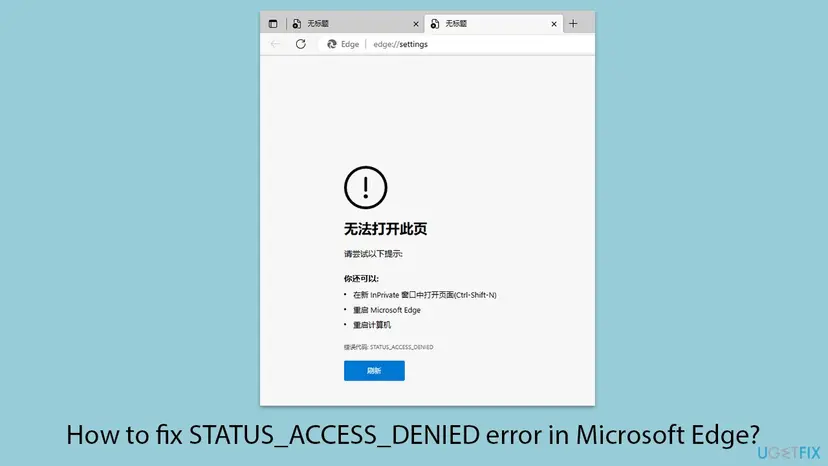
| What you see | What it tells you |
|---|---|
| This page is having a problem and Error code: STATUS_ACCESS_DENIED | The tab process was refused access and crashed. |
The tab title reads Crashed and the address is edge://newtab | Even Edge's own new tab page fails, so the cause is on the PC, not on a website. |
| The page suggests an InPrivate window (Ctrl + Shift + N), restarting Edge and restarting the computer | Edge's own first advice. Fix 1 and Fix 4 follow it. |
| Edge opens for a second, shows the favourites bar, then the page crashes | A user report on Microsoft Q&A after a Windows update. The browser starts; its tabs do not. |
That code means Windows blocked an unsigned file another program pushed into the tab. STATUS_ACCESS_DENIED means the tab was refused access to something. Both crash every tab, and a security program can cause both, but the fixes differ. The other code has its own guide: STATUS_INVALID_IMAGE_HASH in Chrome or Edge.
What causes STATUS_ACCESS_DENIED in Edge, from most to least likely
Microsoft publishes no list of causes for this code in Edge. The order below follows the reports on Microsoft Q&A, which mostly start right after an Edge or Windows update, and how the tab process works. Each cause points to a fix.
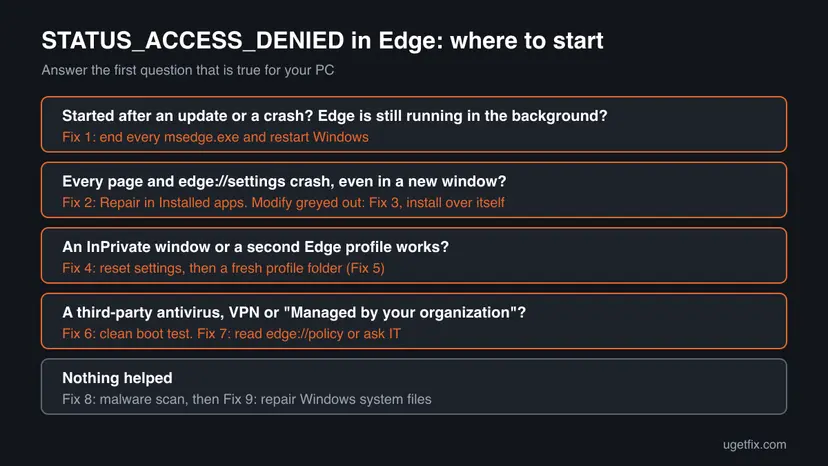
| Cause | How you recognise it | Fix |
|---|---|---|
| An update left Edge half replaced, with old processes still running. | The error started right after an Edge or Windows update. | Fix 1, then Fix 2 |
| Damaged Edge program files. | Every page and every edge:// page crash, in every profile and in InPrivate. | Fix 2, Fix 3 |
| A damaged Edge profile: settings, extensions or the profile folder. | An InPrivate window or another Edge profile loads pages. | Fix 4, Fix 5 |
| A security, VPN or parental control program that limits what Edge processes may open. | A third-party product is installed, or the error started after installing one. | Fix 6 |
| A policy set by an employer, a school or another program. | Edge says Managed by your organization in its menu. | Fix 7 |
| Malware or damaged Windows files. | Other apps also misbehave, or Edge also shows ads you did not see before. | Fix 8, Fix 9 |
When edge://settings crashes too, the advice to clear data or reset Edge cannot be followed. That is why Fix 1, 2, 3 and 5 work from Task Manager, Windows Settings and File Explorer. Fix 4 is for the case where Settings still opens.
How to fix STATUS_ACCESS_DENIED in Microsoft Edge
Fix 1 takes two minutes and clears a stuck update. Fix 2 and Fix 3 put back Edge's program files without touching your data. Fix 4 and Fix 5 deal with a damaged profile. Fix 6 to Fix 9 look outside Edge: security software, policies, malware and Windows files.
| What you see or have | Start with |
|---|---|
| The error started right after an Edge or Windows update. | Fix 1 |
Every page and edge://settings crash, even after a restart. | Fix 2 |
| Modify is greyed out in Installed apps, or Repair fails. | Fix 3 |
| Settings still opens, or an InPrivate window works. | Fix 4 |
| InPrivate works but your normal window never does. | Fix 5 |
| You use a third-party antivirus, VPN or parental control program. | Fix 6 |
| Edge says Managed by your organization. | Fix 7 |
Fix 1. End every Edge process in Task Manager and restart Windows
2 minutesNo riskEveryone first, and especially when the error started after an Edge or Windows update.
Edge keeps processes running in the background, and an update finishes only when they are gone. A tab process started from a half updated copy can be refused access to files that the new copy already holds. Edge's own crash page suggests restarting Edge and the computer for this reason.
- Close every Edge window.
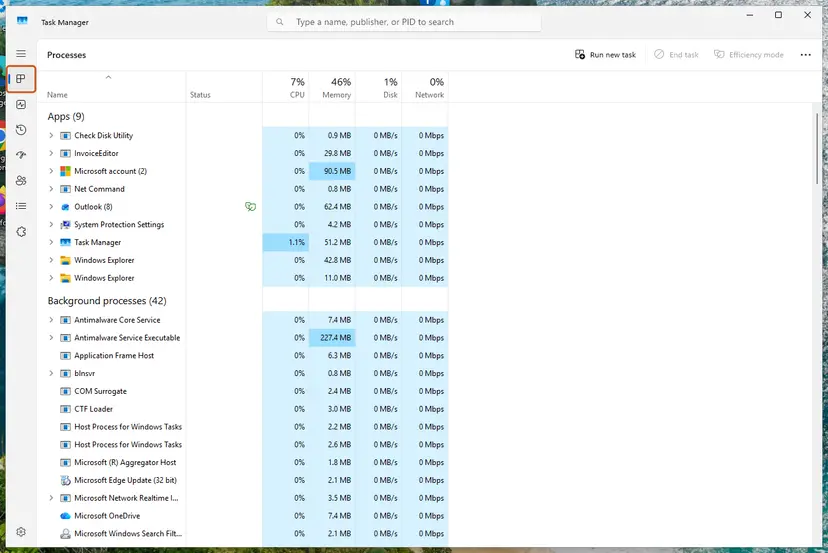
- Press Ctrl + Shift + Esc to open Task Manager on the Processes page.
- Find Microsoft Edge in the list, select it and select End task. Repeat until no
msedge.exeis left. - Select Start > Power > Restart. Do not use Shut down, which can keep parts of the old session with Fast Startup.
- Open Edge and load two or three sites.
It worked if: Pages load and the tab no longer shows Crashed.
If not: If every page still crashes, repair Edge with Fix 2.
Fix 2. Repair Microsoft Edge from Installed apps
10 minutesLow riskEvery page and Edge's own Settings crash, and a restart did not help.
Repair downloads Edge again and installs it over the copy on your PC. Damaged program files and wrong file permissions inside Edge's folder are replaced with fresh ones, while your favourites, history and passwords stay in your profile.
- Press Win + I and open Apps > Installed apps. On Windows 10, open Apps > Apps & features.
- Find Microsoft Edge in the list.
- Select the three dots next to it (on Windows 10, select the entry) and select Modify.
- Select Yes in the User Account Control prompt.
- Select Repair and wait while Edge is downloaded and installed again. Keep the PC online.
- Restart Windows and open Edge.
On Windows 11 Edge cannot be uninstalled from Installed apps. That is expected. Repair, or installing over the old copy in Fix 3, does the same job as a reinstall.
It worked if: Edge opens with your profile and pages load.
If not: If Modify is greyed out or the repair fails, go to Fix 3. If Edge repaired fine and still crashes, the cause is in your profile or outside Edge: Fix 4 or Fix 6.
Fix 3. Install Edge over itself with Microsoft's installer
10 minutesLow riskModify is greyed out, or Repair ended with an error.
The full installer writes every Edge program file again, like Repair does, but it does not depend on the Modify button. Users on Microsoft Q&A who saw a greyed out Modify were pointed to this route by independent advisors.
- Use another browser or another PC, because Edge cannot open pages. Chrome or Firefox will do.
- Go to Microsoft's Edge download page at
microsoft.com/edgeand download the Windows installer. - Close Edge and end any left
msedge.exeprocess in Task Manager, as in Fix 1. - Run the downloaded file and select Yes in the User Account Control prompt.
- When it finishes, restart Windows and open Edge.
One user on Microsoft Q&A reported that the installer told them to go to the Store, where Edge showed as installed with no reinstall button. Microsoft's Edge for Business page offers a full offline installer for Windows that installs over the current copy. Pick your Windows version and the 64-bit build.
It worked if: The installer finishes, and Edge loads pages after the restart.
If not: If the new install crashes in the same way, the program files are not the cause. Test your profile with Fix 4 and Fix 5.
Fix 4. Test InPrivate, then reset Edge's settings
5 minutesLow riskEdge's Settings page still opens, or an InPrivate window loads pages.
An InPrivate window runs without your extensions and with a temporary profile. If it works, the problem sits in your profile. A reset turns off extensions and returns settings to default without deleting favourites, history or saved passwords.
- In Edge, press Ctrl + Shift + N to open an InPrivate window and load a site.
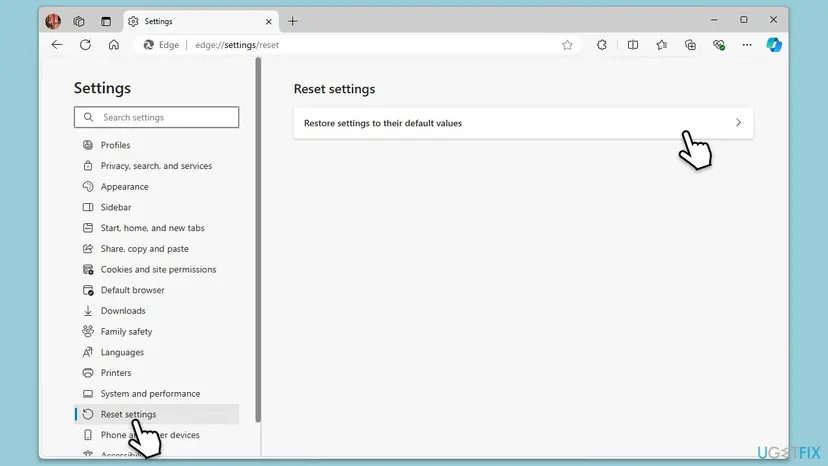
- If InPrivate works, open a normal window and type
edge://settings/resetin the address bar. - Select Restore settings to their default values.
- Select Reset to confirm.
- Close Edge, open it again and load a site.
It worked if: Pages load in normal windows after the reset.
If not: If InPrivate works but normal windows still crash, go to Fix 5. If InPrivate crashes too, the cause is outside your profile: Fix 6.
Fix 5. Start Edge with a fresh profile folder
10 minutesRead the warningInPrivate works but your normal window never does, or Settings crashes so you cannot reset.
Edge keeps every profile in one User Data folder. If files or permissions in it are damaged, the tab process can be refused access at every start. Renaming the folder makes Edge build a new one, while the old one stays on disk.
A new folder starts empty: no favourites, passwords, history or extensions unless you sign in and sync. Nothing is deleted, because the old folder keeps everything. To undo, close Edge and rename the folders back. Sign in to sync in the new profile, or copy files out of the old folder.
- Close Edge and end every
msedge.exein Task Manager, as in Fix 1. - Press Win + R, type
%LOCALAPPDATA%\Microsoft\Edgeand press Enter. - Right-click the User Data folder, select Rename and name it
User Data.old. - Open Edge. It creates a new User Data folder and starts like a new install.
- Load a few sites. If they work, sign in to your Microsoft account in Edge to bring back synced favourites and passwords.
It worked if: Edge starts with a clean profile and pages load.
If not: If the new profile crashes too, rename the folders back so nothing is lost, and go to Fix 6.
Fix 6. Find a conflicting program with a clean boot
15 to 30 minutesLow riskInPrivate and a fresh profile crash too, and you use a third-party antivirus, VPN, parental control or other background tool.
A security or monitoring program that limits what processes may open can refuse Edge's tabs. A clean boot starts Windows with only Microsoft's services, so if Edge works then, one of the other programs is the cause.
Step by step: How to perform a clean boot in Windows. Test Edge after every restart, and turn services back on in halves to find the one that brings the crash back.
- Open System Configuration. Select Search on the taskbar, type msconfig and select System Configuration from the results.
- Hide Microsoft services. On the Services tab, select the Hide all Microsoft services check box. Only services from other companies stay in the list.

With Hide all Microsoft services ticked, only third-party services stay in the list. Screenshot: Windows 11 26H2. - Disable the remaining services. Select Disable all, then select Apply.
- Open Task Manager. On the Startup tab of System Configuration, select Open Task Manager.

The Startup tab only links to Task Manager. Screenshot: Windows 11 26H2. - Disable the startup apps. On the Startup apps tab in Task Manager, select each item whose status is Enabled and select Disable. Write down or take a screenshot of the items you disable: you need the list to turn them back on.

Select an app, then Disable. Screenshot: Windows 11 26H2. - Confirm the changes. Close Task Manager. On the Startup tab of System Configuration, select OK.
- Restart and test. Restart the PC. Windows now starts in a clean boot environment: try again the thing that failed (run the app, install the update, uninstall the program).
These steps were written for Windows 11 25H2 and 26H2. The full page with the other versions and what each result means: How to perform a clean boot in Windows
- When you find the program, update it to its newest version first, not only its definitions.
- If an update does not help, look in its settings for a module that controls what apps may open (application control, exploit or behaviour protection) and add
msedge.exe. - On a work PC, send IT the program's name and the error code instead.
It worked if: Edge works in the clean boot, and turning one program back on brings the crash back.
If not: If Edge also crashes in a clean boot, check policies with Fix 7. Return to normal startup when you are done.
Fix 7. Check Edge policies, or ask IT on a managed PC
5 minutesNo riskEdge shows Managed by your organization, or the PC belongs to an employer or school.
Policies can block Edge pages, features and folders. A policy written by an old program or a past job can stay on a home PC. Reading the list shows whether anything is set at all, without changing it.
- In Edge, type
edge://policyin the address bar and press Enter. If that page crashes, skip to the last step. - Read the list. An empty list means no Edge policy is set, and this is not the cause.
- If policies are listed and the PC belongs to an employer or school, send IT the error code and the list. Do not change them yourself.
- On your own PC with policies you did not set, run Fix 8 first, because some unwanted programs set browser policies.
- If Edge's pages all crash, ask IT whether an Edge policy or a security rule changed when the error started.
It worked if: You know whether a policy is set, and who set it.
If not: If no policy is set, go on with Fix 8.
Fix 8. Scan the PC with Microsoft Defender
15 minutes to 2 hoursNo riskPolicies you did not set, a changed start page, new ads, or other apps misbehaving.
Browser hijackers set policies and change files in the Edge profile. When a security product removes them halfway, the leftovers can block Edge's processes. A full scan finds what is still there.
Step by step: How to scan for malware with Microsoft Defender. Run a full scan, not only a quick scan, and restart when it finishes.
- Open Windows Security. Select Start, type Windows Security and open the app.
- Open Virus & threat protection. Select Virus & threat protection. Under Current threats you see when the last scan ran, how long it took and how many files it checked.
- Run a quick scan. Select Quick scan. If Windows Security thinks a deeper scan is needed, it tells you when the quick scan is done.
- Open Scan options. If the quick scan finds nothing and you still suspect an infection, select Scan options under Current threats.
- Run a full scan. Select Full scan and start it. It checks every file and program on the device, so it takes much longer than a quick scan. Leave the PC on until it ends.
- Or scan one folder. To check only a download or a USB drive, select Custom scan in Scan options and choose the folder. You can also right-click a file or folder in File Explorer and select Scan with Microsoft Defender. On Windows 11 you may have to select Show more options first.
- Read Protection history. Go back to the first page of Windows Security and select Protection history. Select a card to expand it and see the details.
These steps were written for Windows 11 25H2 and 26H2, Windows 10 22H2. The full page with the other versions and what each result means: How to scan for malware with Microsoft Defender
It worked if: The scan removes a threat or finds nothing, and Edge works after a restart.
If not: If the scan finds nothing and Edge still crashes, repair Windows files with Fix 9.
Fix 9. Repair Windows system files with DISM and SFC
20 minutesLow riskEverything above failed, or the crash came with other Windows problems after an update.
Edge's tab process relies on Windows components to check its access rights. If those files are damaged, every request can fail. DISM and SFC replace damaged Windows files with good copies.
Step by step: Run DISM and SFC to repair Windows system files. Run DISM first, then SFC, then restart and repair Edge once more with Fix 2.
- Open an elevated command window. Right-click Start and select Terminal (Admin), or type cmd in the search box, right-click Command Prompt and select Run as administrator. Select Yes when Windows asks for permission.
- Run DISM first. Type the command below and press Enter. DISM downloads clean copies of damaged components from Windows Update, so it can take several minutes. Wait until it says The operation completed successfully.
DISM.exe /Online /Cleanup-Image /RestoreHealth - Run System File Checker. In the same window, type the command below and press Enter. Do not close the window until the verification reaches 100%.
sfc /scannow - Read the result and restart. Compare the last message with the table below this guide, then restart the PC so that repaired files are loaded.
These steps were written for Windows 11 24H2 and 25H2. The full page with the other versions and what each result means: Run DISM and SFC to repair Windows system files
It worked if: SFC reports that it repaired files or found no problems, and Edge loads pages after the restart.
If not: If Edge still crashes, test it in a second Windows account and contact support as the section below explains.
Edge still shows STATUS_ACCESS_DENIED: what to check and who can help
If the crash survives all fixes, narrow down whether it belongs to your Windows account or to the whole PC. Then send the facts to the people who can act on them.
- Create a second local Windows account and sign in with it: Create a new user account to test a problem.
- Open Edge in that account. If it works there, the cause is in your own account, such as the permissions of its folders.
- Note your Edge version from Apps > Installed apps and your Windows version from Settings > System > About.
- Note every security, VPN and parental control program on the PC with its version.
| Situation | Who can fix it | What to send |
|---|---|---|
| Edge works in a new Windows account | You: move your files to the new account, or ask Microsoft Support about your old one | The error code and what Fix 5 showed |
| A program found in the clean boot | That program's support | Its version, the Edge version and the error code |
| Work or school PC | Your IT department | The error code and the edge://policy list if it opens |
| Nothing found and Edge crashes in every account | Microsoft Support or the Edge forum on Microsoft Q&A | Edge and Windows versions and the list of fixes you tried |
Nothing in this code points to a failing disk or memory. It is a refused access request, so the answer is always which program, profile or rule refused it.
How to stop STATUS_ACCESS_DENIED in Edge from coming back
- Restart Windows after big Edge or Windows updates, so no old Edge process keeps running.
- Sign in to Edge and turn on sync, so a fresh profile is never a loss.
- Keep security programs at their newest version, not only their definitions.
- Use one antivirus at a time. Microsoft Defender is enough for most home PCs.
- Do not delete folders under
C:\Program Files (x86)\Microsoft\Edgeby hand. Repair or install over the old copy instead. - Do not give Everyone full control of Edge's folders. Wider permissions do not fix the tab process and weaken security.
- Do not turn off the firewall or the antivirus for good to silence the crash.
Frequently asked questions
What does Error code: STATUS_ACCESS_DENIED mean in Edge?
It means Windows refused one of Edge's tab processes access to something it needed, such as a file, a folder or a registry key. Microsoft's NTSTATUS list defines the code 0xC0000022 as a process that requested access to an object but was not granted those rights. Edge cannot keep the tab running after that, so it shows This page is having a problem. The website itself is not the cause.
Is NTSTATUS 0xC0000022 the same as STATUS_ACCESS_DENIED?
Yes. 0xC0000022 is the number and STATUS_ACCESS_DENIED is its name in Microsoft's list of Windows status values. Edge shows the name on its crash page. Other Windows programs and logs may show the number. The meaning is the same: a process asked for access to an object and Windows refused. Outside Edge, the same code appears in many other places, so the fixes on this page apply only when Edge's tabs crash.
How do I fix it when Edge's Settings also crash?
Work from Windows instead of from Edge. End every Edge process in Task Manager and restart (Fix 1). Then open Settings > Apps > Installed apps, select the three dots next to Microsoft Edge, then Modify and Repair (Fix 2). If Modify is greyed out, download Edge from Microsoft in another browser and install it over the old copy (Fix 3). Fix 5 also works without Edge's Settings.
Why can I not uninstall Microsoft Edge?
Edge is part of Windows 11, so Installed apps offers Modify but no Uninstall button for it. Users on Microsoft Q&A report the same. You do not need to remove it to fix this error. Repair (Fix 2) downloads and installs Edge again, and Microsoft's installer (Fix 3) writes every program file again over the old copy. Deleting Edge's folders by hand, as some older guides suggest, can leave Windows with a broken browser.
Will clearing the cache or cookies fix STATUS_ACCESS_DENIED?
Rarely. The cache holds web content, not the files and permissions the tab process is refused. When the error appears on every site and on Edge's own pages, clearing data does not reach the cause. When only some sites fail and Settings still opens, a reset (Fix 4) covers more than clearing the cache. A fresh profile folder (Fix 5) covers everything in the profile.
Should I turn off the antivirus or the firewall?
Not as a fix. The old version of this page told readers to turn off Windows Defender Firewall, but the firewall controls network traffic and has nothing to do with a tab process being refused access on your PC. A third-party security program can be the cause, and a clean boot (Fix 6) shows that without leaving the PC unprotected. If you find it, update it or add an exception for msedge.exe in its app control module.
Does changing permissions on the Edge shortcut help?
No. A shortcut is a small file that points to msedge.exe. Its permissions decide only who may open that shortcut, not what Edge's tab processes may access. The old version of this page suggested giving your account Full Control on the shortcut, and that advice is dropped. Damaged permissions inside Edge's own folder are replaced by Repair (Fix 2) or a fresh install (Fix 3).
The error started after an Edge update. Will Microsoft fix it?
We found no Microsoft known issue article for STATUS_ACCESS_DENIED in Edge, so there is no fixed version to wait for. Reports on Microsoft Q&A since 2023 often start right after an Edge or Windows update. In most of them the update itself is not broken; it did not finish cleanly. That is why Fix 1 (end every Edge process and restart) and Fix 2 (Repair) come first.
The error still persists after every fix. What now?
Sign in with a second Windows account and test Edge there, as the section above explains. If Edge works in the new account, the cause is in your own account and you can move to it. If it crashes everywhere, collect the Edge and Windows versions and the list of security programs, and ask Microsoft Support or IT. This page is about Microsoft Edge on Windows only.
Does this error affect my files or my PC?
No. STATUS_ACCESS_DENIED in Edge stops the browser's tabs, nothing more. Your files, other programs and your Windows account are not changed by it. The fixes here are safe for your data too. Only Fix 5 starts Edge with an empty profile, and even then your old profile stays in the renamed folder until you delete it yourself.
Sources
- Microsoft Learn: [MS-ERREF] NTSTATUS Values (0xC0000022 STATUS_ACCESS_DENIED) (learn.microsoft.com)
- Microsoft Q&A: Edge has stopped working entirely (This Page is having a problem, STATUS_ACCESS_DENIED, Crashed on edge://newtab) (learn.microsoft.com)
- Microsoft Q&A: MS Edge Failure (STATUS_ACCESS_DENIED, Settings unreachable, Repair through Installed apps, Modify greyed out) (learn.microsoft.com)
Did this fix work?
One click, no account. It tells the next reader which guides are worth their time.
Questions and experiences: fix STATUS_ACCESS_DENIED error in Microsoft Edge
Still broken, or found a fix we did not cover? Ask here: members and our editors answer. Reading is open; writing needs a free account.
…