
How to fix Steam error "Unable to verify email address" in Windows?

Prefer to fix it yourself? The manual steps follow.
- 6methods
- 5 to 15 minutes
- Easy
Applies to Creating a Steam account in a browser or in the Steam client on Windows 11 and Windows 10; verifying or changing the contact email of an existing account
6 methods in this guide
I am trying to create a new Steam user account for my nephew. However, something does not work properly, as I keep receiving the message "Unable to verify email address" when I try to verify the email. How do I bypass this?
"Unable to Verify Email Address" is the page Steam opens when it refuses the link in its verification email, because the link is old, was used already or no longer belongs to an open sign-up. Keep the Steam sign-up window open, then click the link in the newest email once.
You cannot bypass the check, but it is rarely a real fault. Steam refused the link you clicked: it came from an older email, was clicked twice, or the sign-up window that was waiting for it was closed. Leave the Verify Your Email window open, open only the newest email from steampowered.com and click its link once (Fix 1). If the window is gone, start the sign-up again (Fix 2).
| Error | A browser page with the title Unable to Verify Email Address and the line "There was a problem verifying your email address". |
|---|---|
| Where it appears | In the browser tab that opens when you click the link in Steam's verification email, while you create a new account or confirm a contact email. |
| Main cause | The link is not valid any more: it belongs to an earlier attempt, it was already used, it expired, or it was cut or changed on the way. |
| Fastest fix | Keep the sign-up window open and click the link in the newest email from steampowered.com once (Fix 1). |
| Also written as | Steam unable to verify email, there was a problem verifying your email address, Steam can't verify email, Steam email verification not working. |
| Related messages | "This email has already been verified" (the link was clicked before) and "You've waited too long to verify your email" (the attempt expired). |
| Valve's status | Not a known bug. The sign-up dialog itself lists Valve's advice: check the address for typos, look in spam and trash, wait a few minutes, and try another email provider. |
| Affects | Any browser and the Steam client on Windows 11 and Windows 10. Microsoft ended support for Windows 10 on 14 October 2025, which does not change this error. |
| Time to fix | 2 to 5 minutes with a fresh email. Up to 15 minutes when you have to start the sign-up again or switch providers. |
Facts checked on 15 October 2026. Steps written for the Steam sign-up page store.steampowered.com/join and the Steam client on Windows 11 (25H2 and 26H2) and Windows 10 22H2, in Chrome, Edge and Firefox.
What "Unable to verify email address" on Steam means
We read the code of Steam's sign-up page and of its email link page on 15 October 2026. Creating an account uses two windows. The first is the sign-up form at store.steampowered.com/join. After you enter your email and select Continue, it opens a dialog called Verify Your Email with the line Waiting for you to verify.... That dialog asks Steam every 3 seconds whether the email has been confirmed yet.
The second window is the browser tab that opens when you click the link in Steam's email. That page checks the link with Steam. When Steam accepts it, the first window closes its dialog and asks for an account name and a password. When Steam does not accept it, the tab shows Unable to Verify Email Address and "There was a problem verifying your email address", and nothing else. We loaded the link page with a made-up link and got exactly this text.
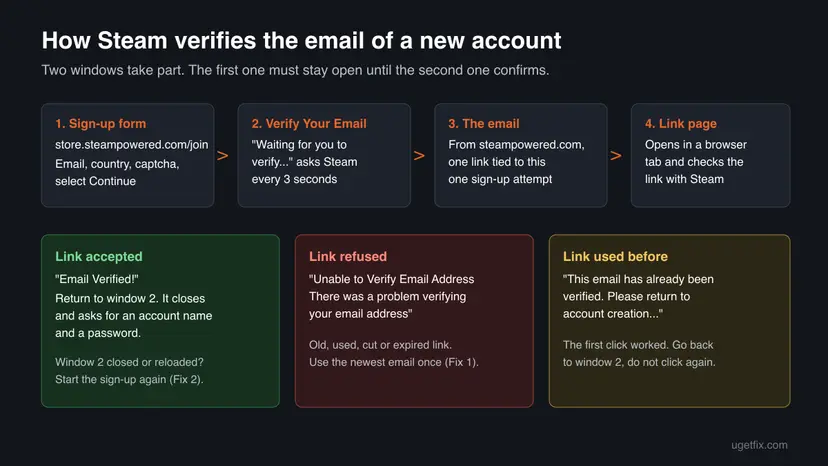
- The error is about the link, not the address. A typo in the address means the email never arrives at all. This page only appears once a link was clicked.
- "Email Verified!" with "Please return to the previous window to complete verifying your email address. *You may safely close this window" is the success page. Nothing is wrong: go back to the sign-up window.
- "This email has already been verified. Please return to account creation to complete the process." means the link worked on an earlier click. Clicking it again does nothing more.
- "You must first verify the email address you have provided before you can create a Steam account." appears in the sign-up form when you try to go on before the link was accepted.
Steam email verification messages and what each one tells you
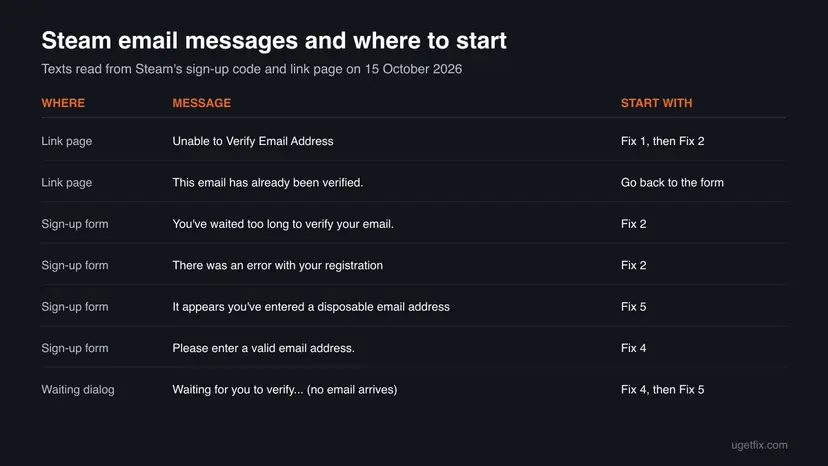
The sign-up form has its own messages for each answer Steam sends back. They tell you whether the problem is the link, the attempt or the address. The texts below are copied from Steam's sign-up code.
| Message | Where | What it means | Start with |
|---|---|---|---|
| Unable to Verify Email Address. There was a problem verifying your email address | Link page | The link was refused. | Fix 1, then Fix 2 |
| You've waited too long to verify your email. Please try creating your account and verifying your email again. | Sign-up form | The attempt expired before the link was clicked. The form clears the email field. | Fix 2 |
| There was an error with your registration, please try again. | Sign-up form | Steam dropped the attempt. The form clears the email field. | Fix 2 |
| It appears you've entered a disposable email address, or are using an email provider that cannot be used on Steam. Please provide a different email address. | Sign-up form | Steam does not accept this provider. | Fix 5 |
| Please enter a valid email address. | Sign-up form | The address is not in a form Steam accepts. | Fix 4 |
| Waiting for you to verify... and no email comes | Verify Your Email dialog | The email was not delivered, or went to spam. | Fix 4, then Fix 5 |
Why Steam is unable to verify your email, from most to least likely
Valve publishes no numbers on this, so the order is ours. It follows the sign-up code: each attempt has its own session, the link belongs to that session, and the session ends when the attempt is cancelled, restarted or times out.
| Cause | How to tell | Fix |
|---|---|---|
| An older email. You pressed Continue more than once or changed the address, and clicked the link from an earlier email. | There are two or more Steam emails in your inbox or spam folder. | Fix 1 |
| The waiting window is gone. The sign-up tab was closed, reloaded or timed out before you clicked. | The form shows "You've waited too long" or an empty email field, or the tab is closed. | Fix 2 |
| The link was opened before you. A second click, an email app preview or a mail security scanner that opens links to test them. | You see "already been verified", or the error appears on your very first click. | Fix 1, then Fix 3 |
| The browser changed the link or blocked the page. A privacy extension, an in-app browser of the mail app, or a link cut in two. | The link works in a private window or another browser. | Fix 3 |
| The email never arrives, or the provider is refused. | The dialog keeps waiting, or the form names a disposable address. | Fix 4, Fix 5 |
Valve does not say how long a link stays valid or whether a mail scanner that opens it first uses it up. Users report the error on a first click from work and school mailboxes. We list that as a possible cause, not a proven one.
How to fix "Unable to verify email address" on Steam
Fixes 1 and 2 solve most cases, because the usual cause is a link from the wrong attempt. Fix 3 is for a link that fails even when it is the newest one. Fixes 4 and 5 are for an email that does not arrive or an address Steam refuses. Fix 6 is for an account that already exists.
| What you see or have | Start with |
|---|---|
| The error page, and the Verify Your Email dialog is still open in the other window. | Fix 1 |
| The sign-up tab is closed, or the form says "You've waited too long to verify your email". | Fix 2 |
| The newest link fails on the first click, or the mail app opens links in its own window. | Fix 3 |
| No email from steampowered.com at all. | Fix 4 |
| "It appears you've entered a disposable email address", or the email never arrives at this provider. | Fix 5 |
| The account already exists and its address shows as not verified. | Fix 6 |
Fix 1. Click the link in the newest Steam email once, with the sign-up window open
2 minutesNo riskEveryone whose Verify Your Email dialog is still open in the first window.
Each press of Continue starts a new attempt and sends a new link. The waiting dialog only accepts the link of its own attempt, so an older email gives the error even though the address is right.
- Do not close or reload the sign-up tab with Waiting for you to verify....
- In your mailbox, search for
steampowered.comand sort by date, newest first. - Delete or ignore every older Steam email for this sign-up.
- Open the newest one and select its verification link once.
- When the tab says the email is verified, switch back to the sign-up tab.
- Wait a few seconds for the dialog to close, then choose the account name and password.
That is fine. The sign-up window on the PC asks Steam, not the phone, so you can open the link anywhere. What matters is that the PC window is still waiting.
It worked if: The link tab confirms the email, and the sign-up window moves on to the account name and password fields.
If not: If the tab still says Unable to Verify Email Address, start a fresh attempt with Fix 2.
Fix 2. Start the Steam sign-up again in one tab and finish it in one go
5 minutesNo riskThe sign-up tab was closed or reloaded, or it shows "You've waited too long".
Without its waiting window an attempt cannot be completed, and an expired attempt is cleared by Steam. A new attempt gives a new link that matches a window that is still open.
- Close every Steam sign-up tab and every older Steam email.
- Open
https://store.steampowered.com/join/in one browser tab. - Enter the email address twice, pick the country and solve the captcha.
- Select Continue once. Do not press it again while you wait.
- Leave the tab open and go straight to your mailbox.
- Click the link in the email that has just arrived, once, then return to the tab.
The client on Windows uses the same sign-up page in its own window. Keep that window open the same way. If it closes, start again from the client's link for creating an account or from the web page above.
If the account is for a child, Steam may ask for a parent or guardian email first. In countries where it needs parental consent for users under 16, it waits for that consent before you can continue.
It worked if: The new email arrives within a few minutes and its link completes the sign-up on the first click.
If not: If the new link fails as well, open it in a private window with Fix 3.
Fix 3. Open the link in a private window or another browser
5 minutesLow riskThe newest link fails on the first click, or the mail app opens links in its own browser.
Privacy extensions, an in-app browser and old Steam cookies can change or block the link page. A private window runs without extensions and old cookies, so it shows whether the browser is the cause.
- In the email, right-click the verification link and choose Copy link address (in Edge: Copy link).
- Open a private window: Ctrl + Shift + N in Chrome and Edge, Ctrl + Shift + P in Firefox.
- Paste the link in the address bar and press Enter.
- If it fails again, start one new attempt (Fix 2) and open its link in a different browser.
- If the private window works, clear the cache and cookies of your usual browser before the next Steam visit.
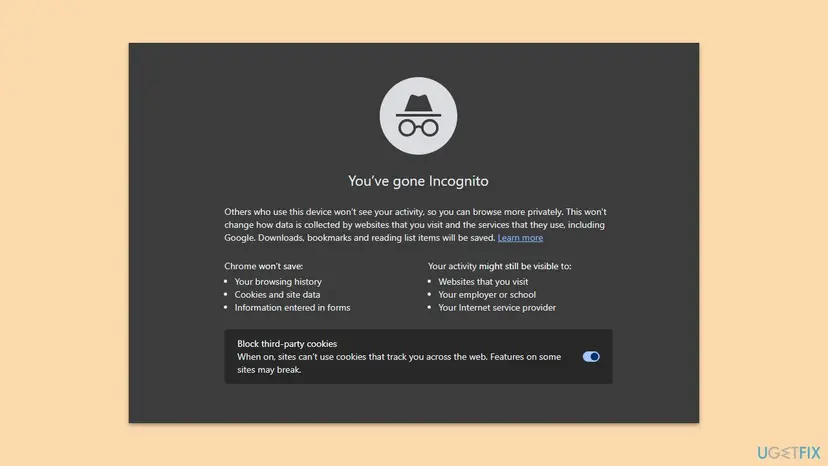
Clearing the cache and cookies signs you out of most sites, so do it after you finish. Step by step: Clear the browser cache and cookies
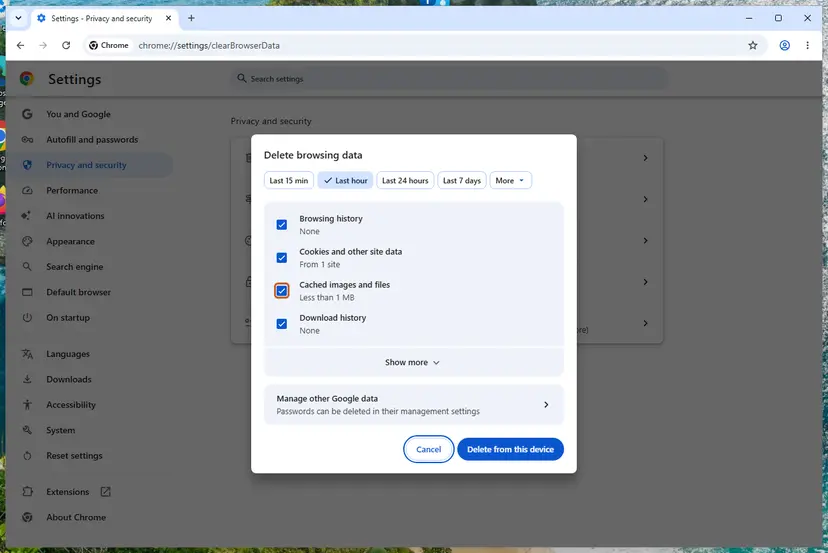
It worked if: The link page in the private window confirms the email, and the sign-up window continues.
If not: If no email arrives for the new attempt, go to Fix 4.
Fix 4. Find the Steam email: spam, trash and the address itself
5 minutesNo riskThe Verify Your Email dialog keeps waiting and no Steam email is in the inbox.
Valve's own dialog names these causes: a typo in the address, a message filtered as spam, and slow mail servers. The dialog keeps waiting forever, so nothing tells you the email went astray.
- In the dialog, select Expand next to Haven't gotten our email? and read the address shown there.
- If it has a typo, select Click here to change your email address and enter it again.
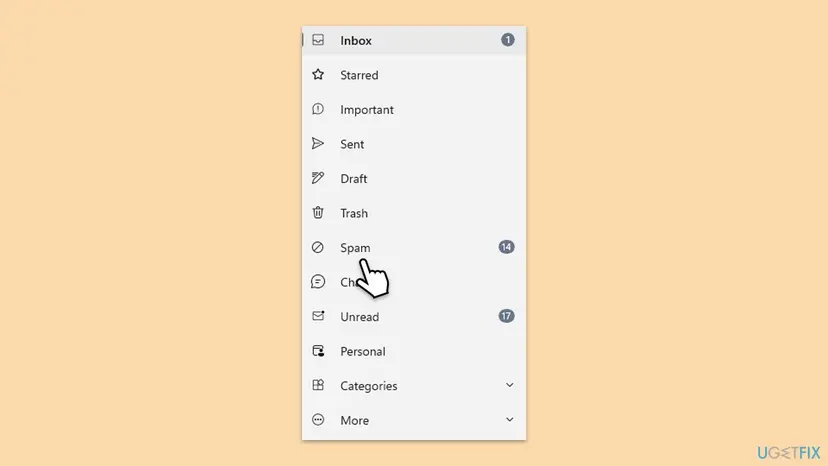
- In your mailbox, open Spam (or Junk) and Trash and search for
steampowered.com. - In Gmail, also check the Promotions and Updates tabs.
- If you find it, mark it Not spam and then click its link once.
- If nothing arrives, wait a few minutes. Valve says mail servers can be slow.
The waiting dialog asks Steam every 3 seconds and tries again every 5 seconds when the request fails. A connection that drops out keeps it from moving on even after a good click. Step by step: How to check your internet connection in Windows
It worked if: You find the Steam email, its link opens the confirmation page and the sign-up window moves on.
If not: If no email arrives within 15 minutes, use another address with Fix 5.
Fix 5. Use an email address from a different provider
10 minutesNo riskThe form names a disposable address, or the provider never delivers Steam's email.
Valve says some email providers "just don't work with Steam" and recommends a different address. Steam refuses throwaway addresses outright, with its own message.
- Pick an address at a large provider that you can open now.
- If the waiting dialog is open, select Click here to change your email address.
- Otherwise start a new sign-up at
https://store.steampowered.com/join/. - Enter the new address, select Continue once and click the new link once.
- Later, add a recovery phone number to the account, so the email is not your only way back in.
- Do not use temporary or forwarding addresses: Steam says such a provider "cannot be used on Steam".
- Work and school mailboxes often scan links before you see them. A personal address avoids that.
- One address, one account? Steam allows several accounts on one address. The sign-up asks you to confirm that you want a new, separate account.
It worked if: The email arrives at the new address and the link completes the sign-up.
If not: If no provider works, contact Steam Support as described after the fixes.
Fix 6. Verify or change the email of an account that already exists
5 minutesLow riskYou already have a Steam account and its contact email is not verified or is wrong.
Steam verifies the email at account creation or at the first purchase. A changed address goes through the same kind of link, so the same rules apply: keep the Steam dialog open and use the newest link.
- In the Steam client, select Steam at the top left, then Settings.
- Open the Account tab and select Change contact email.
- Enter your Steam password and the email, then select Next.
- Keep the Steam dialog open, open the email from Steam Support and click its link once.
- When the browser shows Success!, return to Steam and select Finish.
- Check the result on your account details page: the address must show Verified.
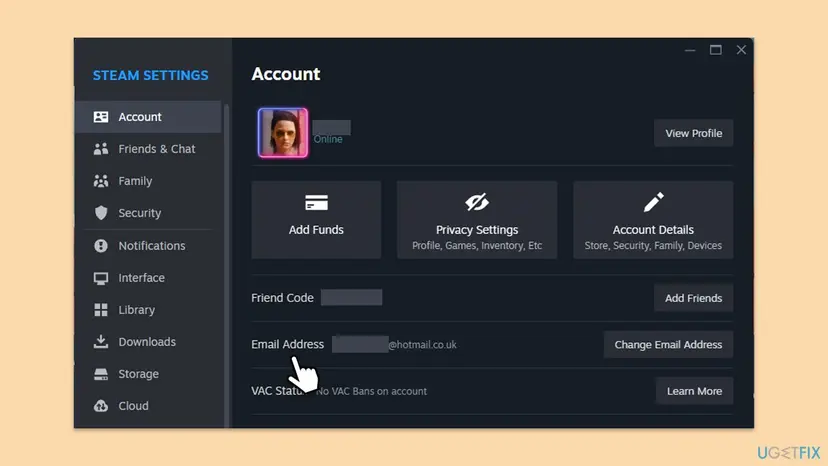
Some users report that switching to another address and back made verification work. The same steps do that, but each change sends a new link and the old one stops working. Valve advises waiting a few minutes after an error before trying again.
It worked if: Steam confirms the change in the dialog, and the account details page shows the address as Verified.
If not: If you see an error at any step, wait a few minutes and try again, then contact Steam Support.
If Steam is still unable to verify your email: what to send to Steam Support
There is no log file for this on your PC. The sign-up happens on Steam's servers, and the only record you have is the message on screen and the email itself. Collect those before you write to Support.
- Take a screenshot of the error page with its address bar visible.
- Note the time of the newest Steam email and the time you clicked it.
- Write down the provider of the address and whether a private window failed too.
- Open
https://help.steampowered.comin a browser and choose the topic that fits your account or sign-up. - Describe what you tried, with the fix numbers of this guide if you like.
- It is never a hardware problem. Nothing on the PC needs repair for this error.
- For an account you cannot sign in to, use Help, I can't sign in on the same site, not a new sign-up.
How to avoid the Steam email verification error next time
- Press Continue once and wait for the email.
- Keep the sign-up window open until it asks for the account name.
- Use a personal address at a large provider.
- Add a phone number to the account later, for recovery.
- Request several emails and click an old one.
- Click the same link again after it worked.
- Leave the sign-up for later: the attempt can expire.
- Use a temporary or forwarding address.
Most cases come from the order of steps, not from a fault. One attempt, one email, one click, with the first window still open, is all Steam needs.
Frequently asked questions
Why is Steam unable to verify my email?
Because the link you clicked does not match an open sign-up any more. Steam ties each verification link to one attempt. If you pressed Continue twice, changed the address, closed the sign-up tab or waited too long, the link belongs to an attempt that is gone and the page says Unable to Verify Email Address. A second click on a link that already worked gives "This email has already been verified" instead. Open the newest email and click its link once while the sign-up window is still open.
What does "There was a problem verifying your email address" mean on Steam?
It is the second line of the page Steam shows when it refuses a verification link. It does not say why, and the page has no other text or code. In practice it means the link is old, used, expired or damaged. We loaded Steam's link page with a made-up link and got the same text, so it is the general answer for any link Steam does not accept. Start a new sign-up and use only the new link if Fix 1 does not help.
What does "Please return to the previous window to complete verifying your email address" mean?
It means the verification worked. This is the success page, and "You may safely close this window" under it is literal. Go back to the window where you started, the Steam sign-up tab or the Steam client. Its Verify Your Email dialog closes by itself within a few seconds and asks for an account name and a password. If that window was closed in the meantime, the confirmation has nowhere to go, and you have to start the sign-up again.
Why does Steam say "This email has already been verified"?
The link was used before. The full text is "This email has already been verified. Please return to account creation to complete the process." It appears on a second click, or when an email app or a mail scanner opened the link before you did. If the sign-up window is still open and moved on, there is nothing to fix. If it is still waiting, or was closed, start a new sign-up and click the new link once, ideally from a personal mailbox.
How do I fix "Unable to verify email address" for a new Steam account?
Do it in one go. Open store.steampowered.com/join in one tab, enter the email, select Continue once and leave the tab open. Open the newest email from steampowered.com and click its link once. Return to the tab, which then asks for an account name and password. If the link still fails, open it in a private window. If no email arrives, check spam and trash, then try an address at another provider.
Steam email verification not working: is Steam down?
Usually not. This page is an answer from Steam about the link, so Steam's servers were reachable when it appeared. A real outage shows up differently: pages that do not load, time out or show connection errors across the Steam website. If the whole site is slow, wait and try later with a fresh sign-up. If the rest of the site loads normally, the cause is the link or the attempt, and Fixes 1 and 2 apply.
How long is the Steam verification link valid?
Valve does not publish a time, and we could not confirm one. What the sign-up code shows is that an attempt can expire: the form then says "You've waited too long to verify your email. Please try creating your account and verifying your email again." and clears the address. So click the link soon after the email arrives, while the sign-up window is still open. If you were away for a long time, start again rather than use the old email.
Can I bypass Steam email verification?
No. Steam requires a verified email to create an account, and the form says you must first verify the email address before you can create a Steam account. The check exists so that you can recover the account by email later. It is rarely the real obstacle: when the link from the newest email is clicked once while the sign-up window waits, verification takes seconds. If your provider does not get Steam's email, use a different address.
Why does Steam say my email is disposable or cannot be used?
Steam refuses some providers outright. The form then shows "It appears you've entered a disposable email address, or are using an email provider that cannot be used on Steam. Please provide a different email address." This happens at the form, before any email is sent, and is a different problem from the link error. Valve does not publish the list of refused providers. Use an address at a large, permanent provider. The Russian version of the same message says exactly this too.
Can I create several Steam accounts with one email address?
Yes. Steam allows more than one account on the same address, for example a parent's address for a child's account. When the address already has an account, the sign-up asks you to confirm that you want a new, separate account. Each new account still needs its own verification link, so the same rules apply: one attempt, the newest email, one click, with the sign-up window open.
Sources
- Steam: Create Your Account page and its sign-up script (Verify Your Email dialog, messages and checks) (store.steampowered.com)
- Steam: Email Verification page (the Unable to Verify Email Address text) (store.steampowered.com)
- Steam Support: Changing the Contact E-mail for a Steam Account (help.steampowered.com)
Did this fix work?
One click, no account. It tells the next reader which guides are worth their time.
Questions and experiences: fix Steam error "Unable to verify email address" in Windows
Still broken, or found a fix we did not cover? Ask here: members and our editors answer. Reading is open; writing needs a free account.
…