
How to fix Steam integration on GOG Galaxy not working?

Prefer to fix it yourself? The manual steps follow.
- 7methods
- 10 minutes for the plugin, up to 30 minutes for the network fixes
- Intermediate
Applies to GOG Galaxy 2.0 for Windows with the community Steam integration; Steam client for Windows
7 methods in this guide
Hi. I often use GOG Galaxy - I like to see all my games in one spot. However, for a few days now, Steam integration in GOG is not working, making it not show a huge portion of my games. Any idea how to fix this? I tried reconnecting, but it disconnected again.
GOG Galaxy has no Steam integration made by GOG. The Steam entry you connect is a community plugin, and it breaks when Steam changes its sign-in or when the plugin file is out of date. Install the current plugin release first (Fix 1), then reconnect Steam and give it time to finish its first sync (Fix 2).
Steam in GOG Galaxy is a community plugin, not a GOG feature, so an old plugin file is the most likely cause. Close Galaxy, download windows.zip from the plugin's releases page and extract it into the steam_ca27391f folder under plugins\installed (Fix 1). Then connect Steam again, enter the Steam Guard code quickly and leave Galaxy open until the library has loaded (Fix 2).
| Error | No error code. Steam shows as disconnected in GOG Galaxy, reconnecting fails or drops again, or only part of the Steam library appears. |
|---|---|
| Where it appears | In GOG Galaxy 2.0, in the list of connected platforms and in your library, after a few days or weeks of working normally. |
| Main cause | The community Steam plugin is out of date. Steam changed how it signs users in, and the plugin had to be rewritten for the new flow. |
| Fastest fix | Replace the plugin files with the latest windows.zip release (Fix 1). |
| Also written as | GOG Steam integration, Steam GOG integration, GOG Steam login not working, connect Steam to GOG. |
| Affects | GOG Galaxy 2.0 on Windows and macOS. This page gives the Windows steps. |
| GOG status | GOG's support article points to community integrations through a Search GitHub option. We found no GOG page that announces an official Steam integration. |
| Plugin status | The project page calls itself an open beta. The latest change we saw on it is dated 26 December 2023. |
| Time to fix | About 10 minutes for Fix 1 and Fix 2. |
| Where the cause is logged | %programdata%\GOG.com\Galaxy\logs, in the file steam_ followed by letters and numbers. |
Facts checked on 16 October 2026. Steps written for GOG Galaxy 2.0 for Windows 11 (25H2 and 26H2) and Windows 10 22H2, read against GOG Support and the plugin's own project page.
What Steam integration in GOG Galaxy is and what failing looks like
GOG's own support article says you connect other platforms from the cog icon in the upper-left corner: Add games & friends, then Connect platforms. The list that opens has a Search GitHub option for integrations made by the community. Steam is one of those. Galaxy asks you to sign in to Steam, and after a successful login it shows the Steam library next to your GOG games.
Because a volunteer project maintains the Steam entry, nothing on the screen carries an error code. The signs are quieter: the Steam entry says it is disconnected, the sign-in works once and drops again, or Galaxy lists only part of the Steam library. This is what you described when you wrote that reconnecting made no difference.
The plugin is a separate set of files in a folder of its own. We could not confirm whether Galaxy replaces a plugin you installed by hand when it updates itself, so the safe order is to refresh the plugin first and the program second.
Why the Steam integration stops working, ranked by how often it happens
Most often the plugin is old. The project's page explains that Steam changed its sign-in. The old method returned a lot of data in one call, and Valve replaced it with a longer exchange between the plugin and Steam's servers that resembles OAuth2. The plugin was rewritten for it, so an older copy can no longer log in.
Less often the plugin is current but the first sync is interrupted. The project lists three such cases. Less often still, your network, firewall or Galaxy installation gets in the way.
| Cause | How often | How to tell | Fix |
|---|---|---|---|
| Out-of-date plugin that cannot sign in to Steam any more. | Most often | Reconnecting fails or drops again, and part or all of the Steam library is missing. | Fix 1 |
| Steam Guard code entered too late, or Galaxy closed right after connecting. | Often | The plugin crashed during the first sync and a Retry button appears. | Fix 2 |
| Out-of-date Steam client or Galaxy. | Sometimes | Either program has not been started or updated for a long time. | Fix 3 |
| Damaged Windows network settings. | Sometimes | Other programs also fail to connect. | Fix 4, Fix 5 |
| Windows Firewall blocks Galaxy or Steam helper programs. | Sometimes | Sign-in times out only after a new Windows or security update. | Fix 6 |
| Damaged Galaxy installation. | Rarely | Fixes 1 to 6 changed nothing. | Fix 7 |
The three interrupted-sync cases come from the project's own list of known issues. A large library may crash the plugin right after it starts. A login that takes more than about a minute makes Steam cut the connection. Closing Galaxy straight after the first connect can crash it.
How to fix Steam integration on GOG Galaxy
Fix 1 and Fix 2 deal with the plugin, which is where the problem is for most readers. Fix 3 updates both programs. Fixes 4 and 5 repair Windows networking, Fix 6 allows the programs through the firewall, and Fix 7 reinstalls Galaxy.
| What you see | Start with |
|---|---|
| Steam disconnects again after you reconnect it, or sign-in fails every time. | Fix 1 |
| The sign-in worked, then the plugin crashed, or the library is only partly loaded. | Fix 2 |
| You have not updated Galaxy or Steam in months. | Fix 3 |
| Other programs and websites also fail to connect. | Fix 4, then Fix 5 |
| Sign-in times out after a Windows or security update. | Fix 6 |
| Nothing above changed anything. | Fix 7 |
Fix 1. Install the current Steam plugin from its releases page
10 minutesLow riskSteam keeps disconnecting, sign-in fails, or the plugin has not been replaced since you first connected Steam.
The plugin on your PC may still use the sign-in method Steam retired. The project's current release carries the new login flow, and its instructions replace the plugin folder with a clean copy.
- Close GOG Galaxy completely. Right-click its icon next to the clock and select the exit command if the icon is there.
- Open the project's releases page in your browser.
- Download
windows.zipfrom the latest release. - Open File Explorer, paste the folder path below into the address bar and press Enter. If Windows says the folder does not exist, create it with exactly that name.
- If the folder already exists, open it and delete everything inside it.
- Right-click
windows.zip, select Extract All and choose that folder as the destination. The files must sit directly in the folder, not in a second folder inside it. - Start GOG Galaxy and connect Steam again as in Fix 2.
Folder for the Steam plugin
%localappdata%\GOG.com\Galaxy\plugins\installed\steam_ca27391f-2675-49b1-92c0-896d43afa4f8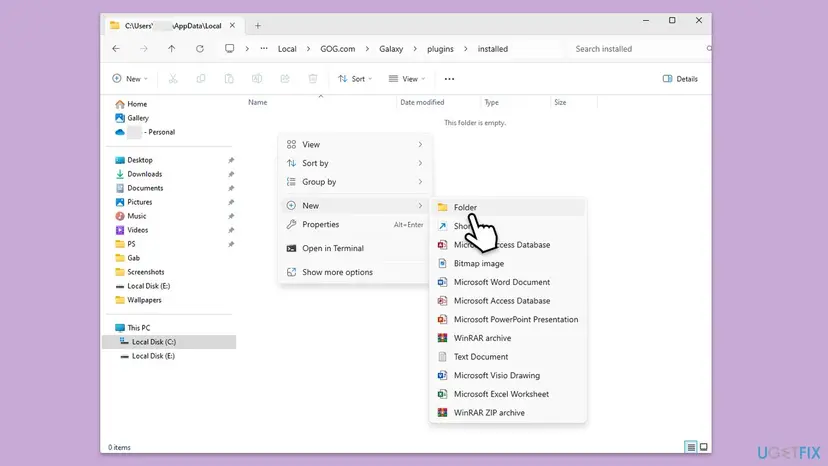
The project page says its code is a fork of an older Steam plugin and that it is in open beta. We did not test the download, and we could not confirm that GOG reviews it. Download only from the project's own releases page.
It worked if: Galaxy starts, offers Steam in the platform list and signs in without dropping.
If not: If Steam connects but the library is incomplete or the plugin crashes, go to Fix 2. If it will not sign in at all, read the log in the section after the fixes.
Fix 2. Disconnect Steam, reconnect it and let the first sync finish
10 to 20 minutesNo riskThe plugin is current, but the sign-in worked once and then crashed, or only part of your Steam library shows.
The project lists the situations in which the first sync fails: a slow Steam Guard code, a very large library and closing Galaxy too early. Starting the connection again with the code ready avoids all three.
- Open the Galaxy settings from the cog icon in the upper-left corner and find the integrations section.
- Select Disconnect next to Steam. GOG says this removes the data about the connection from its server. If the button does not work, connect once and disconnect again.
- Open Steam on your phone or PC so you can read the Steam Guard code as soon as it is needed.
- In Galaxy select the cog icon, then Add games & friends, then Connect platforms, and select Connect next to Steam.
- Sign in and type the Steam Guard code within a minute.
- Leave Galaxy open and do not disconnect Steam. Large libraries need several minutes.
- If a message says the plugin crashed, select the retry button in Galaxy.
If you cannot disconnect at all, GOG says its support can do it for you. Open a request from GOG's support page and choose the problem type Disconnect integration.
It worked if: The Steam games appear in the Galaxy library and the platform stays connected after you close and open Galaxy.
If not: If it crashes again, read the log (see the section after the fixes) and continue with Fix 3.
Fix 3. Update GOG Galaxy and the Steam client
10 minutesNo riskYou have not opened one of the programs for a long time, or they run on an older version.
An old Steam client or Galaxy build can refuse a sign-in that a current one accepts. This costs little and rules the old versions out.
- Open the Steam client and select Steam in the upper-left corner.
- Select Check for Steam Client Updates and install what it offers.
- Restart Steam when the update has finished.
- Open GOG Galaxy and select the cog icon in the upper-left corner.
- Look for the update option and install any update. In the picture below it is called Check for updates.
- Restart Galaxy. A Windows restart is not needed unless an installer asks for it.
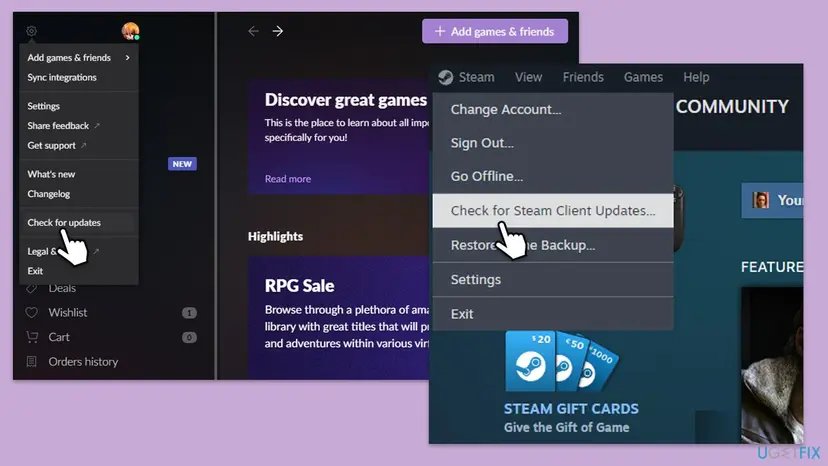
We could not confirm the exact label of the update command in the current Galaxy build. The picture comes from an older version.
It worked if: Both programs run the newest version and Steam connects in Galaxy.
If not: Continue with Fix 4 if other programs also lose their connection, otherwise go to Fix 6.
Fix 4. Check the Windows network connection
10 minutesNo riskWebsites or other programs also fail to load, or the connection drops from time to time.
The plugin signs in through Steam's servers, so any break in the connection between your PC and the internet shows up as a Steam integration failure.
Step by step: How to check your internet connection in Windows. It covers the status in Settings, the network troubleshooter and the router restart.
- Check the connection status. Select Start > Settings > Network & internet. The status of your connection is at the top of the page. Select Properties next to the network name to see its details.
- Check that Wi-Fi is on and connected. Select the Network, Sound or Battery icon on the right side of the taskbar. Make sure Wi-Fi is turned on and that your network shows Connected below its name.
- Run the Network troubleshooter. Open the Get Help app and type connect to network and internet in the search bar. Select Run network diagnostics and complete the steps it offers.
- Restart the modem and the router. Unplug the power cable of the router, then of the modem, and wait at least 30 seconds. Plug the modem back in and wait until its lights stop blinking, then plug in the router. Wait a few minutes and try to connect again.
- Open Command Prompt as administrator. Type command prompt in the search box on the taskbar. Next to Command Prompt, select Run as administrator, then Yes.
- Find the address of your router. Type the command below and press Enter. Under the name of your network connection, note the address next to Default gateway, for example 192.168.1.1.
ipconfig - Ping the router. Type ping followed by that address and press Enter. Four lines that start with Reply from mean the PC reaches the router.
ping 192.168.1.1 - Find and ping the DNS server. Run the first command and note the address it shows. Then type ping followed by that address. The DNS server is the service that turns website names into addresses.
ipconfig /all | findstr /c:"DNS Servers"
These steps were written for Windows 11 25H2 and 26H2. The full page with the other versions and what each result means: How to check your internet connection in Windows
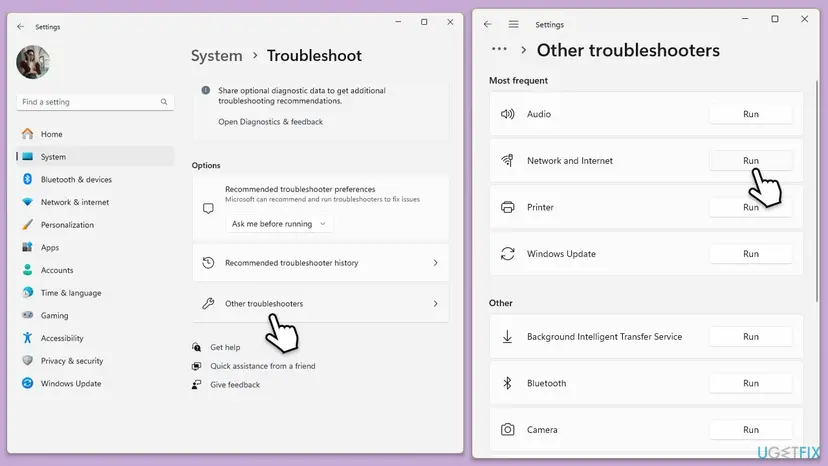
After the troubleshooter finishes, restart Galaxy and try Steam again.
It worked if: Windows reports a working connection, and Steam signs in within a minute.
If not: If the connection is fine but only Steam fails, reset the network stack in Fix 5.
Fix 5. Reset Winsock and the network stack
5 minutesLow riskThe connection test shows no fault, but programs still fail to connect.
Winsock holds the settings every Windows program uses to open network connections. A reset returns them to defaults, which cures errors that a plain restart does not.
Step by step, including the DNS flush and the full reset: Reset the network and flush DNS. For this problem the Winsock command is the part that matters.
- Type cmd in Windows search, right-click Command Prompt and select Run as administrator.
- Select Yes when Windows asks for permission.
- Type the command below and press Enter.
- Restart the PC, open Galaxy and try Steam again.
Command to run
netsh winsock reset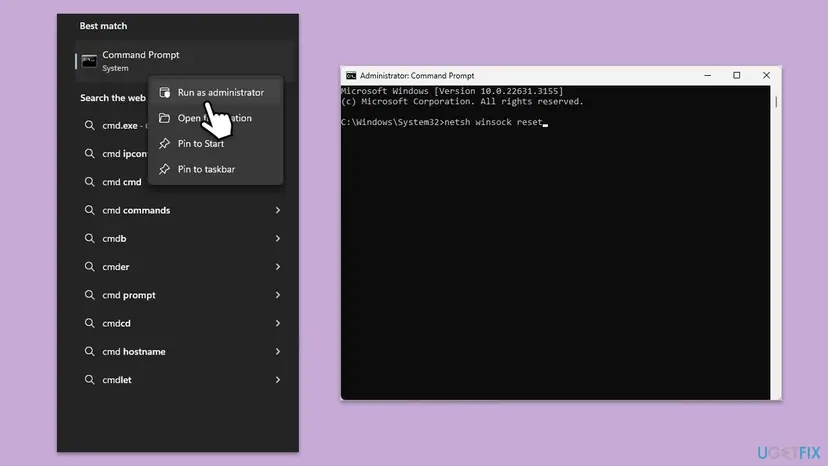
A Winsock reset removes custom network filters that some VPN and security programs install. Reinstall such a program if it stops working afterwards.
It worked if: The command reports that the Winsock catalog was reset, and Steam connects after the restart.
If not: Go to Fix 6 and allow both programs in the firewall.
Fix 6. Allow GOG Galaxy and Steam through Windows Firewall
10 minutesLow riskSign-in times out, and the problem began after a Windows update or a change to your security software.
Windows Firewall can block a program that has no allow rule, and Galaxy and Steam each start helper programs. Adding rules for them is safer than turning the firewall off, which this page does not suggest.
- Type Control Panel in Windows search and press Enter.
- Open System and Security, then Windows Defender Firewall.
- On the left, select Allow an app or feature through Windows Defender Firewall.
- Select Change settings. A non-administrator account has to enter an administrator password.
- Tick both the Private and Public boxes for each entry listed below, if they are present.
- If an entry is missing, select Allow another app and browse to the program.
- Select OK, then restart Galaxy and Steam.
SteamSteam Web HelperGalaxyClient Helper applicationGalaxyClientServiceGOG Galaxy
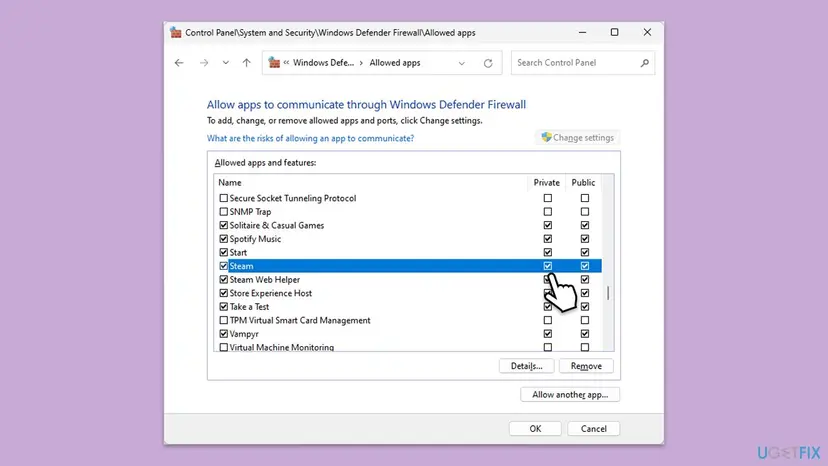
The entry names come from an older list. We could not confirm that all five appear under these names today, so use the ones you see. If another security program runs a firewall too, the same exception is needed there.
It worked if: Each entry is ticked for both network types, and Steam signs in.
If not: Go to Fix 7 and install Galaxy again.
Fix 7. Uninstall GOG Galaxy and install it again
15 minutesLow riskFixes 1 to 6 changed nothing, or Galaxy itself also misbehaves.
A fresh Galaxy removes damaged program files that no setting can repair. It is the last method because it takes the longest and leaves your Steam and GOG accounts as they are.
Step by step for every Windows version: Uninstall a program or app in Windows. Select GOG Galaxy in the list.
- Close Galaxy and uninstall it with the steps linked above.
- Restart the PC.
- Download the installer from the official GOG Galaxy page and run it.
- Sign in and connect Steam as in Fix 2.
- If the Steam entry is missing or the sign-in fails, repeat Fix 1.
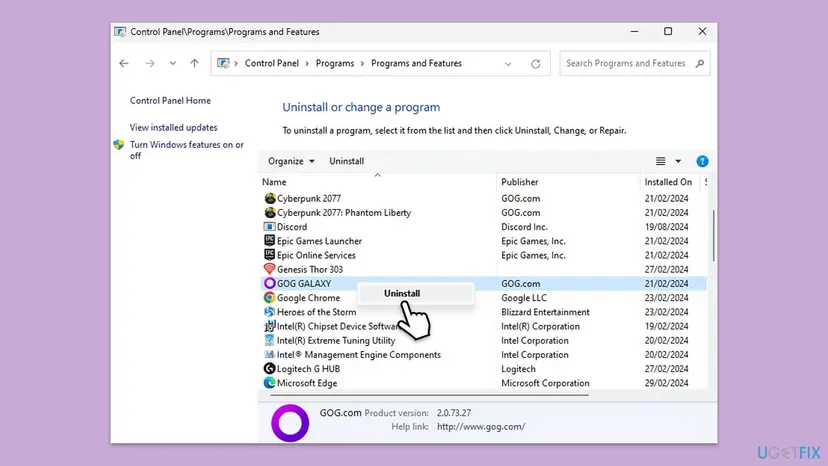
We could not confirm whether the uninstaller removes the plugins folder. If Steam is missing after the reinstall, put the plugin back as in Fix 1.
It worked if: A new Galaxy starts, you sign in to GOG and Steam connects.
If not: Write to GOG support and attach the Steam plugin log described below.
If Steam is still not connecting: read the plugin log
The plugin writes its own log, and the project asks users to attach it when they report a fault. Reading it shows whether Steam rejected the login, whether the plugin crashed or whether the network failed.
- Open
%programdata%\GOG.com\Galaxy\logsin File Explorer. - Find the file whose name starts with
steam_, followed by letters and numbers. - Open it in Notepad and read the last lines. They show what happened at the last attempt.
- Report the fault on the project's issues page with the file attached, after removing anything personal.
- The same message at every attempt: copy it into your report. A message the project already knows is faster to answer.
- A long library that never loads: leave Galaxy running for a while and retry once. The project calls large libraries a little wonky.
- Disconnecting is impossible: ask GOG support for a manual disconnect, as in Fix 2.
If nothing helps, the cause may be the plugin and not your PC. Users report that the integration was broken for long periods before a fixed release appeared, and we found no date for the next one.
How to keep the Steam integration working
- Check the plugin project's releases page when Steam stops connecting, before you try anything else.
- Keep a copy of the working
windows.zipso you can put it back. - Have Steam Guard ready before you connect.
- Leave Galaxy open until the whole Steam library has appeared.
- Do not close Galaxy right after you connect Steam.
- Do not download the plugin from anywhere but its project page.
- Do not turn the Windows Firewall off to test the plugin.
- Do not delete the plugin folder while Galaxy is running.
Frequently asked questions
Does GOG Galaxy have official Steam integration?
We found no GOG page that announces one. GOG's support article about connecting platforms says to use the Search GitHub option for integrations made by the community, and the Steam entry is one of them. That explains why it can stay broken for a while: a volunteer project maintains it, and it must follow every change Steam makes to its sign-in. Fix 1 replaces the plugin with the current release from the project's page.
How do I connect Steam to GOG Galaxy?
Select the cog icon in the upper-left corner of Galaxy, then Add games & friends and Connect platforms. Select Connect next to Steam, read the pop-up with details about the integration and sign in to your Steam account. GOG's article says Galaxy then gives you access to the features of that platform. Have the Steam Guard code ready, because the plugin's project says a login that takes too long can make it crash.
Why does Steam disconnect from GOG Galaxy again after I reconnect it?
Most often the plugin cannot finish the sign-in, because it still uses the method Steam replaced. A slow Steam Guard code, a large library or closing Galaxy right after the first connect can also stop the first sync. Install the current plugin release (Fix 1), then reconnect with the code ready and leave Galaxy open (Fix 2). If it still drops, the log in the plugin folder shows the reason.
Why does GOG Galaxy show only some of my Steam games?
The plugin may still be loading a large library, or it crashed during the first sync. The project's page calls large libraries a little wonky and says a retry often works. Leave Galaxy open for several minutes, select retry if offered, and if the library stays incomplete, disconnect and connect again as in Fix 2. We could not confirm whether private Steam profile settings change what the plugin shows.
Where do I put the Steam plugin files for GOG Galaxy?
On Windows the folder is the one below, and the files from windows.zip go directly inside it. If the folder does not exist, create it with that exact name; if it exists, delete its contents first, as the project's instructions say. On a Mac the project gives a similar folder in the Application Support area. Close Galaxy before you copy anything, and start it afterwards.
%localappdata%\GOG.com\Galaxy\plugins\installed\steam_ca27391f-2675-49b1-92c0-896d43afa4f8
Is it safe to install a community plugin from GitHub?
The plugin is code that runs on your PC and signs in to your Steam account, so install it only from its project page and read what the page says. This one is open source, which lets others read the code, but we did not audit it. GOG's own article tells you to look for community integrations through the Search GitHub option, so the practice is known to GOG. Your Steam password goes to Steam, and Steam Guard stays active.
Will a Windows restart or reinstall of Galaxy fix the Steam integration?
Rarely. A restart does not change the plugin files, and a reinstall helps only if the Galaxy files themselves are damaged. Try the plugin replacement and a clean reconnect first (Fix 1 and Fix 2), then the network and firewall fixes. Reinstalling Galaxy is the last fix on this page, and you may need to put the plugin back afterwards, because we could not confirm whether the uninstaller removes it.
My GOG Galaxy will not open at all. Is that the same problem?
No. This page is about the Steam integration inside a Galaxy that starts. If Galaxy itself will not start, the Steam plugin is not the cause, and the reinstall in Fix 7 and the network fixes are closer to what you need. Searches such as nie dziala or i tak to nejde mean it does not work, and this page cannot answer them unless Steam in Galaxy is the problem.
Do I need Steam installed to see Steam games in GOG Galaxy?
We could not confirm this for the Steam plugin. GOG has a support article on whether gaming clients must be installed on the PC to launch games through Galaxy, which we did not read. Showing the library needs a Steam account sign-in, and launching a game is a separate step. Update Steam anyway, as in Fix 3, because an old client is one of the causes.
Sources
Did this fix work?
One click, no account. It tells the next reader which guides are worth their time.
Questions and experiences: fix Steam integration on GOG Galaxy not working
Still broken, or found a fix we did not cover? Ask here: members and our editors answer. Reading is open; writing needs a free account.
…