
How to fix SynTPEnh.exe application error in Windows?

Prefer to fix it yourself? The manual steps follow.
- 8methods
- 10 to 30 minutes
- Easy
Applies to Windows 11, Windows 10; laptops with a Synaptics touchpad (Dell, HP, Lenovo and others)
8 methods in this guide
Hello. I keep getting the "SynTPEnh.exe - Application Error" on my Windows laptop, and my touchpad sometimes does not work. Is there a way to fix this?
SynTPEnh.exe is the Synaptics TouchPad Enhancements helper that runs gestures, scrolling and touchpad settings, and its Application Error means this helper crashed, not Windows. It almost always comes from a Synaptics driver that does not match your laptop or your Windows version. Install the touchpad driver from your laptop maker's support page first.
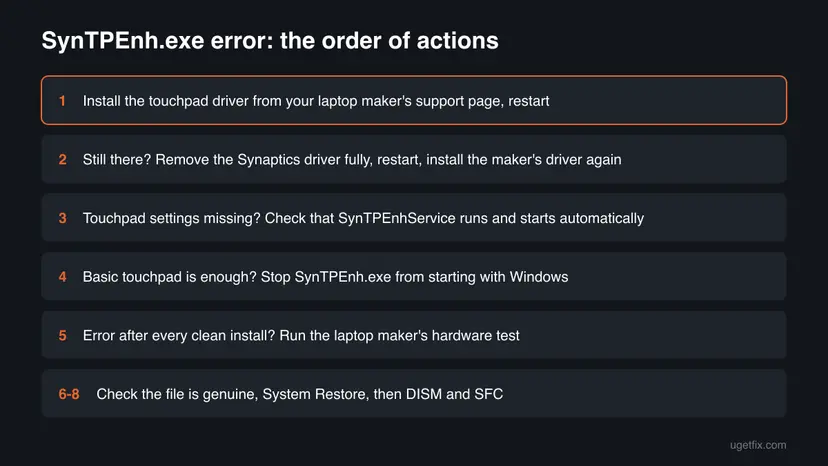
The window comes from the Synaptics touchpad software in C:\Program Files\Synaptics\SynTP, not from Windows. Download the touchpad driver for your exact laptop model from the maker's support page (Dell, HP, Lenovo, Acer, ASUS) and install it, then restart (Fix 1). If the error stays, remove the Synaptics driver completely and install the maker's driver again (Fix 2). If the error returns after every clean install, run the maker's hardware test (Fix 5).
| Error | SynTPEnh.exe - Application Error, a Windows crash window for the Synaptics TouchPad Enhancements helper. |
|---|---|
| Where it appears | At sign-in, while scrolling with two fingers, or at shut-down, where it can stop Windows from closing programs. |
| Main cause | A Synaptics touchpad driver that does not fit the laptop model or the Windows version, often a generic driver or one left over after a Windows upgrade. |
| Fastest fix | Install the touchpad driver from your laptop maker's support page for your exact model and restart (Fix 1). |
| The file | C:\Program Files\Synaptics\SynTP\SynTPEnh.exe, started by the service SynTPEnhService. Its partners in the same folder include SynTPHelper.exe and SynTPLpr.exe. |
| Also written as | syntpenh, syntpe, syntpenh exe, FORCEPAD DRIVER TRAY WINDOW: SynTPEnh.exe, Synaptics TouchPad 64-bit Enhancements has stopped working. |
| Affects | Laptops with a Synaptics touchpad, mostly Dell and HP in user reports, on Windows 11 and Windows 10. |
| Vendor status | No Synaptics or Microsoft fix exists for this crash. Microsoft support suggests DISM and SFC; laptop makers point to their own driver page. |
| Time to fix | 10 minutes for Fix 1, about 20 minutes for a clean reinstall (Fix 2). |
Facts checked on 15 October 2026. Steps written for Windows 11 (25H2 and 26H2) and Windows 10 22H2, Synaptics touchpad driver.
What the SynTPEnh.exe Application Error means
SynTPEnh.exe - Application Error is the title Windows puts on a crash window when this one program stops with an error it did not handle. Windows keeps running and the touchpad often still moves the pointer, but gestures, two-finger scrolling and the touchpad settings stop until the helper starts again.
The same crash shows up under several titles and spellings. People search for each of them, and all of them lead to the same Synaptics file:
- SynTPEnh.exe - Application Error, the classic crash window, usually with two memory addresses in its text.
- FORCEPAD DRIVER TRAY WINDOW: SynTPEnh.exe: the title one Windows 10 user reported on Microsoft Q&A, with the addresses
0x0000000140041362and0x0000000000517AD0. That user said it stopped Windows and programs from shutting down properly. - Synaptics TouchPad 64-bit Enhancements has stopped working: the same helper crashing, reported on Dell laptops when the installed driver was made for another Windows version.
- Windows cannot find "C:\Program Files\Synaptics\SynTP\SynTPEnh.exe" /SHELLEXEC "C:\Program Files\Synaptics\SynTP\SynTPHelper.exe": the helper is missing or broken, but the touchpad still tries to start it, for example on a two-finger scroll (Fix 2 and Fix 5).
- syntpenh, syntpe, syntpenh exe and syntpenh.exe: short forms of the same file name.
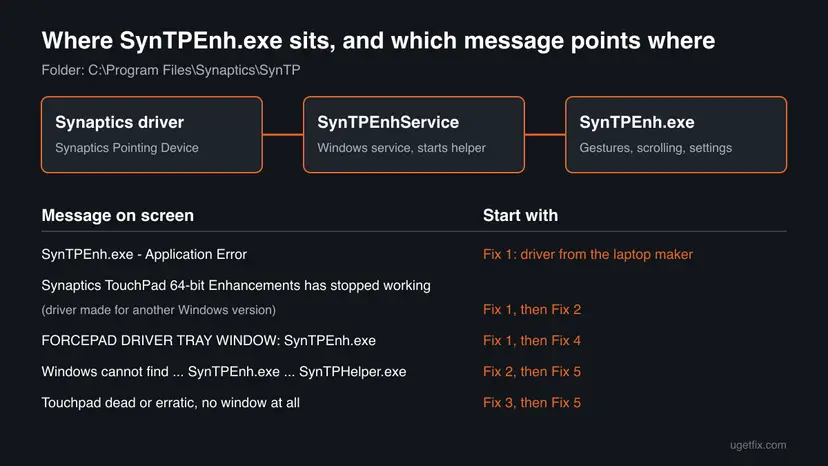
What is SynTPEnh.exe, SynTPEnhService and the SynTPEnh Caller Service?
SynTPEnh.exe is part of the Synaptics touchpad driver that laptop makers install on models with a Synaptics touchpad. It runs in the background and adds what the basic driver does not: two-finger scrolling, edge and multi-finger gestures, palm detection settings and the Synaptics tab or app for touchpad settings. It is not a Windows file.
- Usual location
C:\Program Files\Synaptics\SynTP\SynTPEnh.exe- Started by
- SynTPEnhService, a Windows service from the same driver. Searches pair it with the name SynTPEnh Caller Service; on the PC in our picture below the service shows as SynTPEnhService.
- Other Synaptics processes
SynTPHelper.exeandSynTPLpr.execome from the same driver package; the same fixes apply when they fail.- Device name
- Synaptics Pointing Device in Device Manager, usually under Mice and other pointing devices.
- Needed for Windows?
- No. Without it the touchpad usually still moves the pointer and clicks, but Synaptics gestures and settings are gone.
In that folder, with a Synaptics signature, the file is the genuine driver helper and is safe. A file called SynTPEnh.exe in your user folder, in Temp, or on a laptop without a Synaptics touchpad is not the Synaptics helper and should be scanned (Fix 6).
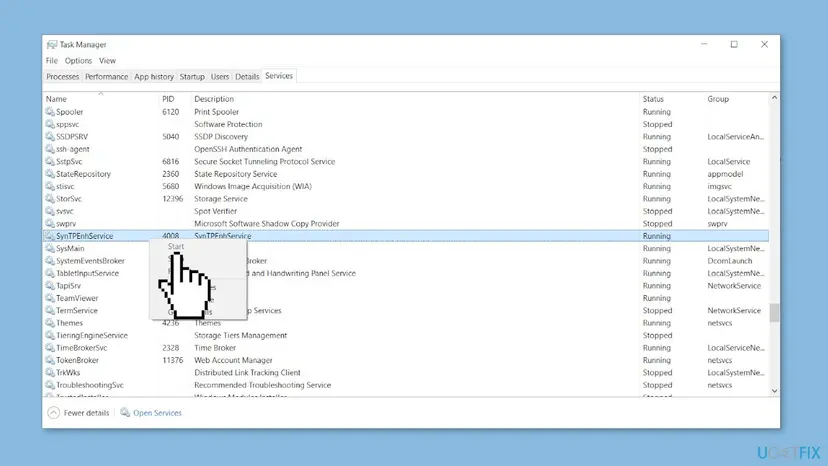
What causes the SynTPEnh.exe error, most common first
Synaptics does not publish a cause for this crash. The order below comes from the reports on the Dell, HP and Microsoft forums and from how the driver is built: SynTPEnh.exe only works with the driver version it came with.
| Cause | How often | Start with |
|---|---|---|
| A driver that does not match the laptop or Windows version: a generic Synaptics driver, one from Windows Update, or one made for Windows 8 running on another version (as in the Dell reports). | Most often | Fix 1 |
| Old and new Synaptics files mixed after an upgrade or a failed install, so the helper starts with the wrong files. | Often | Fix 2 |
| SynTPEnhService is stopped or set to Disabled, so the helper and the settings do not start. | Sometimes | Fix 3 |
| You do not need the gestures, but the helper keeps crashing at every start. | Sometimes | Fix 4 |
| A failing touchpad. In one HP case the error came back after every reinstall, and HP replaced the touchpad. | Rarely | Fix 5 |
| A fake file with the same name, a bad change on a known day, or damaged Windows files. | Rarely | Fix 6, Fix 7 and Fix 8 |
How to fix the SynTPEnh.exe Application Error
Fixes 1 and 2 put the right touchpad driver in place and solve most cases. Fix 3 is for missing touchpad settings, Fix 4 is for readers who only need a basic touchpad, and Fix 5 is for the "Windows cannot find" message and hardware faults. Fixes 6 to 8 are checks and general repairs for the few cases left.
| What you see or have | Start with |
|---|---|
| "SynTPEnh.exe - Application Error" or "FORCEPAD DRIVER TRAY WINDOW" at start-up or shut-down. | Fix 1, then Fix 2 |
| "Synaptics TouchPad 64-bit Enhancements has stopped working" after a Windows upgrade or reinstall. | Fix 1, then Fix 2 |
| No error window, but touchpad settings or gestures are gone. | Fix 3 |
| You only need the pointer and clicks, and the error keeps coming back. | Fix 4 |
| "Windows cannot find" with SynTPEnh.exe in the message, on two-finger scrolling, even after a reinstall. | Fix 2, then Fix 5 |
SynTPEnh.exe runs from a folder other than Synaptics\SynTP, or you have no Synaptics touchpad. | Fix 6 |
| The error started on a known day, or other programs crash too. | Fix 7, then Fix 8 |
Fix 1. Install the touchpad driver from your laptop maker
10 minutesLow riskEveryone who sees the window. This is the fix for most readers, above all after a Windows upgrade or reinstall.
Laptop makers adjust the Synaptics driver for each model, and SynTPEnh.exe only works with the driver it was made for. In the Dell reports the crash came from a driver meant for another Windows version, so the model's own driver is the first thing to put in place.
- Find your exact model: press Win + R, type
msinfo32, press Enter and read System Model. - Open the support site of your laptop maker (Dell, HP, Lenovo, Acer, ASUS) and enter that model or the service tag.
- Choose your Windows version and open the Mouse, Keyboard & Input Devices, Input or Touchpad section of the drivers.
- Download the newest Synaptics touchpad or pointing device driver listed for your model.
- Run the installer, let it finish and restart the laptop.
- On an HP laptop you can also run HP Support Assistant and install the updates it finds, as HP's forum experts suggest; check the support page too, because it can miss some.
Do not take the driver from a driver download site or a generic Synaptics package. When your maker lists no driver for Windows 11, use the newest one listed for Windows 10 on the same model.
It worked if: After the restart no SynTPEnh.exe window appears, and the touchpad scrolls with two fingers.
If not: If the installer fails or the window comes back, go to Fix 2.
Fix 2. Remove the Synaptics driver completely, then install it again
20 minutesLow riskFix 1 did not help, the installer failed, or you see a "Windows cannot find" message about SynTPEnh.exe.
An install over a broken one keeps the old files and settings. Removing the device together with its driver, and then the Synaptics app entry, leaves one clean set for the maker's installer to write.
Plug in a USB mouse first. The touchpad can stop working between the uninstall and the restart.
- Download the maker's touchpad driver first (Fix 1, steps 1 to 4), so you have it offline.
- Right-click Start and select Device Manager.
- Expand Mice and other pointing devices, right-click Synaptics Pointing Device and select Uninstall device.
- Tick Attempt to remove the driver for this device (on Windows 10: Delete the driver software for this device) and select Uninstall.
- Open Settings > Apps > Installed apps (Windows 10: Apps & features) and uninstall Synaptics Pointing Device Driver if it is listed.
- Restart the laptop, then run the maker's driver you downloaded and restart again.
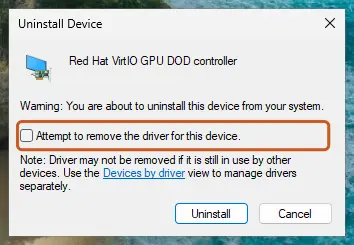
Removing a program in Settings, with pictures: Uninstall a program or app in Windows
It worked if: Device Manager shows Synaptics Pointing Device again, and the error window does not appear after the restart.
If not: If gestures are still missing, go to Fix 3. If the "Windows cannot find" message stays, go to Fix 5.
Fix 3. Check that SynTPEnhService runs and starts automatically
5 minutesLow riskThere is no error window, but touchpad gestures or the Synaptics settings are gone, or SynTPEnh.exe is not running.
SynTPEnhService starts SynTPEnh.exe. When the service is stopped or set to Disabled, for example by a tuning tool, the helper never starts and the touchpad falls back to basic mode.
- Press Win + R, type
services.mscand press Enter. - Find SynTPEnhService (it may show as SynTPEnh Caller Service) and look at Status and Startup Type.
- If it is not running, right-click it and select Start.
- Double-click it, set Startup type to Automatic and select OK.
- Restart the laptop and check the touchpad.
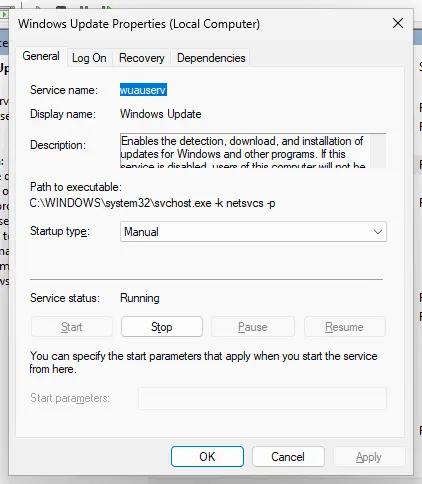
More on services: Check and restart Windows services
It worked if: SynTPEnhService shows Running, and two-finger scrolling and the Synaptics settings work again.
If not: If the service is missing, the Synaptics driver is not fully installed: go back to Fix 2. If the service starts and then the crash window appears, go to Fix 4 or Fix 5.
Fix 4. Stop SynTPEnh.exe from starting if a basic touchpad is enough
5 minutesRead the warningThe error comes back after a clean install, and you only need the pointer and clicks, not Synaptics gestures.
SynTPEnh.exe only adds gestures and settings; the pointer itself is driven by the driver. A Dell forum user whose touchpad crashed at every start renamed the file and reported that the error went away and the touchpad kept working.
You lose two-finger scrolling, gestures and the Synaptics settings until you undo this. Keep a USB mouse at hand in case the touchpad stops responding, and undo the change before any driver update, or the update can fail.
- Press Ctrl + Shift + Esc to open Task Manager and select Startup apps (Windows 10: the Startup tab).
- Find the Synaptics entry (its name varies by driver version), right-click it and select Disable.
- Restart and check whether the error window still appears.
- If it still appears, open
C:\Program Files\Synaptics\SynTPand renameSynTPEnh.exetoSynTPEnh.exe.bak, confirming the administrator prompt. - Restart again. To undo, rename the file back and turn the start entry on again.

How to switch off a start entry: Stop apps from opening at startup
It worked if: No SynTPEnh.exe window at start-up or shut-down, and the pointer and clicks still work.
If not: If the touchpad stops moving the pointer, rename the file back, restart and go to Fix 5.
Fix 5. Fix "Windows cannot find SynTPEnh.exe" and test the touchpad hardware
20 minutesNo riskYou see "Windows cannot find" with SynTPEnh.exe and SynTPHelper.exe in the message, often on a two-finger scroll, and it stays after a clean reinstall.
This message means the touchpad asks for the helper and the helper is not where the driver expects it. When a clean reinstall does not stop it, the request itself can come from a faulty touchpad: in one HP case support concluded it was hardware and replaced the touchpad.
- Open
C:\Program Files\Synaptics\SynTPand check thatSynTPEnh.exeandSynTPHelper.exeare there. If you renamed one (Fix 4), rename it back. - If the files are missing, run Fix 2 once more with the maker's driver.
- Run your maker's hardware test. On HP: turn the laptop on, tap Esc at once and press F2 for System Diagnostics. Dell, Lenovo and others have their own start-up diagnostics on their support site.
- If the test reports a touchpad or input error, or the message stays after a clean reinstall, contact the maker's support with the details from "Still broken" below.
It worked if: The files are in place and the message stops, or the hardware test names the fault so the maker can repair it.
If not: If the test passes and the message stays, try Fix 7 and contact the maker's support.
Fix 6. Check that SynTPEnh.exe is the real Synaptics file and scan it
10 minutesNo riskYou are not sure the file is Synaptics software, or your laptop has no Synaptics touchpad.
Malware can use the name of a known background helper. The genuine file sits in the Synaptics folder and carries a Synaptics signature; a copy anywhere else is not the touchpad helper.
- Press Ctrl + Shift + Esc, open Details, right-click SynTPEnh.exe and select Open file location. It should open
C:\Program Files\Synaptics\SynTP. - Right-click the file, select Properties and open Digital Signatures. The signer should be Synaptics.
- If the folder or the signer is different, run a full scan with Microsoft Defender.
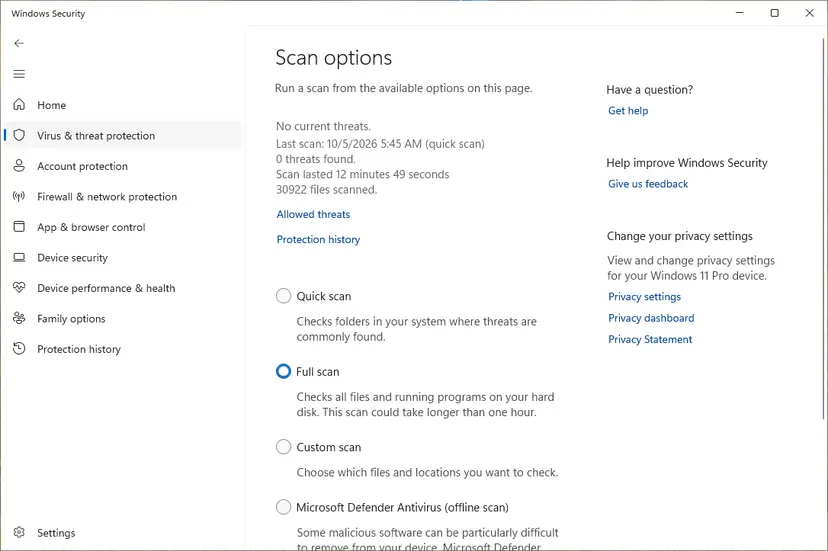
Step by step: How to scan for malware with Microsoft Defender
It worked if: The file is in the Synaptics folder with a Synaptics signature, or Defender found and removed the fake copy.
If not: If the genuine file still crashes, go to Fix 7.
Fix 7. Return Windows to a restore point from before the error
20 minutesLow riskThe error began on a known day, after a driver or Windows update, and you have a restore point from before it.
A restore point brings back the drivers and programs of that day, including the Synaptics driver that worked. Your documents are not touched.
- Press Win + R, type
rstruiand press Enter. - Select Choose a different restore point and pick one from before the first error.
- Select Scan for affected programs, then Next and Finish.
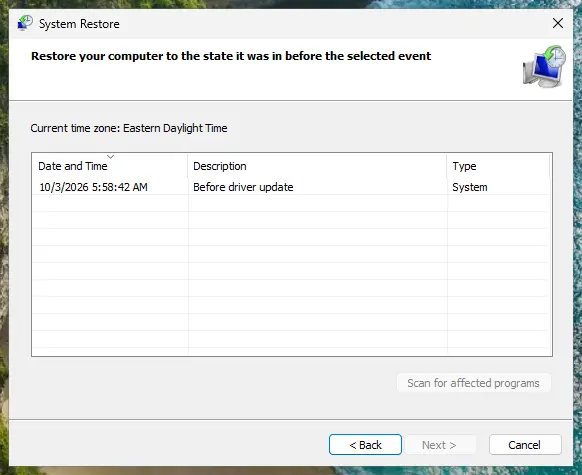
Full steps: Undo recent changes with System Restore
It worked if: Windows restarts with the older driver and the SynTPEnh.exe window is gone.
If not: Windows Update may install the same driver again; then install the maker's driver (Fix 1). With no restore point, go to Fix 8.
Fix 8. Repair Windows system files with DISM and SFC
20 minutesNo riskOther programs crash too, or Fixes 1 to 7 did not help.
This is the repair Microsoft support suggested for the ForcePad tray window error. It fixes damaged Windows files; it does not change the Synaptics driver, so it helps only when Windows itself is damaged.
- Open Terminal or Command Prompt as administrator.
- Run DISM, then SFC, as shown in the procedure below, and restart.
- Install the maker's touchpad driver once more (Fix 1).
Step by step: Run DISM and SFC to repair Windows system files
It worked if: SFC reports no problems or repaired files, and the touchpad driver installs and runs without the crash window.
If not: Collect the details in "Still broken" below and contact your laptop maker.
If the SynTPEnh.exe error is still there: where to look and what to send
The crash window shows only the file name and two addresses. These places hold the details your laptop maker's support needs:
| What to check | Where | What it tells you |
|---|---|---|
| Crash history | Press Win + R, type perfmon /rel and press Enter (Reliability Monitor) | Each red cross for SynTPEnh.exe is one crash, with the date, so you see whether it began with an update. |
| Crash details | Event Viewer: Windows Logs > Application, source Application Error, event ID 1000 | Faulting application name, its version, the exception code and the path of the file. |
| Driver version | Device Manager: Synaptics Pointing Device > Properties > Driver | Driver provider, date and version, to compare with the maker's support page. |
| Hardware | The maker's start-up diagnostics (HP: Esc, then F2) | Whether the touchpad or input board reports a fault. |
Send the maker the exact window title, the driver version, your laptop model and service tag or serial, the Windows version and what you already tried.
If the touchpad moves the pointer by itself, the message returns after a clean driver install on a fresh Windows, or the maker's diagnostics report an input fault, the touchpad itself is the likely cause. That needs a repair under warranty, not more driver changes.
How to keep the SynTPEnh.exe error from coming back
- Take touchpad drivers only from your laptop maker's support page for your model.
- After a Windows upgrade, install the maker's touchpad driver again.
- Keep a restore point before driver updates.
- Keep SynTPEnhService on Automatic.
- Do not download SynTPEnh.exe from file or DLL sites. It comes only with the Synaptics driver.
- Do not use regsvr32 on SynTPEnh.exe; it registers DLL files, not programs, and changes nothing here.
- Do not delete files in
Synaptics\SynTPby hand; it leads to "Windows cannot find" messages. - Do not turn off Microsoft Defender to stop the window.
Frequently asked questions
What is SynTPEnh.exe?
SynTPEnh.exe is the Synaptics TouchPad Enhancements helper. It comes with the Synaptics touchpad driver on many Dell, HP, Lenovo and other laptops and lives in C:\Program Files\Synaptics\SynTP. It runs two-finger scrolling, gestures and the touchpad settings. It is not a Windows file, and the pointer usually works without it, but the extra touchpad features do not.
What is SynTPEnhService, or the SynTPEnh Caller Service?
SynTPEnhService is the Windows service of the Synaptics driver that starts SynTPEnh.exe. People search for it together with the name SynTPEnh Caller Service. It should be set to Automatic. If it is stopped or disabled, gestures and the Synaptics settings disappear while the pointer keeps working. Fix 3 shows how to check and start it in Services.
Should I disable SynTPEnhService?
Only if you do not need Synaptics gestures and the helper keeps crashing after a clean driver install. Disabling the service stops SynTPEnh.exe from starting, so two-finger scrolling and the touchpad settings stop too. Try the maker's driver first (Fix 1 and Fix 2). If you still want it off, Fix 4 shows a way you can undo.
Is SynTPEnh.exe a virus?
No, not when it sits in C:\Program Files\Synaptics\SynTP with a Synaptics signature on a laptop that has a Synaptics touchpad. The crash window is a driver fault, not a sign of infection. A file of the same name anywhere else, or on a PC without a Synaptics touchpad, is not the touchpad helper. Check it and scan with Microsoft Defender as Fix 6 shows.
What is FORCEPAD DRIVER TRAY WINDOW: SynTPEnh.exe?
It is a title of the same SynTPEnh.exe crash window, reported by a Windows 10 user on Microsoft Q&A together with two memory addresses. The user said it stopped Windows and programs from shutting down properly. Microsoft support suggested DISM and SFC. Start with the maker's touchpad driver (Fix 1) and keep DISM and SFC for last (Fix 8).
What is SynTPLpr.exe?
SynTPLpr.exe is another process from the same Synaptics touchpad driver package as SynTPEnh.exe. Synaptics does not document each process for end users, and we could not confirm its exact role. If it shows an error, treat it the same way: install the maker's touchpad driver for your model and, if that fails, reinstall it cleanly as in Fix 2.
Does the SynTPEnhService fix differ on Windows 11?
No. The file, the service and the fixes are the same on Windows 11 and Windows 10; only a few menu names differ, as the steps say. Windows 10 left Microsoft support on 14 October 2025, so a Windows 10 laptop gets no new security fixes. When your maker lists no Windows 11 touchpad driver, use the newest one listed for Windows 10 on the same model.
Can I download SynTPEnh.exe to replace a missing one?
Do not. The file only works with the driver it came with, and a copy from a download site may be the wrong version or harmful. When the file is missing, install the touchpad driver for your model from the laptop maker's support page (Fix 1 or Fix 2), which puts back SynTPEnh.exe, SynTPHelper.exe and the service together.
Does re-registering SynTPEnh.exe with regsvr32 help?
No. Some older guides tell you to run regsvr32 on SynTPEnh.exe, but regsvr32 registers DLL and control files, not programs, so it either fails or changes nothing for this error. The helper is a program started by SynTPEnhService, not a component Windows needs to register. The fix that puts the helper in order is a reinstall of the maker's touchpad driver (Fix 1 and Fix 2).
This page is in English. What is this error in other languages?
People also search "what is this error", "how to fix it" and "what does it mean" in other languages next to this file name. The answer is the same in every language: SynTPEnh.exe is the Synaptics touchpad helper, not a virus in the Synaptics folder, and its Application Error is fixed by installing the touchpad driver from your laptop maker.
Sources
- Microsoft Q&A: How do I resolve FORCEPAD DRIVER TRAY WINDOW: SynTPEnh.exe (Microsoft support answer) (learn.microsoft.com)
- HP Support Community: Windows cannot find SynTPEnh.exe on two-finger scrolling (solved thread) (h30434.www3.hp.com)
- Dell Community: Synaptics TouchPad 64-bit Enhancements has stopped working (solved thread) (dell.com)
Did this fix work?
One click, no account. It tells the next reader which guides are worth their time.
Questions and experiences: fix SynTPEnh.exe application error in Windows
Still broken, or found a fix we did not cover? Ask here: members and our editors answer. Reading is open; writing needs a free account.
…