
How to fix "System error 6118 has occurred" in Command Prompt?

Prefer to fix it yourself? The manual steps follow.
- 6methods
- 2 to 20 minutes
- Easy
Applies to Windows 11 and Windows 10 PCs in a home or small office workgroup that run net view in Command Prompt or PowerShell
6 methods in this guide
I tried to view all my devices on the network in Command Prompt with the "net view" command, but I received an error that read, "System error 6118 has occurred." Is there anything I could do to resolve it?
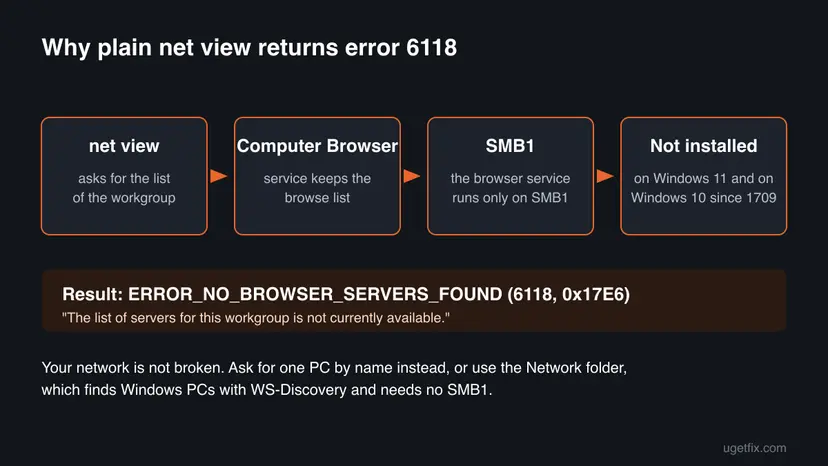
"System error 6118 has occurred" means net view could not get the list of computers in your workgroup, because the Computer Browser service that kept that list needs SMB1, which Windows 11 and current Windows 10 no longer install. Your network is usually fine. Ask for one PC directly with net view \\Name, or use the Network folder in File Explorer.
Plain net view depends on the old Computer Browser service, which is removed together with SMB1, so on Windows 11 it usually cannot work. Run net view \\Name or net view \\192.168.1.20 for the PC you need (Fix 1). To see all Windows PCs, start the two Function Discovery services and open Network in File Explorer (Fix 2). Do not turn SMB1 back on for this.
| Error | "System error 6118 has occurred. The list of servers for this workgroup is not currently available." |
|---|---|
| Where it appears | In Command Prompt, PowerShell or Terminal right after you run net view with no computer name. It can also appear in scripts that call net view. |
| Main cause | The Computer Browser service is not on the PC, or no PC on the network keeps a browse list. The service relies on SMB1, and Windows removes it when SMB1 is not installed. |
| Fastest fix | Name the computer: net view \\Name or net view \\IP-address (Fix 1). For a list of PCs, use Network in File Explorer with the Function Discovery services running (Fix 2). |
| Also written as | Error 6118, net view error 6118, ERROR_NO_BROWSER_SERVERS_FOUND, 0x17E6, "the list of servers for this workgroup is not currently available". |
| Affects | Windows 11 (SMB1 is not installed after a clean install) and Windows 10 since version 1709. Windows 10 support ended on 14 October 2025. |
| Microsoft's status | By design, not a bug. Microsoft removed the Computer Browser service with SMB1 and points to WS-Discovery, mapped drives and IP addresses instead. |
| Time to fix | 2 minutes to use net view with a name. 10 to 20 minutes to make other PCs show up under Network. |
Facts checked on 15 October 2026. Steps written for Windows 11 (25H2 and 26H2) and Windows 10 22H2.
What "System error 6118 has occurred" means in net view
You type net view and press Enter. Instead of a list of computers, Command Prompt prints two lines. The first is "System error 6118 has occurred." and the second is "The list of servers for this workgroup is not currently available." The same text appears in PowerShell and Windows Terminal, because they run the same net.exe program.
Microsoft's list of system error codes names 6118 ERROR_NO_BROWSER_SERVERS_FOUND, hexadecimal 0x17E6, with exactly that message. In plain words: Windows asked for the browse list of your workgroup, and nothing answered with one. It does not say that your network, your shares or your internet connection are broken.
| What you run | What happens on Windows 11 |
|---|---|
net view | System error 6118 in most home and small office networks. |
net view \\Name | Lists the shared folders and printers of that one PC, if it shares anything and its firewall allows it. |
net view \\192.168.1.20 | The same, by IP address, when the name does not resolve. |
net share | Lists the shares on your own PC. Does not use the network at all. |
Why net view cannot list the servers for this workgroup: the causes in order
Most often, nothing is wrong: the PC simply has no Computer Browser service, so plain net view has nothing to ask. Less often, you expect other PCs to show up and they do not, because network discovery is off or the discovery services are stopped. Rarely, the firewall blocks discovery or the network stack itself is damaged.
| Cause | How often | How to tell | Fix |
|---|---|---|---|
| No Computer Browser service, because SMB1 is not installed. | Most often | Windows 11, or Windows 10 1709 or later. net view \\Name works while plain net view fails. | Fix 1, Fix 3 |
| Network discovery is off, the network is Public, or the Function Discovery services are stopped. | Often | Other PCs are missing from Network in File Explorer too. | Fix 2 |
| You want every device, not just Windows PCs with shares. | Often | Phones, printers and TVs never appear in net view. | Fix 4 |
| The firewall blocks Network Discovery or File and Printer Sharing. | Sometimes | net view \\Name gives error 53 or times out, while ping works. | Fix 5 |
| Damaged network settings. | Rarely | Other network commands and the internet also fail. | Fix 6 |
Microsoft Learn says the Computer Browser service relies on SMB1 and is uninstalled when the SMB1 client or server is removed. Setting the service to Automatic is not possible on Windows 11, because the service is not there.
Why turning SMB1 back on is not the fix for error 6118
Many older pages tell you to tick SMB 1.0/CIFS File Sharing Support so that the Computer Browser service comes back. Microsoft's own page on SMB1 strongly recommends not reinstalling it, because the old protocol has known security issues with ransomware and other malware. It also notes that the legacy browsing protocol does not route and has limited security.
- Windows 11: neither the SMB1 client nor the SMB1 server is installed after a clean install.
- Windows 10 since 1709: the SMB1 server is not installed by default on Home and Pro, and Enterprise and Education have neither part. An unused SMB1 client removes itself after 15 days.
- Even with SMB1 on your PC, a browse list exists only when some machine on the network acts as the browser. On a network of current Windows PCs, none does. We could not confirm that turning SMB1 back on in Windows 11 restores the service.
- What Microsoft recommends instead: the Function Discovery services and WS-Discovery for the Network folder, and mapped drives or IP addresses for shares.
If an old NAS or media player works only with SMB1, that is a different problem with its own error messages. Our guide to "The network path was not found" 0x80070035 covers it.
How to fix "System error 6118 has occurred" in net view
Fix 1 gives most readers what they wanted from net view in two minutes. Fix 2 brings back a list of Windows PCs the supported way. Fixes 3 and 4 answer narrower questions. Fixes 5 and 6 are for networks where even the named commands fail.
| What you want or see | Start with |
|---|---|
| You know the PC's name or IP address and want its shared folders. | Fix 1 |
| You want a list of the Windows PCs on your network. | Fix 2 |
| You want the shares on your own PC, or on a PC you administer. | Fix 3 |
| You want every device: phones, printers, TVs, the router. | Fix 4 |
net view \\Name fails with error 53 or the PC is missing under Network. | Fix 5 |
| Nothing on the network works from this PC. | Fix 6 |
Fix 1. Ask one computer directly: net view \\Name or \\IP-address
2 minutesNo riskYou know which PC you want to see, or can read its name or IP address.
Error 6118 comes only from the workgroup list. When you name a computer, net view asks that PC for its shares directly over SMB2 or SMB3 and never needs the Computer Browser service.
- On the other PC, press Win + R, type
cmdand press Enter. Runhostnameto read its name andipconfigto read its IPv4 Address. - On your PC, press Win + R, type
cmdand press Enter. - Run
net view \\Name, with the other PC's name in place of Name. - If the name fails, run
net view \\192.168.1.20, with the real address. - Read the list: each line is a shared folder or printer with its type.
- Open a share in File Explorer by typing
\\Name\Sharein the address bar.
Error 53 ("The network path was not found") here means the PC was not reached or is not sharing. Error 5 means access is denied: sign in with an account that exists on that PC. Neither one is error 6118.
It worked if: A table headed "Shared resources at \\Name" with the share names and "The command completed successfully."
If not: If you get error 53, go to Fix 5. If you need a list of all PCs, go to Fix 2.
Fix 2. See the PCs in File Explorer: start the Function Discovery services and turn on network discovery
10 minutesLow riskYou want a list of the Windows PCs on your home or office network.
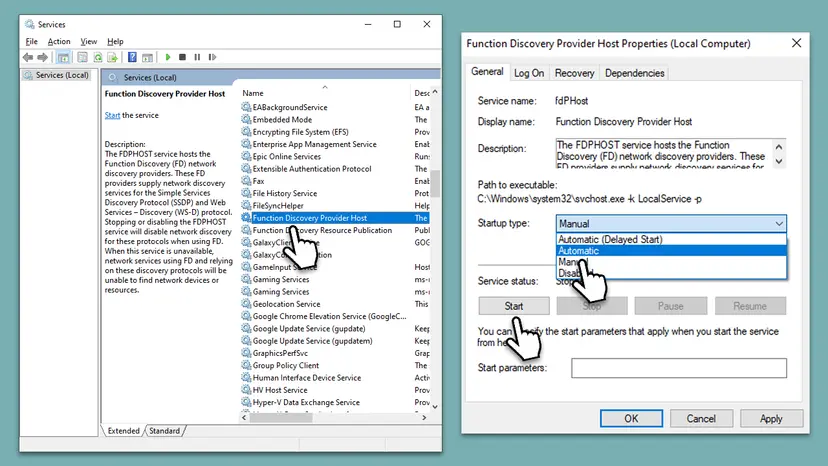
Microsoft's replacement for the old browse list is WS-Discovery. Windows PCs appear in the Network folder when Function Discovery Provider Host and Function Discovery Resource Publication run and network discovery is on.
- Press Win + R, type
services.mscand press Enter. - Double-click Function Discovery Provider Host.
- Set Startup type to Automatic (Delayed Start), select Apply, then Start and OK.
- Do the same for Function Discovery Resource Publication.
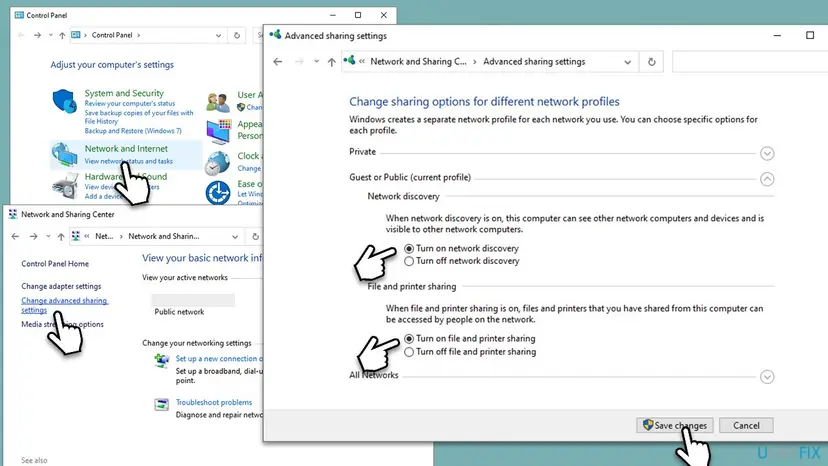
- Open Settings > Network & internet, select Wi-Fi or Ethernet, open your network and set Network profile type to Private network.
- Search for Advanced sharing settings in Settings. Under Private networks, turn on Network discovery and File and printer sharing.
- Repeat steps 1 to 6 on every Windows PC that should appear, then open File Explorer > Network.
More on starting a service and its startup type: Check and restart Windows services.
It worked if: The other Windows PCs appear under Computer in File Explorer > Network, usually within a minute or two.
If not: net view without a name still shows 6118, which is expected. If PCs stay missing from Network, go to Fix 5.
Fix 3. List shared folders with net share or PowerShell Get-SmbShare
3 minutesNo riskYou want the shares of this PC, or of another PC where you are an administrator.
Many people run net view only to see shares. net share and Get-SmbShare read them from the SMB server itself, so the missing browse list does not matter.
- Right-click Start and select Terminal (Admin) on Windows 11 or Windows PowerShell (Admin) on Windows 10.
- Run
net shareto list the shares on this PC, including the hidden ones that end in $. - Or run
Get-SmbSharefor the same list in PowerShell form. - For one share, run
Get-SmbShare -Name "Public" | Format-List -Property *, with the share name in quotes, not a computer name. - For another PC where you are an administrator, run
Get-SmbShare -CimSession Name, with that PC's name.
The old version of this guide told you to put a computer name after -Name. That is wrong: Microsoft's reference says -Name is the share name, and -CimSession runs the command on a remote computer.
It worked if: A list with the columns Name, ScopeName, Path and Description, one row per share.
If not: If -CimSession fails with an access or connection error, use net view \\Name from Fix 1, which needs no remote management.
Fix 4. See every device on the network: the router list or arp -a
5 minutesNo riskYou want phones, printers, TVs and other devices, not only Windows PCs with shares.
net view never listed devices without SMB shares, even when it worked. Your router hands out the addresses, so its list of connected devices is the most complete one you have.
- Open Command Prompt and run
ipconfig. Note the Default Gateway address, for example 192.168.1.1. - Type that address into a browser and sign in to the router.
- Open the page called Connected devices, Device list, Clients or DHCP clients. The name depends on the maker.
- For a quick list from Windows itself, run
arp -ain Command Prompt. It shows the addresses this PC has talked to recently, not every device. - Use a name or address you found with
net view \\Namefrom Fix 1.
It worked if: A table of devices with their names, IP addresses and MAC addresses.
If not: If you cannot sign in to the router, ask whoever set it up. For Windows PCs only, use Fix 2.
Fix 5. Allow Network Discovery and File and Printer Sharing in Windows Firewall
5 minutesLow risknet view \\Name returns error 53, or a PC stays missing under Network after Fix 2.
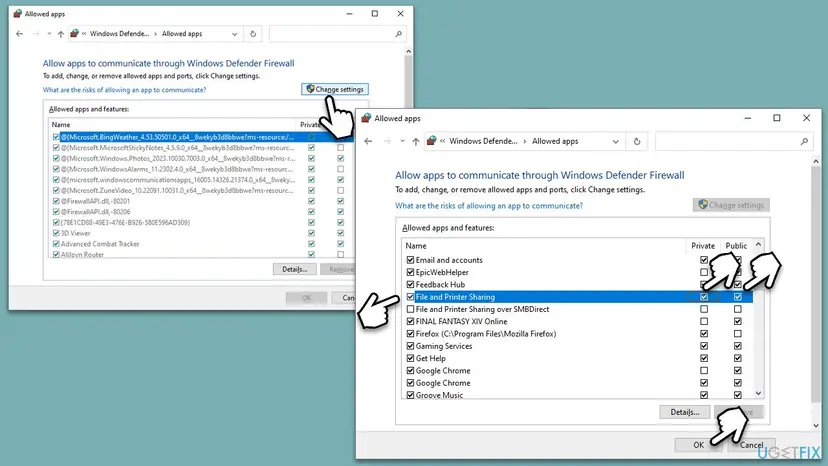
Windows Firewall allows discovery and file sharing per network type. If the rules are off for your current profile, WS-Discovery and share lists are blocked even though the services run.
- Press Win + R, type
control firewall.cpland press Enter. - Select Allow an app or feature through Windows Defender Firewall.
- Select Change settings.
- Find File and Printer Sharing and tick the Private box.
- Find Network Discovery and tick the Private box.
- Select OK. Do the same on the PC you are trying to see.
Keep these rules off for Public. A café or hotel network should not see your shares.
It worked if: net view \\Name lists the shares, and the PC shows up under Network in File Explorer.
If not: If a third-party security suite runs its own firewall, allow file sharing there for the home network, or go to Fix 6.
Fix 6. Reset the network settings
10 minutesLow riskNothing on the local network works from this PC, and other PCs see each other fine.
A damaged Winsock or TCP/IP setup breaks every network command, not just net view. A reset rebuilds them. It does not bring back the browse list, so use it only when Fix 1 also fails.
- Open an elevated command window. Right-click Start and select Terminal (Admin), or type cmd in the search box, right-click Command Prompt and select Run as administrator. Select Yes when Windows asks for permission.
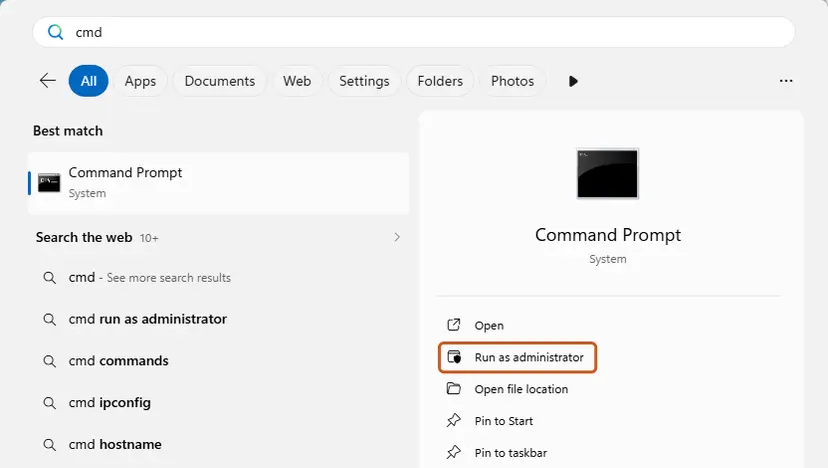
Search for cmd and choose Run as administrator. Screenshot: Windows 11 26H2. - Flush the DNS cache. Type the command below and press Enter. Windows forgets the website addresses it looked up earlier and asks for them again.
ipconfig /flushdns - Reset Winsock. Type the command below and press Enter. It returns the Windows sockets catalog to its default state.
netsh winsock reset
Both commands report success; the Winsock reset asks for a restart. Screenshot: Windows 11 26H2. - Reset TCP/IP. Type the command below and press Enter. If you entered an IP address or DNS server by hand, note it first: you may need to enter it again.
netsh int ip reset - Get a new IP address. Run these two commands one after the other. The connection drops for a moment between them.
ipconfig /release ipconfig /renew - Restart the PC. Restart Windows so the Winsock and TCP/IP resets take effect, then test the connection. If it still does not work, continue with the network reset below.
These steps were written for Windows 11 24H2 and later. The full page with the other versions and what each result means: Reset the network and flush DNS
Full steps with the Settings method: Reset the network and flush DNS. You will need to enter Wi-Fi passwords again after a full Network reset.
It worked if: After the restart, net view \\Name lists the other PC's shares.
If not: Read the "still broken" section below and check the other PC, the cable or the Wi-Fi link.
If net view still shows error 6118 or other PCs stay invisible
Plain net view with no name will most likely keep returning error 6118 on Windows 11. That is not a failure of the fixes: the list it asks for is gone by design. Judge the fixes by net view \\Name and by the Network folder.
| What you see | What it means | Go to |
|---|---|---|
System error 6118 with net view | No browse list on this network. | Fix 1 or Fix 2 |
System error 53 with net view \\Name | The PC was not reached, does not share, or its firewall blocks you. | Fix 5 |
System error 5 with net view \\Name | Access denied: wrong account for that PC. | Sign in with an account on that PC |
| PCs missing from Network | Discovery services or network discovery are off on them. | Fix 2 on each PC |
- What to tell your administrator at work: the exact command, the error number, and whether
net view \\Nameworks. On a domain, PCs are found through Active Directory, not the browse list. - When it is hardware: no link light on the network port, or a PC that does not answer
pingafter a restart. No Windows setting fixes those.
How to find computers on the network without net view from now on
Microsoft recommends mapping drives and printers instead of browsing for them: mapped resources are easier to find and safer to use. Give each PC a fixed name, note its IP address or reserve it in the router, and you will never need the workgroup list again.
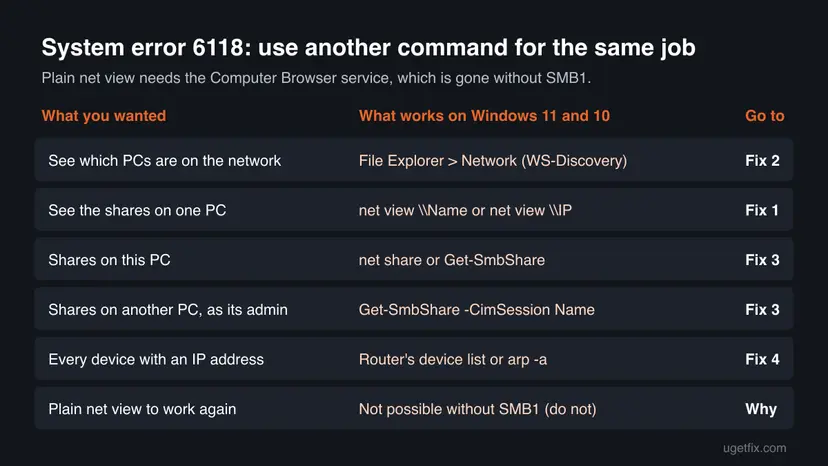
- Map a share once: in File Explorer select This PC, then Map network drive, and enter
\\Name\Share. - Keep the network profile on Private at home, so discovery keeps working after updates.
- In scripts, replace plain
net viewwithnet view \\NameorGet-SmbShare -CimSession Name.
Frequently asked questions
What is system error 6118 in net view?
System error 6118 is ERROR_NO_BROWSER_SERVERS_FOUND, hexadecimal 0x17E6, and its text is "The list of servers for this workgroup is not currently available." It appears when net view runs without a computer name and no browse list is available. On Windows 11 and on Windows 10 since version 1709, the Computer Browser service that kept that list is removed together with SMB1, so the error is normal. Your shares and network still work: name the computer, as in net view \\Name, or use the Network folder in File Explorer.
Why does system error 6118 has occurred appear on Windows 11?
Windows 11 does not contain the SMB1 client or server after a clean install, according to Microsoft Learn. The Computer Browser service relies on SMB1, so it is not there either. Plain net view asks exactly that service for the list of computers, and gets nothing back. This is why the error shows up on new Windows 11 PCs even when file sharing works perfectly. Use net view \\Name for one PC (Fix 1) or the Function Discovery services and the Network folder for a list (Fix 2).
How do I start the Computer Browser service?
On Windows 11 and on Windows 10 1709 or later you usually cannot, because the service is no longer installed. Microsoft removes it whenever the SMB1 client or server is uninstalled. That is why you will not find it in services.msc. The services that matter today are Function Discovery Provider Host and Function Discovery Resource Publication, which Microsoft says to set to Automatic (Delayed Start) so that Windows PCs appear under Network. Fix 2 shows the steps.
Should I enable SMB 1.0 to fix error 6118?
No. Microsoft strongly recommends not reinstalling SMB1 because of known security issues with ransomware and other malware. Turning it on would also not create a browse list by itself, because some machine on the network still has to act as the browser, and current Windows PCs do not. The supported way to see Windows PCs is WS-Discovery through the Network folder. For shares, name the computer in net view \\Name. Only a very old device that speaks nothing but SMB1 needs it, and only to copy data off.
Why does net view work with \\computername but not without it?
With a computer name, net view connects to that one PC and asks it for its list of shares, over the normal SMB2 or SMB3 connection. That needs no browse list. Without a name, it asks the workgroup's browse list, which no longer exists on most networks. So net view \\Name working and plain net view failing is the expected pattern. It proves that file sharing between the two PCs is fine and that only the old listing feature is missing.
What does net view service not started mean?
It means a service that net view needs is stopped on your PC. net view runs through the Workstation service, and a PC that shares folders needs the Server service. Open services.msc, check that Workstation and Server are Running with Startup type Automatic, and start them if they are not. Do not look for the Computer Browser service on Windows 11: it is not installed. If the error is 6118 instead, the services are fine and you should use Fix 1.
How do I see all computers on my network in Command Prompt?
There is no single command that replaces plain net view on Windows 11. Use arp -a for the addresses your PC has talked to recently, then net view \\Name or net view \\IP-address for the shares of each one. For a full list of devices, open your router's connected devices page. For a list of Windows PCs, use File Explorer > Network with the Function Discovery services running. Fix 4 and Fix 2 show both.
Is system error 6118 the same on Windows 10?
Yes, the code and the message are the same, and so is the cause. Windows 10 since version 1709 no longer installs the SMB1 server on Home and Pro, and Enterprise and Education have no SMB1 at all, so the Computer Browser service is missing there too. An old Windows 10 PC that was upgraded may still have SMB1 for a while, until Windows removes an unused one after 15 days. Windows 10 support ended on 14 October 2025.
Does error 6118 mean my network or shared folders are broken?
Usually not. Error 6118 says only that the workgroup list of servers is not available. Shares, mapped drives, printers and the internet are separate and usually keep working. Test it in one step: run net view \\Name for a PC that shares a folder. If it lists the shares, everything is fine. If it returns error 53, the problem is reaching or sharing on that PC, and Fix 5 and our guide on error 0x80070035 cover it.
Sources
- Microsoft Learn: System Error Codes (6000-8199) (learn.microsoft.com)
- Microsoft Learn: SMBv1 not installed by default in Windows Server and Windows (learn.microsoft.com)
- Microsoft Learn: Get-SmbShare (learn.microsoft.com)
Did this fix work?
One click, no account. It tells the next reader which guides are worth their time.
Questions and experiences: fix "System error 6118 has occurred" in Command Prompt
Still broken, or found a fix we did not cover? Ask here: members and our editors answer. Reading is open; writing needs a free account.
…