
How to fix "The network path was not found" with an Error Code 0x80070035 on Windows?

Prefer to fix it yourself? The manual steps follow.
- 8methods
- 10 to 40 minutes
- Intermediate
Applies to Windows 11 and Windows 10 opening a shared folder (SMB) on another PC, a NAS or a router with a USB disk
8 methods in this guide
- What the error means
- Why it appears
- What Windows 11 changed
- The fixes
- 1. Test name, IP and port
- 2. Account and signing on NAS
- 3. Clear saved connections
- 4. Discovery and sharing
- 5. Check the share on the host
- 6. Fix name resolution
- 7. Allow an unsigned NAS
- 8. SMB1 for an old device
- Still not working
- Prevent it
- FAQ
Hello. I've been getting "The network path was not found" error code 0x80070035 whenever I attempt to access a network shared path in our company.
Error 0x80070035, "The network path was not found", means Windows could not reach or could not sign in to a shared folder that you opened by its \\name. Since Windows 11 24H2, the most common reason is a NAS or router disk that allows only guest access or does not sign SMB traffic. Test the path by name and by IP address first, then fix the device, not Windows.
Open the share once by name and once by IP address and test port 445 (Fix 1). If it is a NAS or router disk and the error began with Windows 11 24H2 or later, give the device a user account, turn off its guest access and turn on SMB signing (Fix 2). If only the name fails, clear the name caches (Fix 6). Turning security off on your PC is the last resort (Fix 7).
| Error | Network Error: "Windows cannot access \\Name. Check the spelling of the name. Otherwise, there might be a problem with your network." Details: Error code: 0x80070035. The network path was not found. |
|---|---|
| Where it appears | In File Explorer or the Run box when you open \\Computer\Share, map a network drive or open a NAS. In Command Prompt the same failure reads "System error 53 has occurred". |
| Main cause | On Windows 11 24H2 and later: a NAS or router disk that wants guest access or cannot sign SMB traffic. On any version: a wrong name, a name that does not resolve, or sharing turned off on the other side. |
| Fastest fix | Open the share by IP address and test port 445 to find which case you have (Fix 1). For a NAS: a user account plus SMB signing on the device (Fix 2). |
| Also written as | 0x80070035, error 53, ERROR_BAD_NETPATH, "network path not found", "Windows cannot access, check the spelling of the name". Similar codes: 0x80070043 (network name cannot be found), 0x80004005. |
| Affects | Windows 11 and Windows 10. The Windows 11 24H2 changes hit Pro, Enterprise and Education. Home does not require signing and still allows guest sign-in, according to Microsoft Learn. |
| Microsoft's status | Not a bug. Required SMB signing and blocked guest fallback are security defaults on purpose. Microsoft asks owners to fix the NAS first and calls turning the checks off the least safe option. |
| Time to fix | 5 minutes for a name or cache problem. 15 to 40 minutes when the NAS needs an account, a firmware update or new settings. |
| Where the cause is logged | Event Viewer: Applications and Services Logs > Microsoft > Windows > SMBClient > Security. Event 31017 means a guest logon was rejected; event 32000 means the device only speaks SMB1. |
Facts checked on 14 October 2026. Steps written for Windows 11 (25H2 and 26H2) and Windows 10 22H2.
What "Windows cannot access, check the spelling of the name" and 0x80070035 mean
The window is titled Network Error. The blue line reads "Windows cannot access \\" followed by the name you typed. Under it Windows says: "Check the spelling of the name. Otherwise, there might be a problem with your network. To try to identify and resolve network problems, click Diagnose." Select See details and you get the code: Error code: 0x80070035. The network path was not found.
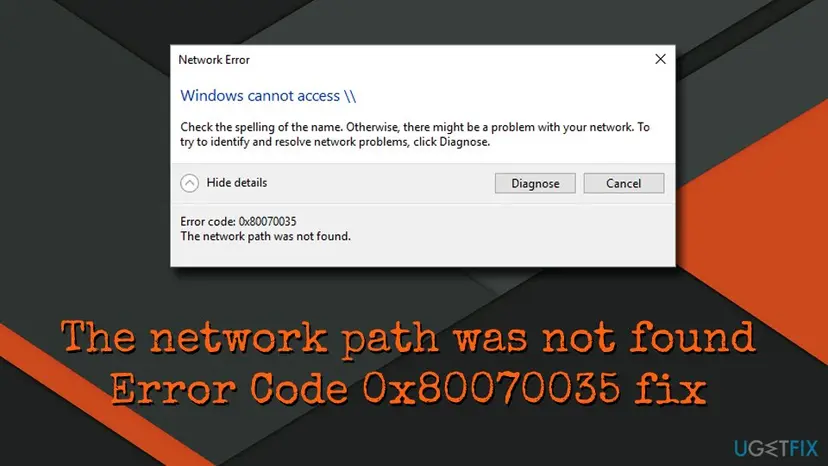
The code itself is plain. 0x80070035 is Windows system error 53 wrapped as an HRESULT: the 0x8007 part says it is a Windows error, and 0x35 is 53 in hexadecimal. Microsoft's list of system error codes names error 53 ERROR_BAD_NETPATH, "The network path was not found." That is why net use in Command Prompt reports "System error 53 has occurred" for the same failure.
"Check the spelling" is only one of several reasons. Microsoft lists 0x80070035 among the errors you get when Windows 11 24H2 refuses a guest sign-in to a NAS. The name can be spelled correctly and still fail.
| Code or text | System error | What it says |
|---|---|---|
| 0x80070035, "The network path was not found" | 53, ERROR_BAD_NETPATH | Windows did not reach the share, or the device refused the way Windows tried to sign in. |
| 0x80070043, "The network name cannot be found" | 67, ERROR_BAD_NET_NAME | The computer answered, but the share name after the second backslash does not exist. |
| "The specified network name is no longer available" | 64, ERROR_NETNAME_DELETED | The connection dropped, often with a device that only speaks SMB1. |
| 0x80004005, "Unspecified error" | none | A general failure. Microsoft lists it for SMB1-only devices and for some address problems. |
Another message you may meet, "Make sure the path or Internet address is correct", comes from the Run box when the path itself is malformed. Check that it starts with two backslashes and uses backslashes, not slashes.
Why Windows cannot access the shared folder: the causes in order
Most often in 2025 and 2026, the target is a NAS or a router with a USB disk, the error began after Windows 11 24H2 or a later version, and the device relies on guest access or does not support SMB signing. Less often the name does not resolve while the IP address works. Rarely the share was removed, sharing is off, or the device is so old that it only speaks SMB1.
| Cause | How often | How to tell | Fix |
|---|---|---|---|
| NAS or router disk wants guest access or cannot sign, and this PC runs Windows 11 24H2 or later Pro, Enterprise or Education. | Most often | Worked on Windows 10 or before the update. Other PCs, phones or a Home edition PC still open it. | Fix 2, then Fix 7 |
| A stale connection or a wrong saved password for that device. | Often | It worked yesterday, or another user name was used before. | Fix 3 |
| The name does not resolve, but the device is up. | Often | \\IP-address\share opens, \\name\share does not. | Fix 6 |
| Network discovery or file sharing is off, the network is Public, or discovery services are stopped. | Sometimes | The PC does not show up under Network, and port 445 does not answer. | Fix 4 |
| The share was removed, renamed or never shared; the firewall blocks it. | Sometimes | Every PC fails, or net share on the host does not list it. | Fix 5 |
| The device supports only SMB1. | Rarely | A NAS or media box from before about 2015. Event 32000 in the SMBClient log. | Fix 8 |
Users on Microsoft Q&A report the error both on company file servers and on home NAS boxes. A company server that runs Windows Server already signs SMB traffic, so on a work network start with Fix 1, Fix 3 and Fix 6, and ask the administrator before you touch any policy.
Why Windows 11 shows "check the spelling of the name" with a NAS that used to work
Microsoft's file server team described two changes in Windows 11 24H2. First, SMB signing is required on all connections by default, which stops tampering and relay attacks. Second, guest fallback is disabled on Windows 11 Pro, as it already was on Enterprise, Education and Pro for Workstations. Microsoft Learn says this applies to 24H2 "and later builds", so 25H2 and 26H2 keep it.
The two changes collide on cheap storage. A guest session has no password, so it cannot be signed. A NAS that lets everyone in as guest therefore fails twice on a Pro PC: the guest sign-in is refused, and the session could not be signed anyway. Microsoft names 0x80070035 and "The network path was not found" among the errors you then see.
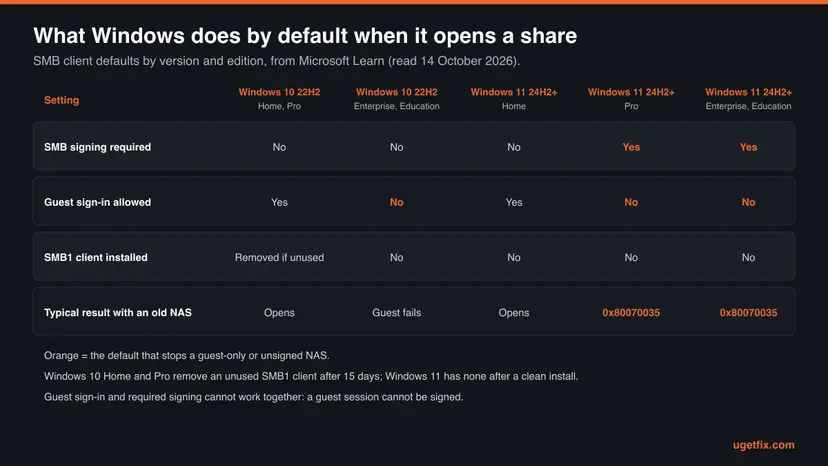
- Windows 11 24H2 and later, Pro, Enterprise, Education: signing required for outgoing and incoming SMB, no guest fallback.
- Windows 11 24H2 and later, Home: Microsoft Learn says Home requires neither outgoing nor incoming signing, and guest fallback stays on.
- Windows 10 22H2: guest sign-in still allowed on Home and Pro, blocked on Enterprise and Education. Windows 10 support ended on 14 October 2025, so it gets no further security fixes.
- SMB1: not installed on Windows 11 after a clean install. The SMB1 client can be added back, but Microsoft strongly advises against it.
Microsoft's blog from May 2024 says signing is required "on all connections", while the newer Learn page lists Home as not requiring it. Do not guess: Fix 7 shows the one PowerShell line that reads the real values on your PC.
How to fix error 0x80070035 "The network path was not found"
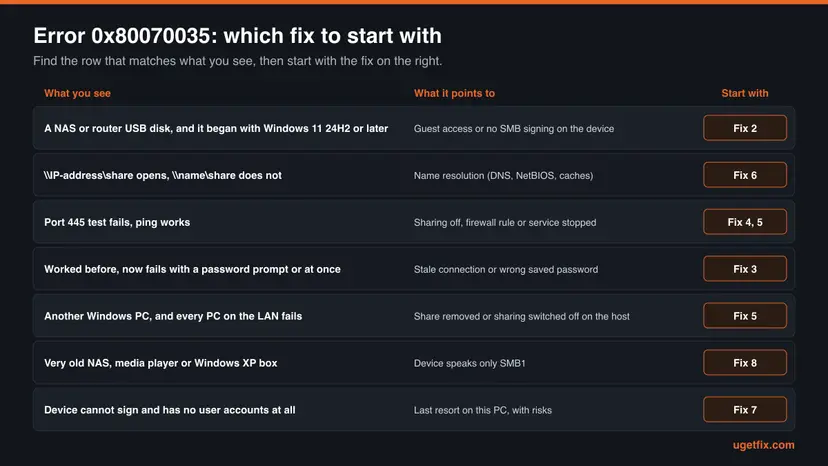
Fix 1 takes two minutes and tells you which of the other fixes you need. Fixes 2 and 3 solve most NAS cases since Windows 11 24H2. Fixes 4 to 6 cover two Windows PCs and name problems. Fixes 7 and 8 lower security on your PC and are a last resort.
| What you see or have | Start with |
|---|---|
| You do not know yet why it fails. | Fix 1 |
| A NAS or router disk, and it stopped working after Windows 11 24H2 or later. | Fix 2 |
| It worked before, and now it asks for a password or fails at once. | Fix 3 |
| Two Windows PCs, and the other PC does not show up under Network. | Fix 4, then Fix 5 |
| The IP address works, the name does not. | Fix 6 |
| The NAS cannot sign and has no user accounts, even after a firmware update. | Fix 7 |
| A very old NAS, media player or Windows XP machine. | Fix 8 |
Fix 1. Test the path: open it by name, by IP address and on port 445
5 minutesNo riskEveryone with this error, before changing any setting.
The message lumps a wrong name, a name that does not resolve, a closed port and a refused sign-in together. Three quick tests split them, so you change only what is broken.
- Press Win + R, type the path with two backslashes, for example
\\NAS\Public, and press Enter. Note what happens. - Find the device's IP address. For another Windows PC, run
ipconfigthere and read IPv4 Address. For a NAS, read it in the NAS app or in your router's list of connected devices. - Press Win + R again and type the same path with the address, for example
\\192.168.1.20\Public. - Right-click Start, select Terminal (Windows PowerShell on Windows 10) and run the command below with your device's address.
- Read the last line, TcpTestSucceeded. True means the device answers on port 445, the SMB port. False means nothing answers there.
Test the SMB port (PowerShell)
Test-NetConnection -ComputerName 192.168.1.20 -CommonTCPPort SMB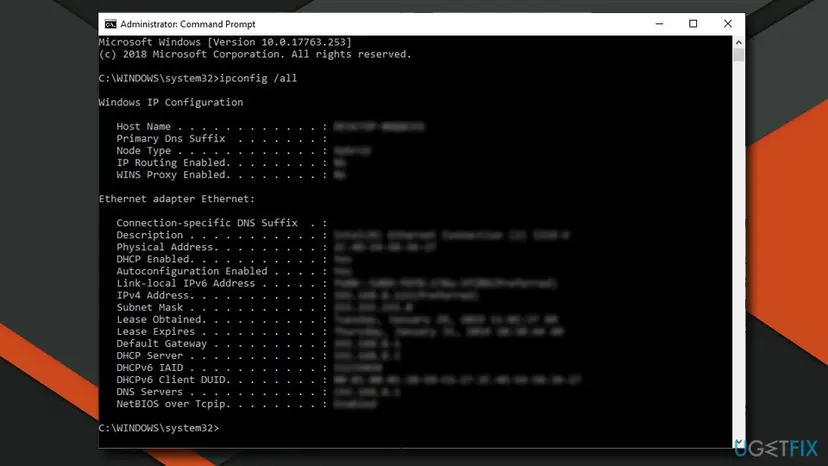
| Name | IP address | Port 445 | What it means | Go to |
|---|---|---|---|---|
| Fails | Opens | True | Name resolution | Fix 6 |
| Fails | Fails | True | Sign-in refused: guest, signing or password | Fix 3, then Fix 2 |
| Fails | Fails | False | Sharing off, firewall, service stopped, or device off | Fix 4, Fix 5 |
| Error 0x80070043 | Same | True | The share name is wrong | Check the name in Fix 5 |
It worked if: You know which row is yours, and with luck the share already opens by its IP address.
If not: If even ping to the address gets no reply, check the cable, the Wi-Fi and that the device is on before going further.
Fix 2. NAS or router disk: give it a user account and turn on SMB signing
15 to 30 minutesLow riskThe share is on a NAS or a router disk and stopped opening on Windows 11 24H2 or later.
Microsoft's own order for this case starts on the device: turn on signing, turn off guest access, use a user name and password, update the firmware. Windows 11 then connects with its default security in place, and nothing on the PC is weakened.
- Open the NAS or router admin page in a browser and sign in as its administrator.
- Install any firmware or system update it offers. Older firmware may not support SMB signing at all.
- Create a user with a password, if the device only has a guest or everyone account, and give it read and write access to the share.
- Turn off guest or anonymous access to the shared folders.
- Turn on SMB signing, or set it to required, in the SMB or Windows file service settings.
- On the PC, open
\\NAS\Share. When Windows asks, type the NAS user name and password and tick Remember my credentials.
- QNAP (QTS, QuTS hero)
- Control Panel > Network & File Services > Win/Mac/NFS/WebDAV > Microsoft Network (SMB) > Advanced Options. Set Restrict anonymous users from accessing SMB shared folders to Enabled (strict) and Server signing to Enforce signing.
- Synology (DSM 7)
- Disable the guest account in Control Panel > User & Group > User. Give your user permission on the shared folder. We could not confirm the exact name of the signing option in current DSM.
- Router with a USB disk
- Menus differ by brand. Look for USB storage, Samba, SMB or file sharing, and for a switch that allows access without a password. If the router offers no account and no signing, use Fix 7 or move the disk.
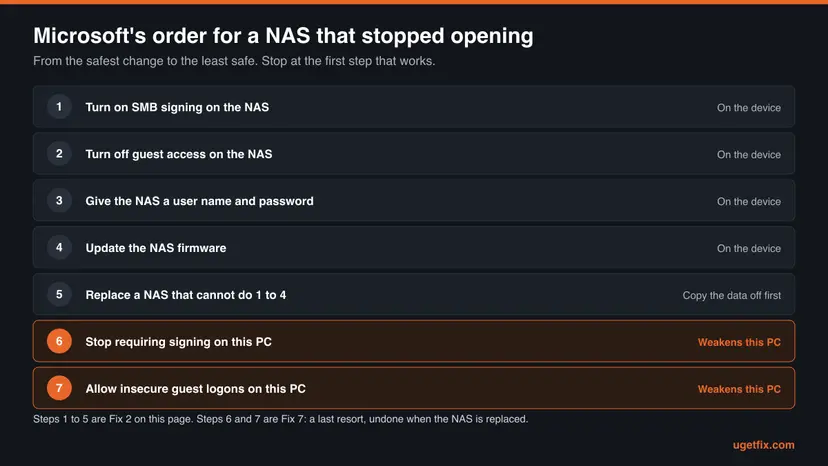
It worked if: Windows asks for the NAS user name once, then the share opens and stays mapped after a restart.
If not: If the device has no signing option and no user accounts after a firmware update, Microsoft's advice is to replace it. Until then, Fix 7 is the workaround.
Fix 3. Remove stale connections and saved passwords, then connect with the right account
5 minutesLow riskThe share worked before, or Windows signs in with an old or wrong user name.
Windows keeps one connection per server and reuses saved credentials. An old guest session or a stale password makes the next attempt fail before you are asked, and Synology lists clearing both as a first step.
- Close every File Explorer window.
- Open Command Prompt and run
net useto list your current network connections. - Run
net use * /delete /yto drop them all. Mapped drives disappear until you map them again. - Open Control Panel > User Accounts > Credential Manager > Windows Credentials.
- Remove every entry with the name or the IP address of the device.
- Connect again with the account the device knows, using the command below. Type the password when asked.
Map the share with a named account (Command Prompt)
net use Z: \\NAS\Share /user:NAS\username /persistent:yes- Write the account as
NAS\username, where NAS is the device name. For another Windows PC usePCNAME\username. - Use the password of that account. Synology advises against relying on a Windows Hello sign-in for SMB, so type the real password in the prompt.
- "Multiple connections to a server or shared resource by the same user, using more than one user name, are not allowed" means step 3 was skipped.
It worked if: The command ends with "The command completed successfully" and drive Z: opens in File Explorer.
If not: System error 53 again: the sign-in is still refused or the path is wrong. Go back to Fix 2 for a NAS, or Fix 4 for a Windows PC.
Fix 4. Turn on network discovery, file sharing and the discovery services
10 minutesLow riskYou share between two Windows PCs, or the port test in Fix 1 failed.
On a network marked Public, Windows does not answer file sharing requests. Microsoft's own checklist for sharing problems is a Private network, discovery and sharing on, and four services set to start automatically, on every PC involved.
- Open Settings > Network & internet, select Wi-Fi or Ethernet, open your network and set Network profile type to Private network.
- In the Settings search box type manage advanced sharing settings and open it.
- Under Private networks, turn on Network discovery and File and printer sharing.
- Press Win + R, type
services.mscand press Enter. - For each service listed below: right-click it, select Properties, set Startup type to Automatic and select Start if it is stopped.
- Do the same on the other Windows PC, then restart both.
- Function Discovery Provider Host
- Function Discovery Resource Publication
- SSDP Discovery
- UPnP Device Host
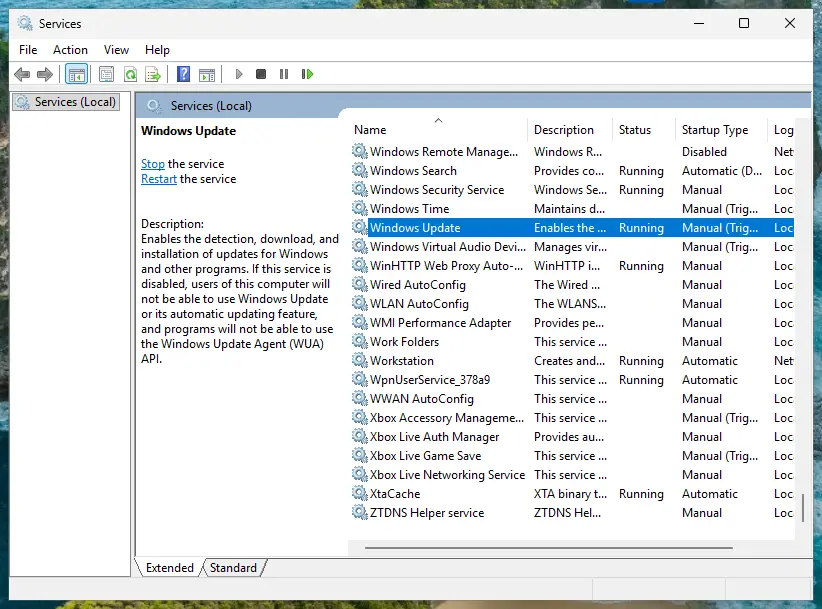
These services only make the PC visible under Network; a typed \\name path works without them. Step by step with screenshots: Check and restart Windows services
Microsoft's checklist also says to turn off password protected sharing. That lets anyone on the network open your shares without a password, and Windows 11 Pro clients refuse guest sign-in anyway. Share with a named account instead, as in Fix 3.
It worked if: The other PC appears under Network in File Explorer and the port test in Fix 1 now shows True.
If not: If port 445 still does not answer, the share or the firewall on the other PC is the problem: go to Fix 5.
Fix 5. On the other PC: check the share name, its permissions and the firewall
10 minutesLow riskThe folder is on another Windows PC and every computer gets the error.
A share that was renamed, removed or never created gives the same message, because the path no longer exists. Windows also blocks file sharing in its firewall unless the File and Printer Sharing rule is allowed for the network type.
- On the PC that holds the folder, open Command Prompt and run
net share. Your share must be in the list, with the exact name you type. - If it is missing, right-click the folder, select Properties, open the Sharing tab and select Advanced Sharing.
- Tick Share this folder, check the Share name and select Permissions to add the account that will connect.
- On the Security tab, give the same account at least Read access.
- Open Windows Security > Firewall & network protection > Allow an app through firewall and make sure File and Printer Sharing is ticked for Private.
- From the first PC, open
\\PCNAME\ShareNameagain.
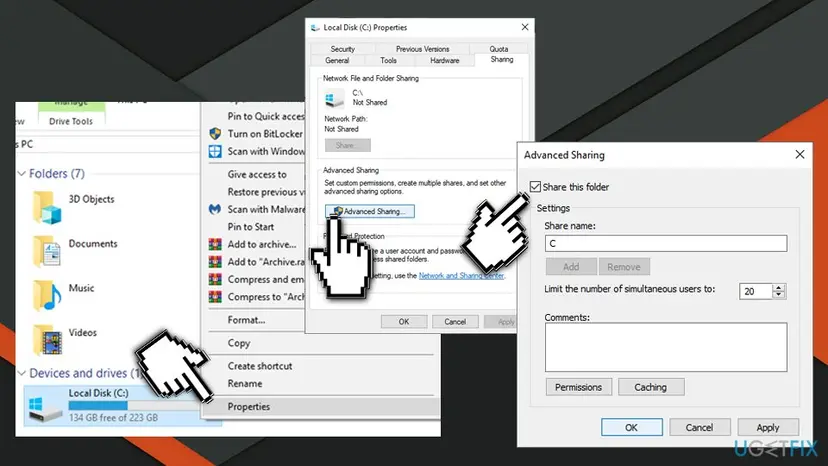
To see everything you share from a PC, Microsoft suggests typing \\localhost in the File Explorer address bar. Your user folder shows up there even if it is not shared, because you always have access to your own files.
It worked if: net share lists the folder, and the first PC opens it after asking for the account you added.
If not: If the share exists and opens by IP address only, go to Fix 6. If it asks for a password and refuses it, go back to Fix 3.
Fix 6. Fix name resolution: flush the caches and check NetBIOS over TCP/IP
10 minutesLow riskThe share opens by IP address but not by name.
Windows finds a local device by DNS, then by NetBIOS or other local methods. A cached old address, a disabled NetBIOS setting or a stopped TCP/IP NetBIOS Helper service makes the name fail while the address works.
- Open Command Prompt as administrator and run
ipconfig /flushdnsand thennbtstat -R. Synology namesnbtstat -Rfor exactly this case. - Try
\\name\shareagain. If it still fails, press Win + R, typencpa.cpland press Enter. - Right-click your Ethernet or Wi-Fi adapter and select Properties.
- Select Internet Protocol Version 4 (TCP/IPv4), then Properties and Advanced.
- On the WINS tab select Enable NetBIOS over TCP/IP and confirm with OK in every window.
- In
services.msc, open TCP/IP NetBIOS Helper, set Startup type to Automatic and start it.
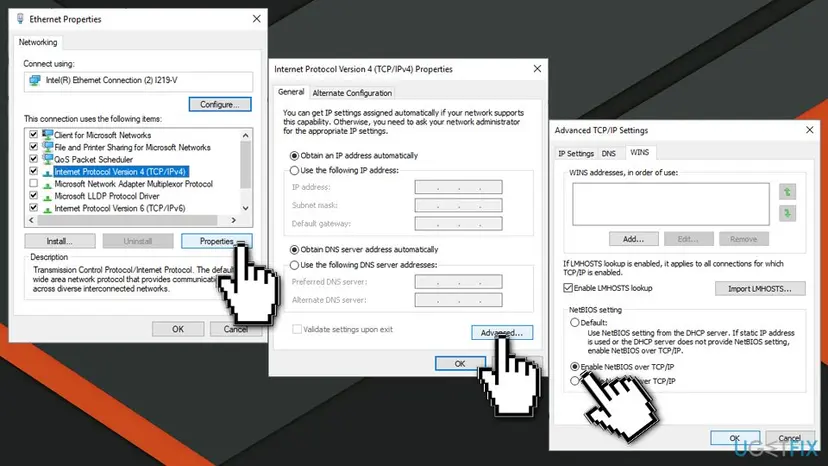
Microsoft documents one more cause of system error 53: the TCP/IP NetBIOS Helper service is stopped or runs as Local System instead of Local Service. Its Log On tab shows the account.
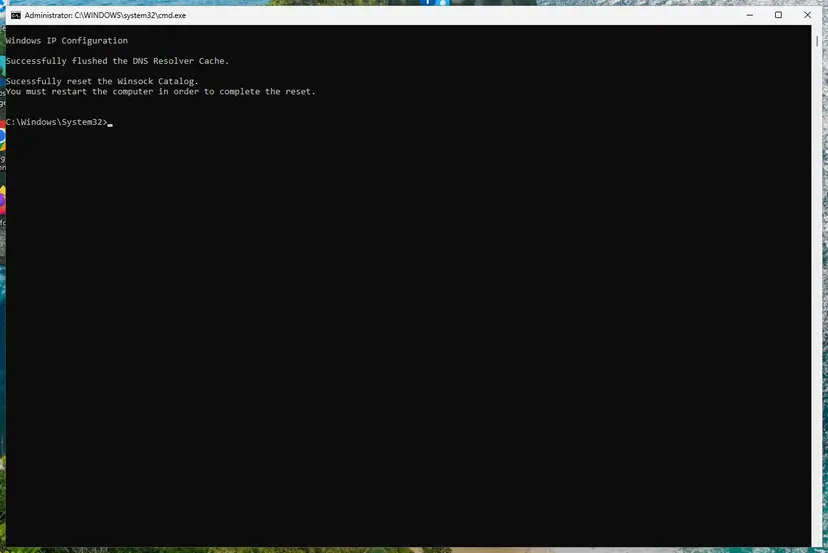
If the name still fails, a full network reset removes and reinstalls the adapters: Reset the network and flush DNS A lasting fix is a fixed address for the NAS in your router, often called a DHCP reservation.
It worked if: \\name\share opens as quickly as the IP address does, also after a restart.
If not: Use the IP address for now, map it as a drive in Fix 3, and ask whoever runs the network to add the name to the local DNS.
Fix 7. Last resort for a NAS that cannot sign: allow it on this PC only
10 minutesRead the warningThe device has no SMB signing and no user accounts even after a firmware update, and you need its data now.
These are steps 6 and 7 of Microsoft's own list for a third-party NAS. They switch off the two 24H2 checks on your PC, so the old device opens again, at the price of the protection those checks give.
Microsoft warns that guest logons let a fake server on your network connect you without any prompt, deliver ransomware, or read data in transit. Use this only on a home network you control, and undo it as soon as the NAS is updated or replaced.
First read what your PC really enforces. Open Terminal (Admin) and run the line below. True for RequireSecuritySignature and False for EnableInsecureGuestLogons are the 24H2 defaults that block such a device.
Read the current SMB client settings (PowerShell, admin)
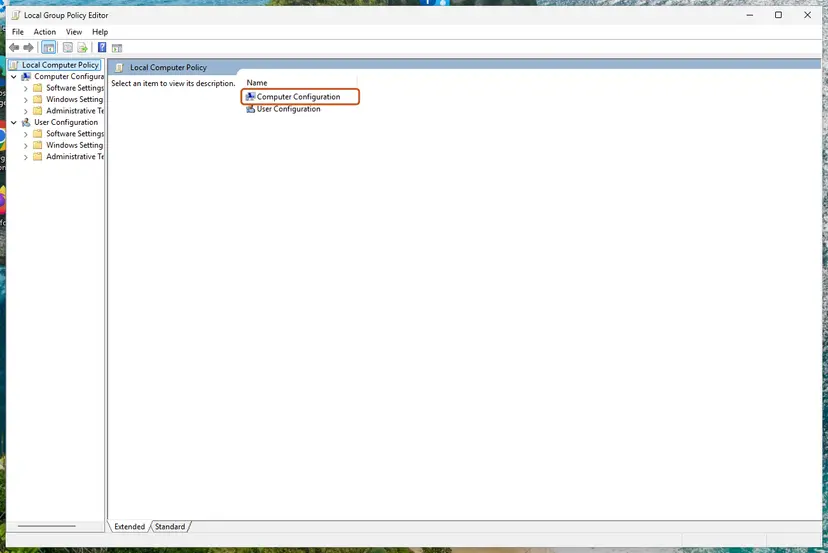
Get-SmbClientConfiguration | Format-List RequireSecuritySignature, EnableInsecureGuestLogons- On Pro, Enterprise or Education, press Win + R, type
gpedit.mscand press Enter. - Go to Computer Configuration > Windows Settings > Security Settings > Local Policies > Security Options.
- Open Microsoft network client: Digitally sign communications (always), select Disabled and OK.
- Go to Computer Configuration > Administrative Templates > Network > Lanman Workstation.
- Open Enable insecure guest logons, select Enabled and OK. Restart the PC.
Home edition, or the same change without gpedit (PowerShell, admin)
Set-SmbClientConfiguration -RequireSecuritySignature $false
Set-SmbClientConfiguration -EnableInsecureGuestLogons $true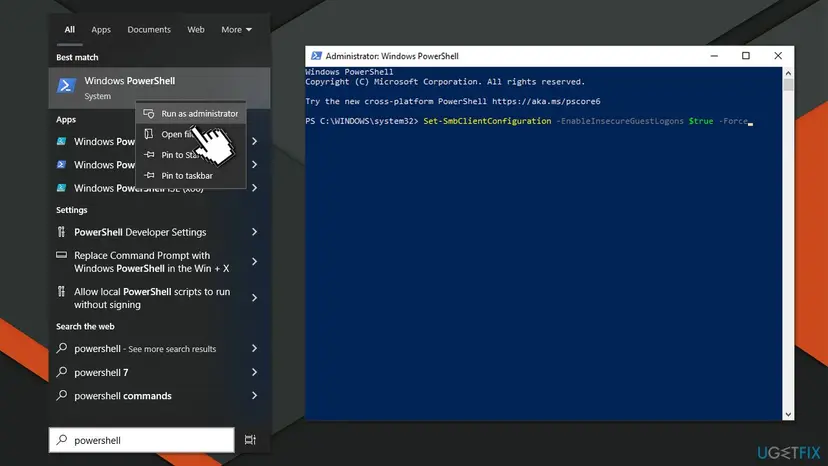
Answer Y when PowerShell asks to confirm. Change only the setting your device needs: a NAS with accounts but no signing needs the first line only. The old advice to also run Set-SmbServerConfiguration changes what other PCs may do with your shares and does not help you open a NAS. More on the editor: Open the Local Group Policy Editor
Undo: back to the Windows 11 defaults
Set-SmbClientConfiguration -RequireSecuritySignature $true
Set-SmbClientConfiguration -EnableInsecureGuestLogons $false
It worked if: After the restart the NAS opens without a password prompt, and Event Viewer logs event 31018, the warning that insecure guest logons are enabled.
If not: If it still fails with "The specified network name is no longer available" or 0x80004005, the device may speak only SMB1: see Fix 8.
Fix 8. Very old device: turn on the SMB 1.0 client to copy your data off
10 minutesRead the warningA NAS, media player or Windows XP machine from before SMB2, and Event Viewer shows event 32000.
Windows 11 has no SMB1 client after a clean install, and Windows 10 removes an unused one after 15 days. A device that only speaks SMB1 cannot be opened at all until the client is back.
Microsoft strongly recommends not reinstalling SMB1 because of its known issues with ransomware and other malware. Turn on only the client, copy the files to a newer device, then turn it off again. Never turn on the SMB1 server part.
- Confirm the cause first: Event Viewer, Applications and Services Logs > Microsoft > Windows > SMBClient > Security, event 32000.
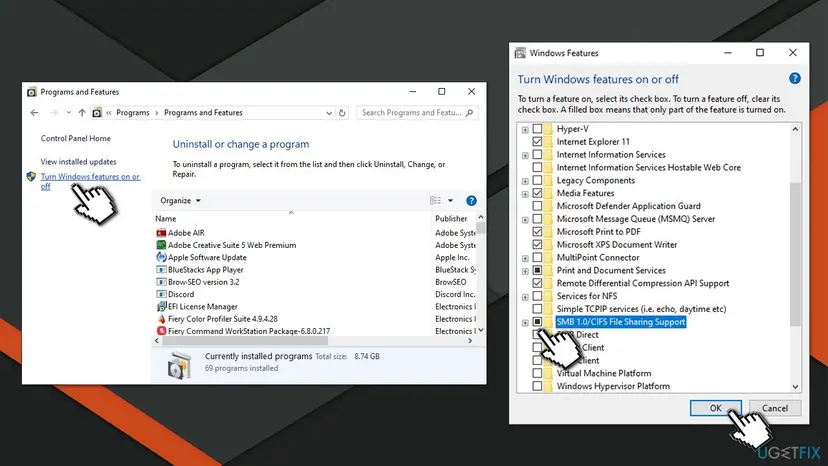
- Open Control Panel > Programs > Programs and Features and select Turn Windows features on or off.
- Expand SMB 1.0/CIFS File Sharing Support.
- Tick SMB 1.0/CIFS Client only and select OK.
- Restart the PC and open the device's share.
It worked if: The old device opens in File Explorer and you can copy its files.
If not: If it still fails, the device may also need guest access with signing off (Fix 7), or it is faulty. Remove its disk and read it in a USB enclosure.
If "The network path was not found" is still there
Windows writes the reason for refused SMB connections into a log that the error window never shows. Open Event Viewer, go to Applications and Services Logs > Microsoft > Windows > SMBClient > Security and look at the entries from the minute you tried.
| Event | What it means | Go to |
|---|---|---|
| 31017, RejectedInsecureGuestAuth | Your PC tried a guest logon and it was refused. | Fix 2, then Fix 7 |
| 31018, InsecureGuestAuthEnabled | Insecure guest logons are turned on (after Fix 7). | Undo when no longer needed |
| 32000 | The device answered in SMB1 and your PC has no SMB1 client. | Fix 8 |
| 32002 | Your PC used SMB1 with this device. | Replace the device |
- What to send to the NAS maker: model and firmware version, your Windows edition and version (press Win + R, type
winver), the result of the port test in Fix 1 and the event IDs above. - What to send to your administrator at work: the full path you open, the output of
net use, and whether the IP address works. Do not change policies on a managed PC yourself. - When it is hardware: no link light on the network port, a NAS that does not answer
pingafter a restart, or disk errors in the NAS's own log. No Windows setting fixes those. - A shared printer on another PC gives its own codes. See printer error 0x00000040 for that case.
How to keep network shares working after the next Windows update
- Give every NAS user a name and password and keep SMB signing on.
- Map shares as drives with Reconnect at sign-in, as Microsoft recommends instead of browsing Network.
- Reserve a fixed IP address for the NAS in your router.
- Update the NAS firmware when Windows feature updates come out.
- Undo Fix 7 and Fix 8 once the old device is gone.
- Leave guest access on a NAS that holds anything private.
- Turn off password protected sharing to make a share open faster.
- Turn on the SMB1 server, or keep the SMB1 client after the data is copied.
- Share the whole C: drive when one folder is enough.
Microsoft has said it will keep these defaults and collects reports of NAS models that cannot sign. A device that needs Fix 7 to work will need it again after every clean install, so plan its replacement.
Frequently asked questions
What does the Diagnose button in the Network Error window do?
It starts the Windows network troubleshooter, which checks the adapter, the address and the connection to your router. It can fix a dropped Wi-Fi link or an adapter problem. None of the Microsoft pages we read lists it as a fix for required SMB signing, blocked guest access or a missing share, which are the usual causes on Windows 11. Run it once if the PC has no network at all. If it reports no problem, go to Fix 1 on this page and test the path by name and by IP address.
Is 0x80070035 the same error on Windows 10?
Yes, the code and the text are the same, and so are the causes that have nothing to do with security defaults: a wrong name, a name that does not resolve, sharing turned off or a removed share. What differs is that Windows 10 Home and Pro still allow guest sign-in and do not require SMB signing, so an old NAS usually still opens there. If a Windows 10 PC opens a share and a Windows 11 Pro PC does not, the cause is almost always the one in Fix 2. Windows 10 support ended on 14 October 2025.
Should I uninstall the latest Windows update to get my NAS back?
No. Required SMB signing and blocked guest fallback came with Windows 11 version 24H2, a feature update, not with a monthly security update. Removing the last monthly update does not bring the old behaviour back, and going back to 23H2 removes months of security fixes. Microsoft treats the change as intended and asks you to fix the device first. Use Fix 2, and if the device cannot be fixed, Fix 7 as a documented and reversible exception. Check your version with winver before you blame an update.
Is it safe to enable insecure guest logons?
Not fully, which is why it is the last resort on this page. Microsoft lists three risks: a fake server can connect you without any credential prompt, malicious code such as ransomware can run through the guest session, and guest sessions are open to attackers in the middle of the connection. On a home network you control, with a NAS that cannot do better, the risk is smaller but real. Keep it on only until the NAS is updated or replaced, then run the undo commands in Fix 7.
Why can I see the NAS under Network but not open it?
Seeing a device and opening it are two different steps. The Network view is filled by discovery protocols such as WS-Discovery, which need no sign-in. Opening a share needs an SMB session, and that is where Windows 11 requires signing and refuses guest access. So the NAS icon can show up while every attempt to open it ends with 0x80070035. Fix 2 or Fix 3 is the answer here, not discovery settings.
Which PowerShell commands fix 0x80070035?
There is no single command that fixes it, because the code has several causes. Two commands help most. Test-NetConnection -ComputerName <address> -CommonTCPPort SMB tells you whether the device answers on port 445 (Fix 1). Get-SmbClientConfiguration | Format-List RequireSecuritySignature, EnableInsecureGuestLogons shows whether your PC requires signing and refuses guests. The Set-SmbClientConfiguration lines in Fix 7 change those two values. Run them in an administrator window, only for a device that cannot sign, and keep the undo lines.
Should I turn off password protected sharing?
We advise against it, even though one of Microsoft's own checklists suggests it. Turning it off lets anyone on your network open the folders you share without a password. It also does not help a Windows 11 Pro PC that connects to you, because that PC refuses guest sign-in by default. Create an account on the PC that shares the folder, give it permission on the share, and connect with that account as in Fix 3. The connection is then signed and works with the 24H2 defaults.
What is the difference between 0x80070035 and 0x80070043?
0x80070035 is system error 53, "The network path was not found". It means Windows did not get a working session with the computer. 0x80070043 is system error 67, "The network name cannot be found". Here the computer answered, but the share name after the second backslash does not exist. QNAP reports that Windows 11 may show either code for the same NAS problem. With 0x80070043, check the exact share name with net share on a Windows host, or in the NAS's shared folder list.
Does a VPN cause "Windows cannot access" errors on a home network?
It can. Many VPN clients send all traffic through the tunnel or block local network access, so the NAS address on your home network is no longer reachable. The port test in Fix 1 then shows False although the device is on. Disconnect the VPN, run the test again, and if the share opens, look in the VPN app for a setting that allows access to the local network. On a work laptop, ask your IT team, because that setting may be locked on purpose.
Sources
- Microsoft Learn: Control SMB signing behavior (learn.microsoft.com)
- Microsoft Learn: How to enable insecure guest logons in SMB2 and SMB3 (learn.microsoft.com)
- Microsoft Tech Community: Accessing a third-party NAS with SMB in Windows 11 24H2 may fail (techcommunity.microsoft.com)
Did this fix work?
One click, no account. It tells the next reader which guides are worth their time.
Questions and experiences: fix "The network path was not found" with an Error Code 0x80070035 on Windows
Still broken, or found a fix we did not cover? Ask here: members and our editors answer. Reading is open; writing needs a free account.
…