
How to fix printer error code 0x00000040 in Windows?

Prefer to fix it yourself? The manual steps follow.
- 9methods
- 2 to 30 minutes
- Intermediate
Applies to Windows 11 and Windows 10 PCs that connect to a printer shared by another PC, a print server or a NAS over the local network
9 methods in this guide
- What the error means
- Causes, ranked
- Windows 11 and Windows 10
- The fixes
- 1. Test the name and the path
- 2. Restart the services
- 3. Check the share on the host
- 4. Fix the sign-in
- 5. Add it on a local port
- 6. Allow the print RPC link
- 7. Old host: check for SMB1
- 8. Troubleshooter and repairs
- 9. Uninstall the last update
- Still there: tests and log
- Undo the changes
- Keep it from coming back
- FAQ
Hello. I've tried to print like I usually do, and I received an error "Operation could not be completed (error 0x00000040)." Now I can't print anything because of it. Any idea what has happened and how to fix it?
Error 0x00000040 appears when you connect to a printer that another PC or a print server shares, and it means that the network name of that computer is no longer available to your PC. Open \\ComputerName in File Explorer first: if the host does not open, the fault is in the network link and not in the printer. If it opens, add the printer through a local port.
The code is Windows error 64, "The specified network name is no longer available": the connection to the computer that shares the printer was dropped. Open \\ComputerName in File Explorer, then try its IP address (Fix 1). If the host opens but Connect still fails, install the driver yourself and add the printer on a local port named \\ComputerName\PrinterShareName (Fix 5). After an upgrade to Windows 11 22H2 or later, see Fix 6.
| Error | Operation could not be completed (error 0x00000040). The specified network name is no longer available. Also shown as Windows cannot connect to the printer. Operation failed with error 0x00000040. The number is Windows system error 64, ERROR_NETNAME_DELETED. |
|---|---|
| Where it appears | In a box titled Printers or Connect to Printer, when you add or use a printer shared as \\ComputerName\PrinterShareName: by double-click in File Explorer, in the Add Printer wizard or from a script. |
| Main cause | The SMB connection between your PC and the host was refused or dropped. Most often: the host name does not lead to the host, sharing or a firewall rule is off on the host, or the driver and spooler step fails after the share was found. |
| Fastest fix | Open \\ComputerName in File Explorer, then the host's IP address, and add the printer again by its exact share path (Fix 1). If the host opens, use a local port (Fix 5). |
| Also written as | 0x0000040, 0x000000040, 0x000040, 0x00040, 0x0040, 0x40, 00000040, 0000040, 00040, error 40, error 64, "0*00000040". |
| Affects | Windows 11 and Windows 10 as the connecting PC. Hosts of any age: Windows 7, 10, 11, Windows Server, NAS devices and print server boxes. |
| Microsoft's status | No Microsoft article is written for this printer code. Microsoft documents the meaning of error 64, lists the same message for hosts that speak SMB1 only, and documents the print changes of Windows 11 22H2 and 24H2. |
| Needs an administrator | Fix 1 and Fix 4 do not. Fix 2, Fix 3 and Fix 5 to Fix 9 need an administrator account on your PC or on the host for at least one step. |
| Where the cause is logged | Event Viewer: Applications and Services Logs > Microsoft > Windows > SMBClient > Security. Events 32000 and 31017 name two of the causes. |
| Time to fix | 2 to 5 minutes for the name test and the service restart, 10 minutes for the host and password checks, up to 30 minutes for the local port, RPC and SMB1 fixes. |
Facts checked on 14 October 2026. Steps written for Windows 11 (25H2 and 26H2) and Windows 10 22H2.
What error 0x00000040 means: the specified network name is no longer available
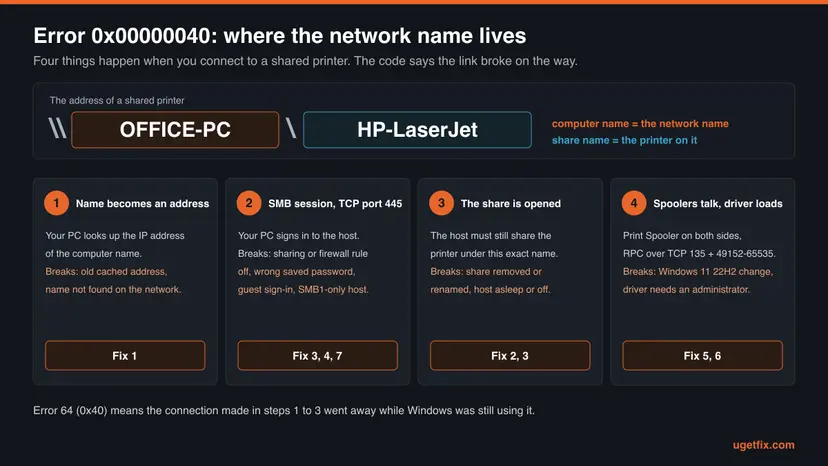
0x00000040 is hexadecimal for 64. Microsoft's list of system error codes names error 64 ERROR_NETNAME_DELETED. Its one line of text is "The specified network name is no longer available". The network name is the computer in the printer's address, the part between the double backslash and the share name.
So the code is not about ink, paper or the printer's own driver settings. Your PC had started to talk to the host over SMB, the Windows protocol for shared files and printers, and that conversation ended before the printer was connected. The host closed it, something between the two PCs cut it, or the host never agreed to it.
| What you see | Where | What it tells you |
|---|---|---|
| Printers: "Operation could not be completed (error 0x00000040). The specified network name is no longer available." | After a double-click on a shared printer in File Explorer, or when you print to a shared printer that was added earlier | The case this page is about. The message carries the text of error 64. |
| Connect to Printer: "Windows cannot connect to the printer. Operation failed with error 0x00000040." | In the Add Printer wizard or when a script maps the printer | The same error without its text. Every fix on this page applies. |
A blue screen with stop code 0x00000040, TARGET_MDL_TOO_SMALL | The whole PC stops and restarts | A different problem with the same number. Microsoft describes it as a driver bug. Nothing on this page applies to it. |
The full form has eight digits after 0x. People also type 0x0000040, 0x000000040, 0x000040, 0x00040, 0x0040, 0x40, 00000040, 0000040, 00040, "error 40" or "0*00000040". Zeros in front add nothing to a number, so on a printer all of them are this error. In decimal it is error 64, which is why some tools print "System error 64".
A neighbouring code on the same box is printer error 0x00000006. There Windows could not open the printer at all. Here it reached the host and lost it, so this page starts with the network name and the SMB connection.
Why the printer gives error 0x00000040: causes, ranked
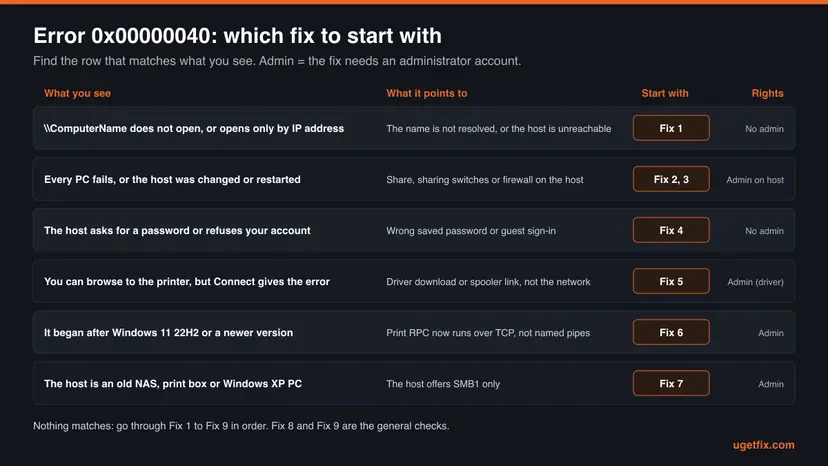
Microsoft has no article that explains this code for printers, so nobody can name one official cause. The ranking below comes from what error 64 means, from Microsoft's documents about each link of the connection, and from what Microsoft's own support staff answer in its Q&A forum. It runs from the common and quick to rule out to the rare.
| # | Cause | How to recognise it | Fix |
|---|---|---|---|
| 1 | The computer name does not lead to the host: a cached old address, a host that got a new address, or a name your network does not resolve | \\ComputerName does not open in File Explorer, but the host's IP address does | Fix 1 |
| 2 | A service that carries the connection is stuck: Print Spooler or Workstation on your PC, Server or Print Spooler on the host | It worked before on this PC, and nothing was changed on purpose | Fix 2 |
| 3 | The share went away on the host: the printer is no longer shared, the share was renamed, sharing or the firewall rule group was switched off, the network turned Public, or the host is asleep | Every PC fails for this printer | Fix 3 |
| 4 | The host refuses your sign-in: an old saved password, or a host that lets everybody in as a guest | \\ComputerName asks for a password or says access is denied | Fix 4 |
| 5 | The network part works and the next step fails: the driver download from the host or the talk between the two Print Spoolers | You can browse to the printer and see it, and Connect gives the error | Fix 5, Fix 6 |
| 6 | The host speaks SMB1 only: an old NAS, a print server box or a Windows XP PC | It never worked from Windows 11, and older PCs still connect | Fix 7 |
| 7 | Damaged Windows files or a faulty update on your PC | Nothing above fits, or it began on the day of an update | Fix 8, Fix 9 |
The earlier version of this guide named a buggy Windows update, damaged system files, stopped services and damaged drivers as the reasons, and a poor internet connection as a further one. Services and the local network come first here. The internet connection plays no part: a shared printer is reached over the local network only.
Enabling the SMB1 client, enabling insecure guest logons, switching off the SMB signing requirement and switching printing back to named pipes can each make the message go away. Microsoft advises against every one of them. This page uses two of them only as a short test, each with its undo step.
Shared printer error 0x00000040 in Windows 11 and Windows 10: what changed
Many reports of this error start with the same sentence: it worked until Windows was upgraded. In one thread on Microsoft's Q&A site, opened in September 2022, more than 1,100 people marked that they have the same question, and the asker says it began with the update to Windows 11 22H2. Four changes in Windows explain most of these cases.
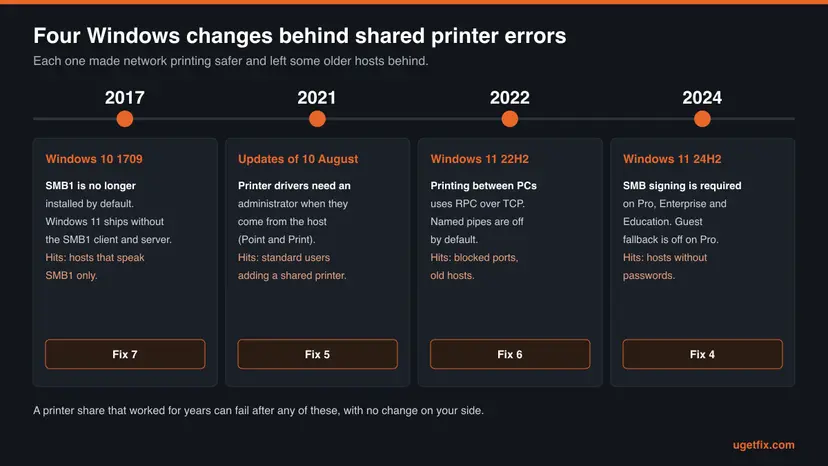
| Since | What changed | What it means for this error | Applies to |
|---|---|---|---|
| Windows 10, version 1709 | SMB1 is no longer installed by default. Windows 11 ships without the SMB1 client and server. | A host that speaks SMB1 only is cut off. Microsoft lists "The specified network name is no longer available" and "System Error 64" among the messages you then get. | Windows 10 and Windows 11 |
| Updates of 10 August 2021 (KB5005652) | Installing a printer driver from the host (Point and Print) needs administrator rights | The share is found, and the connection fails when the driver should arrive | Windows 10 and Windows 11 |
| Windows 11, version 22H2 | Printing between computers uses RPC over TCP. Named pipes are no longer used unless a policy allows them. | The host must accept TCP port 135 and the ports 49152 to 65535, or both sides must agree on named pipes | Windows 11 22H2 and later |
| Windows 11, version 24H2 | SMB signing is required by default on Pro, Enterprise and Education. Guest fallback is off on Pro. | A host that lets everybody in without a user name and password refuses the connection | Windows 11 24H2 and later. Home does not require signing. |
Of these four, Windows 10 22H2 has only the changes of 2017 and 2021. Microsoft stopped supporting it on 14 October 2025, so its printing and SMB parts stay as they are. Microsoft does not tie error 0x00000040 to any of these changes by name. The link is the timing of the reports and the meaning of the code.
How to fix "Operation failed with error 0x00000040": nine fixes in order
The fixes follow the connection from your PC to the host. Fix 1 to Fix 4 repair the network name, the services, the share and the sign-in. Fix 5 to Fix 7 deal with the driver, the print RPC link and old hosts. Fix 8 and Fix 9 are the general checks from the earlier version of this guide.
| What you see or have | Start with |
|---|---|
\\ComputerName does not open in File Explorer, or it opens only by IP address | Fix 1 |
| The printer worked on this PC and stopped without any change | Fix 2 |
| Every PC gets the error, or the host was reinstalled, renamed or moved to another network | Fix 3 |
| The host asks for a user name and password, or a password was changed lately | Fix 4 |
| You can browse to the printer in File Explorer, and Connect gives the error | Fix 5 |
| It began after an upgrade to Windows 11 22H2 or later | Fix 6 |
| The host is an old NAS, a print server box or a Windows XP PC | Fix 7 |
| It began on the day a Windows update was installed | Fix 8, then Fix 9 |
Fix 1. Test the network name: open the host by name, then by its IP address
5 minutesNo riskFor everyone, as the first step. No administrator account is needed.
The error text is about the network name, so test the name before anything else. If the host opens by its IP address and not by its name, your PC translates the name wrongly. If it opens neither way, the fault is on the host or on the network, and no printer setting on your PC can cure it.
- On the host, the PC that shares the printer, open Command Prompt from the Start menu, type
ipconfig /alland press Enter. - Write down the Host Name at the top and the IPv4 Address of the active network adapter.
- On your PC, open File Explorer, type
\\ComputerNamein the address bar with the real host name and press Enter. - If the host does not open, type two backslashes and the IPv4 address instead, for example
\\192.168.1.20. - If only the address works, open Command Prompt on your PC and run
ipconfig /flushdns. It empties the cache of names your PC has already looked up. - Open PowerShell and run the command below these steps with the host name. Look at the line TcpTestSucceeded.
- Open Settings > Bluetooth & devices > Printers & scanners. If the shared printer is listed, select it, select Remove and restart your PC.
- Select Add device, then Add manually, choose Select a shared printer by name and enter
\\ComputerName\PrinterShareName.
PowerShell: is the SMB port of the host reachable?
Test-NetConnection ComputerName -Port 445| Result | What it means | Next |
|---|---|---|
| The host opens by name and shows the printer | Name and SMB connection are fine | Add the printer by path. If Connect still fails, go to Fix 5. |
| The host opens by IP address only | Name resolution fails | Use \\192.168.1.20\PrinterShareName with the host's address as the path and reserve that address in the router, or repair the name with the commands in Reset the network and flush DNS |
| TcpTestSucceeded: False, and the host opens neither way | Port 445 is closed or the host is off, asleep or on another network | Fix 3, on the host |
| The host asks for a user name and password | The sign-in is the problem | Fix 4 |
The path is Settings > Devices > Printers & scanners > Add a printer or scanner > The printer that I want isn't listed. Newer Windows 11 builds show Add a new device manually next to that same sentence.
The earlier version of this guide ran five commands here: ipconfig /flushdns, ipconfig /registerdns, ipconfig /release, ipconfig /renew and netsh winsock reset. The first one is the one that matters for a name. The others, with what each one resets, are in Reset the network and flush DNS.
It worked if: The host opens in File Explorer, shows the printer's share, and the printer is added without the error.
If not: If the host opened and the printer still fails, restart the services with Fix 2. If the host did not open, go to Fix 3.
Fix 2. Restart the Print Spooler and Workstation services, and Server on the host
5 minutesLow riskThe printer worked before and stopped. It needs an administrator account on each PC you do it on.
Three services carry a shared printer. Workstation makes your PC's SMB connections, Server shares the printer on the host, and Print Spooler runs the print queues on both. A stuck one keeps answering every new attempt with the same dropped connection. Checking Workstation is the first answer of a Microsoft community support specialist in Microsoft's Q&A thread on the code.
The files in the spooler's queue folder are documents that wait to be printed. They are deleted, so print those documents again afterwards. Printers, drivers and settings stay.
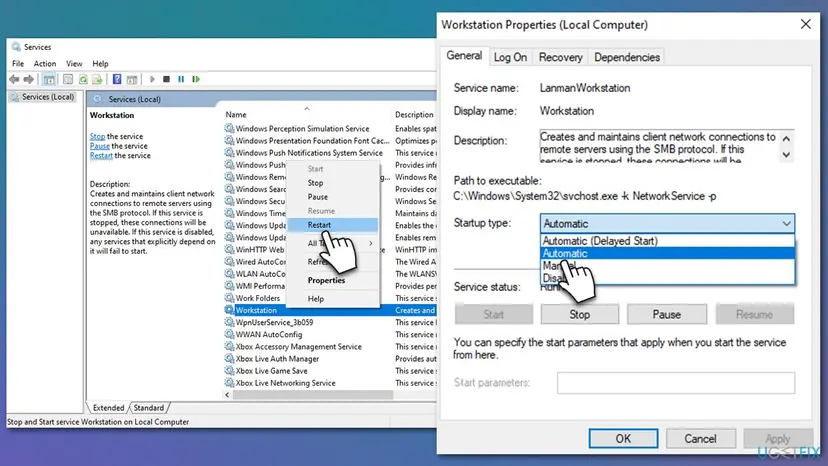
- On your PC, type services in the search box on the taskbar and select Services in the results.
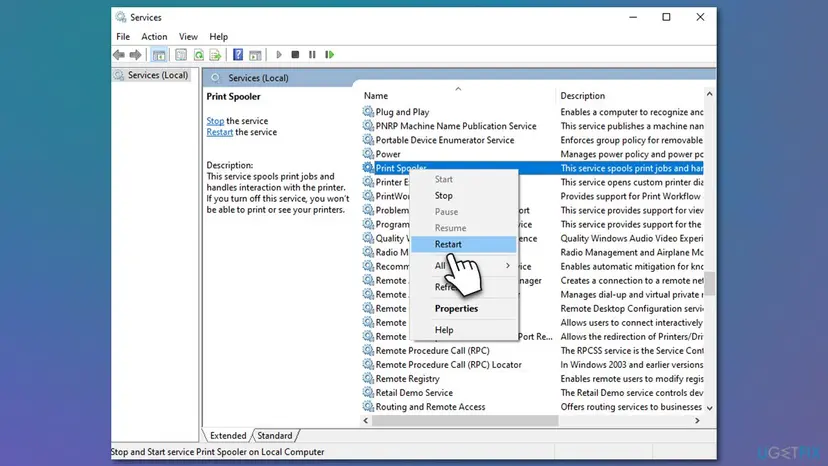
- Double-click Print Spooler, select Stop, then OK. Leave the window open.
- In the search box on the taskbar, enter
%WINDIR%\system32\spool\printers, open the PRINTERS folder and delete all files in it. Do not delete the folder. - In Services, double-click Print Spooler again, select Start, choose Automatic in the Startup type box and select OK.
- Right-click Workstation and select Restart. If Windows lists services that depend on it, accept that they restart too.
- If Workstation is not running, double-click it, choose Automatic under Startup type, then select Start, Apply and OK.
- On the host, restart Print Spooler in the same way, then right-click Server and select Restart.
- Restart both PCs if the error is still there, and add the printer again.
The earlier version of this guide, and many forum answers, tell you to start the Computer Browser service. Microsoft documents that this service relies on SMB1 and is uninstalled together with it, so it does not exist on Windows 11 and on current Windows 10. Microsoft also states that it is no longer required on networks of Windows Vista and later. Skip it.
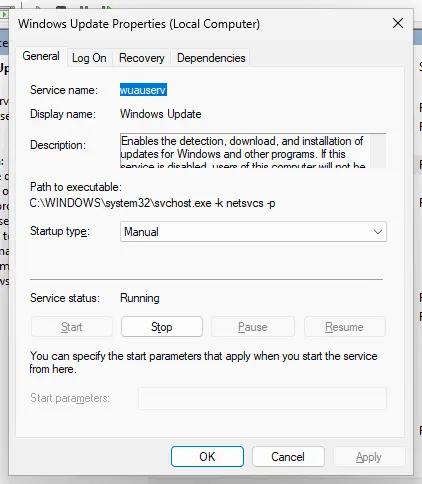
The Services window in general, with what each startup type means: Check and restart Windows services
It worked if: All three services show Running, and the printer connects or prints again.
If not: If the services run and the error stays, check the share itself on the host with Fix 3.
Fix 3. On the host: check that the printer is still shared and that sharing is allowed
10 minutesLow riskEvery PC fails, or the host was reinstalled, updated or moved. It needs an administrator account on the host.
"No longer available" is literally true when the share is gone. A printer that was removed and added again on the host is not shared any more, and a Windows network set to Public hides the PC and blocks file and printer sharing. Microsoft's own guide for shared printers begins with these checks on the host.
- On the host, check that it is switched on and awake. A sleeping PC answers nobody.
- Open Settings > Bluetooth & devices > Printers & scanners, select the printer and select Printer properties.
- On the Sharing tab, tick Share this printer, read the Share name letter by letter and select Apply, then OK.
- Open Settings > Network & internet, select Wi-Fi and your network, or Ethernet. Under Network profile type, select Private network.
- Go back to Network & internet, open Advanced network settings > Advanced sharing settings and turn on Network discovery and File and printer sharing.
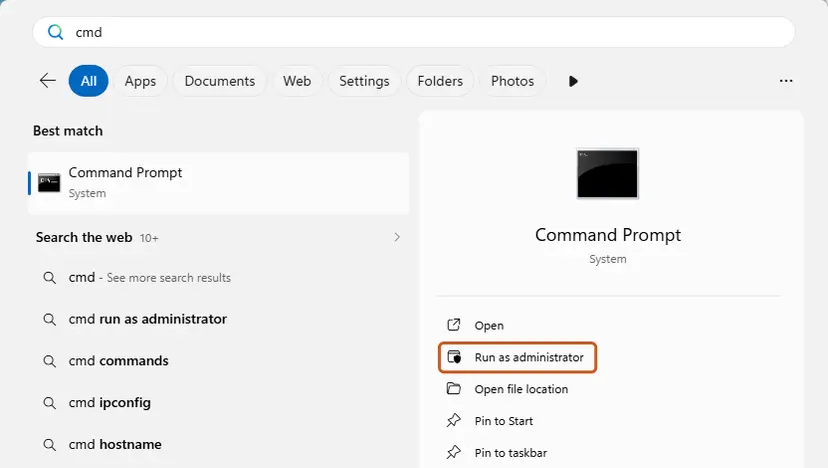
- If a firewall setting was changed on the host, open Command Prompt as administrator and run the command below these steps.
- Restart the host, then repeat the test of Fix 1 from your PC.
Host, as administrator: switch the firewall's File and Printer Sharing rules back on
netsh advfirewall firewall set rule group="File and Printer Sharing" new enable=YesDo not switch off the firewall on the host or on your PC to test this. The command above opens exactly what a shared printer needs and nothing else. Use the Private network profile only on a network where you know and trust the devices. Never use it on public Wi-Fi.
- Windows 10 host, printer: Settings > Devices > Printers & scanners, select the printer, then Manage > Printer properties.
- Windows 10 host, sharing: Settings > Network & internet > Status > Network and sharing center > Change advanced sharing settings. Turn both switches on under Private.
It worked if: \\ComputerName opens from your PC and shows the printer under the share name you wrote down.
If not: If the host now asks for a password, go to Fix 4. If it opens and the printer still fails, go to Fix 5.
Fix 4. Give the host a user name and password it accepts
5 to 10 minutesNo riskThe host asks for a password, refuses access, or has an account without a password. No administrator needed on your PC.
Windows signs in to the host silently, with your own account or with a saved entry. An entry that holds an old password is sent again on every attempt, and a host that relies on guest access is turned away by Windows 11 24H2. In both cases the host ends the session and the name is no longer available to you.
- Type credential manager in the search box on the taskbar and open Credential Manager.
- Select Windows Credentials and look for an entry with the host's name or IP address.
- Open Command Prompt from the Start menu, not as administrator. Saved credentials belong to your own account.
- Run the first command below to remove the old entry. Put the host's real name in place of
HOSTNAME. - Store the right account with the second command. Windows asks for the password, so it is never shown on screen.
- The third command lists what is stored. The host must appear in it.
- Open
\\HOSTNAMEin File Explorer. When it opens without a prompt, add the printer as in Fix 1.
Commands, one per line
cmdkey /delete:HOSTNAME
cmdkey /add:HOSTNAME /user:username
cmdkey /listThe host checks the name and password against its own accounts, so use one that exists there. Microsoft's guide gives two ways: use the same Microsoft account or local account on both PCs, or enter the host's user name and password when asked. If you connect by IP address, store the entry under that address.
Since Windows 11 24H2, the Pro, Enterprise and Education editions require SMB signing, and Microsoft states that this also disables guest access to shares. Its advice, in order: give the device a user name and password, update it, or replace it. Enabling insecure guest logons or dropping the signing requirement is the last item on Microsoft's list, with a caution, and we do not walk through it. Windows 11 Home does not require signing.
It worked if: The host opens in File Explorer without a prompt, and the printer connects.
If not: If the host opens and the printer still gives the error, the sign-in is fine. Go to Fix 5.
Fix 5. Install the driver yourself and add the printer on a local port
10 to 15 minutesLow riskYou can open the host and see the printer, and Connect gives the error. It needs an administrator account.
A normal connection downloads the driver from the host and links the two Print Spoolers, and that is where many of these cases fail. A printer on a local port has its own driver and its own queue on your PC and only sends finished print data to the share. A Microsoft moderator recommends exactly this route in Microsoft's Q&A forum for this error.
- Download the current driver for the printer model from the manufacturer's website and install it on your PC, with no printer connected.
- Open Settings > Bluetooth & devices > Printers & scanners and select Add device.
- Next to The printer that I want isn't listed, select Add manually. Newer builds call it Add a new device manually.
- Choose Add a local printer or network printer with manual settings and select Next.
- Choose Create a new port, set the type of port to Local Port and select Next.
- As the port name, enter the share path
\\ComputerName\PrinterShareNameand select OK. - Pick the manufacturer and the model from the list, or select Have Disk and point to the driver you downloaded.
- Give the printer a name, finish the wizard and print a test page.
| Normal connection | Local port | |
|---|---|---|
| Driver | Comes from the host. Needs an administrator since August 2021. | You install it once, from the manufacturer |
| Queue | On the host | On your PC |
| What must work | Name, SMB sign-in, the spooler link and the driver download | Name and SMB sign-in only |
| Printer settings | Follow the host | Set on your PC, for example paper size and duplex |
The local port still sends its data to \\ComputerName\PrinterShareName. If the host does not open in File Explorer (Fix 1), or refuses your sign-in (Fix 4), the test page fails here too. Microsoft does not document why this route avoids the error. That it does is what its moderator and users report.
- Windows 10: the wizard is the same. Start it from Settings > Devices > Printers & scanners > Add a printer or scanner > The printer that I want isn't listed.
It worked if: The test page comes out of the shared printer, and the printer is listed on your PC like a local one.
If not: If the test page fails with an access or path message, go back to Fix 1 and Fix 4. To keep a normal connection on Windows 11, try Fix 6.
Fix 6. Windows 11 22H2 and later: let the print RPC connection through
15 to 30 minutesRead the warningYour PC or the host runs Windows 11 22H2 or later and the error began after the upgrade. Needs an administrator.
Since version 22H2, two Windows computers talk about printing by RPC over TCP, and the older way, RPC over named pipes, stays switched off unless you turn it on. Microsoft calls blocked firewall ports the most common issue with this change. The fix is to let the TCP connection through, or, as a test, to put one side back on named pipes.
- On the host, make sure File and printer sharing is on, as in Fix 3.
- Check the firewall on the host and any firewall between the two PCs: TCP port 135 must not be blocked, and the ports 49152 to 65535 must be open on the host.
- Restart both PCs and add the printer again. If it connects, stop here. This is the setup Microsoft recommends.
- Only if that is not possible: on the Windows 11 PC, open the Local Group Policy Editor and go to Computer Configuration > Administrative Templates > Printers.
- Open Configure RPC connection settings, select Enabled, set the protocol to RpcOverNamedPipes and select OK.
- If the host runs Windows 11 22H2 or later too, open Configure RPC listener settings on the host, select Enabled and allow RpcOverNamedPipesAndTcp.
- Restart both PCs and add the printer again.
Microsoft writes about named pipes for printing: "This configuration isn't recommended." Use it to prove the cause or to keep an old host working until it is replaced. The commands below change the registry, so export the key first: Back up the registry before editing it. To undo, set both policies back to Not Configured or run the undo commands.
Windows 11 Home has no policy editor. Same setting by command, on your PC, as administrator
reg add "HKEY_LOCAL_MACHINE\SOFTWARE\Policies\Microsoft\Windows NT\Printers\RPC" /v RpcUseNamedPipeProtocol /t REG_DWORD /d 1 /fOn a host with Windows 11 22H2 or later: listen on named pipes and TCP
reg add "HKEY_LOCAL_MACHINE\SOFTWARE\Policies\Microsoft\Windows NT\Printers\RPC" /v RpcProtocols /t REG_DWORD /d 0x7 /fUndo: remove the two values
reg delete "HKEY_LOCAL_MACHINE\SOFTWARE\Policies\Microsoft\Windows NT\Printers\RPC" /v RpcUseNamedPipeProtocol /f
reg delete "HKEY_LOCAL_MACHINE\SOFTWARE\Policies\Microsoft\Windows NT\Printers\RPC" /v RpcProtocols /f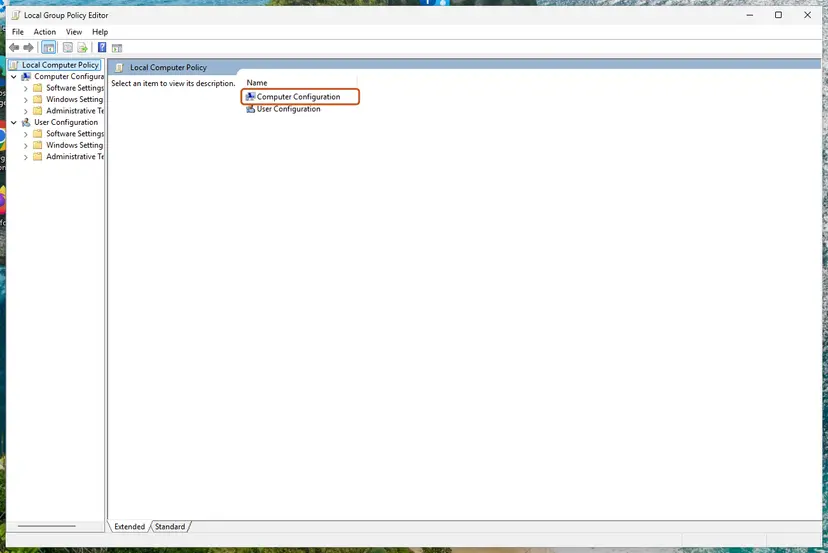
- A user's answer in Microsoft's Q&A forum from 2026 names the named pipes policy as the cure for 0x00000040. Microsoft's own article on the change does not name any error code.
- According to the same Microsoft article, named pipes can also require the value
RpcAuthnLevelPrivacyEnabledat 0 on the host and SMB guest access. Each of the two lowers protection again. If the printer only works with them, replace the host or use Fix 5. - The policy editor step by step, and what Windows Home offers instead: Open the Local Group Policy Editor
It worked if: The printer connects from the Windows 11 PC through the normal Connect route.
If not: If nothing changed, undo the two values and look at the age of the host with Fix 7.
Fix 7. Old NAS, print server box or Windows XP host: check for SMB1
10 to 20 minutesRead the warningThe host is not a current Windows PC, and it never worked from this PC. Needs an administrator.
Microsoft lists "The specified network name is no longer available" and "System Error 64" among the messages Windows shows when a device supports SMB1 only. Windows 11 ships without the SMB1 client, so the host answers in a language your PC no longer speaks and the session is dropped. Windows writes an event that proves it.
- On your PC, try to open
\\ComputerNameonce more so that a fresh event is written. - Right-click Start and select Event Viewer.
- Open Applications and Services Logs > Microsoft > Windows > SMBClient > Security.
- Look for event 32000 at the time of your attempt: "SMB1 negotiate response received from remote device when SMB1 cannot be negotiated by the local computer."
- If the event is there, look for a firmware or software update for the device that adds SMB 2 or later. Microsoft's advice is to ask the manufacturer.
- If the host is a Windows PC, run the two commands below on it in PowerShell as administrator. SMB2 must show True.
- If no update exists and the printer has its own network port, connect to the printer directly, as described under "If the error is still there".
Windows host, PowerShell as administrator: check SMB2 and SMB3, and switch them on
Get-SmbServerConfiguration | Select EnableSMB2Protocol
Set-SmbServerConfiguration -EnableSMB2Protocol $trueForum answers, and one answer by a Microsoft moderator, suggest ticking SMB 1.0/CIFS Client under SMB 1.0/CIFS File Sharing Support in Control Panel > Programs and Features > Turn Windows features on or off. Microsoft's documentation says the opposite: it strongly recommends not to reinstall SMB1, because the protocol has known security issues regarding ransomware and other malware. If you enable it to confirm the cause, clear the box again afterwards and restart.
PowerShell as administrator on your PC: is SMB1 installed? State should read Disabled
Get-WindowsOptionalFeature -Online -FeatureName SMB1Protocol- Windows XP is older than SMB2, which Microsoft introduced with Windows Vista. A printer shared by an XP PC cannot be reached from Windows 11 without SMB1.
- Windows 7, 8.1 and 10 hosts speak SMB2 or later. For them this fix is not the answer: use Fix 3 to Fix 6.
- Event 31017 in the same log means something else: the host tried to sign you in as a guest and Windows refused. That is the case of Fix 4.
It worked if: After the device's update, no new event 32000 is written, and the host opens in File Explorer.
If not: If there is no event 32000, SMB1 is not your problem. Leave it disabled and continue with Fix 8.
Fix 8. Run the printer troubleshooter, update both PCs and repair system files
15 to 40 minutesNo riskNothing above fits your case. The troubleshooter runs for any user, the repairs need an administrator.
These are the general repairs of the earlier version of this guide. They do not target the network name, but they repair what the specific fixes assume to be healthy: the print components of Windows and the files of the SMB client. Microsoft recommends its update rollups before any deeper SMB troubleshooting.
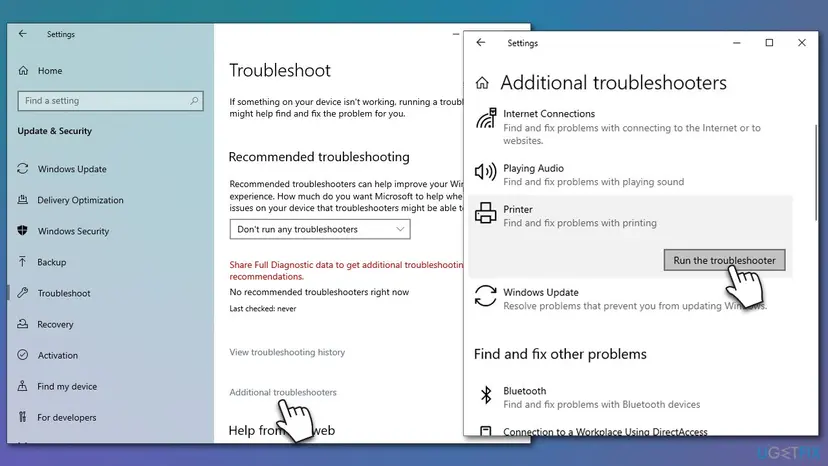
- Open the Get Help app from the Start menu, enter printer troubleshooter in its search bar and follow the questions.
- Open Settings > Windows Update on your PC and install all pending updates.
- Do the same on the host. Two PCs on the same update level rule out a mismatch between them.
- Repair the Windows system files with the commands below, in an elevated command window, then restart.
- Run DISM first. Type the command below and press Enter. DISM downloads clean copies of damaged components from Windows Update, so it can take several minutes. Wait until it says The operation completed successfully.
DISM.exe /Online /Cleanup-Image /RestoreHealth - Run System File Checker. In the same window, type the command below and press Enter. Do not close the window until the verification reaches 100%.
sfc /scannow - Read the result and restart. Compare the last message with the table below this guide, then restart the PC so that repaired files are loaded.
These steps were written for Windows 11 24H2 and 25H2. The full page with the other versions and what each result means: Run DISM and SFC to repair Windows system files
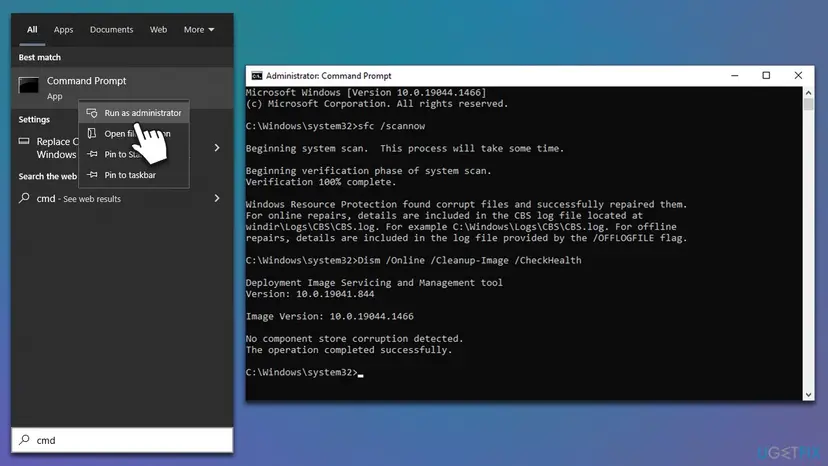
The earlier version of this guide ran sfc /scannow first and then three DISM commands. The order above is the one Microsoft gives: DISM repairs the store that System File Checker copies from. The full procedure with every result message: Run DISM and SFC to repair Windows system files
It worked if: The troubleshooter reports a repair, or the printer connects after the updates and the file repair.
If not: If the error began right after a Windows update, try Fix 9. If not, go to "If the error is still there".
Fix 9. If it began with a Windows update: uninstall that update as a test
10 to 20 minutesRead the warningThe printer worked the day before an update and failed right after it. Needs an administrator.
An update can change how two PCs talk about printing, as the changes of 2021 and 2022 showed. Removing the latest quality update tells you in one restart whether it is the cause. We found no entry in Microsoft's documents that names an update as the source of error 0x00000040, so treat this as a test.
An uninstalled update takes its security fixes with it, and Windows installs it again when updates resume. Note the KB number before you remove it, pause updates for a week at most, and install the update again once the printer question is settled.
- Open Windows Update. Select Start > Settings > Windows Update.
- Open the update history. Under More options, select Update history. Note the KB number and the date of the update you suspect.
- Open the list of removable updates. Scroll down to Related settings and select Uninstall updates.
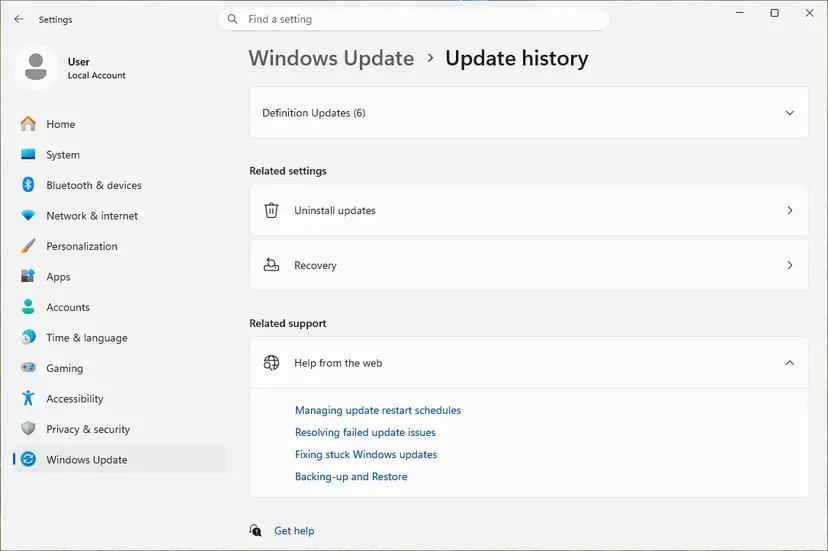
Uninstall updates is under Related settings. Screenshot: Windows 11 26H2. - Uninstall the update. Find the update in the list and select Uninstall next to it. If the update is not in the list, Windows does not allow it to be removed this way.
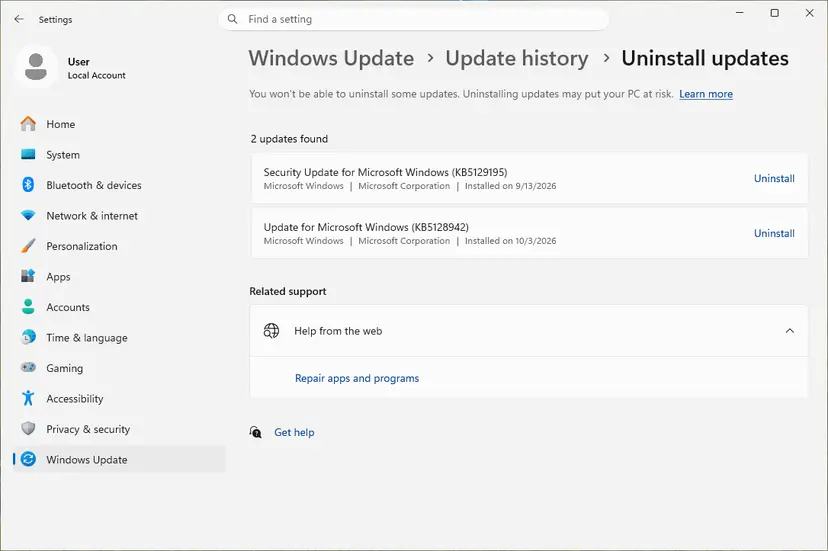
Each removable update has its own Uninstall link. Screenshot: Windows 11 26H2. - Pause updates. Go back to Settings > Windows Update and select Pick a date on the Pause updates control. If your PC shows a list there instead, select the pause length you prefer. Without a pause Windows downloads the same update again.
These steps were written for Windows 11 25H2 and 26H2. The full page with the other versions and what each result means: How to uninstall a Windows update
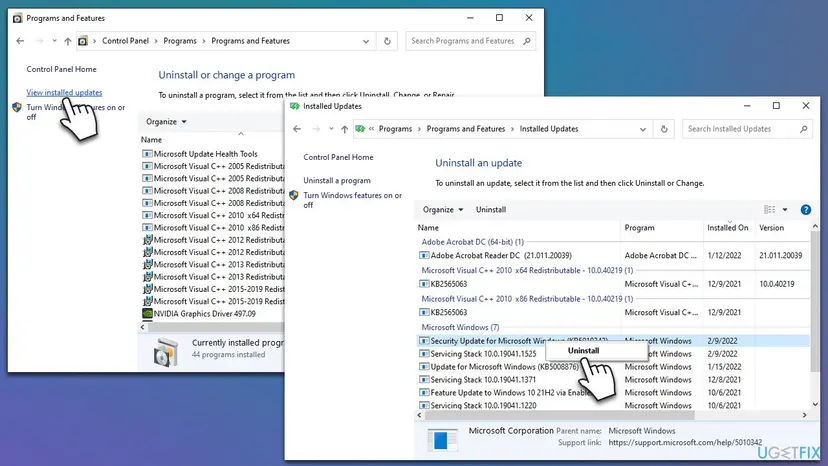
- If the printer works after the removal, the update was the trigger, and the cause is still one of the changes in Fix 5 to Fix 7. Fix that, then install the update again.
- If nothing changed, install the update again at once.
- The same steps for Windows 10, and for a PC that will not start: How to uninstall a Windows update
It worked if: After the restart the printer connects again, which proves the update triggered the error.
If not: If the error is the same, reinstall the update and collect the facts listed in the next section.
If the error is still there: four tests and the SMB client log
By now you know more than the message box tells. Four short tests show on which side the fault is, and one event log names two of the causes directly.
| Test | Result | What it means |
|---|---|---|
| Try the same share path from a second PC | It fails there too | The host or its share is at fault: Fix 2 and Fix 3, on the host |
Open \\ComputerName, then the host's IP address | Only the address opens | Name resolution: Fix 1 |
| Open a shared folder on the same host | The folder opens, the printer fails | The network is fine. Driver or spooler link: Fix 5, Fix 6 |
| Connect from a PC with an older Windows version | It works there | One of the Windows changes: Fix 4, Fix 6 or Fix 7 |
- Right-click Start and select Event Viewer.
- Open Applications and Services Logs > Microsoft > Windows > SMBClient > Security.
- Try to connect to the printer once more, then press F5 to refresh the log.
- Read the newest entries. Event 32000 points to an SMB1-only host (Fix 7), event 31017 to a rejected guest sign-in (Fix 4).
A printer with its own Ethernet or Wi-Fi connection does not need a host. In Printers & scanners, select Add device and let Windows find it on the network, or add it manually by its IP address. The network name of the host then plays no part, and neither does this error. At work, ask first: a print server may count pages or hold jobs.
- What to send to the administrator or to support: the exact message, the time, the name and Windows version of your PC and of the host, the share path you used, the results of the four tests and the SMBClient events.
- When it is hardware: a failing network cable, switch port or Wi-Fi link drops SMB sessions at random. If shared folders on the host also disconnect, test the network before the printer: How to check your internet connection in Windows
- It is not the printer itself. The error is raised before any page is sent. A printer that is out of paper or offline shows other messages, on the host.
How to undo the changes made on this page
Fix 1, Fix 2, Fix 4 and Fix 8 leave nothing to put back. Always reverse the entries that lower protection.
| Change | Made in | How to undo it |
|---|---|---|
| Network profile set to Private network | Fix 3 | Set it back to Public network if you do not trust every device on the network. Sharing a printer from that PC then stops. |
| Firewall rule group File and Printer Sharing enabled | Fix 3 | Needed for as long as the PC shares a printer. To close it: the same command with new enable=No. |
| Printer added on a local port | Fix 5 | Open Printers & scanners, select that printer and choose Remove |
RpcUseNamedPipeProtocol or RpcProtocols set, or the two RPC policies enabled | Fix 6 | Set the policies to Not Configured, or run the undo commands of Fix 6, then restart |
| SMB 1.0/CIFS Client ticked for a test | Fix 7 | Clear the box in Windows Features and restart |
| Windows update uninstalled, updates paused | Fix 9 | Settings > Windows Update, resume updates and install everything offered |
Run Get-WindowsOptionalFeature -Online -FeatureName SMB1Protocol in PowerShell as administrator: the state should be Disabled. Then make sure Settings > Windows Update is not paused. These are the two changes on this page that are easy to forget and costly to leave.
How to keep error 0x00000040 from coming back
- Give the host an account with a password, and save that account on every PC that prints.
- Reserve the host's IP address in the router, so that the name and the address keep pointing to the same PC.
- Keep the host awake during working hours. A sleeping PC shares nothing.
- Install Windows updates on the host and on the PCs in the same week, not on one side only.
- Have the printer driver installed by an administrator on every PC that will use the share.
- After a password change on the host, update the saved entry on each PC at once (Fix 4).
- Do not enable the SMB1 client to keep an old device alive. Update or replace the device.
- Do not enable insecure guest logons or drop the SMB signing requirement to make a printer work.
- Do not switch off the firewall on either PC. Turn on the File and Printer Sharing rules.
- Do not rename the host or the share without adding the printer again on every PC.
- Do not set a network you do not control to Private network.
Frequently asked questions
What does error 0x00000040 mean on a printer?
It is Windows system error 64, ERROR_NETNAME_DELETED, and Microsoft's text for it is "The specified network name is no longer available". On a printer it means that your PC started a connection to the computer that shares the printer and that connection was refused or dropped. The code does not say why. The usual reasons are a host name that leads nowhere, sharing or a firewall rule switched off on the host, a rejected sign-in, or a failure in the driver and spooler step that follows.
Is printer error 0x00000040 the same as the blue screen 0x00000040?
No. The numbers are equal and the problems have nothing in common. On a blue screen, 0x00000040 is the stop code TARGET_MDL_TOO_SMALL, which Microsoft describes as a driver bug in the way a driver uses memory. The whole PC stops. The printer error is a normal message box with an OK button, and Windows keeps running. If your PC restarts with a blue screen, this page is not the right one.
Why did my shared printer stop working after the Windows 11 22H2 or 24H2 update?
Because both versions changed how PCs talk to each other. From 22H2, printing between computers uses RPC over TCP and no longer uses named pipes by default, so a blocked port or an old host breaks the link. From 24H2, the Pro, Enterprise and Education editions require SMB signing, which shuts out hosts that let everybody in as a guest. Microsoft documents both changes, although it names no error code for them. Fix 6 covers the first case and Fix 4 the second.
Should I enable SMB 1.0 to fix error 0x00000040?
Only as a short test, and only if the host is a device that cannot speak anything newer. Microsoft does list "The specified network name is no longer available" among the messages for SMB1-only devices, so the idea is not wrong. But Microsoft strongly recommends not to reinstall SMB1, because the protocol has known security issues regarding ransomware and other malware. Check the event log first, as in Fix 7. A Windows 7, 10 or 11 host never needs SMB1.
Do I need the Computer Browser service for a shared printer?
No. The earlier version of this guide and many forum answers ask you to start Computer Browser and Workstation. Workstation is real and needed: it makes your PC's SMB connections. Computer Browser relies on SMB1 and is uninstalled together with it, so current Windows 10 and Windows 11 do not have it. Microsoft states that the service is no longer required when a network runs Windows Vista and later. If you cannot find it in the Services window, nothing is wrong.
Does error 0x00000040 also appear on Windows 10 and Windows 7?
Yes. Error 64 is a general Windows network error that is far older than Windows 11. On Windows 10 the usual reasons are the name, the services, the share and the saved password, so Fix 1 to Fix 5 apply as written. Windows 10 does not have the RPC change of Fix 6. Windows 7 appears mostly as the host: it speaks SMB2, so it does not need SMB1, but it gets no updates and can fall behind what a current Windows 11 PC expects.
Why can I see the printer on the network and still not connect to it?
Because seeing and connecting use different parts of Windows. The list in File Explorer only needs the SMB connection to the host. Connect then asks the two Print Spoolers to talk by RPC and downloads the driver from the host, which needs administrator rights since August 2021. If either step fails, Windows gives up on the host and reports the error. Installing the driver yourself and adding the printer on a local port, as in Fix 5, avoids both steps.
What can I do about 0x00000040 without an administrator password?
Two fixes are fully yours. Test the name and the path and add the printer by its exact share path or by the host's IP address (Fix 1), and replace a wrong saved password (Fix 4). You can also read the SMB client log described under "If the error is still there". Everything else needs an administrator: the services, the settings on the host, the driver, the RPC policy and the updates. Hand over the results of your tests, and the job takes minutes.
Sources
- Microsoft Learn: System Error Codes (0-499), ERROR_NETNAME_DELETED (learn.microsoft.com)
- Microsoft Support: Fix shared printer connection problems in Windows (support.microsoft.com)
- Microsoft Support: Fix printer connection and printing problems in Windows (support.microsoft.com)
Did this fix work?
One click, no account. It tells the next reader which guides are worth their time.
Questions and experiences: fix printer error code 0x00000040 in Windows
Still broken, or found a fix we did not cover? Ask here: members and our editors answer. Reading is open; writing needs a free account.
…