
How to fix SYSTEM_SERVICE_EXCEPTION (win32k.sys) error?
Prefer to fix it yourself? The manual steps follow.
5 methods in this guide
Hello. I have had Windows 10 for, and everything worked smoothly. However, a few days ago, I started encountering a blue screen, and it repeats at random times, without any pattern. I get the following error message: SYSTEM_SERVICE_EXCEPTION and then it mentions wink32k.sys. I have not installed any new software recently, so I don't think that is the problem. Are there any other ways to avoid this error?
SYSTEM_SERVICE_EXCEPTION errors are quite common, although they do represent a different file each time, for example, wink32k.sys, fltmgr.sys, Vhdmp.sys, ntfs.sys, and many others. In most cases, the reason for these BSoDs differs, but it is always connected to kernel portion components, such as software, hardware, third-party drivers, or antivirus software.
There are several things you can do to fix SYSTEM_SERVICE_EXCEPTION (wink32k.sys) error, and we are here to help you. Scroll down below, and perform each step attentively.
Blue Screen of Death errors occur when Windows system detects errors in the kernel and instantly shuts itself down to prevent further damage. While, in most cases, users can recover from SYSTEM_SERVICE_EXCEPTION (wink32k.sys) error or other error, right after the restart of the machine, others tend to encounter the problem continually.
This can create a lot of problems, as repeated BSoDs can make users lose their unsaved files. But most importantly, it can sometimes indicate a much more severe problem, like hardware failure or malware infection.
Remember that, if your computer is repeatedly crashing, you need to immediately take actions to fix SYSTEM_SERVICE_EXCEPTION (wink32k.sys) error. In some cases, hardware failure can be avoided, if the problem is not ignored.
Additionally, malware infections can cause a lot of damage. Such threats like trojans are capable of sealing sensitive information, taking screenshots, use a video camera and use all the other possible methods to spy on you. Additionally, malware can enable attackers to upload additional malicious software on your system, such as ransomware, or use your computer as a part of a botnet.
Additionally, this application is capable of fixing broken system files, so it might be able to fix SYSTEM_SERVICE_EXCEPTION (wink32k.sys) error for you automatically.
You will find all you need for fixing this error in this video:
[youtube _gHrmHOx_Bk]
Fix 1. Disable third-party Firewall/anti-virus
Security software conflicts often trigger BSoDs like SYSTEM_SERVICE_EXCEPTION (wink32k.sys). Therefore you should uninstall third-party firewall or anti-virus program that you are using:
- Press CTRL + SHIFT + ESC to open Task Manager
- Find antivirus software and select End Task
- Click on the Windows button and type in Control Panel
- Go to Program > Uninstall a program
- Locate the third-party firewall or anti-virus program
- Right-click and pick Uninstall
Fix 2. Update your drivers
Faulty, outdated or corrupt drivers are one of the leading causes of SYSTEM_SERVICE_EXCEPTION (wink32k.sys) error. If you have not updated your drivers for a while (or at all) you should do it immediately by following these steps:
- Right-click on the Start button and pick Device Manager
- Select a category, for example, Display adapters and expand it
- Right-click on the device, then choose Update Driver
- Finally, select Search automatically for updated driver software and follow onscreen instructions
- Repeat these steps for all your devices, and then reboot your computer
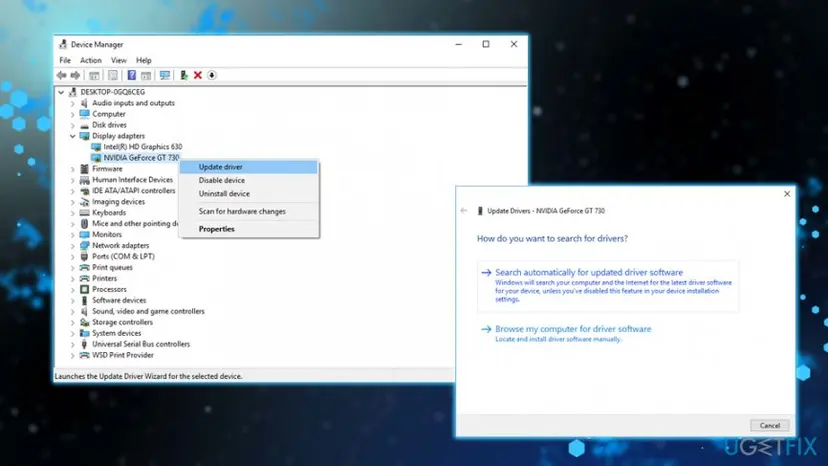
System service exception win32k sys error update drivers
Fix 3. Roll back your drivers
Alternatively, if you already have the newest drivers installed and are still getting SYSTEM_SERVICE_EXCEPTION (wink32k.sys) error, roll back your drivers to the previous state:
- Go back to Device Manager
- Expand any category and right-click on the device
- Select Properties
- Go to Driver tab and choose Roll Back Driver
- Select a reason and click Yes
Fix 4. Run System File Checker
In case the error was caused by broken system files, running system file checker will fix SYSTEM_SERVICE_EXCEPTION (wink32k.sys) error:
- Type in Command Prompt or cmd into the search box
- Right-click on it an choose Run as administrator
- In Command Prompt Window, type in sfc /scannow and hit Enter
- Let the scan run. If Windows finds anything wrong with system files, it will fix it automatically after the restart
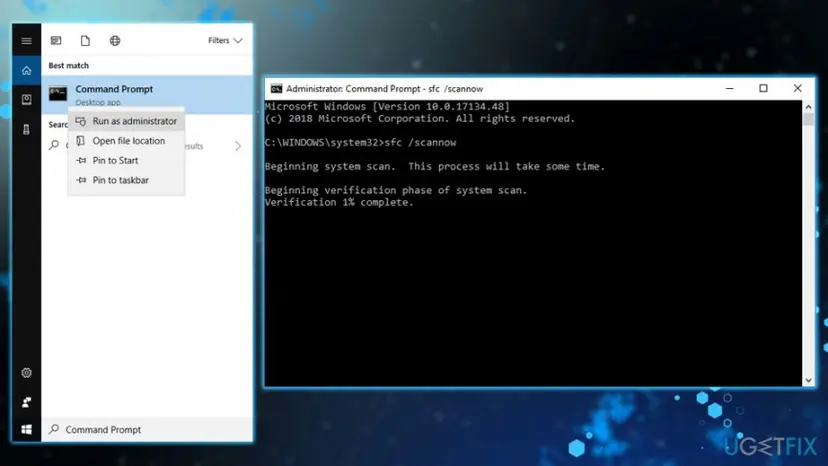
System service exception win32k sys error run system file checker
Fix 5. Run Check Disk
Check disk is capable of finding and fixing errors on the disk. To perform it, follow these steps:
- Type in Command Prompt or cmd into the search box
- Right-click on it an choose Run as administrator
- As soon as Command Prompt opens, type in chkdsk C: /f /r /x
- Windows will prompt a restart, do it and let the scan run (note this process might take up to several hours, depending on the size of your disk)
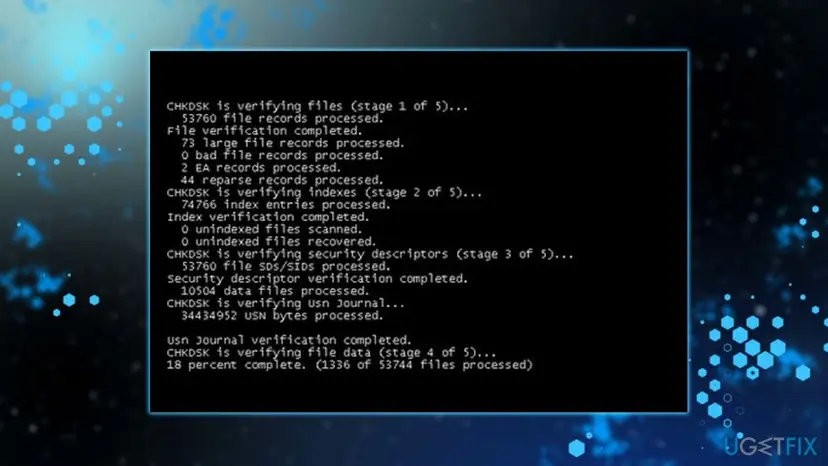
System service exception win32k sys error run check disk
Did this fix work?
One click, no account. It tells the next reader which guides are worth their time.
Questions and experiences: fix SYSTEM_SERVICE_EXCEPTION (win32k.sys) error
Still broken, or found a fix we did not cover? Ask here: members and our editors answer. Reading is open; writing needs a free account.
…