
Taskhostw.exe high CPU usage: what it is and how to fix it

Prefer to fix it yourself? The manual steps follow.
- 9methods
- 10 to 40 minutes
- Intermediate
Applies to Windows 11 and Windows 10, Host Process for Windows Tasks (taskhostw.exe)
9 methods in this guide
Hello. I have this taskhostw.exe file always running in the back, and it causes an extremely high CPU. A few programs are running at the time, and the CPU is always more than 60%. Is it a virus or something important for the OS? Help!
Taskhostw.exe is the Host Process for Windows Tasks: Task Scheduler starts it to run tasks that are built as DLL handlers. A short burst of CPU is normal. If it stays high, find which task it is running, then scan, repair system files and test with a clean boot.
Taskhostw.exe is a genuine Windows host process and not a virus, as long as the file is in the System folder and signed by Microsoft. High CPU means one task it hosts is misbehaving. Check the file (Fix 1), find the task (Fix 2), then scan for malware (Fix 4) and repair system files (Fix 5).
| Error | No error message. Task Manager shows Host Process for Windows Tasks high in the CPU column. In the Details tab the file is taskhostw.exe. |
|---|---|
| Where it appears | Task Manager and Resource Monitor on Windows 11 and Windows 10, often at sign-in, when the PC is idle or when it wakes up. |
| Main cause | One task that Task Scheduler runs through the host keeps working, crashes and restarts, or belongs to a program that is damaged or out of date. |
| Fastest fix | Open Task Scheduler > Action > Display All Running Tasks to see the task (Fix 2), then deal with the program behind it. Check the file first (Fix 1). |
| Also written as | taskhostw, taskhostw exe, Host Process for Windows Tasks, Task Host Window. The older name is taskhost.exe. |
| Error messages | Users report Taskhostw.exe, Access Denied and Taskhost.exe, Application Error. Neither comes with a Microsoft code, so we state no meaning for them. |
| What is normal | A burst of seconds to a few minutes after sign-in or when idle. Reports of 20 to 30% for 10 to 30 seconds every so often are in this group. |
| Affects | Windows 11 (25H2 and 26H2) and Windows 10 22H2. The steps and screens are the same on both, except where the text says otherwise. |
| Microsoft's status | No Microsoft article or known-issue notice about taskhostw.exe high CPU was found on 16 October 2026. |
| Time to fix | 5 minutes to find the task, 10 to 40 minutes for the repairs. |
Facts checked on 16 October 2026. Steps written for Windows 11 (25H2 and 26H2) and Windows 10 22H2, with Task Scheduler behaviour read from Microsoft Learn on 16 October 2026.
What taskhostw.exe (Host Process for Windows Tasks) is and what the name means
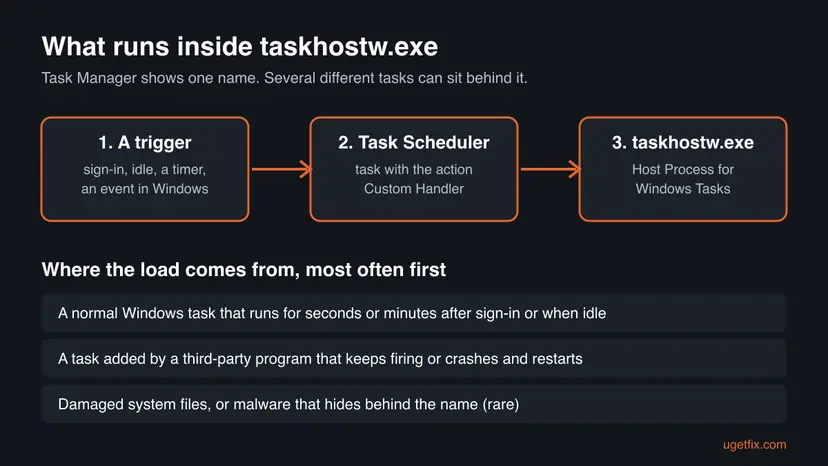
Taskhostw.exe is the name of a Windows program that Task Manager lists as Host Process for Windows Tasks. It has no window. Task Scheduler starts it when a scheduled task needs a place to run its code. Microsoft's Task Scheduler documentation describes this kind of task as a COM handler action: a class in a DLL that Task Scheduler starts and stops through a Windows interface, instead of a normal program file.
In the Task Scheduler window those tasks show the action Custom Handler. A user on Microsoft Q&A who looked for the task behind the process found exactly that: several tasks with the action Custom Handler and a location that did not exist as a folder. We found no Microsoft page that names taskhostw.exe as the host of these handlers, so treat that link as the common understanding, not a quote.
- Process name
- Host Process for Windows Tasks (Processes page),
taskhostw.exe(Details page) - Started by
- Task Scheduler, for tasks with a Custom Handler action
- Several copies
- Normal. One reader saw three copies with no CPU, disk or network use while they waited for work.
- Expected folder
C:\Windows\System32(our check with Open file location, not a statement from a Microsoft page)- Older name
taskhost.exe. We found no Microsoft page that explains the change totaskhostw.exe.
People type the name in other forms, and one answer covers all of them: taskhostw, taskhostw exe, "taskhostw.exe" and taskhostw.exe taskhostw. A search for taskhostw.exe user is about the account it runs under, which the Details tab shows in the User name column.
Is taskhostw.exe a virus, and how much CPU is normal for it?
The genuine file is part of Windows and is not a virus. An agent on Microsoft Q&A says the process executes scheduled tasks, and advises looking at the scheduled tasks if it launches often, because miners can hide there. The name alone proves nothing: malware likes to copy the name of a Windows file, so the folder and the signature are the test (Fix 1).
| What you see | What it most likely means |
|---|---|
| 20 to 30% for 10 to 30 seconds, then gone, every so often | Normal for a scheduled task. The reader who reported this on Windows 11 had no other symptom. |
| Busy for a few minutes after sign-in or after waking the PC | Normal. Several tasks start at sign-in. |
| Full disk or CPU for hours, with update or install files in use | One task is stuck or very slow. Find it with Fix 2. |
| Always above 60% with few programs open | Not normal. A damaged file, a third-party task or malware: Fix 2 to Fix 6. |
| It comes back at once after End task | Task Scheduler starts it again. Ending it is not a fix. |
The file is outside System32 or not signed by Microsoft | Not the Windows file. Treat it as possible malware: Fix 4. |
Task Manager shows CPU as a share of all processor threads. On a 4-thread laptop, one busy thread already shows as 25%. Judge by how long it lasts and how often it returns, not only by the number.
Why taskhostw.exe uses a lot of CPU, from most to least common
Microsoft has no article that lists causes, so this ranking comes from how Task Scheduler works and from the reports on Microsoft Q&A, said as reports. Each cause points to the fix that tests it.
| Cause | How common | Sign | Fix |
|---|---|---|---|
| A normal Windows task that takes a while | Most common | Bursts of seconds or minutes, then quiet | Fix 2, nothing to repair |
| A task added by a third-party program that keeps firing, or fails and restarts | Common | The task in Task Scheduler is not from Microsoft, or taskhostw.exe crashes in the reliability history | Fix 3, Fix 6, Fix 7 |
| Damaged system files or a damaged component that a task loads | Less common | Crashes, Access Denied or Application Error messages | Fix 3, Fix 5 |
| Malware that uses the name or schedules its own task | Less common, but must be ruled out | Wrong folder, no Microsoft signature, tasks you do not recognise | Fix 1, Fix 4 |
| A recent change to Windows or to a program | Less common | The load started after an update or an install | Fix 8 |
| Windows itself is damaged beyond repair | Rare | Nothing above helped | Fix 9 |
- Users on Microsoft Q&A report 20 to 30% CPU for 10 to 30 seconds, every so often, on a Windows 11 laptop.
- A Windows 10 user reported the disk at 100% for hours, with taskhostw.exe on top and the files in use looking like updates or installs. They also saw three Data Integrity Scan tasks in Task Scheduler with the action Custom Handler.
- A support reply in that thread told the reader to disable a task named taskhostw.exe in Task Scheduler. The reader could not find any task with that name or display name, which is right: taskhostw.exe is the host, and the task has another name.
How to fix taskhostw.exe high CPU usage
Start with Fix 1 and Fix 2 even if you are sure the file is genuine: together they take about seven minutes and tell you which task to blame. Fix 3 to Fix 6 repair or test the PC. Fix 7 changes a task and Fix 8 and Fix 9 roll Windows back, so keep them for last.
| What you see or have | Start with |
|---|---|
| You saw a high number once and do not know if it is a problem | Fix 1, then Fix 2 |
| High CPU lasts many minutes and you do not know which task it is | Fix 2 |
| Taskhostw.exe, Application Error or a crash message | Fix 3 |
The file is outside System32, unsigned, or you see tasks you did not create | Fix 4 |
| Access Denied messages or other Windows features also fail | Fix 5 |
| Fix 2 shows a task from a program that is not Microsoft | Fix 6, then Fix 7 |
| The problem began after an update or an install | Fix 8 |
| Nothing above helped | Fix 9 |
Fix 1. Check that taskhostw.exe is the real Windows file
3 minutesNo riskEveryone, before changing anything on the PC.
Malware sometimes takes the name of a Windows process. A file in the System folder with a valid Microsoft signature means the rest of this page applies. Any other result means Fix 4.
- Press Ctrl + Shift + Esc to open Task Manager and select the CPU column on the Processes page to sort it.
- Find Host Process for Windows Tasks and note how long it stays near the top. A minute or less is a normal run.
- Open the Details page, right-click
taskhostw.exeand select Open file location. - Check the folder in File Explorer. The expected folder is
C:\Windows\System32. - Right-click the file, select Properties and open the Digital Signatures tab. The signer should be Microsoft Windows or Microsoft Corporation.
- In the Details page of Task Manager, also read the User name column. The process runs under your account, SYSTEM or a service account, depending on the task.
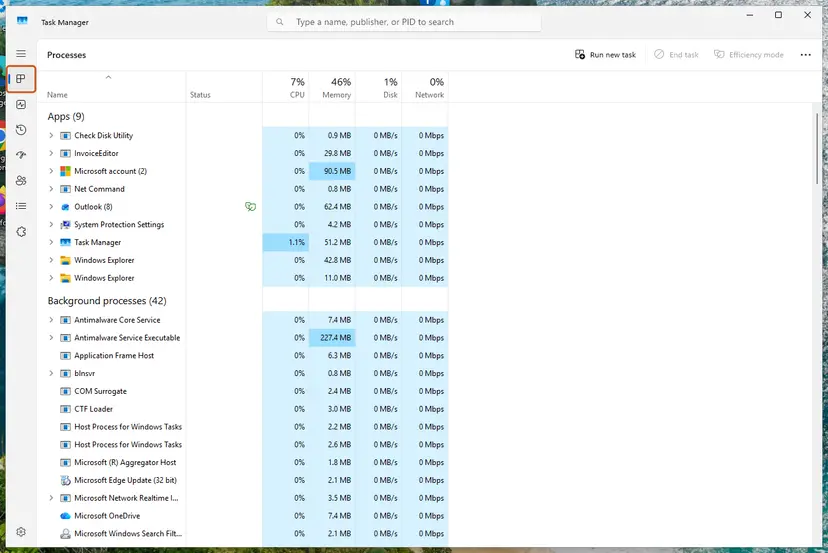
The same signature check in PowerShell, while the process is running (no administrator rights needed):
Get-Process taskhostw | ForEach-Object { Get-AuthenticodeSignature $_.Path } | Format-List Path, Status, SignerCertificateStatus must read Valid, and the certificate subject must name Microsoft. Several lines for several copies of the process are normal. If Get-Process finds nothing, the host is not running at that moment, which is also normal.
It worked if: The file is in a Windows folder, the signature is from Microsoft and Valid, and you know whether the spikes last seconds or many minutes.
If not: Wrong folder or no valid signature: go straight to Fix 4. Genuine but busy for many minutes: continue with Fix 2.
Fix 2. Find which task is running inside taskhostw.exe
5 minutesNo riskHigh CPU lasts for minutes and you want to know which program or Windows feature is behind it.
The host only runs tasks that Task Scheduler gives it, so the load belongs to one of those tasks. Name the task, and you can tell whether it is a Windows task, a program's task or something unknown.
- Wait until Task Manager shows taskhostw.exe busy, so a task is running right now.
- Select Start, type
Task Schedulerand open it. - In the Action menu, select Display All Running Tasks. The window lists the tasks that are running at this moment, with the start time of each.
- Select Action > Enable All Tasks History so Windows records every task from now on. Open the History tab of a task later to see when it started and how it ended.
- Expand Task Scheduler Library in the left pane and look at the Triggers and Actions tabs of the running tasks you found. A task with the action Custom Handler is the type the host runs.
- Write down the name and the folder of the task. A folder named Microsoft > Windows means a Windows task; a folder with a company or program name means a third-party task.
Many tasks in Microsoft > Windows look odd but do real work, for example the Data Integrity Scan tasks that one reader noticed. Do not disable them to quiet the PC. The only task we advise turning off is a third-party one, in Fix 7, and only after the program has been updated or repaired.
Task Scheduler does not always show a running task when the burst is short, because it ends before you look. In that case the history from step 4 is what you read the next day.
It worked if: You have the name and folder of the task that runs while taskhostw.exe is busy.
If not: Nothing is listed or the tasks are not familiar: continue with Fix 3 to see whether the host crashes, then Fix 4.
Fix 3. Check Reliability Monitor for taskhostw.exe crashes
5 minutesNo riskYou see an Application Error or Access Denied message, or the CPU load comes and goes in a loop.
A host that crashes and is started again by Task Scheduler can use the CPU all the time. Reliability Monitor lists those crashes with a date, so you see whether taskhostw.exe or a task behind it keeps failing.
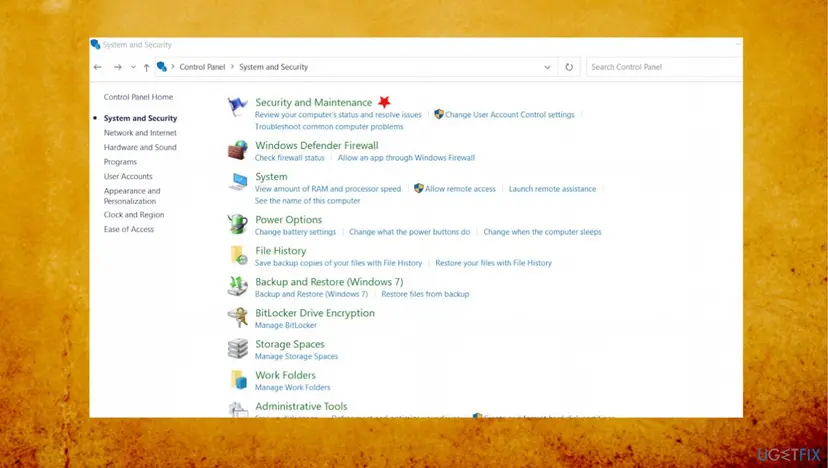
- Open Control Panel and select System and Security.
- Select Security and Maintenance.
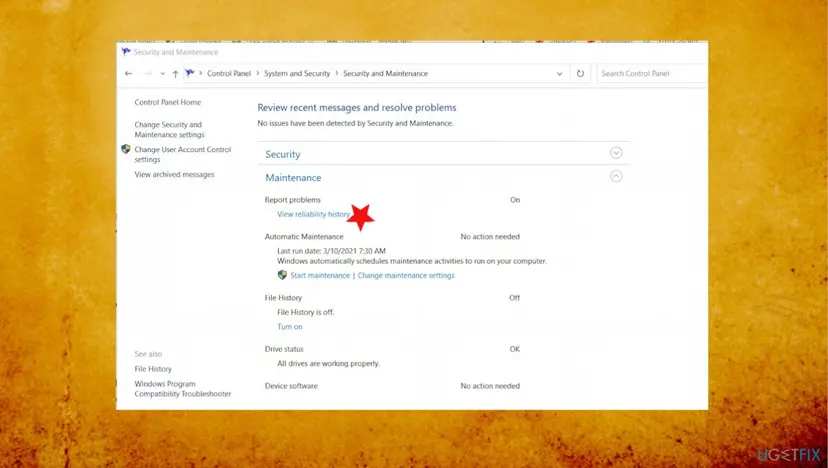
- Under Maintenance, select View reliability history.
- Click a red cross in the chart for a day with problems and read the list under it. Look for entries that name taskhostw.exe or Host Process for Windows Tasks.
- Select View all problem reports at the bottom of the window and open the entry for taskhostw.exe to read its details.
- Note the faulting module (the DLL file name) if one is shown. It tells you which program or Windows feature owns the failing code.
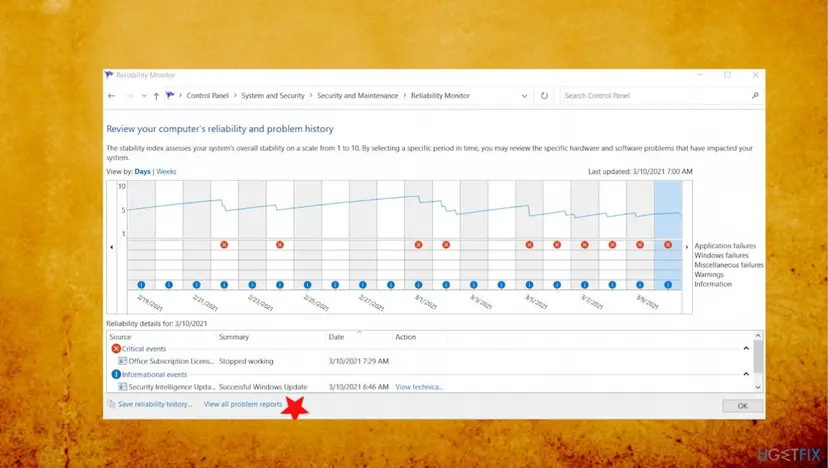
You do not need to clear the problem reports. They take almost no space, and the list is what support or a repair needs to see.
It worked if: You see whether taskhostw.exe or a named DLL crashes, and on which days it started.
If not: No crash is listed: the host is not failing, so the load comes from a task that runs for long. Use Fix 2 or Fix 6.
Fix 4. Scan for malware with Microsoft Defender
15 minutes or moreNo riskThe file failed Fix 1, you see tasks you did not create, or the CPU stays high with few programs open.
Cryptocurrency miners and other malware can schedule their own tasks or reuse the host's name. A Microsoft Q&A adviser names scheduled tasks as the place to look, and a scan is the first check.
- Open Windows Security. Select Start, type Windows Security and open the app.
- Open Virus & threat protection. Select Virus & threat protection. Under Current threats you see when the last scan ran, how long it took and how many files it checked.
- Run a quick scan. Select Quick scan. If Windows Security thinks a deeper scan is needed, it tells you when the quick scan is done.
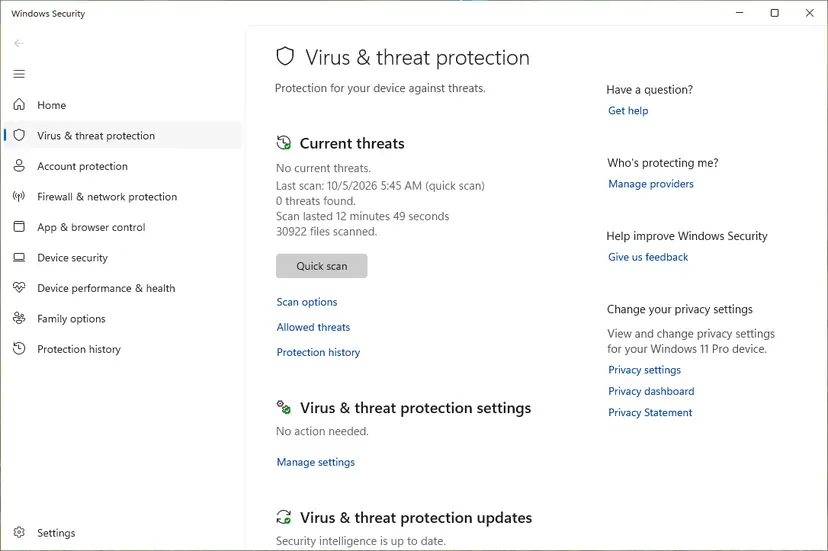
Quick scan and Scan options sit under Current threats. Screenshot: Windows 11 26H2. - Open Scan options. If the quick scan finds nothing and you still suspect an infection, select Scan options under Current threats.
- Run a full scan. Select Full scan and start it. It checks every file and program on the device, so it takes much longer than a quick scan. Leave the PC on until it ends.
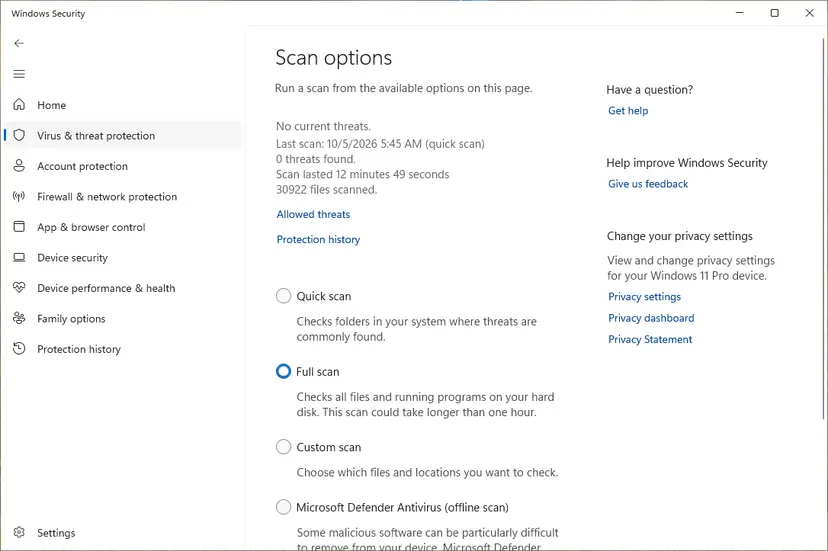
Scan options: Quick scan, Full scan, Custom scan and the offline scan. Screenshot: Windows 11 26H2. - Or scan one folder. To check only a download or a USB drive, select Custom scan in Scan options and choose the folder. You can also right-click a file or folder in File Explorer and select Scan with Microsoft Defender. On Windows 11 you may have to select Show more options first.
- Read Protection history. Go back to the first page of Windows Security and select Protection history. Select a card to expand it and see the details.
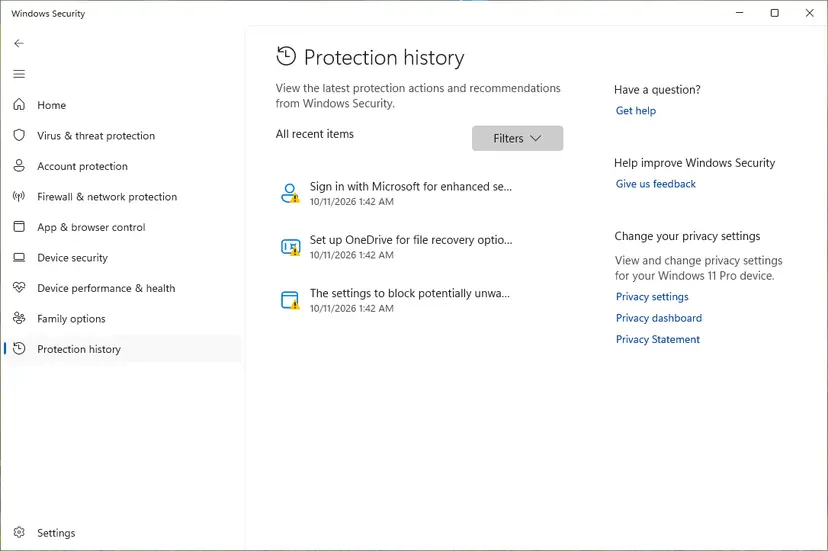
Protection history lists what Defender found and did. Screenshot: Windows 11 26H2.
These steps were written for Windows 11 25H2 and 26H2, Windows 10 22H2. The full page with the other versions and what each result means: How to scan for malware with Microsoft Defender
Run the Microsoft Defender Offline scan from the same Scan options page if the quick scan finds nothing and the load continues. It restarts the PC and scans outside Windows. Do not delete taskhostw.exe from System32 yourself: a genuine copy is needed, and sfc in Fix 5 restores it if a scan quarantines a damaged one.
It worked if: Defender reports no threats, or it removes the threat and taskhostw.exe settles within a few minutes.
If not: No threat found and the load continues: repair system files with Fix 5.
Fix 5. Repair Windows system files with DISM and SFC
20 minutesLow riskYou see Access Denied or Application Error messages, or Fix 3 showed crashes inside Windows components.
The old version of this page put system file damage first. SFC compares protected Windows files with the stored copies and replaces bad ones. DISM repairs the stored copies themselves.
- Open an elevated command window. Right-click Start and select Terminal (Admin), or type cmd in the search box, right-click Command Prompt and select Run as administrator. Select Yes when Windows asks for permission.

Search for cmd and choose Run as administrator. Screenshot: Windows 11 26H2. - Run DISM first. Type the command below and press Enter. DISM downloads clean copies of damaged components from Windows Update, so it can take several minutes. Wait until it says The operation completed successfully.
DISM.exe /Online /Cleanup-Image /RestoreHealth
DISM /RestoreHealth running. Screenshot: Windows 11 26H2. - Run System File Checker. In the same window, type the command below and press Enter. Do not close the window until the verification reaches 100%.
sfc /scannow
sfc /scannow at 100%. Screenshot: Windows 11 26H2. - Read the result and restart. Compare the last message with the table below this guide, then restart the PC so that repaired files are loaded.

The result line tells you what SFC did. Screenshot: Windows 11 26H2.
These steps were written for Windows 11 24H2 and 25H2. The full page with the other versions and what each result means: Run DISM and SFC to repair Windows system files
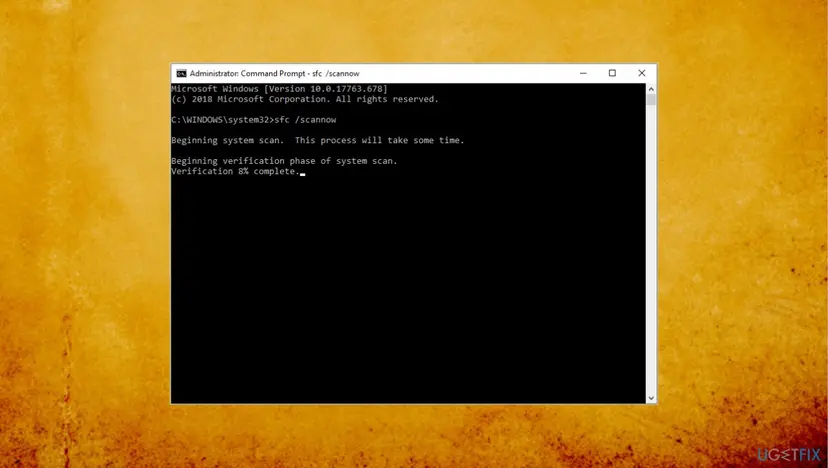
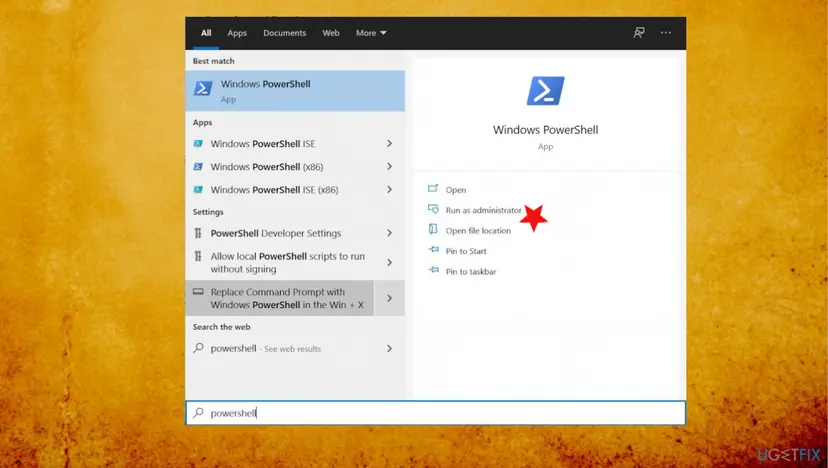
Typed in an administrator PowerShell or Terminal, in this order (note the spaces, the old guide had them wrong):
sfc /scannow
dism.exe /Online /Cleanup-Image /RestoreHealth
Restart Windows when both commands finish, then watch Task Manager for a day of normal use.
It worked if: SFC reports that it found no integrity violations or that it repaired files, DISM ends with a success message, and the load drops after a restart.
If not: Errors you cannot clear, or the load is back: test for a conflicting program with Fix 6.
Fix 6. Do a clean boot to find a program that causes the load
20 minutesLow riskFix 2 pointed to a third-party task, or nothing earlier explained the load.
A clean boot starts Windows with only Microsoft services and no startup programs. If taskhostw.exe is calm there, a program you installed owns the task, and you can find it by turning items back on in groups.
- Open System Configuration. Select Search on the taskbar, type msconfig and select System Configuration from the results.
- Hide Microsoft services. On the Services tab, select the Hide all Microsoft services check box. Only services from other companies stay in the list.

With Hide all Microsoft services ticked, only third-party services stay in the list. Screenshot: Windows 11 26H2. - Disable the remaining services. Select Disable all, then select Apply.
- Open Task Manager. On the Startup tab of System Configuration, select Open Task Manager.
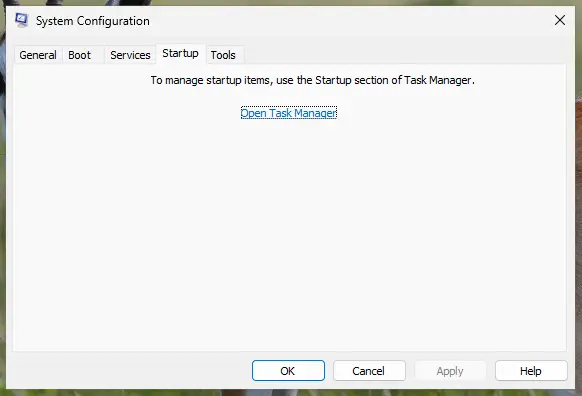
The Startup tab only links to Task Manager. Screenshot: Windows 11 26H2. - Disable the startup apps. On the Startup apps tab in Task Manager, select each item whose status is Enabled and select Disable. Write down or take a screenshot of the items you disable: you need the list to turn them back on.
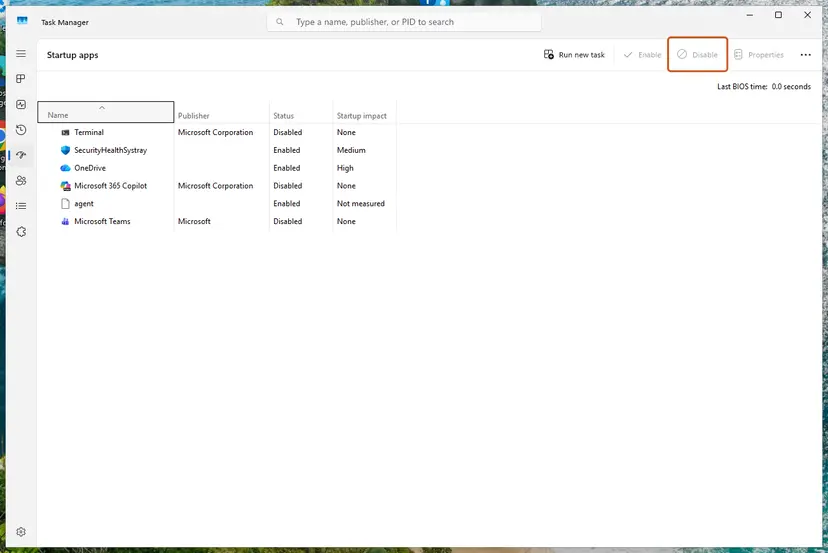
Select an app, then Disable. Screenshot: Windows 11 26H2. - Confirm the changes. Close Task Manager. On the Startup tab of System Configuration, select OK.
- Restart and test. Restart the PC. Windows now starts in a clean boot environment: try again the thing that failed (run the app, install the update, uninstall the program).
These steps were written for Windows 11 25H2 and 26H2. The full page with the other versions and what each result means: How to perform a clean boot in Windows
Turn the startup items back on half at a time and restart each time. The half that brings the load back holds the program. Update that program, repair it, or remove it with Uninstall a program or app in Windows if you do not need it.
It worked if: In the clean boot taskhostw.exe stays quiet, and you can name the program that brings the load back.
If not: The load is the same in the clean boot: the cause is Windows or a Microsoft task. Go to Fix 8 or Fix 9.
Fix 7. Disable a third-party task that keeps starting
5 minutesRead the warningFix 2 or Fix 6 showed a task from a program that is not Microsoft, and updating that program did not help.
A task that fires too often or fails over and over keeps the host busy. Disabling that one task stops the load while the program stays installed, and you can switch it on again.
The program may stop updating, syncing or running its background job until the task is enabled again. No files are deleted. Write down the exact task name and its folder first, and never disable tasks in the folder Microsoft > Windows.
- Open Task Scheduler and expand Task Scheduler Library.
- Select the folder of the program (not a folder under Microsoft) and select the task you found.
- Open the Actions tab and check that the action points to a file of that program.
- Right-click the task and select Disable.
- Restart Windows and watch taskhostw.exe for a day.
- To undo it, right-click the same task and select Enable.
If the program is one you do not use, remove it with Uninstall a program or app in Windows instead. That deletes its tasks together with it.
It worked if: Taskhostw.exe no longer rises when that task would have run, and the program is still installed.
If not: The load stays: enable the task again, since it was not the cause, and continue with Fix 8.
Fix 8. Restore Windows to a point before the problem began
20 to 40 minutesLow riskThe load started after an update, a driver or a program, and a restore point from before it exists.
System Restore puts Windows files, drivers and settings back to an earlier day. It fits a problem with a known start date, which Reliability Monitor in Fix 3 shows.
- Open System Restore. Press Windows+R, type the command below and press Enter. You can also open Control Panel > Recovery > Open System Restore. If a first page opens, select Next.
rstrui.exe - Choose a restore point. Select a restore point from a time before the problem started. The Description often names the event, such as a driver or app install. If the one you need is missing, select Show more restore points (shown only when there are more).
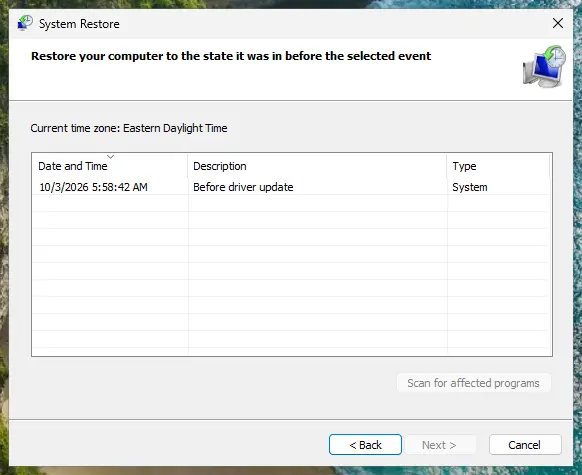
Pick a restore point from before the problem started. Screenshot: Windows 11 26H2. - See what will change. Select Scan for affected programs. The upper list shows programs and drivers that will be removed; the lower list shows those that might come back and may need to be reinstalled. Select Close.
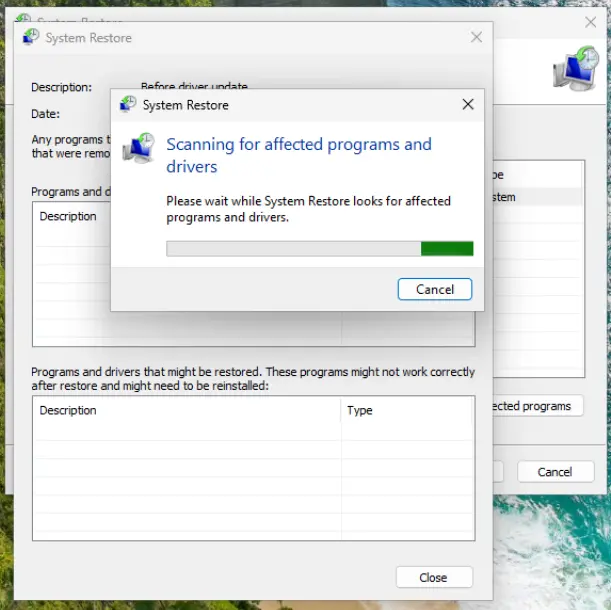
The scan lists programs and drivers the restore removes or brings back. Screenshot: Windows 11 26H2. - Start the restore. Select Next, check the summary and select Finish. Windows restarts and applies the restore point. Do not turn the PC off.
- Check the result. After sign-in Windows reports whether the restore succeeded. Check whether the problem is gone.
These steps were written for Windows 11 and Windows 10 (the steps are the same). The full page with the other versions and what each result means: Undo recent changes with System Restore
Pick a restore point from a day before the first crash in Fix 3 or before the first busy day you remember. Programs you installed after that day are removed, and your documents stay.
It worked if: After the restart, Windows reports that the restore finished, and taskhostw.exe is calm.
If not: No restore point exists or it did not help: Fix 9 is the last step.
Fix 9. Reset Windows and keep your files
1 to 2 hoursRead the warningFix 1 to Fix 8 did not help and the PC is slow all day.
A reset installs a clean copy of Windows and removes damaged files and tasks of programs together. It is the final fix for a problem that sits in Windows itself.
Choosing to keep your files keeps documents, but removes the apps you installed and many settings. Back up your files and note your product keys and sign-in details first: Back up your files (Windows Backup, File History, Time Machine).
- Open Recovery in Settings. Open Settings > System > Recovery. Next to Fix problems using Windows Update, select Reinstall now. This keeps your apps, files and settings.

Fix problems using Windows Update reinstalls the current version and keeps apps, files and settings. Screenshot: Windows 11 26H2. - Start the reinstall. Choose whether the PC may restart on its own 15 minutes after the installation, then select OK.
- Wait and restart. Windows Update downloads and installs a repair copy of your current Windows version. Keep the PC plugged in and online, and restart it when asked.
- If that did not help: Reset PC. Back in Settings > System > Recovery, next to Reset this PC, select Reset PC. This keeps your personal files but removes installed apps and settings.
- Choose Keep my files. Select Keep my files. Do not select Remove everything.
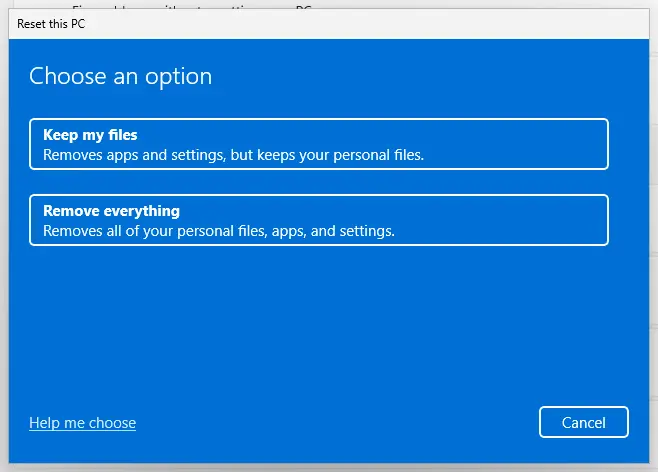
Keep my files removes apps and settings but keeps personal files. Screenshot: Windows 11 26H2. - Choose where Windows comes from. Select Cloud download to download a fresh copy of Windows, or Local reinstall to use the files already on the PC (faster, but may not include the latest updates).
- Reset. Review the summary and select Reset. The PC restarts several times.
These steps were written for Windows 11 22H2 and later. The full page with the other versions and what each result means: Reinstall Windows without losing files
It worked if: Windows starts clean, and taskhostw.exe stays quiet before you install your programs again.
If not: Install programs one at a time and check the CPU after each. If the load returns with one of them, that program owns the task; contact its maker.
If taskhostw.exe still uses a lot of CPU: what to collect and when it is hardware
A genuine host that stays busy after a scan, a repair and a clean boot is uncommon. Collect the details below before you ask for help, so nobody starts from zero. A Microsoft Q&A adviser asks for a scan log that lists the scheduled tasks and services first.
| What to collect | Where |
|---|---|
| Name and folder of the running task | Task Scheduler, Action > Display All Running Tasks (Fix 2) |
| How long and how often the load lasts | Task Manager and Resource Monitor, CPU tab |
| Crash records that name taskhostw.exe | Reliability Monitor (Fix 3) or Event Viewer > Windows Logs > Application |
| Path and signature of the file | Fix 1 |
| Result of the Defender scan and of SFC and DISM | The messages you saw in Fix 4 and Fix 5 |
- Home users can post those details on Microsoft Q&A or ask through the Get Help app. On a work PC, give them to your IT desk.
- If the PC is hot and slow even with taskhostw.exe calm, look beyond it: dust, a failing fan or a small SSD can raise the CPU use of every process.
- A high CPU that never changes, whatever you close, with fans at full speed, can be a hardware or cooling fault. A technician can test it.
What not to do about taskhostw.exe: ending, deleting or blocking it
Ending the process stops the current load, but Task Scheduler starts it again at the next trigger. Deleting or renaming taskhostw.exe damages Windows and can stop sign-in tasks from running.
- Find the task and fix or remove the program behind it.
- Scan with Microsoft Defender and repair system files.
- Disable only a third-party task, and write down how to switch it on again.
- Keep Windows updated.
- Delete, rename or replace
taskhostw.exeinSystem32. - Disable tasks in Microsoft > Windows to quiet the PC.
- Set the process priority to Low as a permanent fix.
- Download a repair tool from a pop-up or a forum link.
The old version of this page told readers to clear all problem reports. That removes the list, not the cause, so it cannot lower the CPU use. Fix 3 uses the reports to find the cause instead.
How to keep taskhostw.exe quiet from now on
- Install Windows updates when they are offered. Windows 10 left support on 14 October 2025, so plan the move to Windows 11.
- Keep programs that add background tasks up to date, and remove the ones you no longer use with Uninstall a program or app in Windows.
- Look at Task Scheduler once after you install a new program. A task from a program you do not know is worth a search.
- Let the PC finish its first busy minutes after sign-in. Many tasks start together at that moment, and the CPU settles by itself.
- Run a Defender scan now and then, and use Run DISM and SFC to repair Windows system files if Windows behaves oddly.
Frequently asked questions
What is taskhostw.exe and what does it do?
Taskhostw.exe is the file behind Host Process for Windows Tasks in Task Manager. Task Scheduler starts it to run tasks built as DLL handlers, which show the action Custom Handler in the Task Scheduler window. It has no window of its own, and several copies at once are normal. Microsoft's documentation describes the handlers but does not name the file, so we state this link as the common understanding. The CPU it uses belongs to the task it is running.
Is taskhostw.exe a virus?
The genuine file is part of Windows and is not a virus. A copy in another folder, a file without a valid Microsoft signature, or tasks you did not create point to malware that uses the name. Fix 1 shows the two checks, the folder and the digital signature, and Fix 4 shows the scan. A Microsoft Q&A adviser also tells readers to inspect the scheduled tasks, because miners can hide in them, so a Defender scan is the first step.
How do I fix taskhostw.exe high CPU usage?
Check the file (Fix 1), then find the task that runs inside it with Task Scheduler (Fix 2). Scan with Microsoft Defender (Fix 4) and repair system files with SFC and DISM (Fix 5). If the task belongs to a program, update, repair or remove that program (Fix 6 and Fix 7). Roll Windows back with System Restore (Fix 8) or reset it (Fix 9) only if nothing else worked.
Can I end or disable taskhostw.exe?
You can end it in Task Manager for the current run, but Task Scheduler starts it again at the next trigger, so this is not a fix. You cannot disable it as a task, because it is the host and not a task: a reader on Microsoft Q&A looked for a task with that name and found none. Disable only the third-party task that Fix 2 identifies, and keep the Microsoft > Windows tasks on. Fix 7 gives the steps and the undo.
Why are there several taskhostw.exe processes in Task Manager?
Several copies at once are normal. One reader on Microsoft Q&A saw three copies with no measurable CPU, disk or network use, apparently waiting for work. That is normal. Look at the User name column in the Details page: SYSTEM, a service account and your own account are all expected. Only a copy that stays busy or sits in the wrong folder needs action.
How do I fix the taskhostw.exe application error?
Open Reliability Monitor (Fix 3) and read the entry for taskhostw.exe, which shows the date and, in many cases, the faulting module. Repair system files with SFC and DISM (Fix 5), then run a clean boot (Fix 6) to see whether a program causes the crash. Users report the messages Taskhostw.exe, Application Error and Taskhost.exe, Application Error. We found no Microsoft page that gives these messages a meaning or a code.
What does Taskhostw.exe Access Denied mean?
Users report this message, but we found no Microsoft page that explains it, so we cannot state its meaning. It usually shows that a task hosted by the process could not open a file or a setting it needs. Start with Fix 5 to repair system files, then Fix 4 to rule out malware that changed permissions. If it keeps appearing for one task, Fix 2 tells you which program owns it.
What is taskhost.exe, and is it the same as taskhostw.exe?
Taskhost.exe is the older name of the same kind of host. On Windows 11 and Windows 10 the file you see is taskhostw.exe. We found no Microsoft page that explains the change, so we do not say more. Users sometimes search for one name and see the other. If a file named taskhost.exe runs on Windows 11 or 10, check its folder and signature with Fix 1, because a copy that is not signed by Microsoft is not part of Windows.
Why does taskhostw.exe use the disk when I have not started anything?
A task that Task Scheduler runs in the background can read and write files at any time. One reader saw the disk at 100% for hours and found the files in use looked like updates or installs, while Task Scheduler listed tasks named Data Integrity Scan. Wait for a task to finish when it follows an update, and use Fix 2 to name the task. Continuous heavy use is not normal. Run Fix 5 and Fix 6 then.
Will a reset delete my files?
Windows offers a reset that keeps your personal files, and Fix 9 uses it. Your installed apps and many settings are removed, so you must back up and write down what you need first. A reset is the last step: Fix 1 to Fix 8 solve most cases without it, and they do not remove programs, except System Restore, which removes programs installed after the restore point.
Sources
- Microsoft Learn: ComHandlerAction object (Task Scheduler) (learn.microsoft.com)
- Microsoft Q&A: How do I find which process is calling taskhostw.exe (users report, 2024) (learn.microsoft.com)
- Microsoft Q&A: Host Process for Windows Tasks causing high CPU usage (users report, 2025) (learn.microsoft.com)
Did this fix work?
One click, no account. It tells the next reader which guides are worth their time.
Questions and experiences: Taskhostw.exe high CPU usage: what it is and how to fix it
Still broken, or found a fix we did not cover? Ask here: members and our editors answer. Reading is open; writing needs a free account.
…