
How to fix Teams error code 2148073494 in Windows?

Prefer to fix it yourself? The manual steps follow.
- 8methods
- 10 to 45 minutes
- Intermediate
Applies to Microsoft Teams, Outlook, OneDrive, Word and Excel for Windows on Windows 11 and Windows 10, with work, school or personal Microsoft accounts
8 methods in this guide
- What the error means
- Decode the code
- Teams, Outlook, OneDrive
- Causes, ranked
- The fixes
- 1. Clear the broker cache
- 2. Reconnect the account
- 3. Repair account plug-ins
- 4. Check the TPM
- 5. Check device registration
- 6. Set the protection policy
- 7. Clear the TPM
- 8. Test a new Windows account
- Still there: who can help
- Prevent it
- FAQ
Hey. I can't access Teams anymore because of the error code 2148073494. I'm using a Windows 10 laptop. Is there anything that could be done to fix it?
Code: 2148073494 under tag 657rx means Windows could not find the key that protects your saved Microsoft 365 sign-in, so Teams, Outlook or OneDrive refuse the token. Your account is usually fine. Clear the sign-in broker cache first, then remove the stored credentials and reconnect your work or school account.
2148073494 is the Windows code 0x80090016, NTE_BAD_KEYSET, "Keyset does not exist". The key that sealed your saved sign-in is missing, so the token is useless. Start with Fix 1: sign out of Office, rename the Microsoft.AAD.BrokerPlugin_cw5n1h2txyewy folder and restart. If it stays, remove the Office credentials and reconnect the account (Fix 2), then check the TPM (Fix 4).
| Error | Something went wrong. [657rx] with Correlation Id, Timestamp, DPTI, Message: The credential is invalid. Unexpected sub status (6008)., Tag: 657rx and Code: 2148073494. Older windows label the last lines Error Tag and Error Code. |
|---|---|
| Where it appears | In the Microsoft sign-in window that Teams, Outlook, OneDrive, Word and Excel open on Windows: at start, after you type your address, or when the app asks for your password again. |
| Main cause | Stale sign-in tokens in the Windows account broker that point to a key this PC no longer has. Less often a new or reset TPM chip, after a board repair or a BIOS update. |
| Fastest fix | Sign out of Office, rename %localappdata%\Packages\Microsoft.AAD.BrokerPlugin_cw5n1h2txyewy to .old, restart and sign in again (Fix 1). |
| Also written as | error code 2148073494, code: 2148073494, error code: 2148073494, 0x80090016, 80090016, NTE_BAD_KEYSET, "Keyset does not exist", and "Your computer's Trusted Platform Module has malfunctioned" with error code 80090016. |
| Neighbour code | 2148073520 (0x80090030, a key device that is not ready) shows in the same 657rx window. Our guide to sign-in error 2148073520 covers it. |
| Affects | Microsoft 365 apps on Windows 11 and Windows 10. Most reports come from work and school accounts. The browser versions keep working. |
| Microsoft's status | No Microsoft article defines tag 657rx or sub status 6008 (checked 15 October 2026). Microsoft documents the code and a troubleshooting page for the TPM malfunction message. Dell documents 80090016 after a system board replacement. |
| Time to fix | About 10 minutes for Fix 1 and Fix 2. Up to 45 minutes when the TPM or the device registration is involved. |
Facts checked on 15 October 2026. Steps written for the new Microsoft Teams, classic and new Outlook, OneDrive and the Microsoft 365 apps on Windows 11 (25H2 and 26H2) and Windows 10 22H2, read against Microsoft's and Dell's documentation.
What error code 2148073494 with tag 657rx means
You open Teams or Outlook and a small Microsoft window says Something went wrong. [657rx]. Under Troubleshooting details it lists a Correlation Id, a Timestamp and a DPTI string, then the line Message: The credential is invalid. Unexpected sub status (6008)., the tag 657rx and Code: 2148073494. Teams, OneDrive and the other Office apps then fail in the same way.
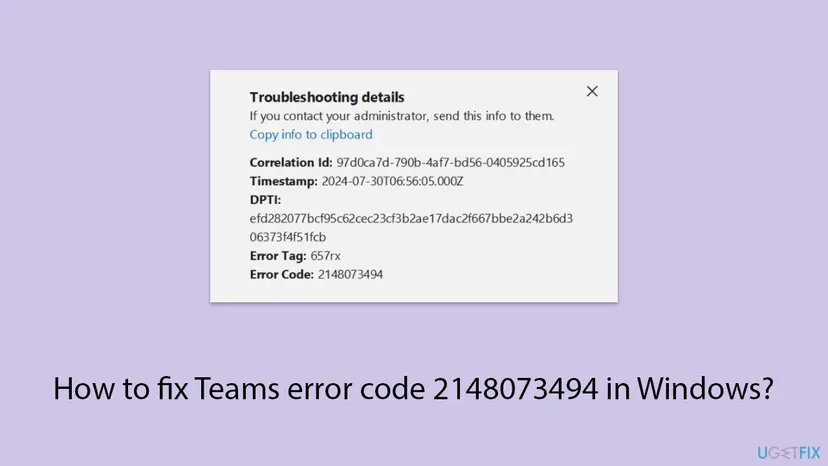
The message says the credential is invalid, but your password is rarely the problem. In the reports we read, the same account still worked in a browser and on a phone while every desktop app on one PC failed. That points at something stored on this PC, not at the account.
| Line in the window | What it is | What to do with it |
|---|---|---|
| Correlation Id and Timestamp | The identifier and UTC time of this sign-in attempt. | Copy both for IT or Microsoft support. |
| DPTI | A long string that Microsoft does not document. | Share it only with support. Forum moderators remove it from public posts. |
| Message | The credential is invalid. Unexpected sub status (6008). | Says the token check failed, not why. |
| Tag: 657rx | Marks where the Office sign-in gave up. | Use it to recognise the error. |
| Code: 2148073494 | A Windows result code in decimal. | The useful line. The next section decodes it. |
Select Copy info to clipboard and paste the lines into a note. When you search for help, for example with site:ugetfix.com or site:learn.microsoft.com, search for the code line. The Correlation Id changes on every attempt.
Decode code 2148073494: 0x80090016, Keyset does not exist
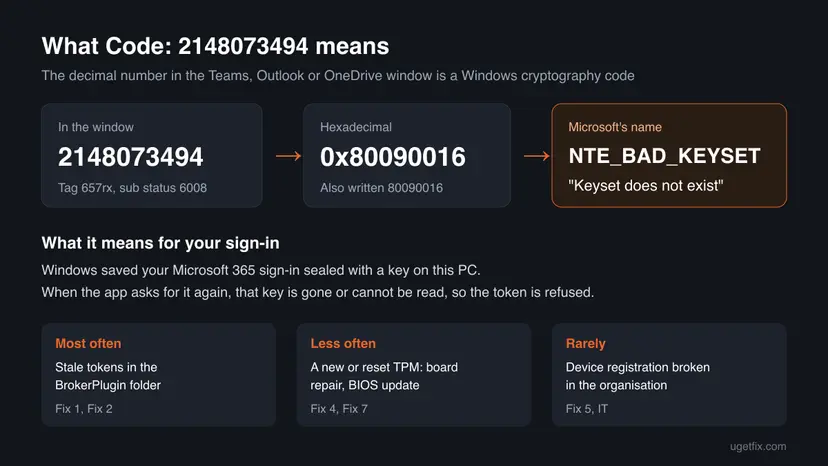
Converted to hexadecimal, 2148073494 is 0x80090016. Microsoft's table of COM error codes lists it as NTE_BAD_KEYSET with the text "Keyset does not exist". The 0x8009 family belongs to Windows cryptography, which holds the keys that seal your saved sign-in tokens.
| Code | Hexadecimal | Microsoft's description | Start with |
|---|---|---|---|
| 2148073494 | 0x80090016 | NTE_BAD_KEYSET: "Keyset does not exist" | Fix 1, Fix 2 |
| 80090016 in "Trusted Platform Module has malfunctioned" | 0x80090016 | The same code, shown by older Office builds as a TPM message | Fix 1, Fix 4 |
| 2148073520 | 0x80090030 | NTE_DEVICE_NOT_READY: the cryptographic device is not ready | See our 2148073520 guide |
Dell's support article shows the two faces of this code side by side: "Your computer's Trusted Platform Module has malfunctioned. If this error persists, contact your system administrator with the error code 80090016." and "Keyset does not exist (0x80090016)." Dell explains that tokens made with the old TPM chip cannot be verified once the chip is gone.
Microsoft error code 2148073494 in Teams, Outlook and OneDrive
Teams does not sign in by itself. It asks Web Account Manager (WAM), a part of Windows, for a token. Microsoft names two packages behind it: Microsoft.AAD.BrokerPlugin for work and school accounts and Microsoft.Windows.CloudExperienceHost for personal accounts. Every Microsoft 365 app on the PC uses the same broker, so one broken key breaks them all.
- Teams: the 657rx window appears at start, often after the work address is entered. One user reported that disconnecting and reconnecting the work account fixed it in Teams.
- Outlook: classic Outlook asks for the password again and again, then shows the window. Mail stops syncing.
- OneDrive, Word, Excel: OneDrive stops syncing and the Office apps cannot confirm your subscription.
- Browser and phone: Teams on the web, Outlook on the web and the phone apps usually keep working, because they do not use this PC's broker or its keys.
One Microsoft 365 user reported that his desktop apps stopped signing in while travelling, and the error stayed after he returned. Microsoft's moderator pointed at the organisation's policies, such as conditional access. Clear the cache with Fix 1 and Fix 2, and ask IT whether your account is limited by location.
What causes error 2148073494, from the most common to the rare
Microsoft has not published a cause for tag 657rx. The order below comes from the code itself, from Microsoft's troubleshooting page for the TPM malfunction message, from Dell's article on 80090016 and from the outcomes users posted on Microsoft Q&A. Treat it as our reading, not a statistic.
| How often | Cause | Typical sign | Fix |
|---|---|---|---|
| Most often | Stale tokens in the BrokerPlugin folder that point to a key that is gone | It began after a password change, a policy change at work or a Windows update. | Fix 1 |
| Often | Old Office credentials and a broken work or school account entry in Windows | Fix 1 helped only until the next restart. | Fix 2 |
| Less often | Missing account plug-ins, or security software, a VPN or a proxy that blocks the broker | The sign-in window is blank or closes at once. | Fix 3 |
| Less often | A new or reset TPM: system board replacement, BIOS update, BitLocker recovery | The error began right after a repair or a firmware update. | Fix 4, Fix 7 |
| Rarely | The device is disabled, deleted or duplicated in Microsoft Entra ID | Only on a work PC. The AAD log shows AADSTS135011 or AADSTS50155. | Fix 5 |
| Rarely | A damaged Windows user profile | Everything above failed, and another Windows account signs in. | Fix 8 |
Reinstalling Teams or Office is the most common tip, and users on Microsoft Q&A report that it did not help. Dell explains why: 80090016 is tied to Windows TPM keys and broker tokens, not to the Office installation files. A VPN to your home country is the other common tip; we found no source that ties it to this code.
How to fix error code 2148073494 in Teams on Windows
Fix 1 and Fix 2 clear what Windows keeps about your account and work for most readers in the reports we read. Fix 3 to Fix 5 look at the plug-ins, the TPM and the device registration. Fix 6 to Fix 8 are for PCs where nothing else helped. After each fix, start Teams: success looks the same every time, a normal Microsoft sign-in that asks for your password and second factor.
| What you see or have | Start with | Then |
|---|---|---|
| Your own PC, work or school account added to Windows | Fix 1 | Fix 2, Fix 3 |
| Your own PC, personal Microsoft account | Fix 1 | Fix 3, Fix 8 |
| A laptop your employer or school manages | Fix 1, then Fix 2 without Disconnect | Fix 5 with IT |
| After a new system board, a BIOS update or a BitLocker recovery screen | Fix 4 | Fix 1, Fix 2, Fix 7 |
| The sign-in window is blank or closes at once | Fix 3 | Fix 1 |
| It began on a trip abroad | Fix 1, Fix 2 | Ask IT about location policies |
| Nothing above helped | Fix 8 | Still there section |
Fix 1. Clear the Windows sign-in broker cache by renaming its folder
10 minutesLow riskEveryone with the error, first. It also works on a managed laptop because it only touches your own profile.
The code says the key behind your saved token does not exist. The broker keeps those tokens in its own folder, and Windows builds a fresh one when the old one is gone. Microsoft's moderator answer for 2148073494, marked helpful by more than 100 users, empties this folder, and Dell renames it.
- In Word or Outlook select File > Account > Sign out. In Teams select your picture and Sign out.
- Quit Teams from the taskbar corner and close Outlook, Word, Excel and OneDrive.
- Press Win + R, paste this path and press Enter:
%localappdata%\Packages - Right-click the folder Microsoft.AAD.BrokerPlugin_cw5n1h2txyewy and select Rename.
- Add
.oldto the end of the name, so it readsMicrosoft.AAD.BrokerPlugin_cw5n1h2txyewy.old, and press Enter. - Restart the PC.
- Start Teams and sign in with your work or school address, including the second factor.
Dell's fix: sign out of Windows, sign in with another administrator account and rename the folder under C:\Users\<your user name>\AppData\Local\Packages. If you cannot rename it, Microsoft's TPM troubleshooting page empties just the token store instead: delete the files in %LOCALAPPDATA%\Packages\Microsoft.AAD.BrokerPlugin_cw5n1h2txyewy\AC\TokenBroker\Accounts and restart.
Renaming keeps a copy that you can name back, which deleting does not. Once Teams signs in and stays signed in after a restart, you can delete the .old folder. Users on the Microsoft Q&A thread for 2148073494 report that deleting the folder contents was the step that ended the error. Microsoft's TPM page follows the cache reset with the Microsoft 365 sign-in troubleshooter.
It worked if: Teams shows a normal Microsoft sign-in, accepts your password and opens your chats. A new BrokerPlugin folder appears in Packages.
If not: If the 657rx window comes back with the same code, remove the stored credentials and reconnect the account with Fix 2.
Fix 2. Remove the Office credentials and reconnect your work or school account
10 minutesLow riskFix 1 did not help, or it helped only until the next restart. On a managed laptop, do steps 1 to 4 only.
Windows keeps your Microsoft 365 sign-in in two more places: Credential Manager and Access work or school. Microsoft's page on the TPM malfunction message clears both, and Dell puts the disconnect and reconnect first for 80090016, because a new registration creates new keys.
- Close Teams, Outlook, OneDrive and the other Office apps.
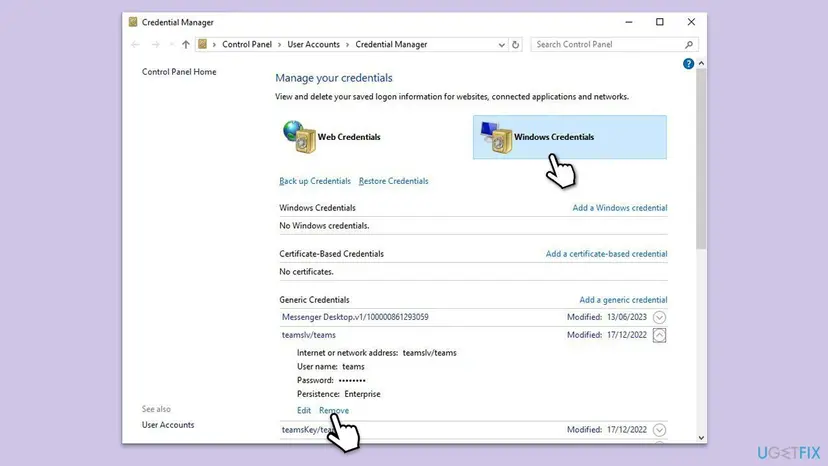
- Select Start, type
credential managerand open Credential Manager. Select Windows Credentials. - Under Generic Credentials, expand each entry that starts with MicrosoftOffice16, msteams or ADAL and select Remove.
- Close Credential Manager.
- Open Settings > Accounts > Access work or school. If the account you use for Teams is listed and it is not your Windows sign-in, select it and select Disconnect.
- Restart the PC.
- Go back to Access work or school, select Connect and sign in with the work or school address and the second factor.
- Start Teams and sign in.
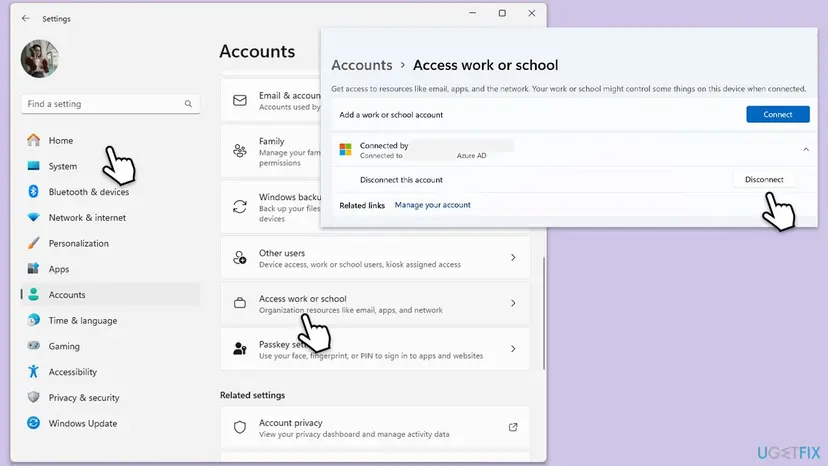
Disconnecting removes the organisation's registration of this PC, and on a laptop that IT set up it can remove company settings and access. There, remove the credentials only and send IT the details from the 657rx window. Your mail, chats and files stay on Microsoft's servers either way.
It worked if: After the reconnect Teams, Outlook and OneDrive sign in without the 657rx window and stay signed in after the next restart.
If not: If the sign-in window is blank or the error returns, repair the account plug-ins with Fix 3.
Fix 3. Repair the account plug-ins and make sure nothing blocks them
15 minutesLow riskThe sign-in window is blank or closes at once, or you use a VPN, a proxy or a third-party antivirus.
Microsoft says some antivirus, proxy or firewall software can block the Microsoft.AAD.BrokerPlugin process, and gives PowerShell commands that register both account plug-ins again. A broker that cannot run cannot create the new key that Fix 1 and Fix 2 need.
- Disconnect any VPN and test the Teams sign-in once. Turn the VPN back on afterwards.
- Right-click Start and select Terminal on Windows 11 or Windows PowerShell on Windows 10, as the user who sees the error.
- For a work or school account, check and register the work account plug-in:
if (-not (Get-AppxPackage Microsoft.AAD.BrokerPlugin)) { Add-AppxPackage -Register "$env:windir\SystemApps\Microsoft.AAD.BrokerPlugin_cw5n1h2txyewy\Appxmanifest.xml" -DisableDevelopmentMode -ForceApplicationShutdown } Get-AppxPackage Microsoft.AAD.BrokerPlugin - For a personal account, do the same for the CloudExperienceHost package:
if (-not (Get-AppxPackage Microsoft.Windows.CloudExperienceHost)) { Add-AppxPackage -Register "$env:windir\SystemApps\Microsoft.Windows.CloudExperienceHost_cw5n1h2txyewy\Appxmanifest.xml" -DisableDevelopmentMode -ForceApplicationShutdown } Get-AppxPackage Microsoft.Windows.CloudExperienceHost - Restart the PC and sign in to Teams.
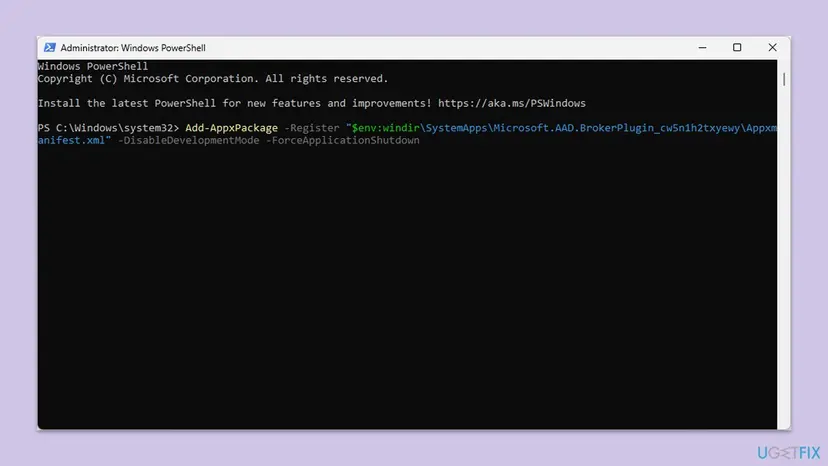
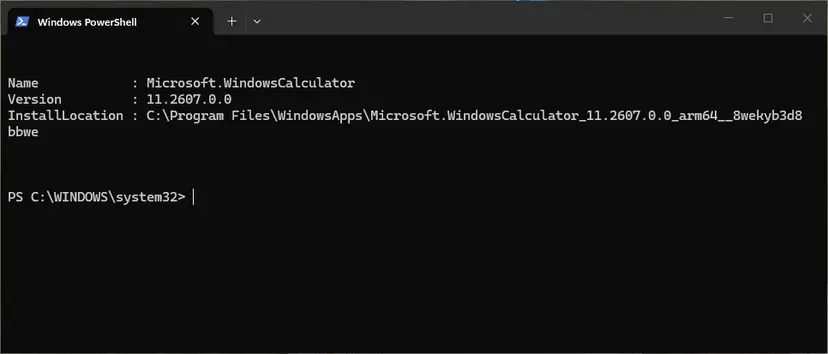
If the error ends only while your antivirus is paused, update it and allow Microsoft.AAD.BrokerPlugin_cw5n1h2txyewy in its application or web control. Pause protection for one test only and turn it back on at once: Turn off Microsoft Defender protection for a moment. More on the commands: How to re-register Microsoft Store apps with PowerShell.
Old forum answers set EnableADAL to 0 or DisableAADWAM to 1 under the Office Identity key. Microsoft says disabling ADAL or WAM is not supported as a fix for sign-in problems and puts Office into a legacy state. If you set these values before, delete them.
It worked if: Get-AppxPackage lists the plug-in with Status Ok, and the sign-in window opens and asks for your password.
If not: If the plug-ins are fine and the error stays, check whether the TPM is ready with Fix 4.
Fix 4. Check that the TPM is ready, read its log and update the BIOS
15 minutesLow riskFix 1 to Fix 3 did not help, or the error began after a repair, a new system board, a BIOS update or a BitLocker recovery screen.
Windows seals sign-in keys with the TPM chip. Dell explains that a new board brings a new chip, and the tokens made with the old one fail with 80090016. Microsoft adds that updating the TPM firmware avoids such failures and lists the log patterns that point at the chip.
- Press Win + R, type
tpm.mscand press Enter. - Under Status read the line. The TPM is ready for use is the healthy state. Any other text, or Compatible TPM cannot be found, points to the chip or the BIOS.
- Press Win + R, type
eventvwr.mscand press Enter. - Open Applications and Services Logs > Microsoft > Windows > AAD > Operational and look for errors at the time of your sign-in.
- Codes of the pattern
0x?028????,0x?029????or0x?009????are the ones Microsoft ties to a TPM failure. 0x80090016 fits the last one. - If you found them, install the latest BIOS or UEFI firmware from your PC maker's support site and the newest Windows update, then run Fix 1 again.
- Healthy TPM
- tpm.msc: The TPM is ready for use
- Sign-in log
- Applications and Services Logs > Microsoft > Windows > AAD > Operational
- TPM code patterns
0x?028????,0x?029????,0x?009????- Surface devices
- Firmware comes through Windows Update or Microsoft's Surface driver page
Microsoft notes that since Windows 10 version 1709, Windows detects TPM failures by itself and starts a user recovery. If that does not happen, the manual recovery is the device registration check in Fix 5. Do not clear the TPM yet: that is Fix 7, after these checks.
It worked if: tpm.msc says The TPM is ready for use, no new TPM codes appear in the AAD log, and after the update Fix 1 lets Teams sign in.
If not: If the TPM is ready but this is a work PC, check the device registration with Fix 5. On your own PC, go on to Fix 6.
Fix 5. Check the device registration with dsregcmd
10 to 30 minutesLow riskWork and school accounts, above all on laptops that IT manages or that are joined to Microsoft Entra ID.
A work sign-in also proves the device, with a key held in the TPM. When that device key is gone, the registration has to be rebuilt. Microsoft's TPM troubleshooting page runs dsregcmd /status for this, and Dell's advanced steps rejoin the device in Microsoft Entra ID.
- Select Start, type
cmd, right-click Command Prompt and select Run as administrator. - Run
dsregcmd /status. - Under Device State read AzureAdJoined and DomainJoined. Under User State read WorkplaceJoined. Under SSO State read AzureAdPrt.
- AzureAdPrt : NO means Windows holds no Primary Refresh Token for you, which matches this error.
- Copy the output and pick your recovery from the table below.
| What dsregcmd shows | Microsoft's recovery | Who does it |
|---|---|---|
| WorkplaceJoined : YES (a work account added to your own PC) | Remove the work account under Access work or school and add it again. That is Fix 2. | You |
| AzureAdJoined : YES and DomainJoined : YES (hybrid joined) | Run dsregcmd /leave in an elevated Command Prompt and restart. | IT |
| AzureAdJoined : YES and DomainJoined : NO (Entra joined) | Back up data, create a local administrator, disconnect the account and join again. | IT |
| AAD log shows AADSTS135011 or AADSTS50155 | The device is disabled or deleted in Entra ID. An administrator enables it or registers it again. | IT |
dsregcmd /leave and a new Entra join remove the organisation's setup and can lock you out of company resources until IT restores them. Send IT the dsregcmd output, the Correlation Id and the Timestamp instead of running them yourself.
It worked if: After the recovery dsregcmd /status shows AzureAdPrt : YES, and Teams and Outlook sign in like the browser.
If not: If the registration is fine and this is your own PC, try Microsoft's protection policy value in Fix 6.
Fix 6. Set Microsoft's Office protection policy value in the registry
10 minutesRead the warningYour own PC, when Fix 1 to Fix 4 did not help and the TPM is ready. Not on a managed PC without IT.
Microsoft's troubleshooting page for the TPM malfunction message lists this step as Enable Office Protection Policy. It changes how Windows protects the data keys behind your saved credentials, so new keys can be made after the account is added again.
A wrong registry edit can stop Windows or apps from working. Export the key before you change it, so you can import it back: Back up the registry before editing it. Change only the one value below.
- Open Word, select your name at the top and select Sign out. Close Word.
- Open Settings > Accounts > Access work or school, select the account you use for Microsoft 365 and select Disconnect.
- Press Win + R, type
regeditand press Enter. Select Yes in the prompt. - Go to this key:
HKEY_LOCAL_MACHINE\Software\Microsoft\Cryptography\Protect\Providers\df9d8cd0-1501-11d1-8c7a-00c04fc297eb - Right-click an empty area on the right, select New > DWORD (32-bit) Value and name it
ProtectionPolicy. - Double-click ProtectionPolicy, set Value data to
1and select OK. - Restart the PC, connect the account again under Access work or school and sign in to Teams.
Microsoft does not explain the value in that article, and we could not confirm a side effect on current Windows 11 builds. If nothing changed after the restart, delete the ProtectionPolicy value again so the PC returns to its default.
It worked if: After the restart and the reconnect, Teams signs in and Outlook stops asking for the password.
If not: If the error stays, delete the value again. On your own PC, clearing the TPM in Fix 7 is the next step.
Fix 7. Clear the TPM as the last step on your own PC
20 minutesRead the warningYour own PC, when Fix 4 showed TPM errors or everything above failed after a repair or a new system board.
Microsoft lists Clear TPM in its troubleshooting page for the TPM malfunction message. Clearing resets the chip, Windows prepares it again, and new keys replace the set that the code says does not exist.
Microsoft warns that you lose every key created with the TPM and the data they protect, such as your Windows Hello PIN or a virtual smart card. If BitLocker or device encryption is on, save the recovery key from account.microsoft.com first. Never clear the TPM on a work or school PC without IT.
- Make sure you know your Microsoft account password, because the PIN will stop working.
- Open Windows Security from the Start menu and select Device security.
- Under Security processor select Security processor details, then Security processor troubleshooting.
- Select Clear TPM and restart when asked. The PC may ask you to press a key during the restart to confirm.
- Sign in with your password, set up a new PIN, then run Fix 1 and Fix 2 and sign in to Teams.
Microsoft says to clear the TPM from Windows, never from the UEFI menu, and that Windows prepares the chip for use by itself after the restart.
It worked if: After the restart tpm.msc shows The TPM is ready for use, and Teams signs in without 657rx once the account is added again.
If not: If the TPM errors return after a clear and a firmware update, the chip or the system board may be failing. Contact the PC maker.
Fix 8. Test with a new Windows user account
15 minutesLow riskFix 1 to Fix 3 did not help on a home PC, or IT asks whether the fault follows your profile.
The broker folder, the stored credentials and the token keys belong to each Windows user. Microsoft's TPM troubleshooting page ends with a new Windows user account, which shows whether the missing key set lives in your profile or in the whole PC.
- Open Settings > Accounts > Other users and select Add account.
- Select I don't have this person's sign-in information, then Add a user without a Microsoft account, and give it a name and a password.
- Sign out, sign in to the new account and wait for the desktop.
- Open Teams or Word and sign in with your Microsoft 365 address.
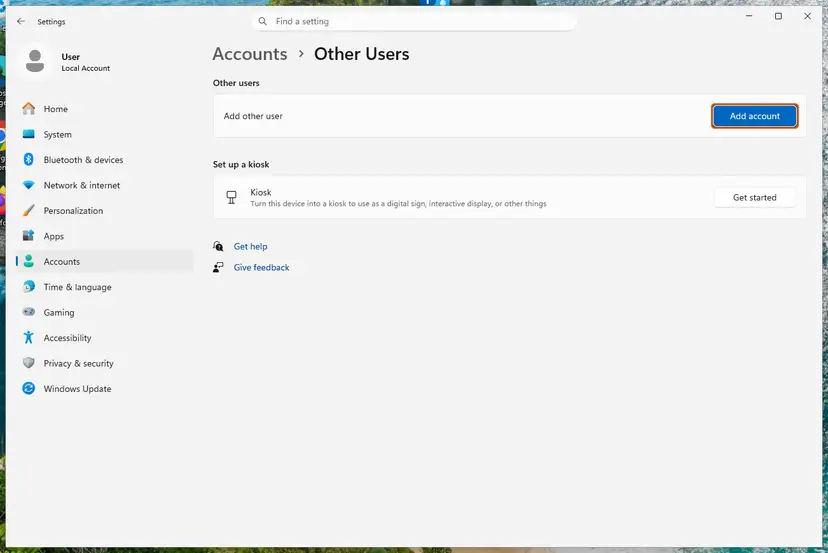
If Teams signs in from the new account, your old profile holds the fault: move your files over or keep repairing the old profile. If it fails there too, the cause is the TPM or the device registration. Every screen of the procedure: Create a new user account to test a problem.
It worked if: In the new Windows account Teams asks for your password and opens without the 657rx window.
If not: If the error appears in the new account too, collect the details in the next section and contact Microsoft support or IT.
If error 2148073494 is still there: what to collect and who can help
When every fix has failed, stop changing the PC and collect evidence. The 657rx window hides the reason, but Windows logs it, and Microsoft support or IT can match the attempt with the details. Send everything as text, not as a photo.
| What to collect | Where | Why |
|---|---|---|
| Correlation Id, Timestamp, Tag, Code | Copy info to clipboard in the 657rx window | Support and IT find the exact attempt. Share the DPTI only with them. |
| Sign-in errors | Applications and Services Logs > Microsoft > Windows > AAD > Operational | TPM patterns and AADSTS messages name the device or token fault. |
| TPM status | tpm.msc | Shows whether the chip is ready. |
| Device state | dsregcmd /status output | AzureAdPrt and the join type tell IT where to start. |
- Personal subscription: contact Microsoft support through support.microsoft.com, signed in with the account that pays for Microsoft 365.
- Work or school account: send the lines to IT. Microsoft's moderator for the 2148073494 thread recommends reporting a persistent error to the organisation's admin.
- After a repair or a new system board: tell the PC maker. Dell documents this exact failure after a board replacement.
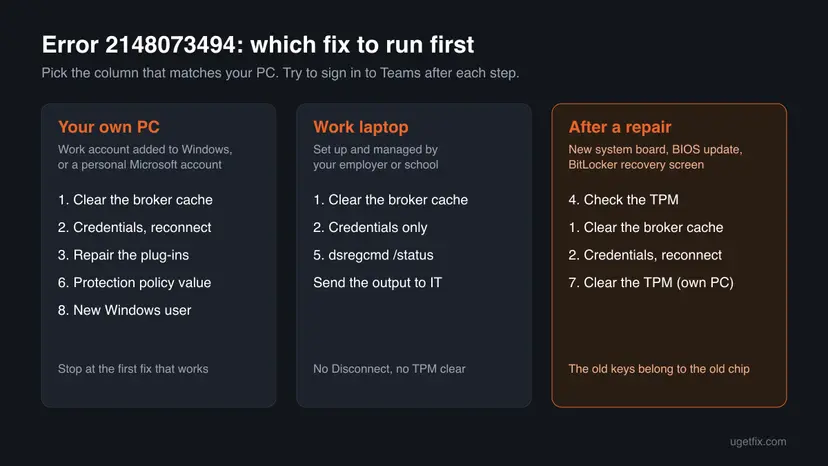
If the sign-in also fails at teams.microsoft.com in a browser, look at the account: an expired subscription, a locked account, a closed work account or a policy that blocks your location. That is for the account owner or IT, not for this PC.
How to keep error 2148073494 from coming back
Most cases start with a change to the keys or accounts on the PC: a repair, a firmware update, a password change or a new account. A few habits keep Windows, the TPM and your account in step.
- After a repair or a new system board, run Fix 1 and Fix 2 before you open Teams, since the new TPM cannot read the old keys.
- Update the BIOS and TPM firmware from your PC maker. Microsoft recommends it to avoid TPM sign-in failures.
- Keep the BitLocker recovery key in your Microsoft account, so a TPM reset never locks you out.
- After a password change, sign out of Teams and Office and sign in once on each PC.
- Give security tools an exception, not a pause. Allow
Microsoft.AAD.BrokerPlugin_cw5n1h2txyewyin web and application control. - Leave WAM and ADAL on and remove old
EnableADALvalues from forum fixes. - Keep Windows updated. Windows 10 support ended on 14 October 2025, so a Windows 10 PC without Extended Security Updates no longer gets TPM and sign-in fixes.
Frequently asked questions
What does error code 2148073494 mean?
It means a Microsoft 365 app on Windows could not use your saved sign-in because the key that sealed it does not exist. In hexadecimal the code is 0x80090016, which Microsoft lists as NTE_BAD_KEYSET, "Keyset does not exist". The account itself usually still works in a browser. Start with Fix 1: sign out of Office, rename the BrokerPlugin folder and restart, so Windows makes new tokens with a new key.
What does "The credential is invalid. Unexpected sub status (6008)" with code 2148073494 mean?
It is the Message line of the same 657rx window. Office checked the token it got from Windows and could not validate it. Microsoft has not published what sub status 6008 or tag 657rx mean, and we found no Microsoft article that defines them. The Code line is the useful part: 2148073494 says the key set is missing. A Microsoft moderator described it as the device using outdated or corrupted sign-in information, and cleared it with Fix 1 and Fix 2.
How do I fix Outlook error code 2148073494?
The same way as in Teams, because Outlook asks the same Windows broker for your account. Sign out of Office, rename the BrokerPlugin folder (Fix 1), then remove the MicrosoftOffice16 credentials and reconnect the work account (Fix 2). Dell adds a step for classic Outlook if the error stays: create a new mail profile in Control Panel under Mail, Show Profiles, Add. Your mail lives on the Exchange server and syncs back.
Is 2148073494 the same as error 80090016 "Trusted Platform Module has malfunctioned"?
Yes, it is the same Windows code written two ways. Older Office builds showed "Your computer's Trusted Platform Module has malfunctioned. If this error persists, contact your system administrator with the error code 80090016." Newer builds show the 657rx window with the decimal 2148073494. Microsoft's troubleshooting page for the TPM malfunction message and Dell's article on 80090016 use the same fixes as this guide.
Will reinstalling Teams or Office fix error 2148073494?
Usually not. The sign-in window, the stored tokens and their keys belong to Windows, not to Teams or Office. A user on Microsoft Q&A reinstalled Microsoft 365 without any change, and Dell states that reinstalling Office does not clear the cached security tokens. A reinstall only costs time. Clear the broker cache and the credentials with Fix 1 and Fix 2 instead.
Will I lose my emails or chats if I disconnect my work account?
No. Mail, calendar, contacts and Teams chats of a Microsoft 365 account live on Microsoft's servers. Dell's support article for 80090016 says the same: once you reconnect, Outlook syncs your data back. What you lose is the local sign-in state, which is the point. On a laptop that IT manages, leave the Disconnect step to IT, because it also removes the organisation's registration.
Is it safe to delete or rename the Microsoft.AAD.BrokerPlugin folder?
Yes, for your own profile. The folder holds the broker's cached tokens and Windows builds a new one at the next sign-in. Dell renames it to .old and Microsoft's moderator for 2148073494 empties it. Renaming is safer because you can name it back. You will have to sign in again in every Microsoft 365 app, including the second factor, so keep your phone at hand.
Why did error 2148073494 start after a motherboard replacement?
Because the TPM chip sits on the board. Dell explains that a new board brings a new TPM, and the tokens Windows and Outlook made earlier still look for the old chip. The verification fails and the apps show 80090016 or 2148073494. Run Fix 1 and Fix 2 to make new tokens. If that is not enough, check the TPM with Fix 4 and, on your own PC, clear it with Fix 7.
Why does Adobe Acrobat show Error Code: 2148073494 when I sign a PDF?
It is the same Windows code, "Keyset does not exist", but in a different place: the certificate store that Acrobat uses for digital IDs. In an Adobe community thread an Adobe employee traced it to an expired digital ID. The user removed it through the Windows certificate store and created a new digital ID. The Teams fixes on this page do not apply to that case.
Should I set EnableADAL to 0 to fix error 2148073494?
No. That registry value comes from old forum answers. Microsoft says that disabling ADAL or WAM is not supported as a fix for Microsoft 365 sign-in problems and can harm your setup, because it puts Office into a legacy sign-in. If you added EnableADAL or DisableAADWAM before, delete those values and use Fix 1 to Fix 3 instead.
Sources
- Microsoft Learn: COM Error Codes (Security and Setup), NTE_BAD_KEYSET 0x80090016 (learn.microsoft.com)
- Microsoft Learn: Microsoft 365 Apps activation error Trusted Platform Module malfunctioned (learn.microsoft.com)
- Microsoft Learn: Connection issues when signing in (TPM failure patterns, disabled and deleted devices, manual recovery) (learn.microsoft.com)
Did this fix work?
One click, no account. It tells the next reader which guides are worth their time.
Questions and experiences: fix Teams error code 2148073494 in Windows
Still broken, or found a fix we did not cover? Ask here: members and our editors answer. Reading is open; writing needs a free account.
…