
How to fix Teams error "There was a problem reaching this app" in Windows?

Prefer to fix it yourself? The manual steps follow.
- 7methods
- 2 to 30 minutes
- Easy
Applies to New Microsoft Teams on Windows 11 and Windows 10, and Teams on the web; work or school accounts
7 methods in this guide
Hello, I have a question about Microsoft Teams. Whenever I try to open any files that are sent through it (or if I send something), I always get the "There was a problem reaching this app" error. What can I do to solve this?
There was a problem reaching this app is the screen Teams shows inside a tab when the app behind it, such as Files, Excel, Calendar or a company app, does not load. Select Retry and reopen the tab (Fix 1), then test the same tab in Teams on the web to see whether your PC or the service is at fault.
The message means a tab inside Teams could not load its content, not that Teams itself is broken. Select Retry, switch to another tab and back (Fix 1). Then open the same tab in Teams on the web. If it works there, quit and reset the Teams app on your PC (Fix 2 and Fix 3). If it fails there too and colleagues see it, it is a service problem for IT (Fix 7).
| Error | There was a problem reaching this app, with a drawing of a person and a Retry button. No error code is shown. |
|---|---|
| Where it appears | Inside Teams, in place of a tab: a shared file opened in Teams, Excel or Word in Teams, the Files tab of a channel, Lists, Calendar, a bot or a company app. |
| Main cause | The web page behind the tab cannot be loaded: a stuck Teams window, damaged local Teams data, an expired sign-in, a blocked address on the network, or a problem at Microsoft or the app's maker. |
| Fastest fix | Select Retry, open another tab and come back (Fix 1). Then quit Teams fully and start it again (Fix 2). |
| Quick test | Open the same tab in Teams on the web. Works there: fix the app on this PC. Fails there too: network, account or service. |
| Also written as | Teams problem reaching this app, there was a problem reaching this app Teams calendar, MS Teams there was a problem reaching this app. |
| Affects | New Teams on Windows 11 and Windows 10 and Teams on the web. Microsoft Q&A threads show it for Excel, channel files, personal apps, Lists and bots. |
| Microsoft's status | No single fix is documented. Microsoft staff linked one wave of the error, where Office files in Teams would not open, to a service incident in late August 2025. |
| Time to fix | 1 minute for Fix 1. Up to 30 minutes for a reinstall. Service incidents need IT or Microsoft. |
Facts checked on 15 October 2026. Steps written for the new Microsoft Teams for work or school on Windows 11 (25H2 and 26H2) and Windows 10 22H2, and Teams on the web, read against Microsoft's documentation and Microsoft Q&A staff answers.
What "There was a problem reaching this app" means in Teams
Most of what you open inside Teams is a web page in a frame: a Word or Excel file, the Files tab, Lists, Planner, a bot, a company tool. Teams asks the app's server for that page and checks it before it shows it. When the page does not come back, or Teams cannot verify it, you get one grey screen: There was a problem reaching this app, and a Retry button.
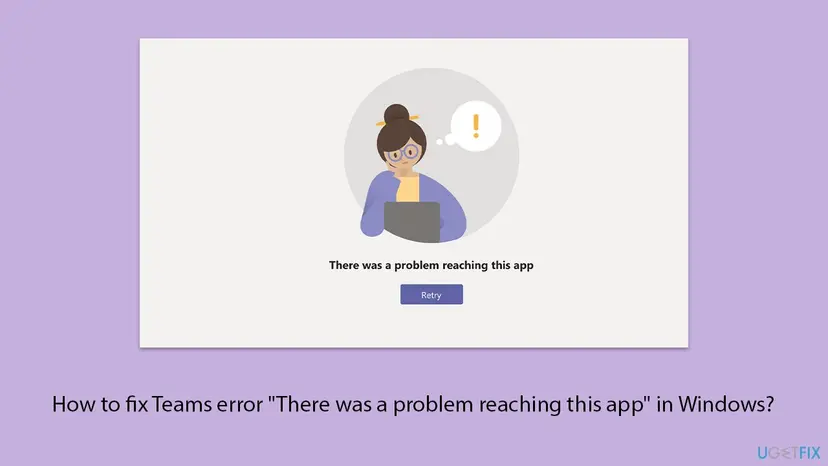
The rest of Teams usually works. Chats load and calls connect, only the one tab or file fails. That is the main difference from We've run into an issue, where the whole Teams window does not load. For that screen see our guide to We've run into an issue in Teams.
There was a problem reaching this app, Teams problem reaching this app, MS Teams there was a problem reaching this app and the Calendar version of it are all this screen. The text is the same in the Windows app and in Teams on the web.
What causes "There was a problem reaching this app" in Teams, ranked
Microsoft does not publish one cause for this screen. The order below is our reading of Microsoft's articles and of the cases Microsoft staff answer on Microsoft Q&A. It is not a statistic, and each cause points to the fix that deals with it.
| How often | Cause | Typical sign | Fix |
|---|---|---|---|
| Most often | The tab failed to load once and Teams keeps showing the old result | The file opened before, the error came after switching tabs | Fix 1, Fix 2 |
| Often | Damaged local data of the Teams app | The same tab works in Teams on the web | Fix 3 |
| Often | An expired or mixed-up sign-in for the app behind the tab | Started after a password change or with two accounts in Teams | Fix 4 |
| Less often | An old or damaged Teams installation | Reset did not help, the web works | Fix 5 |
| Less often | A VPN, proxy or web filter blocks the app's address | Fails on the work network or VPN only | Fix 6 |
| Rarely, but for many people at once | A Microsoft 365 incident or a fault in the app itself | Fails on the web too and for colleagues | Fix 7 |
| Rarely | No licence or no permission for the app | Only your account fails, on every PC | Fix 7 |
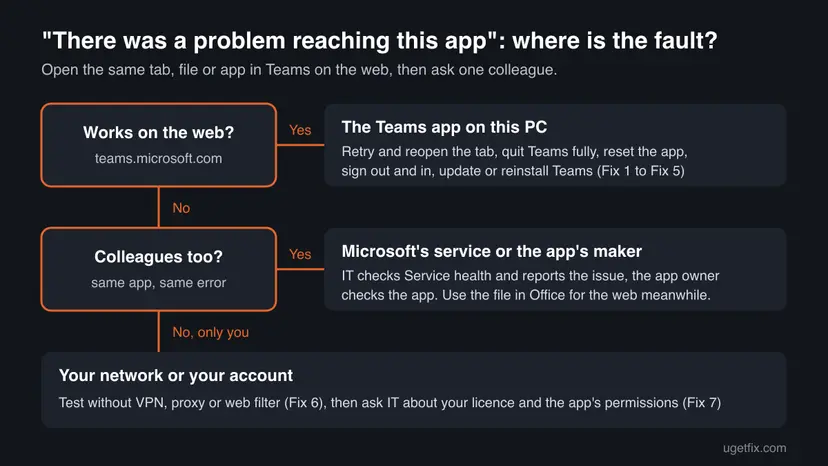
First test: does the tab work in Teams on the web?
Microsoft staff ask two questions first in every Q&A thread on this error: does it happen in Teams on the web, and does anyone else in your organization see it? Answer both before you change anything.
- Open Microsoft Edge or Chrome on the same PC and go to
https://teams.microsoft.com. - Sign in with the same work or school account.
- Open the same file, channel tab, Calendar or app that shows the error in the desktop app.
- Ask one colleague to open the same item.
- Works on the web: your account and the app's service are fine. Fix the Teams app on this PC with Fix 1 to Fix 5.
- Fails on the web, colleagues are fine: look at your network (Fix 6) and your account (Fix 7).
- Fails on the web and for colleagues: it is a service problem. Go straight to Fix 7 and use the file in Word, Excel or OneDrive for the web meanwhile.
How to fix "There was a problem reaching this app" in Microsoft Teams
Go in order and reopen the tab after each fix. Fix 1 to Fix 5 repair Teams on this PC, Fix 6 checks the network, and Fix 7 is for problems only IT or Microsoft can solve. Success looks the same every time: the file, Calendar or app opens inside Teams.
| Your case | Start with | Then |
|---|---|---|
| You do not know the cause yet | Fix 1 | Fix 2 |
| The tab works in Teams on the web | Fix 3 | Fix 5 |
| Started after a password change or with two accounts | Fix 4 | Fix 3 |
| Only Calendar shows the error | Fix 1 | Fix 4 |
| Fails on VPN or the office network only | Fix 6 | Fix 7 |
| Fails on the web too and colleagues see it | Fix 7 | Wait for Microsoft |
| A company app or bot fails, Microsoft files work | Fix 7 | Ask the app's owner |
Fix 1. Select Retry, then leave the tab and open it again
1 minuteNo riskEveryone, first. Above all when the file or app opened a moment ago and failed after you switched tabs.
The screen often comes from one failed load. Retry asks the app's server again, and leaving the tab makes Teams build it from scratch instead of reusing the failed frame.
- Select Retry under the message and wait 10 to 20 seconds.
- If the screen stays, select Chat or Activity on the left, then go back to the file or tab.
- For a shared file, open it again from the chat message or from the channel's Files tab, not from a recent list.
- If the file's More options (three dots) menu offers to open it in the browser or in the desktop app, use that to keep working.
A Microsoft Q&A case shows the limit of this fix. Excel in Teams opened the first time, then failed every time the user came back from Chats, in the app and on the web, for several people. That case was a service problem, which Fix 7 covers.
It worked if: The file, Calendar or app loads inside Teams.
If not: Do the web test above. If the tab works on the web, go to Fix 2.
Fix 2. Quit Teams completely and start it again
2 minutesNo riskThe tab works in Teams on the web, or Retry brings the same screen back.
Closing the Teams window with X leaves Teams running in the background with the same failed tabs. A full quit ends every Teams process, so the next start loads each app again.
- Right-click the Teams icon on the taskbar, next to the clock, and select Quit.
- Press Ctrl + Shift + Esc to open Task Manager.
- Under Processes, select every Microsoft Teams entry that is left and select End task.
- Wait 10 seconds and start Microsoft Teams from the Start menu.
- Open the tab that showed the error.
More on ending a stuck program: Close a frozen app (Task Manager, Force Quit).
It worked if: Teams starts and the tab opens.
If not: If the tab still fails in the desktop app but works on the web, reset Teams with Fix 3.
Fix 3. Reset the Teams app or clear its cache
5 minutesLow riskThe tab works in Teams on the web, but the desktop app keeps showing the screen.
New Teams keeps its local data in the package folder MSTeams_8wekyb3d8bbwe. Damaged data there can stop tabs from loading. Microsoft lists a reset as Method 1 for clearing the cache of new Teams, and Teams builds fresh files on the next start.
- Quit Teams as in Fix 2.
- Open Settings > Apps > Installed apps on Windows 11, or Settings > Apps > Apps & features on Windows 10.
- Type Microsoft Teams in the search box, select More options (three dots) next to it and select Advanced options.
- In the Reset section, select Reset and confirm.
- Start Teams, sign in and open the tab. The first start is slower, because the cache is rebuilt.
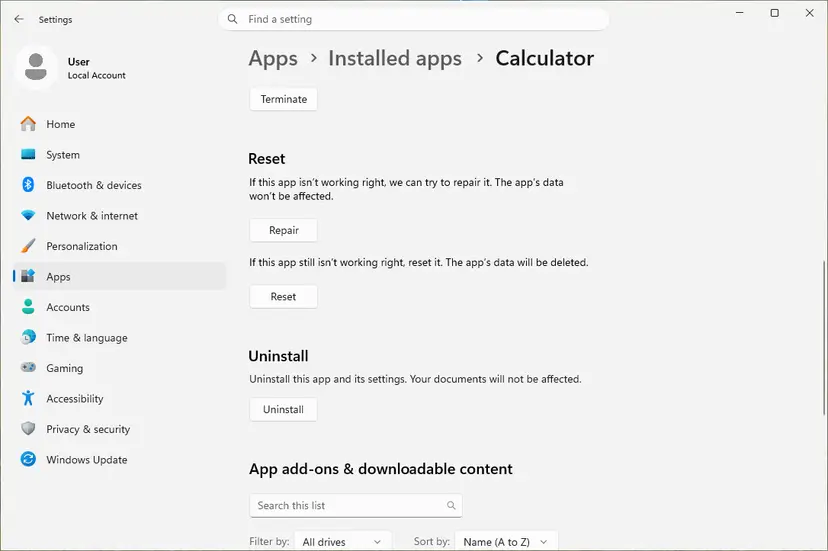
Microsoft's Method 2 does the same by hand. Quit Teams, press Win + R, paste this path, select OK and delete everything in the folder:
%userprofile%\appdata\local\Packages\MSTeams_8wekyb3d8bbwe\LocalCache\Microsoft\MSTeamsMicrosoft says a reset deletes the app data, including the personal settings you made in Teams. Chats, files and meetings stay in your account. Microsoft also says clearing the cache does not fix missing messages or chats and deletes the logs support needs, so use it for loading problems like this one only.
It worked if: After sign-in the file, Calendar or app opens inside Teams.
If not: If the tab still fails after the reset, sign out and in again with Fix 4.
Fix 4. Sign out of Teams and sign in again
3 minutesNo riskThe error began after a password change, after adding a second account, or only Calendar or one app fails.
Each app inside Teams signs in to its own service with your Teams account. When that sign-in is out of date or belongs to the other account, the app's page is refused and Teams shows this screen. A fresh sign-in gives every app a new one.
- Select your profile picture at the top right of Teams.
- Select Sign out for the account that shows the error and confirm.
- Quit Teams as in Fix 2 and start it again.
- Sign in with your work or school account and the password you use today.
- Open the tab again. If you have two accounts in Teams, check that the profile picture shows the one that owns the file.
For Calendar only: Teams shows the calendar of your Outlook mailbox. Open Outlook on the web with the same account. If the calendar fails there too, the mailbox is the problem and IT must look at it. We could not confirm a Microsoft fix that is specific to Calendar.
It worked if: Teams asks for your password, and after sign-in the tab loads.
If not: Update or reinstall Teams with Fix 5.
Fix 5. Update Teams, or reinstall it
5 to 20 minutesLow riskReset and a new sign-in did not help, and the tab works in Teams on the web.
Apps inside Teams are updated on the server side all the time. An old Teams build, or one with damaged program files that a reset leaves in place, can fail to show them.
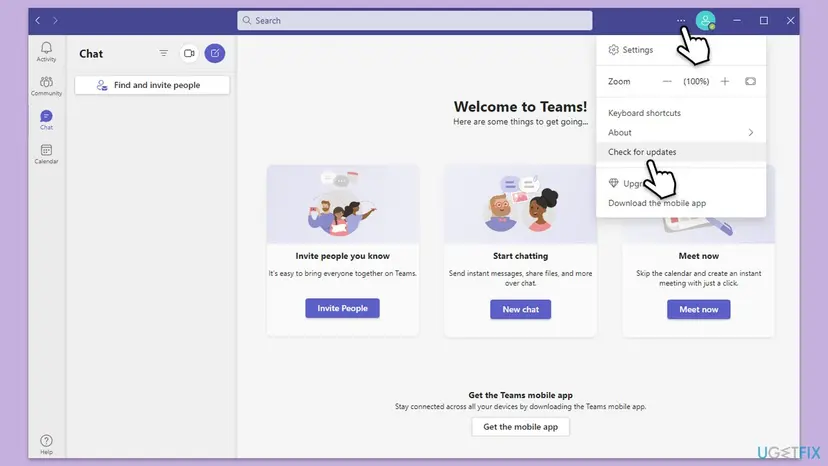
- In Teams, select Settings and more (three dots) next to your profile picture.
- Select Check for updates and let Teams install what it finds.
- Quit and restart Teams when it asks, then open the tab.
If the error stays after the update, reinstall Teams:
- Uninstall from the Start menu. Select Start > All apps and find the app. Right-click it (or press and hold) and select Uninstall.
- Or uninstall in Settings. Select Start > Settings > Apps > Installed apps. Find the app, select More (the three dots) > Uninstall, and confirm.
- Or uninstall from Control Panel. Some programs can only be removed here. Type Control Panel in the search box on the taskbar and open it, then select Programs > Programs and Features. Right-click the program and select Uninstall or Uninstall/Change, then follow the program's own uninstaller.
These steps were written for Windows 11 24H2 and 25H2. The full page with the other versions and what each result means: Uninstall a program or app in Windows
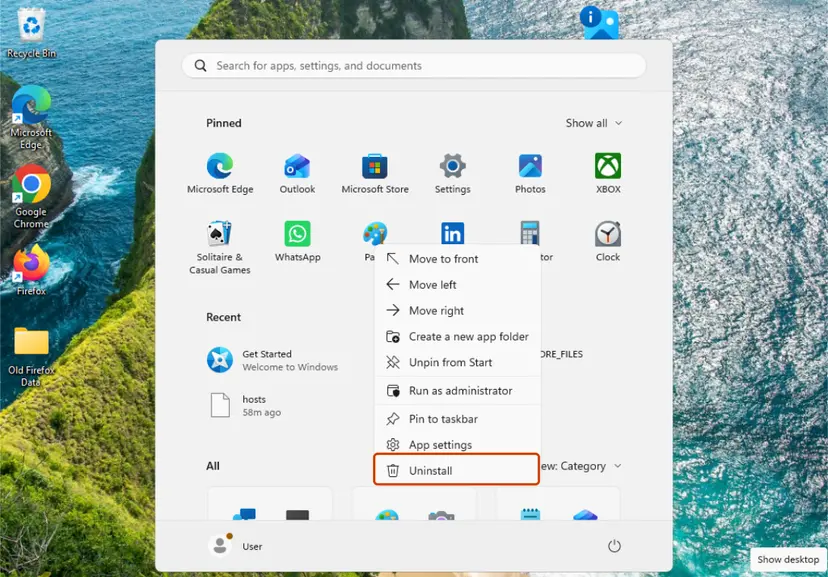
- Remove Microsoft Teams from the list of installed apps, as above. Remove Microsoft Teams classic too if it is still listed.
- Restart the PC.
- Download a fresh installer from Microsoft:
https://www.microsoft.com/microsoft-teams/download-app. - Run it, sign in and open the tab.
It worked if: The updated or new Teams opens the tab without the error.
If not: If the tab still fails only on this PC, test the network with Fix 6. If the setup fails, read our Installation has failed guide.
Fix 6. Test without VPN, proxy or web filter
5 minutesLow riskThe error appears on the office network or with a VPN only, or a browser extension or security app filters web traffic.
Each app in Teams loads from its own web address, often not a Teams one. A VPN, a proxy or a web filter can block that address while Teams chat still works. One user's console log on Microsoft Q&A showed Teams failing to verify the tab's source page.
- Disconnect your VPN app, or open Settings > Network & internet > VPN and disconnect the connection there.
- Open Settings > Network & internet > Proxy. Under Manual proxy setup, select Edit next to Use a proxy server, set it to Off and select Save.
- In Teams on the web, test once in a private window of Edge or Chrome, so no browser extension runs.
- Open the tab again. If it now works, turn the VPN or proxy back on.
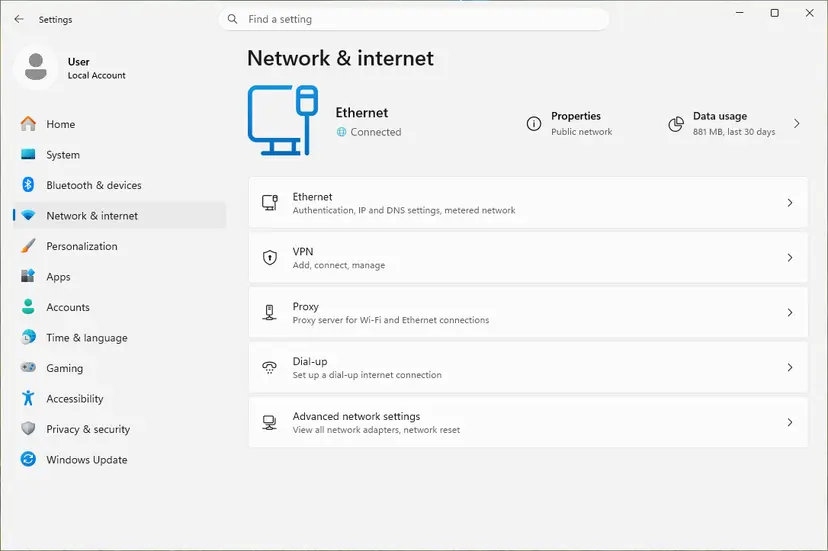
Do not leave a required work VPN or proxy off. If the tab works without it, tell IT which app failed. They can allow its address. Leave automatic proxy settings to IT.
It worked if: The tab loads with the VPN, proxy or filter off.
If not: Turn everything back on and go to Fix 7.
Fix 7. Ask IT to check service health, your licence and the app
5 minutes for you, then up to a day for ITNo riskThe tab fails in Teams on the web too, colleagues see the same, or only a company app or bot fails.
Some causes are outside your PC. Microsoft staff tied one wave of this error, where Excel and other Office files would not open in Teams for several users, to a service incident in late August 2025. A company app also fails when its own server is down or your account has no access to it.
Microsoft staff advise this route on Microsoft Q&A when the error is not limited to one PC.
- Write down the app or file that fails, the time, and the result of the web test.
- Send it to your IT helpdesk or Microsoft 365 administrator.
- The administrator checks Health > Service health in the Microsoft 365 admin center for a Teams, SharePoint or Office incident.
- If nothing is listed, the administrator uses Report an issue there, which helps Microsoft link reports from many organizations.
- For a ticket with Microsoft, the administrator opens Support > New service request in the admin center.
- IT also checks that your account has a licence for the app and that the app is allowed for you in Teams.
- For a company app or bot, ask the people who built it to check that its web page is online.
Meanwhile, open shared files in Word, Excel or OneDrive for the web, or in the desktop Office apps. The files are the same, only the frame inside Teams fails.
It worked if: IT confirms an incident and its fix, or finds the account or app setting that blocks you.
If not: Collect the details in the next section and keep the ticket open.
If Teams still says "There was a problem reaching this app"
Stop changing the PC. Use the file or app outside Teams for now, then hand the case to people who can see the server side.
| What you see | Likely reason | Who can fix it |
|---|---|---|
| Fails on the web, colleagues see the same | A Microsoft 365 incident or a fault in the app | IT through Service health, or the app's owner |
| Only your account fails, on every PC | Licence or app permission | IT or the Microsoft 365 admin |
| Only this PC fails, the web works | The Teams app or Windows profile | Fix 3 and Fix 5, then Create a new user account to test a problem |
| Every account on this PC fails, the web works elsewhere | Damaged Windows components | Run DISM and SFC to repair Windows system files |
- Note which app or file fails, the exact message and the time.
- Note the result of the web test and whether colleagues see it.
- Note your Windows version from
winverand the Teams version from Settings and more > About. - Say which fixes on this page you tried and what each one changed.
How to keep the error from coming back
- Quit Teams from the taskbar corner now and then instead of only closing its window.
- Keep Teams current with Settings and more > Check for updates, and install Windows updates.
- Sign out and in again after a password change, before you open shared files.
- Keep only the accounts you use in Teams, so apps do not sign in with the wrong one.
- Do not clear the Teams cache for missing chats or messages. Microsoft says it does not fix them and deletes the logs support needs.
Frequently asked questions
What does "There was a problem reaching this app" mean in Teams?
It means one tab inside Teams could not load the web page of the app behind it. That app can be Word or Excel for a shared file, the Files tab, Lists, Calendar, a bot or a company tool. Teams itself is running, which is why chat still works. The cause is the Teams app on your PC, your sign-in, your network or the app's own service. Select Retry first, then test the tab in Teams on the web.
How do I solve this problem quickly?
Select Retry, go to Chat and back, and open the file again from the message (Fix 1). If that fails, quit Teams from the taskbar corner, end any Teams entry in Task Manager and start it again (Fix 2). Then test the same tab in Teams on the web. Works there: reset the Teams app (Fix 3). Fails there and for colleagues: tell IT, because it is likely a service problem.
Why does Teams Calendar say there was a problem reaching this app?
Calendar in Teams shows the calendar of your Outlook mailbox. If that page does not load, you get the same screen. Sign out of Teams and in again (Fix 4), then open Outlook on the web with the same account. If the calendar fails in Outlook too, the mailbox needs IT. If Outlook works, quit and reset Teams (Fix 2 and Fix 3). We could not confirm a Microsoft fix that is specific to Calendar.
Why can't I open files in Teams?
Files sent in Teams open in Word, Excel or PowerPoint inside a Teams tab. When that tab fails, you see this message, while the file itself is fine. In one case Microsoft staff tied the error with Excel and other Office files to a service incident in late August 2025, affecting the app and the web for several users. Open the file in the browser or the desktop Office app meanwhile, and run Fix 1 to Fix 3 if only your PC fails.
Will resetting Teams delete my chats or files?
No. Chats, channel messages, files and meetings are stored in your Microsoft 365 account, not on the PC. A reset deletes the local app data of Teams, which Microsoft says includes your personal settings. You sign in again afterwards, and the first start takes longer because Teams rebuilds its cache. Microsoft warns not to clear the cache for missing chats or messages, because it does not fix them.
Is "There was a problem reaching this app" the same as "We've run into an issue"?
No. We've run into an issue means the whole Teams window failed to load, so you see no chats at all. There was a problem reaching this app means Teams loaded but one tab or app inside it did not. The first points to the Teams app or its setup, the second more often to the app behind the tab, your sign-in or the network. Our We've run into an issue guide covers the other screen.
Is Microsoft Teams down right now?
This screen alone does not tell you. Open the same tab in Teams on the web and ask a colleague to try it. If it fails for both of you, a service problem is likely. A Microsoft 365 administrator can check Health > Service health in the admin center and report the issue there. If the tab works on the web or for colleagues, the service is up and the problem is on your side.
What causes the error, and why does it say nothing more?
Teams shows one general screen for every tab that does not load, so the real reason stays hidden. Most often a single failed load, damaged local Teams data or an old sign-in is behind it. Less often a VPN or web filter blocks the app's address, or the app's service has a fault. The causes table above ties each one to its fix. If you are asking in another language, such as what causes it or why it does not work, the answer is the same.
I built a Teams app and get this error. What now?
This page is for people using Teams. For your own app the screen usually means Teams could not load or verify the tab's web page. One user's console log on Microsoft Q&A showed exactly that. Open the browser developer tools in Teams on the web, load the tab and read the console errors. Microsoft staff asked for the console error first in such a case. Microsoft's Teams developer documentation has a troubleshooting article for apps.
Sources
- Microsoft Learn: Clear the Teams client cache (reset new Teams, MSTeams_8wekyb3d8bbwe cache path, when not to clear it) (learn.microsoft.com)
- Microsoft Q&A: How to fix "There was a problem reaching this app" when using Excel within Teams (staff answer: web test, service incident of late August 2025, Service health and Report an issue) (learn.microsoft.com)
- Microsoft Q&A: There was a problem reaching this app (staff questions on Teams on the web and the console error, user log of a tab page that failed verification) (learn.microsoft.com)
Did this fix work?
One click, no account. It tells the next reader which guides are worth their time.
Questions and experiences: fix Teams error "There was a problem reaching this app" in Windows
Still broken, or found a fix we did not cover? Ask here: members and our editors answer. Reading is open; writing needs a free account.
…