
How to fix "The application was unable to start correctly" 0xc000102 error in Windows?

Prefer to fix it yourself? The manual steps follow.
- 6methods
- 10 to 30 minutes for chkdsk, 10 minutes to repair or reinstall the program
- Easy
Applies to Windows 11, Windows 10, any desktop program, Store app or game
6 methods in this guide
Hello. When I try to launch an app in Windows, I get the "The application was unable to start correctly" 0xc000102 error. Is there a way to fix this?
Error 0xc0000102 means Windows found a file the program needs corrupt and unreadable, so it stopped the start. It is not a memory, profile or compatibility problem. Check the drive with chkdsk first, as Microsoft's own text for the code says, then repair or reinstall the program that fails.
0xc0000102 is STATUS_FILE_CORRUPT_ERROR: a file or folder the program loads is corrupt and unreadable. Microsoft's text for the code says to run the Chkdsk utility, so check the drive with chkdsk C: /f first (Fix 1). Then repair the program in Settings > Apps > Installed apps or reinstall it from its maker (Fix 2 and Fix 3). If several programs fail, repair Windows with SFC and DISM (Fix 4).
| Error | The application was unable to start correctly (0xc0000102). Click OK to close the application. |
|---|---|
| Where it appears | A small window titled with the program's file name and Application Error, right after you start a program or a game. The same code can also stop Windows itself during startup. |
| Main cause | A file the program needs, its .exe or a DLL it loads, is damaged on the disk, or the file system around it is damaged. |
| Fastest fix | Run chkdsk C: /f and restart, then repair or reinstall the program that fails (Fix 1 to Fix 3). |
| Code meaning | 0xC0000102 is STATUS_FILE_CORRUPT_ERROR in Microsoft's NTSTATUS list: "{Corrupt File} The file or directory %hs is corrupt and unreadable. Run the Chkdsk utility." |
| Also written as | 0xc0000102, 0xc000102 (one zero missing, as in this page's address), 0x0000102, 0xC0000102. Decimal form: 3221225730. |
| Sister codes | 0xC000009C (STATUS_DEVICE_DATA_ERROR, bad blocks on the disk) points to the same drive problem in a worse form. |
| Affects | Windows 11 and Windows 10, any program. Windows 10 left support on 14 October 2025; chkdsk, SFC and DISM work the same on both. |
| Microsoft's status | Not a bug and no update fixes it. Microsoft names two causes: the file itself is corrupt, or the disk structure is corrupt and unreadable. |
| Time to fix | 10 to 30 minutes for chkdsk and a restart, about 10 minutes to repair or reinstall one program. |
Facts checked on 15 October 2026. Steps written for Windows 11 (25H2 and 26H2) and Windows 10 22H2.
What "The application was unable to start correctly" error 0xc0000102 means
The full message reads: The application was unable to start correctly (0xc0000102). Click OK to close the application. The window is generic, but the code in brackets is not. In Microsoft's NTSTATUS list, 0xC0000102 is STATUS_FILE_CORRUPT_ERROR, with the text "{Corrupt File} The file or directory %hs is corrupt and unreadable. Run the Chkdsk utility."
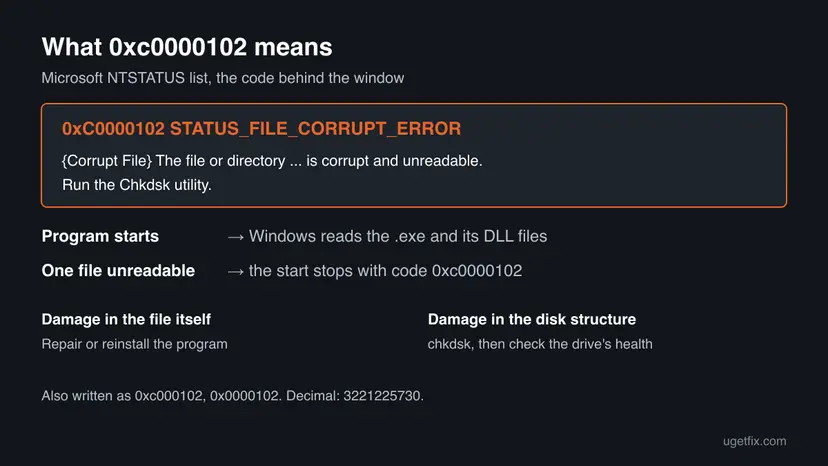
- What Windows does at start: it reads the program's
.exefile and every DLL file the program loads. If one of them cannot be read, the start stops before the program draws a window. - Two kinds of damage: Microsoft's article on this code lists two causes. The file shown in the error is corrupt, or the disk structure has become corrupt and unreadable.
- Why the message names no file: the
%hsin Microsoft's text is the file name, but the small Application Error window shows only the code. The file is often written in Event Viewer (see "If error 0xc0000102 still appears"). - Why the old advice misses: closing background apps, compatibility mode or a new user account cannot make a damaged file readable again.
0xc0000102, 0xc000102 (one zero missing), 0x0000102, error code 0xc0000102 and error 0xc0000102 all mean the same code. The code has eight digits after 0x: C0000102.
Why a file becomes corrupt and causes error 0xc0000102
Microsoft's article gives two causes: a corrupt file, or a corrupt disk structure. The table ranks the ways that happens on a home PC and ties each one to a fix. The ranking is our reading of the cases, not a measured share.
| How often | Cause | Signs | Fix |
|---|---|---|---|
| Most often | The program's own file was damaged by an update or install that stopped halfway, or by a power cut while it was written. | Only this program fails. Others start normally. | Fix 1, Fix 2, Fix 3 |
| Often | File system errors on the drive after a forced shutdown, a crash or an unplugged external drive. | The error came after a sudden power off. chkdsk reports errors. | Fix 1 |
| Less often | A Windows system file that many programs load is damaged. | Several programs, or Windows tools, fail with the same code. | Fix 4 |
| Rarely | The drive itself is failing and cannot read some sectors. | chkdsk finds bad sectors, files go missing, the PC freezes when reading. | Fix 5 |
| At startup | A boot file or driver file that Windows needs to start is corrupt. | The code shows on a blue recovery screen before the desktop. | Fix 6 |
Then the damage is on that drive, not on C:. Run chkdsk on its letter in Fix 1, for example chkdsk E: /f, and check that the cable or card is seated well.
How to fix "The application was unable to start correctly" error 0xc0000102
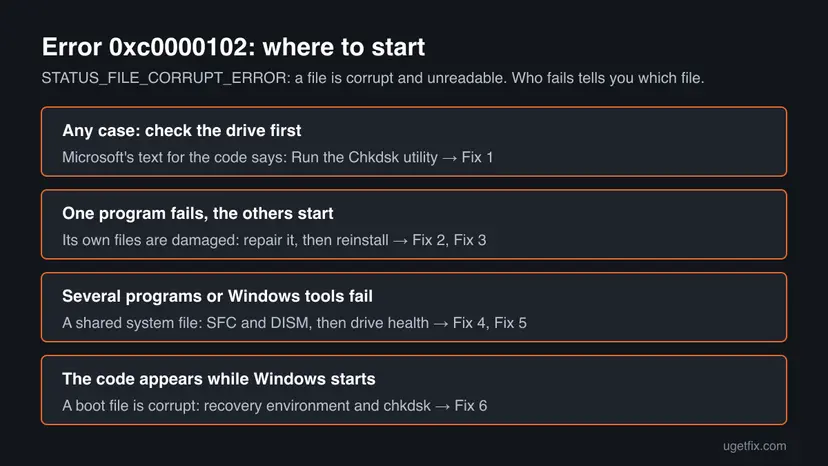
Fix 1 checks the drive, as Microsoft's text for the code asks. Fixes 2 and 3 replace the program's damaged files and solve most cases where only one program fails. Fixes 4 and 5 are for damage that affects several programs or the drive itself. Fix 6 is for the code at Windows startup.
| What you see or have | Start with |
|---|---|
| Any case, especially after a power cut or forced shutdown | Fix 1 |
| Only one program or game fails, others start | Fix 2, then Fix 3 |
| Several programs or Windows tools fail with the same code | Fix 4 |
| chkdsk reports bad sectors, or files keep getting damaged | Fix 5 |
| The code shows before Windows reaches the desktop | Fix 6 |
Fix 1. Check the drive for errors with chkdsk
10 to 30 minutesLow riskEveryone first. It is the action Microsoft's own text for 0xc0000102 names, and it matters most after a power cut or a forced shutdown.
The code says a file or folder is unreadable. chkdsk finds and repairs file system errors on the drive, so a file that was unreadable because of a broken disk structure can be read again. Repairing a program onto a damaged drive would only fail again.
- Type
cmdin the search box on the taskbar, right-click Command Prompt and select Run as administrator. - Type
chkdsk C:and press Enter. This scan only reports. Use the letter of the drive where the program is installed if it is not C:. - If the report lists errors, type
chkdsk C: /fand press Enter. - On the Windows drive, chkdsk asks to run at the next restart. Type Y, press Enter and restart the PC. Do not turn it off while the check runs.
- After the restart, start the program that showed the error.
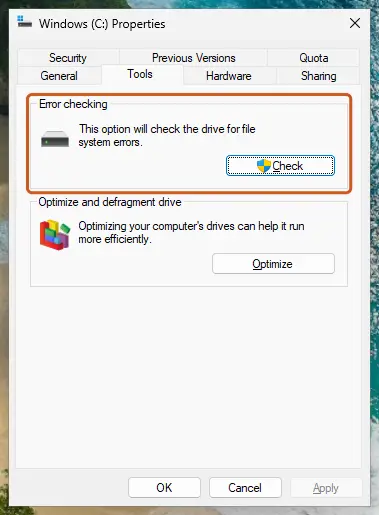
Full steps, including how to read the report of a check made at startup: Check a disk for errors (chkdsk).
If the PC freezes when it reads files, or a hard disk clicks, copy your documents to another drive before running chkdsk /f: Back up your files (Windows Backup, File History, Time Machine). A failing drive can get worse under a long check.
It worked if: chkdsk says Windows has scanned the file system and found no problems, or that it made corrections. The program starts.
If not: If chkdsk found nothing or the program still fails, the program's own file is damaged. Go to Fix 2. If chkdsk reports bad sectors, go to Fix 5.
Fix 2. Repair the program in Settings
5 minutesLow riskOnly one program or app fails with 0xc0000102, and it is from the Microsoft Store or has a Repair or Modify option.
Repair checks the program's files and replaces the damaged ones without removing your data. When the unreadable file belongs to the program, this puts a good copy in its place.
- Open Installed apps. Select Start > Settings > Apps > Installed apps.
- Open the app's advanced options. Find the app in the list, select the three dots next to it and select Advanced options. Some apps do not have this option: for those, see the section about desktop programs below.
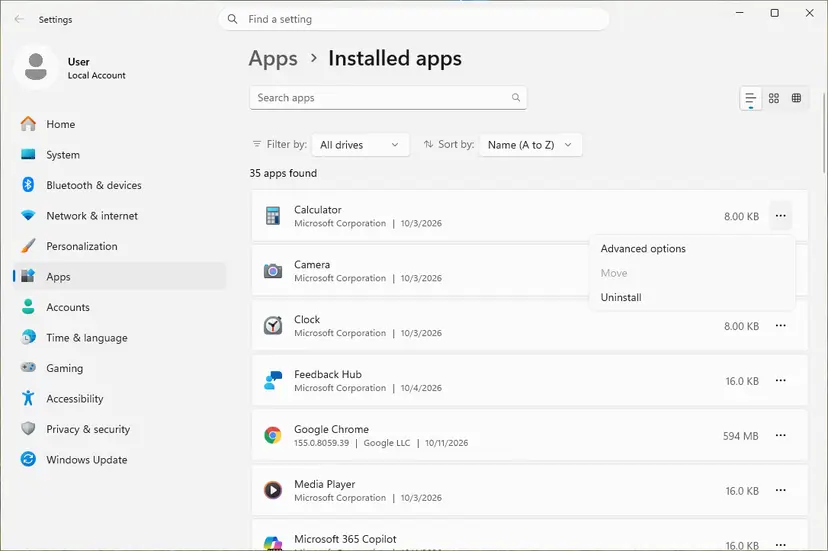
The three dots next to an app open Advanced options. Screenshot: Windows 11 26H2. - Repair first. On the page that opens, select Repair if it is there. The app's data stays. Open the app and check whether it works.

Repair keeps the app data. Reset deletes it. Screenshot: Windows 11 26H2. - Reset if Repair did not help. Select Reset. This deletes the app's data on this PC, including sign-in details and settings. Open the app and set it up again.
These steps were written for Windows 11 25H2 and 26H2. The full page with the other versions and what each result means: How to repair or reset an app in Windows
Desktop programs have no Repair button in Settings. In Control Panel > Programs > Programs and Features, select the program and look for Repair or Change at the top of the list. Its own setup then checks the files.
It worked if: The repair finishes and the program starts without the error.
If not: If the program has no repair option, or the error stays, reinstall it in Fix 3.
Fix 3. Uninstall the program and install a fresh copy from its maker
10 to 20 minutesLow riskRepair did not help or does not exist, and only this program fails.
A reinstall writes every file of the program again from a new download. That replaces the damaged .exe or DLL even when repair cannot find it. A new download also avoids an installer that was itself damaged.
- If the program keeps settings or saves you care about, note where they are, or check that they are synced to an account.
- Uninstall the program, as the procedure below shows. Restart if the uninstaller asks.
- Download the newest installer from the maker's own site or the Microsoft Store. Do not reuse an old installer file from Downloads.
- Install the program and start it.
- Uninstall from the Start menu. Select Start > All apps and find the app. Right-click it (or press and hold) and select Uninstall.
- Or uninstall in Settings. Select Start > Settings > Apps > Installed apps. Find the app, select More (the three dots) > Uninstall, and confirm.
- Or uninstall from Control Panel. Some programs can only be removed here. Type Control Panel in the search box on the taskbar and open it, then select Programs > Programs and Features. Right-click the program and select Uninstall or Uninstall/Change, then follow the program's own uninstaller.
- Restart if the uninstaller asks. Some programs finish removing their files only after a restart.
These steps were written for Windows 11 24H2 and 25H2. The full page with the other versions and what each result means: Uninstall a program or app in Windows
Sites that offer one DLL to fix this code give you a file of unknown origin. The damaged file can be any of the program's files, and a fresh install replaces all of them safely.
It worked if: The program installs without errors and opens normally.
If not: If the new install fails with the same code, or other programs fail too, a shared Windows file or the drive is the problem. Go to Fix 4.
Fix 4. Repair Windows system files with SFC and DISM
20 to 30 minutesNo riskSeveral programs fail with 0xc0000102, or a Windows tool such as Settings or File Explorer does.
Programs load shared Windows DLL files. If one of them is corrupt, every program that needs it fails with the same code. SFC checks protected Windows files and replaces damaged ones, and DISM first repairs the store SFC copies them from.
- Open an elevated command window. Right-click Start and select Terminal (Admin), or type cmd in the search box, right-click Command Prompt and select Run as administrator. Select Yes when Windows asks for permission.

Search for cmd and choose Run as administrator. Screenshot: Windows 11 26H2. - Run DISM first. Type the command below and press Enter. DISM downloads clean copies of damaged components from Windows Update, so it can take several minutes. Wait until it says The operation completed successfully.
DISM.exe /Online /Cleanup-Image /RestoreHealth
DISM /RestoreHealth running. Screenshot: Windows 11 26H2. - Run System File Checker. In the same window, type the command below and press Enter. Do not close the window until the verification reaches 100%.
sfc /scannow
sfc /scannow at 100%. Screenshot: Windows 11 26H2. - Read the result and restart. Compare the last message with the table below this guide, then restart the PC so that repaired files are loaded.

The result line tells you what SFC did. Screenshot: Windows 11 26H2.
These steps were written for Windows 11 24H2 and 25H2. The full page with the other versions and what each result means: Run DISM and SFC to repair Windows system files
It worked if: SFC reports that it found corrupt files and repaired them, or found no integrity violations. Restart and test the programs.
If not: If SFC cannot repair some files, or the damage comes back, check the drive's health in Fix 5.
Fix 5. Check the drive's health before the damage spreads
15 minutesRead the warningchkdsk found bad sectors, the code returns after repairs, or new programs keep getting damaged.
Files that become corrupt again and again point to the drive, not to the program. Microsoft's code 0xC000009C means bad blocks on the disk, and Windows logs such read problems in Event Viewer, where you can see them before they cost you data.
A drive that loses files can stop working at any time. Before you test or repair anything else, copy your documents, photos and saves to another drive or a cloud folder: Back up your files (Windows Backup, File History, Time Machine).
- Press Win + X and select Event Viewer.
- Open Windows Logs > System, then select Filter Current Log on the right.
- In Event sources, tick disk and Ntfs, and select OK.
- Read the newest entries. Errors and warnings about bad blocks, a corrupt file system or a file that could not be read, repeated over days, mean the drive is failing.
- Open the health tool from your drive's maker, or the PC maker's diagnostics, and run its full test.
- If the test fails, replace the drive, then reinstall Windows or restore your backup to the new one.
It worked if: No disk or Ntfs errors in the System log, and the maker's test passes. Then the damage was a one-time event, and Fixes 1 to 4 have dealt with it.
If not: If errors keep appearing, the drive needs replacing. No software fix makes a failing drive reliable.
Fix 6. Repair 0xc0000102 at Windows startup from the recovery environment
20 to 40 minutesLow riskThe code appears on a blue recovery screen before Windows reaches the desktop, not in a program window.
At startup the corrupt file is one Windows needs to boot, often a driver file. Microsoft's article for this code repairs it with chkdsk on the Windows drive from outside the running system, which is what the recovery environment gives you.
First let Windows try to repair its startup: Run Startup Repair.
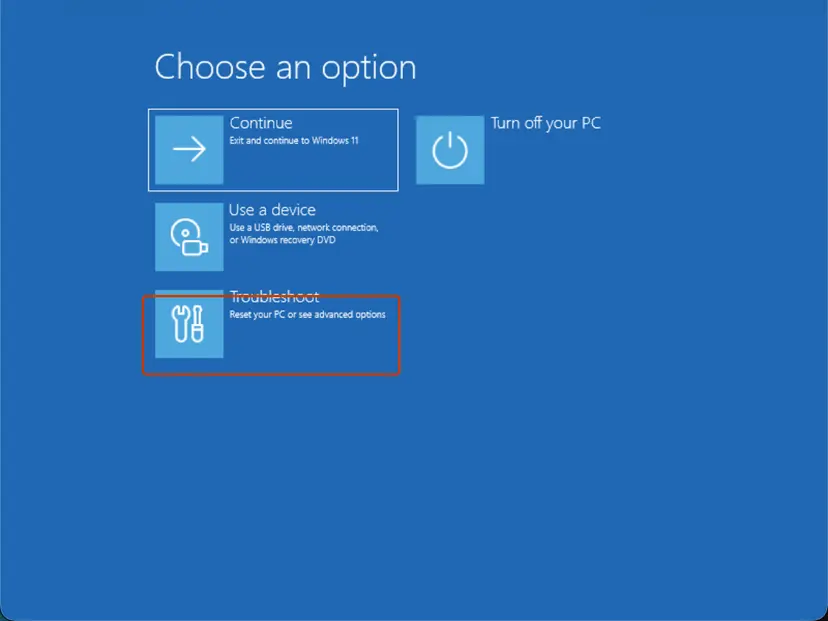
- If the repair fails, select Troubleshoot > Advanced options > Command Prompt.
- Type
bcdeditand press Enter. The osdevice line shows the Windows drive's letter here, which is often not C:. - Type
chkdsk D: /fwith that letter and press Enter. Wait until it finishes. - Close the window, select Continue and let Windows start.
If the screen names a file, for example a .sys driver, note its name. Microsoft's repair for this case replaces that file with a good copy from the Windows component store. That is a manual job for an advanced user; if you are not sure, use Undo recent changes with System Restore from the same Advanced options menu instead.
It worked if: Windows starts to the sign-in screen without the error.
If not: If Windows still does not start, use System Restore from Advanced options, or reinstall Windows and keep your files with Reinstall Windows without losing files. Check the drive in Fix 5 once Windows runs.
If error 0xc0000102 still appears
If chkdsk, a reinstall and SFC did not help, find out which file is unreadable. Windows often writes it down when a program fails to start.
- Event Viewer, Application log: press Win + X, select Event Viewer and open Windows Logs > Application. Find the Error entry at the time of the failure. It names the program and often the faulting module, the DLL that could not be loaded.
- If the module is in the program's folder, the program's files are damaged again soon after a reinstall. That points to the drive (Fix 5).
- If the module is in
C:\Windows\System32, it is a Windows file. Run SFC and DISM again (Fix 4), then reinstall Windows with your files kept if it stays. - For the program's support, send the full message, the Event Viewer entry, the program's version and your Windows version from
winver.
The same window with another code has another cause. For example, our guide to error 0xc000012d covers the out of memory case.
How to keep error 0xc0000102 from coming back
Files become corrupt when they are written and the write is cut off, or when the drive cannot hold data. Protect both.
- Shut down through Start > Power > Shut down, and let updates finish before you turn the PC off.
- Safely remove external drives and memory cards before you unplug them.
- Keep a current backup of your files on another drive or in the cloud.
- Look at the System log for disk errors once in a while, and replace a drive that reports them.
- Hold the power button while a program installs or updates.
- Download DLL files or registry fixes for this error.
- Run programs from a USB stick or card that you often pull out while in use.
- Ignore repeated chkdsk repairs; they warn that the drive may be failing.
Frequently asked questions
What does error code 0xc0000102 mean?
It means a file or folder the program needs is corrupt and unreadable. In Microsoft's NTSTATUS list, 0xC0000102 is STATUS_FILE_CORRUPT_ERROR, with the text The file or directory is corrupt and unreadable. Run the Chkdsk utility. Windows stops the program before it opens and shows The application was unable to start correctly. Microsoft names two causes: the file itself is damaged, or the disk structure around it is.
How do I fix error 0xc0000102?
Open Command Prompt as administrator and run chkdsk C: /f, then restart so the check can run. Next repair the program in Settings > Apps > Installed apps, or uninstall it and install a fresh copy from its maker. If several programs fail, run SFC and DISM. If chkdsk finds bad sectors, back up your files and test the drive, because a failing drive will damage files again.
Is 0xc000102 the same as 0xc0000102?
Yes. 0xc000102 has one zero missing; it is a common typing slip, and the address of this page has it too. The real code has eight digits after 0x: C0000102. Searches for 0x0000102 and error 0xc0000102 lead to the same code. All of them mean STATUS_FILE_CORRUPT_ERROR, a corrupt and unreadable file, and the fixes on this page apply.
Does 0xc0000102 appear on Windows 10 too?
Yes. The code, the message and the fixes are the same on Windows 10 22H2 and Windows 11. chkdsk, SFC, DISM and the recovery environment work the same way on both. Windows 10 left support on 14 October 2025, so it gets no new security fixes, but this error does not need an update: it is about damaged files on your own drive.
Why does 0xc0000102 show when Windows starts?
Then the corrupt file is one Windows needs to boot, often a driver file, and the code shows on a blue recovery screen instead of in a program window. Microsoft's article for this case checks the Windows drive with chkdsk from outside the running system and replaces the named file with a good copy. On a home PC, start with Startup Repair and chkdsk from the recovery Command Prompt (Fix 6).
Can a failing hard drive or SSD cause this error?
Yes, and it is the case to take most seriously. A drive with bad sectors cannot read some data, so files on them become unreadable, and new files can be damaged after you repair the old ones. Signs are chkdsk reports of bad sectors, disk or Ntfs errors in the System log and freezes when reading files. Back up first, then run the maker's test (Fix 5).
Will compatibility mode or a new user account fix 0xc0000102?
No. Older guides suggest them, but they change how a program is started or which settings it reads. They cannot make a damaged file readable. Closing background apps or a clean boot does not help either, because the code is about a corrupt file, not a conflict or too little memory. Use chkdsk and a repair or reinstall of the program instead.
Should I download a missing DLL to fix this?
No. The code means a file is corrupt, and the window does not tell you which one. A DLL from a download site may be the wrong version or contain malware. Reinstall the program from its maker so all its files are written fresh, or run SFC and DISM if the damaged file belongs to Windows. Both put verified copies in place.
This page is in English. What is this error, and how do I fix it?
Some readers search in Vietnamese or Hindi to ask what this error is and how to fix it. The answer is the same in any language: 0xc0000102 means a file the program needs is damaged and cannot be read. Run chkdsk on the drive, then repair or reinstall the program. If many programs fail, run SFC and DISM. Browser translation can show this page in your language.
Sources
Did this fix work?
One click, no account. It tells the next reader which guides are worth their time.
Questions and experiences: fix "The application was unable to start correctly" 0xc000102 error in Windows
Still broken, or found a fix we did not cover? Ask here: members and our editors answer. Reading is open; writing needs a free account.
…