
How to fix "The connection was terminated by the remote computer" error in Windows?

Prefer to fix it yourself? The manual steps follow.
- 8methods
- 5 to 30 minutes
- Intermediate
Applies to Windows 11 (25H2, 26H2) and Windows 10 22H2, built-in VPN client and broadband (PPPoE) or dial-up connections
8 methods in this guide
Hi, I recently bought a used laptop, and when I try to connect to the VPN, I receive the message "The connection was terminated by the remote computer." Could you please advise?
"The connection was terminated by the remote computer before it could be completed" is Windows Remote Access error 628. Your PC reached the VPN or broadband server, and the server hung up while the two were agreeing on the connection type and your sign-in. Check the account first, then set the VPN type and sign-in protocols to what the server uses.
Error 628 means the server ended the connection during setup, so the cause is usually the account or a settings mismatch, not your internet. Test the same username and password on another device and make sure the account is active (Fix 1). Then set the VPN type to the one your provider names instead of Automatic (Fix 2) and allow CHAP and MS-CHAP v2 (Fix 3).
| Error | The connection was terminated by the remote computer before it could be completed. Remote Access error 628, shown by the built-in Windows VPN and broadband (PPPoE) client. |
|---|---|
| Where it appears | When you select Connect on a VPN in Settings > Network & internet > VPN, or on a broadband or dial-up connection, a few seconds after Connecting. |
| Main cause | The server rejects the session: wrong or expired account, a VPN type or sign-in protocol the server does not accept, or a PPPoE session the router already holds. |
| Fastest fix | Check the account on another device, then set the exact VPN type and allow CHAP and MS-CHAP v2 (Fixes 1 to 3). |
| Also written as | "Error 628", "VPN error 628", "the connection was terminated by the remote computer before it was completed", "connection terminated by remote computer". |
| Close relatives | Error 629 "The connection was closed by the remote computer", error 720 "A connection to the remote computer could not be established", error 809 when the server does not answer at all. |
| Affects | Windows 11 (25H2, 26H2) and Windows 10 22H2. Windows 10 has had no security updates since 14 October 2025. |
| Vendor status | Not a Windows bug. Microsoft lists 628 among its Remote Access error codes; the decision to hang up is made by the server. |
| Time to fix | 5 to 30 minutes; a network reset adds a restart. |
Facts checked on 16 October 2026. Steps written for Steps checked against Microsoft Learn pages on Remote Access error codes and VPN error 720 (updated 2026) for Windows 11 and Windows 10.
What "The connection was terminated by the remote computer" means
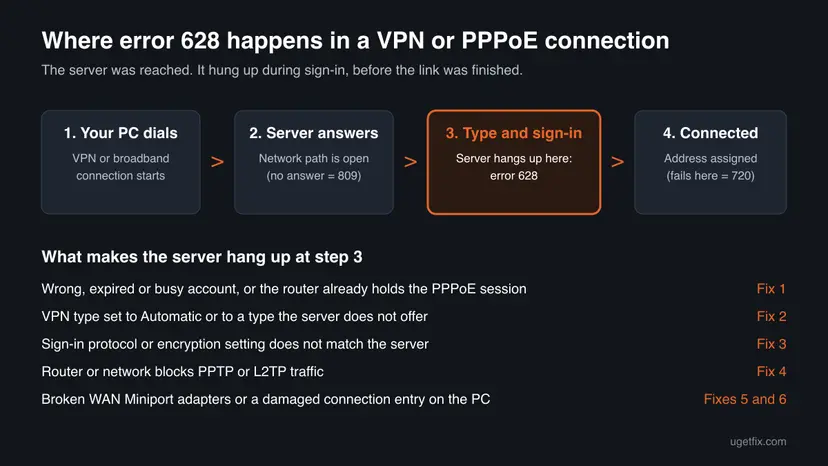
The message comes from the Remote Access client that Windows uses for its own VPN connections and for broadband (PPPoE) and dial-up connections. The full text is "The connection was terminated by the remote computer before it could be completed." Older Windows versions add Error 628 to it, and the code is also written in the event log.
The important word is remote. Your PC did reach the server: the VPN server of your company or provider, or the access server of your internet provider. The connection then broke off while the two sides were agreeing on the protocol, the encryption and your sign-in. That is why updating drivers or restarting the router rarely helps on its own.
- Other spellings people search: "the connection was terminated by the remote computer before it was completed", "connection was terminated by the remote computer", "VPN error 628".
- In Microsoft's list: the Remote Access error codes page describes 628 as "The specified port was disconnected". Windows shows the longer sentence above.
- Error 629 reads "The connection was closed by the remote computer". Microsoft describes it as the port being disconnected by the remote computer. The causes and fixes below are the same.
- Not this error: "A connection to the remote computer could not be established" is error 720, a failure after sign-in when no address can be assigned. See Fix 5 and the FAQ.
Why the remote computer terminates the connection
Because the server decides to hang up, most causes are about what your PC offers it. They are listed from the most common to the rarest, each with the fix that removes it.
| Cause | How often | Typical sign | Fix |
|---|---|---|---|
| Wrong, expired or already used account; for PPPoE, the router already holds the session | Most often | It worked before, or a free VPN account was renewed | Fix 1 |
| VPN type left on Automatic or set to a type the server does not offer | Often | A new VPN added in Windows Settings | Fix 2 |
| Sign-in protocol or encryption setting does not match the server | Often with PPTP and L2TP servers | A used PC, or a connection copied from an old guide | Fix 3 |
| The router, office network or provider blocks PPTP or L2TP | Less often | It works on a phone hotspot | Fix 4 |
| Broken WAN Miniport adapters or a damaged connection entry | Rare | Every VPN on this PC fails | Fixes 5 and 6 |
| Leftover VPN or security filters in the network stack | Rare | A VPN app or security suite was removed | Fixes 7 and 8 |
If the same server, username and password fail on a phone or another PC too, the problem is the account or the server, and no setting on this laptop will fix it. Ask your provider or IT department before you change anything.
How to fix "The connection was terminated by the remote computer"
Fixes 1 to 3 cover the account and the settings the server checks, and they solve most cases. Fix 4 tests the network path. Fixes 5 to 7 repair the VPN parts of Windows, and Fix 8 is a single test, never a permanent setting.
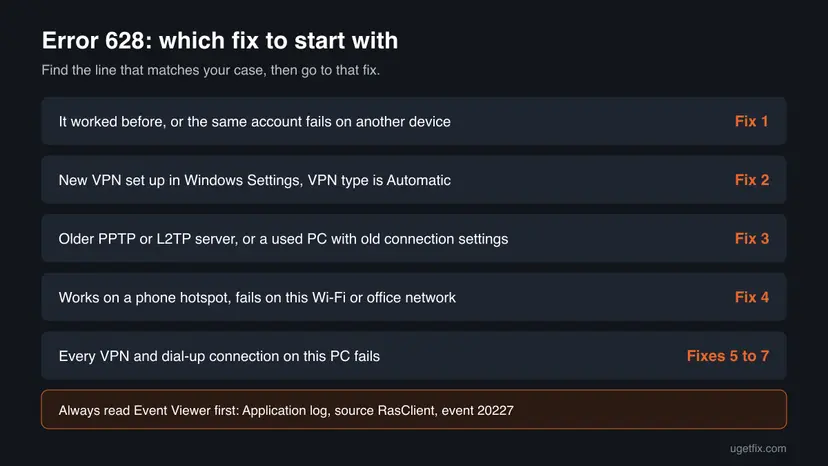
| What you see or have | Start with |
|---|---|
| It worked before, or the same account also fails on another device. | Fix 1 |
| A broadband (PPPoE) connection while a router is also connected to the line. | Fix 1 |
| A new VPN added in Windows Settings with the VPN type on Automatic. | Fix 2 |
| A PPTP or L2TP server, or a used PC with old connection settings. | Fix 3 |
| It works on a phone hotspot but not on your Wi-Fi or office network. | Fix 4 |
| Every VPN and dial-up connection on this PC fails. | Fix 5 |
Fix 1. Check the account and the session the server expects
5 minutesNo riskEveryone first, and especially when the connection worked before or uses a free or time-limited VPN account.
A server that does not accept your username, password or account state simply ends the setup, and Windows reports that as error 628. Broadband providers usually allow one PPPoE session per line, so a router that is already signed in leaves no room for the PC.
- Open Settings > Network & internet > VPN, select the connection and select Advanced options. Note the Server name or address.
- Compare the server name, username and password with what your provider or IT department gave you. Retype the password; a saved one may be old.
- If the account is from a free VPN service, check on its website that the account is still valid. Such accounts often expire or are renewed with a new password.
- Try the same details on another device. If it also fails there, contact the provider: the problem is on their side.
- Broadband (PPPoE) only: if a router is connected to the same line and already online, the router holds the session. Connect the PC through the router instead, or turn the router off before you dial.
- Broadband (PPPoE) only: write the username exactly as the provider gave it. Some providers need the full form with
@and their domain.
It worked if: The connection completes and shows Connected under the VPN or broadband name.
If not: If the account works on another device, the settings on this PC differ from what the server expects. Go to Fix 2.
Fix 2. Set the VPN type the server really uses instead of Automatic
5 minutesLow riskThe VPN was added in Windows Settings, or the provider names one protocol (PPTP, L2TP/IPsec, SSTP or IKEv2).
With Automatic, Windows tries several protocols in turn. A server that offers only one may end the attempt before Windows reaches the right one, and a wrong L2TP pre-shared key is rejected the same way.
- Open Settings > Network & internet > VPN and select your VPN connection.
- Select Advanced options, then Edit next to Connection properties. On Windows 10, select the connection, then Advanced options > Edit.
- In VPN type, choose the exact type from your provider: Point to Point Tunneling Protocol (PPTP), L2TP/IPsec with pre-shared key, L2TP/IPsec with certificate, Secure Socket Tunneling Protocol (SSTP) or IKEv2.
- For L2TP/IPsec with pre-shared key, type the key exactly as given. It is case sensitive.
- In Type of sign-in info, choose User name and password unless your provider says otherwise, and enter them again.
- Select Save and connect.
SSTP and IKEv2 are newer than PPTP and are not affected by many of the PPTP problems below. If your provider offers them, try one of those first.
It worked if: The status changes from Connecting to Connected within a few seconds.
If not: If it still fails with PPTP or L2TP, the sign-in protocols may not match. Go to Fix 3.
Fix 3. Allow CHAP and MS-CHAP v2 and match the encryption setting
5 minutesLow riskA PPTP or L2TP VPN, or a PC whose VPN connection was set up by someone else, such as a used laptop.
The server and the PC must agree on one sign-in protocol and on encryption. If the connection offers only EAP or only an old protocol the server refuses, or demands encryption the server does not use, the server ends the setup with error 628.
- Press Win + R, type
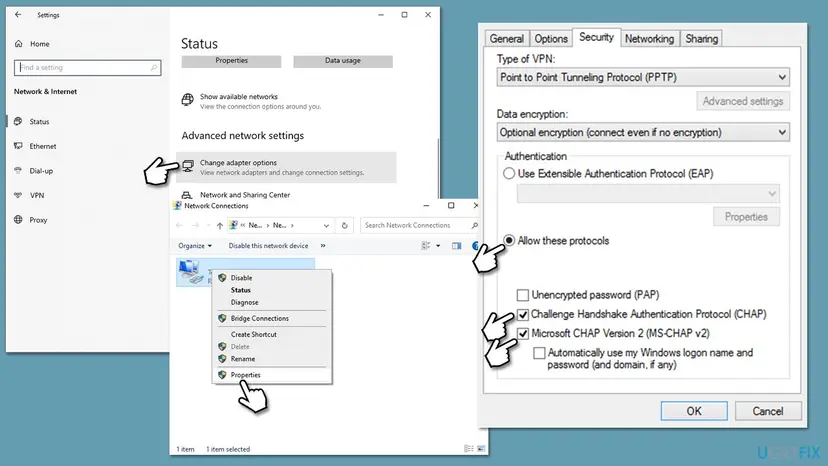
ncpa.cpland press Enter to open Network Connections. On Windows 11 the same window is under Settings > Network & internet > Advanced network settings > More network adapter options. - Right-click your VPN connection and select Properties.
- Open the Security tab. Check that Type of VPN is the same type as in Fix 2.
- Under Authentication, select Allow these protocols.
- Tick Challenge Handshake Authentication Protocol (CHAP) and Microsoft CHAP Version 2 (MS-CHAP v2). Leave Unencrypted password (PAP) off unless your provider requires it.
- In Data encryption, use the setting your provider names. If it names none, Optional encryption (connect even if no encryption) lets the server decide.
- Select OK and connect again.
Company VPNs often require one specific method, such as a certificate or EAP. Do not change these settings on a managed laptop without asking IT; send them the error and the time instead.
It worked if: The VPN connects and the Security tab keeps the protocols you ticked.
If not: If the settings match the provider's and it still fails here but works elsewhere, test another network in Fix 4.
Fix 4. Test another network to rule out a blocked VPN protocol
10 minutesLow riskThe account works on another device, or the VPN works at home but not at work, school or a hotel.
PPTP needs TCP port 1723 and GRE traffic, and L2TP/IPsec needs IPsec traffic to pass the router. A router without VPN pass-through or a network that filters these lets the first contact through, and the setup then breaks off.
- Turn on the mobile hotspot on your phone and connect the PC to it.
- Connect the VPN. If it works on the hotspot, the first network blocks the VPN traffic.
- At home, open your router's settings page and look for VPN passthrough, PPTP passthrough or IPsec passthrough. Turn on the one for your VPN type and restart the router.
- On a work, school or public network, ask the network owner whether PPTP or L2TP is allowed. Use SSTP or IKEv2 if your provider offers them (Fix 2).
- Fails on every network: the network path is not the cause. Go to Fix 5.
- Fails only on one network: the block is on that network, not on your PC. Changing Windows settings will not fix it.
It worked if: The VPN connects on the hotspot, which proves the PC and account are fine and points at the first network.
If not: If it fails on the hotspot too, repair the VPN parts of Windows in Fix 5.
Fix 5. Reinstall the WAN Miniport adapters
10 minutesLow riskEvery VPN and dial-up connection on this PC fails, on every network, while the same account works elsewhere.
The built-in VPN and PPPoE connections run through hidden WAN Miniport adapters, one per protocol. Microsoft documents reinstalling them for VPN error 720; a damaged PPTP, L2TP, SSTP or PPPoE miniport can break the setup in the same place.
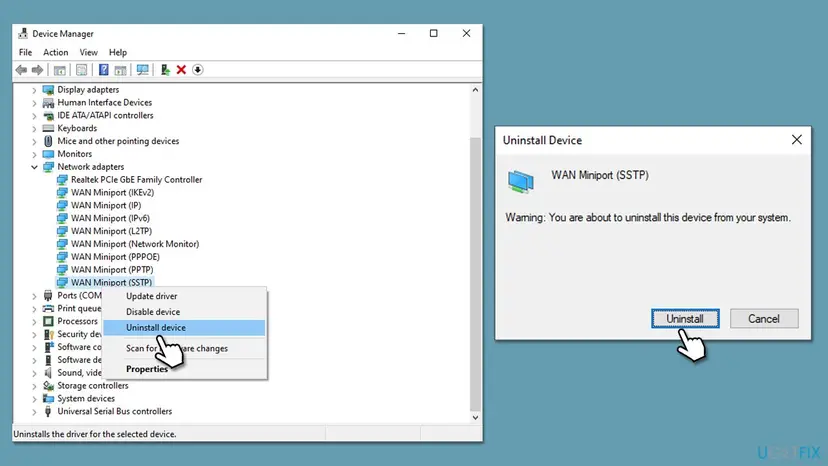
- Right-click Start and select Device Manager.
- Expand Network adapters. If the WAN Miniport entries are missing, select View > Show hidden devices.
- Right-click WAN Miniport (SSTP) and select Uninstall device, then Uninstall.
- Do the same for every adapter whose name starts with WAN Miniport: IP, IPv6, GRE, L2TP, Network Monitor, PPPOE, PPTP and IKEv2.
- Select Action > Scan for hardware changes. Windows reinstalls the WAN Miniport adapters with its own drivers.
- Restart the PC and connect again.
The WAN Miniport drivers are part of Windows. Scan for hardware changes or a restart brings them back; do not download them from a driver site.
It worked if: After the restart all WAN Miniport adapters are listed again without a warning sign, and the VPN connects.
If not: If every miniport is back and the error stays, remove and re-create the connection in Fix 6.
Fix 6. Remove the VPN connection and create it again
10 minutesLow riskOne VPN or broadband connection fails while a new test connection works, or the PC came with old connections from its last owner.
A connection entry keeps many hidden settings, and a copied or old entry can hold options the server no longer accepts. A fresh entry starts from the Windows defaults.
- Write down the server address, VPN type, username and any pre-shared key from your provider.
- Open Settings > Network & internet > VPN, select the connection and select Remove, then confirm.
- Select Add VPN. Set VPN provider to Windows (built-in) and give the connection a name.
- Enter the Server name or address, the exact VPN type and User name and password, then select Save.
- For broadband, open Settings > Network & internet > Dial-up > Set up a new connection > Connect to the Internet > Broadband (PPPoE).
- Connect, and if it is a PPTP or L2TP server, repeat the protocol check in Fix 3.
It worked if: The new connection connects on the first try.
If not: If the new entry fails the same way, reset the network stack in Fix 7.
Fix 7. Reset Winsock, TCP/IP and the network adapters
10 minutes plus a restartRead the warningA VPN app or a security suite was installed or removed, and nothing above helped.
VPN apps and security suites add filter drivers to the network stack. Microsoft names a bound third-party filter driver as one cause of VPN setup failures, and a reset returns the stack to its defaults.
The commands keep your adapters. The full network reset in Settings removes and reinstalls every network adapter: you will need your Wi-Fi password again, VPN connections and VPN apps may need to be set up again, and fixed IP or DNS settings are lost. Write them down first.
Run these in Terminal (Admin), then restart. Use the full reset only if they do not help. Step by step: Reset the network and flush DNS.
netsh winsock reset
netsh int ip reset
ipconfig /flushdns
- Windows 11: Settings > Network & internet > Advanced network settings > Network reset > Reset now.
- Windows 10: Settings > Network & Internet > Status > Network reset > Reset now.
It worked if: After the restart the VPN connects, and other apps still reach the internet.
If not: If it still fails, run the one pause test in Fix 8, then collect the details in the next section.
Fix 8. Pause your security software for one test
5 minutesRead the warningA third-party firewall or internet security suite is installed and nothing above helped.
A third-party firewall can pass the first contact to the VPN server and then drop the PPTP or L2TP traffic that follows. A short pause shows whether it is involved; the real fix is an allow rule in that program.
While protection is paused the PC is less protected. Do nothing else online during the test and turn protection back on as soon as you have the result.
- Close your browser and other apps.
- Pause the third-party suite with its own pause option for the shortest time it offers. For Microsoft Defender follow Turn off Microsoft Defender protection for a moment.
- Connect the VPN and note whether it completes.
- Disconnect, and turn protection back on at once, even if the timer has not run out.
- If the VPN connected while paused, add the VPN connection or its protocol to the suite's allowed rules, or ask the vendor's support how to allow it.
It worked if: The VPN connects while protection is paused and fails again when it is back on, which proves the security program is the cause.
If not: If it fails while paused too, the security program is not the cause. Collect the details in the next section.
Still terminated: where Windows logs the real cause and what to send
Every failed attempt is written to the event log. Press Win + R, type eventvwr.msc and press Enter. Open Windows Logs > Application and look for events from the source RasClient at the time you tried to connect.
Event 20227 names the connection and the code. Microsoft shows this form for error 720; with this error it ends in 628 or 629.
Source:   RasClient
Event ID: 20227
The user dialed a connection named <name> which has failed.
The error code returned on failure is 628.- 628 or 629 on every try: the server ends the setup. Send your provider or IT the time, the code, the VPN type and your username. They can see in the server log why it hung up.
- Another code after the fixes, such as 691 or 720: the setup now gets further. 691 points to the username or password; 720 to address assignment, which is Fix 5 or the server's address pool.
- Broadband (PPPoE): tell the provider that error 628 appears when you dial. They can check whether the line is suspended or a session is still open.
- Hardware: a faulty network adapter shows as no internet at all, not as error 628. If the internet works, the hardware is not the cause.
How to keep the connection from being terminated again
- Keep the server address, VPN type, username and pre-shared key from your provider in one safe note.
- Choose the exact VPN type instead of Automatic.
- Prefer SSTP or IKEv2 when your provider offers them.
- Renew a time-limited VPN account before it expires and update the saved password.
- Do not keep the last owner's VPN connections on a used PC; create your own.
- Do not dial PPPoE on the PC while the router is already online on the same line.
- Do not switch off the firewall for good to get the VPN to connect.
- Do not install WAN Miniport or VPN drivers from driver download sites.
Windows 10 left support on 14 October 2025. The steps here still work on Windows 10 22H2, but its VPN client gets no more security fixes, so a move to Windows 11 is the safer long-term answer.
Frequently asked questions
What does "The connection was terminated by the remote computer before it could be completed" mean?
It means your PC reached the VPN or broadband server, and the server ended the connection while the two were still setting it up. Windows reports this as Remote Access error 628. Because the server makes the decision, the cause is usually the account, the VPN type or the sign-in protocols, not your internet connection. Check the account on another device first (Fix 1), then match the VPN type and protocols (Fixes 2 and 3).
What is VPN error 628?
Error 628 is the code behind the message "The connection was terminated by the remote computer before it could be completed." Microsoft's Remote Access error list describes it as "The specified port was disconnected". It appears with the built-in Windows VPN client and with broadband (PPPoE) and dial-up connections. Microsoft Q&A has reports of it on dial-up modems as well as on VPNs. The fixes on this page apply to all of them.
Why does my VPN say the connection was terminated by the remote computer?
Most often the account is wrong, expired or already in use, or the connection offers a VPN type or sign-in protocol the server does not accept. Free VPN account services often change passwords or end accounts after a set time, so check the account on the provider's site. If the account is fine, set the exact VPN type (Fix 2) and allow CHAP and MS-CHAP v2 (Fix 3). If it works only on another network, that network blocks the VPN (Fix 4).
How do I fix this error on Windows 11?
On Windows 11 open Settings > Network & internet > VPN, select the connection, then Advanced options and Edit. Set the exact VPN type your provider names and enter the username and password again (Fix 2). For PPTP and L2TP, open ncpa.cpl, right-click the VPN, select Properties > Security and allow CHAP and MS-CHAP v2 (Fix 3). The steps on Windows 10 22H2 are the same, with slightly different Settings paths.
Is it my PC or the VPN server?
Test the same account on another device or on a phone hotspot. If it fails everywhere, the account or server is the problem, and only the provider or IT can fix it. If it works on another device but not on this PC, the settings on this PC are the cause (Fixes 2, 3, 5 and 6). If it works on the hotspot but not on your Wi-Fi, the router or network blocks the VPN (Fix 4).
What is the difference between error 628 and "The connection was closed by the remote computer"?
"The connection was closed by the remote computer" is error 629. Microsoft describes it as the port being disconnected by the remote computer, while 628 is described as the port being disconnected. In practice both mean the server ended the session before or right after setup. Check the same things: the account, the VPN type, the sign-in protocols and whether the network lets the VPN traffic through.
Is "A connection to the remote computer could not be established" the same error?
No. That message is error 720. Microsoft explains that it appears when the PC cannot get an address over the VPN, often because the WAN Miniport (IP) adapter is not bound correctly or the server has no free addresses. Microsoft's fix on the PC side is to reinstall the WAN Miniport adapters, which is Fix 5 here. On the server side, the administrator has to check the address pool.
What about "the connection to the remote computer ended" or "did not respond in a timely manner"?
These wordings mean something else. "The connection was terminated because the remote computer did not respond in a timely manner" is a timeout: the server stopped answering. Check the server address and try another network (Fix 4). If you saw "the connection to the remote computer ended" in Remote Desktop rather than in a VPN, read our guide to the Remote Desktop Services session has ended error.
Do I need to download WAN Miniport drivers?
No. The WAN Miniport adapters are part of Windows and come back by themselves. After you uninstall them in Device Manager, select Action > Scan for hardware changes or restart the PC, as Microsoft describes. Driver download sites offer nothing that Windows does not already have, and their files can do harm. If the adapters do not come back, run the network reset in Fix 7.
Sources
- Microsoft Learn: Routing and Remote Access error codes (628, 629, 720, 809) (learn.microsoft.com)
- Microsoft Learn: "Error 720: Can't connect to a VPN Connection" (RasClient event 20227, WAN Miniport reinstall) (learn.microsoft.com)
- Microsoft Q&A: Error message 628 when setting up a dial-up connection (user report) (learn.microsoft.com)
Did this fix work?
One click, no account. It tells the next reader which guides are worth their time.
Questions and experiences: fix "The connection was terminated by the remote computer" error in Windows
Still broken, or found a fix we did not cover? Ask here: members and our editors answer. Reading is open; writing needs a free account.
…