
How to fix "The credentials supplied are not sufficient" printer error in Windows?

Prefer to fix it yourself? The manual steps follow.
- 8methods
- 5 to 30 minutes
- Intermediate
Applies to Windows 11 and Windows 10 PCs that add a printer shared by another PC or by a work or school print server
8 methods in this guide
I was attempting to connect a new printer to a network, but I received an error "The credentials supplied are not sufficient." Any tips on what I should do to bypass it?
"The credentials supplied are not sufficient to access this printer" means the PC or print server that shares the printer did not accept the account your PC offered. It is a sign-in problem, not a broken printer. Open \\HostName in File Explorer, sign in with an account of that PC and its password, save it, then add the printer again.
The PC that shares the printer refused the sign-in your PC sent. Open \\HostName in File Explorer, enter a user name and password of an account on that PC, tick Remember my credentials (Fix 1), then add the printer by \\HostName\ShareName. If no prompt appears, save the account in Credential Manager (Fix 2). If the host account has no password, give it one (Fix 4).
| Error | The credentials supplied are not sufficient to access this printer. Related message on the same route: "The credentials supplied conflict with an existing set of credentials." |
|---|---|
| Where it appears | When you add or connect to a printer that another Windows PC or a print server shares, usually after a sign-in box in which you typed a user name and password. |
| Main cause | The account your PC offers is not accepted by the sharing PC: no saved sign-in, a PIN instead of a password, a host account with no password, a wrong user name format, or an old connection under another account. |
| Fastest fix | Sign in to \\HostName in File Explorer with an account of that PC and its password, keep the credentials, then add the printer (Fix 1). |
| Also written as | "The credentials supplied are not sufficient", "the credentials are not sufficient to access this printer", "insufficient credentials". Spanish: "Las credenciales proporcionadas no son suficientes para acceder a esta impresora". |
| Affects | Windows 11 and Windows 10 clients. Users on Microsoft Q&A report it most often on a Windows 11 PC that connects to a printer shared by a Windows 10 PC, while other Windows 10 PCs connect fine. |
| Microsoft's status | No Microsoft article names this exact message. Microsoft's shared printer guide says shared printers may require valid user credentials and lists signing in with the host's user name and password as a step. |
| Time to fix | 5 minutes for Fix 1 or Fix 2. Up to 30 minutes when you need a new account on the sharing PC or help from IT. |
Facts checked on 15 October 2026. Steps written for Windows 11 (25H2 and 26H2) and Windows 10 22H2.
What "The credentials supplied are not sufficient" means for a printer
To print to a printer that another PC shares, your PC must sign in to that PC over the network, just like opening a shared folder. Windows asks for a user name and password, or sends one it has saved. When the sharing PC rejects that account, Windows shows "The credentials supplied are not sufficient to access this printer."
The word "credentials" means the user name and password. "Not sufficient" does not mean the account needs more rights in most home cases. It usually means the host did not accept the account at all, so the printer connection never starts.
- It is not the printer. The message comes from Windows during the sign-in between two computers. Ink, paper, cables and printer firmware are not involved.
- It is about the other PC's accounts. The user name and password you type must belong to the PC or server that shares the printer, not to your own PC, unless both use the same account.
- The conflict message is a sibling. "The credentials supplied conflict with an existing set of credentials" appears when your PC already holds a connection to that host under a different user name. Fix 3 clears it.
- The same text on a Mac comes from the same Windows host refusing the sign-in. The host side fixes on this page (Fix 4 and Fix 6) apply there too.
Why Windows 11 says the credentials supplied are not sufficient: causes, ranked
Microsoft does not publish a page for this message. The ranking below follows Microsoft's shared printer steps, a university IT help article about the same message on Windows 11, and what users report on Microsoft Q&A.
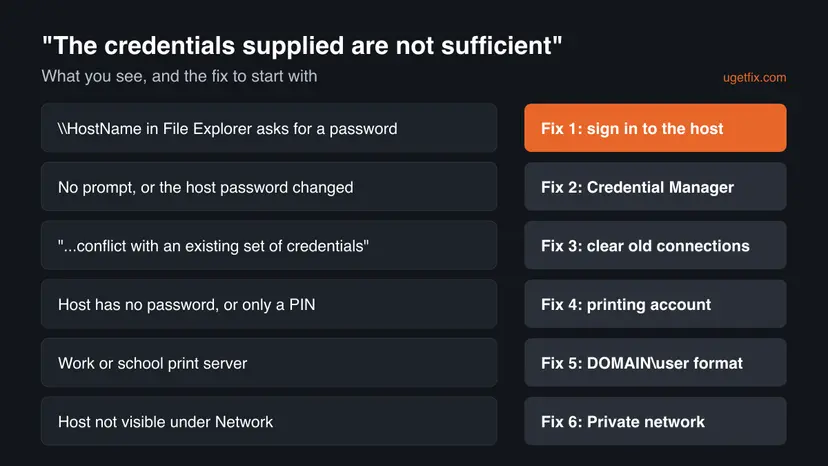
| # | Cause | How to recognise it | Fix |
|---|---|---|---|
| 1 | Your PC never signed in to the sharing PC | A new PC or user, and \\HostName asks for a password | Fix 1 |
| 2 | No saved credential, or an old one | No prompt appears, or the host password changed | Fix 2 |
| 3 | An open connection to the host under another account | The "conflict with an existing set of credentials" message | Fix 3 |
| 4 | The host account has no password or uses only a PIN | The sharing PC starts without a password or with Windows Hello only | Fix 4 |
| 5 | Wrong user name format for a print server | A work or school printer on a personal PC | Fix 5 |
| 6 | Sharing is off or the network is Public | The host does not appear under Network | Fix 6 |
| 7 | A stale printer entry or print connection setting | It worked before, or only a Windows 11 PC fails | Fix 7 and Fix 8 |
On Microsoft Q&A, users describe the same pattern again and again: a printer shared by a Windows 10 PC works on other Windows 10 PCs, but a Windows 11 PC gets this message with the same credentials. Newer Windows 11 builds refuse guest access and use different print connection settings, so an account with a real password matters more.
How to fix "The credentials supplied are not sufficient": eight fixes in order
Fix 1 to Fix 4 give your PC a sign-in the sharing PC accepts, which solves most cases. Fix 5 is for work and school print servers. Fix 6 to Fix 8 repair the sharing settings, the printer entry and the Windows 11 print connection.
| What you see or have | Start with |
|---|---|
\\HostName in File Explorer asks for a user name and password | Fix 1 |
| No sign-in box appears, or the host's password changed | Fix 2 |
| "The credentials supplied conflict with an existing set of credentials" | Fix 3 |
| The sharing PC has no password, or signs in with a PIN only | Fix 4 |
| A printer at work or school on your own laptop | Fix 5 |
| The host does not appear under Network | Fix 6 |
| The printer worked before, or only a Windows 11 PC fails | Fix 7, then Fix 8 |
Fix 1. Sign in to the sharing PC in File Explorer first, then add the printer
5 minutesLow riskFor everyone, and first on a new PC, a new user account or a PC that has never printed to this share.
The printer connection reuses the sign-in your PC already has with the host. Opening the host in File Explorer creates that sign-in with an account the host knows, so the printer connection no longer sends one it rejects.
- On the PC that shares the printer, press Win + R, type
sysdm.cpland press Enter. Note the Computer name. - On your PC, open File Explorer, type
\\HostNamein the address bar and press Enter, using the name you noted. - When Windows asks for network credentials, type a user name of the host PC as
HostName\UserName, or the email address of its Microsoft account, and that account's password. - Tick Remember my credentials and select OK. The host's shared folders and printers appear.
- Double-click the printer there, or add it in Printers & scanners with Select a shared printer by name and
\\HostName\ShareName.
A network sign-in needs the account's password. A Windows Hello PIN or fingerprint works only on the PC itself. With a Microsoft account, type its full email address and the Microsoft account password.
Microsoft's shared printer guide gives the same advice: use the same Microsoft account or local account on both PCs, or enter the user name and password of the host PC when Windows asks.
It worked if: \\HostName opens without a new prompt, and the printer adds and prints a test page.
If not: If no sign-in box appears and the message stays, save the account by hand in Fix 2. If \\HostName does not open at all, go to Fix 6.
Fix 2. Add or replace the host's sign-in in Credential Manager
5 minutesLow riskNo sign-in box appears, the host's password changed, or you used another account with this host before.
Windows sends the credential saved for a host name without asking. An old or wrong entry makes the host reject every printer connection, and a new correct entry replaces it. A university IT help desk gives this as the fix for the same message on Windows 11.
- Press Win + S, type
credential managerand open Credential Manager in Control Panel. - Select Windows Credentials.
- Look for an entry with the host's name or IP address. Expand it and select Remove if it is old or uses another account.
- Select Add a Windows credential.
- In Internet or network address type the host name, for example
HostName. In User name typeHostName\UserNameor the Microsoft account email, then the Password, and select OK. - Restart your PC and add the printer again by
\\HostName\ShareName.
The same in Terminal: list saved entries, delete the old one, add a new one (you are asked for the password)
cmdkey /list
cmdkey /delete:HostName
cmdkey /add:HostName /user:HostName\UserName /passIf you connect by IP address, for example \\192.168.1.20\ShareName, save the credential for that IP address too. Users on Microsoft Q&A also stress that no second, older entry for the same host may stay in the list.
It worked if: The entry is listed under Windows Credentials, and the printer connects without the message.
If not: If Windows says the credentials conflict with an existing set, go to Fix 3. If the right password is still refused, the host account is the problem: go to Fix 4.
Fix 3. Clear old connections when the credentials conflict with an existing set
5 minutesLow riskYou see "The credentials supplied conflict with an existing set of credentials", or you opened a share on the host with another account earlier today.
Windows keeps one user name per host for open network connections. If a mapped drive or an open folder already uses account A, a printer connection with account B is refused. Closing those connections lets the printer sign in with the account you want.
- Close every File Explorer window that shows a folder on the host.
- Press Win + X and select Terminal.
- Type
net useand press Enter. Every open connection is listed with its remote path. - Delete each connection to the host with the command below, or all of them with
net use * /delete. - Remove the old entry for the host in Credential Manager as in Fix 2.
- Sign in to
\\HostNameagain with one account only, then add the printer.
List open connections, delete the hidden connection to one host, or delete all connections
net use
net use \\HostName\IPC$ /delete
net use * /deletenet use * /delete also disconnects mapped network drives. No files are deleted. Map them again afterwards with the same account you use for the printer.
It worked if: net use shows no entry for the host, and the next sign-in and printer connection use one account.
If not: If the conflict message returns after a restart, a mapped drive reconnects with the old account. Remap it with the same account, then try Fix 1 again.
Fix 4. Give the sharing PC an account with a real password for printing
10 minutesLow riskThe PC that shares the printer has no password, signs in with a PIN only, or you do not want to share its main account.
A network sign-in needs an account with a password on the host. Users on Microsoft Q&A report that creating a local account with a password on the host and saving it on the client fixed this exact message on Windows 11 Home.
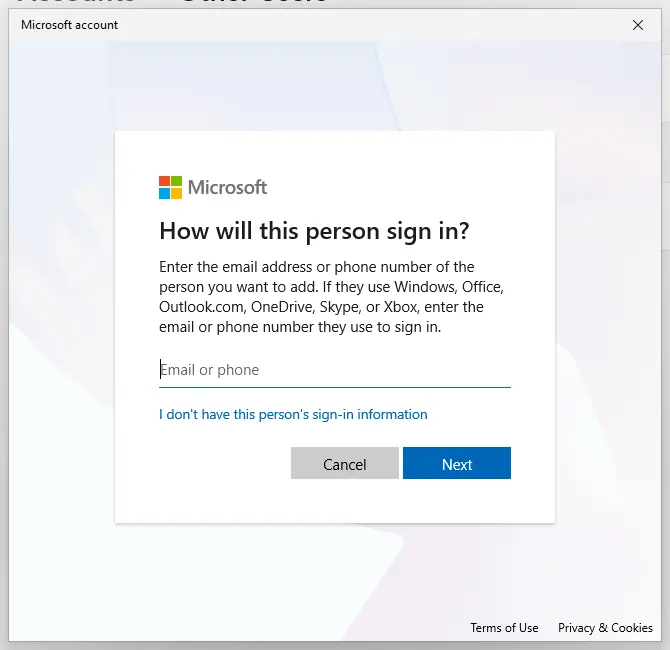
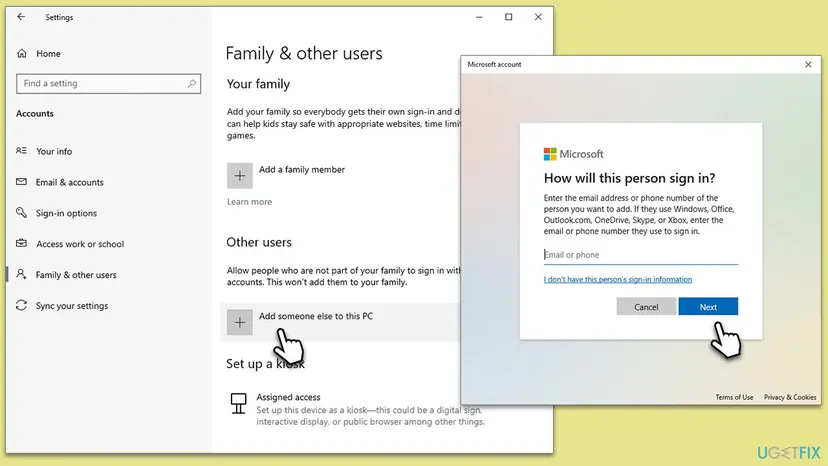
- On the sharing PC, open Settings > Accounts > Other users and select Add account.
- Select I don't have this person's sign-in information, then Add a user without a Microsoft account.
- Type a short user name, for example
printuser, and a password. Select Next. - Full steps with screenshots: Create a new user account to test a problem. A standard account is enough; it does not need administrator rights.
- On your PC, open
\\HostName, sign in asHostName\printuserwith that password and tick Remember my credentials. - Add the printer by
\\HostName\ShareName.
Old posts suggest it, but current Windows 11 PCs refuse guest connections by default. Keep Password protected sharing on in Advanced sharing settings and use the account with a password.
It worked if: Your PC signs in to \\HostName as the new account and the printer adds without the message.
If not: If shared folders open with this account but the printer still fails, go to Fix 7 and then Fix 8.
Fix 5. Work or school printer: save the print server sign-in in DOMAIN\user format
10 minutesLow riskYou add a work or school printer from a print server to a personal PC that is not joined to the organisation's domain.
A personal PC has no domain account, so it offers its own local account to the print server, which refuses it. Saving the organisation's account for the server's full name first gives the connection a sign-in the server accepts.
- Ask IT for the print server's full name, for example
printserver.example.edu, and the domain name. - Open Control Panel > User Accounts > Credential Manager and select Windows Credentials.
- Select Add a Windows credential.
- In Internet or network address type the full server name. In User name type
DOMAIN\username, then your password, and select OK. - Add the printer again by
\\printserver.example.edu\PrinterName, as your IT department describes.
On Microsoft Q&A, admins report that domain accounts on domain PCs add printers fine, while local accounts on new Windows 11 PCs fail even with valid credentials. If Fix 5 does not help, the server's rules decide, so open a ticket with your IT team.
It worked if: The printer from the print server installs and prints a test page.
If not: Send IT the facts listed in the still not fixed section below. Do not change Point and Print policies on a managed PC yourself.
Fix 6. Set the network to Private and turn on file and printer sharing
5 minutesLow riskThe sharing PC does not appear under Network, or \\HostName does not open from your PC.
On a Public network profile Windows hides the PC and blocks sharing, so the sign-in cannot reach the host. Microsoft lists Network discovery and File and printer sharing as required settings for shared printers.
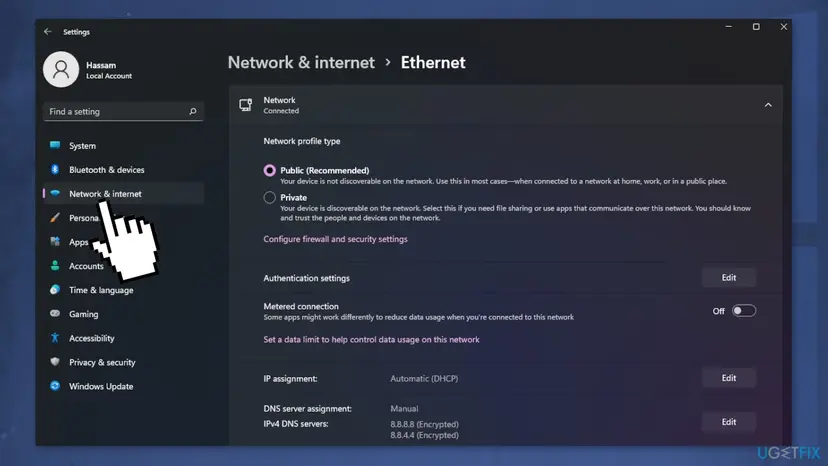
- On both PCs, open Settings > Network & internet and select Wi-Fi or Ethernet, then the connected network.
- Under Network profile type, select Private network. Do this only on a home or office network you trust.
- Open Settings > Network & internet > Advanced network settings > Advanced sharing settings.
- Turn on Network discovery and File and printer sharing. On Windows 10: Settings > Network & internet > Status > Network and sharing center > Change advanced sharing settings, under Private.
- Check that both PCs are on the same local network, then open
\\HostNameagain.
It worked if: The host appears under Network in File Explorer and \\HostName opens.
If not: If the host is visible but the printer still fails, go back to Fix 1 with the host's account, then try Fix 7.
Fix 7. Remove the printer, restart Print Spooler and add it again by its share name
10 minutesLow riskThe printer worked before and then stopped, or an old entry of the printer is still on your PC.
An old printer entry keeps the connection details and the account it was made with. Microsoft's last step for shared printers is to remove it, restart and add it again by the exact share path, which makes Windows sign in fresh.
- On the sharing PC, open the printer's Printer properties, then the Sharing tab. Check Share this printer and note the Share name.
- On your PC, open Settings > Bluetooth & devices > Printers & scanners, select the shared printer and select Remove. On Windows 10: Settings > Devices > Printers & scanners, then Remove device.
- Restart Print Spooler on both PCs, or simply restart both PCs.
- On your PC, select Add device, then Add manually, and choose Select a shared printer by name. On Windows 10 select Add a printer or scanner, then The printer that I want isn't listed.
- Type
\\HostName\ShareNameand follow the steps on the screen.

The same restart in Terminal (Admin): Restart-Service -Name Spooler. More on services: Check and restart Windows services.
It worked if: The printer adds by its share name and prints a test page.
If not: If only a Windows 11 PC fails while other PCs print to the same host, go to Fix 8.
Fix 8. Windows 11 client and an older host: match the print connection settings
15 minutesRead the warningShared folders on the host open fine, the printer still fails, and your PC runs Windows 11 while the host runs Windows 10 or older. Needs an administrator.
Windows 11 22H2 and later connect to shared printers with RPC over TCP by default. An older host or a firewall that does not answer that way breaks the printer connection, and Windows can report it as a sign-in failure while files still work.
Step 3 adds a printer policy value. Export HKEY_LOCAL_MACHINE\SOFTWARE\Policies\Microsoft\Windows NT\Printers before you change it: Back up the registry before editing it. Nothing else is lost; the undo command is below.
- On the sharing PC, check that no third-party firewall blocks incoming connections from your local network.
- Try the printer again. If it works, stop here.
- On your Windows 11 PC, open Terminal (Admin) and run the command below.
- Restart your PC and add the printer again by
\\HostName\ShareName.
Client: connect to shared printers with RPC over named pipes (1 = named pipes, 0 or not set = RPC over TCP)
reg add "HKEY_LOCAL_MACHINE\SOFTWARE\Policies\Microsoft\Windows NT\Printers\RPC" /v RpcUseNamedPipeProtocol /t REG_DWORD /d 1 /fOur guide to printer error 0x00000520 covers the same Windows 10 host and Windows 11 client case, and the guide to error 0x00000709 explains every combination of these settings.
It worked if: After the restart the printer adds and prints, and shared folders still open.
If not: Undo with reg delete "HKEY_LOCAL_MACHINE\SOFTWARE\Policies\Microsoft\Windows NT\Printers\RPC" /v RpcUseNamedPipeProtocol /f, restart, and collect the facts in the next section.
Still getting "The credentials supplied are not sufficient"? Where to look
The message does not say which account was refused or why. These checks show it, and they are what an IT team or Microsoft support will ask for.
| Check | Where | What it tells you |
|---|---|---|
| Can you reach the host | \\HostName in File Explorer, or net view \\HostName in Terminal | Whether any sign-in to the host works at all |
| Saved sign-ins | cmdkey /list or Credential Manager > Windows Credentials | Which account Windows sends to the host |
| Open connections | net use in Terminal | Whether another account is already connected (Fix 3) |
| Print Service log | Event Viewer, Applications and Services Logs > Microsoft > Windows > PrintService > Admin | Printer connection errors at the time of the failure |
| Windows versions | winver on both PCs | Whether a Windows 11 client meets an older host (Fix 8) |
- What to send to support: both Windows versions and builds, the share path, the account and its format, the
cmdkey /listandnet useoutput without passwords, and PrintService errors with their time. - On a work PC: printers and print policies are usually set by your organisation. Ask your administrator, because a local change can be undone at the next sign-in.
- Is it hardware? No. If the printer prints a test page on the PC it is attached to, the printer is fine and the problem is the account or the connection.
- A way around it: if the printer has Wi-Fi or Ethernet, add it on every PC by its IP address with Add a printer using an IP address or hostname, so no PC has to sign in to another.
How to keep the credentials error from coming back
The message returns when the host password changes, when a new PC or user joins without a saved sign-in, or when someone connects to the host with a second account. A few habits keep it away.
- Use one account with a password on the sharing PC for everyone who prints.
- Update the saved credential on each PC when that password changes.
- Use the same account for mapped drives and printers on the same host.
- Keep the share name the same when you reinstall the printer on the host.
- Keep both PCs updated; Windows 10 left support on 14 October 2025.
- Do not share a printer from an account with no password.
- Do not turn off password protected sharing to get around the message.
- Do not hide the driver warning with Point and Print policies.
- Do not keep old printer entries that point to a renamed host.
Frequently asked questions
What does "The credentials supplied are not sufficient to access this printer" mean?
It means the PC or print server that shares the printer did not accept the user name and password your PC sent. Your PC must sign in to the sharing computer before it can use its printer, just as with a shared folder. The printer itself is fine. Sign in to \\HostName in File Explorer with an account of that PC and its password (Fix 1), or save that account in Credential Manager (Fix 2).
Why does it happen only on my Windows 11 PC?
Users on Microsoft Q&A report the same pattern: a printer shared by a Windows 10 PC works on other Windows 10 PCs, while a Windows 11 PC gets this message with the same credentials. Windows 11 refuses guest access by default and connects to shared printers differently since 22H2. Give the host an account with a password (Fix 4), save it on the Windows 11 PC (Fix 2), and if files open but the printer still fails, match the print connection settings (Fix 8).
What does "The credentials supplied conflict with an existing set of credentials" mean?
Your PC already has an open connection to the same host under a different user name, for example a mapped drive or a folder you opened with another account. Windows uses one user name per host for those connections, so the new sign-in is refused. Close File Explorer windows on the host, run net use to list connections, delete them with net use \\HostName\IPC$ /delete or net use * /delete, then sign in again with one account (Fix 3).
Is "The account credentials supplied are invalid" the same error?
No. That wording is not a shared printer message, and we could not confirm from a Microsoft source where it appears. Similar messages come up in other sign-in screens, such as account set-up in apps. If your printer connection shows it, the cause is still a user name or password the other side does not accept, so check the format HostName\UserName and the password in Fix 1 and Fix 2. Otherwise, search for the exact app that shows it.
What is "The credentials supplied to the package were not recognized"?
It is a different message that comes from Windows security components used by apps and services, not from adding a shared printer. This page covers only "The credentials supplied are not sufficient to access this printer" and the related conflict message. We could not confirm the cause of the package message from a vendor source in this check, so we do not give steps for it here. Search for it together with the name of the app that shows it.
Should I change Point and Print Restrictions in Group Policy?
No, not on a home PC. Old guides tell you to enable Point and Print Restrictions and pick Do not show warning or elevation prompt. The policy's own help text in the Group Policy Editor says it applies only to non-Print Administrator clients that are members of a domain. On a home PC it changes nothing, and on any PC it hides the warning before a printer driver installs. Fix the sign-in instead (Fix 1 to Fix 4).
Does uninstalling a Windows update fix this error?
Usually not, and it leaves your PC without security fixes. The message is about which account the host accepts. Windows 11 updates did tighten guest access and change how print connections work. The lasting fix is an account with a password on the host (Fix 4) and, where files open but the printer fails, the print connection setting in Fix 8. If you remove an update for a test, install it again afterwards: How to uninstall a Windows update.
Can I fix it without administrator rights?
Often yes. Fix 1, Fix 2 and Fix 3 save or clear sign-ins for your own user and need no administrator rights on your PC. You do need a user name and password of an account on the sharing PC, or your organisation's account for a print server. Creating an account on the host (Fix 4), restarting Print Spooler (Fix 7) and the registry change in Fix 8 need an administrator on the PC concerned.
I searched in Spanish or Indonesian. Does this page apply?
Yes. "Las credenciales proporcionadas no son suficientes para acceder a esta impresora" is the Spanish Windows text of the same message, and searches such as "kenapa" (Indonesian for "why") lead here too. Only the menu names are translated; the cause and the fixes are the same. Start with Fix 1: open \\HostName in File Explorer and sign in with an account of the sharing PC. If it still fails, follow the table above the fixes.
Sources
- Microsoft Support: Fix shared printer connection problems in Windows (support.microsoft.com)
- Microsoft Q&A: "Credentials Supplied Are Not Sufficient" when mapping a printer shared by Windows 10 from a Windows 11 client (user reports) (learn.microsoft.com)
- University of Michigan-Dearborn IT: Windows 11 printing error, insufficient credentials on personal devices (umdearborn.teamdynamix.com)
Did this fix work?
One click, no account. It tells the next reader which guides are worth their time.
Questions and experiences: fix "The credentials supplied are not sufficient" printer error in Windows
Still broken, or found a fix we did not cover? Ask here: members and our editors answer. Reading is open; writing needs a free account.
…