
How to fix "The display settings could not be saved" error in Windows?

Prefer to fix it yourself? The manual steps follow.
- 7methods
- 2 to 30 minutes
- Easy
Applies to Desktops and laptops on Windows 11 and Windows 10 with Intel, NVIDIA or AMD graphics and two or more screens, including docks, capture cards and USB display adapters
7 methods in this guide
Hello. I have been trying to configure my display settings in Windows, but I receive the error "The display settings could not be saved." What could be the issue?
Windows shows "The display settings could not be saved" when the graphics driver refuses the screen layout you asked for: a resolution, refresh rate, position or display mode it cannot drive with the screens you have. Most often it appears after adding or rearranging a monitor. Press Win + Ctrl + Shift + B first, then switch the screens to Extend and change one setting at a time.
The message means the graphics driver rejected the combination of resolution, refresh rate, layout and display mode you tried to apply. Press Win + Ctrl + Shift + B and restart (Fix 1). Then press Win + P, select Extend, and change only one screen and one setting at a time (Fix 2 and Fix 3). If a third monitor triggers it, check your graphics app and the card's monitor limit (Fix 4 and Fix 5).
| Error | "The display settings could not be saved. Please try a different combination of display settings." Newer builds word it "These settings couldn't be saved." |
|---|---|
| Where it appears | In Settings > System > Display when you select Apply or Keep changes after moving, adding, duplicating or resizing a screen. |
| Main cause | The graphics driver cannot drive the requested mix of screens: Duplicate with different resolutions, a high resolution or refresh rate on one more screen, or a hung driver. |
| Fastest fix | Win + Ctrl + Shift + B and a restart (Fix 1), then Win + P > Extend and one change at a time (Fix 2). |
| Also written as | Display settings could not be saved, unable to save display settings, windows not saving display settings, the display control panel is unable to change the display settings. |
| Affects | Windows 11 and Windows 10, most often with two or three monitors, a dock, a capture card or a mix of 4K and older screens. |
| Vendor status | Not a listed Windows bug with a fix version. Microsoft's troubleshooting starts with Extend, the driver reset key sequence, a driver roll back and a clean driver reinstall. |
| Where to look | Device Manager > Display adapters for the card and driver, and the graphics maker's app (NVIDIA Control Panel, AMD Software, Intel Graphics Command Center) for its own display settings. |
| Time to fix | 2 minutes for the key sequence and Win + P, 10 to 20 minutes for a driver reinstall. |
Facts checked on 15 October 2026. Steps written for Windows 11 (25H2 and 26H2) and Windows 10 22H2.
What "The display settings could not be saved" means
When you select Apply in Display settings, Windows asks the graphics driver to switch every screen to the new layout at once. If the driver says no, nothing changes and you get the message below. It is not a file or permission problem: Windows simply could not set that combination of screens, resolutions, refresh rates and positions.
- Full text
- "The display settings could not be saved. Please try a different combination of display settings."
- Newer wording
- "These settings couldn't be saved. Please try a different combination of display settings."
- Where
- Settings > System > Display, after Apply, Keep changes or a new choice under Multiple displays
- Typical moment
- Adding a second or third monitor, dragging a screen to a new position, switching to Duplicate, or picking a higher resolution
A useful clue: in one Microsoft Q&A report, the new screen worked through the older Display adapter properties window and its List All Modes button, while Windows Settings kept showing the error. So the screen and cable were fine, and the problem was a setting inside the graphics driver's app.
The message only means Windows refused one layout. Your current layout stays as it was, so you can try another combination right away without losing anything.
Why display settings cannot be saved, most common cause first
The table ranks the causes by how often they come up in the Microsoft Q&A reports we read and in the order of Microsoft's own monitor troubleshooting. Each row points to the fix that matches it.
| How often | Cause | How to spot it | Fix |
|---|---|---|---|
| Most often | Duplicate or Extend asked for a resolution or refresh rate the screens cannot share | It fails when you switch mode, add a 4K or high refresh screen, or duplicate to a TV or capture card | Fix 2, Fix 3 |
| Often | The graphics driver hung after sleep, a game or replugging a screen | The same layout worked before and stopped without any change | Fix 1 |
| Sometimes | A setting in the graphics maker's app blocks the change, such as AMD's 10-Bit Pixel Format | It fails only on one new screen, but the classic adapter window can change it | Fix 4 |
| Sometimes | The card, port, dock or splitter cannot drive one more independent screen | Two screens work, the third one fails, or screens share one cable through a splitter | Fix 5 |
| Sometimes | A new graphics driver or Windows update changed how the driver handles the screens | It started right after an update | Fix 6 |
| Rarely | A damaged display driver | The error comes back on every layout, or the card shows a warning in Device Manager | Fix 7 |
How to fix "The display settings could not be saved" in Windows 11 and 10
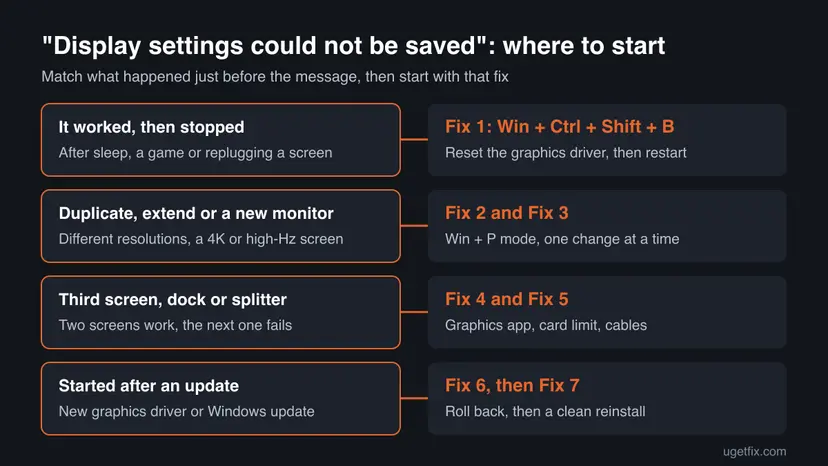
Fix 1 and Fix 2 take two minutes each and solve the most common cases. Fix 3 to Fix 5 are for setups with a new, third or high resolution screen. Fix 6 and Fix 7 deal with the driver itself.
| What you see or what your PC has | Start with |
|---|---|
| The same layout worked yesterday | Fix 1 |
| The error appears when you switch Duplicate or Extend | Fix 2 |
| A new 4K, high refresh or very old screen, a TV or a capture card | Fix 3 |
| Only one new screen fails, and an NVIDIA, AMD or Intel app is installed | Fix 4 |
| Two screens work and the third one fails, or you use a dock or splitter | Fix 5 |
| It started right after a driver or Windows update | Fix 6 |
| Every change fails, or the card shows a warning in Device Manager | Fix 7 |
Fix 1. Reset the graphics driver with Win + Ctrl + Shift + B and restart
2 minutesNo riskSetups that saved this layout before and started showing the message after sleep, a game or replugging a monitor.
Microsoft lists this key sequence first when a working monitor setup suddenly stops. It restarts the graphics driver without closing your apps, so a driver that hung while screens were added can accept new settings again.
- Keep every screen connected and switched on.
- Press Win + Ctrl + Shift + B at the same time. The screens go black for a moment and you hear a short beep.
- Open Settings > System > Display and make the change again, then select Apply.
- If the error returns, select Start > Power > Restart.
- If a restart does not help, select Start > Power > Shut down, wait 10 seconds and turn the PC on again.
Microsoft suggests a full shut down when a restart does not help. With Fast Startup on, a shut down keeps part of the old session, so turn it off for one test if both fail. Step by step: Turn off Fast Startup.
It worked if: Display settings accepts the change and asks you to Keep changes.
If not: Switch the display mode in Fix 2.
Fix 2. Press Win + P, switch to Duplicate, then back to Extend
2 minutesNo riskYou get the error when you rearrange screens, make one the main display or switch between Duplicate and Extend.
Microsoft's monitor troubleshooting starts by checking that Extend is selected with Win + P. Users report that a change refused in Extend saves after they switch to Duplicate and back, because Windows builds a fresh layout for every screen.
- Press Win + P. A small panel opens with PC screen only, Duplicate, Extend and Second screen only.
- Select Duplicate and wait until every screen shows the same picture.
- Press Win + P again and select Extend.
- Open Settings > System > Display and select Identify to see which number belongs to which screen.
- Drag the screen boxes into the order you want, or select one and tick Make this my main display.
- Select Apply once, then check the result before you change anything else.
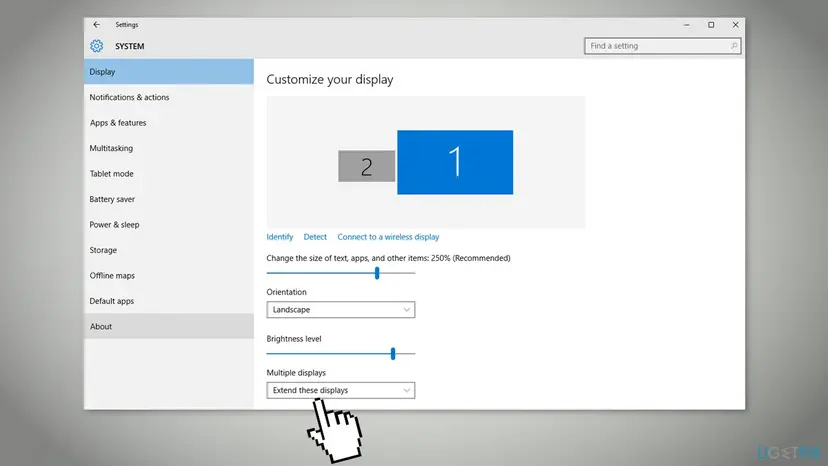
Microsoft describes Duplicate as the same thing on all your displays. Both screens must then run one resolution they both support, which is why Duplicate fails more often with a 4K screen next to a Full HD one.
It worked if: The screens extend, sit in the order you dragged them, and Apply works without the message.
If not: If one screen still refuses its resolution or refresh rate, go to Fix 3.
Fix 3. Change one screen at a time and pick a mode both screens support
5 minutesLow riskA new 4K, high refresh rate or very old monitor, a TV, or a capture card that you want to duplicate to.
The message asks for a different combination, and the combination is often too heavy as a whole. Lowering one screen's resolution or refresh rate, or changing one setting per Apply, lets the driver accept each step.
- Open Settings > System > Display and select the screen that triggers the error.
- Set its Display resolution to the value marked (Recommended) and select Keep changes.
- On Windows 11, open Advanced display and lower Choose a refresh rate to 60 Hz for a test. On Windows 10 the link is Advanced display settings.
- Now make the change that failed, such as moving or duplicating the screen, and select Apply.
- For Duplicate, pick a resolution that every screen lists, usually the native size of the smaller screen.
- If Settings still refuses, select Display adapter properties for Display followed by its number, then List All Modes, pick a mode and select OK.
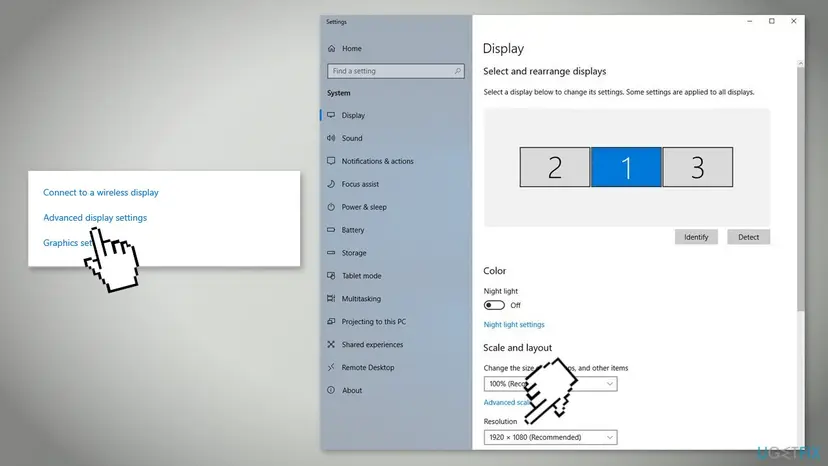
In one Microsoft Q&A report, the List All Modes window changed the resolution of a third monitor that Windows Settings refused. It is a good test: if the old window works, the screen and cable are fine and the next step is Fix 4.
It worked if: Each change saves on its own, and after a few steps the full layout is in place.
If not: Check the graphics maker's app in Fix 4.
Fix 4. Check the NVIDIA, AMD or Intel graphics app
5 to 10 minutesLow riskOnly one new screen fails, the List All Modes window works, or the graphics app has its own multi-screen settings turned on.
The graphics maker's app talks to the driver directly, and some of its settings stop Windows from changing the layout. A Microsoft Q&A user with a third AMD screen fixed this error by turning off 10-Bit Pixel Format and restarting.
- AMD: open AMD Software, go to the graphics settings page, turn off 10-Bit Pixel Format if it is on, and restart the PC.
- NVIDIA: right-click the desktop, open NVIDIA Control Panel, select Display > Set up multiple displays, tick the screens you want to use and select Apply.
- Intel: open Intel Graphics Command Center from the Start menu and check the display page for each screen.
- Make sure no grouped or spanned display mode, such as AMD Eyefinity or NVIDIA Surround, joins the screens you want to set separately.
- Go back to Settings > System > Display and try the change again.
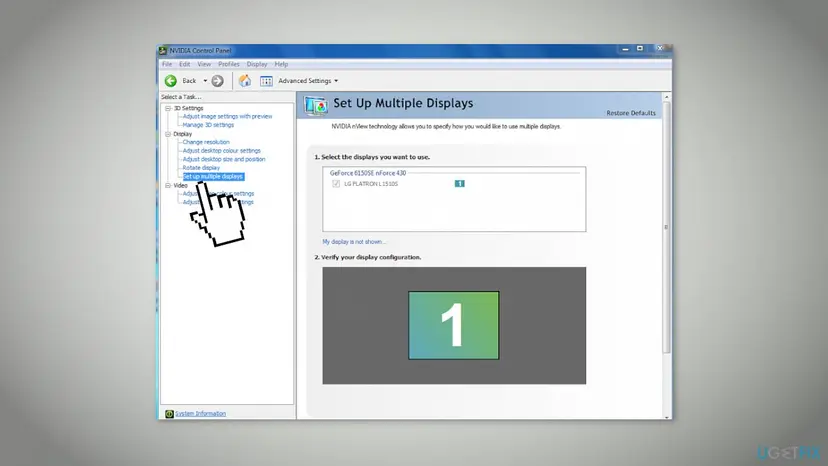
Menu names inside AMD Software, NVIDIA Control Panel and Intel Graphics Command Center change between versions. We could not confirm the exact current page name for 10-Bit Pixel Format, so look for it on the graphics or display settings page.
It worked if: After the restart, Windows Settings saves the layout and the new screen moves where you drag it.
If not: Check whether the card and its ports can drive this many screens in Fix 5.
Fix 5. Check the card's monitor limit, the cables, docks and splitters
10 minutesNo riskTwo screens work and one more fails, or the screens connect through a dock, a USB adapter or a splitter.
Microsoft notes that a display adapter may not support more than a certain number of monitors, and that a splitter copies one signal instead of creating independent ones. Either way, Windows cannot save a layout the hardware cannot output.
- Right-click Start, open Device Manager and expand Display adapters to read the name of your graphics card.
- Check on the card or PC maker's support page how many screens it supports, and at which resolutions.
- Unplug docks, dongles and adapters, and connect each monitor straight to a video port if you can.
- Try another cable, and another port such as DisplayPort instead of HDMI.
- Remove any display splitter. Use a dock or a USB display adapter instead if you need more independent screens.
- Connect the problem monitor alone. If it works alone but not as the third screen, the card or port is at its limit.

It worked if: With a direct cable and the right port, the screen joins the layout and the change saves.
If not: If the problem started after an update, roll back in Fix 6.
Fix 6. Roll back the display driver after an update
5 minutesLow riskThe message started right after Windows Update or the graphics maker's app installed a new driver.
Microsoft recommends rolling back to the previous display driver when problems start after an update. The older driver accepted your layout before, so it often accepts it again.
- Right-click Start and select Device Manager.
- Expand Display adapters, right-click your display adapter and select Properties.
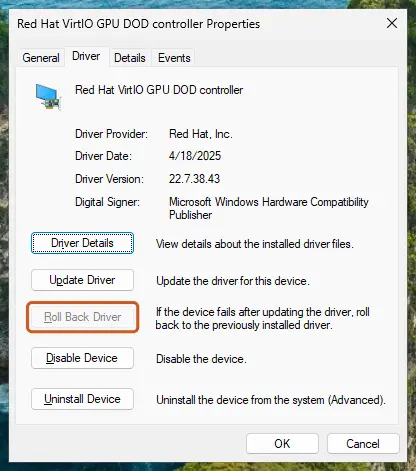
- Open the Driver tab and select Roll Back Driver.
- Pick a reason, select Yes and restart the PC.
- If Roll Back Driver is greyed out, Windows kept no older driver. Go to Fix 7.
It worked if: The older driver loads after the restart and Display settings saves the layout.
If not: Reinstall the driver cleanly in Fix 7.
Fix 7. Reinstall the display driver from your PC or graphics card maker
10 to 20 minutesLow riskEvery layout change fails, the card shows a warning in Device Manager, or Fix 1 to Fix 6 did not help.
Microsoft's last step for monitor problems is a clean reinstall of the display driver. It removes a damaged copy and its stored screen settings, so the driver starts fresh with your current monitors.
- Download the current graphics driver first: from the laptop maker's page for your model, or from NVIDIA, AMD or Intel for a desktop card.
- Right-click Start, select Device Manager and expand Display adapters.
- Right-click your display adapter and select Uninstall device.
- Tick Attempt to remove the driver for this device and select Uninstall. The screens may flicker and drop to a low resolution.
- Restart the PC when Windows asks.
- Run the driver installer you downloaded. If you have none, right-click the adapter, select Update driver and then Search automatically for drivers.
- Restart again and set up the screens in Settings > System > Display, one change at a time.
More on updating, rolling back and reinstalling in Device Manager: Update, roll back or reinstall a driver.
It worked if: Device Manager lists your real graphics card with no warning, and the layout saves without the message.
If not: Read the still broken section below for what to check and what to send to support.
Display settings still cannot be saved: what to check next
If a clean driver and a direct cable do not help, the limit is usually in the hardware or in the graphics maker's software, not in Windows Settings. Look at these signs.
- The screen works alone but never as the extra one. The card, the port or the dock cannot drive that many screens at that resolution. Check the maker's specifications.
- The List All Modes window works but Settings does not. Keep using that window or the graphics maker's app for this screen, and report the problem to the graphics maker.
- It worked a few days ago and you cannot find what changed. A restore point from before the change can return the old driver. Step by step: Undo recent changes with System Restore.
- Windows 10. Windows 10 left support on 14 October 2025, so graphics makers may stop releasing new drivers for it.
Older guides suggest deleting the display cache keys under HKEY_LOCAL_MACHINE\SYSTEM\CurrentControlSet\Control\GraphicsDrivers. We could not confirm this in Microsoft's documentation, so we do not give it as a step. A clean driver reinstall in Fix 7 is the supported way to clear stored screen settings.
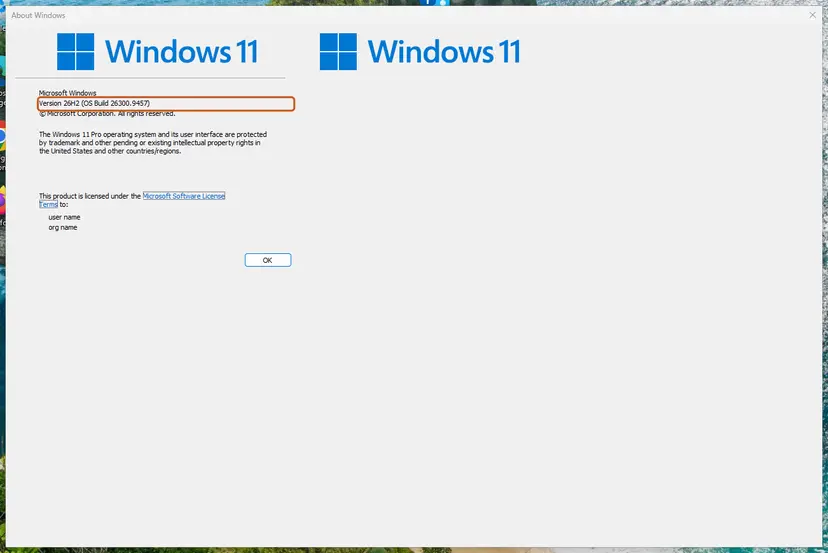
Before you contact support, note the graphics card name from Display adapters, every monitor model and how it connects, the exact layout you tried, and your Windows version from winver. Microsoft asks users to report remaining multi-monitor problems through the Feedback Hub.
How to keep display settings saving next time
Most cases come back when a new screen joins the setup or a driver changes. A few habits keep Display settings working.
- Connect a new screen, let Windows extend to it, then change one setting per Apply.
- Install the graphics driver from the PC or card maker, and keep the installer that works.
- Check how many screens your card and dock support before you buy another monitor.
- Use the resolution marked (Recommended) for each screen and raise the refresh rate last.
- Do not use a display splitter when you want independent screens.
- Do not install graphics drivers from driver download sites or updater programs.
- Do not edit display keys in the registry as a first step.
Frequently asked questions
What does "Please try a different combination of display settings" mean?
It means the graphics driver refused the full set of screens, resolutions, refresh rates, positions and display mode you tried to apply together. Windows keeps your old layout and asks you to try another mix. In practice, change one thing at a time, keep each screen at its Recommended resolution, and lower the refresh rate of the newest or largest screen for a test. Fix 2 and Fix 3 above walk through it.
Why are my display settings not saving in Windows 11?
Usually because the graphics driver cannot drive the layout as a whole, most often after adding a monitor or switching to Duplicate. Press Win + Ctrl + Shift + B, then Win + P and select Extend. Make one change in Settings > System > Display and select Apply before the next. If it started after an update, roll the display driver back in Device Manager. Windows 10 22H2 works the same way.
Why does the error appear only when I add a third monitor?
Microsoft notes that a display adapter may support only a certain number of monitors, and some cards cannot drive three high resolution screens at once. A graphics app setting can also block the change: one Microsoft Q&A user fixed it by turning off AMD's 10-Bit Pixel Format. Connect the third screen with a direct cable, check the card's specifications and the graphics app, as Fix 4 and Fix 5 describe.
Why can I not duplicate my screen to a TV or capture card?
Duplicate shows one picture on every screen, so all of them must run a resolution and refresh rate they all support. A 4K screen next to a Full HD TV or a capture card often has no such shared mode at its current settings. Set the main screen to a resolution the second device lists, such as 1920 x 1080 at 60 Hz, then duplicate. If you only need a copy for recording, Extend often works better.
Is "Cannot set display mode" the same error?
Not exactly. "Cannot set display mode" usually comes from a game or an app that asks for a resolution or refresh rate the screen or driver does not offer. The cause is close: an unsupported combination. Set the game to your screen's Recommended resolution in its own settings or launcher, update the graphics driver, and check the refresh rate in Advanced display. This page is about the Windows Display settings message.
How do I reset display settings in Windows?
Windows Settings has no single reset button for displays. Select each screen in Settings > System > Display, set Display resolution to (Recommended), set scale to the recommended value, and pick Extend with Win + P. The graphics maker's app can reset its own settings too: NVIDIA Control Panel, for example, shows Restore Defaults on its pages. A clean driver reinstall, as in Fix 7, clears what the driver stored.
What if Display settings will not open or keeps loading?
That is a different problem from the save error, but the same driver often sits behind it. Restart the PC first, then press Win + Ctrl + Shift + B. If the Display page still does not load, check Display adapters in Device Manager for a warning and reinstall the driver as in Fix 7. If other Settings pages fail as well, repair system files. Step by step: Run DISM and SFC to repair Windows system files.
Can I change resolution or layout without the Settings app?
Yes, for resolution. Advanced display > Display adapter properties > List All Modes sets a mode directly, and NVIDIA Control Panel, AMD Software and Intel Graphics Command Center each have their own resolution settings. One Microsoft Q&A user changed a screen's resolution this way when Settings refused. A Microsoft support agent in the same thread said PowerShell has no built-in commands for display settings, so arranging screens still happens in Settings or the graphics app.
Does the old trick of setting all monitors to the lowest resolution help?
Only in Duplicate mode, where all screens show one picture and must share one resolution. In Extend mode every screen keeps its own resolution, so there is no need to lower them all. Lower only the screen that triggers the error, or its refresh rate, and raise it again once the layout is saved. Older guides gave this advice for every setup, which is not needed.
I searched in another language. Does this guide still apply?
Yes, if Windows showed the display settings message in your language when you changed screens. The message, the Settings path and the fixes are the same in every language edition of Windows 11 and Windows 10, only the words on screen differ. Look for Settings > System > Display and the Win + P panel, and follow the fixes in order.
Sources
- Microsoft Support: Troubleshoot external monitor connections in Windows (support.microsoft.com)
- Microsoft Support: How to use multiple monitors in Windows (support.microsoft.com)
- Microsoft Q&A: When adding a third monitor, the display settings could not be saved (user report) (learn.microsoft.com)
Did this fix work?
One click, no account. It tells the next reader which guides are worth their time.
Questions and experiences: fix "The display settings could not be saved" error in Windows
Still broken, or found a fix we did not cover? Ask here: members and our editors answer. Reading is open; writing needs a free account.
…