
How to fix "The exception unknown software exception (0xe0000008)" error in Windows?

Prefer to fix it yourself? The manual steps follow.
- 7methods
- 5 to 30 minutes
- Easy
Applies to Windows 11, Windows 10; Google Chrome, Microsoft Edge, Edge WebView2, Steam, Brave, Discord and other apps built on Chromium
7 methods in this guide
Hello. When I try to launch Steam, I get the "exception unknown software exception (0xe0000008)" error message. How do I fix this?
"The exception unknown software exception (0xe0000008)" means a program built on Chromium, such as Chrome, Edge, msedgewebview2.exe or the Steam web helper, asked Windows for memory and was refused, so it closed itself. Usually the PC has hit its commit limit, the sum of RAM and the page file, not run out of RAM. Check Committed in Task Manager first, then turn the page file back on.
0xE0000008 is Chromium's own "out of memory" code. The program that crashed could not get more committed memory. Press Ctrl + Shift + Esc, open Performance > Memory and compare the two numbers under Committed (Fix 1). If they are close, let Windows manage the page file again (Fix 2) and free space on drive C: (Fix 3). Test the RAM only when many programs crash (Fix 7).
| Error | The exception unknown software exception (0xe0000008) occurred in the application at location followed by an address, in a window titled <program>.exe - Application Error. |
|---|---|
| Where it appears | When Chrome, Edge, an app that uses Edge WebView2, the Steam client, Brave, Discord or another Chromium-based program closes on its own, often after hours of use or when it opens. |
| Main cause | The program's memory request failed. Most often the system commit limit (RAM plus page file) is full because the page file is off, fixed too small or cannot grow on a full drive C:. |
| Fastest fix | Tick Automatically manage paging file size for all drives in Virtual Memory and restart (Fix 2), after checking Committed in Task Manager (Fix 1). |
| Also written as | 0xe0000008, 0xE0000008, (0xe0000008), 0xe00000008 (one zero too many), oxe0000008 (letter o), 0xe00008, "unknown software exception". |
| What the code means | In Chromium's source code it is kOomExceptionCode. The last digit was chosen because Windows error 8 is ERROR_NOT_ENOUGH_MEMORY. |
| Affects | Windows 11 and Windows 10, any PC. Windows 10 lost support on 14 October 2025, the steps are the same on it. |
| Vendor status | Not a bug with a patch: Chromium raises this code on purpose when memory runs out. Microsoft documents out of memory errors caused by slow page file growth (KB 4055223). |
| Time to fix | 3 minutes to check, 10 minutes for the page file change and one restart. |
Facts checked on 14 October 2026. Steps written for Windows 11 (25H2 and 26H2) and Windows 10 22H2.
What "The exception unknown software exception (0xe0000008)" means
The window title names the program that crashed, for example chrome.exe - Application Error, msedge.exe - Application Error, msedgewebview2.exe or steamwebhelper.exe. The text reads: "The exception unknown software exception (0xe0000008) occurred in the application at location" followed by an address such as 0x00007FFAFD009129, and the only button is OK, which closes the program. The address after "location" changes every time and does not help you.
Windows calls it "unknown" because the code is not one of its own. Codes that start with E are made up by the program itself. We read where 0xE0000008 is defined: in Chromium's memory allocator, the file partition_alloc/oom.h, under the name kOomExceptionCode. The comment there says the number 8 was picked because Windows error 0x00000008 is ERROR_NOT_ENOUGH_MEMORY. Chromium raises this exception when a request for memory fails, so the crash is the program saying "out of memory".
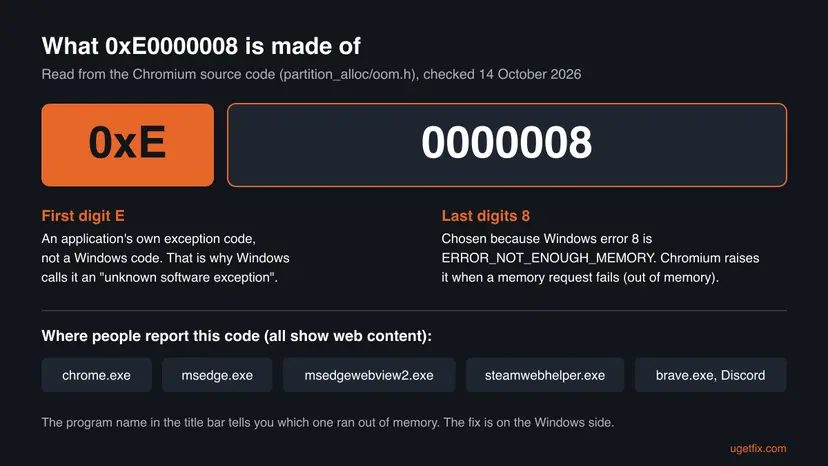
- Spellings people type: 0xe0000008, 0xE0000008, (0xe0000008), 0xe00000008 with an extra zero, oxe0000008 with the letter o, 0xe00008 with zeros left out. They are all the same error.
- Not the same: 0x00000008 alone is the Windows error ERROR_NOT_ENOUGH_MEMORY, the meaning behind this code. A blue screen with a stop code is a different problem.
- Same cause, different screen: inside Chrome a crashed tab can show "Aw, Snap!" with "Error code: Out of Memory". Chromium's process code (
kill_win.cc) files exit code 0xE0000008 as an out of memory termination.
Which program shows 0xe0000008, and what that tells you
The name in the title bar matters more than the code. All of the programs below draw web content with Chromium, so all of them can raise the same out of memory exception. What differs is how much memory each one takes and where you change it.
| Name in the window | What it is | What it suggests |
|---|---|---|
| chrome.exe | Google Chrome, a tab or the browser itself | Many tabs, one heavy site, an extension, or a 32-bit copy of Chrome. |
| msedge.exe | Microsoft Edge, which is built on Chromium | The same as Chrome. Edge has its own sleeping tabs setting. |
| msedgewebview2.exe | Microsoft Edge WebView2 Runtime, which shows web pages inside other apps | The app that hosts it ran out of memory, often after running for many hours. |
| steamwebhelper.exe | The part of Steam that renders the store, library and friends list | Steam itself is fine. Its web view could not get memory, often right after start. |
| brave.exe, Discord, other Electron apps | Browsers and desktop apps built on Chromium (Electron includes Chromium) | Same cause. Check the whole PC first, then that program. |
If only one program shows the code, start with the PC's memory limit and then that program's settings. If Chrome, Steam and Discord all close on the same day, and the PC also freezes, the commit limit is almost certainly full or the RAM is faulty. Fix 1 tells these apart in a minute.
Valve's support page describes steamwebhelper as the component that renders Steam content. We found no Valve page that names Chromium directly, but the code it shows is Chromium's. Reports with the NVIDIA overlay and the Adobe Creative Cloud UI helper exist too. We could not confirm from NVIDIA or Adobe which engine those helpers use.
What causes 0xe0000008, from most to least common
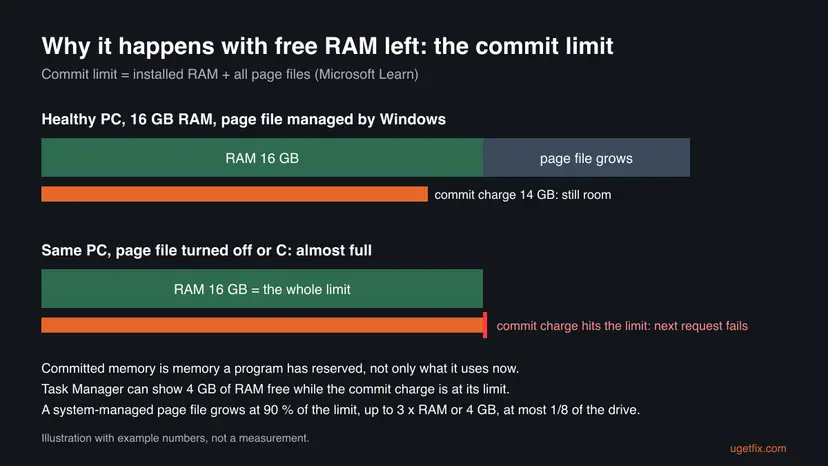
Windows has a commit limit: installed RAM plus all page files. Every program reserves (commits) memory against it. Microsoft's own page file article says that when the total commit charge reaches the limit, processes may not get committed memory, which can cause freezing, crashing and other malfunctions. That is the moment Chromium raises 0xE0000008.
| How often | Cause | Sign | Fix |
|---|---|---|---|
| Most often | Page file turned off or set to a small fixed size by a tweak guide or cleaner | Committed is close to its second number; Virtual Memory shows No paging file or a few hundred MB | Fix 1, Fix 2 |
| Often | Drive C: almost full, so a system-managed page file cannot grow | Less than a few GB free on C: | Fix 3 |
| Often | Page file grows too slowly for a sudden request (Microsoft KB 4055223) | Random crashes, plenty of disk space, page file already automatic | Fix 4 |
| Sometimes | One program, tab or extension uses most of the memory | Chrome or Edge Task Manager shows one entry with several GB | Fix 5 |
| Sometimes | A 32-bit copy of the program, limited to 2 or 4 GB of address space per process | The About page says 32-bit; the PC itself has room | Fix 6 |
| Rarely | Faulty RAM | Many programs crash with different codes, freezes or blue screens | Fix 7 |
The old advice for this code (run SFC, install Windows updates, reinstall the program) does not touch the commit limit, so it rarely helps here. We kept a program update and a 64-bit reinstall in Fix 6, because those do change how much memory the program can get.
How to fix the 0xe0000008 unknown software exception error
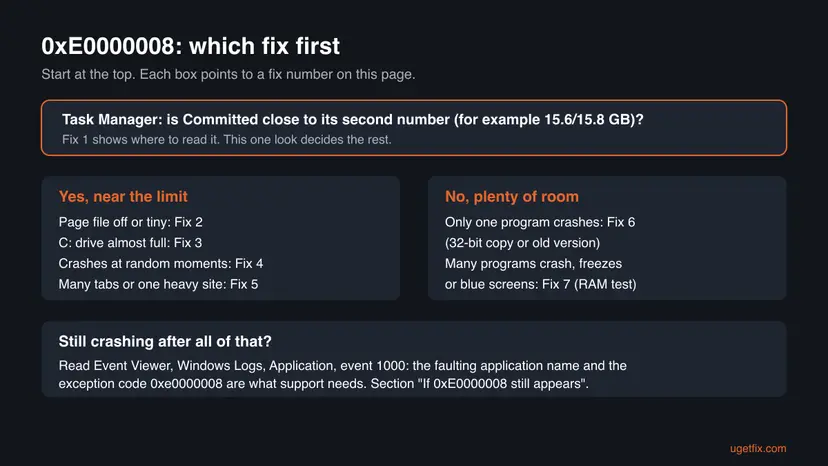
Fix 1 takes one minute and shows which of the next fixes is yours. Fixes 2 to 4 raise the Windows commit limit and solve most cases. Fixes 5 and 6 lower what one program asks for. Fix 7 is for a PC where many programs crash.
| What you see or have | Start with |
|---|---|
| You have not looked at memory yet, or you do not know where to start. | Fix 1 |
| Committed is close to its limit, or the limit equals your RAM. | Fix 2 |
| Drive C: has only a few GB free. | Fix 3, then Fix 2 |
| The page file is already automatic, disk space is fine, crashes are random. | Fix 4 |
| Only Chrome or Edge crashes, with many tabs or one heavy site open. | Fix 5 |
| Only one program crashes and the PC has plenty of room. | Fix 6 |
| Many programs crash, the PC freezes or shows blue screens. | Fix 7 |
Fix 1. Check the commit charge in Task Manager and close what is using it
3 minutesNo riskEveryone, first, while the program that crashed is open again.
The error is a failed memory commit. Task Manager shows the commit charge and the commit limit side by side, so one look tells you whether Windows ran out of room or one program did.
- Press Ctrl + Shift + Esc to open Task Manager. Select More details if you see only a short list.
- Open Performance (on Windows 11 it is the second icon on the left; on Windows 10 a tab at the top) and select Memory.
- Read Committed. It shows two numbers, for example
15.6/15.8 GB: the first is the commit charge, the second is the commit limit. - Compare the second number with the RAM size shown at the top right. If they are almost equal, the page file is off or tiny: go to Fix 2.
- If the first number is close to the second, open Processes, select the Memory column to sort, and note what uses the most.
- Save your work in that program, then close it normally. Use End task only if it does not respond. Step by step: Close a frozen app (Task Manager, Force Quit).
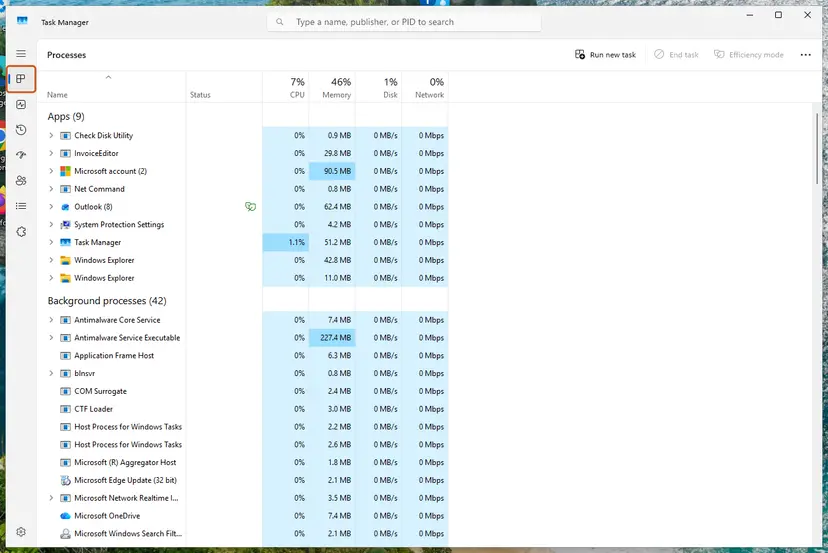
RAM in use and committed memory are different numbers. Programs can reserve memory they have not touched yet. This is why Task Manager can show free RAM while a commit still fails.
It worked if: Committed drops well below its limit after you close the heavy program, and the crashed program opens and stays open.
If not: If the limit itself is about the size of your RAM, go to Fix 2. If the limit is high and still fills up, go to Fix 5.
Fix 2. Let Windows manage the page file again
5 minutes and a restartLow riskThe commit limit is about the size of your RAM, or someone turned the page file off.
The commit limit is RAM plus page file. A system-managed page file grows when the commit charge passes 90 percent of the limit, up to three times the RAM or 4 GB, whichever is larger, so Chromium gets the memory it asks for.
- Press Win + R, type
sysdm.cpland select OK. - Open the Advanced tab and select Settings under Performance.
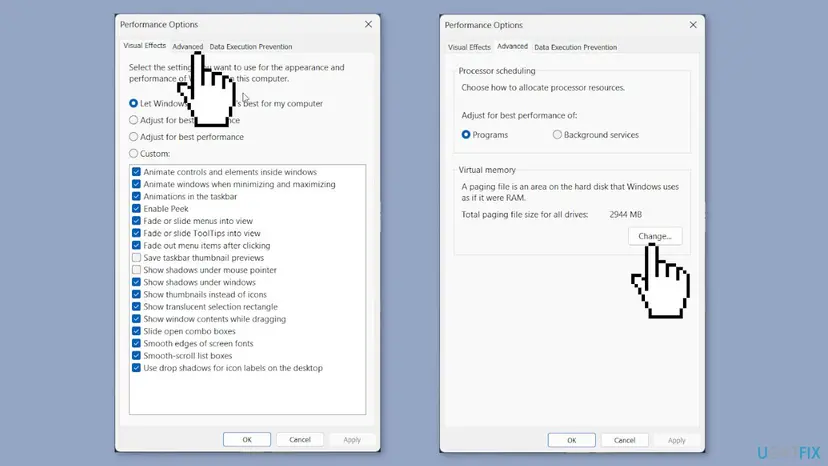
- In Performance Options, open the Advanced tab and select Change under Virtual memory.
- Read what is set now. No paging file on drive C:, or a custom size of a few hundred MB, explains the crash.
- Tick Automatically manage paging file size for all drives.
- Select OK in each window and restart the PC when Windows asks.
A page file on an SSD is normal and is what Windows does by default. Microsoft notes that a page file is also needed to write a crash dump after a blue screen, which support may ask for.
It worked if: After the restart, Task Manager shows a commit limit clearly larger than your RAM, and the program no longer closes with 0xe0000008.
If not: If the box was already ticked, check the free space on C: in Fix 3, then set a fixed size in Fix 4.
Fix 3. Free space on drive C: so the page file can grow
10 minutesLow riskDrive C: has only a few GB free, even with an automatic page file.
Microsoft says a system-managed page file grows only when the drive has enough free space for it, and it is capped at one eighth of the volume size. A full system drive keeps the commit limit low and Chromium is refused memory.
- Open File Explorer > This PC and read the free space under Local Disk (C:).
- If it is low, clean up temporary files, old updates and the Recycle Bin. Step by step: Free up disk space and delete temporary files.
- Move large personal files, such as videos or game installs you do not play, to another drive.
- Restart the PC, then check Committed in Task Manager again, as in Fix 1.
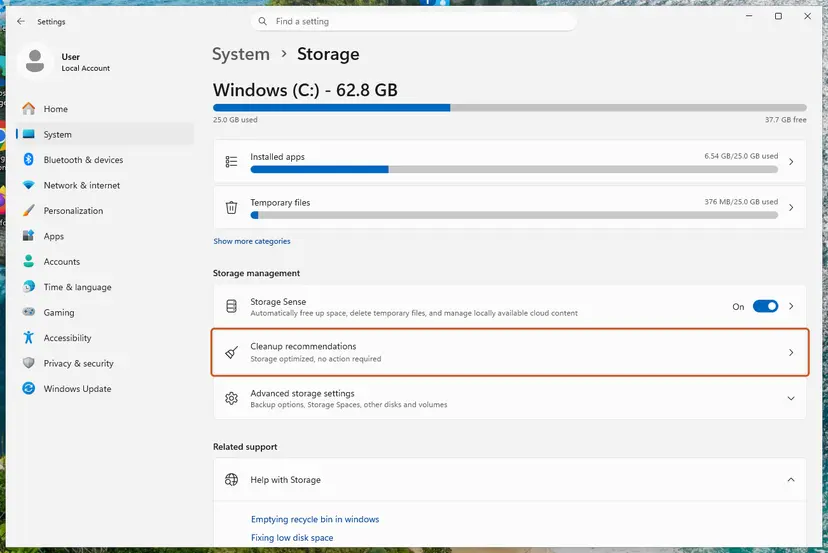
We could not find a Microsoft figure for how much free space is enough. A page file of three times your RAM needs that much room, so on a 16 GB PC aim for several tens of GB free on C:.
It worked if: Drive C: has room again, the commit limit rises when programs need more, and the crashes stop.
If not: If C: is a small drive that cannot get more space, put a page file on a second drive in the Virtual Memory window, or use Fix 4.
Fix 4. Set a fixed page file size of 1.5 times your RAM
5 minutes and a restartLow riskThe page file is automatic, disk space is fine, but crashes still come at random moments.
Microsoft's article KB 4055223 says programs that allocate memory often can get random out of memory errors while an automatic page file is still growing. Its workaround is a fixed size, with the initial size set to 1.5 times the RAM.
- Open the Virtual Memory window as in Fix 2, steps 1 to 3.
- Clear Automatically manage paging file size for all drives.
- Select drive C:, then Custom size.
- Type the Initial size (MB) from the table below and a Maximum size (MB) that is at least as large.
- Select Set, then OK in each window, and restart the PC.
| Installed RAM | Initial size (1.5 x RAM) | Maximum size we suggest (3 x RAM) |
|---|---|---|
| 8 GB | 12288 MB | 24576 MB |
| 16 GB | 24576 MB | 49152 MB |
| 32 GB | 49152 MB | 98304 MB |
A fixed page file takes its initial size on drive C: at once. If that space is not free, use a smaller initial size or a second drive. Microsoft says to raise the initial size further if out of memory errors continue.
It worked if: The Virtual Memory window shows your custom size on C:, Task Manager shows a commit limit of about RAM plus that size, and the crashes stop.
If not: If one program still fills even this limit, it is using far too much memory: go to Fix 5.
Fix 5. Find the tab or extension that eats memory in Chrome or Edge
5 minutesNo riskOnly Chrome, Edge or another browser crashes, with many tabs or one heavy site open.
A single page or extension can take several GB of committed memory. Chrome and Edge have their own task managers and settings that put unused tabs to sleep, which lowers the commit charge before Windows has to refuse a request.
- In Chrome, select More (three dots) > More tools > Task Manager.
- Select the Memory column to sort and look for one tab, extension or "Background page" with a very large value.
- Select it and End process if you do not need it now. Unsaved work in that tab is lost.
- Open More > Settings > Performance and turn Memory Saver on, with the level Balanced (recommended) or Maximum.
- Open More > Extensions > Manage Extensions and turn off extensions you do not use.
- In Edge, open Settings and more > Settings > System and performance > Performance and turn Automatically put tabs to sleep on.
Google's own help for a slow Chrome lists the same order: update Chrome, close unused tabs, then stop or remove what uses the most. A site that crashes every time while others work is a problem of that site, and Google suggests reporting it to the site owner.
It worked if: Chrome's Task Manager shows no single entry with several GB, inactive tabs show as asleep, and the browser stops closing with 0xe0000008.
If not: If the browser itself is small in memory and still crashes, check its version and bitness in Fix 6.
Fix 6. Update the program and make sure it is the 64-bit version
10 minutesLow riskOnly one program crashes while Task Manager shows plenty of room under Committed.
Microsoft's memory limits page says a 32-bit process on 64-bit Windows gets 2 GB of address space, or 4 GB when it is marked large address aware. A 32-bit copy can run out of its own space while the PC has plenty.
- In Chrome, open
chrome://settings/help. In Edge, openedge://settings/help. The page updates the browser and shows the version. - Read the text after the version number. (64-bit) is what you want on a 64-bit Windows.
- If it says 32-bit, sign in to sync first so your bookmarks and passwords are saved to your account.
- Uninstall the browser, and leave any option to delete browsing data cleared. Step by step: Uninstall a program or app in Windows.
- Download the browser again from its official site, install it and check the About page again.
- For Steam, select Steam > Check for Steam Client Updates and restart Steam.
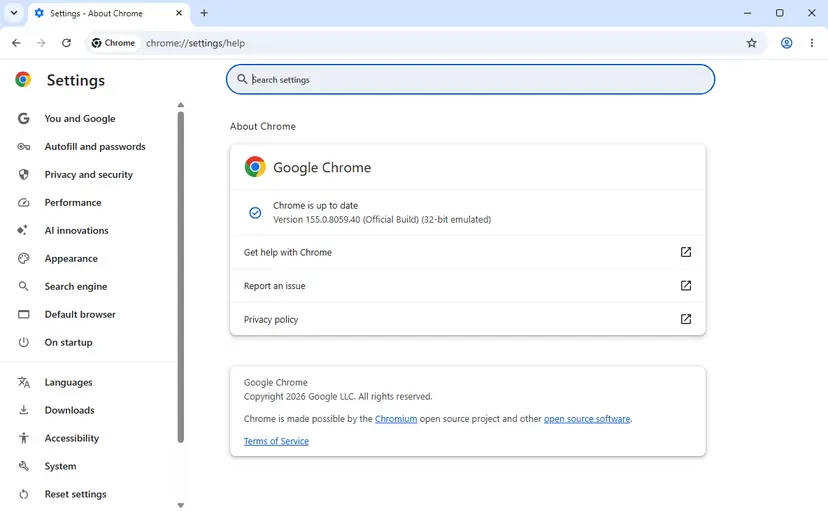
msedgewebview2.exe belongs to Microsoft Edge WebView2 Runtime, not to the app you see. Close and reopen the app that crashed, and keep Windows and Edge updated so the runtime stays current.
It worked if: The About page shows the newest version with (64-bit), and the program stays open under the same load that crashed it before.
If not: If the program is already 64-bit and current, and other programs crash too, test the memory in Fix 7.
Fix 7. Test the RAM with Windows Memory Diagnostic
20 minutes and a restartNo riskSeveral different programs crash, the PC freezes or shows blue screens, and the commit limit is fine.
A memory request can fail or data can be damaged when a RAM module is faulty. Microsoft's community answers to this error point to a memory test, and it is the one check that rules hardware in or out.
- Save your work and close all programs.
- Press Win + R, type
mdsched.exeand select OK. - Select Restart now and check for problems (recommended) and let the test run to the end.
- After Windows starts, read the result notification, or find MemoryDiagnostics-Results in Event Viewer > Windows Logs > System. Step by step: How to test your RAM with Windows Memory Diagnostic.
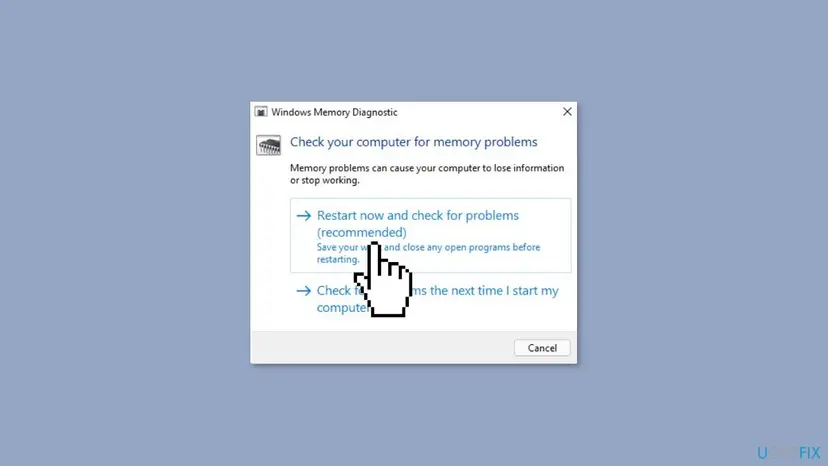
It worked if: The result says no memory errors were found, which rules out hardware, or it reports errors, which explains the crashes.
If not: If errors are reported, test each RAM module alone or have the PC checked: no software setting fixes faulty memory.
If 0xE0000008 still appears: read the crash record
Windows writes every crash of this kind to the Application log. Microsoft's crash troubleshooting guide names it: source Application Error, Event ID 1000, level Error. The entry holds the faulting program, its version and the exception code.
- Press Win + R, type
eventvwrand select OK. - Open Windows Logs > Application.
- Select Filter Current Log on the right, type
1000in the event ID box and select OK. - Open the entries at the time of the crash and look for Exception code: 0xe0000008.
- Note Faulting application name, its version, and Faulting module name, which is often
KERNELBASE.dll.
- KERNELBASE.dll as the faulting module is normal for this code. It is the Windows file that raises the exception for the program, not a broken system file.
- The same program every time: send the event text, the program version and your RAM and page file sizes to that program's support: Google Chrome help, Microsoft Edge feedback, or Steam Support.
- Different programs and other exception codes too, such as 0xc0000005, together with freezes: treat it as hardware and return to Fix 7.
- A work or school PC: the page file may be set by policy. Ask your IT department instead of changing it.
How to keep 0xe0000008 from coming back
- Leave the page file on Automatically manage, or at a fixed size of at least 1.5 times the RAM.
- Keep several tens of GB free on drive C:.
- Keep Memory Saver on in Chrome or sleeping tabs on in Edge if you keep many tabs open.
- Restart a program that has been running for days, such as a kiosk app or a browser with dozens of tabs.
- Do not follow tweak guides that turn the page file off to "save the SSD".
- Do not let a cleaner or optimizer change virtual memory settings.
- Do not set the maximum page file size equal to a small initial size of a few hundred MB.
- Do not install a 32-bit browser on a 64-bit Windows.
If the PC regularly runs out of commit room with the page file on, it needs more RAM for what you do with it. A bigger page file then keeps programs alive, but everything slows down when Windows has to use it a lot.
Frequently asked questions
What is 0xe0000008?
It is the exception code that Chromium, the engine inside Chrome, Edge, Brave, Electron apps and many program helpers, raises when it cannot get memory from Windows. Chromium's source code names it kOomExceptionCode, where OOM means out of memory. Windows does not know the code, so it shows it as an "unknown software exception" and closes the program. Raising the commit limit (Fixes 2 to 4) or lowering the program's memory use (Fix 5) stops it.
What does "occurred in the application at location 0x00007FF" and the rest of the address mean?
The location is the memory address of the code that raised the exception at the moment of the crash. For 0xe0000008 it is usually inside KERNELBASE.dll, the Windows file that raises exceptions on behalf of programs. The address changes with every start because Windows loads files at random addresses for security. It does not point to a broken file and you do not need to look it up. The program name in the title bar and the code itself are what matter.
Is 0x0000008 or 0x00000008 the same error?
Not quite, but they are related. 0x00000008 is the Windows system error ERROR_NOT_ENOUGH_MEMORY. Chromium's developers chose the number 8 for their own code because of it, then set the first digit to E, as Microsoft requires for codes a program defines itself. So 0xE0000008 means the same thing in a program's crash, while 0x00000008 alone appears in Windows messages and logs. If you saw a blue screen with a stop code instead, that is a different problem.
Why does it happen when Task Manager shows free RAM?
Because the limit that matters is the commit limit, not free RAM. Programs reserve memory before they use it, and the reservations count against RAM plus page file. With the page file off, the limit is about the size of your RAM, and reservations can fill it while part of the RAM is still unused. Microsoft's page file article explains that processes may then not get committed memory and can crash. Fix 1 shows both numbers.
Why does Steam show 0xe0000008 when it starts?
The window usually names steamwebhelper.exe, the part of Steam that draws the store, library and friends list. It shows web content and raises the same out of memory code when Windows refuses it memory, often during start when it loads everything at once. Check Committed in Task Manager (Fix 1) and the page file (Fix 2). Valve's own advice for a steamwebhelper problem also lists restarting Steam and restarting it with GPU acceleration turned off in Steam > Settings > Interface.
What is the msedgewebview2.exe application error 0xe0000008?
msedgewebview2.exe is Microsoft Edge WebView2 Runtime, which many Windows apps use to show web pages inside their own window. When it raises 0xe0000008, the web part of that app ran out of memory, and the app around it may close too. Developers on Stack Overflow describe it after many hours of running, which fits a slow build-up. Restart the app, check the commit limit in Fix 1 and Fix 2, and keep Edge updated.
Is "Aw, Snap! Error code: Out of Memory" in Chrome the same problem?
It comes from the same cause. When a Chrome tab process ends with exit code 0xE0000008, Chromium's code files it as an out of memory termination, and Chrome shows the "Aw, Snap!" page in that tab instead of a Windows dialog. The dialog with 0xe0000008 appears when the browser or another Chromium program crashes as a whole. Both are fixed the same way: raise the commit limit, then lower what the browser holds with Memory Saver and fewer tabs.
Will adding more RAM fix 0xe0000008?
More RAM raises the commit limit, so it helps if you really use more memory than the PC has. But most PCs with this error have enough RAM and a page file that is off, too small or unable to grow. Check that first, because it is free and takes minutes (Fixes 2 to 4). Buy RAM only if Committed stays near its limit with the page file on and you cannot close what is using it.
Is it safe to turn the page file off on an SSD?
It is not a good idea on a home PC. Without a page file, the commit limit is slightly less than your RAM, and programs like Chrome crash with 0xe0000008 as soon as reservations fill it. Microsoft also needs a page file, or a dedicated dump file, to save a crash dump after a blue screen. Windows manages the page file on SSDs by default. Leave it on Automatically manage (Fix 2).
Is 0xe0000008 a virus?
No. It is a code Chromium raises on purpose when memory runs out, and it appears in genuine Chrome, Edge and Steam files. A program that uses far too much memory could still be unwanted software, so if Task Manager shows an unknown process with a large Committed or Memory value, check its file location and run a scan with Microsoft Defender. Fixing the page file does not hide malware: it only gives real programs the room they need.
Sources
- Microsoft Learn: Introduction to page files (learn.microsoft.com)
- Microsoft Learn: How to determine the appropriate page file size for 64-bit versions of Windows (learn.microsoft.com)
- Microsoft Learn: Memory allocation errors can be caused by slow page file growth (KB 4055223) (learn.microsoft.com)
Did this fix work?
One click, no account. It tells the next reader which guides are worth their time.
Questions and experiences: fix "The exception unknown software exception (0xe0000008)" error in Windows
Still broken, or found a fix we did not cover? Ask here: members and our editors answer. Reading is open; writing needs a free account.
…