
How to fix "These files might be harmful to your computer" Windows Security alert?

Prefer to fix it yourself? The manual steps follow.
- 5methods
- 2 to 15 minutes
- Easy
Applies to Windows 11, Windows 10; File Explorer, network shares, NAS devices and the security zones in Internet Options
5 methods in this guide
Hello. I was trying to transfer some files from my USB to my Windows laptop, but I keep getting the "These files might be harmful to your computer" Windows Security alert. How do I disable it?
Windows Security shows "These files might be harmful to your computer" when you copy or move files from a place it counts as the Internet zone, most often a NAS or server opened by its IP address. The files are not judged as malware. Open the share by the name of the server instead, or add that one server to the Local intranet zone.
The warning comes from the security zone of the location, not from a virus scan. If the files are on a NAS or server opened as \\192.168.x.x, map the share again by the server's name, for example \\nas01\share (Fix 1). If that is not possible, add the server's name to Internet Options > Security > Local intranet > Sites > Advanced (Fix 2). Do not lower User Account Control for it.
| Error | Windows Security: "These files might be harmful to your computer. Your Internet security settings suggest that one or more files may be harmful." |
|---|---|
| Where it appears | In File Explorer, the moment you copy, move or drag files from or to a network share, NAS, mapped drive and, less often, an external drive. You can confirm and the copy goes on. |
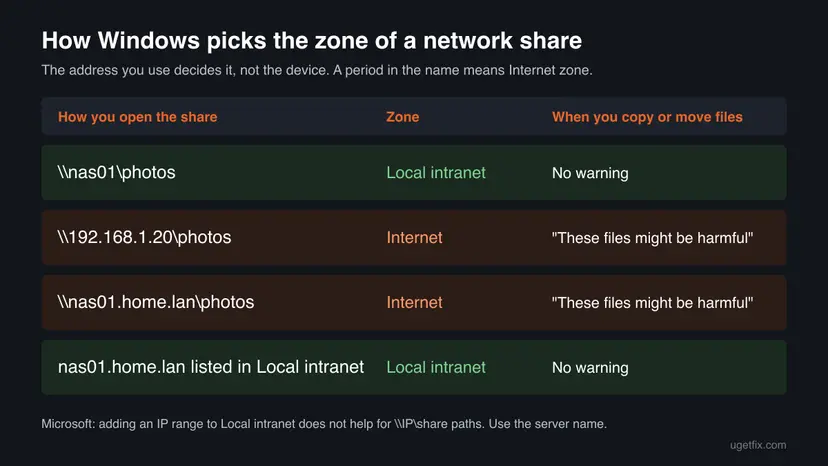
| Main cause | The share is opened by an IP address or a full domain name. Microsoft documents that an address with periods in it is placed in the Internet zone instead of Local intranet. |
| Fastest fix | Map the drive again by the server's short name, for example \\nas01\share instead of \\192.168.1.20\share (Fix 1). |
| Also written as | "These files may be harmful to your computer", "Opening these files might be harmful to your computer", "File might be harmful". |
| Affects | Windows 11 and Windows 10, every edition. Seen with NAS systems such as TrueNAS and unRAID, file servers and home routers that share a disk. |
| Microsoft's status | By design. Microsoft's article on the zone of intranet addresses (KB 303650) states "This behavior is by design". No update changes it. |
| Is it a virus warning | No. Microsoft Defender is not involved. The dialog only reflects the zone of the location, so a clean photo gets it just like a harmful program. |
| Time to fix | About 2 minutes to remap one drive. Up to 15 minutes when you test a second account or repair system files. |
Facts checked on 15 October 2026. Steps written for Windows 11 (25H2 and 26H2) and Windows 10 22H2.
What "These files might be harmful to your computer" means
The dialog is titled Windows Security. Its first line reads "These files might be harmful to your computer" and the line under it says "Your Internet security settings suggest that one or more files may be harmful." It appears during a copy or move in File Explorer. You can confirm, and the files are copied anyway.
Despite the wording, nothing has scanned your files. Windows sorts every location into a security zone, the same zones you see on the Security tab of Internet Options: Local intranet, Trusted sites, Internet and Restricted sites. Files from a location in the Internet zone get this prompt. Files on your own disk and on shares in the Local intranet zone do not.
- Other spellings people search for: "These files may be harmful to your computer", "Opening these files might be harmful to your computer", "Windows Security these files might be harmful".
- A related prompt: when you start a program from the same share, Windows can show "We can't verify who created this file" with the line "This file is in a location outside your local network". It has the same cause and the same fixes.
- Not the same message: "These files can't be opened. Your Internet security settings prevented one or more files from being opened" is a block, not a prompt. It has its own guide.
Why Windows shows the warning: the causes, from most to least common
Most often the files sit on a NAS or file server that you opened or mapped by its IP address. Less often the address is a full domain name such as nas01.home.lan. Rarely the warning shows up for an external drive or between local folders, and then the cause lies in File Explorer or your user profile.
| Cause | How often | How to tell | Fix |
|---|---|---|---|
The share or mapped drive uses an IP address, for example \\192.168.1.20\photos. | Most often | The File Explorer address bar or net use shows numbers with periods. | Fix 1 |
The share uses a full domain name with periods, for example \\nas01.home.lan\photos. | Often | The address shows a name with dots. Opening the share by the short name does not work on your network. | Fix 2 |
| File Explorer is in a bad state after long use or an update. | Sometimes | The warning appears for an external SSD or USB drive, and only when you drag files with the mouse. | Fix 3 |
| Your user profile holds changed zone settings. | Rarely | Every copy shows the warning, and a new user account does not. | Fix 4 |
| Damaged Windows system files. | Rarely | The warning stays in every account and on every drive. | Fix 5 |
Microsoft's KB 303650 says that if a domain name or IP address "contains a period", Windows identifies the site or share "as in the Internet zone". It lists \\157.54.100.101\share and \\Computer.childdomain.domain.com\Share as examples, and gives the status as by design.
The reader's question above mentions a USB drive. A stick plugged into the laptop is a local drive, so the warning there is the rare case of Fix 3. If the "USB" is a disk attached to a router or NAS and reached over the network, it is the common case of Fix 1.
Before you silence it: are the files safe to copy?
For your own NAS full of your own photos and documents, the warning is noise and the fixes below are safe. For files you did not put there yourself, such as a shared folder at work or a disk someone handed you, scan them before you open them.
- Trust a server or NAS that you own and that only your household or team can write to.
- Scan unknown files: right-click the folder, select Show more options and then Scan with Microsoft Defender.
- Check file name endings. A photo should not end in
.exe,.scr,.jsor.bat.
- Do not lower User Account Control to Never notify to stop this dialog. UAC does not show it.
- Do not add a public website or a whole internet domain to Local intranet.
- Leave Microsoft Defender running. It does not show this warning either.
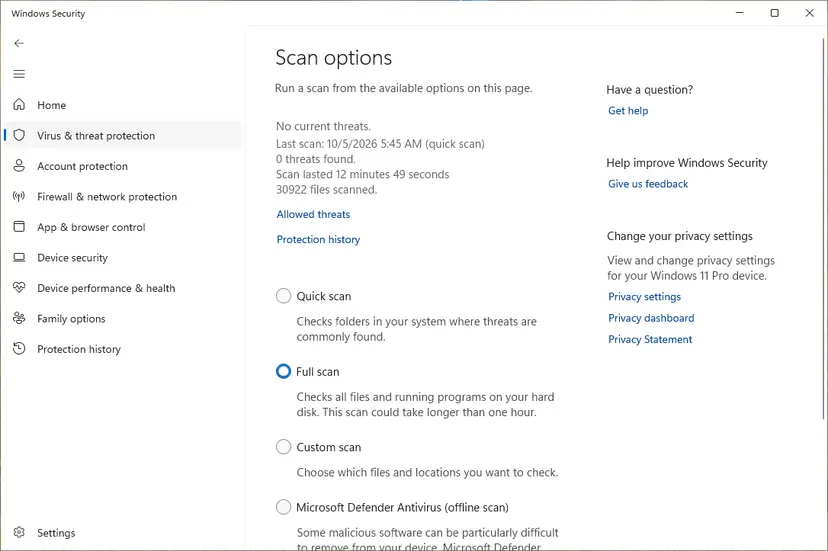
The scan is described step by step here: How to scan for malware with Microsoft Defender
How to fix "These files might be harmful to your computer"
Fixes 1 and 2 are for files on a NAS or file server and solve most cases without lowering any protection. Fix 3 is for an external or USB drive. Fixes 4 and 5 are for the rare case where every copy shows the warning.
| What you see or have | Start with |
|---|---|
The files are on a NAS or server, and the address shows an IP address such as \\192.168.1.20. | Fix 1 |
| The address is a full name with periods, or the short name does not open the share. | Fix 2 |
| The files are on an external SSD or USB stick, and the warning shows only when you drag them. | Fix 3 |
| The warning appears for every copy, even between your own folders. | Fix 4, then Fix 5 |
| Work or school PC, and the Security tab of Internet Options is greyed out. | Ask the administrator (see the last section) |
Fix 1. Map the network drive by the server's name instead of its IP address
3 minutesLow riskThe files are on a NAS or file server, and the drive or shortcut uses an IP address.
Microsoft states that a share reached by an address with periods lands in the Internet zone, while a share reached by its short name is Local intranet. Changing the address moves the same files to a zone where copying is not questioned.
- Close every File Explorer window and program that uses the network drive.
- Right-click Start, select Terminal (on Windows 10 Windows PowerShell) and run
net use. Note the drive letter and the address of each mapped drive. - If an address starts with numbers, such as
\\192.168.1.20\photos, find the name of that device withping -a 192.168.1.20. The name is on the first line of the answer. - Check that the share opens by name: type
\\nas01\photoswith your own name and share into the File Explorer address bar. - Remove the old mapping with
net use Z: /delete, with your own drive letter. - Map it again by name with
net use Z: "\\nas01\photos" /persistent:yes. - Copy or move a few files to or from the drive again.
List the mapped drives, find the device name, map the drive again by name
net use
ping -a 192.168.1.20
net use Z: /delete
net use Z: "\\nas01\photos" /persistent:yes- Without commands: in File Explorer right-click the drive, select Disconnect, then right-click This PC, select Map network drive and type the address with the name of the server.
ping -areturns no name: give the NAS a name in its own settings or in your router, or use Fix 2.- Shortcuts and favourites: a Quick access pin or a desktop shortcut keeps the old IP address. Pin the folder again from the new drive.
A user on Microsoft Q&A reported in August 2026 that remapping a NAS from its IP address to its host name removed the warning when moving files on that NAS. A Microsoft moderator called it a helpful tip in the same thread.
It worked if: File Explorer shows the drive with the server name, for example photos (\\nas01) (Z:), and copying or moving files gives no Windows Security dialog.
If not: If the short name does not open the share, or the address must stay a full domain name, use Fix 2.
Fix 2. Add the trusted server to the Local intranet zone in Internet Options
5 minutesLow riskThe share must be opened by a full domain name, or Fix 1 did not remove the warning.
Microsoft's workaround for an intranet share that Windows files under Internet is to list it in the Local intranet zone. Files in that zone are copied without this prompt, and the rest of the internet keeps its stricter zone.
- Select Start, type Internet Options and open it. On Windows 11 it is also under Settings > Network & internet > Advanced network settings > Internet Options.
- Open the Security tab, select Local intranet and then Sites.
- Tick Include all local (intranet) sites not listed in other zones and Include all network paths (UNCs), then select Advanced.
- Clear Require server verification (https:) for all sites in this zone.
- In Add this website to the zone, type the name of your server, for example
nas01.home.lan, or*.home.lanfor every device in your own home domain. - Select Add, then Close, Apply and OK.
- Restart the PC and copy the files again.
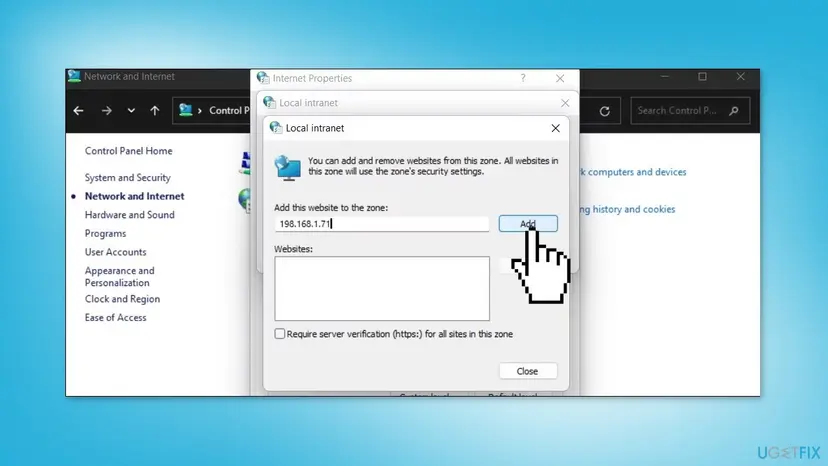
Microsoft states that adding an IP address or address range "does not work for UNC or file:// addresses that use an IP address", such as \\157.54.100.101\share. Such a share stays in the Internet zone. Some guides still tell you to add 192.168.1.*; we could not confirm that it works, so prefer the name of the server.
- What this allows: files and programs from that server are treated like files on your own network. Add only servers you control.
- Undo: open the same Sites > Advanced list, select the entry and choose Remove.
- Several PCs: Microsoft notes that the list is stored per user, under
HKEY_CURRENT_USER. Every user on every PC adds the server once.
It worked if: The address stays the same, but moving or copying files on that share no longer opens the Windows Security dialog.
If not: If the share is opened by IP address and has no name, give it one and use Fix 1. If the warning shows on local drives, go to Fix 3.
Fix 3. Restart File Explorer and copy with Ctrl + C and Ctrl + V
2 minutesNo riskThe files are on an external SSD, a USB stick or a second internal drive, and the warning appears when you drag files with the mouse.
A local drive is not in the Internet zone, so a warning there points to File Explorer itself. A Microsoft moderator suggested restarting the Explorer process first for exactly this case, because it reloads the drag and drop handler.
- Open Task Manager. Press Ctrl + Shift + Esc. The Processes page opens.
- Select Windows Explorer. Find Windows Explorer in the list and select it. If it is not under Apps, look under Windows processes further down.
- Restart it. Select Restart task at the top of the window. The taskbar disappears for a moment and comes back. If you do not see Restart task, right-click Windows Explorer and select Restart.
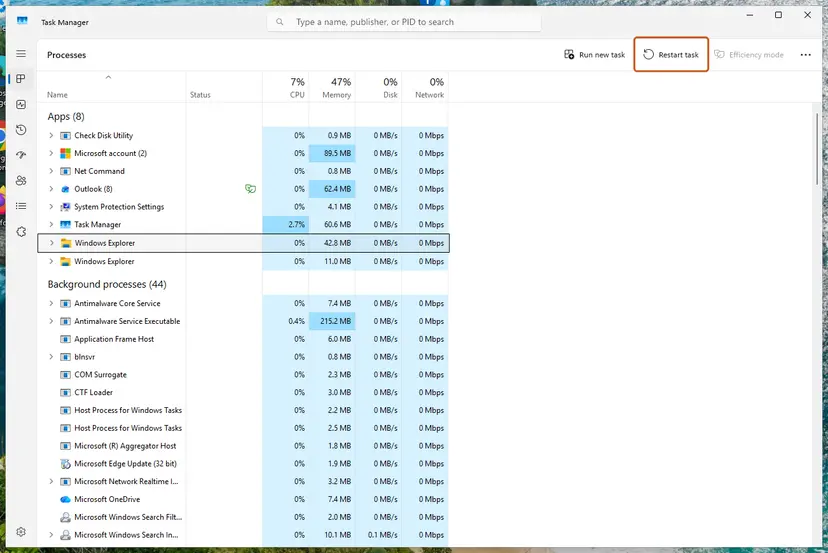
Select Windows Explorer, then Restart task. Screenshot: Windows 11 26H2.
These steps were written for Windows 11 26H2 (build 26300). The full page with the other versions and what each result means: Restart File Explorer
- Open the external drive again and drag a few files to test.
- If the warning stays, select the files, press Ctrl + C, open the target folder and press Ctrl + V.
- Still there: press Win + X, select Disk Management, right-click the drive, choose Change Drive Letter and Paths and give it a different free letter.
A user on Microsoft Q&A reported in July 2026 that the warning hit every dragged file on an exFAT external SSD, while copy and paste with the keyboard moved the same files with no warning. Unblocking the files and changing zone settings did not help there. We could not confirm the cause from a Microsoft page.
The Unblock box in a file's Properties removes the mark a browser adds to downloads. That mark is stored only on NTFS drives, so files on an exFAT or FAT32 stick never carry it, and unblocking changes nothing for this warning.
It worked if: Dragging files to or from the external drive no longer opens the Windows Security dialog, or at least copy and paste works without it.
If not: If every copy on the PC shows the warning, test another user account with Fix 4.
Fix 4. Test with a new local user account
10 minutesNo riskThe warning appears for every copy, also between your own folders, and Fixes 1 to 3 did not help.
Microsoft stores the zone settings under HKEY_CURRENT_USER, which is loaded per user, so one user's settings do not affect another's. A new account starts with the default zones and shows whether the fault is in your profile.
- Open Other users. Open Settings > Accounts > Other users. You can also press Windows key + R and run the command below.
ms-settings:otherusers - Add an account. Next to Add other user, select Add account.
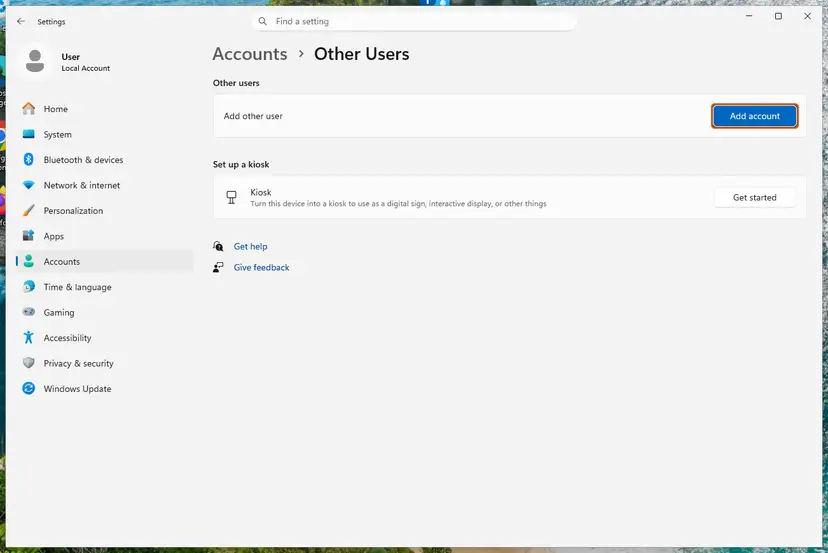
Add account is next to Add other user. Screenshot: Windows 11 26H2. - Skip the Microsoft account. Select I don't have this person's sign-in information.
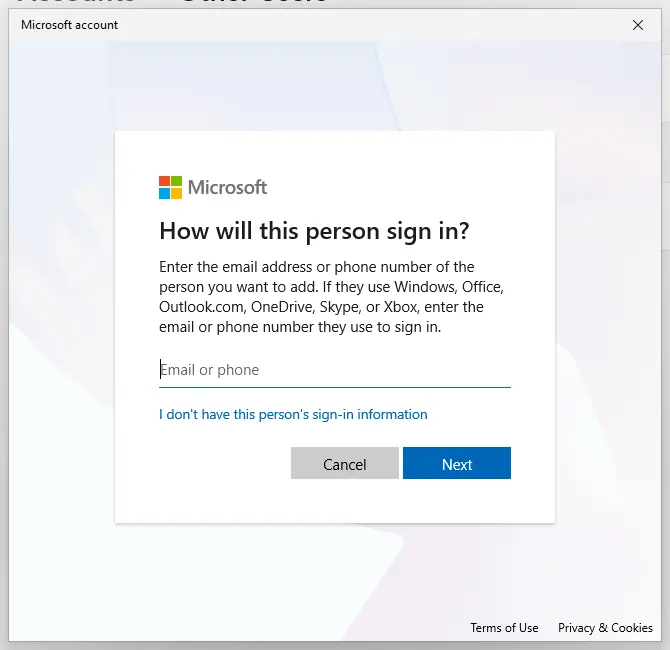
The link for a local account is under the email box. Screenshot: Windows 11 26H2. - Choose a local account. Select Add a user without a Microsoft account.
- Name the account. Type a user name and, if you want one, a password. If you set a password, Windows also asks for answers to security questions. Select Next.
- Make it an administrator (optional). Back in Other users, select the new account, then Change account type next to Account options. Choose Administrator and select OK. For testing a problem, a standard account is usually enough.
- Sign in to the new account. Open Start, select your account picture and choose the new account. The first sign-in takes a few minutes while Windows sets up the profile.
These steps were written for Windows 11 24H2, 25H2 and 26H2. The full page with the other versions and what each result means: Create a new user account to test a problem
- No warning in the new account: your own profile holds changed zone settings. In your account open Internet Options > Security and select Reset all zones to default level, then repeat Fix 2 for your server.
- Warning in the new account too: the setting applies to the whole PC. Continue with Fix 5. On a work PC a policy may set it, see the next section.
It worked if: You know whether the problem follows your profile or the whole PC, and in the first case the reset clears it.
If not: If the new account also shows the warning everywhere, repair the system files with Fix 5.
Fix 5. Repair Windows system files with DISM and SFC
15 minutesLow riskThe warning shows in every account and on every drive, and the fixes above changed nothing.
Microsoft's moderator listed a system file check for this warning, because damaged Windows components can change how File Explorer handles copies. It is the last generic step, not the usual cause.
- Open an elevated command window. Right-click Start and select Terminal (Admin), or type cmd in the search box, right-click Command Prompt and select Run as administrator. Select Yes when Windows asks for permission.

Search for cmd and choose Run as administrator. Screenshot: Windows 11 26H2. - Run DISM first. Type the command below and press Enter. DISM downloads clean copies of damaged components from Windows Update, so it can take several minutes. Wait until it says The operation completed successfully.
DISM.exe /Online /Cleanup-Image /RestoreHealth
DISM /RestoreHealth running. Screenshot: Windows 11 26H2. - Run System File Checker. In the same window, type the command below and press Enter. Do not close the window until the verification reaches 100%.
sfc /scannow
sfc /scannow at 100%. Screenshot: Windows 11 26H2. - Read the result and restart. Compare the last message with the table below this guide, then restart the PC so that repaired files are loaded.

The result line tells you what SFC did. Screenshot: Windows 11 26H2.
These steps were written for Windows 11 24H2 and 25H2. The full page with the other versions and what each result means: Run DISM and SFC to repair Windows system files
Run DISM first and SFC second, then restart the PC and copy a few files again.
It worked if: SFC reports that it found no integrity violations or that it repaired the damaged files, and copying no longer shows the dialog.
If not: Read the section below on what to collect before you ask for help.
If the warning still appears
Windows keeps no log of this prompt that we could find, and Microsoft names no Event Viewer entry for it. The cause is still easy to read, because it depends on the address and on the zone list. Collect these before you ask for help on a forum or at work.
- The full address of the location, as the File Explorer address bar shows it when you click into it.
- The output of
net usefor mapped drives. - The list under Internet Options > Security > Local intranet > Sites > Advanced.
- Whether a second user account shows the same warning (Fix 4).
- The file system of an external drive: right-click it in File Explorer and select Properties.
- Work or school PC: the zone list is often set by Group Policy, and the buttons are then greyed out. Send the address of the server to the administrator, who can add it to the site to zone list for everyone.
- Windows Server or a PC with Enhanced Security Configuration: Microsoft notes that this component places even short names in the Internet zone unless they are listed in Local intranet. Use Fix 2 there.
- Never hardware: a failing disk or NAS does not cause this dialog. It is a setting, and it can always be changed.
Common advice for this warning that you can skip
Many pages, including an earlier version of this guide, offer fixes that do not touch the cause. They either do nothing for this dialog or lower the protection of the whole PC. Here is why each one is not in the list above.
| Advice | Why we left it out |
|---|---|
| Move the UAC slider to Never notify | User Account Control does not show this dialog. Turning it off leaves every program free to change the system. |
| Uninstall Internet Explorer | The zones are part of Windows, not of the browser, and remain after Internet Explorer is gone. We found no source that ties the warning to the browser. |
| Set Launching applications and unsafe files to Enable for every zone | It removes the warning for every download from the internet too. Listing one server in Local intranet does the job. |
| Reset Windows | The cause is the address or a per user setting. A reset is far too much, and it does not change how a share is addressed. |
How to keep the warning from coming back
- Give your NAS a fixed name and map every drive by that name, not by its IP address.
- When you set up a new PC, add your own server to Local intranet once.
- Scan files you did not put on the share yourself before you open them.
- Do not add public websites or whole internet domains to Local intranet or Trusted sites.
- Do not copy registry files for this warning from forums. Many of them change zone values for every location.
- Leave User Account Control, Microsoft Defender and SmartScreen as they are. None of them shows this prompt.
Windows 10 left support on 14 October 2025. The zones work there the same way as on Windows 11, but the system gets no more security fixes, so keep the warning for every location you do not control.
Frequently asked questions
What does "These files might be harmful to your computer" mean?
It means the files come from a location that Windows places in the Internet security zone, so it asks before copying them. Nothing has scanned the files. Most often the location is a NAS or server opened by its IP address, which Microsoft says is treated as Internet because the address contains periods. Opening the same share by the short name of the server, or listing the server in Local intranet, puts it in a trusted zone and the dialog stops.
Is it safe to click OK and copy the files anyway?
Yes, when the files are on a device you own and you put them there yourself, such as your NAS with your own photos. The dialog says nothing about the content of the files, only about the zone of the location. For files from someone else, a shared work folder or a disk you were given, scan them with Microsoft Defender first and check that the file types are what you expect.
How do I turn off the "These files might be harmful" warning for good?
Remove the reason for it rather than the warning itself. Map the share by the server's name instead of its IP address (Fix 1), or add that server to the Local intranet zone in Internet Options (Fix 2). Both keep the warning for real internet locations. Turning off User Account Control or setting every zone to Enable also silences it, but leaves the whole PC open, so this guide does not recommend either.
Why do I get the warning when moving files within the same NAS drive?
Because the move still runs through the share address, and that address is in the Internet zone. Moving a file from one folder to another on a NAS opened as \\192.168.1.20 counts as a copy from the Internet zone to the Internet zone. A user on Microsoft Q&A reported exactly this in 2026 and removed the warning by mapping the NAS again by its host name. That is Fix 1.
Why does it appear for an external hard drive or USB stick?
A drive plugged into your PC is local, so it should not trigger the zone check, and the cause is usually File Explorer itself. Restart File Explorer in Task Manager, then try copy and paste with Ctrl + C and Ctrl + V instead of dragging (Fix 3). If the disk is attached to a router or NAS and opened over the network, it is a network share, and Fix 1 applies.
Is "Opening these files might be harmful to your computer" the same warning?
Yes, it is the same Windows Security prompt worded for opening rather than copying. It appears when you open a file directly from a share in the Internet zone, for example a document on a NAS reached by its IP address. The fixes are the same: map the share by name or list the server in Local intranet. If a program on the share shows "We can't verify who created this file", the cause is the same too.
I searched for "this file may be harmful" or "file might be harmful". Is this the right page?
It is if the message came from Windows Security while copying or opening files in File Explorer. Browsers show their own download warnings with similar wording, such as Chrome's "File might be harmful", and Android phones have their own too. Those come from the browser or the phone, not from Windows zones, and the fixes on this page do not change them. For a browser warning, check where the download came from before you keep it.
What is "While files from the Internet can be useful, this file type can potentially harm your computer"?
That is the Open File Security Warning, a different Windows prompt shown when you run a downloaded program or one from an Internet zone location. It offers Run and Cancel. The zone logic is the same: a downloaded file carries a mark from the browser, and a share by IP address is Internet. For files on your own NAS, Fix 1 and Fix 2 here remove both prompts. For downloads, the mark is on the file and is removed in its Properties.
What about "Windows Security: these files can't be opened"?
That is a stronger message. "These files can't be opened. Your Internet security settings prevented one or more files from being opened" blocks the file with no way to go on, while "These files might be harmful" only asks. The block means the zone is set to Disable or the file comes from Restricted sites. It has its own causes and fixes, explained in our guide on the Internet security settings error linked in the first section above.
Sources
- Microsoft Learn: Intranet site is identified as an Internet site when you use an FQDN or an IP address (KB 303650) (learn.microsoft.com)
- Microsoft Q&A: These files might be harmful (user reports and a Microsoft moderator's answer, July to September 2026) (learn.microsoft.com)
- Pureinfotech: How to fix security warning accessing network files on Windows 10, 11 (pureinfotech.com)
Did this fix work?
One click, no account. It tells the next reader which guides are worth their time.
Questions and experiences: fix "These files might be harmful to your computer" Windows Security alert
Still broken, or found a fix we did not cover? Ask here: members and our editors answer. Reading is open; writing needs a free account.
…