
How to fix "This Wi-Fi network uses an older security standard" in Windows

Prefer to fix it yourself? The manual steps follow.
- 7methods
- 5 to 20 minutes
- Easy
Applies to Windows 11, Windows 10 (version 1903 and later); home routers, ISP routers, mesh systems and access points
7 methods in this guide
- What the message means
- Why it appears
- Check the security type
- The fixes
- 1. Switch router to WPA2 or WPA3
- 2. Remove TKIP and mixed mode
- 3. Forget and rejoin the network
- 4. Use another network
- 5. Update or replace the router
- 6. Update the Wi-Fi driver
- 7. Reset network settings
- Still broken: what to check
- Keep it from coming back
- FAQ
Hello. When I try to connect to my Wi-Fi on my Windows PC, I receive the "This WiFi uses an older security standard" error message. What should I do?
Windows shows "This Wi-Fi network uses an older security standard" when the network is protected with WEP or TKIP, two old methods with known weaknesses. Your PC is fine: the router setting is the problem. Set the router's Wi-Fi security to WPA2-Personal with AES, or WPA3, then forget the network and connect again.
The warning means the Wi-Fi uses WEP or TKIP encryption, which Microsoft is phasing out. You can still connect for now, but the fix is on the router. Open the router's admin page, set the security to WPA2-Personal with AES only, or WPA3-Personal, and save (Fix 1). If it already says WPA2, remove TKIP and the WPA/WPA2 mixed mode (Fix 2). Then forget the network on the PC (Fix 3).
| Error | "This Wi-Fi network uses an older security standard that's being phased out. We recommend connecting to a different network." |
|---|---|
| Where it appears | In Windows when you connect to a Wi-Fi network, and on that network's details in Settings > Network & internet > Wi-Fi. Microsoft calls it "Wi-Fi network not secure". |
| Main cause | The router protects the Wi-Fi with WEP or TKIP. On many routers TKIP stays on through a WPA/WPA2 mixed mode or a TKIP+AES cipher setting. |
| Fastest fix | Set the router to WPA2-Personal (AES) or WPA3-Personal (Fix 1), then forget and rejoin the network (Fix 3). |
| Also written as | "This WiFi uses an older security standard", "this network uses an older security standard", and a version ending in "that might not protect you". |
| Affects | Windows 10 from version 1903 and every Windows 11 version. Windows 10 support ended on 14 October 2025. |
| Vendor status | By design. Microsoft lists WEP and TKIP as deprecated since 1903 and says a future release will block such connections. |
| Can I still connect? | Yes, for now. Microsoft writes that older standards "are still allowed" but "will be phased out in the future". |
| Time to fix | 5 to 10 minutes on your own router. Longer when you need a firmware update or a new router. |
Facts checked on 15 October 2026. Steps written for Windows 11 (25H2 and 26H2) and Windows 10 22H2, read against Microsoft Support and Microsoft Learn.
What "This Wi-Fi network uses an older security standard" means
Windows shows the message when the Wi-Fi you join is protected with an old encryption method: WEP (Wired Equivalent Privacy) or TKIP (Temporal Key Integrity Protocol). Microsoft's support page says these standards "have known vulnerabilities". Microsoft Learn adds that both TKIP and WEP are built on the RC4 cipher, and that WEP should not be used at all.
The warning describes the network, not your computer. Nothing in Windows needs repair. The change is made in the router, or you use another network.
The full text, as Windows shows it, is: "This Wi-Fi network uses an older security standard that's being phased out. We recommend connecting to a different network." People type it in many ways, so every version below is the same warning.
- "This WiFi uses an older security standard" and "wifi uses older security standard".
- "This network uses an older security standard" and "wifi older security standard".
- "This Wi-Fi network uses an older security standard that might not protect you". We could not confirm this ending on a Microsoft page, but users search it, and the cause and fixes are the same.
- "Wi-Fi network not secure" or "Wi-Fi isn't secure", the names Microsoft's support page uses.
| Version of Windows | What happens on a WEP or TKIP network |
|---|---|
| Windows 10 before 1903 | No warning. |
| Windows 10 1903 to 22H2 | The warning appears. You can still connect. |
| Windows 11 (all versions) | The warning appears. You can still connect. |
| A future Windows release | Microsoft says connections to Wi-Fi with these old ciphers "will be disallowed". No date has been given. |
Why your Wi-Fi uses an older security standard
Most often the router was set up years ago with WPA or WEP, or it runs a mixed mode so that very old devices can join. Less often the router shows WPA2, but its cipher is set to TKIP or TKIP+AES. Rarely the router is so old that it has no AES option at all.
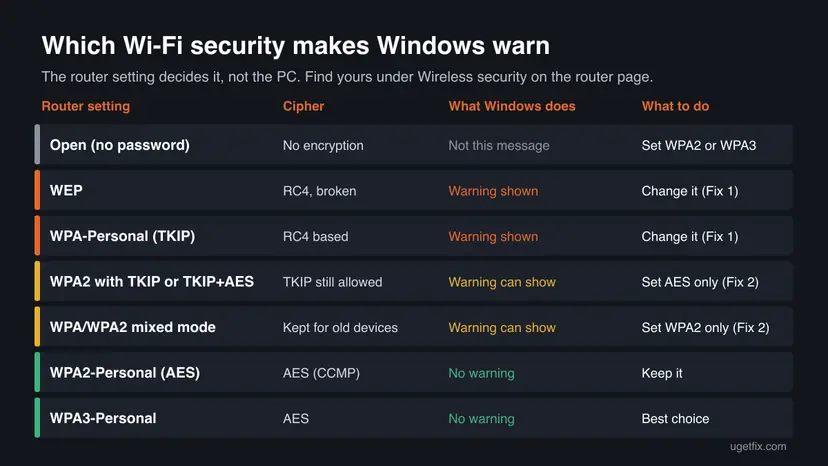
| Cause | How often | How to tell | Fix |
|---|---|---|---|
| The router uses WEP or WPA (TKIP). | Most often | The router page shows WEP, WPA-PSK or WPA-Personal. | Fix 1 |
| WPA2 is on, but TKIP is still allowed. | Often | The router shows WPA/WPA2 mixed, WPA2-PSK [TKIP] or TKIP+AES. | Fix 2 |
| Windows keeps the old settings of the network. | Sometimes | You changed the router, and the warning stays. | Fix 3 |
| The network is not yours. | Sometimes | Hotel, office, school, a neighbour's or an ISP router you cannot log in to. | Fix 4 |
| The router has no AES option. | Rarely | Only WEP and WPA appear in the security list, even after a firmware update. | Fix 5 |
| An old Wi-Fi adapter or driver on the PC. | Rarely | netsh wlan show driver lists no CCMP line. | Fix 6 |
A user on Microsoft Q&A reported the warning while the network was listed as WPA2-PSK (AES). The router was set to WPA2/WPA Mixed Personal. A mixed mode exists to serve old WPA devices, and those use TKIP. That is why Fix 2 removes it.
How to check which security your Wi-Fi uses
Before you change anything, see what the PC reports. This answers the common question "is my Wi-Fi WPA or WPA2" in a minute, and shows whether the warning is right.
- Press Win + R, type
cmdand press Enter. - Type this command and press Enter:
netsh wlan show interfaces - Read the Authentication line: for example WPA2-Personal or WPA3-Personal.
- Read the Cipher line: CCMP means AES, and TKIP or WEP means the old standard.
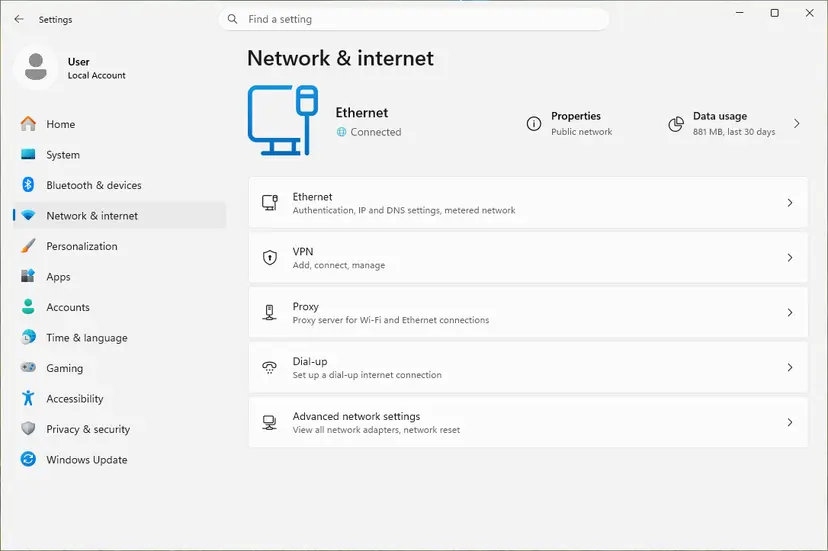
- On Windows 11 you can also open Settings > Network & internet > Wi-Fi, select the network's properties and read Security type.
How to fix "This Wi-Fi network uses an older security standard"
Fixes 1 to 3 solve the warning on your own router for most readers. Fix 4 is for a network that is not yours. Fixes 5 to 7 are for old routers, old adapters and a warning that stays after the router is right.
| What you see or have | Start with |
|---|---|
| Your own router, security set to WEP or WPA. | Fix 1, then Fix 3 |
| Your router already shows WPA2, and the warning stays. | Fix 2, then Fix 3 |
| You changed the router, and Windows still warns. | Fix 3, then Fix 7 |
| Hotel, office, school or a router you cannot log in to. | Fix 4 |
| The router offers no WPA2 (AES) option. | Fix 5 |
| Only this PC warns; phones and newer laptops join without trouble. | Fix 6 |
Fix 1. Set the router's Wi-Fi security to WPA2-Personal (AES) or WPA3
10 minutesLow riskThe network is your own and the router shows WEP, WPA or WPA-PSK.
The warning comes from the encryption the router offers. Microsoft's own advice is to update the router's security to a more secure standard, and Microsoft Learn names AES, available with WPA2 or WPA3, as the cipher routers should use.
- Press Win + R, type
cmdand select OK. - Type
ipconfig, press Enter and note the Default Gateway under your Wi-Fi adapter, for example192.168.1.1.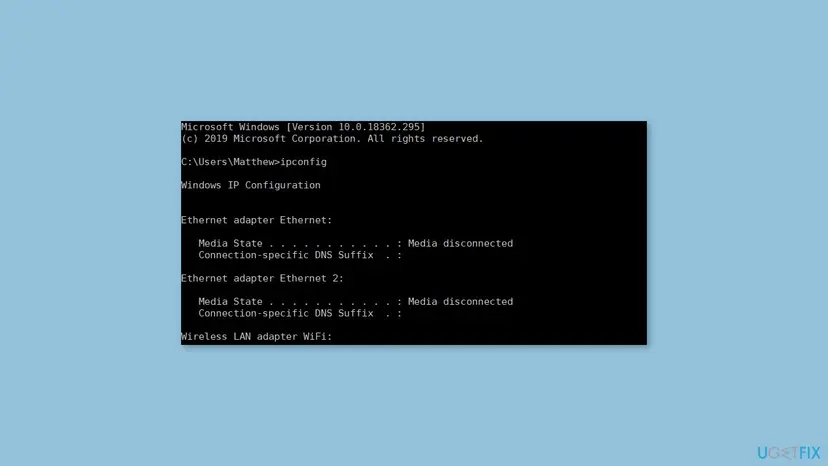
ipconfigin Command Prompt (Windows 10 shown, the same on Windows 11): the Default Gateway of the Wi-Fi adapter is the router's address. - Type that address into the browser's address bar and press Enter.
- Sign in with the router's admin name and password. They are often on a label on the router or in its manual.
- Open the Wi-Fi settings. The section may be called Wireless, WLAN, Wi-Fi security or Wireless security.
- Set Security mode to WPA2-Personal (also called WPA2-PSK) and Encryption to AES. Choose WPA3-Personal or WPA2/WPA3 if the router offers it.
- Keep the same Wi-Fi password, or set a new one, then select Save or Apply.
- Repeat for each band (2.4 GHz and 5 GHz) if the router sets them apart.
All devices drop off the Wi-Fi for a moment after you save. Most join again by themselves. A very old device that only knows WEP or WPA will not; that is the price of a safe network.
It worked if: The PC joins the network with no warning, and netsh wlan show interfaces shows CCMP as the cipher.
If not: If the router already showed WPA2, go to Fix 2. If the warning stays after saving, go to Fix 3.
Fix 2. Turn off TKIP and the WPA/WPA2 mixed mode
5 minutesLow riskThe router already says WPA2, yet Windows still warns about an older security standard.
A WPA2 network can still allow TKIP through a mixed mode or a TKIP+AES cipher setting. Windows warns on TKIP, so the network must offer AES only.
- Sign in to the router's admin page as in Fix 1, steps 1 to 4.
- Open the Wi-Fi security settings.
- If the mode is WPA/WPA2 mixed, WPA-PSK/WPA2-PSK or WPA2/WPA Mixed Personal, change it to WPA2-Personal only.
- If the encryption is TKIP or TKIP+AES (sometimes TKIP/AES or Auto), change it to AES only.
- Select Save or Apply, and do the same on the other band.
- On a mesh system, use the maker's app: the setting applies to all nodes.
It worked if: After the router saves and the PC reconnects, no warning appears, and the Cipher line reads CCMP.
If not: If the router has no AES only option, go to Fix 5. If it does and Windows still warns, go to Fix 3.
Fix 3. Forget the network on the PC and join it again
2 minutesNo riskYou changed the router's security, and the warning or a failed connection remains.
Windows stores a profile for each network, including its security type. A stale profile can make the PC keep showing the old warning or fail to join after the router change. Forgetting it makes Windows read the network again.
- Press Win + I and open Network & internet > Wi-Fi.
- Select Manage known networks.
- Find your network and select Forget.
- Select the network icon on the taskbar, choose your Wi-Fi and select Connect.
- Enter the Wi-Fi password again.
On Windows 10 22H2 the path is Settings > Network & Internet > Wi-Fi > Manage known networks, and the steps are the same.
It worked if: The network connects without the warning and stays connected after a restart.
If not: If it still warns, check the router once more with netsh wlan show interfaces. If the cipher is CCMP and the warning stays, go to Fix 7.
Fix 4. Connect to a different network when the router is not yours
5 minutesNo riskYou are on a hotel, office, school, neighbour's or provider's Wi-Fi you cannot change.
Only the owner of the router can change its security. Microsoft's first advice is to switch to another trusted network, which is what the message itself recommends.
- Select the network icon on the taskbar and look for another network you trust.
- Or turn on the mobile hotspot on your phone and connect the PC to it.
- Or use a network cable, if the place offers one.
- Tell the network's owner or IT team the exact message and that Microsoft asks routers to use AES with WPA2 or WPA3.
- If you must stay on the old network, avoid signing in to banking or work accounts on it.
Some internet providers lock the Wi-Fi settings of their routers. Ask the provider to switch the Wi-Fi to WPA2 (AES) or to replace the router with a current model.
It worked if: The PC joins the other network or hotspot without the warning.
If not: If no other network is available, you can connect for now, as Microsoft still allows it, and ask the owner to update the router.
Fix 5. Update the router's firmware or replace the router
20 minutesLow riskYour router's security list shows only WEP and WPA, with no WPA2 or AES option.
WPA2 with AES needs support in the router's firmware. Microsoft's third suggestion for this warning is to upgrade an old router to a model that supports current standards.
- On the router's admin page, find the Firmware, Administration or Update section.
- Check for an update, or download the newest firmware from the router maker's website for your exact model.
- Install the update and wait until the router restarts. Do not switch it off during the update.
- Look at the Wi-Fi security list again for WPA2-Personal and AES.
- If they are still missing, replace the router with one that lists WPA3 support, and set it up as in Fix 1.
It worked if: The router offers WPA2-Personal (AES) or WPA3, and the PC joins without the warning.
If not: If the new router works but one PC still warns, go to Fix 6.
Fix 6. Check and update the PC's Wi-Fi adapter driver
10 minutesLow riskOther devices join the AES network without trouble, and only this PC warns or cannot connect.
The PC can use AES only if its Wi-Fi adapter and driver support CCMP. The command below lists what the driver supports, and an old driver may lack WPA3.
In Command Prompt, list what the adapter supports:
netsh wlan show driverUnder Authentication and cipher supported in infrastructure mode, look for WPA2-Personal CCMP. WPA3-Personal CCMP means WPA3 works too. If CCMP is missing, update the driver; if it is still missing, the adapter needs replacing.
Download the driver from the PC or adapter maker first, because you may lose Wi-Fi while you change it. Step by step: Update, roll back or reinstall a driver
- Open Device Manager. Right-click Start and select Device Manager.
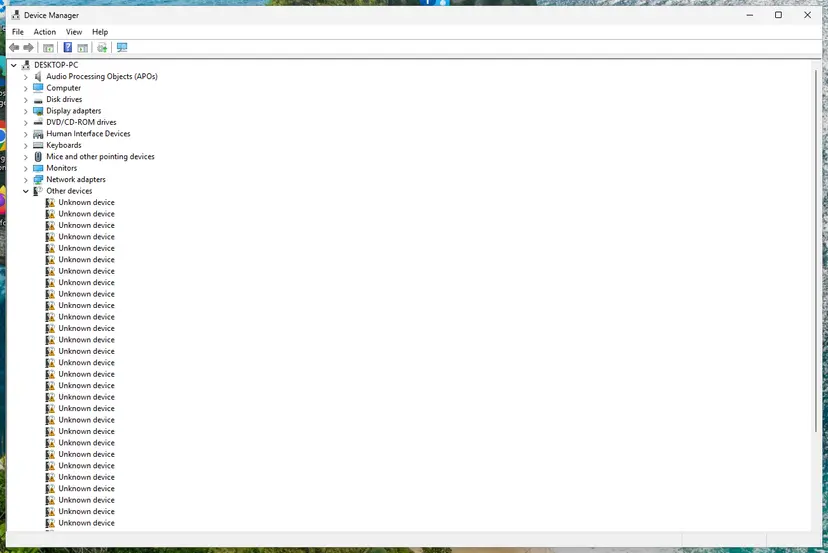
Device Manager lists devices by category; a yellow warning sign marks a device with a problem. Screenshot: Windows 11 26H2. - Open the device's Driver tab. Expand the category (for example Display adapters), right-click the device, select Properties and open the Driver tab. Driver Date and Driver Version show what is installed now.
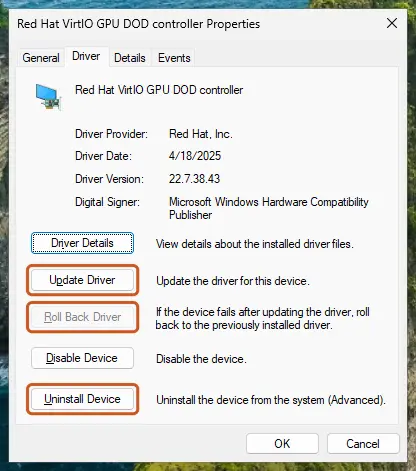
The Driver tab holds all three actions: update, roll back, uninstall. Screenshot: Windows 11 26H2. - Update the driver. Select Update Driver and let Windows search automatically. To use a driver you downloaded from the device maker, select Browse my computer for drivers instead and point to the unpacked folder.
These steps were written for Windows 11 24H2 and later. The full page with the other versions and what each result means: Update, roll back or reinstall a driver
It worked if: netsh wlan show driver lists WPA2-Personal CCMP, and the PC joins the network without the warning.
If not: If the adapter cannot do CCMP, a USB Wi-Fi adapter with WPA2 or WPA3 support is the cheapest way out. If CCMP is listed and it still warns, go to Fix 7.
Fix 7. Reset the Windows network settings
15 minutesLow riskThe router uses AES, the cipher reads CCMP, and Windows still warns or fails to connect.
Users on Microsoft Q&A report the warning returning after updates on a WPA2 network, cleared only by resetting the adapter. The reset clears stored settings and reinstalls the network adapters.
- Open an elevated command window. Right-click Start and select Terminal (Admin), or type cmd in the search box, right-click Command Prompt and select Run as administrator. Select Yes when Windows asks for permission.
- Flush the DNS cache. Type the command below and press Enter. Windows forgets the website addresses it looked up earlier and asks for them again.
ipconfig /flushdns - Reset Winsock. Type the command below and press Enter. It returns the Windows sockets catalog to its default state.
netsh winsock reset - Reset TCP/IP. Type the command below and press Enter. If you entered an IP address or DNS server by hand, note it first: you may need to enter it again.
netsh int ip reset - Get a new IP address. Run these two commands one after the other. The connection drops for a moment between them.
ipconfig /release ipconfig /renew - Restart the PC. Restart Windows so the Winsock and TCP/IP resets take effect, then test the connection. If it still does not work, continue with the network reset below.
These steps were written for Windows 11 24H2 and later. The full page with the other versions and what each result means: Reset the network and flush DNS
The full network reset removes saved Wi-Fi networks and VPN adapters. Note your Wi-Fi passwords and any VPN settings before you start. Full guide: Reset the network and flush DNS
It worked if: After the restart, the PC joins your network with no warning.
If not: Read the next section to find out whether it is the router, the PC or the adapter.
If the older security standard warning is still there
This warning writes no useful log. The two commands from this guide show who is right: the router or the PC.
| What you see | What it means | What to do |
|---|---|---|
netsh wlan show interfaces shows TKIP or WEP. | The router still offers the old cipher. | Fix 1 or Fix 2, on every band and every mesh node. |
| It shows CCMP, and Windows still warns. | A stale profile or adapter setting. | Fix 3, then Fix 7. |
netsh wlan show driver lists no CCMP. | The adapter is too old for AES. | Fix 6, or a new adapter. |
| Phones warn about weak security too. | The router is the problem for every device. | Fix 1, Fix 2 or Fix 5. |
| Only one band warns. | 2.4 GHz and 5 GHz use different settings. | Set both bands to WPA2 (AES) or WPA3. |
- What to tell the router maker or provider. The model, the firmware version, the security options the router lists, and the exact Windows message.
- When it is hardware. A router that cannot offer WPA2 with AES after its newest firmware, or a Wi-Fi adapter whose driver lists no CCMP, has to be replaced.
How to keep the older security standard warning away
- Use WPA3-Personal, or WPA2-Personal with AES only.
- Set both bands and every mesh node the same way.
- Install router firmware updates when the maker releases them.
- Check the security type after a router reset: some return to factory settings.
- Use a long Wi-Fi password and change the router's admin password.
- Do not choose WEP, WPA or TKIP to make an old device connect.
- Do not leave a WPA/WPA2 mixed mode on once old devices are gone.
- Do not ignore the warning for good: Microsoft plans to block these networks.
- Do not use a third-party driver updater for the Wi-Fi adapter.
If an old printer or game console needs WEP or WPA, put it on a separate guest network, or replace it. Your main network should stay on WPA2 (AES) or WPA3.
Frequently asked questions
What does "This Wi-Fi network uses an older security standard" mean?
It means the Wi-Fi is protected with WEP or TKIP, two old encryption methods that Microsoft says have known weaknesses. Windows shows the warning when you connect, and since Windows 10 version 1903 it appears on every such network. Your PC is not faulty. The router needs a newer setting: WPA2-Personal with AES, or WPA3-Personal. Until then you can still connect, but Microsoft plans to block these networks in a future release.
How do I fix "This Wi-Fi uses an older security standard"?
Open the router's admin page through the Default Gateway address that ipconfig shows. In the Wi-Fi security settings, choose WPA2-Personal with AES only, or WPA3-Personal, and save. If the router already says WPA2, remove TKIP and any WPA/WPA2 mixed mode. Then forget the network in Settings > Network & internet > Wi-Fi > Manage known networks, and connect again. If the network is not yours, connect to another one.
Is it safe to connect to a Wi-Fi network that uses an older security standard?
It works, but it is less safe. WEP has well-known weaknesses, and TKIP, like WEP, is built on the RC4 cipher. Someone nearby has an easier job reading or joining such a network than one on WPA2 with AES or WPA3. For a short visit, avoid signing in to banking or work accounts. On your own network, change the router setting rather than living with the warning.
How do I check if my Wi-Fi is WPA or WPA2?
Open Command Prompt and type netsh wlan show interfaces. The Authentication line shows the type, for example WPA2-Personal or WPA3-Personal. The Cipher line shows the encryption: CCMP is AES, and TKIP or WEP is the old standard that brings the warning. On Windows 11 you can also open the network's properties under Settings > Network & internet > Wi-Fi and read Security type. The router's own admin page shows the same setting.
How do I change my Wi-Fi security standard from WPA2 to WPA3?
Sign in to the router's admin page, open the Wi-Fi security settings and choose WPA3-Personal, or WPA2/WPA3 if you still have devices without WPA3. Save, then reconnect your devices. The option only appears when the router's firmware supports WPA3; if it is missing, update the firmware first. The PC needs support too: netsh wlan show driver must list WPA3-Personal. WPA2-Personal with AES alone is already enough to stop the Windows warning.
Will Windows stop connecting to WEP and TKIP networks?
Microsoft says so. Its list of deprecated Windows features states that in a future release any connection to a Wi-Fi network using these old ciphers will be disallowed. It gives no date. Microsoft's support page says the older standards are still allowed for now. If you own the router, change it now, so the network does not stop working on the day an update arrives.
Why does Windows say my Wi-Fi uses an older security standard when the router is set to WPA2?
Usually because TKIP is still allowed. A router in WPA/WPA2 mixed mode, or with the cipher set to TKIP+AES or Auto, offers TKIP to old devices, and Windows warns about TKIP. Set the router to WPA2-Personal with AES only. A user on Microsoft Q&A reported exactly this with a WPA2/WPA Mixed Personal setting. If the cipher already reads CCMP, forget the network on the PC and join it again.
Will a new router fix the older security standard warning?
Yes, when the old router cannot offer WPA2 with AES. Microsoft suggests upgrading an old router to a model that supports current security standards. Before buying, check the router's admin page and update its firmware: most routers made in the last fifteen years already offer WPA2 with AES, and the warning only needs a setting change. A new router helps only if that option is missing.
Why do I see this page when I asked about the message in another language?
Many people photograph the warning and ask what it means in their own language, for example Indonesian, Vietnamese, Arabic, Russian, Spanish, Urdu or Thai. This page answers that question in English. In short: the Wi-Fi uses old WEP or TKIP encryption, the PC is fine, and the router should be set to WPA2-Personal with AES or WPA3. The fixes above work in every language version of Windows.
Sources
- Microsoft Support: Wi-Fi network not secure in Windows (support.microsoft.com)
- Microsoft Learn: Deprecated features for Windows client, entry "Wi-Fi WEP and TKIP" (learn.microsoft.com)
- Microsoft Learn: Deploy Password-Based 802.1X Authenticated Wireless Access, wireless security encryption (TKIP and WEP) (learn.microsoft.com)
Did this fix work?
One click, no account. It tells the next reader which guides are worth their time.
Questions and experiences: fix "This Wi-Fi network uses an older security standard" in Windows
Still broken, or found a fix we did not cover? Ask here: members and our editors answer. Reading is open; writing needs a free account.
…