How to fix
Wdf01000.sys Blue Screen error
on Windows
Resolve the Wdf01000.sys Blue Screen error in Windows 10 with easy solutions. Expert-tested methods ensure your PC is back up and running, fixed in minu…

What causes How to fix Wdf01000.sys Blue Screen error in Windows 10?
- Incompatible system drivers
- Outdated system drivers
- Corrupt system drivers
- Malfunctions in Windows software or hardware
- Issues with Kernel-Mode Driver Framework
Repairs Windows system files, removes malware, and restores a clean OS state — without reinstalling.
Hello, I hope you will be able to help me. Recently, I have been experiencing Blue Screen errors, most of which are marked with Wdf01000.sys. This is rather frustrating because I can't use my PC normally. Please provide some solutions!
Wdf01000.sys is a Blue Screen of Death error that can be related to different malfunctions on a Windows PC. Just like any other BSOD, it stops all the current operations and forces a system reboot, interrupting all the work in the process.
While this might seem like a frustrating incident, you should not forget that stop error restarts are useful in a way that they prevent damage that could be caused to the system. That being said, it is a clear indication that something is not working as intended - especially when such occurrence is repeated and frequent.
As already mentioned, Wdf01000.sys can be related to different inconstancies or defends within Windows software or hardware. Typically the BSOD is shown along with an error code, which can be one of the following (alternatively, users can find out that this particular system file has caused the problem by using special diagnostics software):
- DRIVER_VERIFIER_DETECTED_VIOLATION
- APC_INDEX_MISMATCH
- KMODE_EXCEPTION_NOT_HANDLED
- PAGE_FAULT_IN_NONPAGED_AREA
- SYSTEM_SERVICE_EXCEPTION, etc.
Unfortunately, besides the error codes, the screen message does not provide any further insights, neither does it explain what precisely causes the crashes. Wdf01000.sys is a file that belongs to Windows Driver Framework and is used to ensure good communication between Windows software and computer hardware. This precise component is associated with Kernel-Mode Driver Framework.
It is not surprising that the error is usually related to incompatible, outdated, or corrupt system drivers, although there could be plenty of other reasons for the BSOD to show up repeatedly, thus troubleshooting could take some time. Below you will find several methods that should help you find a working fix.
Fix 1. Run a system repair tool
There are hundreds of thousands of components within the Windows operating system that all need to work together well to provide smooth operation. Blue Screen of Death errors is just one form of incipience that users might encounter over time, however. Other common issues include missing DLL[ref en-2] files, application errors, registry problems, and much more.
In many cases, less experienced computer users might find it difficult to deal with these issues. Besides, troubleshooting might take a long time before the root cause is found.
If you require a quicker solution for system-related problems, we highly recommend using [d1] repair software that can find and replace corrupted system files automatically, remove malware,[ref en-3] and clear the system from junk.
Fix 2. Stop overclocking
Overclocking is a process that allows users to go beyond the regular capabilities of CPU or GPU, providing a better experience when it comes to gaming or other GPU intensive tasks. Overclocking also has its downsides - it might result in overheating, consequently crashing the system.
Therefore, if you are dealing with Blue Screen errors and are overclocking your hardware, access BIOS and turn off the feature or set the settings to the default option.
Fix 3. Disable XMP
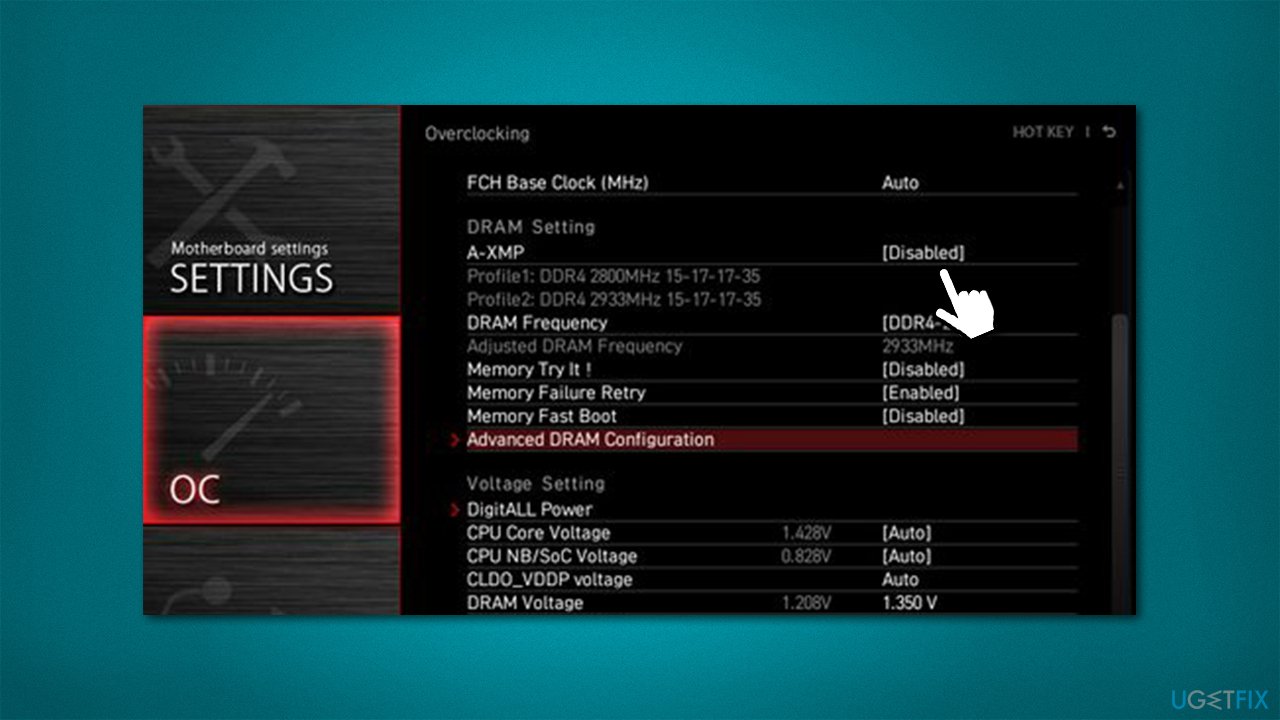
XMP[ref en-1] option within BIOS is used for reaching higher speeds of memory - it is a form of overclocking. If you are experiencing Wdf01000.sys BSOD crashes, you should ensure that it is disabled:
- Restart your PC and start repeatedly pressing F2, F8, F10, Del, Esc or another button (refer to your motherboard manufacturer for the instruction) - this should boot you into BIOS
- Check Overclocking, Advanced or a similar sections to find XMP feature
- Disable XMP and restart your system in normal mode.
Fix 4. Update drivers
Drivers are integral parts of Windows OS, and some computer components would not even be able to function without them. You should access the Device Manager and look for drivers that are marked with a yellow exclamation mark. Here's how:
- Right-click on Start and pick Device Manager
- Expand each of the categories and check for the yellow marking
- Right-click on the problematic device and select Update driver
- Select Search automatically for drivers
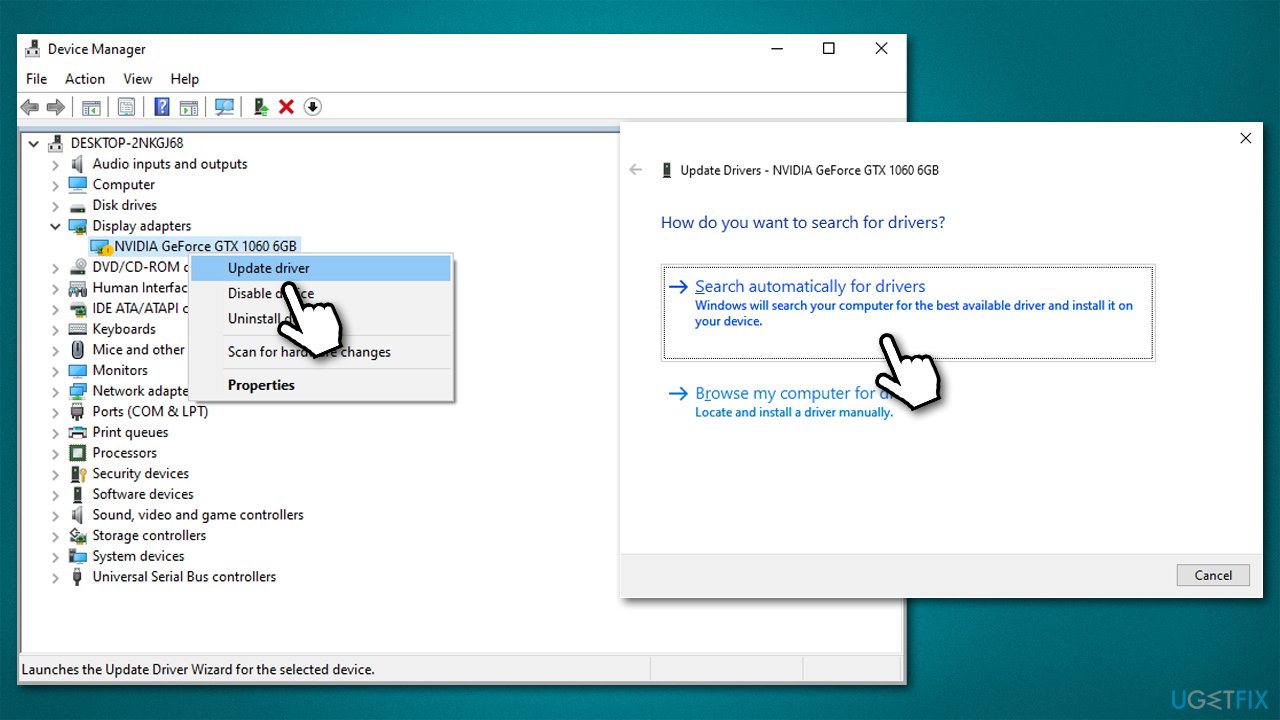
- Wait till drivers are installed and restart your computer.
In some cases, the malfunctioning driver might not be showing the marking, thus the update process can take a long time. Device Manager is not an optimal tool when trying to update drivers, so it is best to either visit the hardware manufacturer website and download the drivers from there, or employ an automatic driver updater [rev id="DriverFix"].
Fix 5. Run SFC and DISM
- Type cmd in Windows search
- Right-click on Command Prompt search result and go for Run as administrator
- Type sfc /scannow in the new window and press Enter
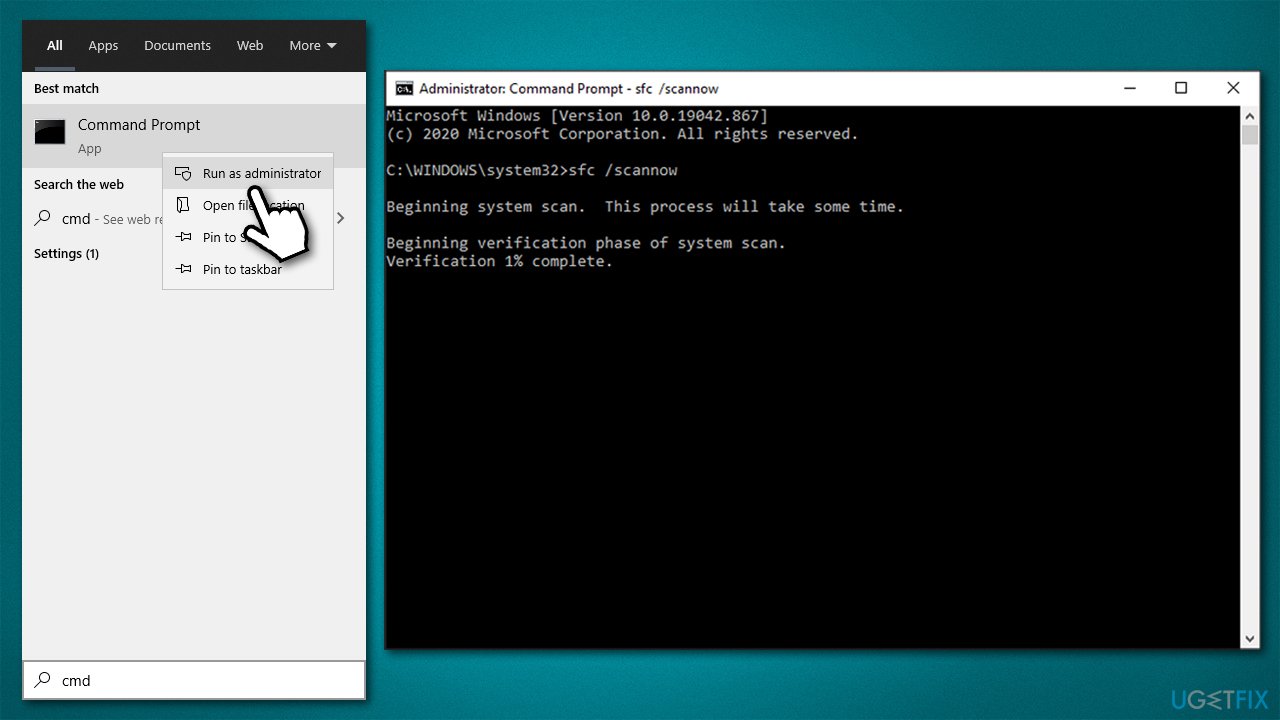
- Wait till the scan is complete and restart your computer.
At this point, SFC might deliver an error that claims that system violations could not be fixed. In such a case, repairing Windows image files could solve the problem:
- Open Command Prompt as administrator once again
- Copy and paste the following commands, pressing Enter each time:
DISM /Online /Cleanup-Image /CheckHealth
DISM /Online /Cleanup-Image /ScanHealth
DISM /Online /Cleanup-Image /RestoreHealth - Reboot your PC.
Fix 6. Check your memory
System RAM corruption can be related to this BSOD error. You can check it with the built-in Windows Memory Diagnostics Tool:
- Type Memory in Windows search and hit Enter
- Pick Restart now and check for problems (recommended)
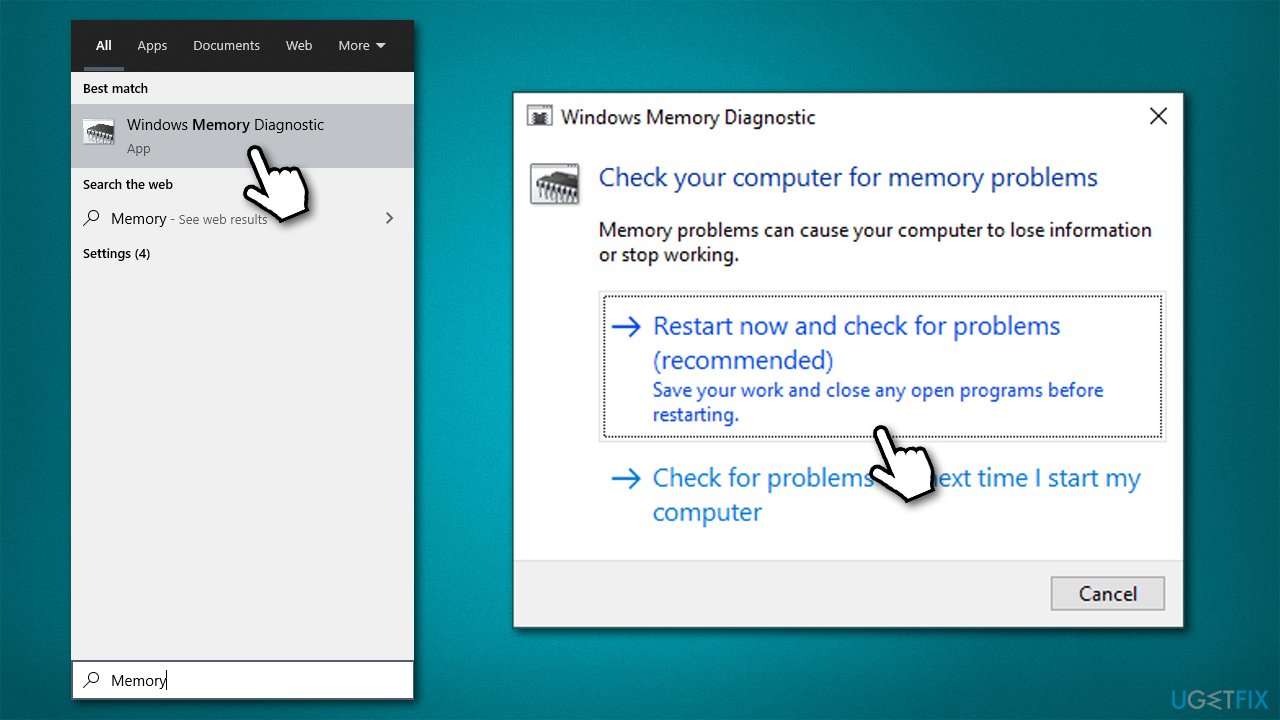
- Your computer will restart and the check will begin. Keep in mind that the scan can take a while - 8GB of RAM can be checked within approx. an hour
- Wait for the process to end and see if your RAM is functioning properly.
Fix 7. Use System Restore
If none of the above solutions helped you, you should try using System Restore. You might lose some installed programs, but you will not lose any of your personal files.
- Type in Create a restore point in Windows search and press Enter
- Pick System Restore
- Select Choose a different restore point and go for Next
- If available, select the Show more restore points option
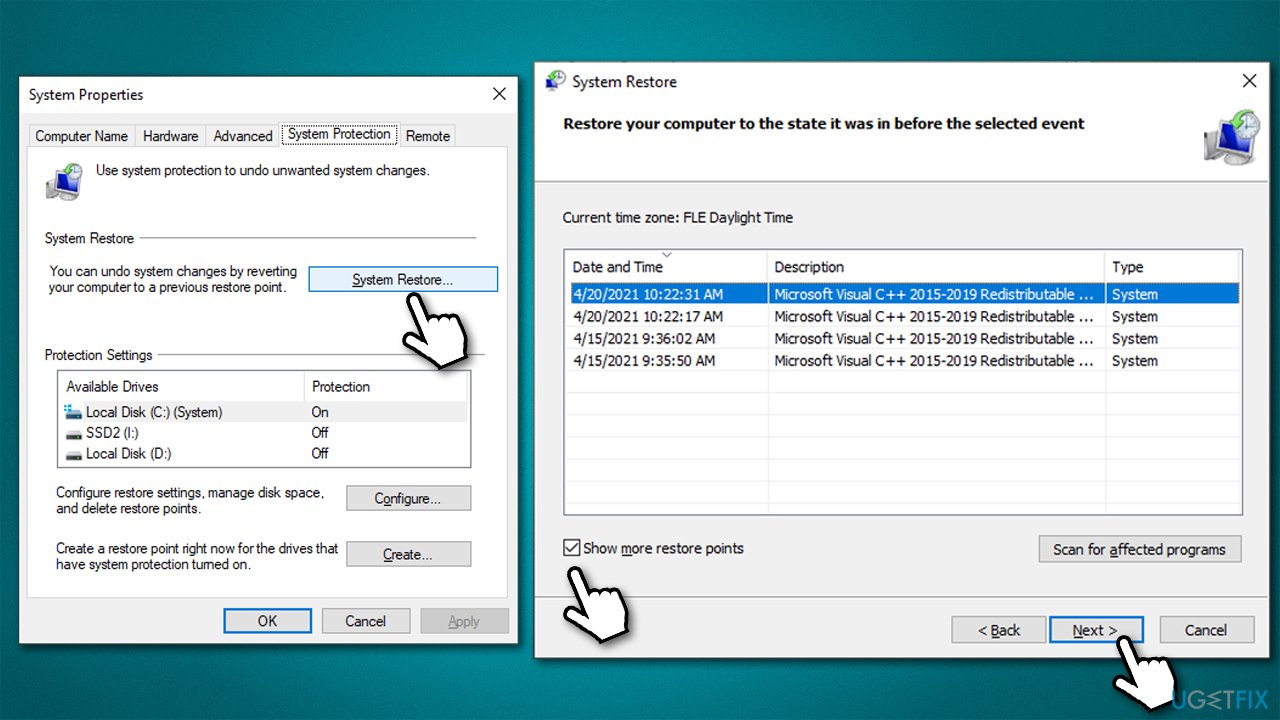
- Pick the point in time when the problem did not exist and click Next
- Follow on-screen instructions to finish the process.
Bottom line
To fix the Wdf01000.sys Blue Screen error, you can run a system repair tool, update your drivers, or check for hardware issues. If these solutions do not resolve the problem, consider seeking professional assistance or further diagnostics.
Frequently asked questions
The Wdf01000.sys Blue Screen error is typically caused by outdated or corrupt device drivers, particularly for hardware components like graphics cards or USB devices.
To fix the Wdf01000.sys error on Windows 11, you should update your drivers through Device Manager or use Windows Update to ensure all system components are current.
Yes, you can use built-in tools like the Windows Memory Diagnostic or third-party software such as Driver Verifier to identify and fix driver-related issues causing the Wdf01000.sys error.




Report an issue
What's wrong with this guide? We review every report and update or remove content.
Report received — thank you. We'll review and fix it.
You need a free account to submit a report.
Be the first to comment