
How to fix Windows 11 installation error 0xC1900101 - 0x40017?

Prefer to fix it yourself? The manual steps follow.
- 7methods
- 15 minutes to 2 hours
- Intermediate
Applies to Windows 10 22H2 and Windows 11 (24H2, 25H2, 26H2) upgrades through Windows Update, the Installation Assistant or setup.exe from an ISO
7 methods in this guide
- What the error means
- Why it appears
- Where the cause is written
- The fixes
- 1. Unplug extra devices
- 2. Remove filter-driver software
- 3. Upgrade from a clean boot
- 4. Find the driver in the logs
- 5. Update or disable the driver
- 6. Free space, check the disk
- 7. Update the BIOS
- If it is still there
- Keep it from coming back
- FAQ
Hi, I am trying to upgrade to Windows 11 from Windows 10, but I receive the 0xC1900101 - 0x40017 error after hours of waiting, and it happens every time. I really want to upgrade to the latest version of Windows, but I can't because of this. Is there anything I can do to resolve it?
Error 0xC1900101 - 0x40017 means the upgrade copied the new Windows, restarted twice, and then the new system failed to boot, so Setup rolled back. Microsoft ties it to a faulty driver, such as an antivirus filter or encryption driver. Unplug extra devices first, then remove other security software and upgrade from a clean boot.
Shut down, unplug everything except the mouse, keyboard and display, take out any memory card, and run the upgrade again (Fix 1). If it fails, uninstall any non-Microsoft antivirus, disk encryption or Citrix VDA software (Fix 2), because Microsoft names their filter drivers as the cause of 0x40017. Then upgrade from a clean boot and let Setup download updates (Fix 3).
| Error | 0xC1900101 - 0x40017, shown as "The installation failed in the SECOND_BOOT phase with an error during BOOT operation". Windows Update often shows only 0xC1900101. |
|---|---|
| Where it appears | Late in a feature upgrade, often after an hour or more: the PC restarts twice, the new Windows fails to start, and the old one comes back with the error. |
| Main cause | A faulty driver that loads when the new Windows boots. Microsoft names antivirus filter drivers and encryption drivers as examples. |
| Fastest fix | Unplug every device except mouse, keyboard and display, and run the upgrade again (Fix 1). |
| Also written as | 0xc1900101-0x40017, 0xC1900101 0x40017, c1900101-40017, install error - 0xc1900101. |
| Related codes | 0x20017 fails to boot one phase earlier (SAFE_OS). 0x30018 and 0x40021 fail at other steps; both have their own guides. |
| Affects | Upgrades to Windows 11 and Windows 11 feature updates. Windows 10 left support on 14 October 2025. |
| Microsoft's status | Documented. Microsoft's fix is a clean boot plus "Download and install updates (recommended)". A Citrix VDA case was fixed back in a 2016 update. |
| Where the cause is written | %WinDir%\Logs\SetupDiag\SetupDiagResults.xml (written by Setup itself) and C:\$Windows.~BT\Sources\Rollback. |
| Time to fix | 15 to 30 minutes for Fix 1 and Fix 2, plus 1 to 2 hours for each new upgrade attempt. |
Facts checked on 15 October 2026. Steps written for Upgrades from Windows 10 22H2 to Windows 11, and Windows 11 feature updates to 25H2 and 26H2.
What 0xC1900101 - 0x40017 and the SECOND_BOOT phase mean
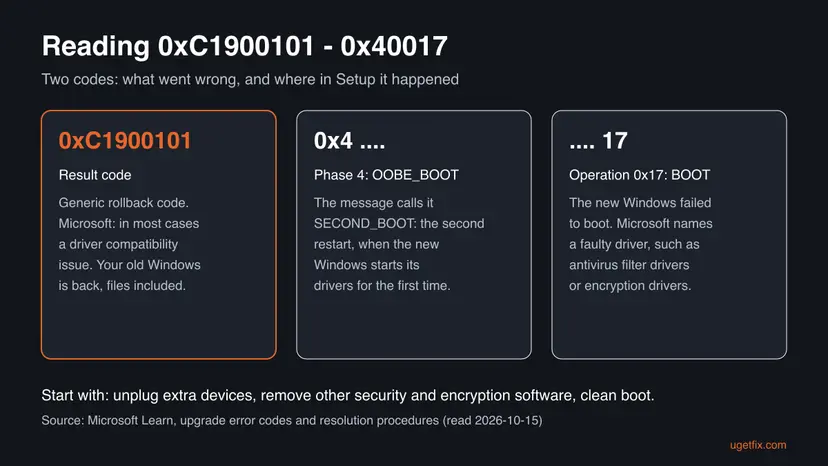
When an upgrade fails, Windows Setup returns two codes. Microsoft calls the first the result code, which says what went wrong. The second is the extend code: its first digit is the phase of Setup and its last two digits are the operation that was running.
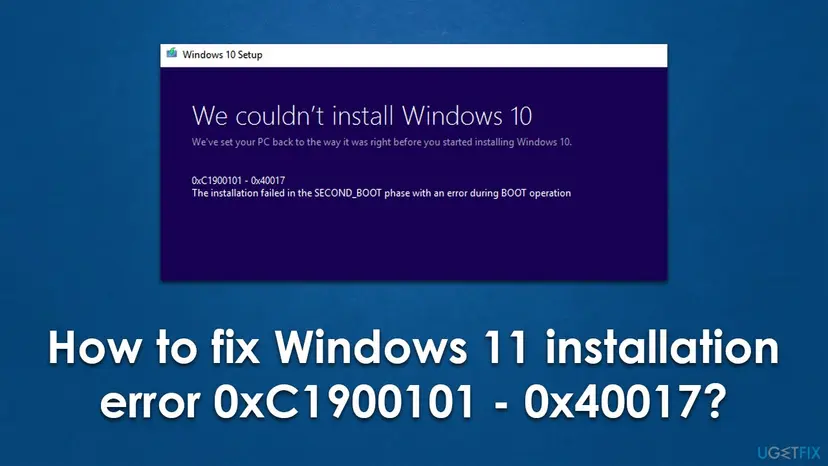
On an upgrade to Windows 11 the screen reads: We couldn't install Windows 11. We've set your PC back to the way it was right before you started installing Windows 11. 0xC1900101 - 0x40017. The installation failed in the SECOND_BOOT phase with an error during BOOT operation.
| Part | What Microsoft's documentation says | What it tells you |
|---|---|---|
| 0xC1900101 | "A result code of 0xC1900101 is generic and indicates that a rollback occurred. In most cases, the cause is a driver compatibility issue." | The upgrade did not finish. Your old Windows is back, with its files and apps. |
| 0x4 (phase) | Phase 4 is SP_EXECUTION_OOBE_BOOT. The message calls it SECOND_BOOT. | Setup had passed the first restart and was starting the new Windows a second time. |
| 0x17 (operation) | Operation 0x17 is SP_EXECUTION_OP_BOOT. | The new Windows did not boot. A driver that loads at startup stopped it. |
| The pair | "Windows 10 upgrade failed after the second reboot. This is caused by a faulty driver. For example: antivirus filter drivers or encryption drivers." | Look first at security, encryption and filter-driver software, then at devices. |
Microsoft's tables were written for Windows 10 upgrades, and its code table states it applies to version 1607. Windows 11 Setup uses the same result and extend codes, so the same decoding and fixes apply to an upgrade to Windows 11 or to a Windows 11 feature update.
Why the Windows 11 upgrade fails with 0xC1900101 - 0x40017
The BOOT operation is the moment the new Windows loads its drivers. A driver that is not compatible with the new version, or that blocks writes to the disk, stops the boot and Setup rolls back. That is why the error comes after hours of waiting: everything before it worked.
| Cause | How often | How to tell | Fix |
|---|---|---|---|
| A device whose driver fails at the new boot: USB drive, dock, USB-C hub, memory card, printer, webcam. | Most often | Anything other than mouse, keyboard and display is attached. | Fix 1 |
| Security or encryption software with a filter driver: another antivirus, disk encryption, Citrix VDA. | Often | Such a program is installed. Microsoft names exactly these for 0x40017. | Fix 2 |
| Other programs and services that start with Windows. | Sometimes | Many tray tools, tuning, backup or VPN utilities. | Fix 3 |
| A built-in device with an old driver: chipset, storage, Wi-Fi, card reader. | Sometimes | SetupDiag or setupapi.dev.log names it, or Device Manager shows a yellow mark. | Fix 4, Fix 5 |
| Too little free space, file system errors or old firmware. | Rarely | Drive C is nearly full, chkdsk finds errors, or the BIOS is years old. | Fix 6, Fix 7 |
If the error comes back every time, as in the reader's question, something on the PC loads the same driver at every boot. Change one thing from the list above before each new attempt, or you wait another hour for the same result.
Where SetupDiag and the rollback logs show the driver
Microsoft says SetupDiag is included with Windows Setup and runs by itself when an upgrade fails. So after a 0x40017 rollback, its result is often already on your PC. The rollback folder holds the raw logs it reads.
| File | Path | What it shows |
|---|---|---|
| SetupDiag result | %WinDir%\Logs\SetupDiag\SetupDiagResults.xml | The failure SetupDiag matched, often with the driver or module and the phase. |
| Minidump | C:\$Windows.~BT\Sources\Rollback\setupmem.dmp (or %WinDir%\Panther\NewOS\Rollback) | Present when the new boot crashed. It holds the stop code and the driver. |
| Device install log | C:\$Windows.~BT\Sources\Rollback\setupapi\setupapi.dev.log | The devices Setup was handling. Lines with !!! mark failures. |
| Event logs | C:\$Windows.~BT\Sources\Rollback\*.evtx | Unexpected restarts and errors from the failed attempt. |
Each new attempt replaces these files. Read them, or copy the folders to your desktop, before you try again. Fix 4 shows how.
How to fix Windows 11 installation error 0xC1900101 - 0x40017
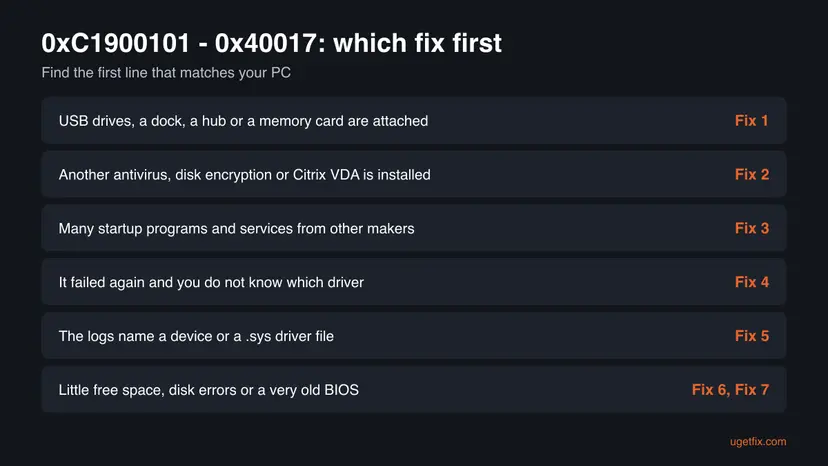
Fix 1 costs nothing and removes the most common trigger. Fix 2 and Fix 3 follow Microsoft's own advice for this exact code. Fix 4 and Fix 5 name and treat one driver when the first three do not help. Fix 6 and Fix 7 come last because they rarely cause this code.
| What you see or have | Start with |
|---|---|
| USB drives, an external disk, a dock, a USB-C hub or a memory card attached. | Fix 1 |
| A non-Microsoft antivirus, disk encryption software or Citrix VDA installed. | Fix 2 |
| Many programs and services from other makers start with Windows. | Fix 3 |
| It failed again and you do not know which driver. | Fix 4 |
| The logs name a device or a .sys driver file, or Device Manager shows a yellow mark. | Fix 5 |
| Drive C is nearly full, or everything above is done. | Fix 6, then Fix 7 |
Fix 1. Unplug every device except the mouse, keyboard and display
5 minutes, plus the upgradeNo riskEveryone, first of all PCs with USB drives, external disks, a dock, a USB-C hub or a card in the card reader.
At the second restart the new Windows loads a driver for every connected device. Microsoft's first mitigation for its 0xC1900101 driver codes is to disconnect all peripherals except the mouse, keyboard and display. Fewer devices means fewer drivers that can stop the boot.
- Shut down the PC.
- Unplug USB flash drives, external disks, printers, webcams, headsets, game controllers and USB hubs.
- Take out any SD or micro SD card from the card reader.
- Undock a laptop and connect the charger directly.
- Keep one display, the mouse and the keyboard.
- Start Windows and run the upgrade again from Settings > Windows Update > Check for updates, or from
setup.exeon the installation media. - When the new version is running, plug the devices back in one at a time.
If you upgrade from a USB stick, that stick has to stay in until the files are copied. Keep it as the only USB storage device attached.
It worked if: The PC passes the second restart, shows the setup screens and ends at the sign-in screen on Windows 11.
If not: If it rolls back again with 0x40017, remove security and encryption software in Fix 2.
Fix 2. Uninstall non-Microsoft antivirus, disk encryption and Citrix VDA, then reinstall them after
15 to 30 minutesRead the warningA security suite other than Microsoft Defender, disk encryption software from another maker, or Citrix Virtual Delivery Agent is installed.
This is Microsoft's own cause for 0x40017: a faulty driver, for example antivirus filter drivers or encryption drivers. Such drivers load before you sign in, exactly at the BOOT operation. In the Citrix case, Microsoft explains that its filter driver CtxMcsWbc stops the upgrade from writing changes to the disk.
Removing a non-Microsoft disk encryption tool while the drive is still encrypted can lock your data. Decrypt the drive with that tool as its maker describes, and back up your files first: Back up your files (Windows Backup, File History, Time Machine).
- Make sure you have the installer and licence key or account for each program you remove.
- Open Settings > Apps > Installed apps.
- Uninstall the non-Microsoft antivirus or security suite. Use its maker's removal tool if the normal uninstall leaves parts behind.
- Decrypt and then uninstall non-Microsoft disk encryption software.
- On a PC with Citrix VDA, uninstall it with the VDA setup application, as Microsoft's workaround describes.
- Restart. Microsoft Defender turns on by itself when no other antivirus is installed.
- Run the upgrade again, then reinstall the programs on Windows 11.
Step by step for removing a program: Uninstall a program or app in Windows. On a work PC with Citrix or company encryption, ask the IT department before you remove anything.
It worked if: Windows Security shows Microsoft Defender as active, and the upgrade passes the second restart.
If not: If it still fails, run the upgrade from a clean boot in Fix 3.
Fix 3. Upgrade from a clean boot with a mounted ISO and let Setup download updates
20 minutes, plus the upgradeLow riskFix 1 and Fix 2 are done, or the PC starts many programs and services from other makers.
Microsoft's mitigation for 0xC1900101 - 0x40017 is exactly this: clean boot into Windows, attempt the upgrade, and select "Download and install updates (recommended)". The clean boot keeps other makers' services from loading, and the updates bring newer drivers into Setup.
- Open System Configuration. Select Search on the taskbar, type msconfig and select System Configuration from the results.
- Hide Microsoft services. On the Services tab, select the Hide all Microsoft services check box. Only services from other companies stay in the list.

With Hide all Microsoft services ticked, only third-party services stay in the list. Screenshot: Windows 11 26H2. - Disable the remaining services. Select Disable all, then select Apply.
- Open Task Manager. On the Startup tab of System Configuration, select Open Task Manager.

The Startup tab only links to Task Manager. Screenshot: Windows 11 26H2. - Disable the startup apps. On the Startup apps tab in Task Manager, select each item whose status is Enabled and select Disable. Write down or take a screenshot of the items you disable: you need the list to turn them back on.

Select an app, then Disable. Screenshot: Windows 11 26H2. - Confirm the changes. Close Task Manager. On the Startup tab of System Configuration, select OK.
- Restart and test. Restart the PC. Windows now starts in a clean boot environment: try again the thing that failed (run the app, install the update, uninstall the program).
These steps were written for Windows 11 25H2 and 26H2. The full page with the other versions and what each result means: How to perform a clean boot in Windows
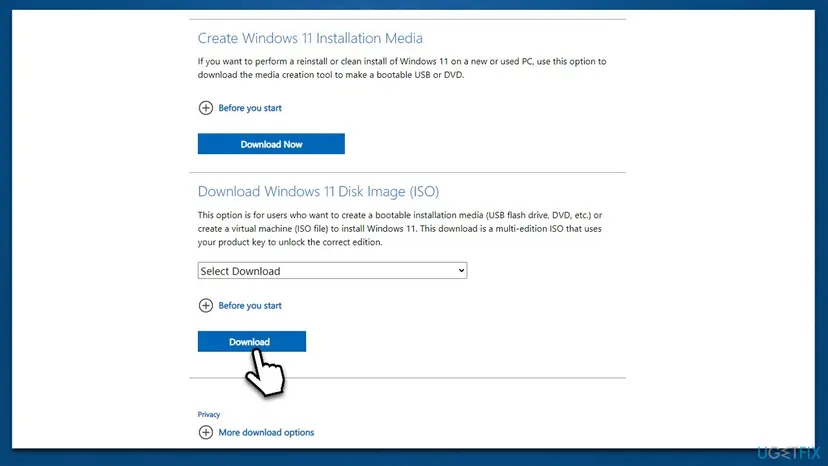
- In the clean boot, open Microsoft's Download Windows 11 page and download the disk image (ISO) for your language.
- Right-click the ISO file and select Mount.
- Open the new drive and double-click
setup.exe. - When Setup offers to get updates, choose to download and install them. Microsoft's wording is "Download and install updates (recommended)", and newer media may word it differently.
- Keep personal files and apps, and let the upgrade run.
- On Windows 11, undo the clean boot as the procedure above describes.
It worked if: The upgrade passes the second restart and finishes. The clean boot can then be undone.
If not: If it rolls back again, find the driver in the logs with Fix 4.
Fix 4. Find the failing driver with SetupDiag and the rollback logs
15 minutesNo riskFix 1 to Fix 3 did not help, or you want to know the driver before you change more.
The code 0x40017 says a driver stopped the boot, not which one. Microsoft points to setupmem.dmp, the evtx logs and setupapi.dev.log for 0xC1900101, and its SetupDiag tool reads them for you. Setup already ran SetupDiag after the failure.
- Copy the folders
C:\$Windows.~BT\Sources\RollbackandC:\$Windows.~BT\Sources\Pantherto your desktop. A new attempt replaces them. - Press Win + R, type
%WinDir%\Logs\SetupDiagand press Enter. - Open
SetupDiagResults.xmlin Notepad. Look for the failure description, any Driver or Module name and the setup phase. - If the folder is empty, download SetupDiag from its page on Microsoft Learn. It needs .NET Framework 4.7.2 or newer.
- Open Terminal (Admin), go to the folder with SetupDiag.exe and run
SetupDiag.exe. It writesSetupDiagResults.login the same folder. - Open the copied
setupapi.dev.login Notepad, press Ctrl + End, then Ctrl + F, and search upward for!!!. - Write down the device name or the
.sysdriver file you find, then go to Fix 5.
| What you find | What it means | Go to |
|---|---|---|
A .sys driver of a security, encryption, VPN or virtualisation program | That program's filter driver stopped the boot. | Fix 2 for that program |
A device in setupapi.dev.log lines with !!! | That device's driver failed when the new Windows started it. | Fix 5 |
| A crash (bug check) with a named driver | That driver crashed the second boot. | Fix 5 |
| A crash with no driver named | The dump did not show the cause. | Fix 5 for chipset and storage drivers, then Fix 6 |
If C:\$Windows.~BT is missing, Disk Cleanup or Storage Sense removed it. Run the upgrade once more, then read the logs before you clean anything.
It worked if: You have the name of one program, device or driver file.
If not: If no file names a driver, update the chipset and storage drivers in Fix 5 anyway.
Fix 5. Update or disable the driver the logs name
15 to 30 minutesLow riskThe logs named a device or driver, Device Manager shows a yellow mark, or the PC has had no driver updates for a long time.
Microsoft's mitigation for its 0xC1900101 driver codes is to get updated drivers from the hardware vendor, and for a driver named in the crash, to disable it or check with its maker. A newer driver is more likely to be built for the Windows 11 version you install.
- Press Win + R, type
msinfo32and press Enter. Note System Model or BaseBoard Product. - On the PC or motherboard maker's support page for that model, download the newest chipset, storage, network and card reader drivers.
- Install them and restart.
- Open Settings > Windows Update > Advanced options > Optional updates and install the driver updates listed there.
- Right-click Start, open Device Manager, and update or uninstall any device with a yellow exclamation mark.
- If the logs named a non-essential device and no newer driver exists, right-click it in Device Manager and select Disable device for the upgrade.
- Run the upgrade again, and enable the device afterwards.
- Open Device Manager. Right-click Start and select Device Manager.

Device Manager lists devices by category; a yellow warning sign marks a device with a problem. Screenshot: Windows 11 26H2. - Open the device's Driver tab. Expand the category (for example Display adapters), right-click the device, select Properties and open the Driver tab. Driver Date and Driver Version show what is installed now.
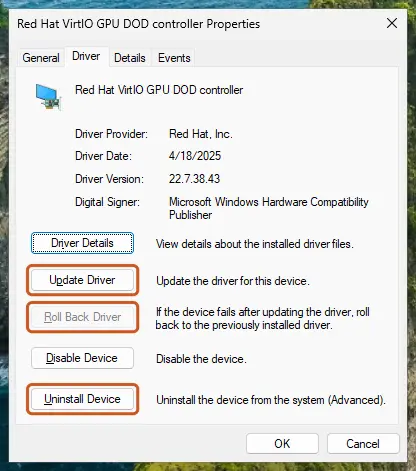
The Driver tab holds all three actions: update, roll back, uninstall. Screenshot: Windows 11 26H2. - Update the driver. Select Update Driver and let Windows search automatically. To use a driver you downloaded from the device maker, select Browse my computer for drivers instead and point to the unpacked folder.
These steps were written for Windows 11 24H2 and later. The full page with the other versions and what each result means: Update, roll back or reinstall a driver
Do not disable the display adapter, the keyboard, the touchpad or the disk Windows runs from. Update those drivers instead.
It worked if: Device Manager shows no yellow marks, and the upgrade passes the second restart.
If not: If it still fails, check the free space and the disk in Fix 6.
Fix 6. Free up disk space and repair disk and system file errors
20 minutes to several hoursLow riskDrive C is nearly full, the PC often lost power, or every fix above failed.
Microsoft's first basic step for a crash in the second boot phase is to make sure there is enough disk space. File system errors and damaged system files can also make the new boot fail, and chkdsk, DISM and SFC repair them.
- Open Storage settings. Select Start > Settings > System > Storage. The top of the page shows how full the drive is and what uses the space.
- Open Cleanup recommendations. Under Storage management, select Cleanup recommendations.
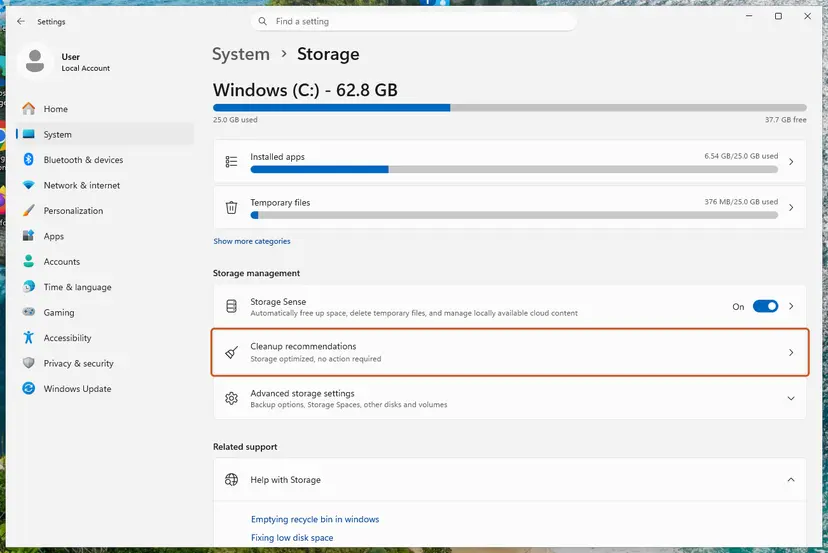
Settings, System, Storage: Cleanup recommendations is under Storage management. Screenshot: Windows 11 26H2. - Clean up what Windows suggests. Open each group (Temporary files, Large or unused files, Files synced to the cloud, Unused apps), check the items you do not need and select Clean up in that group.
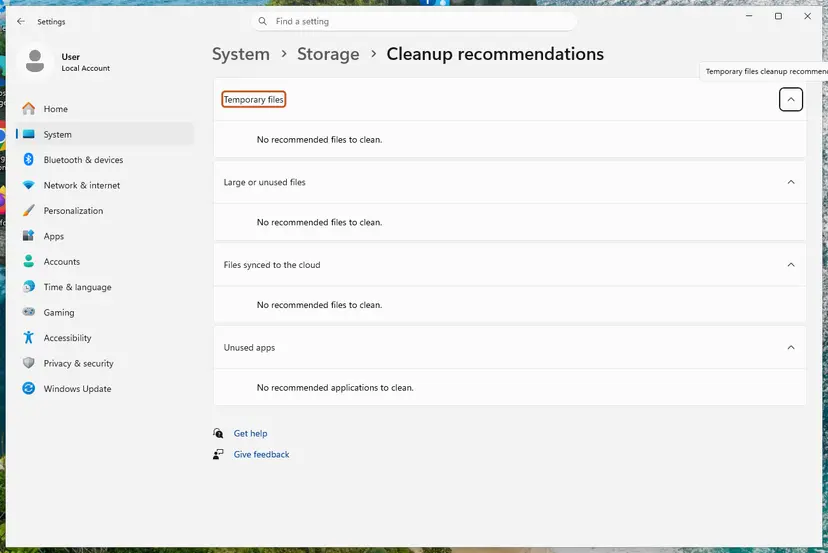
Cleanup recommendations groups the suggestions; on our test PC there was nothing to clean yet. Screenshot: Windows 11 26H2. - Delete more temporary files. Go back to Storage and select Temporary files. Windows lists the types it can remove with their size. Check the ones you do not need and remove them. Leave Downloads unchecked unless you have checked that folder.
These steps were written for Windows 11 (screenshots: 26H2). The full page with the other versions and what each result means: Free up disk space and delete temporary files
- Right-click Start and open Terminal (Admin).
- Type
chkdsk /f C:and press Enter. Answer Y to check at the next restart, then restart. - After the restart, run
DISM.exe /Online /Cleanup-image /Restorehealth. - Then run
sfc /scannowand restart. - Run the upgrade again.
With screenshots: Check a disk for errors (chkdsk) and Run DISM and SFC to repair Windows system files.
It worked if: Drive C has plenty of free space, and chkdsk, DISM and SFC report no problems or say they fixed them.
If not: If chkdsk reports bad sectors, read the hardware part below. Otherwise try Fix 7.
Fix 7. Update the BIOS or UEFI firmware
15 to 30 minutesRead the warningThe PC maker lists a newer BIOS for your model and every other fix failed.
Microsoft lists a BIOS update among the basic steps for a crash in the second boot phase, and among the mitigations for other 0xC1900101 driver codes. Old firmware can make a controller fail when the new Windows starts it.
Do not turn the PC off during the update, keep a laptop on its charger, and use only the file for your exact model from the maker's site. Back up your files first: Back up your files (Windows Backup, File History, Time Machine).
- Press Win + R, type
msinfo32and press Enter. - Note System Model, BaseBoard Product and BIOS Version/Date.
- On the maker's support page for that model, compare the newest BIOS with yours.
- If a newer one exists, install it exactly as the maker describes.
- Start Windows and run the upgrade again.
It worked if: System Information shows the new BIOS date, and the upgrade passes the second restart.
If not: If it still rolls back, read the next section and send the logs to support.
If error 0xC1900101 - 0x40017 is still there
When the upgrade still rolls back with no extra devices, no other security software and current drivers, the logs decide the next step. Copy the Rollback and Panther folders before every new attempt.
| What you find | What to do |
|---|---|
| SetupDiag names a driver file | Search the file name to find its maker, then update or uninstall that program or device. |
| A crash with no driver named | Check the System log in Event Viewer for errors and unexpected restarts around the time of the attempt. |
| chkdsk reports bad sectors | Copy your files off and replace the drive before you upgrade. |
| A work or school PC | Ask the IT department: their encryption, Citrix or management tools may need a newer release. |
For the sibling code 0x20017, Microsoft notes that the boot failure can also be caused by a hardware failure. Signs are blue screens outside the upgrade, a device that disappears and comes back, and disk or memory tests that report errors.
- What to send to support: both codes, the version you upgrade from and to, and how you started the upgrade.
- Attach
SetupDiagResults.xmlorSetupDiagResults.log,setupapi.dev.log,setupact.log,setuperr.logand, if it exists,setupmem.dmp. - Name the hardware: PC model, BIOS version, and the security and encryption software installed.
How to keep 0xC1900101 - 0x40017 from coming back
- Unplug docks, hubs, external disks and memory cards before every feature upgrade.
- Update the antivirus or encryption software to a version that supports the new Windows before you upgrade.
- Install chipset and storage drivers from the PC maker a few days before.
- Let Setup download updates when it asks.
- Do not keep two security suites installed at the same time.
- Do not delete the $Windows.~BT folder before you have read its logs.
- Do not install drivers from download sites that are not the device maker.
- Do not stay on Windows 10: it no longer gets free security fixes.
Windows 10 left support on 14 October 2025. If the upgrade to Windows 11 keeps failing with this code, these fixes are the way to get there; a fresh install that removes your apps is the last resort, not the first.
Frequently asked questions
What does error 0xC1900101 - 0x40017 mean?
It means a Windows upgrade failed after the second restart, when the new Windows tried to boot, and Setup restored your previous Windows. The code 0xC1900101 is Microsoft's generic rollback code, usually a driver problem. The code 0x40017 is phase 4, which the message calls SECOND_BOOT, during the BOOT operation. Microsoft says it is caused by a faulty driver, for example antivirus filter drivers or encryption drivers. Your files and apps stay as they were.
Why does it fail only after hours of waiting?
Because the failing step comes late. Setup first downloads and copies the new Windows, then restarts into a temporary system, and only at the second restart does the new Windows load all its drivers. A driver that fails there ends the attempt, and the rollback itself takes time. That is why every repeated attempt costs an hour or more. Change one thing from the fixes above before each new try, instead of running the same attempt again.
What is "install error - 0xc1900101" in Windows Update?
It is the same rollback code without the second part. Windows Update history usually shows only "install error - 0xc1900101", so the extend code such as 0x40017 is hidden. SetupDiag reveals it: Setup runs it after a failure and saves the result to %WinDir%\Logs\SetupDiag\SetupDiagResults.xml. If you see the error with a typo in a search, such as "nstall error - 0xc1900101", it is the same message.
Windows 11 failed to install with 0xC1900101. Is it this error?
Often, but not always. 0xC1900101 can appear at almost any stage of an upgrade, and the second code tells you where. If the attempt ran for a long time and failed after the PC restarted twice, it is very likely 0x40017 or a close sibling, and this page applies. Check SetupDiag's result for the full code. Pause updates while you work through the fixes, so Windows Update does not retry the same attempt.
What is 0xC1900101 - 0x20017?
It is the same BOOT operation, one phase earlier. Phase 2 is SAFE_OS, the temporary system Setup boots into before the new Windows. Microsoft says 0x20017 means a driver caused an illegal operation and could not be migrated, typically because of drivers or non-Microsoft disk encryption software, and that it can also be a hardware failure. Its fix is to update drivers and read setuperr.log and setupact.log in %windir%\Panther to find the problem driver. Fix 2 and Fix 5 here apply.
What about 0xC1900101 - 0x30017?
Microsoft has no separate entry for it, but its code tables decode it: phase 3 is FIRST_BOOT and operation 0x17 is BOOT. So the new system failed to boot at the first restart rather than the second. The cause is the same family, a driver that fails at startup, and the same order of fixes applies: unplug devices, remove filter-driver software, upgrade from a clean boot, then read the logs. The first-restart code 0x30018 has its own guide on this site.
Does Microsoft have an official fix for 0x40017?
Yes. Microsoft's mitigation is to clean boot into Windows, attempt the upgrade, and select "Download and install updates (recommended)". It also documents one specific case: PCs with Citrix Virtual Delivery Agent, whose filter driver blocks writes to the disk. That case was fixed in a November 2016 cumulative update for Windows 10 version 1607, and the workaround is to uninstall Citrix VDA, upgrade, and install it again.
Should I turn off or uninstall my antivirus?
Uninstall a non-Microsoft antivirus for the upgrade, then install it again on the new Windows. Turning off protection is not enough here, because Microsoft names antivirus filter drivers as a cause of 0x40017, and those drivers can still load at boot. Microsoft Defender turns on by itself when no other antivirus is installed, so the PC stays protected. Do not uninstall disk encryption software before you decrypt the drive with it.
Will I lose my files when the upgrade rolls back?
No, not in the normal case. The message says Windows set your PC back to the way it was before the upgrade started, with your files, apps and settings. Still, back up important files before the next attempt, because each attempt rewrites system files and restarts several times. A backup also protects you before a BIOS update or before you remove encryption software.
Sources
- Microsoft Learn: Windows 10 upgrade resolution procedures (0xC1900101 codes, 0x40017 cause and mitigation, Citrix VDA, rollback logs) (learn.microsoft.com)
- Microsoft Learn: Windows 10 upgrade error codes (result codes, extend code phase and operation tables) (learn.microsoft.com)
- Microsoft Learn: SetupDiag (automatic run by Setup, result file location, requirements) (learn.microsoft.com)
Did this fix work?
One click, no account. It tells the next reader which guides are worth their time.
Questions and experiences: fix Windows 11 installation error 0xC1900101 - 0x40017
Still broken, or found a fix we did not cover? Ask here: members and our editors answer. Reading is open; writing needs a free account.
…