
How to fix Windows activation error 0x803fa068?

Prefer to fix it yourself? The manual steps follow.
- 6methods
- 2 to 60 minutes
- Easy
Applies to Windows 11 and Windows 10, Home and Pro, after typing a product key, upgrading Home to Pro or reinstalling Windows
6 methods in this guide
Hey, I need some help with an error I'm getting when trying to activate Windows: 0x803fa068. I reinstalled Windows and now I can't activate it, even though I purchased the software from the official store.
Error 0x803FA068 is the activation server's answer that the product key Windows sent is invalid. The key may be mistyped, meant for another edition or channel, or not valid at all. Start by reading the key again from your receipt and entering it once more.
The activation server refused the product key as invalid. Copy the key again from the order email or your Microsoft account and enter it under Change product key (Fix 1). Check that the key is for the edition you installed (Fix 2). If you bought Windows from Microsoft and reinstalled, skip the key: sign in with the account that bought it and run Troubleshoot (Fix 3).
| Error | 0x803FA068. In Microsoft's Windows SDK the value is named SL_REMAPPING_MDOLLAR_INVALID_PRODUCT_KEY: the activation server judged the key invalid. |
|---|---|
| Where it appears | Settings > System > Activation (Windows 10: Settings > Update & Security > Activation), right after Change product key or Activate, or as the result of slmgr /ato. |
| Main cause | The key that reached the server is not a valid key for this copy: a typing slip, a key for another edition or licence channel, or a key that was never genuine. |
| Fastest fix | Read the key from the original purchase record and enter it again (Fix 1), then compare its edition with the installed one (Fix 2). |
| Also written as | 0x803fa068, 0x803FA068, (0x803fa068), "Error code: 0x803fa068". The decimal form in some logs is -2143313816. |
| Affects | Windows 11 and Windows 10, Home and Pro. Windows 10 left support on 14 October 2025, but its activation works the same way. |
| Vendor status | Not a known bug. Microsoft's activation error page does not list 0x803FA068, so the advice here follows the code's name and Microsoft's rules for invalid and mismatched keys. |
| When it is not fixable on the PC | A key from an unauthorised seller, a volume key used outside its organisation, or a key already used on another device. |
| Time to fix | 2 minutes for a re-entered key, 5 minutes for the troubleshooter, about an hour if the wrong edition has to be reinstalled. |
Facts checked on 16 October 2026. Steps written for Windows 11 (25H2 and 26H2) and Windows 10 22H2.
What Windows activation error 0x803fa068 means
Microsoft's support page on activation errors has no row for 0x803FA068. The code does appear in Microsoft's Windows SDK metadata, where its value is named SL_REMAPPING_MDOLLAR_INVALID_PRODUCT_KEY. Put simply: Windows sent a product key to Microsoft's activation server, and the server answered that the key is invalid.
That is a verdict on the key, not on your PC. Nothing is broken in Windows itself, so system repairs do not change the answer. What changes it is a different key, the same key typed correctly, or a licence the server already knows, such as a digital licence tied to your Microsoft account.
| What you see | Where | What it tells you |
|---|---|---|
| Error code 0x803fa068 after Change product key | Enter a product key window or the Activation page | The key you just typed was sent and refused. |
| Error code 0x803fa068 under Windows is not activated | Activation page after a reinstall | Windows tried a key it found or was given, and the server refused it. |
0x803FA068 after slmgr /ato | Windows Script Host box | The same refusal, reached from Command Prompt. |
| Activate Windows watermark | Desktop | Only the result. The code on the Activation page tells you why. |
An unactivated Windows keeps starting and keeps your files. You see the watermark and reminders, and some personalisation settings are locked, so you have time to find the right key.
Its neighbour 0x803FA067 also ends in a refused key, but Microsoft lists that one with a different set of reasons. If you see that code instead, use our 0x803fa067 guide.
Why error 0x803fa068 appears, from most to least common
Every cause below ends in the same refusal. The question is which key reached the server and why it did not pass. Find what happened just before the error and go to its fix.
| Cause | How often | How to tell | Fix |
|---|---|---|---|
| A typing slip: O for 0, B for 8, a missing group, a copied space. | Most often | You typed the key by hand or copied it from a photo or PDF. | Fix 1 |
| The key is for another edition, for example a Home key on a Pro installation. | Often | The edition on the Activation page differs from your receipt. | Fix 2, Fix 6 |
| You reinstalled and typed a key, but the licence is a digital one linked to your Microsoft account. | Often | You bought Windows or the Pro upgrade from Microsoft, or Windows was activated on this PC before. | Fix 3 |
| The key belongs to another channel: a volume key of a company or school, or a preinstalled key from another PC. | Sometimes | slmgr /dlv names VOLUME or OEM in the channel line. | Fix 4, Fix 5 |
| The key was never genuine or was resold after use. | Sometimes | Bought on a marketplace far below the retail price. | Fix 5 |
Older guides add network trouble and virtual machines as causes. A PC with no connection cannot get an answer from the server at all, so it reports a different code. We found no Microsoft source that ties 0x803FA068 to a virtual machine.
How to fix Windows activation error 0x803fa068
Fixes 1 and 2 take minutes and solve most keys that are genuine. Fix 3 is for a licence bought from Microsoft, which is the reader's case above. Fix 4 shows from Command Prompt what kind of key you have. Fixes 5 and 6 are for a key that is not valid for this PC and for the wrong edition. Never use an activator tool or a free key from the web.
| What you see or did | Start with |
|---|---|
| You typed the key by hand or copied it from a picture. | Fix 1 |
| You are not sure whether the key is for Home or Pro. | Fix 2 |
| You bought Windows or the Pro upgrade from Microsoft and then reinstalled. | Fix 3 |
| You want to see the key's edition and channel before you contact anyone. | Fix 4 |
| The key was cheap, came with another PC or from your workplace. | Fix 5 |
| Your licence is Home but you installed Pro, or the other way round. | Fix 6 |
Fix 1. Copy the key again from the purchase record and enter it once more
2 minutesNo riskEveryone who typed a key and got the code right after it.
The server checks the exact 25 characters it receives. One wrong character makes a real key look invalid, and the server answers with this code instead of telling you which character is wrong.
- Find the original key: the order email, the card in the box, or Order history in your Microsoft account. Do not use a key you retyped into notes earlier.
- Open Settings > System > Activation. On Windows 10 it is Settings > Update & Security > Activation.
- Next to Change product key, select Change. On Windows 10, select the Change product key link.
- If User Account Control asks, select Yes.
- Type the key in five groups of five, checking O against 0, I against 1 and B against 8, then select Next.
- Select Activate and wait for the result.
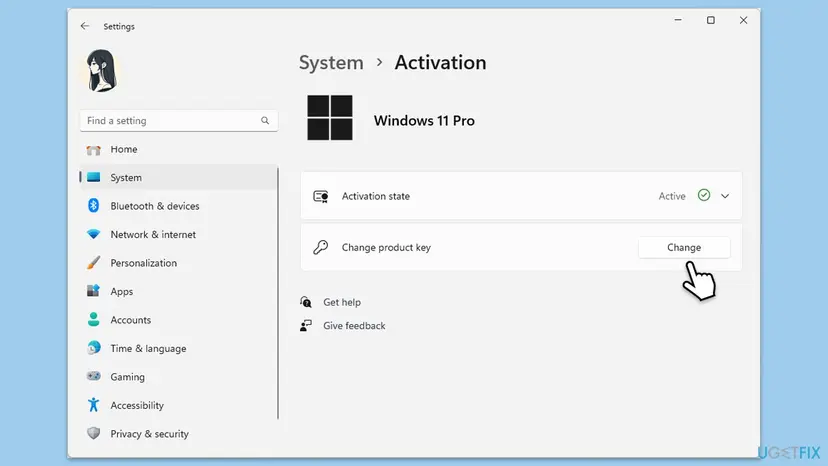
It worked if: The Activation page says Windows is activated, and the watermark goes after a restart.
If not: If the same key gives 0x803FA068 again with every character checked, the key itself is the issue: check its edition with Fix 2.
Fix 2. Check that the key is for the edition you installed
3 minutesNo riskThe key is typed correctly but still refused, or you are upgrading Home to Pro.
A key is valid only for the edition it was made for. Microsoft says a key for a different edition than the one installed is refused, and that the troubleshooter can spot a digital licence for another edition.
- On the Activation page, read the edition: Windows 11 shows it at the top, Windows 10 next to Edition.
- Read what the key is for on the receipt, the box or the Microsoft account order: Home, Pro, Education or another edition.
- If you upgrade Home to Pro, make sure Home is activated first, then enter the Pro key with Fix 1.
- If Pro is installed and your key is for Home, go to Fix 6.
- If the receipt does not name the edition, enter the key with Fix 4 and read the Name line.
| Installed | Your key | Next |
|---|---|---|
| Home, activated | Pro | Enter the Pro key with Fix 1. |
| Home, not activated | Pro | Activate Home first with Fix 3, then the Pro key. |
| Pro | Pro | Fix 4, then Fix 5 if it is still refused. |
| Pro | Home | Fix 6. |
It worked if: You know whether the key fits the installed edition and which fix comes next.
If not: If the edition matches and the key is still refused, find out what kind of key it is with Fix 4.
Fix 3. Bought from Microsoft and reinstalled: sign in with that account and run the troubleshooter
5 minutesNo riskYou bought Windows or the Pro upgrade in the Microsoft Store, or Windows was activated on this PC before the reinstall.
A Store purchase is usually a digital licence kept on Microsoft's side, not a key you need to type. Microsoft says a reinstalled copy should activate by itself unless the hardware changed significantly, and the troubleshooter can find a licence linked to your account.
The troubleshooter asks Microsoft's servers for your licence, so it needs a working connection. Check it first: How to check your internet connection in Windows
- Open Settings > Accounts > Your info and check that you are signed in with the Microsoft account that made the purchase, not a local account.
- If not, select Sign in with a Microsoft account instead and sign in with that account.
- Open Settings > System > Activation and select Activation state to expand it on Windows 11.
- Select Troubleshoot and wait for the scan.
- If you changed hardware, select I changed hardware on this device recently, sign in and pick this PC from the list.
- Restart the PC and open the Activation page again.
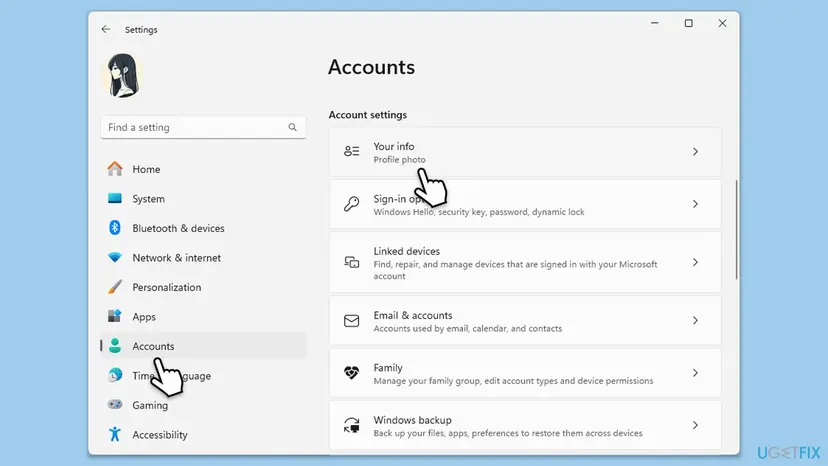
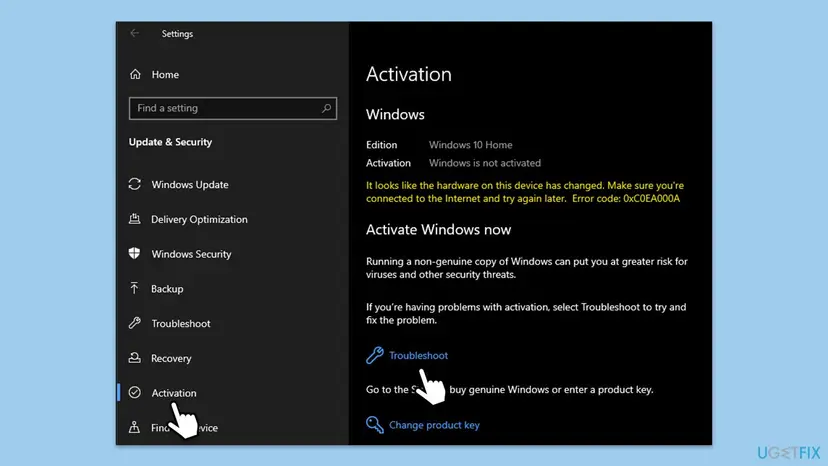
The edition matters here too. A digital licence for Pro does not activate a Home installation, and a Home licence does not activate Pro. If the troubleshooter reports a licence for another edition, follow its prompt or go to Fix 6.
It worked if: The Activation page says Windows is activated with a digital license or with a digital license linked to your Microsoft account.
If not: If the troubleshooter finds no licence, check the order in your Microsoft account. If the order is there, contact Microsoft support from the troubleshooter page.
Fix 4. Install the key from Command Prompt and read what kind of key it is
5 minutesLow riskSettings shows only the code and you want to know the key's edition and channel.
slmgr is the licensing script built into Windows. It installs the key and reports the edition and the licence channel (retail, OEM or volume), which tells you who can help with a refused key.
- Type cmd in the search box, select Run as administrator next to Command Prompt, then Yes.
- Check the current state first. A box says whether Windows is activated:
slmgr /xpr - Install the key, with your own characters in place of the X:
slmgr /ipk XXXXX-XXXXX-XXXXX-XXXXX-XXXXX - Ask the server to activate it:
slmgr /ato - Read the details: Name gives the edition, Description the channel and License Status the result.
slmgr /dlv - Restart the PC and check the Activation page.
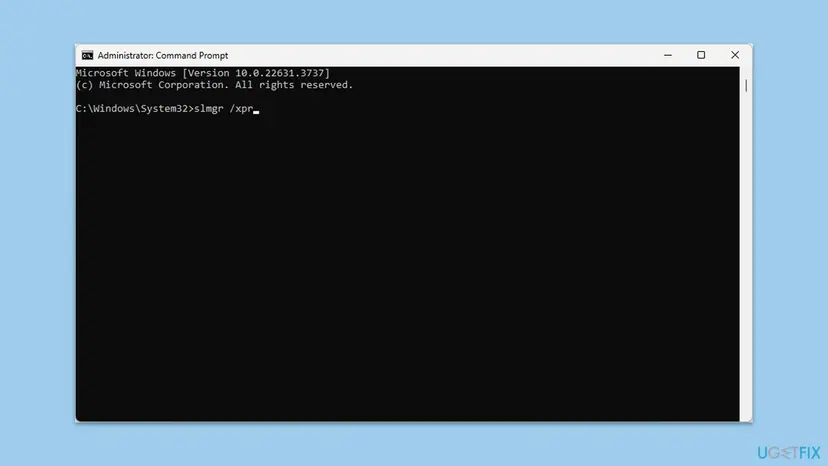
Older guides write slmgr.vbs.ipk and slmgr.vbs/ato without spaces, which Windows does not accept. They also read the firmware key with wmic, a tool Microsoft removed from Windows 11 starting with 25H2.
It worked if: slmgr /ato reports that the product was activated successfully, and slmgr /dlv shows License Status: Licensed.
If not: If slmgr /dlv names a VOLUME or OEM channel, or the server refuses again, go to Fix 5. If it names another edition, go to Fix 6.
Fix 5. When the key is not valid for this PC: get a working one
15 minutes, or the time of a purchaseNo riskThe key came from a marketplace, from another PC, or from your workplace or school.
Microsoft's answer for a key that cannot be used is to enter a different key or buy a new one. A volume key works only with the organisation's activation, so the organisation, not the PC, decides.
| Where the key came from | Who can help |
|---|---|
| A website or marketplace that sold it as genuine | The seller. Ask for a refund or a working key. |
| Your company, school or a volume licence | The system administrator. Microsoft says such activation is managed by the organisation. |
| A sticker or firmware of another PC | Nobody. A preinstalled key stays with the PC it came with. |
| Microsoft or an authorised retailer | Microsoft customer support, linked from the troubleshooter. |
- Find the proof of purchase: the order email, the invoice or your Microsoft account order history.
- Run
slmgr /dlvfrom Fix 4 and save a screenshot of the box. - Contact the seller, the administrator or Microsoft support from the table.
- If no one can confirm the key, buy a licence through Settings > System > Activation or an authorised retailer.
- Enter the new key with Fix 1.
Tools that promise free activation change system files and run with full rights on your PC, and keys posted online are generic or stolen. This page does not link to any of them, and you should not run them.
It worked if: You get a key that is valid for your edition, and Windows activates with Fix 1.
If not: If support confirms the key is genuine and it still fails, check the edition again with Fix 2.
Fix 6. Your licence is for another edition: install the matching one
About 1 hourRead the warningA reinstall put Pro on a PC whose licence is Home, or the other way round.
Microsoft says that when the installed edition differs from your digital licence, you either enter a key for the installed edition or reinstall the edition your licence covers.
Installing another edition from scratch removes your apps, settings and files on the system drive. Back up everything first: Back up your files (Windows Backup, File History, Time Machine)
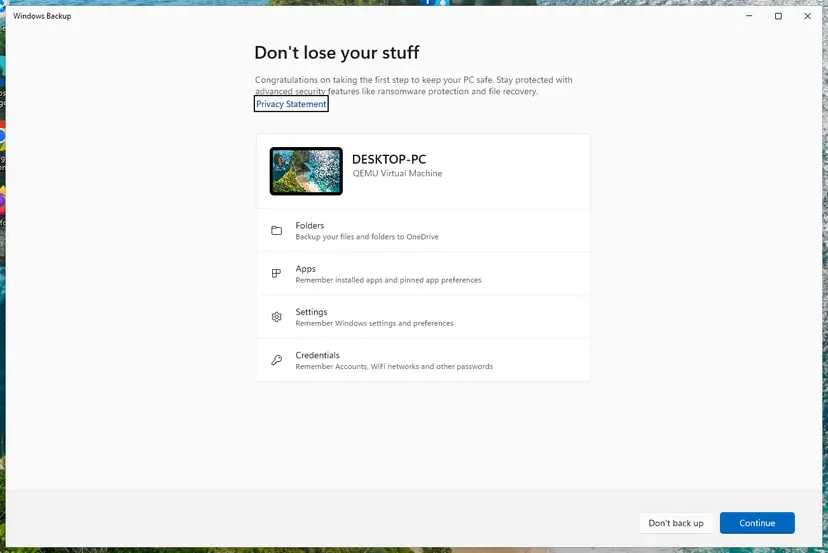
- Run Troubleshoot from Fix 3 first. If it finds a licence for another edition, it shows how to install that one.
- Otherwise, create installation media from Microsoft's Windows 11 download page.
- Start the PC from the media and choose the edition on your licence when setup asks.
- When setup asks for a key, select I don't have a product key if your licence is digital, or enter your key.
- After setup, sign in with your Microsoft account and open Settings > System > Activation.
It worked if: The Activation page shows the edition of your licence and Windows is activated.
If not: If the new installation is still not activated, run Fix 3 on it.
If error 0x803fa068 is still there
When every fix ends in the same code, the server keeps refusing that key, and only someone who sold or issued it can change that. Collect these facts before you contact anyone, so support can answer in one reply.
| What to collect | Where | Why support needs it |
|---|---|---|
| Installed edition and state | Settings > System > Activation | Shows whether key and edition fit. |
| Edition and channel of the key | slmgr /dlv in Command Prompt | Retail, OEM or volume decides who is responsible. |
| Proof of purchase | Order email, invoice, Microsoft account orders | Shows who sold the key. |
| What changed | Reinstall, upgrade, new motherboard | Points to the troubleshooter path or a new licence. |
- Key bought from a reseller: the reseller.
- Volume key from work or school: the administrator.
- Key or Store purchase from Microsoft: Microsoft customer support from the troubleshooter.
How to avoid error 0x803fa068
- Keep the order email or the key card, and copy the key from it when you need it.
- Sign in with your Microsoft account so a digital licence is found after a reinstall.
- Reinstall the same edition your licence covers.
- Buy keys from Microsoft or an authorised retailer.
- Do not type a key from a blurry photo without checking each character.
- Do not use a volume key from work or school on a home PC.
- Do not buy keys at a fraction of the retail price.
- Do not run activator tools or registry tricks from forums or videos.
Frequently asked questions
What is 0x803fa068?
It is a Windows activation error that means the activation server refused the product key as invalid. Microsoft's Windows SDK names the value SL_REMAPPING_MDOLLAR_INVALID_PRODUCT_KEY, although Microsoft's support page on activation errors does not list it. The key may be mistyped, meant for another edition or channel, or not genuine. Nothing on your PC is damaged, and your files are not affected. Start by entering the key again from the original receipt.
I bought Windows from the official store and still get 0x803fa068. Why?
A purchase in the Microsoft Store is usually a digital licence linked to your Microsoft account, so typing a key after a reinstall is often the wrong route. Sign in to Windows with the account that made the purchase, open the Activation page and run Troubleshoot. Also check that you reinstalled the edition you bought: a Pro licence does not activate Home. If the order is in your account and activation still fails, contact Microsoft support.
Does 0x803fa068 mean my key is fake?
Not always. A genuine key is refused just the same when one character is wrong or when it is for another edition. Check those two things first with Fix 1 and Fix 2. If the key is typed correctly, matches the edition and still fails, look at where it came from. A key from a marketplace far below the retail price, or a volume key from a company, is the usual reason, and only the seller or the organisation can solve it.
Can I fix 0x803fa068 by activating Windows offline?
No. Older guides suggest turning off Wi-Fi before entering the key, but activation needs an answer from Microsoft's server. With no connection, Windows can install the key and then tries to activate once you are back online, where the same key gets the same verdict. Disconnecting does not bypass the check. Keep the PC connected and fix the key itself with the methods above.
Is 0x803fa068 the same on Windows 10 and Windows 11?
Yes. The code and its causes are the same on both. Only the paths differ: Windows 11 uses Settings > System > Activation and hides Troubleshoot under Activation state, while Windows 10 uses Settings > Update & Security > Activation. Windows 10 left support on 14 October 2025, so if you need a new licence now, a Windows 11 licence is the better buy when your PC can run it.
Why do I get 0x803fa068 when upgrading Windows Home to Pro?
Usually because the Pro key is refused as it is entered, either because of a typing slip or because the key is not a valid Pro key. Make sure Windows Home itself is activated first, then enter the Pro key under Change product key. If the same key fails on activated Home, run slmgr /dlv after installing it to see what edition and channel it really is, and take that to the seller.
Will SFC, DISM or a clean boot fix 0x803fa068?
Unlikely. The code is the activation server's verdict on the key, so repairing system files or starting Windows without third-party programs does not change what the server decides. Older guides list these steps because they fit almost any error. Spend the time on the key instead: enter it again, check the edition, or let the troubleshooter find your digital licence.
Can I use a key from my old PC or from work?
Only a retail key moves to a new PC. A key that came preinstalled on another computer stays with that computer, and a volume key from a company or school is managed by that organisation. Microsoft says to contact the system administrator for volume licences. If slmgr /dlv shows an OEM or VOLUME channel for your key, it is not the right key for a personal PC.
What happens if I leave Windows unactivated?
Windows keeps starting and your files stay where they are. You see a watermark and reminders, and some personalisation options are locked until Windows is activated. You can keep working while you sort out the key with the seller or Microsoft, then activate with Fix 1 once you have a valid one.
Sources
Did this fix work?
One click, no account. It tells the next reader which guides are worth their time.
Questions and experiences: fix Windows activation error 0x803fa068
Still broken, or found a fix we did not cover? Ask here: members and our editors answer. Reading is open; writing needs a free account.
…