
How to fix Windows activation error 0xC004F215?

Prefer to fix it yourself? The manual steps follow.
- 6methods
- 5 to 45 minutes
- Easy
Applies to Windows 11 and Windows 10 Home and Pro on PCs that came with Windows preinstalled, including second-hand and repaired PCs
6 methods in this guide
Hey, I was wondering if you could assist me with the 0xC004F215 error. I am getting it when I try to activate Windows after I had to reinstall it.
Error 0xC004F215 means Windows could not activate with the OEM product key, the key the PC maker put on the device. Most often the edition is wrong, for example Pro on a PC sold with Home, or Windows is using another key. Start with the Activation troubleshooter, then check which key and edition you have.
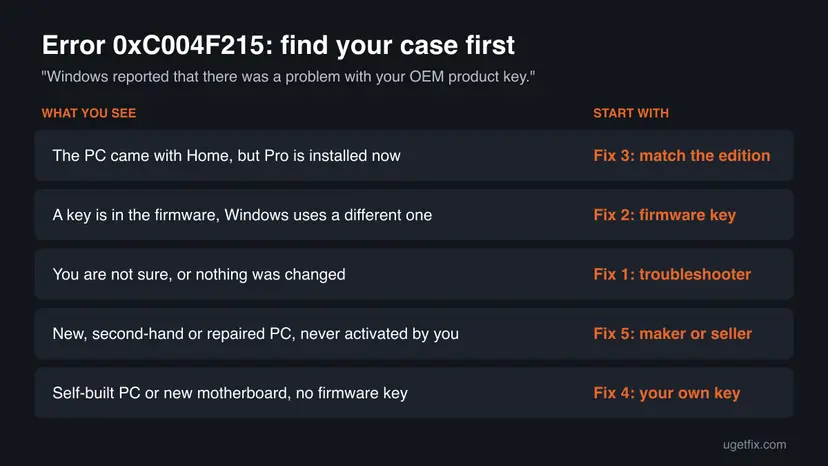
Open Settings > System > Activation and select Troubleshoot (Fix 1). If that fails, compare the edition on that page with the edition the PC was sold with: an OEM Home key does not activate Pro (Fix 3). If the PC has a key in its firmware, install that key again with slmgr /ipk (Fix 2). A new, second-hand or repaired PC with no working key is a case for the maker or seller (Fix 5).
| Error | 0xC004F215: "Windows reported that there was a problem with your OEM product key." |
|---|---|
| Where it appears | Settings > System > Activation (Windows 10: Settings > Update & Security > Activation), after Troubleshoot or Activate, usually after a reinstall, an edition change or a repair. |
| Main cause | The OEM key from the PC maker does not fit what is installed: most often a different edition, or another key replaced it. |
| Fastest fix | The Activation troubleshooter (Fix 1), then the firmware key installed again with slmgr /ipk (Fix 2). |
| Also written as | 0xc004f215, C004F215, "Error code: 0xC004F215", and in some reports "code 4.215". slmgr /dli often shows Notification reason: 0xC004F034 next to it. |
| Affects | Windows 11 and Windows 10, Home and Pro, on PCs from brands such as Dell, HP, Lenovo or Gigabyte. Windows 10 left support on 14 October 2025; activation works the same way. |
| Microsoft's status | Not listed on Microsoft's page of activation errors (checked 15 October 2026). Its close relatives 0xC004F034, 0xC004F210 and 0xC004F212 are, and all point to a key or edition that does not match. |
| When it is not fixable for free | The motherboard with the OEM key was replaced by you or a third-party shop, or the PC never had a working licence. Then the maker, the seller or a new licence is the answer. |
| Time to fix | 5 minutes for the troubleshooter or the firmware key. About 30 to 45 minutes for an edition change. |
Facts checked on 15 October 2026. Steps written for Windows 11 (25H2 and 26H2) and Windows 10 22H2.
What Windows activation error 0xC004F215 means
The full message reads: "Windows reported that there was a problem with your OEM product key. Error code: 0xC004F215". OEM stands for the original equipment manufacturer, the company that built the PC and installed Windows on it. Its key is usually stored in the PC's firmware, so it is not typed by you, and it is tied to that PC.
Microsoft does not list 0xC004F215 on its page of activation errors, which we checked on 15 October 2026. What we know comes from that page's neighbouring codes and from user reports on Microsoft's own forum. In those threads, slmgr /dli often shows a second code, 0xC004F034, which Microsoft explains as an invalid product key or a key for a different version of Windows.
| What you see | Where | What it tells you |
|---|---|---|
| Windows reported that there was a problem with your OEM product key. Error code: 0xC004F215 | Activation page, after Troubleshoot or Activate | Windows tried the PC maker's key and it did not fit. |
| License Status: Notification, Notification Reason: 0xC004F034 | slmgr /dli or slmgr /dlv | The installed key is invalid or for another edition (Microsoft). |
| 0xC004F212: the product key used on this device isn't compatible with this edition | Activation page | A documented sibling: wrong edition after a reinstall. |
| 0xC004F211 or 0xC004F213 | Activation page | Hardware changed, or no key was found. See our guide on error 0xC004F211. |
The error does not delete anything and Windows keeps starting. It only means the licence check failed. Take the time to find out which case you have before you buy anything.
Why error 0xC004F215 appears, from most to least common
Every case is a mismatch between the OEM key and the Windows on the drive. The ranking below comes from the threads on Microsoft's forum and from Microsoft's own explanation of the related codes. Find your row, then go to its fix.
| Cause | How often | How to tell | Fix |
|---|---|---|---|
| Windows was reinstalled or upgraded to Pro on a PC sold with Home, often with a generic or borrowed Pro key. | Most often | The Activation page says Windows 11 Pro, the sticker or box says Home. | Fix 3 |
| The firmware key is there, but Windows now uses another key that was typed in later. | Often | The last five characters in slmgr /dli differ from the firmware key. | Fix 2 |
| A digital licence and the OEM key are out of step after a reinstall or update. | Sometimes | Same edition, same key, still not activated. | Fix 1 |
| A new, refurbished or second-hand PC whose preinstalled key fails at the first start. | Sometimes | You never activated it yourself, or a shop sold it. | Fix 5 |
| The motherboard that carried the key was replaced, or the PC was built from parts and never had a firmware key. | Less often | The firmware key line is empty. | Fix 4, Fix 5 |
One user on Microsoft's forum reports that the error appeared after a Windows 11 24H2 update on an assembled PC. The volunteer who answered found a retail key, not an OEM one. We could not confirm that an update alone causes 0xC004F215, so treat that report as unconfirmed.
Check which key and edition you have (2 minutes)
Three read-only checks tell you which fix to use. None of them changes the licence. Microsoft notes that slmgr /dli and slmgr /dlv do not need administrator rights.
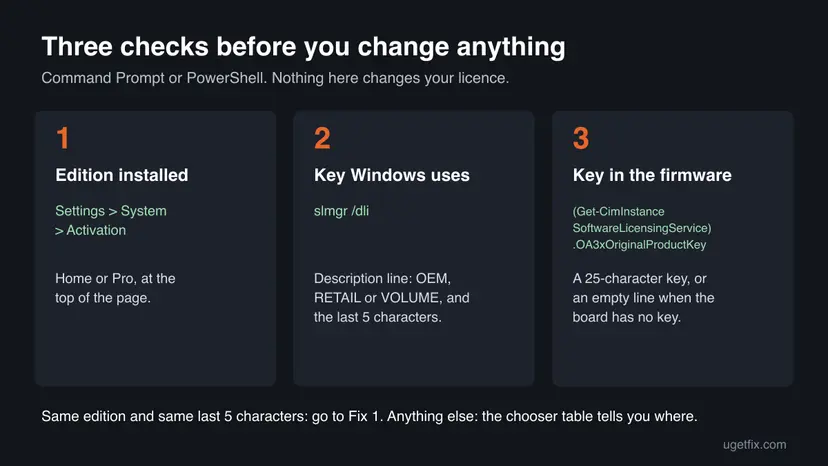
- Open Settings > System > Activation. Write down the edition shown at the top, for example Windows 11 Home or Windows 11 Pro.
- Open Command Prompt and run the command below. In the box that opens, note the Description line (OEM, RETAIL or VOLUME) and the Partial Product Key.
slmgr /dli - Open PowerShell and read the key stored in the firmware:
(Get-CimInstance -ClassName SoftwareLicensingService).OA3xOriginalProductKey - Compare: the edition the PC was sold with (sticker, box or invoice), the edition installed, and whether the last five characters of the firmware key match the partial key.
Older guides use wmic path softwarelicensingservice get OA3xOriginalProductKey. Microsoft removed WMIC from Windows 11 starting with 25H2, so use the PowerShell line above. Microsoft does not document that property in its public class reference, so treat the result as a strong hint. An empty line means no key is stored in the firmware.
How to fix Windows activation error 0xC004F215
Fixes 1 and 2 use the licence the PC already has and take minutes. Fix 3 is for a wrong edition, Fix 4 for a PC with no usable OEM key. Fixes 5 and 6 are for cases where the answer comes from a person: the PC maker, the seller or Microsoft support. Never use an activator tool or a key from a marketplace.
| What you see or have | Start with |
|---|---|
| You are not sure, or edition and key already match. | Fix 1 |
| The firmware key exists and its last five characters differ from the partial key. | Fix 2 |
| The PC was sold with Home and Pro is installed now (or the reverse). | Fix 3 |
| The firmware key line is empty: a self-built PC or a replaced motherboard. | Fix 4 |
| A new, refurbished or second-hand PC that never activated for you, or a repair under warranty. | Fix 5 |
| You bought the licence from Microsoft and nothing above worked. | Fix 6 |
Fix 1. Run the Activation troubleshooter
5 minutesNo riskFirst step for everyone. It needs an administrator account and an internet connection.
Microsoft's troubleshooter checks the licences on record for this PC. It can activate a digital licence that was not applied after a reinstall, and it tells you when the licence is for a different edition, which is the most common reason behind 0xC004F215.
Activation needs a working connection. If the PC is offline, fix that first: How to check your internet connection in Windows

- Sign in with an administrator account.
- Open Settings > System > Activation. On Windows 10 it is Settings > Update & Security > Activation.
- Select Troubleshoot. Microsoft shows this option only while Windows is not activated.
- Read the result. If it offers Activate Windows, select it and then Activate.
- If it says you have a licence for Pro while Home is installed, select Upgrade to Windows 11 Pro, then Start upgrade.
- If it says you have a licence for Home while Pro is installed, close it and go to Fix 3.
It worked if: The Activation page says Windows is activated, and the watermark disappears after a restart.
If not: If the troubleshooter ends with 0xC004F215 again, do the three checks above and go to Fix 2 or Fix 3.
Fix 2. Install the key stored in the PC's firmware again
5 minutesLow riskThe PowerShell check shows a firmware key, and its last five characters differ from the partial key in slmgr /dli.
Users on Microsoft's forum hit 0xC004F215 after typing another key, such as a generic Pro key, over the OEM one. Putting the PC maker's own key back gives Windows the key the manufacturer activated it with.
- Type cmd in the search box on the taskbar, select Run as administrator next to Command Prompt, then Yes.
- Install the firmware key, replacing the X characters with the key from the PowerShell check:
slmgr /ipk XXXXX-XXXXX-XXXXX-XXXXX-XXXXX - Restart the PC. Microsoft's slmgr reference says to restart after installing a key so the licence service stays stable.
- Open Command Prompt as administrator again and start online activation:
slmgr /ato - Check the result:
slmgr /dli
slmgr /ipk silently replaces the installed key. If you typed a retail key you paid for, write down where you have it before you run the command, so you can go back to it.
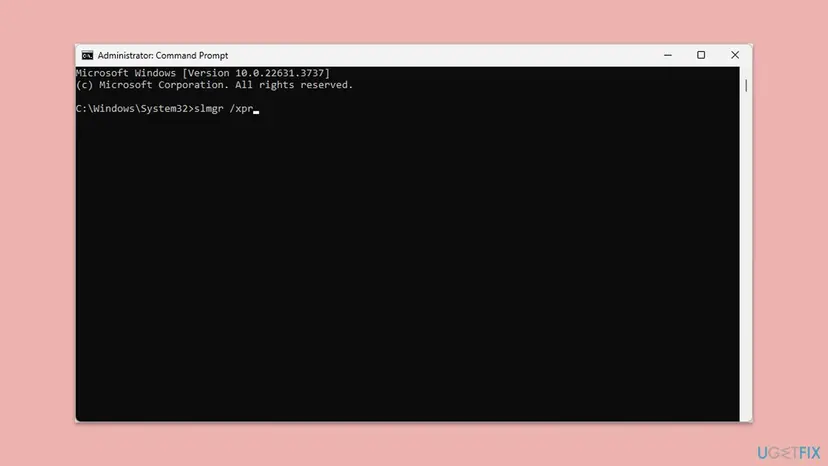
Do not run slmgr /rearm, /upk or /cpky for this error. They reset timers or remove keys and do not fix a key that does not match.
It worked if: slmgr /ato reports that the product was activated successfully, and slmgr /dli shows License Status: Licensed.
If not: A message that the key is for another edition means Fix 3. A message that the key is not valid means the key belongs to another board: Fix 4 or Fix 5.
Fix 3. Install the edition the OEM key is for
30 to 45 minutesRead the warningThe PC was sold with Windows Home, and Pro is installed now (or the reverse).
An OEM key activates only the edition it was made for. Microsoft explains the related codes 0xC004F210 and 0xC004F212 the same way: a key or licence for one edition cannot activate another. The search for "0xc004f215 windows 11 pro" shows how often this is the case.
| Key on the PC | Installed now | What to do |
|---|---|---|
| Home | Pro | Either buy Pro (step 2 below) or install Home again (steps 3 to 6). Your choice depends on whether you need Pro features. |
| Pro | Home | Run the troubleshooter in Fix 1 and select Upgrade to Windows 11 Pro. Your files stay. |
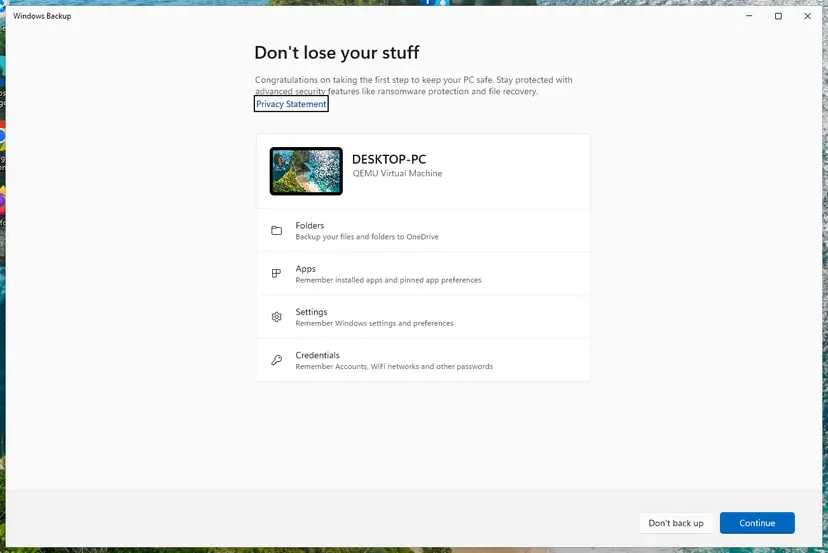
Installing Home over Pro removes your apps, settings and files from the system drive. Back up everything you want to keep first: Back up your files (Windows Backup, File History, Time Machine)
- Check the edition on the sticker, box or invoice and on Settings > System > Activation.
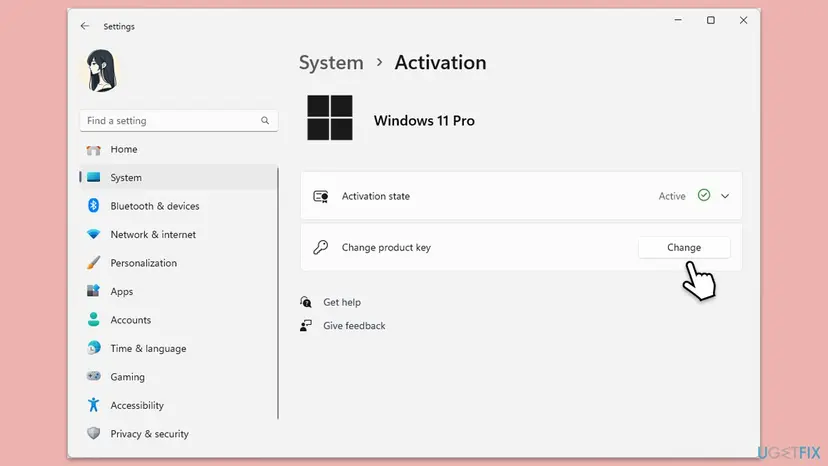
- To keep Pro, expand Upgrade your edition of Windows on the Activation page and select Open Store, or select Change product key if you own a Pro key. Microsoft calls the Store the best way to upgrade.
- To go back to Home, back up your files and create installation media from Microsoft's Windows 11 download page.
- Start the PC from the media and choose Windows 11 Home if setup asks for an edition.
- Select I don't have a product key if setup asks for one. The OEM key in the firmware is read after setup.
- After setup, open Settings > System > Activation and check the status.
It worked if: The edition on the Activation page matches the key, and the status says Windows is activated, at once or after Fix 1.
If not: If Home is installed and still shows 0xC004F215, install the firmware key with Fix 2. If that fails too, go to Fix 5.
Fix 4. Activate with a key of your own
5 minutesNo riskNo firmware key exists (a self-built PC or a replaced motherboard), or you own a retail key you bought.
Without a working OEM key, Windows needs a licence of its own. Microsoft's error page gives the same two ways for related codes: enter a valid key, or buy a licence through Go to Microsoft Store.
- Find your key: the card in a retail box, the shop's confirmation email, or the order history of your Microsoft account if you bought it there.
- Open Settings > System > Activation and select Change product key.
- Type the 25-character key and select Next, then Activate.
- No key? On the same page select Go to Microsoft Store and buy the edition that is installed.
- If online activation still fails with a valid key after a motherboard change, type SLUI 04 in the search box on the taskbar and follow the phone activation steps.
Microsoft says SLUI 04 cannot be used for Windows Pro for Workstations or Pro Education. Those editions must activate over the internet.
It worked if: The Activation page says Windows is activated, and slmgr /dli shows RETAIL as the channel.
If not: If a key you bought is refused as already used, contact the shop that sold it. A key from a marketplace at a fraction of the retail price is often a resold key.
Fix 5. Ask the PC maker, the seller or the repair shop
15 minutes plus their replyNo riskA new, refurbished or second-hand PC, or a PC repaired under warranty, that came with Windows and never activated for you.
Only the maker can supply or restore an OEM key. Microsoft tells owners of a preinstalled PC with a lost key to contact the manufacturer, and for related errors on new PCs to contact the device manufacturer.
| Your situation | Who to contact |
|---|---|
| New PC that fails at the first start | The PC maker's support (Dell, HP, Lenovo, Gigabyte and so on), with the serial number. |
| Refurbished or second-hand PC from a shop | The seller or refurbisher. Microsoft's error page says to contact the reseller when a key you expected to be valid is not. |
| Repaired under warranty, motherboard replaced | The maker's service centre. Ask them to put the Windows key on the new board. |
| Repaired at an independent shop | The shop. Microsoft says such a repair can require a new licence. |
- Take a photo of any Windows sticker or certificate of authenticity on the PC.
- Save a screenshot of the
slmgr /dlibox and the result of the PowerShell key check. - Write down the exact message and code from the Activation page.
- Send these with the serial number and your proof of purchase.
Tools that promise free activation change system files and run with full rights. Microsoft's licence terms say you may not work around technical restrictions in the software. This page links to none of them.
It worked if: The maker or seller restores the key or gives you a valid one, and Windows activates with Fix 2 or Fix 4.
If not: If the maker says the PC's licence cannot be restored, Fix 4 with a licence you buy is the remaining legal way.
Fix 6. Contact Microsoft support with your proof
15 to 30 minutesNo riskYou bought Windows from Microsoft, the edition is right, and Fixes 1 to 4 did not help.
Microsoft's troubleshooter page ends with one step for every case it cannot solve: contact support. Support can see purchases and licences that the PC itself does not show.
- Save screenshots of
slmgr /dlvand of the Activation page with the error. - Find the order email or the order history in your Microsoft account.
- Open support.microsoft.com/contactus in a browser and choose Windows activation.
- Give support the code 0xC004F215, the edition, the channel from
slmgr /dliand what changed before the error.
It worked if: Support activates Windows or tells you clearly whether the licence can be used on this PC.
If not: If support says the licence was an OEM one, the PC maker is the contact (Fix 5).
If error 0xC004F215 is still there
When none of the fixes worked, the problem is the licence, not a setting. Collect the facts below before you contact anyone, so you do not have to start over.
| What to check | Where | What it tells you |
|---|---|---|
| Channel and status | slmgr /dli and slmgr /dlv | OEM, RETAIL or VOLUME, and the notification reason, often 0xC004F034. |
| Firmware key | PowerShell check in the section above | Whether the board carries an OEM key at all. |
| Edition | Settings > System > Activation | Home and Pro keys do not cross. |
| Activation attempts | Event Viewer, Windows Logs > Application, source Security-SPP | The time of each attempt. We could not confirm a specific event ID for 0xC004F215. |
- PC from a brand, new or under warranty: the maker (Fix 5).
- Second-hand or refurbished PC: the seller (Fix 5).
- Self-built PC or Windows bought from Microsoft: Microsoft support (Fix 6), or a licence of your own (Fix 4).
The old version of this page suggested the network troubleshooter and a restart of the Software Protection service. No source ties either one to 0xC004F215, so we left them out. A reinstall of the same edition does not change the answer either.
How to avoid error 0xC004F215 next time
Most cases start with a reinstall of the wrong edition or a key typed over the OEM one. A minute of checking before you reinstall prevents both.
- Note the edition on Settings > System > Activation before you reinstall, and choose the same one in setup.
- Sign in with your Microsoft account so a digital licence is linked to it.
- Keep the sticker, box or invoice that shows the edition the PC came with.
- When you buy a used PC, ask the seller to show an activated Activation page.
- Do not type generic or borrowed Pro keys over the OEM key.
- Do not run activator tools or registry tricks from forums or videos.
- Do not buy keys from marketplaces at a fraction of the retail price.
- Do not replace the motherboard of a brand PC without asking about the Windows key.
Frequently asked questions
What does error code 0xC004F215 mean?
It means Windows tried to activate with the OEM product key, the key the PC maker installed, and the key did not fit. The full message is "Windows reported that there was a problem with your OEM product key". Microsoft does not list the code on its error page, but user reports and the related codes 0xC004F034 and 0xC004F212 point to a key or edition mismatch. Your files are not affected, only the activation status.
Why do I get 0xC004F215 on Windows 11 Pro?
Most often because the PC was sold with Windows 11 Home and its OEM key is a Home key. Pro was installed later, by a reinstall or with a generic Pro key, and the Home key cannot activate it. You can buy the Pro upgrade through Upgrade your edition of Windows on the Activation page, or reinstall Home after a backup. Fix 3 shows both ways.
I get 0xC004F215 after reinstalling Windows. What should I do?
Check that you installed the same edition the PC came with. A reinstall that picks Pro on a Home PC is the most common cause. If the edition is right, run the Activation troubleshooter (Fix 1), then install the firmware key with slmgr /ipk (Fix 2). If the PowerShell check shows no firmware key at all, the key may have been on a board that was replaced, so ask the maker.
Does 0xC004F215 mean my Windows is not genuine?
Not necessarily. It means the key Windows tried does not activate the installed copy. A genuine PC from Dell, HP, Lenovo or Gigabyte can show it after a reinstall with the wrong edition. Users on Microsoft's forum also report it on brand-new gaming laptops. In that case, the maker should supply a working key. Only if the PC never had a licence is a new one needed.
I bought a second-hand or refurbished PC with 0xC004F215. Who fixes it?
The seller. Microsoft's page of activation errors says to contact the reseller when a key you expected to be valid is not, and to contact the manufacturer when a preinstalled PC fails at its first start. Ask the seller for a key or a working activation before the return period ends. If the PC is still under the maker's warranty, the maker can also restore its OEM key.
Can I fix 0xC004F215 on a Dell, HP or Lenovo laptop myself?
Often yes. Check the edition first: brand laptops are usually sold with Home. If Home is installed and the firmware key exists, install it again with Fix 2. If the laptop was repaired and got a new motherboard under warranty, the maker should put the key on the new board, so call its service centre with the repair number. A key from another PC will not work.
What is 0xC004F034 in slmgr next to 0xC004F215?
It is the notification reason that slmgr /dli shows for the key Windows is using. Microsoft explains 0xC004F034 as an invalid product key, or a key for a different version of Windows. Together with 0xC004F215 it usually means the key and the edition do not match. Fix 3 covers the edition, Fix 2 and Fix 4 the key.
Is there a free key or tool that removes 0xC004F215?
No legitimate one. Free keys shared online are generic, and activation tools change system files and run with full rights, which can bring malware. Microsoft's licence terms say you may not work around technical restrictions in the software. The legal ways are on this page: the firmware key, the right edition, your own key, the maker or seller, or a licence bought through Go to Microsoft Store.
What does "code 4.215" mean?
Some people search the last digits of the code, so "code 4.215" or "code: 4.215" usually stands for 0xC004F215. If your Activation page shows the full code 0xC004F215 and the OEM product key message, this page is the right one. If another code is shown, Microsoft's page of activation errors lists the common ones.
Can I use this guide if I read it in another language?
Yes. People search the error in Spanish, Portuguese, Indonesian, Vietnamese, German and other languages, for example "como solucionar" or "cara mengatasi". The steps are the same in every language of Windows. The labels follow the English Windows names here: Settings > System > Activation and Troubleshoot. Your Windows shows the same items in your language, in the same place.
Sources
- Microsoft Support: Get help with Windows activation errors (support.microsoft.com)
- Microsoft Support: Using the Windows Activation troubleshooter (support.microsoft.com)
- Microsoft Support: Find your Windows product key (support.microsoft.com)
Did this fix work?
One click, no account. It tells the next reader which guides are worth their time.
Questions and experiences: fix Windows activation error 0xC004F215
Still broken, or found a fix we did not cover? Ask here: members and our editors answer. Reading is open; writing needs a free account.
…