
How to fix Windows backup failed error 0x80780166?

Prefer to fix it yourself? The manual steps follow.
- 6methods
- 5 minutes for the first fix, up to 1 hour for a full drive check
- Intermediate
Applies to Create a system image in Backup and Restore (Windows 7) and wbadmin on Windows 11 and Windows 10
6 methods in this guide
Hello, I was trying to make a backup of my Windows 10, and I encountered an error 0x80780166. As a result, I can't create a system image and the backup that I need. Is there anything that I can do to resolve this? Any tips would be greatly appreciated.
Error 0x80780166 means Windows Backup could not write the system image to the backup drive. Most often an older image in the WindowsImageBackup folder, or a flaky USB drive or port, stops the write. Move the old folder aside first, then connect the drive straight to the PC and try again.
0x80780166 is a write failure on the backup target, the drive that receives the system image. Your files on drive C: are not harmed. Rename or move the old WindowsImageBackup folder on the backup drive (Fix 1), then plug the drive into a USB port on the PC itself, with no hub (Fix 2). If it still fails, check that Volume Shadow Copy is not disabled (Fix 3).
| Error | "Windows Backup encountered an error when writing data to the backup target. (0x80780166)" |
|---|---|
| Where it appears | In the Create a system image window of Backup and Restore (Windows 7), after The backup failed., often minutes into the write. Windows Server Backup logs the same code. |
| Main cause | The backup drive cannot take the write: an older image in WindowsImageBackup, a USB drive on a weak port or hub, or file system errors on that drive. Less often, Volume Shadow Copy fails on the source. |
| Fastest fix | Rename the old WindowsImageBackup folder on the backup drive and run the backup again (Fix 1). |
| Also written as | backup failed 0x80780166, system image error 0x80780166, "An error occurred in Windows Backup while writing data to the backup destination". The second code under Additional Information varies: STATUS_WAIT_1 (0x80070001) or 0x80070002, "The system cannot find the file specified". |
| Affects | Windows 11 and Windows 10, and earlier Windows 8 and Windows Server. Windows 10 left support on 14 October 2025. |
| Microsoft's status | No patch and no knowledge base article for this code. Microsoft support staff answer it case by case, pointing at Volume Shadow Copy and its storage space. |
| Where the cause is written | Event Viewer > Windows Logs > System for disk and USB errors, such as "The system failed to flush data to the transaction log." |
| Time to fix | 5 minutes for Fix 1, 10 minutes for Fixes 2 and 3, up to an hour when chkdsk scans a large hard disk. |
Facts checked on 15 October 2026. Steps written for Windows 11 (25H2 and 26H2) and Windows 10 22H2.
What Windows backup error 0x80780166 means
A system image is a full copy of drive C: and the small system partitions Windows needs to start. Windows Backup first asks the Volume Shadow Copy service (VSS) for a frozen snapshot of those drives, then copies the snapshot to the drive you picked as the backup target. Code 0x80780166 says the second half failed: data could not be written to that target.
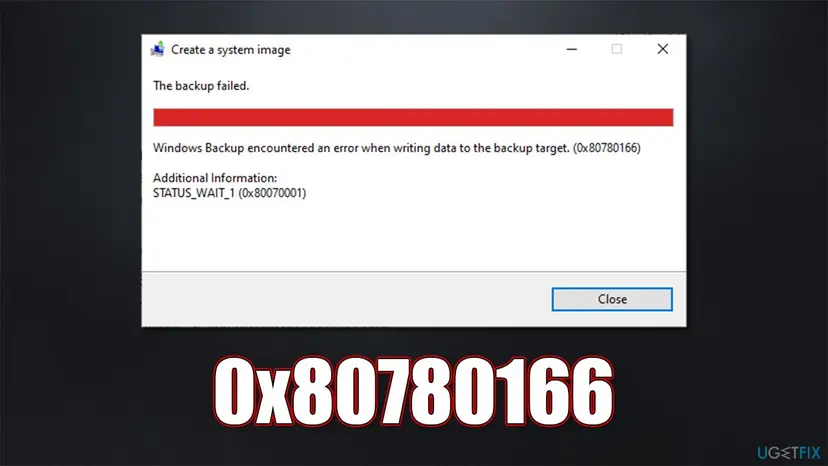
The window looks like this:
The backup failed.
Windows Backup encountered an error when writing data to the backup target. (0x80780166)
Additional Information: STATUS_WAIT_1 (0x80070001)- Where you see it: in Control Panel > System and Security > Backup and Restore (Windows 7) > Create a system image, usually after the progress bar has moved for a while.
- The second code: the line under Additional Information changes from PC to PC. Readers report
STATUS_WAIT_1 (0x80070001)andThe system cannot find the file specified. (0x80070002). Note yours, it helps you choose a fix. - On a server: Windows Server Backup logs it as "An error occurred in Windows Backup while writing data to the backup destination."
- What it is not: damage to your files on drive C:. Nothing is deleted from the source when the image fails.
Windows 11 still ships Create a system image, but it sits under a Control Panel item named Backup and Restore (Windows 7). The newer Windows Backup app copies folders and settings to OneDrive and does not make a system image, so it never shows 0x80780166.
Why 0x80780166 appears, from most to least common
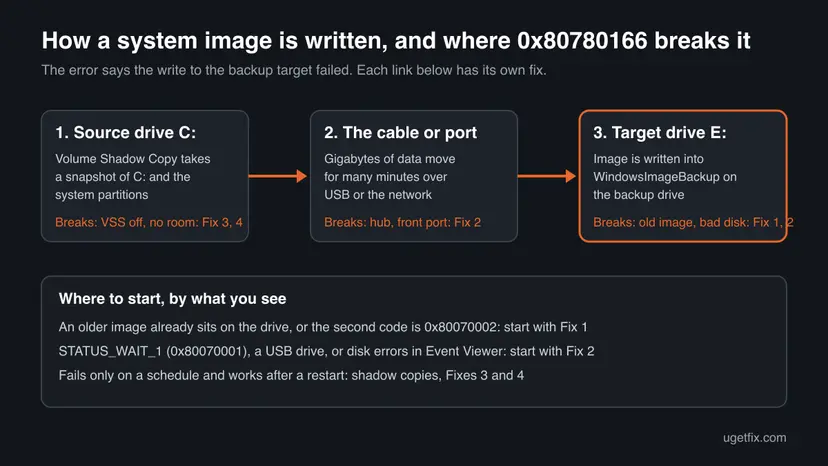
- Most often: an old image on the backup drive. Windows writes the new image into the existing
WindowsImageBackupfolder. A half-written image from an earlier failed run, or one made by an older Windows version, can block the write. Users on Microsoft's forum fixed it by deleting or renaming that folder. Fix 1. - Often: the drive or its connection. Several users fixed the error by moving the external drive from a front USB port to a rear one. One found "The system failed to flush data to the transaction log." in the System log, a sign the drive dropped out. Fix 2.
- Less often: Volume Shadow Copy. If VSS is disabled or stuck, there is no snapshot to copy. Microsoft support staff link the code to VSS on Windows Server, where a restart cleared it each time. Fix 3.
- Less often: no room for shadow copies. Microsoft staff describe a shadow copy storage allocation problem and suggest a fixed size limit instead of No limit. Fix 4.
- Rarely: another backup program or damaged system files. A second backup running at the same moment, or broken VSS files, stop the snapshot. Fixes 5 and 6.
| Cause | Sign | Start with |
|---|---|---|
| Old image in WindowsImageBackup | The drive already holds a system image, or the second code is 0x80070002 | Fix 1 |
| Drive or USB connection | External USB drive, a hub, a front port, or disk errors in Event Viewer | Fix 2 |
| Volume Shadow Copy stopped | Volume Shadow Copy shows Disabled in Services | Fix 3 |
| Shadow copy space | vssadmin list shadowstorage shows no limit or a full limit | Fix 4 |
| Other backup software | A second backup tool runs or is scheduled | Fix 5 |
| Damaged system files | Fixes 1 to 5 changed nothing | Fix 6 |
How to fix Windows backup failed error 0x80780166
Fixes 1 and 2 deal with the backup drive and solve most cases in a few minutes. Fixes 3 and 4 check the shadow copy that every system image starts with. Fix 5 rules out another backup program, and Fix 6 repairs Windows itself.
| What you see | Start with |
|---|---|
The backup drive already holds a WindowsImageBackup folder | Fix 1 |
| You back up to an external USB drive, through a hub or a front port | Fix 2 |
| Event Viewer shows disk or "transaction log" errors | Fix 2 |
| Volume Shadow Copy is disabled in Services, or other backups fail too | Fix 3 |
| The backup fails on a schedule but works after a restart | Fix 4 |
| You also use another backup or imaging program | Fix 5 |
| Everything above failed | Fix 6 |
Fix 1. Rename the old WindowsImageBackup folder on the backup drive
5 minutesLow riskThe backup drive already has a WindowsImageBackup folder from an earlier or failed backup.
Windows writes every new system image into WindowsImageBackup on the target drive. A damaged or older image there can stop the new write, and users on Microsoft's forum cleared 0x80780166 by deleting or renaming the folder.
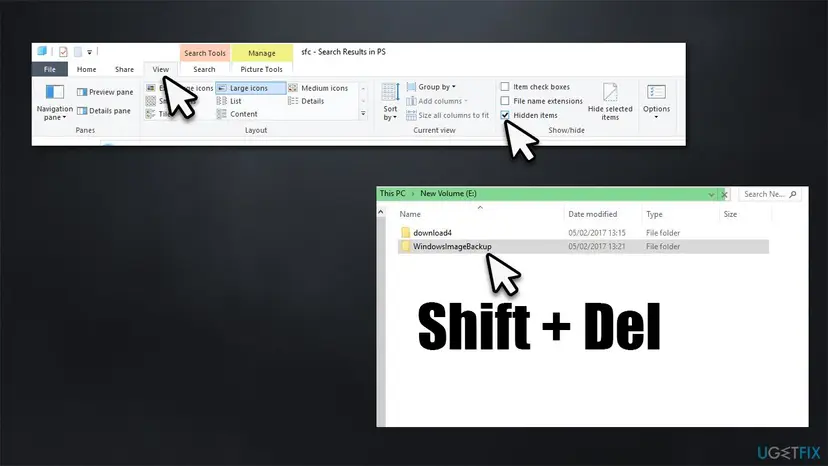
- Open File Explorer with Win + E and select the backup drive, for example E:.
- Show hidden items. On Windows 11 select View > Show > Hidden items. On Windows 10 open the View tab and tick Hidden items.
- Find the folder WindowsImageBackup in the root of the drive.
- Right-click it and select Rename. Name it
WindowsImageBackup.oldso the old image stays safe. - If the drive is short on space, copy that folder to another drive first, then delete it from the backup drive.
- Run Create a system image again and pick the same drive.
If the old folder is the only system image you have, rename or copy it instead of deleting it. Delete it only when you know it is broken or you have a newer copy elsewhere.
It worked if: Windows creates a fresh WindowsImageBackup folder and the backup ends with The backup completed successfully.
If not: If there was no old folder, or the error stays with a new one, check the drive and the connection with Fix 2.
Fix 2. Check the backup drive and how it is connected
10 minutes, plus the disk checkLow riskYou back up to an external USB drive, or Event Viewer shows disk errors.
A system image writes gigabytes for many minutes. A drive that drops out for a moment on a weak port, or a file system with errors, ends the write with 0x80780166. Several users fixed it by moving the drive to a rear USB port.
- Unplug the backup drive from any hub, front panel port or extension cable.
- Plug it into a USB port on the back of the PC, which is on the motherboard, or into a port of a USB card in the PC.
- Press Win + R, type
eventvwr.mscand press Enter. Open Windows Logs > System and look for disk or USB errors at the time of the failed backup. - Open Terminal (Admin) and check the backup drive. Use its own letter instead of E:.
chkdsk E: /f - If chkdsk finds and fixes errors, run the backup again.
- If the drive is new or empty, you can also format it as NTFS in Disk Management and try once more.
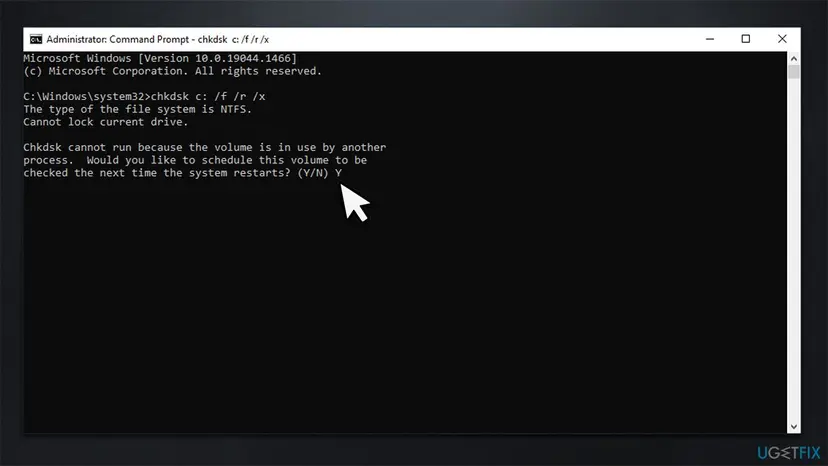
Step by step, with the File Explorer way: Check a disk for errors (chkdsk).
Format only a drive that holds nothing you need. Copy any older images and files to another disk first. If chkdsk reports bad sectors, stop using that drive for backups.
It worked if: The backup runs to the end on the new port, or chkdsk reports "Windows has scanned the file system and found no problems" and the next backup succeeds.
If not: If the drive is healthy and still the write fails, check the shadow copy side with Fix 3.
Fix 3. Make sure Volume Shadow Copy is not disabled, then restart it
3 minutesNo riskVolume Shadow Copy is disabled, other backup or restore point tools fail too, or a restart clears the error for a while.
Every system image starts with a VSS snapshot. Microsoft support staff link 0x80780166 to VSS, and a Windows Server owner found that only a restart, which restarts VSS, made the backup work again.
- Press Win + R, type
services.mscand press Enter. - Double-click Volume Shadow Copy and check Startup type.
- If it says Disabled, set it to Manual or Automatic, select Apply, then Start.
- If it already runs, close the window, right-click the service and select Restart.
- Check that Microsoft Software Shadow Copy Provider is not Disabled either.
- Run the backup again.
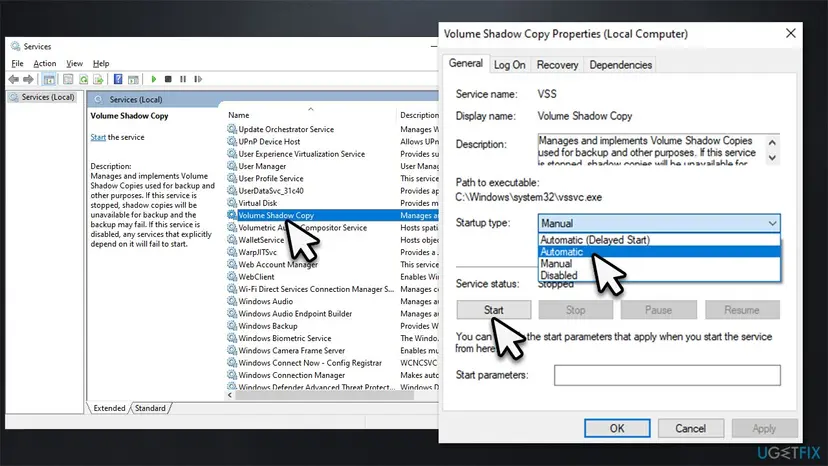
Volume Shadow Copy is set to Manual and shows Stopped while idle; Windows starts it when a backup asks. Microsoft staff suggest Automatic for this error. It does no harm, but Disabled is the setting that breaks backups.
The same restart from an administrator PowerShell window:
Get-Service VSS | Restart-Service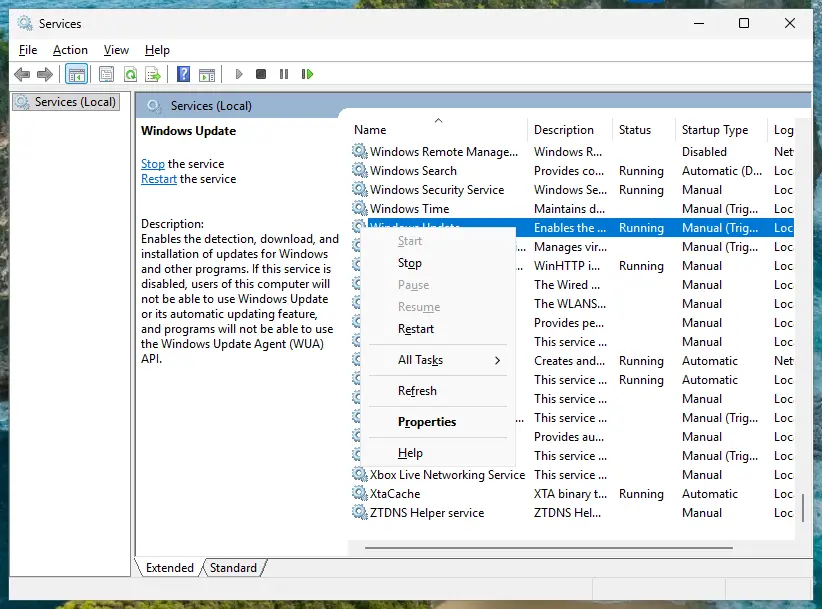
It worked if: Volume Shadow Copy starts without an error and the image is written.
If not: If VSS runs but the error returns, especially on scheduled backups, give the shadow copies room with Fix 4. If VSS will not start at all, our System Restore 0x81000202 guide shows how to repair the service.
Fix 4. Give the shadow copies a fixed amount of space
5 minutesRead the warningThe backup fails on a schedule, works for a while after a restart, or drive C: is almost full.
The snapshot behind every system image needs shadow copy storage on the source drive. Microsoft support staff describe an allocation problem with this storage and suggest a fixed limit instead of the default No limit.
A smaller limit makes Windows delete the oldest shadow copies, and restore points are shadow copies. Create a fresh restore point after the change, and keep the limit at several percent of the drive.
- Right-click Start and open Terminal (Admin) on Windows 11 or Command Prompt (Admin) on Windows 10.
- See how much space shadow copies have on each drive.
vssadmin list shadowstorage - Look at Maximum Shadow Copy Storage space for drive C:. UNBOUNDED means no limit.
- Set a fixed limit, here 10 % of drive C:.
vssadmin resize shadowstorage /for=C: /on=C: /maxsize=10% - Make sure drive C: has free space left beyond that, then run the backup again.
If drive C: is nearly full, free some room first: Free up disk space and delete temporary files.
It worked if: vssadmin list shadowstorage shows the new maximum, and the scheduled backup runs without 0x80780166.
If not: If the error stays, look for another backup program that holds the snapshot with Fix 5.
Fix 5. Stop other backup programs and test in a clean boot
15 minutesLow riskYou use another backup, sync or imaging tool, or the error began after installing one.
Only one program at a time can build a system snapshot cleanly. Another backup running at the same moment, or a tool that adds its own shadow copy provider, can make Windows Backup fail mid-write.
- Close or pause any other backup, sync or imaging program, and check its schedule so it does not run during the image.
- In Terminal (Admin) list the shadow copy providers. A clean PC lists only Microsoft Software Shadow Copy provider 1.0.
vssadmin list providers - If a provider from another company is listed and you no longer use that program, uninstall it: Uninstall a program or app in Windows.
- If you are unsure what interferes, start Windows in a clean boot and run the backup there.
- Open System Configuration. Select Search on the taskbar, type msconfig and select System Configuration from the results.
- Hide Microsoft services. On the Services tab, select the Hide all Microsoft services check box. Only services from other companies stay in the list.
- Disable the remaining services. Select Disable all, then select Apply.
- Open Task Manager. On the Startup tab of System Configuration, select Open Task Manager.
- Disable the startup apps. On the Startup apps tab in Task Manager, select each item whose status is Enabled and select Disable. Write down or take a screenshot of the items you disable: you need the list to turn them back on.
- Confirm the changes. Close Task Manager. On the Startup tab of System Configuration, select OK.
- Restart and test. Restart the PC. Windows now starts in a clean boot environment: try again the thing that failed (run the app, install the update, uninstall the program).
These steps were written for Windows 11 25H2 and 26H2. The full page with the other versions and what each result means: How to perform a clean boot in Windows
It worked if: The backup completes in the clean boot. Turn services back on in halves until the error returns: the last group holds the program to blame.
If not: If it fails even in a clean boot, no other program is the cause. Repair Windows files with Fix 6.
Fix 6. Repair Windows system files with DISM and SFC
20 to 40 minutesLow riskFixes 1 to 5 did not help, or other Windows tools also fail.
Windows Backup and VSS run from system files such as vssvc.exe. If one is damaged, the snapshot or the write breaks. DISM and SFC replace damaged files from a clean copy and do not touch your data.
- Open an elevated command window. Right-click Start and select Terminal (Admin), or type cmd in the search box, right-click Command Prompt and select Run as administrator. Select Yes when Windows asks for permission.
- Run DISM first. Type the command below and press Enter. DISM downloads clean copies of damaged components from Windows Update, so it can take several minutes. Wait until it says The operation completed successfully.
DISM.exe /Online /Cleanup-Image /RestoreHealth - Run System File Checker. In the same window, type the command below and press Enter. Do not close the window until the verification reaches 100%.
sfc /scannow - Read the result and restart. Compare the last message with the table below this guide, then restart the PC so that repaired files are loaded.
These steps were written for Windows 11 24H2 and 25H2. The full page with the other versions and what each result means: Run DISM and SFC to repair Windows system files

It worked if: SFC ends with "Windows Resource Protection did not find any integrity violations" or reports repairs, and the backup works after a restart.
If not: Read the logs in the next section before going further.
If 0x80780166 still appears: the logs to read and when it is the drive
- Press Win + R, type
eventvwr.mscand press Enter. - Open Windows Logs > System and look at errors from the time of the failed backup. Disk, NTFS and USB entries point at the backup drive.
- Open Windows Logs > Application and filter for the sources VSS and Backup. Note the event text and any second error code.
- In Terminal (Admin) check that the shadow copy writers are healthy. Each should show State: [1] Stable and Last error: No error.
vssadmin list writers
When you ask for help on Microsoft Q&A, post the full message with the code under Additional Information, the Event Viewer text and the vssadmin list writers output. Add the backup drive model, how it is connected, and your Windows version from winver.
If the same drive fails on several ports, chkdsk finds bad sectors, or the System log keeps showing disk errors, the backup drive is failing. Try a different drive. If errors point at drive C: instead, back up your files first (Back up your files (Windows Backup, File History, Time Machine)) and check C: with Check a disk for errors (chkdsk).
How to keep system image backups working
- Connect the backup drive straight to a rear USB port, with no hub.
- Use a drive formatted as NTFS with more free space than the used space on drive C:.
- Copy older images off the drive, or rename them, before you make a new one.
- Keep Volume Shadow Copy on Manual or Automatic, never Disabled.
- Test a system image now and then by checking that the newest folder has today's date.
- Do not run two backup programs on the same schedule.
- Do not let tuning tools disable services they call unnecessary.
- Do not unplug the drive or let the PC sleep while the image is written.
A system image is one copy of everything. Keep your personal files in a second place too, for example with File History or OneDrive, so one failed image never leaves you with nothing.
Frequently asked questions
What does error 0x80780166 mean?
It means Windows Backup could not write data to the backup target, the drive that receives the system image. The full text is "Windows Backup encountered an error when writing data to the backup target. (0x80780166)". The cause is most often on that drive: an older image in the WindowsImageBackup folder, a USB drive on a weak port, or file system errors. Less often the Volume Shadow Copy snapshot on drive C: fails first. Your own files are not harmed.
How do I fix 0x80780166 on Windows 10?
The steps are the same as on Windows 11. Rename the old WindowsImageBackup folder on the backup drive, connect the drive to a rear USB port, and run chkdsk on it. Then check that Volume Shadow Copy is not disabled in services.msc. Windows 10 left support on 14 October 2025, so a working system image is a good safety net before you move to Windows 11 or to a new PC.
Is it safe to delete the WindowsImageBackup folder?
Only when you do not need the image inside it. The folder holds your earlier system images, and deleting it removes them for good. The safer way is to rename it, for example to WindowsImageBackup.old, or to copy it to another drive. Windows then writes a fresh folder. Delete the old one only after the new backup has completed and you have checked it.
What do STATUS_WAIT_1 and 0x80070001 mean in this message?
They are the second code Windows shows under Additional Information. The main error, 0x80780166, says the write to the backup drive failed, and the second code is the low-level reason Windows got back. STATUS_WAIT_1 (0x80070001) gives no clear cause by itself, so start with the drive and its connection in Fix 2. When the second code is 0x80070002, "The system cannot find the file specified", start with the old image folder in Fix 1.
Should Volume Shadow Copy be set to Automatic?
It is not required. On Windows 11 and Windows 10 its normal startup type is Manual, and Windows starts it when a backup asks. Microsoft support staff suggest Automatic when this error appears, and that does no harm. The setting that really breaks system images is Disabled, or a service that fails to start with an error. Fix 3 shows both checks.
Why does the backup work when I start it by hand but fail on a schedule?
A Windows Server owner described exactly that: scheduled backups failed with 0x80780166, while a manual run or a restart made them work. Microsoft support staff tied it to Volume Shadow Copy and its storage, and suggested a fixed shadow copy limit instead of No limit. Set the limit with Fix 4, make sure no other backup runs at the same time (Fix 5), and keep the PC awake during the scheduled run.
Can I use a USB flash drive or a network folder for the system image?
Create a system image offers hard disks, DVDs and network locations. A large external hard disk or SSD connected straight to the PC is the most reliable choice, because the image is written for a long time without a break. Network targets add their own failure points, such as a dropped connection or missing rights on the share. If 0x80780166 appears only on one target, try the other kind.
Is there a newer replacement for Create a system image?
Windows 11 still includes it under Backup and Restore (Windows 7), and it still works. The newer Windows Backup app saves folders, settings and app lists to OneDrive and does not create a full disk image. Back in Windows 8, Microsoft staff pointed users to File History for personal files. If you need a full image and this tool keeps failing, disk imaging software from a drive or backup maker is the other way.
Is this page available in Spanish, Ukrainian or Arabic?
This page is in English only. Readers also reach it by searching for "copia de seguridad", "така помилка" and "نفس المشكلة", which mean backup, such an error and the same problem. The answer is the same in every language: 0x80780166 means Windows could not write the system image to the backup drive, and the first fix is to rename the old WindowsImageBackup folder on that drive.
Sources
- Microsoft Q&A: Windows backup encountered an error when writing data to backup target 0x80780166 (learn.microsoft.com)
- Microsoft Q&A: Windows Server 2016 Datacenter backup job fails (answer by Microsoft support staff) (learn.microsoft.com)
- Petri IT Knowledgebase: Common Windows Image Backup errors and how to fix them (petri.com)
Did this fix work?
One click, no account. It tells the next reader which guides are worth their time.
Questions and experiences: fix Windows backup failed error 0x80780166
Still broken, or found a fix we did not cover? Ask here: members and our editors answer. Reading is open; writing needs a free account.
…