
How to fix System Restore error code 0x81000202 in Windows?

Prefer to fix it yourself? The manual steps follow.
- 7methods
- 5 minutes for the first two fixes, up to 2 hours for a repair install
- Intermediate
Applies to System Restore and System Protection on Windows 11 and Windows 10
7 methods in this guide
I had some driver issues that messed up my audio, then tried to reinstall it and messed up even more, so I thought I'd do a System Restore. But when I tried doing it, I received an error code 0x81000202. Could you help me with this?
Error 0x81000202 means System Restore asked the Volume Shadow Copy service for a snapshot and got no answer. Most often the service, or the Microsoft Software Shadow Copy Provider behind it, cannot start. Start both in Services first, then check that System Protection is on for drive C:.
0x81000202 is not a damaged restore point. It means the Volume Shadow Copy service (VSS) that System Restore depends on did not work. Open services.msc, start Volume Shadow Copy and Microsoft Software Shadow Copy Provider (Fix 1), then make sure protection is On for drive C: (Fix 2). If a service is missing from the list, repair Windows with Fixes 4, 5 and 7.
| Error | "The Volume Shadow Copy service used by System Restore is not working. For more information view the event log. (0x81000202)" |
|---|---|
| Where it appears | In System Properties when you select Create or System Restore, in rstrui.exe, and sometimes when a driver or app install tries to make a restore point. |
| Main cause | The Volume Shadow Copy service (VSS) or the Microsoft Software Shadow Copy Provider (swprv) cannot start, is disabled, or is missing from Services. |
| Fastest fix | Start both services in services.msc and try again (Fix 1). Then check System Protection for drive C: (Fix 2). |
| Also written as | error 0x81000202, 0X81000202, "There was an unexpected error in the property page", "shadow copy service used by System Restore is not working". A close relative is 0x81000203. |
| Affects | Windows 11 and Windows 10. Windows 10 left support on 14 October 2025, so later fixes for VSS reach it only with Extended Security Updates. |
| Microsoft's status | Not a known issue with a patch. Microsoft support staff answer it case by case: restart the services, re-register the VSS components, or reinstall Windows over itself. |
| Where the cause is written | Event Viewer > Windows Logs > Application, entries from the source VSS, and the output of vssadmin list writers. |
| Time to fix | 2 minutes for Fix 1, 5 minutes for Fix 2, 20 to 40 minutes for system file repair, 1 to 2 hours for a repair install. |
Facts checked on 15 October 2026. Steps written for Windows 11 (25H2 and 26H2) and Windows 10 22H2.
What System Restore error 0x81000202 means
A restore point is a shadow copy: a frozen snapshot of drive C: that the Volume Shadow Copy service makes on request. System Restore does not copy files itself. It asks VSS, VSS asks a provider (on a home PC, the Microsoft Software Shadow Copy Provider), and the provider writes the snapshot into space that System Protection reserves on the drive.
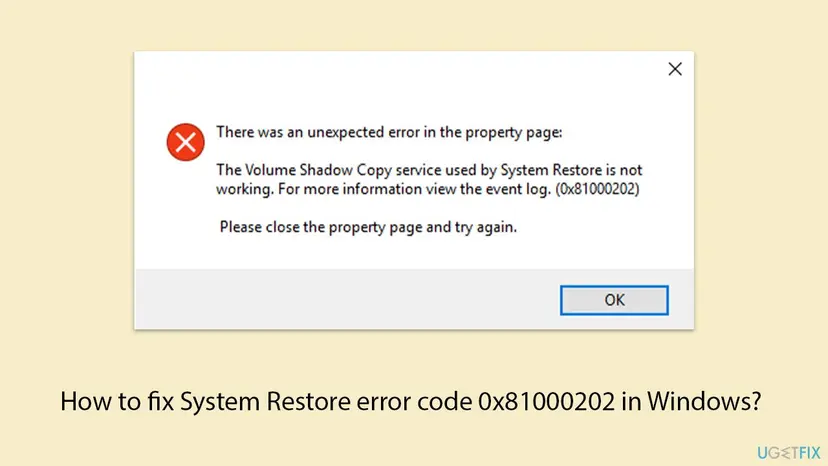
When any link of that chain fails to answer, Windows shows this message:
There was an unexpected error in the property page:
The Volume Shadow Copy service used by System Restore is not working. For more information view the event log. (0x81000202)
Please close the property page and try again.- Where you see it: after Create or System Restore on the System Protection tab, or right after
rstrui.exeopens. - What it is not: a damaged restore point or a full disk on its own. Your existing restore points are usually still there.
- The shadow in the name: "shadow copy" is Microsoft's word for the snapshot, nothing to do with a virus or a hidden program.
- Its relative 0x81000203: reported with the same services, and also when third-party tuning tools interfere. The fixes below cover both.
If you came here to undo a bad driver, as the reader above did, try System Restore from the recovery environment first: it starts outside your normal Windows session, so your own services and startup programs do not load. We could not confirm that it avoids 0x81000202 in every case. Step by step: Undo recent changes with System Restore (tab "When Windows will not start").
Why 0x81000202 appears, from most to least common
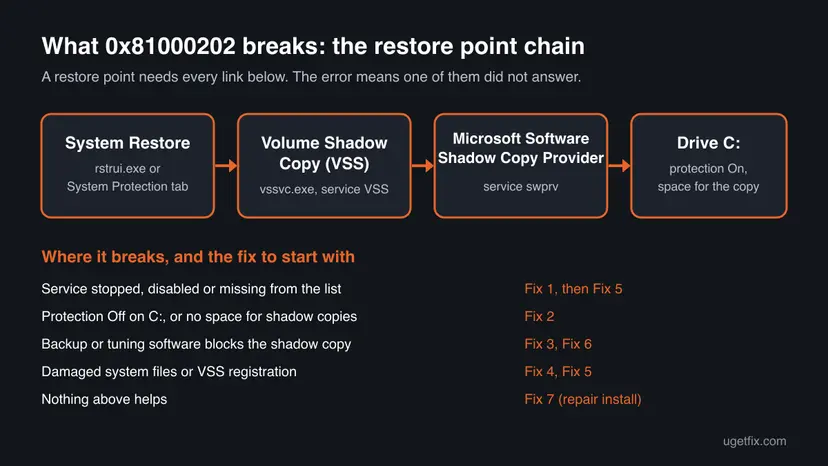
- Most often: a service will not start. Volume Shadow Copy or the shadow copy provider is disabled, stuck, or depends on a stopped service. Fix 1.
- Often: System Protection is off or has no room. Microsoft support staff ask first whether the drive has enough space reserved for restore points. Fix 2.
- Less often: other software holds the shadow copy. Backup programs add their own VSS providers, and forum threads tie the error to AVG TuneUp and similar tuning tools. Fixes 3 and 6.
- Less often: damaged system files or a broken VSS registration. On one Windows 10 Pro PC the Volume Shadow Copy service was missing from Services altogether, and the event log said "The specified service does not exist as an installed service". Fixes 4 and 5.
- Rarely: a damaged Windows installation. When nothing else helps, Microsoft support staff recommend reinstalling Windows over itself with your files and apps kept. Fix 7.
| Cause | Sign | Start with |
|---|---|---|
| Service stopped or disabled | Volume Shadow Copy shows Disabled, or Start fails | Fix 1 |
| Protection off or full | Drive C: shows Off, or Max Usage is near 0 % | Fix 2 |
| Third-party provider | vssadmin list providers shows a provider that is not Microsoft's | Fix 3 |
| Damaged system files | SFC reports corrupt files | Fix 4 |
| VSS not registered | Service missing, vssadmin list writers ends with "unexpected error" | Fix 5 |
| Damaged Windows | Fixes 1 to 6 changed nothing | Fix 7 |
How to fix System Restore error code 0x81000202
Fixes 1 and 2 take five minutes and solve the cases where a service or a setting is simply off. Fix 3 removes software that competes for the shadow copy. Fixes 4 and 5 repair Windows files and the VSS registration. Fix 6 tests without other programs, and Fix 7 is the last step.
| What you see | Start with |
|---|---|
| Volume Shadow Copy is listed in Services but stopped or disabled | Fix 1 |
| Drive C: shows Off under Protection Settings, or no restore points exist | Fix 2 |
| You use backup, imaging or PC tuning software | Fix 3 |
| Services and protection look fine, but the error stays | Fix 4 |
Volume Shadow Copy is missing from Services, or vssadmin list writers fails | Fix 5 |
| The error appeared after installing a new program | Fix 6 |
| Everything above failed | Fix 7 |
Fix 1. Start the Volume Shadow Copy and shadow copy provider services
2 minutesNo riskVolume Shadow Copy is listed in Services but stopped, disabled or stuck.
System Restore cannot make a snapshot without the service VSS and its provider swprv. A disabled or hung service gives exactly this message, and restarting it is the fix Microsoft support staff give first.
- Press Win + R, type
services.mscand press Enter. - Find Volume Shadow Copy in the list. Double-click it and check Startup type.
- If it says Disabled, set it to Manual, select Apply, then select Start. If it is running, close the window, right-click it and select Restart.
- Do the same for Microsoft Software Shadow Copy Provider.
- Check that Remote Procedure Call (RPC) and DCOM Server Process Launcher show Running. Microsoft support staff check these two as well.
- Open System Protection again and select Create to test.
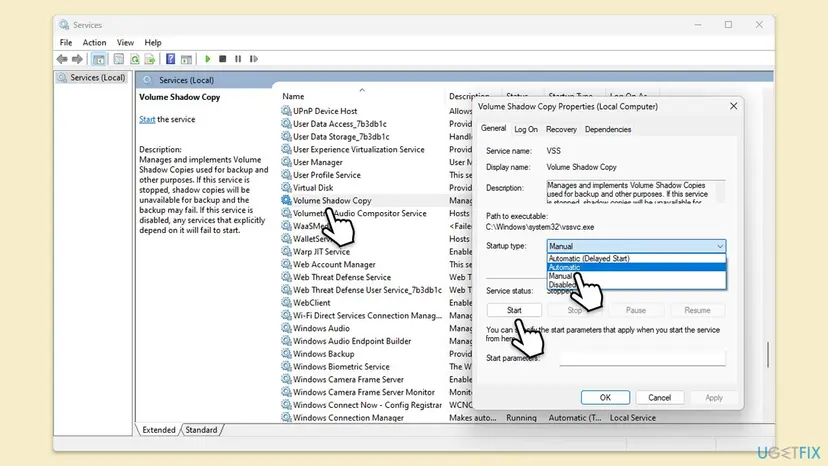
In our screenshot of Windows 11, Volume Shadow Copy is set to Manual and shows Stopped while idle. Windows starts it when System Restore or a backup asks. You do not need Automatic. The problem is Disabled, or a start that fails with an error.
The same from an administrator Command Prompt. Microsoft support staff use net start for this; start= demand keeps the normal Manual type:
sc config VSS start= demand
net start VSS
sc config swprv start= demand
net start swprv
More on the Services window: Check and restart Windows services.
It worked if: Both services start without an error, and Create on the System Protection tab ends with "The restore point was created successfully".
If not: If Volume Shadow Copy is not in the list at all, go to Fix 5. If it starts but the error stays, check System Protection with Fix 2.
Fix 2. Turn on System Protection for drive C: and give it space
5 minutesNo riskDrive C: shows Off, or the space for restore points is set very low.
Restore points live in space that System Protection reserves on each drive. With protection off or no room, VSS has nowhere to write the snapshot. Microsoft support staff check this space before anything else.
- Press Win + R, type
sysdm.cpland press Enter. Open the System Protection tab. - Under Protection Settings, select Local Disk (C:) (System) and check that Protection says On.
- Select Configure. Choose Turn on system protection if it is not selected.
- Move Max Usage to at least a few percent of the drive. Our screenshot shows 2 % (10.00 GB).
- Select Apply and OK, then select Create and give the restore point a name.
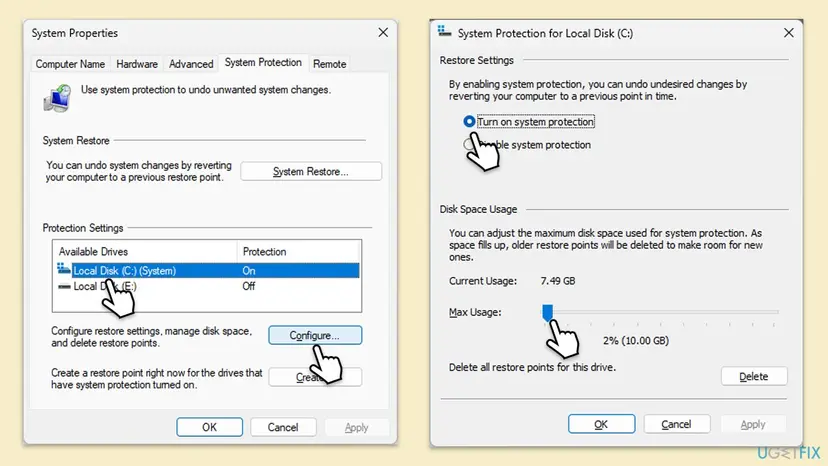
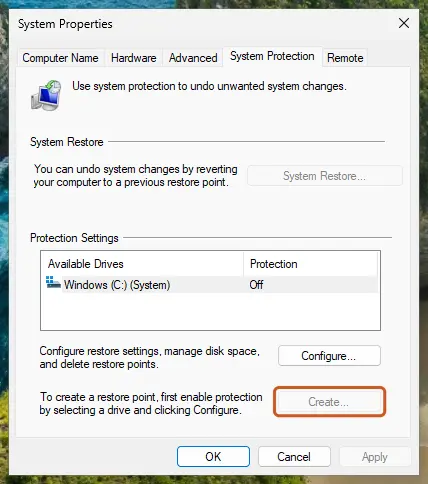
It worked if: Drive C: shows On, and a manual restore point is created without the 0x81000202 message.
If not: If protection is on with space and the error still appears, look for software that competes for the shadow copy with Fix 3.
Fix 3. Remove backup or tuning software that blocks the shadow copy
10 minutesLow riskYou use backup, disk imaging or PC tuning software, or the error began after installing one.
Backup programs register their own shadow copy providers, and tuning tools may switch VSS off. Forum threads report VSS errors with AVG TuneUp Utilities that ended after uninstalling it.
- Right-click Start and open Terminal (Admin) on Windows 11 or Command Prompt (Admin) on Windows 10.
- List the shadow copy providers.
vssadmin list providers - A clean PC lists Microsoft Software Shadow Copy provider 1.0. Note any other provider and the program it belongs to.
- Open the tuning or cleaning tool and look for a setting that turns off System Restore or VSS. Turn it back on, or uninstall the tool.
- Uninstall a backup program you no longer use, then restart and test Create again.
Step by step: Uninstall a program or app in Windows. If you suspect your security software, pause it for this one test only, then turn it back on: Turn off Microsoft Defender protection for a moment.
It worked if: Only Microsoft's provider remains, or the tuning tool is gone, and the restore point is created.
If not: If no extra software is installed, repair the system files with Fix 4.
Fix 4. Repair Windows system files with DISM and SFC
20 to 40 minutesLow riskThe services and settings look right, but VSS still fails.
VSS runs from vssvc.exe and a set of system libraries. If one of them is damaged, the service fails to start or to answer, and DISM and SFC replace damaged files from a clean copy.
- Open an elevated command window. Right-click Start and select Terminal (Admin), or type cmd in the search box, right-click Command Prompt and select Run as administrator. Select Yes when Windows asks for permission.
- Run DISM first. Type the command below and press Enter. DISM downloads clean copies of damaged components from Windows Update, so it can take several minutes. Wait until it says The operation completed successfully.
DISM.exe /Online /Cleanup-Image /RestoreHealth - Run System File Checker. In the same window, type the command below and press Enter. Do not close the window until the verification reaches 100%.
sfc /scannow - Read the result and restart. Compare the last message with the table below this guide, then restart the PC so that repaired files are loaded.
These steps were written for Windows 11 24H2 and 25H2. The full page with the other versions and what each result means: Run DISM and SFC to repair Windows system files

It worked if: SFC ends with "Windows Resource Protection did not find any integrity violations" or says it repaired files, and the restore point works after a restart.
If not: If the Volume Shadow Copy service is still missing or vssadmin still reports an unexpected error, re-register VSS with Fix 5.
Fix 5. Re-register the Volume Shadow Copy components
5 minutesLow riskVolume Shadow Copy is missing from Services, or vssadmin list writers fails with an unexpected error.
When the VSS server and its libraries lose their registration, Windows cannot create the service at all. A Microsoft community support specialist gave this command list for a PC where Volume Shadow Copy had disappeared from Services.
- Open Command Prompt as administrator: type
cmdin Search, right-click Command Prompt and select Run as administrator. - Run the commands below one by one, pressing Enter after each line.
- A line can report that a module failed to load, for example
msxml4.dll. Go on with the next line. - Restart the PC and check Services and System Protection again.
Commands from Microsoft's support answer
cd /d %windir%\system32
net stop vss
net stop swprv
regsvr32 ole32.dll
regsvr32 oleaut32.dll
regsvr32 vss_ps.dll
vssvc /register
regsvr32 /i swprv.dll
regsvr32 /i eventcls.dll
regsvr32 es.dll
regsvr32 stdprov.dll
regsvr32 vssui.dll
regsvr32 msxml.dll
regsvr32 msxml3.dll
regsvr32 msxml4.dll
net start vss
These commands register files that are already on the PC. They do not touch your restore points or personal files.
It worked if: Volume Shadow Copy appears in Services and starts, and vssadmin list writers lists writers with State: [1] Stable instead of an error.
If not: If the service is still missing, Windows itself is damaged. Test without other programs in Fix 6, then repair Windows with Fix 7.
Fix 6. Create the restore point in a clean boot
15 minutesLow riskThe error appeared after installing a program, and you cannot tell which one.
A clean boot starts Windows with only Microsoft services. If the restore point works there, a program or service from another company blocks VSS, and you can find it by turning items back on in halves.
- Open System Configuration. Select Search on the taskbar, type msconfig and select System Configuration from the results.
- Hide Microsoft services. On the Services tab, select the Hide all Microsoft services check box. Only services from other companies stay in the list.
- Disable the remaining services. Select Disable all, then select Apply.
- Open Task Manager. On the Startup tab of System Configuration, select Open Task Manager.
- Disable the startup apps. On the Startup apps tab in Task Manager, select each item whose status is Enabled and select Disable. Write down or take a screenshot of the items you disable: you need the list to turn them back on.
- Confirm the changes. Close Task Manager. On the Startup tab of System Configuration, select OK.
- Restart and test. Restart the PC. Windows now starts in a clean boot environment: try again the thing that failed (run the app, install the update, uninstall the program).
These steps were written for Windows 11 25H2 and 26H2. The full page with the other versions and what each result means: How to perform a clean boot in Windows

It worked if: The restore point is created in the clean boot. Then turn services back on in groups until the error returns: the last group holds the culprit.
If not: If it fails even in a clean boot, no third-party program is to blame. Repair Windows with Fix 7.
Fix 7. Reinstall Windows over itself and keep your files and apps
1 to 2 hoursLow riskFixes 1 to 6 changed nothing, or the VSS service cannot be brought back.
A repair install replaces every Windows file and service registration, VSS included, while keeping apps and files. Microsoft support staff recommend it when the Volume Shadow Copy service cannot be restored by commands.
- Back up the files you cannot lose first: Back up your files (Windows Backup, File History, Time Machine).
- On Windows 11 open Settings > System > Recovery and, under Fix problems using Windows Update, select Reinstall now.
- If that option is missing, download the Windows ISO from Microsoft, run setup.exe and choose Keep personal files and apps.
- After the restart, open System Protection and select Create to test.
Step by step, with the Windows 10 way: Reinstall Windows without losing files.
It worked if: Windows starts with your apps and files, Volume Shadow Copy is listed in Services, and a restore point is created.
If not: If even a fresh Windows cannot make a restore point, check the drive as the next section describes.
If 0x81000202 still appears: the logs to read and when it is the drive
- Press Win + R, type
eventvwr.mscand press Enter. Open Windows Logs > Application. - Select Filter Current Log and type
VSSunder Event sources. Read the newest Error entries. - Note the code.
0x80070424with "The specified service does not exist as an installed service" means VSS is not registered: Fix 5 or Fix 7. - In an administrator terminal, check the writers. Each should show State: [1] Stable and Last error: No error.
vssadmin list writers - Check how much space the shadow copies have on each drive.
vssadmin list shadowstorage
For help on Microsoft Q&A, post the exact event text, the vssadmin output and your Windows version from winver. Volunteers there ask for exactly that.
VSS needs a healthy NTFS volume. If Event Viewer also shows disk errors, files take long to open, or the drive makes noise, back up your files first and then check the drive: Check a disk for errors (chkdsk). A failing drive can break shadow copies and restore points at the same time.
How to keep System Restore working after the fix
- Leave Volume Shadow Copy and Microsoft Software Shadow Copy Provider on Manual.
- Keep System Protection On for drive C: with a few percent of space.
- Create a restore point by hand before you install a driver, as the reader above should have been able to.
- Keep a separate backup of your files: restore points do not save documents or photos.
- Do not let tuning or "speed up" tools disable services they call unnecessary.
- Do not install two backup programs that both add a shadow copy provider.
- Do not delete all restore points to free space unless you have just made a new one.
If a Windows update fails at the same time, the cause may be the same damaged files. Our guide to DISM RestoreHealth stuck at 62.3% shows how to tell a working repair from a frozen one.
Frequently asked questions
What does error 0x81000202 mean?
It means System Restore could not use the Volume Shadow Copy service, the Windows component that makes the snapshot behind every restore point. The full message reads "The Volume Shadow Copy service used by System Restore is not working." The restore points themselves are usually fine. The service, its provider, the protected space on drive C:, or the files that run VSS are what fail, and each has its own fix above.
How do I fix 0x81000202 on Windows 10?
The steps are the same as on Windows 11. Open services.msc, start Volume Shadow Copy and Microsoft Software Shadow Copy Provider, and check that System Protection is on for drive C: in sysdm.cpl. If that fails, run DISM and SFC, then re-register VSS. Windows 10 left support on 14 October 2025, so a repair install is a good moment to consider moving to Windows 11 if your PC qualifies.
Should Volume Shadow Copy be set to Automatic?
No, that is not needed. In our Windows 11 screenshot its startup type is Manual and it shows Stopped while idle, because Windows starts it on demand when System Restore or a backup asks. Setting it to Automatic does no harm, but it does not fix 0x81000202 by itself. What breaks System Restore is the startup type Disabled, or a service that fails to start with an error.
Volume Shadow Copy is missing from Services. What now?
Then Windows cannot create the service at all, and the event log usually shows 0x80070424, "The specified service does not exist as an installed service". Re-register the VSS components with the command list in Fix 5, run DISM and SFC (Fix 4), and restart. If the service is still missing after that, a repair install with your files and apps kept (Fix 7) is the reliable way back, as Microsoft support staff advise.
What is the difference between 0x81000202 and 0x81000203?
Both come from System Restore and both point at shadow copies. The code 0x81000202 says the Volume Shadow Copy service is not working. The code 0x81000203 is reported with the same services stopped and, in many forum threads, with third-party tuning tools such as AVG TuneUp that turn off System Restore. The same fixes apply: start the services, check System Protection, and remove the tool that interferes.
Can I still restore my PC while the error is there?
You can try System Restore from the recovery environment: open Settings > System > Recovery > Advanced startup > Restart now, then Troubleshoot > Advanced options > System Restore. It runs outside your usual Windows session, so other programs do not load. We could not confirm that this avoids 0x81000202 every time. Your restore points stay on the drive while you fix the service, so nothing is lost by trying.
Will these fixes delete my restore points or files?
No. Starting services, re-registering VSS, running DISM and SFC, and a clean boot do not touch restore points or personal files. Two actions can remove restore points: turning System Protection off, and the Delete button in its settings, so avoid both. A repair install keeps your files and apps, but back up important files first anyway, as with any reinstall.
Does antivirus cause error 0x81000202?
It can, but it is not the usual cause. Security and backup programs can register their own shadow copy providers or hold the snapshot, and vssadmin list providers shows which ones are present. Do not uninstall your protection on a guess. Pause it for a single test of Create, turn it back on right away, and contact its maker if the test shows a clear link.
Is this guide available in other languages?
This page is in English only. Readers also search for the code in Portuguese, Polish and Arabic, asking what it is and what to do. The answer is the same in every language: 0x81000202 means the shadow copy service behind System Restore is not working, and the fix starts with Volume Shadow Copy in services.msc. The service names appear translated in a non-English Windows.
Sources
- Microsoft Q&A: System Restore is not working because of Volume Shadow Copy service (answers by Microsoft Community Support) (learn.microsoft.com)
- Microsoft Learn: vssadmin command reference (learn.microsoft.com)
- The Windows Club: Volume Shadow Copy Service error 0x81000202 or 0x81000203 (thewindowsclub.com)
Did this fix work?
One click, no account. It tells the next reader which guides are worth their time.
Questions and experiences: fix System Restore error code 0x81000202 in Windows
Still broken, or found a fix we did not cover? Ask here: members and our editors answer. Reading is open; writing needs a free account.
…