
How to fix "Windows couldn't complete the requested changes" error 0x800f0907?

Prefer to fix it yourself? The manual steps follow.
- 7methods
- 5 to 30 minutes
- Medium
Applies to Windows 11 and Windows 10: Turn Windows features on or off, DISM and program setups that turn on .NET Framework 3.5 or another optional feature
7 methods in this guide
Hello. I tried to update .NET Framework on my Windows PC, but I got the message "Windows couldn't complete the requested changes" with a 0x800f0907 error code. How can I fix this?
Error 0x800F0907 appears when you turn on .NET Framework 3.5 and a Group Policy setting forbids Windows to download its files from Windows Update. Nothing is broken: Windows is obeying a rule. Untick Never attempt to download payload from Windows Update in Group Policy (Fix 1), or install from a Windows ISO (Fix 2).
0x800F0907 is CBS_E_GROUPPOLICY_DISALLOWED: the policy Specify settings for optional component installation and component repair is set to Never attempt to download payload from Windows Update, and no other file source is given. On your own Pro PC, untick that box in the Local Group Policy Editor and run gpupdate /force (Fix 1). On Home or a locked work PC, install .NET 3.5 from a mounted Windows ISO with DISM (Fix 2).
| Error | Error code: 0x800F0907, internal name CBS_E_GROUPPOLICY_DISALLOWED, under Windows couldn't complete the requested changes. |
|---|---|
| Where it appears | In the Windows Features window when you tick .NET Framework 3.5, in Command Prompt after a DISM /Online /Enable-Feature command, or in a program's setup that turns on .NET 3.5 for you. |
| Main cause | The Group Policy Specify settings for optional component installation and component repair has Never attempt to download payload from Windows Update ticked, and no alternate source is set. |
| Fastest fix | Untick that box, or set the policy to Not Configured, then run gpupdate /force and turn the feature on again (Fix 1). |
| Also written as | 0x800f0907, error 0x800f0907, Error: 0x800F0907, and sometimes just "error 907". |
| Affects | Windows 10 and Windows 11 up to 25H2 and 26H2, Home and Pro. Windows 10 left support on 14 October 2025. |
| Microsoft's status | Documented behaviour, not a bug. Microsoft's own advice is to review the policy or give Windows an alternate source file path. |
| Log file | C:\Windows\Logs\DISM\dism.log, the path the message names. |
| Time to fix | 5 minutes for the policy, about 20 minutes with an ISO download. |
Facts checked on 16 October 2026. Steps written for Windows 11 (25H2 and 26H2) and Windows 10 22H2.
What "Windows couldn't complete the requested changes" error 0x800F0907 means
In Windows 10 and Windows 11, .NET Framework 3.5 is a Feature on Demand. Windows keeps only its description on disk. The real files are downloaded from Windows Update at the moment you turn the feature on. Error 0x800F0907 means Windows was not allowed to make that download, because a policy says so.
In the Windows Features window you see the heading Windows couldn't complete the requested changes. with Microsoft's longer text under it. In Command Prompt, DISM shows the same reason with its own wording. Microsoft lists both:
Windows couldn't complete the requested changes.
Because of network policy settings, Windows couldn't connect to the Internet to download files that are required to complete the requested changes. Contact your network administrator for more information.
Error code: 0x800F0907

DISM failed. No operation was performed.
For more information, review the log file.
The DISM log file can be found at C:\Windows\Logs\DISM\dism.log| Line | What it tells you |
|---|---|
| Windows couldn't complete the requested changes. | The heading of every failed Windows Features change. The code under it decides the fix. |
| Because of network policy settings | The word that matters is policy. Your internet works; a setting forbids the download. |
| Contact your network administrator | On a home PC, you are the administrator. On a work PC, the rule may come from the organization. |
| Error code: 0x800F0907 | Microsoft's name for it is CBS_E_GROUPPOLICY_DISALLOWED: the group policy disallowed the download. |
| DISM failed. No operation was performed. | Nothing was changed. You can try again safely after the fix. |
Searching for "error 907" also brings up a Google Play Store error 907 on Android phones. That is a different problem. This page is about the Windows code 0x800F0907.
Why Windows is not allowed to download the files
Microsoft says the code appears when two things are true at once: the policy is set to Never attempt to download payload from Windows Update, and no alternate source is given, or the one given is wrong. Remove either condition and the feature installs.
| How often | Cause | Start with |
|---|---|---|
| Most often | The box Never attempt to download payload from Windows Update is ticked in Local Group Policy on your own PC. A former admin, a tweak guide or an old fix for another error may have ticked it. | Fix 1 |
| Often | A work or school PC gets this policy from the organization's domain or management tool, so a local change is undone at the next refresh. | Fix 5, then Fix 2 |
| Less often | The policy points to an Alternate source file path that no longer exists or holds files for another Windows version. | Fix 3 |
| Less often | A Home PC has no Group Policy Editor, but the setting was written straight into the registry. | Fix 4, or Fix 2 |
| Rarely | The component store is damaged, so even a permitted source fails. | Fix 6, then Fix 7 |
The old advice for this code was to update the .NET Framework from the Microsoft Update Catalog or to run the .NET Framework Repair Tool. Neither helps here: the catalog has no package that turns on the 3.5 feature, and the Repair Tool repairs the installed .NET 4.x, not a blocked download.
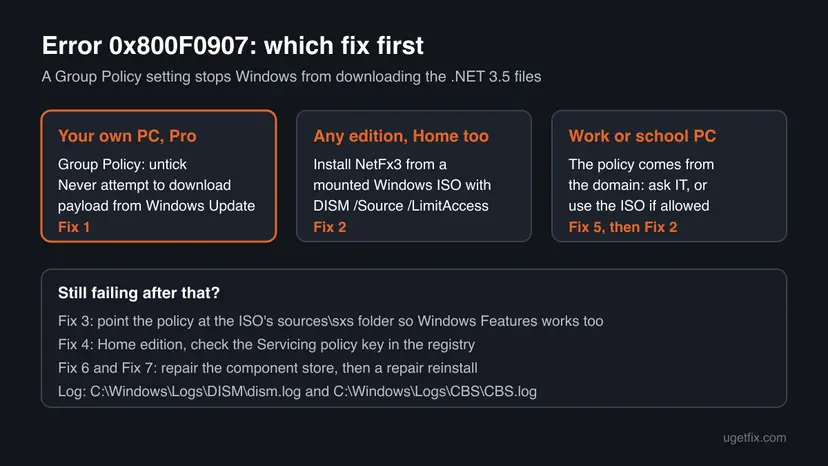
How to fix error 0x800F0907
Fix 1 removes the rule on your own PC. Fix 2 works on every edition because it gives Windows the files from a Windows ISO and never asks Windows Update. The rest are for the cases in the table above.
| What you see or have | Start with |
|---|---|
| Your own PC with Windows 10 or 11 Pro, Enterprise or Education. | Fix 1 |
Windows Home, where gpedit.msc does not open. | Fix 2, or Fix 4 |
| A work or school PC, or Settings says Some settings are managed by your organization. | Fix 5 |
| The policy already has an Alternate source file path filled in. | Fix 3 |
| The policy is fixed and the install still fails with another code. | Fix 6 |
| Windows 11 build 28000 or later, and the error is 0x800F080C instead. | The FAQ below |
Fix 1. Untick "Never attempt to download payload from Windows Update" in Group Policy
5 minutesLow riskYour own PC with Windows 10 or 11 Pro, Enterprise or Education.
Microsoft names this ticked box, with no alternate source, as the cause of 0x800F0907. Once it is clear, Windows may fetch the .NET 3.5 files from Windows Update again.
- Open the Run box. Press Windows key + R.
- Start the editor. Type the command below and select OK. Select Yes if Windows asks for permission.
gpedit.msc
These steps were written for Windows 11 and Windows 10, Pro, Enterprise and Education (the steps are the same). The full page with the other versions and what each result means: Open the Local Group Policy Editor
- Go to Computer Configuration > Administrative Templates > System.
- Double-click Specify settings for optional component installation and component repair.
- If it is Enabled, untick Never attempt to download payload from Windows Update. If nothing else in the window is filled in, you can set the whole policy to Not Configured instead.
- If the PC once used a company update server, also tick Download repair content and optional features directly from Windows Update instead of Windows Server Update Services (WSUS).
- Select Apply and OK.
- Open Terminal (Admin) and apply the policy at once:
gpupdate /force - Open Windows Features again, tick .NET Framework 3.5 (includes .NET 2.0 and 3.0) and select OK. Choose Let Windows Update download the files for you.
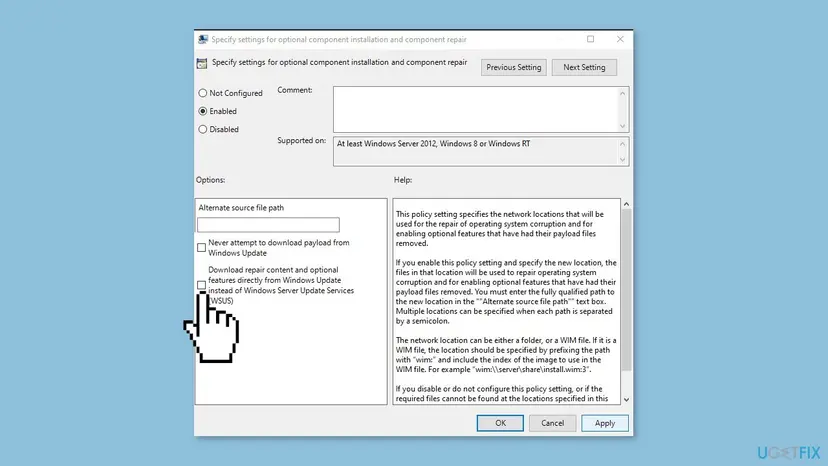
Some guides tell you to tick Never attempt to download payload from Windows Update. That is the setting that causes 0x800F0907. Leave it clear.
It worked if: Windows Features shows Searching for required files, then Downloading required files, and ends with Windows completed the requested changes.
If not: If the box was already clear, or Windows sets it back, go to Fix 5 for a managed PC or use Fix 2.
Fix 2. Install .NET Framework 3.5 from a Windows ISO with DISM
20 minutesNo riskAny edition, Home included, or any PC where you cannot change the policy.
Microsoft's command uses a local source with /LimitAccess, which tells DISM not to contact Windows Update at all. The policy only blocks the download, so it has nothing left to block.
- Check your version with Win + R,
winver, OK. The ISO must be the same Windows version, edition family and language. - On another tab, get the ISO from Microsoft's Download Windows 11 or Download Windows 10 page. In the Media Creation Tool choose ISO file.
- Right-click the ISO in File Explorer and select Mount. Note the new drive letter, for example D:.
- Open the drive and check that the folder
sources\sxsexists. - Open Terminal (Admin) and run, with your drive letter:
Dism /online /enable-feature /featurename:NetFx3 /All /Source:D:\sources\sxs /LimitAccess - Wait for The operation completed successfully. and restart if DISM asks.
- Right-click the drive in File Explorer and select Eject.
Type the command exactly, with no space after each slash. A wrong drive letter gives 0x800F081F, which means the source files could not be found: check the letter and the sxs folder.
It worked if: DISM shows Enabling feature(s) to 100 % and The operation completed successfully. The program that wanted .NET 3.5 starts.
If not: If DISM returns 0x800F081F, the ISO does not match your Windows version: download it again. If it returns 0x800F0907 again, the command ran without /LimitAccess.
Fix 3. Point the policy at the ISO's sources\sxs folder
10 minutesLow riskPro or higher, where Windows Features or a setup program must work too, or the policy already holds an old path.
This is Microsoft's own resolution for Windows 10: keep the policy, but tell Windows where a valid copy of the files is. Every later request for the feature, from any program, then uses that folder.
- Mount the matching Windows ISO as in Fix 2, or copy its
sources\sxsfolder toC:\sxs. - Open the policy Specify settings for optional component installation and component repair as in Fix 1 and select Enabled.
- In Alternate source file path, type the full path, for example
D:\sources\sxsorC:\sxs. Delete any old path that no longer exists. - Select OK and run
gpupdate /forcein Terminal (Admin). - Turn on .NET Framework 3.5 in Windows Features again.
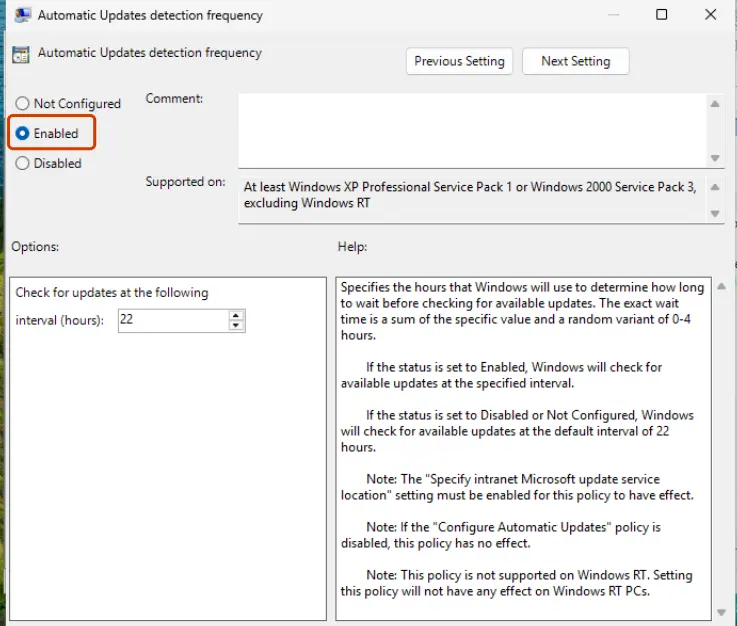
A path on a mounted ISO only works while the ISO is mounted. A copied C:\sxs folder keeps working. When you no longer need it, set the path back to empty.
It worked if: Windows Features turns .NET Framework 3.5 on without a download and shows Windows completed the requested changes.
If not: If Windows reports the source files could not be found, the folder is from another Windows version. Use Fix 2 with a fresh ISO.
Fix 4. Check the Servicing policy key in the registry on Windows Home
10 minutesRead the warningWindows Home, where gpedit.msc does not open, and you want the normal Windows Features route back.
Group Policy stores this setting under the Servicing policy key. Users on Microsoft Q&A report the values LocalSourcePath, RepairContentServerSource and UseWindowsUpdate there. We could not find a Microsoft page that documents each value, so this fix only removes the key after a backup.
A wrong registry change can break updates. Export the key before you delete anything, so a double-click on the .reg file puts it back: Back up the registry before editing it. Do not do this on a PC your organization manages.
- Open Terminal (Admin) and check whether the key exists:
reg query HKLM\SOFTWARE\Microsoft\Windows\CurrentVersion\Policies\Servicing - If Windows says it was unable to find the key, no such policy is set. Skip to Fix 6.
- If it lists values, export the key to your desktop:
reg export HKLM\SOFTWARE\Microsoft\Windows\CurrentVersion\Policies\Servicing "%USERPROFILE%\Desktop\servicing-backup.reg" - Delete the key:
reg delete HKLM\SOFTWARE\Microsoft\Windows\CurrentVersion\Policies\Servicing /f - Restart the PC and turn on .NET Framework 3.5 in Windows Features again.
It worked if: reg query now says the key cannot be found, and Windows Features downloads the files from Windows Update.
If not: If the key comes back after a restart, a tool or management agent writes it: treat the PC as managed and use Fix 2.
Fix 5. Work or school PC: ask IT to allow the download or give a source
5 minutes to write the requestNo riskThe PC belongs to an organization, joins a domain, or Settings shows Some of these settings are managed by your organization.
Here the rule comes from the domain policy, and Microsoft says the local change is not yours to make. It is undone at the next policy refresh, so only the administrator can change it for good.
- Write to IT with the error text,
0x800F0907 CBS_E_GROUPPOLICY_DISALLOWED, and the feature nameNetFx3. - Ask them to review Specify settings for optional component installation and component repair for your PC.
- Microsoft offers them two options: allow Download repair content and optional features directly from Windows Update instead of WSUS, or set an Alternate source file path to a share with the
sources\sxsfiles, such as\\server_name\share\Win8sxs. - If your account is a local administrator and the rules allow it, try Fix 2 while you wait: it works without changing the policy.
It worked if: After IT changes the policy and you run gpupdate /force, the feature installs from Windows Update or from the share.
If not: If IT does not allow .NET 3.5, ask whether the program has a newer version that does not need it.
Fix 6. Repair the component store with DISM and SFC
15 to 40 minutesNo riskThe policy is clear or a source is set, and the install still fails with another code.
The same policy also controls where Windows gets files for component repair. Only after Fix 1 to Fix 4 can DISM fetch what it needs. A damaged store makes every feature install fail.
- Open an elevated command window. Right-click Start and select Terminal (Admin), or type cmd in the search box, right-click Command Prompt and select Run as administrator. Select Yes when Windows asks for permission.

Search for cmd and choose Run as administrator. Screenshot: Windows 11 26H2. - Run DISM first. Type the command below and press Enter. DISM downloads clean copies of damaged components from Windows Update, so it can take several minutes. Wait until it says The operation completed successfully.
DISM.exe /Online /Cleanup-Image /RestoreHealth
DISM /RestoreHealth running. Screenshot: Windows 11 26H2. - Run System File Checker. In the same window, type the command below and press Enter. Do not close the window until the verification reaches 100%.
sfc /scannow
sfc /scannow at 100%. Screenshot: Windows 11 26H2. - Read the result and restart. Compare the last message with the table below this guide, then restart the PC so that repaired files are loaded.

The result line tells you what SFC did. Screenshot: Windows 11 26H2.
These steps were written for Windows 11 24H2 and 25H2. The full page with the other versions and what each result means: Run DISM and SFC to repair Windows system files
It worked if: DISM reports The restore operation completed successfully., SFC finds no violations or repairs them, and .NET 3.5 installs after a restart.
If not: If RestoreHealth itself fails with 0x800F0907, the policy is still active: go back to Fix 1 or Fix 3. Otherwise go to Fix 7.
Fix 7. Reinstall Windows over itself and keep your apps and files
1 to 2 hoursLow riskNothing above helped and other updates or features fail too.
A repair reinstall puts a fresh copy of the same Windows version over the old one, with a new component store. Apps, files and settings stay. It does not remove a domain policy.
- Open Recovery in Settings. Open Settings > System > Recovery. Next to Fix problems using Windows Update, select Reinstall now. This keeps your apps, files and settings.

Fix problems using Windows Update reinstalls the current version and keeps apps, files and settings. Screenshot: Windows 11 26H2. - Start the reinstall. Choose whether the PC may restart on its own 15 minutes after the installation, then select OK.
- Wait and restart. Windows Update downloads and installs a repair copy of your current Windows version. Keep the PC plugged in and online, and restart it when asked.
These steps were written for Windows 11 22H2 and later. The full page with the other versions and what each result means: Reinstall Windows without losing files
Files are meant to stay, but a failed reinstall can leave Windows unable to start. Back up what you cannot lose first: Back up your files (Windows Backup, File History, Time Machine). Keep a laptop plugged in.
It worked if: The PC starts into the same desktop, and Fix 2 or Windows Features turns on .NET 3.5 without an error.
If not: Read the logs as the next section explains and send them to Microsoft support.
If error 0x800F0907 is still there
The message itself names the log: C:\Windows\Logs\DISM\dism.log. The last lines belong to your last attempt and show whether Windows tried Windows Update, a source folder, or nothing.
- Press Win + R, type
notepad C:\Windows\Logs\DISM\dism.logand select OK. - Press Ctrl + End to jump to the end.
- Press Ctrl + F and search upward for
0x800f0907orNetFx3. - If the lines mention policy or Windows Update, the rule is still active: check Fix 1 and Fix 4 again.
- For more detail, open
C:\Windows\Logs\CBS\CBS.logthe same way and search for the same time.
For support, send the full message, your edition and build from winver, whether the PC is managed by an organization, and the last lines of dism.log. 0x800F0907 is never a hardware fault. It can be a licence or ownership limit: on a managed PC only the administrator decides.
Windows 10 reached the end of support on 14 October 2025. The fixes work the same on Windows 10 22H2, but without Extended Security Updates the PC no longer gets security fixes.
How to keep error 0x800F0907 from coming back
- Leave Specify settings for optional component installation and component repair at Not Configured on a home PC unless you need a local source.
- Do not run tweak scripts that change update or servicing policies without reading what they change.
- If you set an alternate source, keep it on the PC (
C:\sxs) and replace it after each Windows version upgrade, since the files must match the build. - Before an upgrade to a new Windows version, note which optional features you use; turn them on again after it, while the PC is online.
- Ask app makers for versions that do not need .NET 3.5. Microsoft says .NET Framework 3.5 reaches the end of support on 9 January 2029.
Frequently asked questions
What does error 0x800F0907 mean?
It means Windows was not allowed to download the files for a feature you turned on, usually .NET Framework 3.5. Microsoft calls it CBS_E_GROUPPOLICY_DISALLOWED. The policy Specify settings for optional component installation and component repair is set to Never attempt to download payload from Windows Update, and no other source is given. The message says Because of network policy settings, which is why the internet connection is not the problem. Untick the box (Fix 1) or install from a Windows ISO (Fix 2).
How do I fix 0x800F0907 on Windows 11?
The same way as on Windows 10. On Windows 11 Pro, open gpedit.msc, go to Computer Configuration > Administrative Templates > System, open Specify settings for optional component installation and component repair and untick Never attempt to download payload from Windows Update. Run gpupdate /force and turn .NET 3.5 on again. On Windows 11 Home, mount a Windows 11 ISO of the same version and run the DISM command in Fix 2. Both routes work on 25H2 and 26H2.
Is error 907 the same as 0x800F0907?
Not always. People shorten 0x800F0907 to error 907, but Google Play Store on Android also shows its own error 907 when an app download fails. If you saw the code on a Windows PC while turning on a feature, it is 0x800F0907 and this page applies. If you saw it on a phone in the Play Store, it is a different problem on another system, and this guide does not cover it.
Why does it say "Contact your network administrator" on my home PC?
Microsoft wrote the message for company networks, where an administrator sets update policies for every PC. On a home PC with a personal account, you are the administrator, and the policy is on this PC. Someone set it earlier: a previous owner, a tweak tool, or you while fixing something else. Fix 1 removes it on Pro, and Fix 4 checks the registry on Home.
Can I fix 0x800F0907 without Group Policy on Windows Home?
Yes. Windows Home has no Local Group Policy Editor, but Fix 2 does not need it. Mount a Windows ISO of the same version and run DISM with /Source pointing at the ISO's sources\sxs folder and /LimitAccess, so Windows never asks Windows Update. If you want Windows Features to work normally again, Fix 4 shows how to check and remove the Servicing policy key after a backup.
Does turning off my antivirus fix 0x800F0907?
No. The error comes from a Windows policy, not from a blocked connection, so the antivirus is not involved. Microsoft's description of 0x800F0907 names only the Group Policy setting and the missing alternate source. Pausing protection changes nothing here and leaves the PC open for no reason. Leave it on and use Fix 1 or Fix 2, which remove the actual cause in a few minutes.
Will Windows Update or the Update Catalog fix this error?
Not by itself. The .NET Framework 3.5 feature is not offered as a normal update in Windows Update or the Microsoft Update Catalog, so there is nothing to download there that turns it on. Installing waiting updates is still worth doing before Fix 2, because the ISO must match your Windows version. The error itself only goes away when the policy allows the download or Windows gets a local source.
I get 0x800F080C or 0x800F0906 instead. Is that the same problem?
Close, but different. 0x800F0906 means the download was allowed but failed. That is often the network or a company update server. 0x800F081F means the source you gave does not hold the right files. 0x800F080C means Windows does not know the feature name. On Windows 11 build 28000 and later, .NET 3.5 is no longer a Windows feature at all. For that case see our guide to error 0x800f080c.
Is it safe to untick "Never attempt to download payload from Windows Update"?
Yes, on your own PC. The box only decides whether Windows may fetch files for optional features and component repair from Microsoft's servers. Clearing it is the default state of Windows. On a company PC, ask IT first, because the setting may be there on purpose to keep downloads on the company's update server.
Sources
- Microsoft Learn: .NET Framework 3.5 installation errors: 0x800F0906, 0x800F081F, 0x800F0907, 0x800F0922 (learn.microsoft.com)
- Microsoft Learn: .NET Framework 3.5 deployment errors and resolution steps (learn.microsoft.com)
- Microsoft Q&A: Setting Specify settings for optional component installation and component repair through PowerShell (registry values reported by a user) (learn.microsoft.com)
Did this fix work?
One click, no account. It tells the next reader which guides are worth their time.
Questions and experiences: fix "Windows couldn't complete the requested changes" error 0x800f0907
Still broken, or found a fix we did not cover? Ask here: members and our editors answer. Reading is open; writing needs a free account.
…