
How to fix Windows update error 0x80071160?

Prefer to fix it yourself? The manual steps follow.
- 6methods
- 30 minutes to 2 hours
- Intermediate
Applies to Windows 11 and Windows 10: monthly cumulative updates and feature updates that end with Install error - 0x80071160 in Settings > Windows Update
6 methods in this guide
My Windows 10 PC shows the error 0x80071160 during Windows Update attempts, with the message "There were problems installing updates." I restarted my computer and checked that my network is stable, but the error keeps coming back, and I worry about missing security updates. How do I solve this?
Install error 0x80071160 means Windows Update hit a damaged compressed system file. The code is Win32 error 4448, which the Windows SDK names ERROR_WOF_FILE_RESOURCE_TABLE_CORRUPT. Repair the file with DISM and SFC first, then check the drive.
0x80071160 means a Windows file stored in compressed form is damaged, so the update cannot read or replace it. Run DISM RestoreHealth and then sfc /scannow as administrator (Fix 1). If the scans stop with an error, find the damaged file in CBS.log (Fix 2) and check the drive (Fix 3). When nothing repairs it, an in-place reinstall that keeps your files and apps ends the error (Fix 6).
| Error | Install error - 0x80071160: Win32 error 4448 (hex 0x1160), ERROR_WOF_FILE_RESOURCE_TABLE_CORRUPT in the Windows SDK header. |
|---|---|
| Where it appears | Settings > Windows Update, under the name of a cumulative or feature update, usually after the download reaches 100 %. Also in Update history and in C:\Windows\Logs\CBS\CBS.log. |
| Main cause | A system file that Windows keeps compressed through the Windows Overlay Filter (WOF) has a damaged resource table, so it cannot be read or replaced. |
| Fastest fix | DISM /Online /Cleanup-Image /RestoreHealth, then sfc /scannow, then restart and retry the update (Fix 1). |
| Also written as | (0x80071160), error 0x80071160, Install error - 0x80071160, 80071160, error 4448, 0x1160, "There were problems installing some updates". |
| Affects | The reports we found are from Windows 10 (version 1809 to 22H2, updates such as KB4592438 and KB5030211) and Windows 11. The code is not tied to one update. |
| Microsoft's status | No known issue and no official fix for this code that we could find. Microsoft's public list of system error codes skips from 4443 to 4500 and does not describe 4448. |
| Time to fix | About 30 minutes for DISM and SFC. Up to 3 hours for a full disk check. 1 to 2 hours for an in-place reinstall. |
| Where the cause is logged | C:\Windows\Logs\CBS\CBS.log. Search for 80071160 and for corrupt, then read the lines just above. |
Facts checked on 16 October 2026. Steps written for Windows 11 (25H2 and 26H2) and Windows 10 22H2.
What Windows update error 0x80071160 means
0x80071160 is a Windows system error in the eight-digit form that Windows Update prints. The first half, 0x8007, marks a Win32 error. The second half, 1160, is 4448 in decimal. The Windows SDK header winerror.h names error 4448 ERROR_WOF_FILE_RESOURCE_TABLE_CORRUPT.
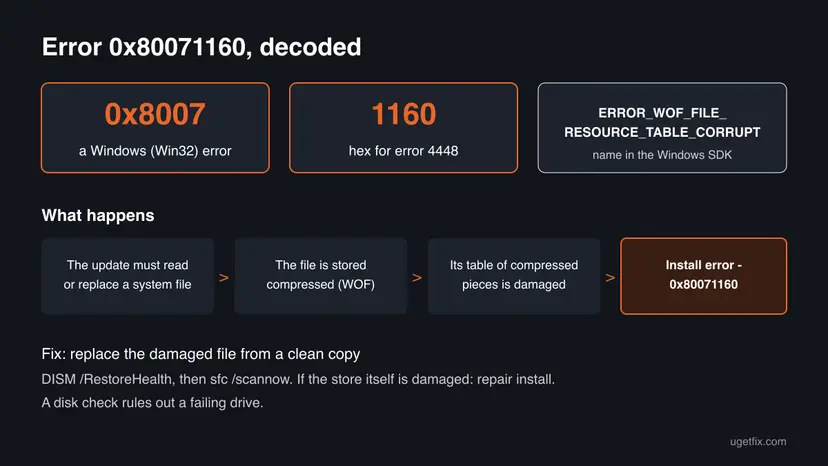
WOF is the Windows Overlay Filter, the part of Windows that lets system files sit on the disk in compressed form and unpacks them when they are read. Each such file carries a resource table that says where its compressed pieces are. When that table is damaged, Windows cannot read the file, and an update that must read or replace it stops with this code. Its neighbours 4446 and 4447 cover a damaged WIM header and a damaged WIM resource table.
| What you see | Where | What it tells you |
|---|---|---|
| Install error - 0x80071160 under an update name, with a Retry button | Settings > Windows Update | The update downloaded and the install failed while it changed system files. |
| There were problems installing some updates with (0x80071160) | Older Windows 10 builds, and Update history | The same error in the older wording. The cause is the same. |
sfc /scannow stops part way with "Windows Resource Protection could not perform the requested operation" | Command Prompt (Admin) | System File Checker hit the same damage. The component store needs repair first. |
| Turn Windows features on or off shows an empty list | Control Panel > Programs | The component store is damaged widely. Expect to need Fix 6. |
Most pages treat 0x80071160 as a download problem and start with the troubleshooter and a cache reset. The code says something else: the damage is in a file already on the PC, which a fresh download does not touch. That is why the cache reset comes late on this page.
Which updates fail with 0x80071160
People report the code with many updates over several years, which fits a cause on the PC rather than in one update. The cases below are user reports, not statements by Microsoft.
| Update | Windows | What was reported |
|---|---|---|
| Feature update to version 1909 | Windows 10 1809 (build 17763), a laptop | 0x80071160 in Windows Update, SFC stopping at about 20 % and DISM failing with error 87. A Sysnative analyst found damaged component manifests in C:\Windows\WinSxS\Manifests and replaced them with a per-PC script. |
| KB4592438, December 2020 cumulative update | Windows 10 | The install stopped at 100 % with 0x80071160 (Microsoft Q&A). |
| KB5030211, September 2023 cumulative update | Windows 10 | Three failed attempts with 0x80071160 (Microsoft Q&A). |
- Windows 10 left support on 14 October 2025. A Windows 10 PC without Extended Security Updates gets no more monthly updates, so the lasting fix there is a move to Windows 11 where the hardware allows it.
- Windows 11 reports exist too. The fixes below are the same on both systems.
Why Windows update error 0x80071160 happens, from most to least likely
Microsoft has not published a cause for this code in Windows Update. The ranking below follows what the code itself names and what the solved case showed. Each cause points to the fix that matches it.
| Cause | How often | How to tell | Fix |
|---|---|---|---|
| One damaged compressed system file that DISM can replace from Windows Update. | Most often | DISM RestoreHealth finishes and SFC repairs files. | Fix 1 |
| Damage in the component store itself, the copies that DISM and SFC repair from. | Often | SFC stops part way, DISM fails, or CBS.log names files in WinSxS. | Fix 2, Fix 6 |
| A failing or unstable drive that damages files as they are written. | Sometimes | chkdsk finds bad sectors, or new damage appears after every repair. | Fix 3 |
| A damaged download or a stuck update service on top of the file damage. | Rarely | Scans are clean and the update still fails. | Fix 4, Fix 5 |
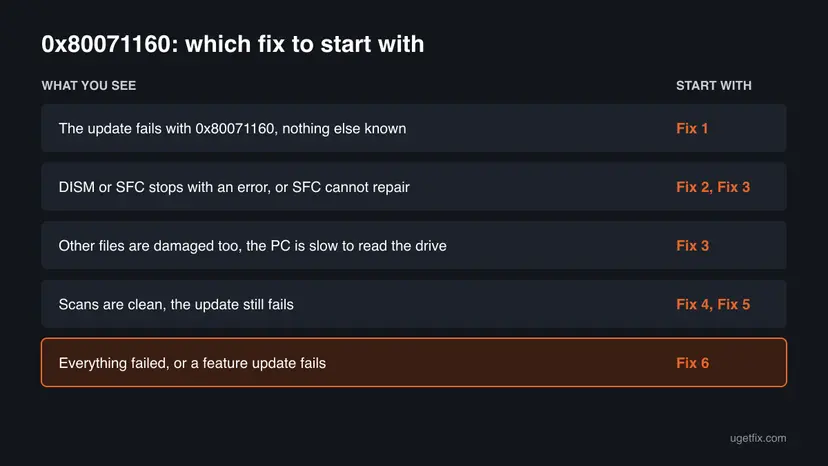
How to fix install error 0x80071160 in Windows Update
Fix 1 repairs the damaged file and works for most readers. Fix 2 tells you which file is damaged when Fix 1 stops. Fix 3 rules out the drive. Fixes 4 and 5 clear the update path. Fix 6 is the in-place reinstall, which rebuilds Windows and keeps your files and apps.
| What you see or have | Start with |
|---|---|
| The update fails with 0x80071160 and you have not run any scan yet. | Fix 1 |
| SFC stops part way, DISM fails, or SFC says it could not repair some files. | Fix 2 |
| New damage appears after every repair, or the PC is slow to read files. | Fix 3 |
| Both scans are clean and the update still fails. | Fix 4 |
| You want to rule out Windows Update itself. | Fix 5 |
| Every other fix failed, or a feature update fails. | Fix 6 |
Fix 1. Repair the damaged file with DISM and SFC
30 minutesLow riskAlways first. It is the fix that matches what the code names.
DISM RestoreHealth checks the component store and downloads clean copies of damaged parts from Windows Update. SFC then replaces damaged system files from that repaired store. A damaged compressed file is replaced by a clean one, which removes the cause of error 4448.
Run DISM RestoreHealth first and System File Checker second, then restart and retry the update. Keep the PC online, because DISM gets its clean copies from Windows Update. Step by step:
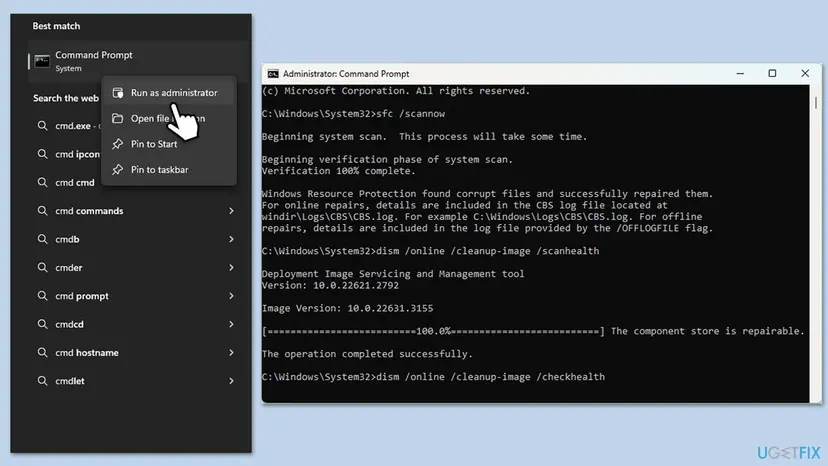
- Open an elevated command window. Right-click Start and select Terminal (Admin), or type cmd in the search box, right-click Command Prompt and select Run as administrator. Select Yes when Windows asks for permission.
- Run DISM first. Type the command below and press Enter. DISM downloads clean copies of damaged components from Windows Update, so it can take several minutes. Wait until it says The operation completed successfully.
DISM.exe /Online /Cleanup-Image /RestoreHealth - Run System File Checker. In the same window, type the command below and press Enter. Do not close the window until the verification reaches 100%.
sfc /scannow - Read the result and restart. Compare the last message with the table below this guide, then restart the PC so that repaired files are loaded.
These steps were written for Windows 11 24H2 and 25H2. The full page with the other versions and what each result means: Run DISM and SFC to repair Windows system files
| You see | Next |
|---|---|
| DISM: "The restore operation completed successfully" and SFC repaired files | Restart and retry the update. |
| SFC: "did not find any integrity violations" | Retry the update. If it fails again, go to Fix 4. |
| SFC stops part way, or "found corrupt files but was unable to fix some of them" | Fix 2 |
| DISM ends with an error code | Fix 2, then Fix 6 |
It worked if: Both tools finish, SFC reports repaired files or no violations, and after a restart the update installs.
If not: If SFC or DISM stops with an error, find the damaged file in Fix 2.
Fix 2. Find the damaged file in CBS.log
15 minutesNo riskSFC stops part way, DISM fails, or the update still fails after Fix 1.
CBS.log is the log of the part of Windows that installs updates and runs SFC. It names the file or component the update could not read. In the solved case it pointed at damaged files in the component store, which told the helper what to replace.
- Right-click Start and select Terminal (Admin). On Windows 10, search for
cmd, right-click Command Prompt and select Run as administrator. - Copy the log to the desktop, so that you read a copy while Windows keeps writing the original.
copy %windir%\Logs\CBS\CBS.log %USERPROFILE%\Desktop\CBS-copy.log - List the lines that carry the code. Note the time of the last hit.
findstr /i /c:"80071160" %USERPROFILE%\Desktop\CBS-copy.log - List the lines that name damaged files.
findstr /i /c:"corrupt" /c:"Cannot repair" %USERPROFILE%\Desktop\CBS-copy.log - Open
CBS-copy.login Notepad, go to the time of the last hit and read 20 to 40 lines above it. Note every file and folder name.
| You find | It points to |
|---|---|
A file under C:\Windows\System32 or a driver folder | Run Fix 1 again. Then Fix 3, because a file that breaks twice may sit on a bad sector. |
Files under C:\Windows\WinSxS, such as .manifest files | The component store is damaged. Fix 3, then Fix 6. |
Errors such as 0x800f081f (source files not found) next to the code | DISM had no clean copy. Fix 6. |
| No line with the code | The log rolled over. Retry the update once, then run the search again. |
Forum helpers sometimes replace damaged WinSxS files with a script made for one PC. Such a script fits only that PC and that build. Run one only when an analyst made it for your logs. Otherwise use Fix 6, which replaces the whole store safely.
It worked if: You know which file or folder is damaged and which fix comes next.
If not: If the log is unclear, run Fix 3 to rule out the drive, then go to Fix 6.
Fix 3. Check the drive for errors
15 minutes to 3 hoursLow riskFiles break again after a repair, Fix 2 names several unrelated files, or the PC is slow to read the drive.
A resource table is a small piece of data on the disk. If the drive has bad sectors, files keep getting damaged and every repair is undone. In the solved case the analyst checked the drive's health before replacing files, for that reason.
Scan the system drive with chkdsk first. The scan without repair is read-only and runs while Windows works. Step by step:
- Open Command Prompt as administrator. Type cmd in the search box on the taskbar, right-click Command Prompt and select Run as administrator. Select Yes when Windows asks for permission.
- Scan the drive without changing anything. Type the command below and press Enter. Replace C: with another drive letter to check that drive. This scan only reports; it does not fix anything.
chkdsk C: - If errors were found, run the repair. Run chkdsk with /f to fix file system errors. On the Windows drive (C:) chkdsk cannot lock the drive while Windows is running, so it offers to check it at the next restart.
chkdsk C: /f - Schedule the check and restart. Type Y and press Enter, then restart the PC. chkdsk runs before Windows starts. Do not turn the PC off while it runs.
- Read the result after the restart. The report of a check made at startup is not shown on the desktop. Open PowerShell and run the command below to see it, or open Event Viewer (eventvwr.msc) > Windows Logs > Application and filter by the sources Chkdsk and Wininit.
Get-WinEvent -FilterHashtable @{LogName='Application'} | Where-Object { $_.ProviderName -match 'wininit' } | Select-Object -First 1 | Format-List TimeCreated, Message
These steps were written for Windows 11 and Windows 10 (the steps are the same). The full page with the other versions and what each result means: Check a disk for errors (chkdsk)
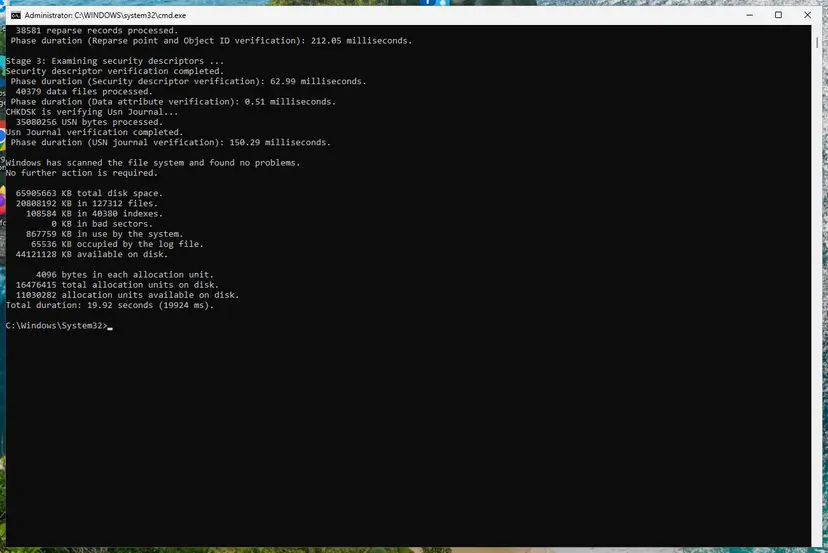
- Bad sectors found, or the repair needs a restart: let chkdsk repair the drive, then run Fix 1 again.
- The drive reports errors again and again: back up your files now and plan a new drive before you reinstall Windows on it.
- No errors: the drive is not the cause. Go back to the fix your log pointed at.
It worked if: chkdsk reports no problems, or it repairs them and Fix 1 then finishes cleanly.
If not: If the drive is fine and the update still fails, go to Fix 4.
Fix 4. Reset the Windows Update components
15 minutesLow riskFixes 1 to 3 found nothing, and the update still fails with 0x80071160.
A reset stops the update services, renames the download cache folders SoftwareDistribution and catroot2, and starts the services again. Windows then downloads the update from scratch. It does not repair files already on the PC, so it comes after Fix 1.
- Open Command Prompt as administrator. Type cmd in the search box, right-click Command Prompt and select Run as administrator. Select Yes when Windows asks for permission.
- Stop the update services. Type the commands below and press Enter after each one. If Windows says that other services depend on Cryptographic Services, it stops them too. A message that a service is not started is fine.
net stop wuauserv net stop bits net stop cryptsvc - Delete the download queue files. This clears the list of downloads that the Background Intelligent Transfer Service keeps. If Windows says it cannot find the files, continue.
del "%ALLUSERSPROFILE%\Application Data\Microsoft\Network\Downloader\qmgr*.dat" - Rename the update cache folders. Renaming keeps a copy in case you need it; Windows creates new, empty folders when the services start again. If you get Access is denied, a service is still running: repeat the previous step.
ren %systemroot%\SoftwareDistribution SoftwareDistribution.old ren %systemroot%\System32\catroot2 catroot2.old - Start the services again. Type the commands below and press Enter after each one. The requested service has already been started is fine: Windows started it on its own.
net start cryptsvc net start bits net start wuauserv - Restart and check for updates. Restart the PC. Then select Start > Settings > Windows Update > Check for updates. The first check can take longer than usual because everything is downloaded again.
These steps were written for Windows 11 and Windows 10 (the steps are the same). The full page with the other versions and what each result means: Reset Windows Update components
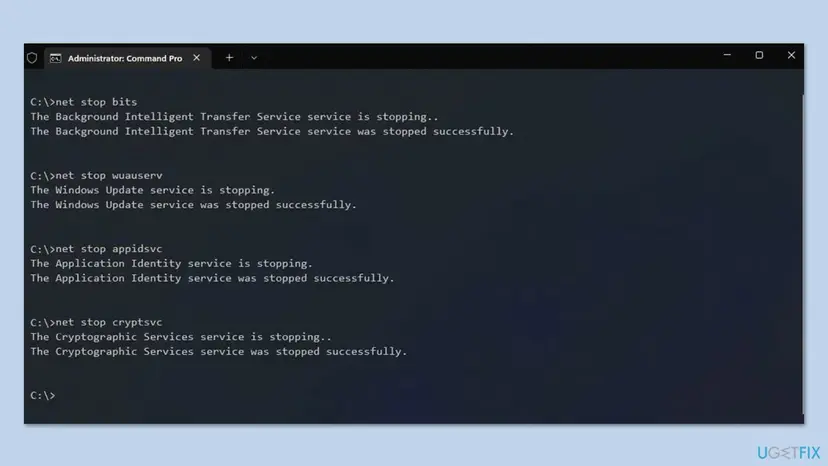
Then run the built-in troubleshooter once: Run the Windows Update troubleshooter. If drive C: is nearly full, free space first, because an update needs room to unpack its files: Free up disk space and delete temporary files
It worked if: The update downloads again from the start and installs without the error.
If not: If it fails again with 0x80071160, the damage is on the PC. Go to Fix 6.
Fix 5. Install the update by hand from the Microsoft Update Catalog
20 to 40 minutesLow riskYou want to rule out Windows Update itself before a reinstall.
A manual install skips the Windows Update download and service chain. If it fails with the same code, you know for sure the damage is in files on the PC and that Fix 6 is the next step.
- Check your Windows version. Press Windows key + R, type winver and press Enter. Note the version (for example 25H2) and the OS build.
- Find the KB number. Open Settings > Windows Update. A failed or pending update is listed with its KB number; earlier ones are under Update history.
- Check the processor type. Open Settings > System > About and look at System type: an x64-based PC needs the x64 file, an ARM-based PC (for example Snapdragon) needs the arm64 file.
- Search the catalog. Open the Microsoft Update Catalog at catalog.update.microsoft.com in your browser, type the KB number (for example KB5124010) in the search box and press Enter.
- Pick the right row. Find the row whose title names your Windows version and your processor type (x64-based or arm64-based) and select Download on that row.
- Download every file listed. A window lists one or more .msu links. Download all of them into one empty folder, for example C:\packages. On Windows 11 24H2 and later the list can include earlier checkpoint updates that the new one needs.
- Install a single file. If there is only one file, double-click it and confirm the installation in the Windows Update Standalone Installer.
- Install several files with DISM. If there are several files, open an elevated Terminal or Command Prompt and run DISM with the newest file. DISM finds the other files in the same folder and installs them in the right order.
DISM /Online /Add-Package /PackagePath:C:\packages\<newest-file>.msu - Restart. Restart the PC when the installation finishes, then run winver again: the OS build should have changed.
These steps were written for Windows 11 24H2 and later; Windows 10 22H2. The full page with the other versions and what each result means: Install an update from the Microsoft Update Catalog
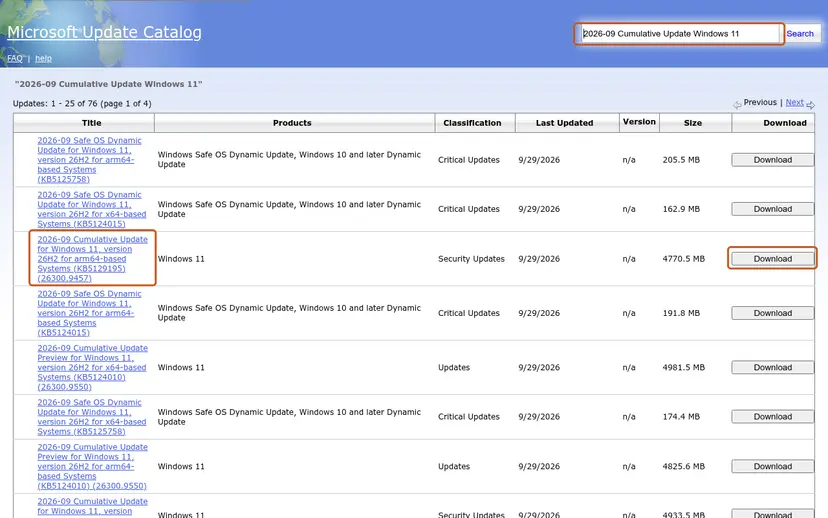
It worked if: The installer says the update installed, and after the restart winver shows the new build.
If not: If the manual install fails with the same code, go to Fix 6.
Fix 6. Reinstall Windows over itself and keep your files and apps
1 to 2 hoursLow riskEvery other fix failed, CBS.log names damaged WinSxS files, or a feature update fails.
An in-place reinstall writes a fresh copy of Windows with a new component store, and keeps apps, files and settings. It replaces every damaged compressed file at once, including the ones DISM could not reach.
Both routes below are designed to keep your files, apps and settings. Copy your important files to another drive first all the same, above all if Fix 3 found drive errors, and keep a laptop on mains power: Back up your files (Windows Backup, File History, Time Machine)
On Windows 11, start with Settings > System > Recovery > Fix problems using Windows Update > Reinstall now. Step by step, with the Reset this PC route if that fails:
- Open Recovery in Settings. Open Settings > System > Recovery. Next to Fix problems using Windows Update, select Reinstall now. This keeps your apps, files and settings.
- Start the reinstall. Choose whether the PC may restart on its own 15 minutes after the installation, then select OK.
- Wait and restart. Windows Update downloads and installs a repair copy of your current Windows version. Keep the PC plugged in and online, and restart it when asked.
- If that did not help: Reset PC. Back in Settings > System > Recovery, next to Reset this PC, select Reset PC. This keeps your personal files but removes installed apps and settings.
- Choose Keep my files. Select Keep my files. Do not select Remove everything.
- Choose where Windows comes from. Select Cloud download to download a fresh copy of Windows, or Local reinstall to use the files already on the PC (faster, but may not include the latest updates).
- Reset. Review the summary and select Reset. The PC restarts several times.
These steps were written for Windows 11 22H2 and later. The full page with the other versions and what each result means: Reinstall Windows without losing files
The other route is Microsoft's installation assistant or Media Creation Tool: run it on the PC, choose Upgrade this PC now, and make sure the summary says Keep personal files and apps before you select Install. On Windows 10 this is also the way to Windows 11.
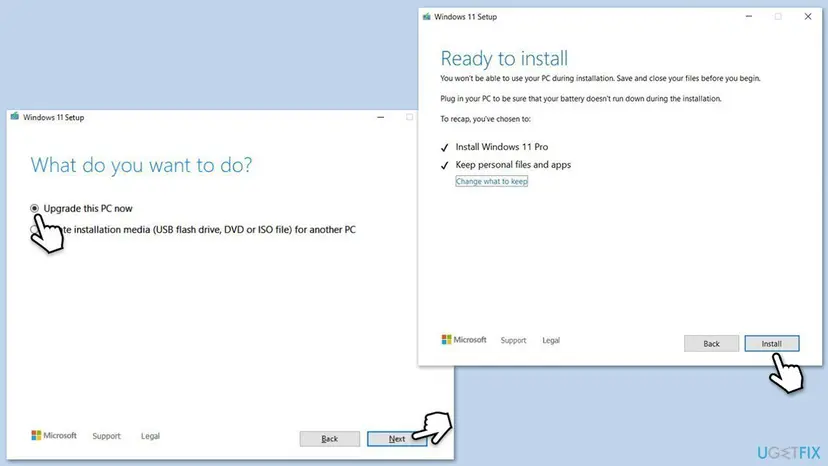
It worked if: Windows restarts on the same or a newer build, your files and apps are in place, and Windows Update installs the next update.
If not: If even the reinstall fails, read the still-broken section below: the drive or the setup logs hold the answer.
If 0x80071160 is still there: the logs to read and what to send
When the log names damage that none of the fixes reach, the next step is a person who reads CBS logs. Microsoft Q&A and the Sysnative Windows Update forum both take such cases. Collect the logs right after a failed attempt.
PowerShell (administrator): pack the CBS logs into one file on the desktop
Compress-Archive C:\Windows\Logs\CBS -f (Join-Path ([Environment]::GetFolderPath('Desktop')) 'CBS.zip')- What to send: CBS.zip, the output of
winver, the KB number, the dates from Update history and what you already tried. - A failed in-place reinstall leaves its own logs in
C:\$WINDOWS.~BT\Sources\Panther. Sendsetupact.logandsetuperr.logfrom there. - One test with the antivirus paused. If you use an antivirus other than Microsoft Defender, pause it for one attempt and turn it back on right after: Turn off Microsoft Defender protection for a moment
- A work or school PC. Updates may come from your organization's server. Send the logs to the administrator before a reinstall.
- Is it hardware? Yes, if chkdsk keeps finding bad sectors or files break again after Fix 6. Then replace the drive and install Windows on the new one.
How to keep 0x80071160 from coming back
- Shut down cleanly. A power cut or a forced power-off while Windows writes system files is a common way for files to get damaged. Let updates finish before you turn the PC off.
- Watch the drive. Run the read-only chkdsk scan from Fix 3 every few months on an older drive, and replace a drive that keeps reporting errors.
- Keep room on drive C:. Updates unpack large files there. Free space before a feature update: Free up disk space and delete temporary files
- Do not stop SFC, DISM or an update half way. A stopped repair can leave the store worse than before.
- Install updates each month. Small monthly steps touch fewer files at once than a big catch-up.
Frequently asked questions
What does error 0x80071160 mean?
It means Windows found a damaged compressed file. 0x80071160 is Win32 error 4448 in the form Windows Update uses, and the Windows SDK names it ERROR_WOF_FILE_RESOURCE_TABLE_CORRUPT. WOF, the Windows Overlay Filter, keeps some system files compressed on the disk. The resource table inside such a file says where its pieces are. When it is damaged, the update cannot read or replace the file and stops. DISM and SFC in Fix 1 replace the damaged file.
What does (0x80071160) after "There were problems installing some updates" mean?
It is the same error in the wording older Windows 10 builds use. The message says only that an install failed, and the code in brackets says why: a damaged compressed system file. The fixes do not change with the wording. Start with DISM and SFC in Fix 1, and read CBS.log in Fix 2 if the scans stop with an error.
Is install error - 0x80071160 a network problem?
Rarely. The download usually reaches 100 % and the failure comes while Windows installs, when it must read files already on the disk. A stable network and a restart, as in the reader's question at the top, do not change a damaged file. That is why restarting the router or resetting the update cache seldom helps on its own. The network matters in Fix 1, because DISM downloads clean copies from Windows Update.
Is it safe to keep using the PC with this error?
The PC keeps working, but it misses security updates for as long as the error lasts. A damaged compressed file can also break the program or feature that uses it. Plan the repair soon rather than skip updates for months. If chkdsk in Fix 3 finds bad sectors, back up your files the same day, because a failing drive can lose data at any time.
Why does SFC stop part way with this error?
System File Checker reads every protected file and its clean copy in the component store. When it reaches a file whose resource table is damaged, or when the store itself is damaged, it can stop with "Windows Resource Protection could not perform the requested operation". In the Sysnative case SFC stopped at about 20 %. Run DISM RestoreHealth first, then SFC again. If both keep failing, the in-place reinstall in Fix 6 replaces the store.
Will the in-place reinstall delete my files?
No, not when you choose to keep files and apps. Both the Reinstall now button in Settings > System > Recovery and Upgrade this PC now in Microsoft's setup keep personal files, apps and most settings. A few settings, such as some custom fonts or system tweaks, may need to be redone. Back up important files first anyway, because a reinstall on a failing drive can go wrong.
Does turning off the antivirus fix 0x80071160?
Not as a fix. The code names a damaged file, not a blocked one. An antivirus other than Microsoft Defender can interfere with updates in general, so one test with it paused is fair when every other fix failed. Turn it back on right after the test. Never leave it off to get an update through.
Does this error happen on Windows 11 too?
Yes. Most of the reports we found are from Windows 10, from version 1809 to 22H2, but the code comes from a part of Windows that both systems share. The fixes on this page are the same on Windows 11 25H2 and 26H2. On Windows 10, remember that support ended on 14 October 2025, so the in-place move to Windows 11 in Fix 6 is also the lasting fix where the hardware allows it.
My error message is in another language. Is this the same error?
Yes. Readers reach this page with questions such as "me salió este mensaje", "aiutami" or "что это означает". Windows shows the same code 0x80071160 in every language, and only the words around it change. The steps on this page work the same on a Windows in Spanish, Italian, Russian, Indonesian or any other language. The menu names follow the language of your Windows.
Sources
- Microsoft Learn: System Error Codes (4000-5999), which lists codes up to 4443 and then 4500, without 4448 (learn.microsoft.com)
- winerror.h in the Wine project, which mirrors the Windows SDK names: 4446 ERROR_WOF_WIM_HEADER_CORRUPT to 4448 ERROR_WOF_FILE_RESOURCE_TABLE_CORRUPT (github.com)
- Sysnative Forums: [SOLVED] Windows update error 0x80071160 (Windows 10 build 17763, SFC and DISM failing, damaged WinSxS manifests) (sysnative.com)
Did this fix work?
One click, no account. It tells the next reader which guides are worth their time.
Questions and experiences: fix Windows update error 0x80071160
Still broken, or found a fix we did not cover? Ask here: members and our editors answer. Reading is open; writing needs a free account.
…