
How to fix Windows update error 0x800711c7?

Prefer to fix it yourself? The manual steps follow.
- 6methods
- 5 to 30 minutes
- Easy
Applies to Windows 11 and Windows 10, also in S mode; Windows Update, Microsoft Store apps, the Minecraft Launcher and the Xbox app
6 methods in this guide
Hello. I cannot seem to succeed in installing the latest update for the Windows Security platform, KB5007651. Every time I try, I receive the 0x800711c7 error code. What should I do?
Error 0x800711c7 means that Windows refused to run a file because an application control policy blocked it. It is best known from Windows 11 in S mode, where the update for the Windows Security platform, KB5007651, fails with this code. Check first whether your PC is in S mode, because that decides which fix is yours.
Open Settings > System > Activation. If it says in S mode, the update file was blocked by S mode. Install every other pending update and check again (Fix 1). If KB5007651 keeps failing, the only sure way past it is to switch out of S mode (Fix 5), which is free but cannot be undone. On a PC that is not in S mode, run the Windows Update troubleshooter (Fix 2) and reset the update components (Fix 3).
| Error | Install error - 0x800711c7 in Windows Update. In logs and app installers: "This program was blocked by Device Guard because it violates the code integrity policy installed on this system." |
|---|---|
| Where it appears | Settings > Windows Update, next to Update for Windows Security platform - KB5007651. Also in app and game installers such as the Minecraft Launcher, and in deployment logs. |
| Main cause | An application control policy blocked the file. On home PCs that policy is S mode. On other PCs it is Smart App Control or a policy set by an organization. |
| Fastest fix | Install all other pending updates, restart and check for updates again (Fix 1). |
| Also written as | 0x800711C7, HRESULT: 0x800711c7, Exception from HRESULT: 0x800711C7, (0x800711c7), error 4551. |
| Affects | Windows 11 Home in S mode and Windows 10 in S mode most often. Windows 11 with Smart App Control turned on. Work and school PCs with an App Control policy. |
| Microsoft's status | Microsoft documents the code for deployment on S mode devices and gives two ways out: a device without S mode, or switching out of S mode. It has not published a fix that keeps S mode for KB5007651. |
| The update itself | KB5007651 updates the Windows Security platform components. The Microsoft Update Catalog lists six versions from January 2025 to July 2026, the newest 10.0.29628.1000 (44.0 MB). |
| Time to fix | 5 minutes for Fix 1 and Fix 2. About 10 minutes to switch out of S mode. |
Facts checked on 11 October 2026. Steps written for Windows 11 (25H2 and 26H2) and Windows 10 22H2.
What error code 0x800711c7 means
0x800711c7 is a standard Windows error, not a code that belongs to one update. Microsoft's own Surface support page shows the text that goes with it in logs. It reads: "0x800711C7 - This program was blocked by Device Guard because it violates the code integrity policy installed on this system". The same page says users can also see the pop-up "Your organization used Device Guard to block this app."
In plain words: Windows was told to run only files it trusts, and the file that tried to run was not on that list. The update or the app is not damaged. A rule on your PC stopped it.
| What you see | Where | What it tells you |
|---|---|---|
| Install error - 0x800711c7 | Settings > Windows Update | An update file was blocked before it could run. |
| An Application Control policy has blocked this file. (0x800711C7) | App and game installers | The installer or one of its parts was blocked. |
| HRESULT: 0x800711c7 or Exception from HRESULT: 0x800711C7 | Programs, scripts and developer tools | The same block, reported by a program instead of Windows. |
| Your organization used Device Guard to block this app. | A pop-up window | A policy on the device blocked the app. On a home PC in S mode there is no organization: the policy is S mode itself. |
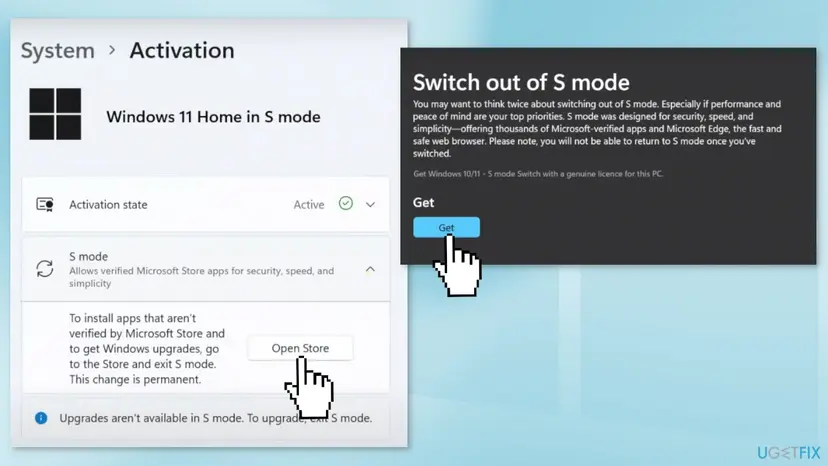
Open Settings > System > Activation (Windows 10: Settings > Update & Security > Activation). If the edition line ends with in S mode, you have found the cause, and the fixes that need Command Prompt or downloaded programs are not open to you. Start with Fix 1 and Fix 2, then decide about Fix 5.
Why Windows update error 0x800711c7 appears
There are three policies that can produce this code on a PC. Which one you have decides the fix, so find your row first.
| Cause | How often | How to tell | Fix |
|---|---|---|---|
| Windows 11 or Windows 10 in S mode blocks the update file for KB5007651. | Most often | The Activation page says in S mode. | Fix 1, Fix 5 |
| Update files on the PC are damaged or a download is incomplete, and the retry is blocked. | Sometimes | No S mode, and other updates also fail. | Fix 2, Fix 3, Fix 4 |
| Smart App Control blocks an app or game installer. | Sometimes | No S mode, the error comes from an installer such as the Minecraft Launcher. | Fix 6 |
| An App Control policy set by an employer or a school. | Rarely at home | The PC is managed, and Settings shows that some settings are managed by your organization. | Ask the administrator |
Users on Microsoft's own forum describe the first case since June 2022, and one of them sums it up: the update comes as a program file, and S mode does not let it run. Microsoft has not confirmed that wording, so treat it as a report. What Microsoft does confirm is the meaning of the code and that S mode devices produce it.
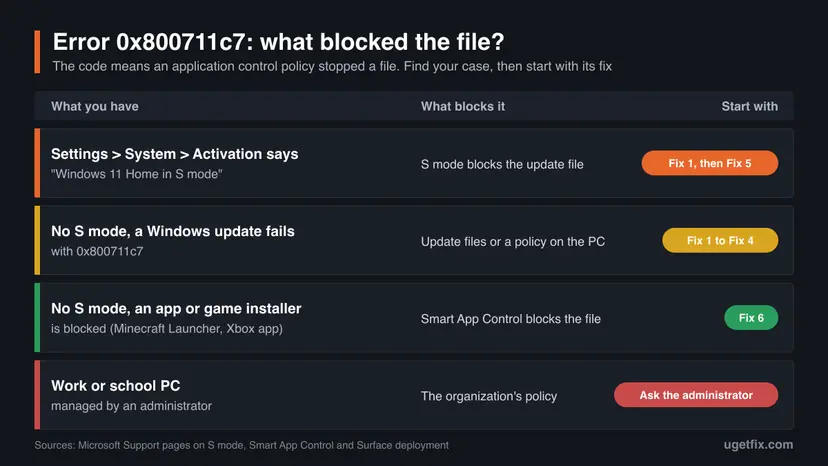
S mode allows apps from Microsoft Store only and requires Microsoft Edge. Microsoft says Windows 11 in S mode exists only in the Home edition, and that the built-in protection is the only antivirus known to work in S mode. That is why a failed update of the Windows Security platform matters there.
How to fix Windows update error 0x800711c7
Fixes 1 and 2 work in S mode and take five minutes. Fixes 3 and 4 need a PC that is not in S mode. Fix 5 removes S mode for good, so read its warning first. Fix 6 is for an app or game installer that is blocked.
| What you see or have | Start with |
|---|---|
| The Activation page says in S mode and KB5007651 fails. | Fix 1 |
| S mode, and Fix 1 and Fix 2 did not help. | Fix 5 |
| No S mode, a Windows update fails with 0x800711c7. | Fix 2, then Fix 3 |
| No S mode, only one update keeps failing. | Fix 4 |
| The Minecraft Launcher, the Xbox app or another installer is blocked. | Fix 6 |
| A work or school PC. | Ask the administrator |
Fix 1. Install every other pending update, restart and check again
5 to 20 minutesNo riskAlways first. It is the only fix that users in S mode report as working without leaving S mode.
The accepted answer in Microsoft's forum thread about this error is from a user in S mode: after the cumulative update KB5014668 was installed, KB5007651 was no longer offered. A newer cumulative update can carry or replace the blocked package.
- Open Settings > Windows Update.
- Select Check for updates and install everything that is offered, also when KB5007651 fails again in the same round.
- Restart the PC, even if Windows does not ask for it.
- Open Settings > Windows Update again and select Check for updates once more.
- If KB5007651 is still listed, select Retry next to it.
Make sure no other update is installing in the background before you retry. A Microsoft moderator gives the same advice for this code: restart the device first, then try Windows Update again.
It worked if: KB5007651 installs, or it is no longer in the list after the other updates are in.
If not: Run the troubleshooter in Fix 2. It works in S mode too.
Fix 2. Run the Windows Update troubleshooter
5 minutesNo riskAny PC, also in S mode. Microsoft's forum moderator names it for this code.
The troubleshooter restarts the update services and clears a stuck download, which is all that is wrong when the block came from a half-finished attempt and not from S mode.
- Open Troubleshoot settings. Select Start > Settings > System > Troubleshoot.
- Open the list of troubleshooters. Select Other troubleshooters.
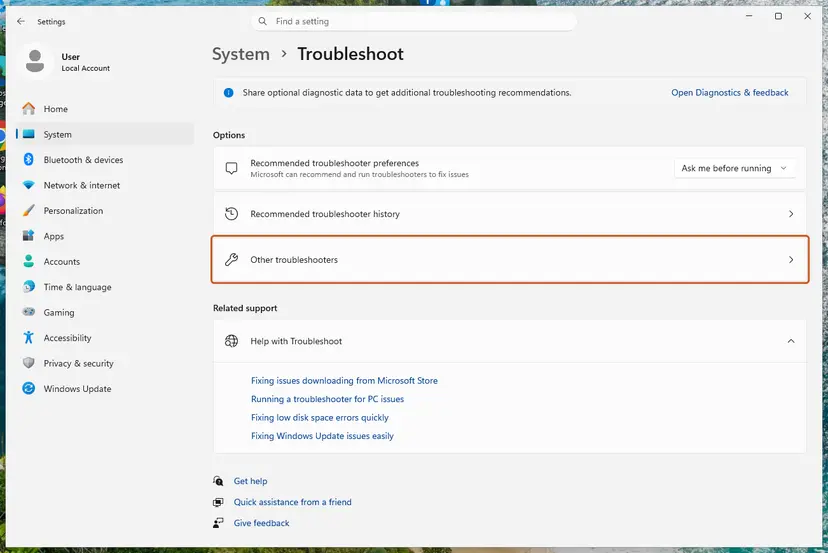
Settings, System, Troubleshoot: select Other troubleshooters. Screenshot: Windows 11 26H2. - Run the Windows Update troubleshooter. Under Most frequent, select Run next to Windows Update. The Get Help app opens and starts the checks.
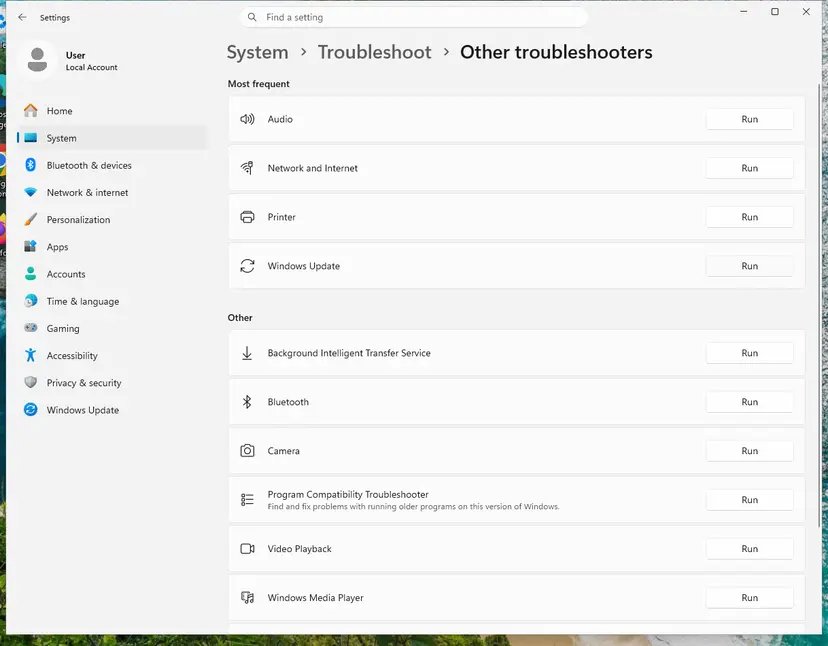
Windows Update is in the Most frequent group; select Run on its row. Screenshot: Windows 11 26H2. - Read the result. Wait until Get Help finishes. If it found and fixed a problem, it says so and asks whether this solved the problem. Answer the question so it can offer the next step.
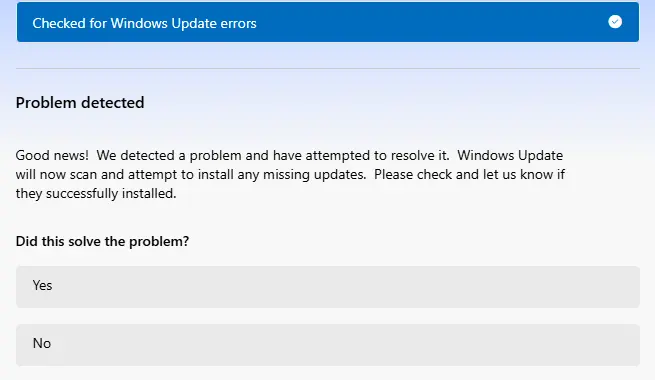
Get Help reports what it found and asks if the problem is solved. Screenshot: Windows 11 26H2. - Restart the PC. Restart when the troubleshooter finishes, even if it does not ask you to.
- Check for updates again. Select Start > Settings > Windows Update > Check for updates, and install the updates it finds.
These steps were written for Windows 11 (screenshots: 26H2). The full page with the other versions and what each result means: Run the Windows Update troubleshooter
It worked if: The troubleshooter reports a problem as fixed, and the update installs on the next check.
If not: In S mode go to Fix 5. Without S mode continue with Fix 3.
Fix 3. Reset the Windows Update components
10 minutesLow riskThe PC is not in S mode. The commands need Command Prompt, which S mode does not allow.
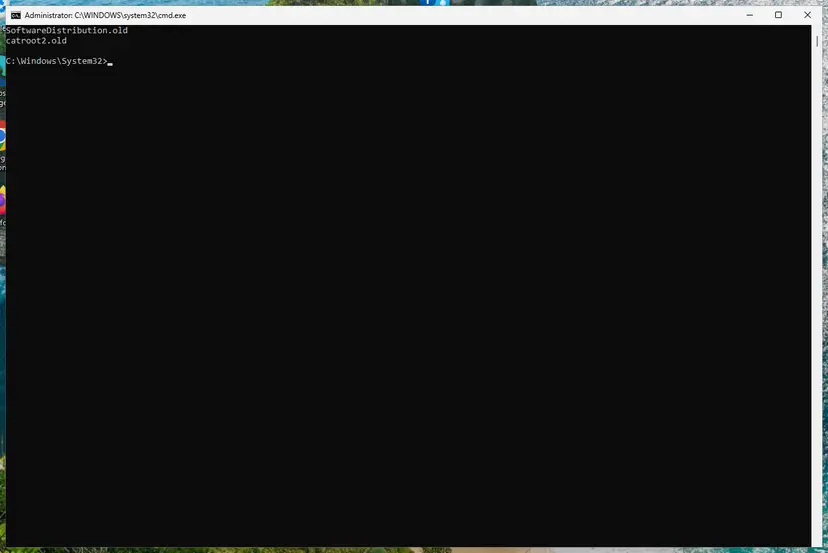
A damaged download in the SoftwareDistribution folder is offered again at every check. Renaming the two folders makes Windows fetch the update from scratch. A user on Microsoft's forum suggests exactly this reset for 0x800711c7.
- Open Command Prompt as administrator. Type cmd in the search box, right-click Command Prompt and select Run as administrator. Select Yes when Windows asks for permission.
- Stop the update services. Type the commands below and press Enter after each one. If Windows says that other services depend on Cryptographic Services, it stops them too. A message that a service is not started is fine.
net stop wuauserv net stop bits net stop cryptsvc - Delete the download queue files. This clears the list of downloads that the Background Intelligent Transfer Service keeps. If Windows says it cannot find the files, continue.
del "%ALLUSERSPROFILE%\Application Data\Microsoft\Network\Downloader\qmgr*.dat" - Rename the update cache folders. Renaming keeps a copy in case you need it; Windows creates new, empty folders when the services start again. If you get Access is denied, a service is still running: repeat the previous step.
ren %systemroot%\SoftwareDistribution SoftwareDistribution.old ren %systemroot%\System32\catroot2 catroot2.old - Start the services again. Type the commands below and press Enter after each one. The requested service has already been started is fine: Windows started it on its own.
net start cryptsvc net start bits net start wuauserv - Restart and check for updates. Restart the PC. Then select Start > Settings > Windows Update > Check for updates. The first check can take longer than usual because everything is downloaded again.
These steps were written for Windows 11 and Windows 10 (the steps are the same). The full page with the other versions and what each result means: Reset Windows Update components
It worked if: Windows Update downloads the update again and installs it.
If not: Install the one update by hand, Fix 4.
Fix 4. Install the update by hand from the Microsoft Update Catalog
10 minutesLow riskThe PC is not in S mode and only this one update keeps failing.
The catalog gives you the same package without Windows Update in between. For KB5007651 it lists six versions, the newest 10.0.29628.1000 from 30 July 2026, so you can also see whether Windows offers you an old one.
- Check your Windows version. Press Windows key + R, type winver and press Enter. Note the version (for example 25H2) and the OS build.
- Find the KB number. Open Settings > Windows Update. A failed or pending update is listed with its KB number; earlier ones are under Update history.
- Check the processor type. Open Settings > System > About and look at System type: an x64-based PC needs the x64 file, an ARM-based PC (for example Snapdragon) needs the arm64 file.
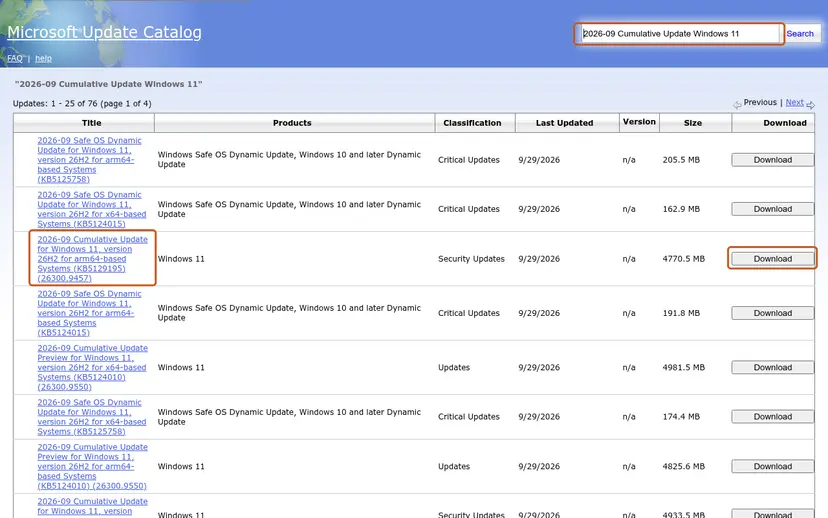
- Search the catalog. Open the Microsoft Update Catalog at catalog.update.microsoft.com in your browser, type the KB number (for example KB5124010) in the search box and press Enter.
- Pick the right row. Find the row whose title names your Windows version and your processor type (x64-based or arm64-based) and select Download on that row.
- Download every file listed. A window lists one or more .msu links. Download all of them into one empty folder, for example C:\packages. On Windows 11 24H2 and later the list can include earlier checkpoint updates that the new one needs.
- Install a single file. If there is only one file, double-click it and confirm the installation in the Windows Update Standalone Installer.
These steps were written for Windows 11 24H2 and later; Windows 10 22H2. The full page with the other versions and what each result means: Install an update from the Microsoft Update Catalog
In S mode a downloaded package is a file from outside Microsoft Store, and we could not confirm that S mode lets it run. Do not count on this fix there.
It worked if: The installer finishes, and the update is listed under Settings > Windows Update > Update history.
If not: If the installer is blocked with the same code, a policy on the PC stops it: read "If the error is still there" below.
Fix 5. Switch out of S mode
10 minutesRead the warningThe PC is in S mode, Fix 1 and Fix 2 did not help, and you accept that S mode cannot come back.
Microsoft's answer for this code on S mode devices is to switch the device out of S mode. Outside S mode the update file is allowed to run, and so are programs from outside Microsoft Store.
Microsoft states that switching out of S mode is one-way: you cannot go back to S mode afterwards. It costs nothing and your files and apps stay. What you lose is the rule that only Microsoft Store apps can run, so from then on what you install is your own responsibility.
- Open Settings > System > Activation. On Windows 10 open Settings > Update & Security > Activation.
- Find the section Switch to Windows 11 Pro (on Windows 10: Switch to Windows 10 Home or Switch to Windows 10 Pro) and select Go to the Store.
- Do not select the link under Upgrade your edition of Windows. Microsoft warns that it is a different process that keeps you in S mode.
- On the Microsoft Store page Switch out of S mode, select Get and confirm.
- Wait for the confirmation message, then restart the PC.
- Open Settings > Windows Update and select Check for updates.
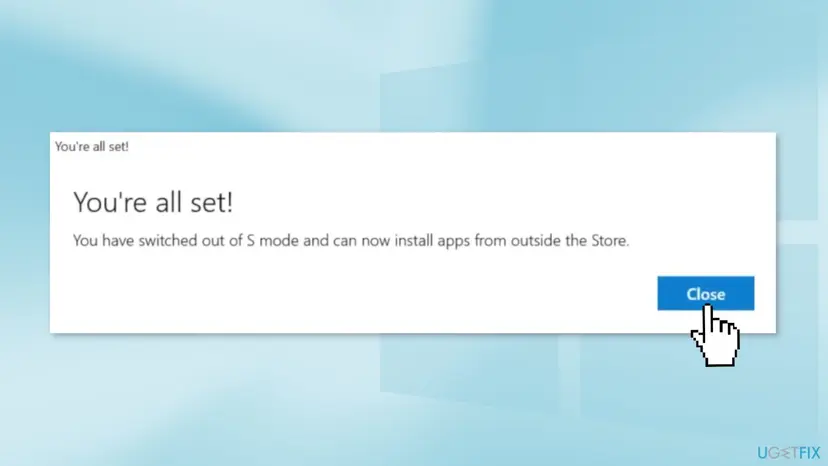
On some PCs the S mode section shows an Open Store button instead of the link, as in the picture further up. It leads to the same Store page.
It worked if: The Activation page no longer says in S mode, and KB5007651 installs.
If not: If the Store page does not open, see the question about the Store in the FAQ. If the update still fails without S mode, go back to Fix 3.
Fix 6. For a blocked app or game: get it from Microsoft Store, then check Smart App Control
10 minutesRead the warningThe PC is not in S mode and the code comes from an installer, for example the Minecraft Launcher or the Xbox app.
Smart App Control blocks apps that are unsigned, have an invalid signature or that its cloud service does not trust. Microsoft says there is no way to make an exception for one app, so the choice is between a version Windows trusts and turning the feature off.
- Remove the installer you downloaded from a website.
- Open Microsoft Store, search for the app (for example Minecraft Launcher) and install it from there. Store apps are signed and pass the check.
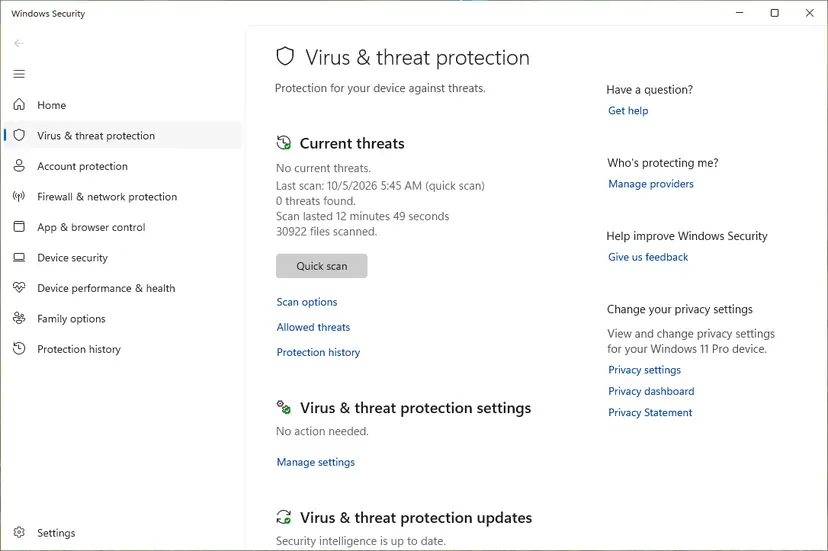
- If the Store version is blocked too, open Windows Security > App & browser control and select Smart App Control settings.
- Read the mode. Evaluation blocks nothing, so the cause is somewhere else. On means Smart App Control is the one that blocks.
- Only if you trust the app and its source: select Off, install the app, and decide whether to turn Smart App Control on again.
With Smart App Control off, Windows no longer stops untrusted or unsigned apps before they run. Microsoft says recent Windows updates let you turn it on again without reinstalling Windows. On older builds that was not possible, so check for updates before you turn it off.
It worked if: The app installs from Microsoft Store, or installs after Smart App Control is set to Off.
If not: On a managed PC the block comes from the organization's policy. Read the next section.
If the error is still there
When none of the fixes helped, the block comes from a policy you cannot change yourself, or the PC cannot leave S mode in the usual way.
| Situation | What to do |
|---|---|
| Work or school PC | Give the administrator the code 0x800711c7 and the name of the file or update. The policy is theirs, and only they can allow the file. |
| S mode, and the Store page will not open | Sign in to Microsoft Store with a Microsoft account, install pending Store updates under Library, restart and try again. |
| You want to stay in S mode | Leave KB5007651 failed. Other security updates still install, and Microsoft Defender Antivirus keeps getting its own definition updates. Check again after the next monthly update. |
| Not in S mode, Smart App Control is Off, updates still fail | Repair the system files and try once more: Run DISM and SFC to repair Windows system files |
| Nothing above applies | Reinstall Windows over itself and keep your files: Reinstall Windows without losing files |
A failed KB5007651 does not mean the PC is unprotected. It updates the Windows Security app components. The virus definitions come through a separate update.
How to keep error 0x800711c7 from coming back
- Install the monthly cumulative updates soon after they arrive: they are what cleared the error for users in S mode.
- Get apps and games from Microsoft Store when a Store version exists.
- Before you buy a PC, read whether it ships in S mode, and switch out on the first day if you need programs from outside the Store.
- Do not run scripts or registry files from forums that promise to remove S mode or to force the update. In S mode they cannot run, and outside it they are a risk.
- Do not turn Smart App Control off for good because one installer was blocked.
- Do not pay anyone to switch out of S mode. Microsoft does not charge for it.
If the PC freezes or restarts during updates more than once, look at the disk space as well. Microsoft's moderator lists low free space as a reason for failed updates: Free up disk space and delete temporary files
Frequently asked questions
What does error code 0x800711c7 mean?
It means Windows blocked a file because an application control policy did not allow it to run. Microsoft's support page for Surface devices gives the text behind the code: the program was blocked by Device Guard because it violates the code integrity policy installed on the system. On a home PC the policy is usually S mode, which allows only apps from Microsoft Store. On other PCs it can be Smart App Control or a policy set by an employer or a school. The file itself is not damaged.
Why does KB5007651 fail with 0x800711c7 in S mode?
Users on Microsoft's forum have reported it since June 2022, always with the update for the Windows Security platform, KB5007651, on Windows 11 in S mode. Their explanation is that the update arrives as a program file and S mode does not let it run. Microsoft has not confirmed that explanation in a support article. What it confirms is that this code appears on S mode devices and that leaving S mode removes the block. Installing the newest cumulative update first has cleared it for some users.
Can I fix 0x800711c7 without switching out of S mode?
Sometimes. Install every other pending update, restart and check again: the accepted answer on Microsoft's forum came from a user for whom KB5007651 disappeared from the list after a cumulative update. The Windows Update troubleshooter also works in S mode. What does not work in S mode are fixes that need Command Prompt or downloaded programs. If both fail, you can stay in S mode and leave this one update failed, or switch out of S mode, which cannot be undone.
Is it safe to switch out of S mode?
It is a supported step: Microsoft describes it on its own support pages and does not charge for it. Your files, settings and apps stay. What changes is that Windows will run programs from outside Microsoft Store, so the protection that S mode gave by refusing them is gone, and you cannot switch back. If the PC is used by a child or by someone who installs whatever a web page offers, think about that before you select Get.
How do I know if my PC is in S mode?
Open Settings, then System, then Activation on Windows 11. On Windows 10 open Settings, then Update & Security, then Activation. The edition line at the top says, for example, Windows 11 Home in S mode. If the words in S mode are not there, the PC is not in S mode and this cause does not apply to you. Microsoft says Windows 11 in S mode exists only in the Home edition, so a PC with Windows 11 Pro is never in S mode.
Why do I get error 0x800711c7 with the Minecraft Launcher?
The code is the same Windows block, this time on the launcher's installer or on one of its files. In S mode only the Microsoft Store version can be installed. Without S mode the usual reason is Smart App Control, which blocks apps it does not trust and, as Microsoft states, cannot make an exception for a single app. Install the Minecraft Launcher from Microsoft Store first. If that version is blocked as well, check the Smart App Control mode as described in Fix 6.
Does error 0x800711c7 appear on an Xbox console?
We found no Microsoft page that lists this code for Xbox consoles. It is a Windows code, and the reports we read are from PCs: the Xbox app, Gaming Services or a game installer was blocked on Windows. If you see it on a PC while installing the Xbox app, treat it like any other blocked app: check for S mode on the Activation page, then follow Fix 6. If you see it on a console, contact Xbox Support with the exact wording of the message.
Is my PC unprotected while KB5007651 will not install?
No. KB5007651 updates the components of the Windows Security app, which the Microsoft Update Catalog describes as the Windows Security platform. Virus and threat definitions for Microsoft Defender Antivirus arrive through a separate update and keep installing. Still, do not leave the update failed for months: install the monthly cumulative updates, and check after each one whether KB5007651 goes through or is no longer offered.
What if Microsoft Store will not open the Switch out of S mode page?
Sign in to Microsoft Store with a Microsoft account, because the switch is delivered like a Store item. Then open Library in the Store, install the pending Store updates, restart the PC and open the Activation page again. Do not use the link under Upgrade your edition of Windows: Microsoft warns that it is a different process and keeps you in S mode. If the page still does not open, Microsoft Support can check the device, and the service is free.
Sources
- Microsoft Support: Problems when deploying Windows to Surface devices with preinstalled Windows 10 in S mode (support.microsoft.com)
- Microsoft Support: Switching out of S mode in Windows (support.microsoft.com)
- Microsoft Support: Windows 10 and Windows 11 in S mode FAQ (support.microsoft.com)
Did this fix work?
One click, no account. It tells the next reader which guides are worth their time.
Questions and experiences: fix Windows update error 0x800711c7
Still broken, or found a fix we did not cover? Ask here: members and our editors answer. Reading is open; writing needs a free account.
…