
How to fix Windows update error 0x8007370D?

Prefer to fix it yourself? The manual steps follow.
- 5methods
- 15 minutes to 2 hours
- Intermediate
Applies to Windows 11 and Windows 10: cumulative, security and other updates that fail in Windows Update with 0x8007370D
5 methods in this guide
Hi. I have Windows updates I want to install, but I can't due to the 0x8007370D error. Any ideas on what I can do?
Error 0x8007370D is ERROR_SXS_IDENTITY_PARSE_ERROR: Windows could not read the identity string of a component while it installed an update. Microsoft lists it among the component store corruption errors, so start with DISM RestoreHealth and then SFC, and retry the update after a restart.
0x8007370D means Windows found a malformed component identity, a damaged entry in the component store that updates are built on. Microsoft's fix for this group of errors is DISM: run DISM.exe /Online /Cleanup-image /Restorehealth, then sfc /scannow, restart and retry the update (Fix 1). If the same update still fails, reset the update cache (Fix 2) or install that update by hand (Fix 3). If DISM itself fails, do a repair reinstall (Fix 4).
| Error | 0x8007370D in Windows Update, shown as Install error - 0x8007370d next to the update. |
|---|---|
| Where it appears | Settings > Windows Update while an update installs, and in Update history next to the failed update. |
| Main cause | A damaged entry in the component store (WinSxS): Microsoft names the code ERROR_SXS_IDENTITY_PARSE_ERROR, "An identity string is malformed", and lists it among the common corruption errors. |
| Fastest fix | DISM.exe /Online /Cleanup-image /Restorehealth, then sfc /scannow, restart and retry (Fix 1). |
| Also written as | 0x8007370d, 8007370D, (0x8007370D), Win32 error 14093. |
| Related codes | 0x8007370B and 0x8007370A (an identity attribute out of range), 0x80073712 (component store in an inconsistent state). Microsoft gives them the same DISM repair. |
| Microsoft's status | Not a known issue of one update. Microsoft treats it as local corruption to repair with DISM. |
| Where the cause is written | %windir%\Logs\CBS\CBS.log and CBS.persist.log, in the lines DISM writes about corrupt manifests and packages. |
| Time to fix | 15 to 40 minutes for Fix 1 to Fix 3. One to two hours for the repair reinstall in Fix 4. |
Facts checked on 16 October 2026. Steps written for Windows 11 (25H2 and 26H2) and Windows 10 22H2.
What Windows Update error 0x8007370D means
Codes that start with 0x8007 carry a Windows error number in their last four digits. Here that is 370D, which is 14093 in decimal. Microsoft names it ERROR_SXS_IDENTITY_PARSE_ERROR. The longer text in the Windows SDK reads: "The identity string is malformed. This may be due to a trailing comma, more than two unnamed attributes, missing attribute name or missing attribute value."
SXS stands for side by side, the part of Windows that keeps every system component in the component store, the C:\Windows\WinSxS folder. Each component has an identity: its name, version, processor type and a key. When Windows Update installs a package, it reads those identities from manifests and from the servicing registry. If one of them is damaged, the parse fails, the install stops and you get 0x8007370D.
| What you see | Where | What it tells you |
|---|---|---|
| Install error - 0x8007370d | Settings > Windows Update, next to the update | The download worked. The install step failed while Windows read component data. |
| 0x8007370D next to the update name | Update history | Which update failed. Note its KB number for Fix 3 and Fix 5. |
| 8007370D | Older Windows Update screens and support forms | The same code without the 0x prefix. |
| An identity string is malformed. | Microsoft's list of Windows Update corruption errors | The text behind the code. |
In plain words: one record that Windows uses to describe its own system parts is damaged, so an update cannot be applied on top of it. Your personal files are not affected. The repair below rebuilds that record from clean copies.
Why error 0x8007370D appears
Microsoft gives the meaning and the repair, not a ranked list of causes. The order below is ours. It follows from what the code means (a damaged component identity) and from where Windows reads those identities during an update.
| Cause | How often | How to tell | Fix |
|---|---|---|---|
| A damaged manifest or servicing record in the component store of this PC. | Most often | Every update, or every cumulative update, fails with the same code. | Fix 1 |
| The downloaded copy of the update in the update cache is damaged, and Windows reuses it. | Often | DISM finds nothing, but the same update fails at every retry. | Fix 2 |
| The package Windows Update applies does not install on this PC, while the standalone package does. | Sometimes | One KB fails, others install. | Fix 3 |
| The damage is too deep for DISM to repair from Windows Update. | Sometimes | DISM ends with an error such as 0x800f081f, or SFC cannot repair files. | Fix 4, Fix 5 |
How to fix Windows Update error 0x8007370D
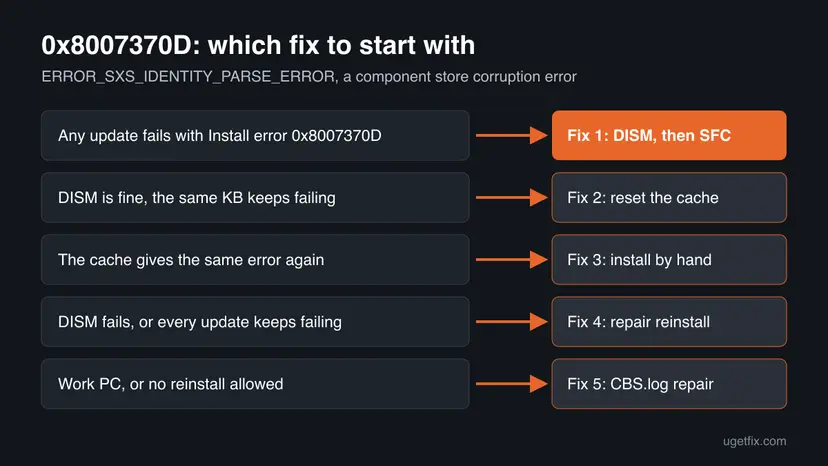
Fix 1 is Microsoft's own repair for this group of errors and solves it for most readers. Fix 2 and Fix 3 deal with one update package that keeps failing. Fix 4 replaces the whole component store and keeps your apps and files. Fix 5 is the manual repair from the CBS log, for administrators and for PCs where a reinstall is not allowed.
| What you see or have | Start with |
|---|---|
| Install error - 0x8007370d on any update | Fix 1 |
| DISM and SFC report no damage, the same KB still fails | Fix 2 |
| The error comes back after the cache reset | Fix 3 |
| DISM ends with an error, or every update fails for months | Fix 4 |
| A related code: 0x8007370B, 0x8007370A or 0x80073712 | Fix 1 |
| Work or school PC, or no reinstall allowed | Fix 5 |
Fix 1. Repair the component store with DISM, then run SFC
15 to 40 minutesNo riskAny update fails with 0x8007370D. This is the first thing to do.
The malformed identity sits in the component store. DISM with RestoreHealth compares the store with clean data from Microsoft Update servers and replaces bad manifests, cabinet files and servicing registry data. SFC then repairs the system files that depend on the store. Microsoft names exactly this for 0x8007370D.
Restart the PC once before you start, so no half-finished update holds the store. Keep it online: DISM works best when it can reach Microsoft Update.
- Open an elevated command window. Right-click Start and select Terminal (Admin), or type cmd in the search box, right-click Command Prompt and select Run as administrator. Select Yes when Windows asks for permission.
- Run DISM first. Type the command below and press Enter. DISM downloads clean copies of damaged components from Windows Update, so it can take several minutes. Wait until it says The operation completed successfully.
DISM.exe /Online /Cleanup-Image /RestoreHealth - Run System File Checker. In the same window, type the command below and press Enter. Do not close the window until the verification reaches 100%.
sfc /scannow - Read the result and restart. Compare the last message with the table below this guide, then restart the PC so that repaired files are loaded.
These steps were written for Windows 11 24H2 and 25H2. The full page with the other versions and what each result means: Run DISM and SFC to repair Windows system files
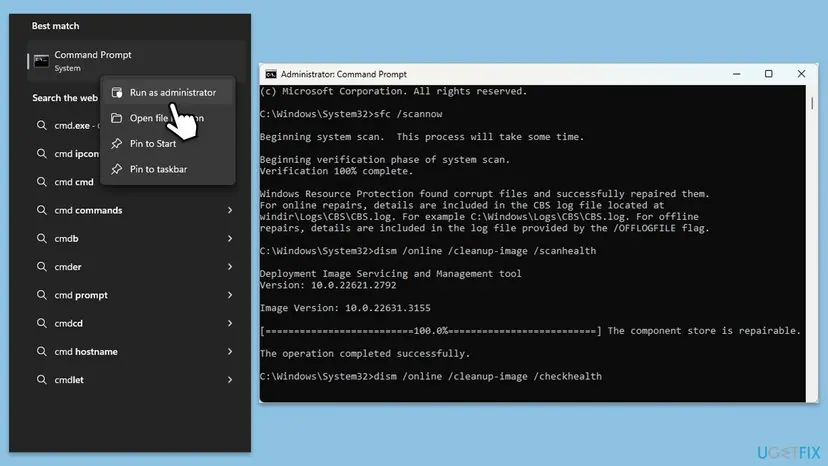
- The restore operation completed successfully.: DISM is done. Run SFC, restart and retry the update.
- An error such as 0x800f081f (source not found): DISM could not get clean copies. Go to Fix 4, or to Fix 5 on a managed PC.
- SFC found corrupt files and repaired them: restart before you retry the update, so the repaired files load.
It worked if: DISM ends with The restore operation completed successfully., SFC repairs or finds nothing, and after a restart the update installs from Settings > Windows Update.
If not: If DISM is clean but the same update still fails, go to Fix 2. If DISM ends with an error, go to Fix 4.
Fix 2. Reset the Windows Update components and cache
10 minutesLow riskDISM and SFC report no damage, but the same update keeps failing with 0x8007370D.
Windows Update keeps downloaded packages, with their manifests, in the SoftwareDistribution folder and reuses them at every retry. If the downloaded copy carries the damaged identity, the install fails the same way each time. Renaming the cache folders makes Windows download a fresh package.
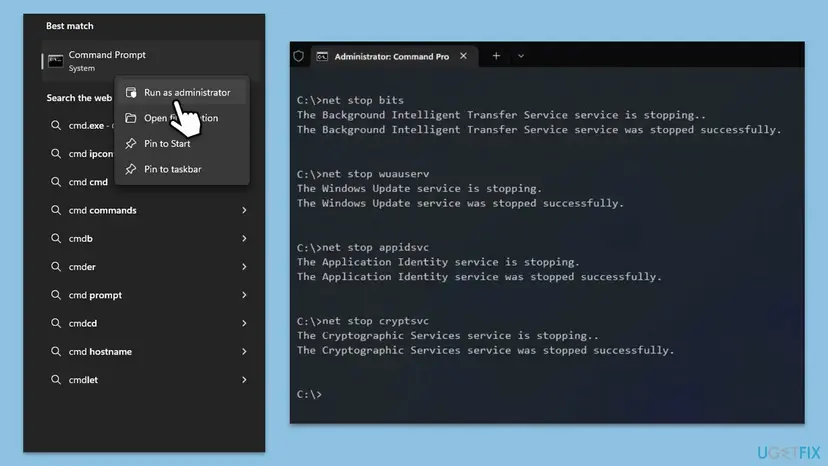
- Open Command Prompt as administrator. Type cmd in the search box, right-click Command Prompt and select Run as administrator. Select Yes when Windows asks for permission.
- Stop the update services. Type the commands below and press Enter after each one. If Windows says that other services depend on Cryptographic Services, it stops them too. A message that a service is not started is fine.
net stop wuauserv net stop bits net stop cryptsvc - Delete the download queue files. This clears the list of downloads that the Background Intelligent Transfer Service keeps. If Windows says it cannot find the files, continue.
del "%ALLUSERSPROFILE%\Application Data\Microsoft\Network\Downloader\qmgr*.dat" - Rename the update cache folders. Renaming keeps a copy in case you need it; Windows creates new, empty folders when the services start again. If you get Access is denied, a service is still running: repeat the previous step.
ren %systemroot%\SoftwareDistribution SoftwareDistribution.old ren %systemroot%\System32\catroot2 catroot2.old - Start the services again. Type the commands below and press Enter after each one. The requested service has already been started is fine: Windows started it on its own.
net start cryptsvc net start bits net start wuauserv - Restart and check for updates. Restart the PC. Then select Start > Settings > Windows Update > Check for updates. The first check can take longer than usual because everything is downloaded again.
These steps were written for Windows 11 and Windows 10 (the steps are the same). The full page with the other versions and what each result means: Reset Windows Update components
It worked if: Windows Update downloads the update again, which takes longer than usual, and installs it without the error.
If not: If the fresh download fails the same way, install the update by hand with Fix 3.
Fix 3. Install the failing update by hand from the Microsoft Update Catalog
15 to 30 minutesLow riskOne KB update fails with 0x8007370D at every retry, while other updates install.
The standalone .msu file from the Microsoft Update Catalog is a complete, signed package that does not go through the Windows Update download. If the damage was in the package Windows Update applied, this one installs. If the standalone file fails with the same code, you know the damage is in the component store and Fix 4 is next.
- Check your Windows version. Press Windows key + R, type winver and press Enter. Note the version (for example 25H2) and the OS build.
- Find the KB number. Open Settings > Windows Update. A failed or pending update is listed with its KB number; earlier ones are under Update history.
- Check the processor type. Open Settings > System > About and look at System type: an x64-based PC needs the x64 file, an ARM-based PC (for example Snapdragon) needs the arm64 file.
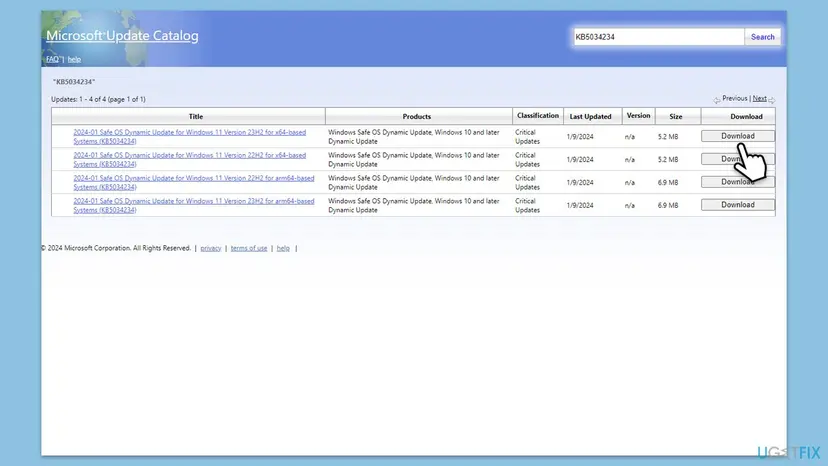
- Search the catalog. Open the Microsoft Update Catalog at catalog.update.microsoft.com in your browser, type the KB number (for example KB5124010) in the search box and press Enter.
- Pick the right row. Find the row whose title names your Windows version and your processor type (x64-based or arm64-based) and select Download on that row.
- Download every file listed. A window lists one or more .msu links. Download all of them into one empty folder, for example C:\packages. On Windows 11 24H2 and later the list can include earlier checkpoint updates that the new one needs.
- Install a single file. If there is only one file, double-click it and confirm the installation in the Windows Update Standalone Installer.
- Install several files with DISM. If there are several files, open an elevated Terminal or Command Prompt and run DISM with the newest file. DISM finds the other files in the same folder and installs them in the right order.
DISM /Online /Add-Package /PackagePath:C:\packages\<newest-file>.msu - Restart. Restart the PC when the installation finishes, then run winver again: the OS build should have changed.
These steps were written for Windows 11 24H2 and later; Windows 10 22H2. The full page with the other versions and what each result means: Install an update from the Microsoft Update Catalog
- If the standalone installer says the update is not applicable to your computer, check that you picked the row for your version and processor type.
- If it says the update is already installed, the failed entry in Windows Update can be ignored.
- If it stops with 0x8007370D again, do not try other download sites. Go to Fix 4.
It worked if: The Windows Update Standalone Installer finishes, the PC restarts and winver shows the new build.
If not: If the standalone package fails with the same code, repair Windows with Fix 4.
Fix 4. Reinstall Windows over itself and keep your apps and files
1 to 2 hoursLow riskDISM ends with an error, the standalone package fails too, or every update has failed for weeks.
A repair reinstall writes a clean copy of your Windows version, with a new component store and servicing stack. Every damaged identity is replaced at once, which DISM could not do. Apps, files and most settings stay.
- Open Recovery in Settings. Open Settings > System > Recovery. Next to Fix problems using Windows Update, select Reinstall now. This keeps your apps, files and settings.

Fix problems using Windows Update reinstalls the current version and keeps apps, files and settings. Screenshot: Windows 11 26H2. - Start the reinstall. Choose whether the PC may restart on its own 15 minutes after the installation, then select OK.
- Wait and restart. Windows Update downloads and installs a repair copy of your current Windows version. Keep the PC plugged in and online, and restart it when asked.
These steps were written for Windows 11 22H2 and later. The full page with the other versions and what each result means: Reinstall Windows without losing files
Your files are meant to stay, but a reinstall that stops halfway can leave Windows unable to start. Back up what you cannot lose first: Back up your files (Windows Backup, File History, Time Machine). Keep a laptop plugged in and online until it finishes.
On Windows 10 22H2, Fix problems using Windows Update is not in Settings. Use the Windows 10 steps on the procedure page instead. Windows 10 left support on 14 October 2025, so a PC without Extended Security Updates gets no new security updates to install anyway.
It worked if: The PC starts into the same desktop with your apps and files, and the next update installs without the error.
If not: On a managed PC, or if the reinstall is not possible, repair from the CBS log with Fix 5.
Fix 5. Find the damaged component in CBS.log and repair it from a matching update
30 to 60 minutesLow riskDISM keeps failing and a reinstall is not allowed, for example on a work PC. This needs some comfort with the command line.
DISM writes every component it could not repair to the CBS log, with the build number in its name. That build points to the update that contains a clean copy. Microsoft's advanced repair gives DISM that copy as a local source, so it no longer depends on Windows Update.
- Run
DISM.exe /Online /Cleanup-image /Restorehealthonce more in an elevated Command Prompt, so the log is fresh. - Press Win + R, type
%windir%\Logs\CBSand press Enter. CopyCBS.logto the Desktop and open the copy in Notepad. - Press Ctrl + F and search for
CorruptandMissing. Lines such as CSI Manifest Corrupt or CBS MUM Missing name the damaged components. - In each name, read the build number, for example
10.0.19045.3636. The last part,3636, is the update build revision. - Open Microsoft's Windows update history page for your version and find the KB update with that build revision.
- Download that KB from the Microsoft Update Catalog and extract the .msu and .cab files into
C:\temp\Sourcewith the script in Microsoft's article Scripts: Extract .msu and .cab files. - Run
DISM /Online /Cleanup-Image /RestoreHealth /Source:C:\temp\Source\ /LimitAccess. - Check the result with
DISM /Online /Cleanup-Image /ScanHealthand readCBS.logagain for remaining errors.
DISM /Online /Cleanup-Image /RestoreHealth /Source:C:\temp\Source\ /LimitAccess
DISM /Online /Cleanup-Image /ScanHealthMicrosoft also allows a working Windows installation of the same version and build as the source, for example over the network: DISM.exe /Online /Cleanup-Image /RestoreHealth /Source:\\<servername>\c$\windows /LimitAccess. Replace <servername> with that PC's name.
It worked if: ScanHealth reports no component store corruption, and the update that failed with 0x8007370D installs after a restart.
If not: Read the next section: collect the logs and send them to the administrator or Microsoft support.
If error 0x8007370D is still there
By now the cause is written in CBS.log (Fix 5 shows where). What is left is to hand it to someone who can fix it at the source, or to rule out the drive.
| Situation | What to do |
|---|---|
| Work or school PC, updates from WSUS, Configuration Manager or Intune | Send the administrator the code, the KB number, the build from winver and a copy of CBS.log and CBS.persist.log. |
| You contact Microsoft support | Microsoft asks for data gathered with its TSS tool for deployment issues. Have the KB number and the logs ready. |
| Windows 10 22H2 | Windows 10 left support on 14 October 2025. Only PCs in Extended Security Updates still get security updates. Plan a move to Windows 11. |
| The drive shows errors, or the PC lost power during an update | Check the drive first: Check a disk for errors (chkdsk). A failing drive can damage the store again after every repair. |
0x8007370D says nothing about activation, your Microsoft account or the processor. It is about damaged component data on the drive, which is why the repairs above work on the store and not on settings.
How to keep error 0x8007370D from coming back
- Restart when Windows asks, so the servicing stack finishes its work before the next update.
- Keep a laptop plugged in while updates install.
- Keep free space on drive C: so DISM and updates can unpack: Free up disk space and delete temporary files.
- Download standalone updates only from catalog.update.microsoft.com.
- Do not delete or move files in
C:\Windows\WinSxSby hand. - Do not use tools that shrink or strip the component store.
- Do not switch the PC off while it shows Working on updates.
- Do not turn off your antivirus for good to make an update install.
A store damaged once can get damaged again by the same cause: a sudden power loss, a failing drive or a cleaning tool that touched WinSxS. If the error returns within weeks, check the drive and stop such tools before you repair again.
Frequently asked questions
What is error code 0x8007370D?
It is Windows error 14093, ERROR_SXS_IDENTITY_PARSE_ERROR, wrapped in the 0x8007 prefix: "An identity string is malformed." Windows could not read the identity of a component in the component store, the data every update is built on. Microsoft lists it among the common Windows Update corruption errors and repairs it with DISM.exe /Online /Cleanup-image /Restorehealth. Run that, then sfc /scannow, restart and retry the update.
What does "Install error - 0x8007370d" mean in Windows Update?
It means the update downloaded but could not be installed. Windows 11 shows the word Install error and the code next to the update in Settings when the install step fails. With this code, the install stopped while Windows read component data that turned out to be damaged. Windows retries on its own, but the same damage stops it again, so repair the store with Fix 1 first instead of waiting.
Is 0x8007370D a Windows 10 or a Windows 11 error?
Both. The code belongs to the servicing part of Windows that Windows 10 and Windows 11 share, and Microsoft's repair applies to Windows 11, Windows 10 and Windows Server 2016 or later. The steps on this page give the Windows 10 paths where they differ. On Windows 10 22H2, keep in mind that support ended on 14 October 2025: without Extended Security Updates, there are no new security updates to install.
Will the Windows Update troubleshooter fix 0x8007370D?
Usually not. The troubleshooter checks the update services, their settings and the pending update state. It does not rebuild damaged component data, which is what this code points to. The old version of this page listed it as a fix, and you may still run it as a quick check: Run the Windows Update troubleshooter. Do not stop there. DISM and SFC in Fix 1 are what Microsoft names for this error.
Does restarting the Windows Update or BITS services help?
Not on its own. A stopped service gives other codes, while 0x8007370D comes from data that Windows could read but not parse. The services are stopped and started as part of the cache reset in Fix 2, which also clears the downloaded package. So there is no need to set them to Automatic or restart them one by one in the Services window.
Will Disk Cleanup fix 0x8007370D?
No source ties Disk Cleanup to this code. Removing old update files does not repair a damaged identity in the files that stay. Free space still matters, because DISM, the update and a repair reinstall all need room on drive C: to unpack. If the drive is almost full, free space first with Free up disk space and delete temporary files, then run Fix 1.
Do DISM, SFC or the cache reset delete my files?
No. DISM and SFC only replace damaged Windows components and system files. The cache reset in Fix 2 renames two Windows Update folders, so your documents, apps and installed updates stay. Update history may look shorter afterwards, because part of it is read from those folders. The repair reinstall in Fix 4 also keeps files and apps, but back up first in case it stops halfway.
What about 0x8007370B, 0x8007370A and 0x80073712?
They are close relatives. 0x8007370B and 0x8007370A mean that the name or the value of an attribute in a component identity is outside the valid range. 0x80073712 means that the component store is in an inconsistent state. Microsoft lists all of them, with 0x8007370D, as common corruption errors and gives them the same DISM repair, so the fixes on this page apply in the same order.
Can I just skip the update that fails?
Not for long. Security and cumulative updates close holes, and each monthly update replaces the one before, so the next one will hit the same damaged component and fail too. Skipping only moves the error to next month. Repair the store with Fix 1. If the standalone package from the Catalog says it is already installed or not applicable, then your PC does not need that update.
Sources
Did this fix work?
One click, no account. It tells the next reader which guides are worth their time.
Questions and experiences: fix Windows update error 0x8007370D
Still broken, or found a fix we did not cover? Ask here: members and our editors answer. Reading is open; writing needs a free account.
…