
How to fix Windows update error 0x800F0840?

Prefer to fix it yourself? The manual steps follow.
- 6methods
- 5 minutes to 2 hours
- Intermediate
Applies to Windows 11 25H2 and 26H2, Windows 10 22H2, Windows Server 2019 and later: cumulative and security updates that fail with 0x800f0840
6 methods in this guide
What is error 0x800F0840 and how do I fix it? I got this while trying to install the latest security updates yesterday. It does not go away by itself.
Error 0x800f0840 means the Windows servicing stack could not load the saved record of an update session, so the update stops and rolls back. It usually follows an update that was interrupted or never finished its restart. Restart the PC properly and check for updates again, then repair the component store with DISM and SFC.
0x800f0840 is CBS_E_SESSION_CORRUPT: Windows could not read the saved state of an earlier or current update. Restart the PC with Restart, not Shut down, let any pending work finish, then select Check for updates again (Fix 1). If it fails again, run DISM /Online /Cleanup-Image /RestoreHealth and sfc /scannow (Fix 2), then reset the update cache (Fix 3).
| Error | Install error - 0x800f0840 next to a cumulative or security update in Settings > Windows Update, often after We couldn't finish the update. Undoing changes. |
|---|---|
| Where it appears | Settings > Windows Update and Update history, Event Viewer, patch tools such as WSUS or third party patch agents, and C:\Windows\Logs\CBS\CBS.log. |
| Main cause | The record of a servicing session is damaged: CBS.log says Failed to load session with 0x800f0840 - CBS_E_SESSION_CORRUPT. Usually an update was interrupted or its restart never happened. |
| Fastest fix | Two full restarts, then Check for updates (Fix 1). Next, DISM RestoreHealth and SFC (Fix 2). |
| Also written as | 0x800F0840, 800f0840, error 0x800f0840, CBS_E_SESSION_CORRUPT. |
| Affects | Windows 10 and 11 and Windows Server. Reports name Windows Server 2019 (KB5016623, August 2022) and the April 2025 updates KB5053643 and KB5055518. |
| Microsoft's status | Not listed as a known issue. Microsoft's general advice for a damaged component store is DISM RestoreHealth followed by SFC. |
| Where the cause is written | %windir%\Logs\CBS\CBS.log: search for 0x800f0840 and read the lines just above it. |
| Time to fix | 5 to 10 minutes for Fix 1, 15 to 40 minutes for Fix 2 and Fix 3, about an hour or more for Fix 6. |
Facts checked on 15 October 2026. Steps written for Windows 11 (25H2 and 26H2) and Windows 10 22H2.
What Windows update error 0x800f0840 means
0x800f0840 belongs to the Component Based Servicing (CBS) family of codes, the 0x800f08xx range. CBS is the part of Windows that installs updates, features and language packs. The code's name, as CBS.log writes it, is CBS_E_SESSION_CORRUPT.
Each update runs as a servicing session. Windows saves the state of that session to disk, so the work can continue after a restart. When Windows later tries to load that saved state and finds it damaged, the update stops with 0x800f0840 and Windows undoes the changes.
| What you see | Where | What it tells you |
|---|---|---|
| Install error - 0x800f0840 | Settings > Windows Update, next to the update | The update failed. Windows will offer it again. |
| We couldn't finish the update. Undoing changes. | A blue screen during a restart | The update rolled back. 0x800f0840 is then listed in Update history. |
| Failed to load session [HRESULT = 0x800f0840 - CBS_E_SESSION_CORRUPT] | C:\Windows\Logs\CBS\CBS.log | The real cause: the saved session record could not be read. |
| Error 0x800F0840 | Event Viewer, WSUS reports or a patch agent's job log | The same failure seen by a management tool. |
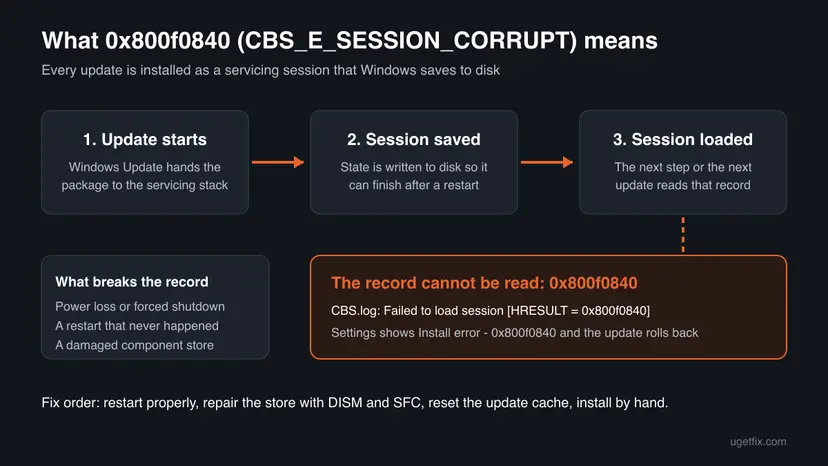
The error stops one update. It does not delete personal files. The real risk is staying without security fixes, so do not leave it for weeks.
Why error 0x800f0840 appears
The causes are ordered from the most likely to the least likely. The order comes from what the code means and from the reports we read. Microsoft has not published a list of causes for this one code.
| Cause | How often | How to tell | Fix |
|---|---|---|---|
| An earlier update was interrupted, or the restart it needed never happened, so its session record is half written. | Most often | The PC lost power, was switched off during Working on updates, or showed Restart required for days. | Fix 1 |
The component store (C:\Windows\WinSxS) and its servicing data are damaged. | Often | The same update fails after two clean restarts. DISM reports damage. | Fix 2 |
| A damaged download in the Windows Update cache is used at every retry. | Sometimes | The download always restarts and fails at the same percentage. | Fix 3 |
| One package cannot be installed through Windows Update on this PC. | Sometimes | Other updates install, one KB keeps failing. | Fix 4 |
| Disk errors damaged the files after a freeze or power loss. | Rarely | Other files are damaged too, or chkdsk reports errors. | Fix 5 |
The Qualys support article about 0x800F0840 in patch jobs ties the code to the same three things: damaged system files, an inconsistent Windows image, and earlier update installs that went wrong. It also notes that the failing updates in its case needed a restart to finish.
Windows 10 left support on 14 October 2025. A Windows 10 22H2 PC without Extended Security Updates gets no new security updates, so the error on such a PC may be about an old update. Moving to Windows 11 is the lasting answer there.
How to fix Windows update error 0x800f0840
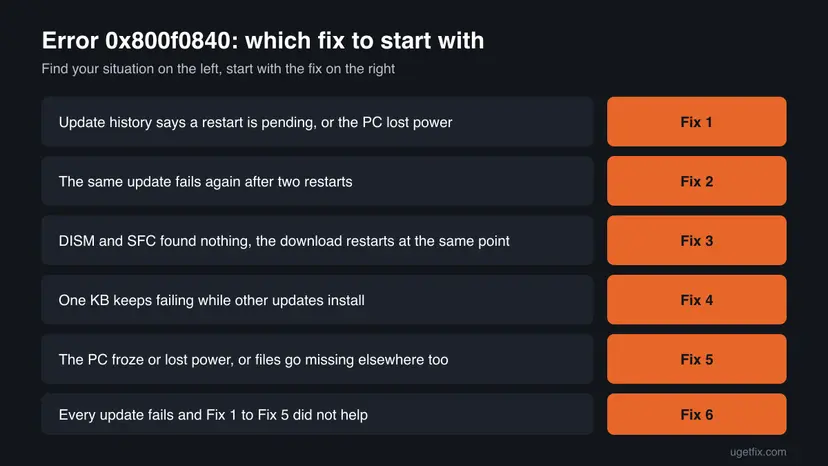
Fix 1 costs nothing and clears a session that only needs its restart. Fix 2 and Fix 3 repair the store and the update cache, which is what support teams recommend for this code. Fix 4 to Fix 6 are for the cases where one update or every update keeps failing.
| What you see or have | Start with |
|---|---|
| Restart required in Settings, or the PC lost power or was switched off during an update | Fix 1 |
| The same update fails again after two restarts | Fix 2 |
| DISM and SFC report no problems, and the download restarts at the same point | Fix 3 |
| Only one KB fails while other updates install | Fix 4 |
| The PC froze or lost power, or other files are damaged too | Fix 5, then Fix 2 |
| Every cumulative update fails and Fix 1 to Fix 5 did not help | Fix 6 |
| A work or school PC that gets updates from the organization | Ask the administrator, with the KB number and CBS.log |
Fix 1. Restart the PC properly and check for updates again
5 to 15 minutesNo riskEveryone first, and above all when the PC was switched off during an update or shows Restart required.
A servicing session that waits for its restart cannot be loaded cleanly by the next update. A real restart lets Windows finish or discard that session, and the next attempt starts a new one.
- Save your work and plug in a laptop.
- Open Start, select the power button and choose Update and restart if it is there, otherwise Restart. Do not use Shut down.
- Wait until Working on updates reaches 100 % and the sign in screen appears. Do not press the power button while it works.
- Restart a second time, so that any work that needed two restarts is done.
- Open Settings > Windows Update and select Check for updates.
- Install what is offered and restart again when Windows asks.
Check Settings > Windows Update > Update history afterwards. If the update now shows Successfully installed, you are done. Install the newest cumulative update Windows offers, not an older KB: cumulative updates contain everything before them.
It worked if: The update installs, and Update history lists it as successfully installed.
If not: If it fails again with Install error - 0x800f0840, repair the component store with Fix 2.
Fix 2. Repair the component store with DISM and SFC
15 to 40 minutesNo riskThe same update still fails after two restarts, or the PC lost power during an earlier update.
0x800f0840 means servicing data could not be read. Microsoft's advice for a damaged component store is DISM RestoreHealth, which downloads clean copies, followed by SFC. The Qualys article gives the same repair for this code.
- Open an elevated command window. Right-click Start and select Terminal (Admin), or type cmd in the search box, right-click Command Prompt and select Run as administrator. Select Yes when Windows asks for permission.

Search for cmd and choose Run as administrator. Screenshot: Windows 11 26H2. - Run DISM first. Type the command below and press Enter. DISM downloads clean copies of damaged components from Windows Update, so it can take several minutes. Wait until it says The operation completed successfully.
DISM.exe /Online /Cleanup-Image /RestoreHealth
DISM /RestoreHealth running. Screenshot: Windows 11 26H2. - Run System File Checker. In the same window, type the command below and press Enter. Do not close the window until the verification reaches 100%.
sfc /scannow
sfc /scannow at 100%. Screenshot: Windows 11 26H2. - Read the result and restart. Compare the last message with the table below this guide, then restart the PC so that repaired files are loaded.

The result line tells you what SFC did. Screenshot: Windows 11 26H2.
These steps were written for Windows 11 24H2 and 25H2. The full page with the other versions and what each result means: Run DISM and SFC to repair Windows system files
Run DISM before SFC. SFC takes its clean copies from the component store, so it can only repair system files after DISM has repaired the store itself.
It worked if: DISM ends with The restore operation completed successfully., SFC finds no violations or repairs them, and after a restart the update installs.
If not: If DISM itself fails, or the update fails again at the same point, reset the update cache with Fix 3.
Fix 3. Reset the Windows Update components
10 minutesLow riskDISM and SFC report no problems, and Windows Update keeps failing at the same point.
Windows Update keeps the files it downloaded in SoftwareDistribution and reuses them at every retry. Renaming that folder and catroot2 makes Windows download the update again and start a fresh session. Qualys lists this reset as a step for 0x800F0840.
- Open Command Prompt as administrator. Type cmd in the search box, right-click Command Prompt and select Run as administrator. Select Yes when Windows asks for permission.
- Stop the update services. Type the commands below and press Enter after each one. If Windows says that other services depend on Cryptographic Services, it stops them too. A message that a service is not started is fine.
net stop wuauserv net stop bits net stop cryptsvc - Delete the download queue files. This clears the list of downloads that the Background Intelligent Transfer Service keeps. If Windows says it cannot find the files, continue.
del "%ALLUSERSPROFILE%\Application Data\Microsoft\Network\Downloader\qmgr*.dat" - Rename the update cache folders. Renaming keeps a copy in case you need it; Windows creates new, empty folders when the services start again. If you get Access is denied, a service is still running: repeat the previous step.
ren %systemroot%\SoftwareDistribution SoftwareDistribution.old ren %systemroot%\System32\catroot2 catroot2.old - Start the services again. Type the commands below and press Enter after each one. The requested service has already been started is fine: Windows started it on its own.
net start cryptsvc net start bits net start wuauserv - Restart and check for updates. Restart the PC. Then select Start > Settings > Windows Update > Check for updates. The first check can take longer than usual because everything is downloaded again.
These steps were written for Windows 11 and Windows 10 (the steps are the same). The full page with the other versions and what each result means: Reset Windows Update components

It worked if: Windows Update downloads the update from zero and installs it after the restart.
If not: If only this one update keeps failing, install it by hand with Fix 4.
Fix 4. Install the failing update by hand from the Microsoft Update Catalog
15 to 30 minutesLow riskOne KB keeps failing while other updates install, or Windows Update cannot finish the download.
A .msu file from the catalog installs the package directly, outside the Windows Update download and its cache. If the package installs this way, the problem was in the update path rather than in Windows itself.
- Check your Windows version. Press Windows key + R, type winver and press Enter. Note the version (for example 25H2) and the OS build.
- Find the KB number. Open Settings > Windows Update. A failed or pending update is listed with its KB number; earlier ones are under Update history.
- Check the processor type. Open Settings > System > About and look at System type: an x64-based PC needs the x64 file, an ARM-based PC (for example Snapdragon) needs the arm64 file.
- Search the catalog. Open the Microsoft Update Catalog at catalog.update.microsoft.com in your browser, type the KB number (for example KB5124010) in the search box and press Enter.
- Pick the right row. Find the row whose title names your Windows version and your processor type (x64-based or arm64-based) and select Download on that row.
- Download every file listed. A window lists one or more .msu links. Download all of them into one empty folder, for example C:\packages. On Windows 11 24H2 and later the list can include earlier checkpoint updates that the new one needs.
- Install a single file. If there is only one file, double-click it and confirm the installation in the Windows Update Standalone Installer.
- Install several files with DISM. If there are several files, open an elevated Terminal or Command Prompt and run DISM with the newest file. DISM finds the other files in the same folder and installs them in the right order.
DISM /Online /Add-Package /PackagePath:C:\packages\<newest-file>.msu - Restart. Restart the PC when the installation finishes, then run winver again: the OS build should have changed.
These steps were written for Windows 11 24H2 and later; Windows 10 22H2. The full page with the other versions and what each result means: Install an update from the Microsoft Update Catalog
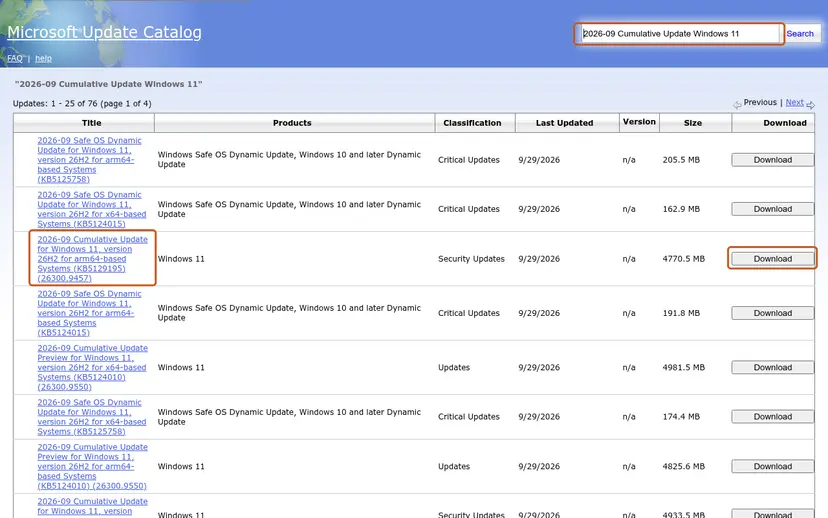
On Windows 11 24H2 and later, the catalog's download window can list a checkpoint update next to the target file. Install the checkpoint first. Otherwise the installer stops with a different code, explained in our guide to error 0x800f0838.
It worked if: The Windows Update Standalone Installer finishes, and after the restart winver shows the new build.
If not: If the standalone installer also fails with 0x800f0840, check the drive with Fix 5 and then reinstall Windows over itself with Fix 6.
Fix 5. Check the system drive for errors
10 minutes to 1 hourLow riskThe PC froze, crashed or lost power during an update, or other files are damaged too.
A session record is a file on the system drive. If the drive has file system errors after a power loss, the record can be damaged again after every repair. chkdsk fixes the file system first, so the repairs in Fix 2 hold.
- Open Command Prompt as administrator. Type cmd in the search box on the taskbar, right-click Command Prompt and select Run as administrator. Select Yes when Windows asks for permission.
- Scan the drive without changing anything. Type the command below and press Enter. Replace C: with another drive letter to check that drive. This scan only reports; it does not fix anything.
chkdsk C: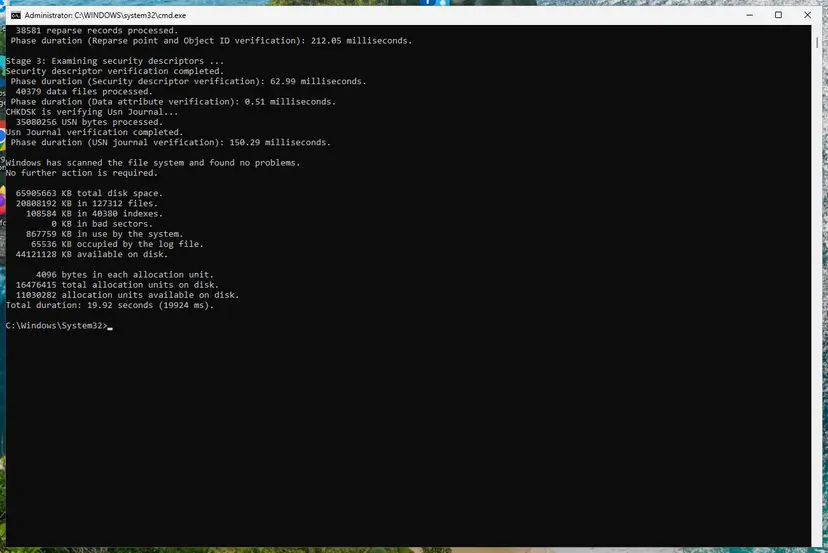
A clean result: no problems found and 0 KB in bad sectors. Screenshot: Windows 11 26H2. - If errors were found, run the repair. Run chkdsk with /f to fix file system errors. On the Windows drive (C:) chkdsk cannot lock the drive while Windows is running, so it offers to check it at the next restart.
chkdsk C: /f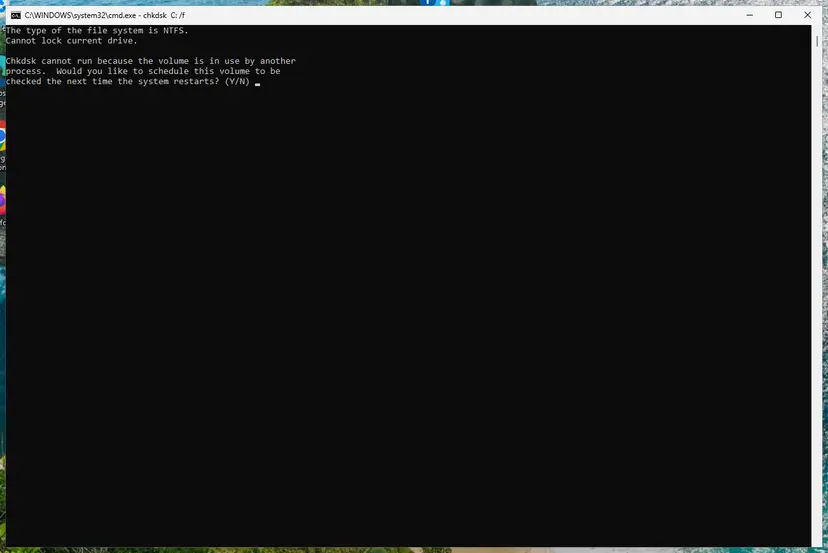
On the system drive chkdsk /f asks to run at the next restart. Screenshot: Windows 11 26H2. - Schedule the check and restart. Type Y and press Enter, then restart the PC. chkdsk runs before Windows starts. Do not turn the PC off while it runs.
- Read the result after the restart. The report of a check made at startup is not shown on the desktop. Open PowerShell and run the command below to see it, or open Event Viewer (eventvwr.msc) > Windows Logs > Application and filter by the sources Chkdsk and Wininit.
Get-WinEvent -FilterHashtable @{LogName='Application'} | Where-Object { $_.ProviderName -match 'wininit' } | Select-Object -First 1 | Format-List TimeCreated, Message
These steps were written for Windows 11 and Windows 10 (the steps are the same). The full page with the other versions and what each result means: Check a disk for errors (chkdsk)
It worked if: chkdsk reports that Windows has scanned the file system and found no problems, or that it fixed them. Run Fix 2 again after that.
If not: If chkdsk finds bad sectors or the drive's health is poor, back up your files before you do anything else. Then go to Fix 6.
Fix 6. Reinstall Windows over itself and keep your apps and files
1 to 2 hoursLow riskEvery cumulative update fails with 0x800f0840 and Fix 1 to Fix 5 did not help.
A repair reinstall writes a clean copy of the current Windows version, including a new component store and new servicing data. The damaged session records are gone afterwards, while apps, files and settings stay.
- Open Recovery in Settings. Open Settings > System > Recovery. Next to Fix problems using Windows Update, select Reinstall now. This keeps your apps, files and settings.

Fix problems using Windows Update reinstalls the current version and keeps apps, files and settings. Screenshot: Windows 11 26H2. - Start the reinstall. Choose whether the PC may restart on its own 15 minutes after the installation, then select OK.
- Wait and restart. Windows Update downloads and installs a repair copy of your current Windows version. Keep the PC plugged in and online, and restart it when asked.
These steps were written for Windows 11 22H2 and later. The full page with the other versions and what each result means: Reinstall Windows without losing files
If Fix problems using Windows Update is missing, download the installation media of your Windows version from Microsoft, run setup.exe and keep the choice Keep personal files and apps.
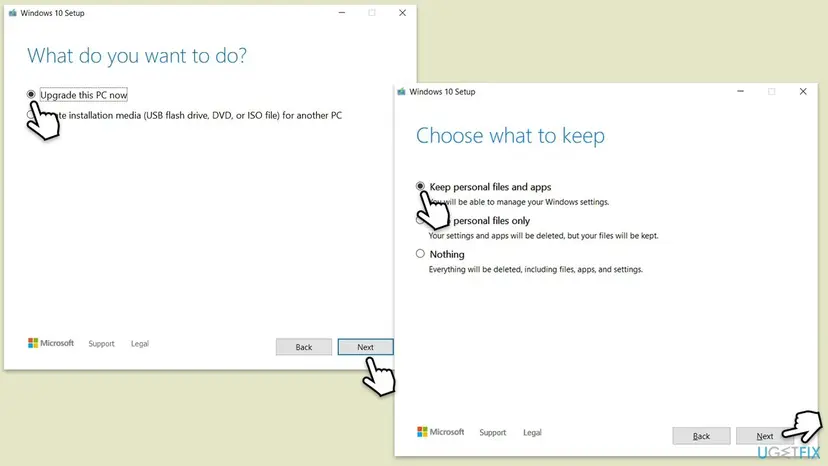
Your files are meant to stay, but a failed reinstall can leave Windows unable to start. Back up what you cannot lose first: Back up your files (Windows Backup, File History, Time Machine). Keep a laptop plugged in until it finishes.
It worked if: The PC starts into the same desktop with your apps and files, and the next update installs without 0x800f0840.
If not: Read the next section. The last resort is Reset this PC with Keep my files.
If error 0x800f0840 is still there
Before you try anything else, read the servicing log. Microsoft's own advice for CBS errors is to open the newest CBS.log, search for the error and read the lines around the time of the failure.
- Press Win + R, type
%windir%\Logs\CBSand press Enter. - Copy
CBS.logto the Desktop and open the copy in Notepad. - Press Ctrl + F and search for
0x800f0840. Note the time of the last hit. - Read the lines just above it. Failed to load session confirms a damaged session record. A KB number or a file name tells you which update or file is involved.
| Situation | What to do |
|---|---|
| Work or school PC, updates from WSUS, Configuration Manager, Intune or a patch agent | Send the administrator the code, the KB number, the build from winver and a copy of CBS.log. |
| The repair reinstall is missing or fails | Use Reset this PC with Keep my files and Cloud download: Reinstall Windows without losing files. Apps are removed, your files stay. |
| Windows shows a different code, such as 0x800f0831 or 0x800f081f | Those are other CBS codes for a damaged store or missing source files. Fix 2 is still the first step. |
The code itself does not point to hardware. Suspect the drive when chkdsk finds bad sectors, the same damage returns after every repair, or the PC freezes during large file copies. Memory faults can also damage files, so test memory when the PC crashes at random.
How to keep error 0x800f0840 from coming back
- Restart when Windows asks, and let Working on updates finish.
- Keep a laptop on the charger while it installs updates.
- Keep enough free space on the system drive so updates have room to unpack.
- Install the newest cumulative update instead of hunting for an old KB.
- Do not hold the power button while Windows says Working on updates.
- Do not delete files in
C:\Windows\WinSxSorC:\Windows\servicingby hand to save space. - Do not use registry cleaners or update blocker tools that remove servicing data.
- Do not download update files from sites other than catalog.update.microsoft.com.
If the PC often loses power, a small UPS for a desktop is worth more than any repair. Most session damage starts with an update that was cut off halfway.
Frequently asked questions
What does error 0x800f0840 mean?
It means the Windows servicing stack could not load the saved record of an update session. CBS.log names the code CBS_E_SESSION_CORRUPT. Windows saves each update's progress so it can continue after a restart, and when that saved state is damaged, the update stops and rolls back. It most often follows an update that was interrupted or a restart that never happened. Restart properly first, then repair the component store with DISM and SFC.
Why does 0x800f0840 show up as failed to install every time?
Because Windows retries with the same damaged data. If the session record or the downloaded files are broken, each new attempt reads the same broken state and fails at the same point. That is why the error does not go away by itself. Two full restarts, then DISM RestoreHealth and SFC, and then a reset of the Windows Update cache give the next attempt clean data to work with.
Is it safe to keep using the PC with this error?
Yes, for a short time. The error does not damage personal files and Windows keeps running on the last installed update. The risk is missing security fixes, which matters more each week the update stays uninstalled. Work through Fix 1 to Fix 3 within a few days. If you cannot fix it, install the update by hand from the Microsoft Update Catalog, as described in Fix 4.
Can I fix 0x800f0840 by turning off my antivirus?
No source we read ties this code to security software, and turning protection off leaves the PC exposed. The code points to damaged servicing data, which antivirus does not repair. Use the fixes on this page in order. If you suspect another program blocks updates in general, test with a clean boot rather than removing protection, and turn everything back on afterwards.
Are 0x800f0841, 0x800f0843 and 0x800f0845 the same error?
No. They are neighbouring codes in the same CBS family, 0x800f08xx, and each has its own meaning. We did not verify those meanings for this page, so we do not describe them here. They often respond to the same first repairs: a proper restart, DISM RestoreHealth with SFC, and a reset of the update cache. Read CBS.log to see the exact code and the lines around it before going further.
Which updates fail with 0x800f0840?
Any cumulative or security update can, because the code is about the servicing session, not about one package. Reports name Windows Server 2019 with KB5016623 in August 2022, and the April 2025 updates KB5053643 and KB5055518 in a patch tool's job log. A search for kb5099538 also leads here. Whatever the KB number, the steps on this page are the same.
What does We couldn't finish the update. Undoing changes. have to do with 0x800f0840?
That screen appears when an update fails during the restart and Windows rolls it back. Users report seeing 0x800f0840 in Update history after it, sometimes together with other codes. The rollback itself is normal and protects the PC. If it happens again and again, the session data is damaged, and Fix 2 and Fix 3 are the steps that address it.
Will I lose files if I reinstall Windows to fix this?
Not with the repair reinstall in Fix 6. Fix problems using Windows Update, and Windows Setup with Keep personal files and apps, reinstall the same Windows version and keep apps, files and settings. Reset this PC with Keep my files is different: it keeps your files but removes installed apps. Back up the files you cannot lose before any reinstall, and keep a laptop plugged in.
A que se debe este error, lỗi gì đây, ايه المشكلة: what causes this error?
These searches all ask what causes 0x800f0840. The answer is the same in every language: Windows could not read the saved record of an update, usually after an interrupted update or a missed restart. The code is the same on Windows in any language. The menu names in the steps are the English ones, so follow the position of the items in Settings. The commands are typed the same way everywhere.
Sources
- Microsoft Learn: Windows Update common errors and mitigation (CBS store corruption, reading CBS.log) (learn.microsoft.com)
- Qualys Support: Windows Update failures (Event Viewer error 0x800F0840) during patch job (success.qualys.com)
- Super User: CBS.log excerpt with HRESULT 0x800f0840 CBS_E_SESSION_CORRUPT (user report) (superuser.com)
Did this fix work?
One click, no account. It tells the next reader which guides are worth their time.
Questions and experiences: fix Windows update error 0x800F0840
Still broken, or found a fix we did not cover? Ask here: members and our editors answer. Reading is open; writing needs a free account.
…