
How to fix Windows update error 0x80244011?

Prefer to fix it yourself? The manual steps follow.
- 6methods
- 5 to 20 minutes
- Medium
Applies to Windows 11 and Windows 10, home PCs with a leftover update policy and PCs managed through WSUS
6 methods in this guide
I received error 0x80244011 when trying to apply the most recent Windows updates. I never had to deal with something like this before, so I am not sure what to do.
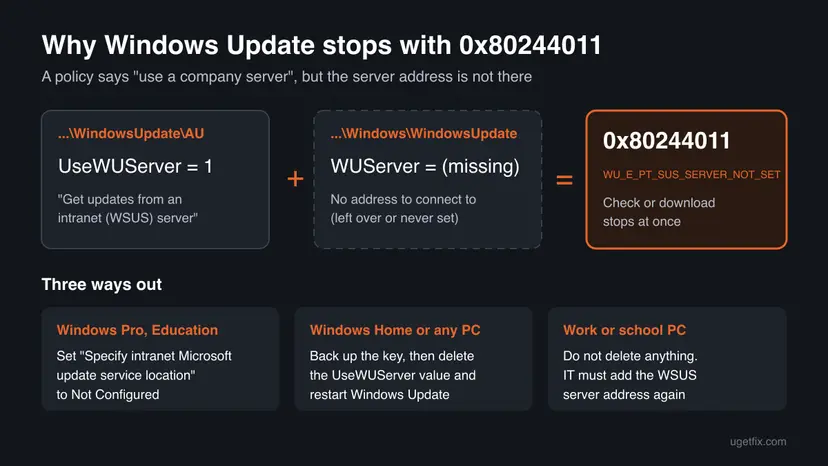
Error 0x80244011 means that a policy on your PC tells Windows Update to get updates from a company (WSUS) server, but the address of that server is missing. It is a settings problem, not a broken update or a bad connection. Check the update policy first, then clear the leftover setting or ask IT to finish it.
0x80244011 is WU_E_PT_SUS_SERVER_NOT_SET: the UseWUServer policy is on, but the WUServer address is missing. Run reg query "HKLM\SOFTWARE\Policies\Microsoft\Windows\WindowsUpdate" /s as administrator (Fix 1). On your own PC, set the intranet update policy to Not Configured (Fix 2) or delete UseWUServer after a backup (Fix 3). On a work PC, ask IT.
| Error | 0x80244011, named WU_E_PT_SUS_SERVER_NOT_SET by Microsoft: "WUServer policy value is missing in the registry." |
|---|---|
| Where it appears | Settings > Windows Update, as Download error - 0x80244011 next to an update on Windows 11, or inside the message "There were some problems installing updates" on Windows 10. Also in update logs and scripts. |
| Main cause | UseWUServer = 1 is set under the Windows Update policy key, so Windows looks for a WSUS server, but the WUServer value with its address is not there. |
| Fastest fix | Check the policy with one reg query command (Fix 1), then set the intranet update policy to Not Configured (Fix 2) or delete the UseWUServer value (Fix 3). |
| Also written as | 80244011, error 0x80244011, download error - 0x80244011, 0x80244011 windowsupdate, and as a signed number 0x80244011(-2145107951) in some tools. |
| Affects | Any Windows 11 or Windows 10 edition. Most often a used or former work PC, a PC that left a company domain, or a PC where a tool changed the update settings. |
| Microsoft's status | Not a bug of one update. It is a configuration error of the update client, listed among its protocol errors in Microsoft's error reference. |
| Close relatives | 0x80244010 means too many round trips to the server, 0x80244017 is HTTP 401 and 0x80244018 is HTTP 403 from the update server. |
| Time to fix | 2 minutes for the check, about 10 minutes for the policy or registry change and the restart. |
Facts checked on 15 October 2026. Steps written for Windows 11 (25H2 and 26H2) and Windows 10 22H2.
What Windows update error 0x80244011 means
Microsoft's list of Windows Update error codes names 0x80244011 WU_E_PT_SUS_SERVER_NOT_SET and describes it in one line: "WUServer policy value is missing in the registry". SUS stands for Software Update Services, the old name of WSUS, the server that companies and schools use to hand out Windows updates on their own network.
Two policy values work together. UseWUServer in the AU subkey switches Windows Update to an intranet server, and WUServer in the main WindowsUpdate key holds the address of that server. When the switch is on and the address is gone, Windows Update has nowhere to look, so it stops at once with 0x80244011. Nothing is downloaded, and nothing on your PC is damaged.
| What you see | Where | What it tells you |
|---|---|---|
| Download error - 0x80244011 | Settings > Windows Update on Windows 11, next to the update name | The update was found in the list, but Windows Update could not start the download from its configured server. |
| There were some problems installing updates, but we'll try again later. If you keep seeing this and want to search the web or contact support for information, this may help: (0x80244011) | Settings > Update & Security > Windows Update on Windows 10 | The same policy problem, shown in the Windows 10 layout. |
| 0x80244011(-2145107951) | Scripts, PowerShell modules and some management tools | The same code written as a signed decimal number next to the hex value. |
| 0x80244011 with the word WindowsUpdate in a log line | WindowsUpdate.log after Get-WindowsUpdateLog | The update client logged the missing server value. |
Microsoft's page on Windows Update settings says that with the intranet server policy enabled, the update client searches and downloads from that server instead of Windows Update. With the policy Disabled or Not Configured, the PC connects directly to Windows Update on the internet. Error 0x80244011 is the half way state between the two.
Why Windows update error 0x80244011 appears
The code has one technical cause, the missing WUServer value, but different stories lead to it. The table puts them in the order we see them on home and small office PCs, each with the fix that matches.
| How the setting got there | How often | How to tell | Fix |
|---|---|---|---|
| A used or former work or school PC kept part of its old update policy after it left the company network or domain. | Most often | reg query shows UseWUServer with 0x1 but no WUServer line. | Fix 1, then Fix 2 or Fix 3 |
| An update blocking, privacy or tweaking tool switched Windows Update to an intranet server on purpose, to stop updates. | Often | You or someone else ran such a tool. The policy comes back after you clear it. | Fix 3, then Fix 4 |
| The intranet update policy was enabled in Group Policy with an empty or deleted address. | Sometimes | In gpedit.msc the policy Specify intranet Microsoft update service location shows Enabled. | Fix 2 |
| The company still manages the PC, and its policy or MDM profile lost the server address. | On managed PCs | Settings says some settings are managed by your organization. | Your IT team |
| The policy is already fixed, but an update session from before is still stuck. | Rarely | reg query finds nothing, and the error stays. | Fix 5, Fix 6 |
Disk Cleanup, a clean boot, stopped services and the Media Creation Tool, which many pages list for this code, do not touch the policy key. They cannot remove the cause, which is why they are not methods on this page.
How to fix Windows update error 0x80244011
Fix 1 tells you in two minutes which case you have. Fixes 2 and 3 clear the half finished policy, one through Group Policy and one through the registry, and solve most home cases. Fix 4 stops a tool from putting it back. Fixes 5 and 6 are for the rare case where the policy is clean and updates still fail.
| What you see or have | Start with |
|---|---|
| You do not know yet why the error appears. | Fix 1 |
| Windows 11 or 10 Pro, Education or Enterprise, your own PC. | Fix 2 |
| Windows 11 or 10 Home, or Fix 2 did not remove the value. | Fix 3 |
| The error came back after a few days or after a restart. | Fix 4 |
reg query finds no policy, and the error stays. | Fix 5, then Fix 6 |
| A PC managed by your company or school. | Your IT team (see "If the error is still there") |
Fix 1. Check whether a WSUS policy without a server address is set
2 minutesNo riskEveryone, first. It takes two minutes and decides which fix you need.
The error name says exactly what Windows misses: the WUServer value. Reading the policy key shows whether UseWUServer is on and whether the address is really gone.
- Press Win + S, type
cmd, right-click Command Prompt and select Run as administrator. - Type
reg query "HKLM\SOFTWARE\Policies\Microsoft\Windows\WindowsUpdate" /sand press Enter. - Look under the
AUsubkey for UseWUServer with the value0x1. - Look under the main key for WUServer and WUStatusServer. A working setup has an address such as
http://server:8530there. - If UseWUServer is
0x1and there is no WUServer line, you have found the cause of 0x80244011. - If Windows says it was unable to find the key, there is no update policy at all. Go to Fix 5.
reg query "HKLM\SOFTWARE\Policies\Microsoft\Windows\WindowsUpdate" /sIf the PC still belongs to an organization, do not change anything. Copy the output of the command and send it to your IT team with the error code. Their policy is missing the server address, and they have to add it on their side.
It worked if: You know whether the PC has the half finished WSUS policy (UseWUServer on, WUServer missing) or no update policy at all.
If not: If the command shows the policy, clear it in Fix 2 or Fix 3. If it shows nothing, go to Fix 5.
Fix 2. Set the intranet update service policy to Not Configured in Group Policy
5 minutesLow riskWindows 11 or 10 Pro, Education or Enterprise on a PC you own. Windows Home has no Group Policy Editor.
Microsoft says that with this policy Disabled or Not Configured, the update client connects directly to Windows Update on the internet. Setting it back removes the switch that points Windows at a missing server.
- Press Win + R, type
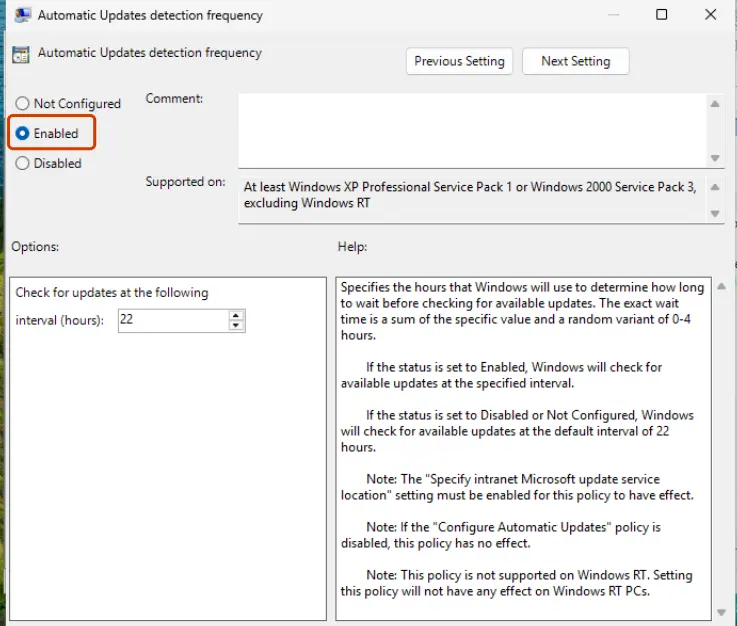
gpedit.mscand select OK. - Go to Computer Configuration > Administrative Templates > Windows Components > Windows Update. On Windows 11 the policy may sit in the subfolder Manage updates offered from Windows Server Update Service.
- Double-click Specify intranet Microsoft update service location.
- If it shows Enabled, select Not Configured and then OK.
- Open Command Prompt as administrator, type
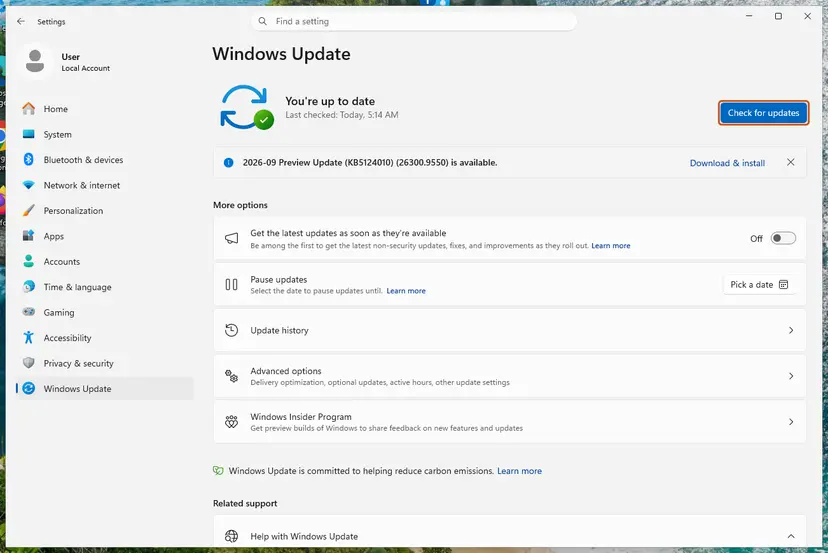
gpupdate /forceand press Enter. - Restart the PC, open Settings > Windows Update and select Check for updates.
More on the editor: Open the Local Group Policy Editor
It worked if: Running the reg query from Fix 1 again no longer shows UseWUServer, and the update downloads without the error.
If not: If the policy was already Not Configured, or the value is still there, a tool wrote it straight to the registry. Remove it in Fix 3.
Fix 3. Delete the leftover UseWUServer value in the registry
10 minutesRead the warningWindows Home, or any edition where Fix 2 did not remove the value. Only on a PC you own.
Without UseWUServer, Windows Update no longer looks for an intranet server, so the missing WUServer address stops mattering and the client goes straight to Microsoft.
This removes the setting that sends the PC to a company update server. Export the HKLM\SOFTWARE\Policies\Microsoft\Windows\WindowsUpdate key before you change it, so a double-click on the saved .reg file brings it back. Step by step: Back up the registry before editing it

- Open Command Prompt as administrator, as in Fix 1.
- Type
reg delete "HKLM\SOFTWARE\Policies\Microsoft\Windows\WindowsUpdate\AU" /v UseWUServer /fand press Enter. - Type
net stop wuauservand press Enter, thennet start wuauservand press Enter, to restart the Windows Update service. - Run the
reg queryfrom Fix 1 again and check that UseWUServer is gone. - Open Settings > Windows Update and select Check for updates.
reg delete "HKLM\SOFTWARE\Policies\Microsoft\Windows\WindowsUpdate\AU" /v UseWUServer /f
net stop wuauserv
net start wuauservIf the key also holds other leftovers you never set, such as an empty WUStatusServer or rules that block Windows Update, you can delete the whole WindowsUpdate policy key instead, after the backup. That also removes any deferral or pause rules stored there.
It worked if: The update check finds the updates, and the download goes past the point where it showed Download error - 0x80244011.
If not: If the value is back after a restart or a few days, something writes it again. Find it in Fix 4.
Fix 4. Undo the setting in the tool that blocked updates
10 minutesLow riskThe UseWUServer value comes back after Fix 2 or Fix 3, or you once used a tool to stop or delay Windows updates.
Some update blocking and privacy tools stop updates by pointing Windows at an intranet server that does not exist. While the tool runs or its task is scheduled, it can write the value again and bring 0x80244011 back.
- Think back to any program you used to stop, pause or tweak Windows updates, or to change privacy settings in bulk.
- Open that program and turn its Windows Update blocking off, or use its option to restore default settings.
- If you no longer need it, remove it: press Win + I, open Apps > Installed apps, select the three dots next to it and Uninstall.
- Restart the PC and run the
reg queryfrom Fix 1. If UseWUServer is still there, repeat Fix 3 once. - Check for updates in Settings > Windows Update.
If no program you know could have set the policy and it keeps coming back, scan the PC as well: How to scan for malware with Microsoft Defender. We could not confirm which tools use this exact method, so check the settings of the one you have.
It worked if: After two restarts the reg query still shows no UseWUServer, and Windows Update keeps working.
If not: If the policy is clean and the error stays, reset the update cache in Fix 5.
Fix 5. Reset the Windows Update components
10 minutesLow riskThe policy is gone, but the same update still fails with 0x80244011.
Windows Update may still hold the download it planned from the missing server. Renaming the SoftwareDistribution and catroot2 folders drops that queue, so the next check starts fresh against Microsoft's servers.
- Open Command Prompt as administrator. Type cmd in the search box, right-click Command Prompt and select Run as administrator. Select Yes when Windows asks for permission.
- Stop the update services. Type the commands below and press Enter after each one. If Windows says that other services depend on Cryptographic Services, it stops them too. A message that a service is not started is fine.
net stop wuauserv net stop bits net stop cryptsvc - Delete the download queue files. This clears the list of downloads that the Background Intelligent Transfer Service keeps. If Windows says it cannot find the files, continue.
del "%ALLUSERSPROFILE%\Application Data\Microsoft\Network\Downloader\qmgr*.dat" - Rename the update cache folders. Renaming keeps a copy in case you need it; Windows creates new, empty folders when the services start again. If you get Access is denied, a service is still running: repeat the previous step.
ren %systemroot%\SoftwareDistribution SoftwareDistribution.old ren %systemroot%\System32\catroot2 catroot2.old - Start the services again. Type the commands below and press Enter after each one. The requested service has already been started is fine: Windows started it on its own.
net start cryptsvc net start bits net start wuauserv - Restart and check for updates. Restart the PC. Then select Start > Settings > Windows Update > Check for updates. The first check can take longer than usual because everything is downloaded again.
These steps were written for Windows 11 and Windows 10 (the steps are the same). The full page with the other versions and what each result means: Reset Windows Update components

It worked if: Windows Update shows the updates again, downloads them and installs them.
If not: Install the one update you need by hand, Fix 6.
Fix 6. Install the update by hand from the Microsoft Update Catalog
10 minutesLow riskYou need one update now, or the PC is managed and you are waiting for IT.
The catalog file comes through your browser and installs without asking the update server, so the missing WUServer value does not stop it. It does not clear the policy, so the next update fails again until Fix 2 or Fix 3 is done.
- Check your Windows version. Press Windows key + R, type winver and press Enter. Note the version (for example 25H2) and the OS build.
- Find the KB number. Open Settings > Windows Update. A failed or pending update is listed with its KB number; earlier ones are under Update history.
- Check the processor type. Open Settings > System > About and look at System type: an x64-based PC needs the x64 file, an ARM-based PC (for example Snapdragon) needs the arm64 file.
- Search the catalog. Open the Microsoft Update Catalog at catalog.update.microsoft.com in your browser, type the KB number (for example KB5124010) in the search box and press Enter.
- Pick the right row. Find the row whose title names your Windows version and your processor type (x64-based or arm64-based) and select Download on that row.
- Download every file listed. A window lists one or more .msu links. Download all of them into one empty folder, for example C:\packages. On Windows 11 24H2 and later the list can include earlier checkpoint updates that the new one needs.
- Install a single file. If there is only one file, double-click it and confirm the installation in the Windows Update Standalone Installer.
These steps were written for Windows 11 24H2 and later; Windows 10 22H2. The full page with the other versions and what each result means: Install an update from the Microsoft Update Catalog
It worked if: The installer finishes, and the update is listed under Settings > Windows Update > Update history.
If not: Windows Update itself is still set to a missing server. Read "If the error is still there" below.
If the error 0x80244011 is still there
If the error did not go away, either the policy comes from a source you do not control, or the update client logged a second problem. The update log shows which one.
- Open PowerShell as administrator, type
Get-WindowsUpdateLogand press Enter. It writes WindowsUpdate.log to your desktop. - Open the file and search for
0x80244011. Note the time and the lines just before it. - If the lines mention a WSUS or intranet server, the policy is still active. Run the
reg queryfrom Fix 1 again. - If the policy is gone but
gpresult /rin Command Prompt lists domain policies, the PC is still managed.
| Situation | What to do |
|---|---|
| Work or school PC, or a PC managed through Intune or another MDM | Send IT the error code and the reg query output. The policy must set both values: the server that the client detects and downloads from, and the statistics server. The MDM names are UpdateServiceUrl and UpdateServiceUrlAlternate. |
| Home PC, the value comes back and no tool is installed | Scan with Microsoft Defender, repeat Fix 3, and check again after two restarts. |
| Home PC, policy clean, updates still fail with another code | That is a different problem. Search for the new code, or reinstall Windows over itself and keep your files: Reinstall Windows without losing files |
How to keep error 0x80244011 from coming back
- On a used laptop from a company or school, run the
reg queryfrom Fix 1 on the first day and clear any leftover update policy. - Use Pause updates in Settings > Windows Update when you want a break from updates, instead of a blocking tool.
- Export the policy key before every registry change, so you can put it back.
- Do not delete update policies on a PC your employer or school still manages. Ask IT.
- Do not import registry files from forums that promise to fix Windows Update. Change only the value in Fix 3.
- Do not turn off the antivirus or the firewall to get past this code. They do not set or read the WUServer policy.
Windows 10 left support on 14 October 2025, and only PCs in Extended Security Updates still get its security patches. Clearing the policy matters even more there, because a PC stuck on 0x80244011 receives none of them.
Frequently asked questions
What does error code 0x80244011 mean?
It means the WUServer policy value is missing in the registry. Microsoft names the code WU_E_PT_SUS_SERVER_NOT_SET. The PC has the UseWUServer policy turned on, which tells Windows Update to use a company WSUS server, but the address of that server is not written. Windows Update has no server to ask and stops. The update itself and your system files are fine. Clear the leftover policy with Fix 2 or Fix 3, or ask IT to add the address on a managed PC.
What does "Download error - 0x80244011" in Windows 11 mean?
It is how Windows 11 shows the code next to an update in Settings > Windows Update. The update appears in the list, but the download cannot start because Windows Update is set to fetch it from an intranet server whose address is missing. Selecting Retry gives the same result until the policy is cleared. Run the reg query from Fix 1 to confirm, then set the policy to Not Configured or delete the UseWUServer value.
What is 0x80244011(-2145107951)?
It is the same error written twice: once in hexadecimal and once as a signed decimal number. Some scripts, PowerShell modules and management tools print error codes this way. The decimal form -2145107951 and 0x80244011 are the same value, WU_E_PT_SUS_SERVER_NOT_SET. The fixes do not change: check the Windows Update policy key with reg query and clear the UseWUServer value on a PC you own.
Is 0x80244011 a network or internet problem?
No. Your internet connection can be perfect and the error still appears, because Windows Update never gets as far as connecting. It reads the policy, sees that it should use an intranet server, finds no address and stops. That is why resetting the router, changing DNS or turning off a VPN does not help with this code. Related codes such as 0x80244017 and 0x80244018 are connection answers from a server; 0x80244011 is a local setting.
I did not set any WSUS server. Why is my PC set to use one?
The most common reasons are a laptop that once belonged to a company or school and kept part of its policy, or a tool that blocked Windows updates by pointing them at an intranet server. Both write the policy into the registry without showing it in Settings. Run the reg query from Fix 1 to see the values. If nothing you know could have set them and they keep coming back, run a full scan with Microsoft Defender as well.
Can I just set UseWUServer to 0 instead of deleting it?
Microsoft documents only the value 1, which turns the intranet server on. Deleting the value is the cleaner choice, because Windows then behaves as if the policy was never set and connects to Windows Update directly. Setting it to 0 is used by some administrators, but we could not confirm it in Microsoft's documentation. Whichever you do, back up the key first with the registry backup procedure.
Does 0x80244011 belong to one update, such as KB5043145?
No. The code does not depend on the update. Any update that Windows Update tries to download fails with it, from a monthly cumulative update or a preview such as KB5043145 for Windows 11 22H2 to a driver or a Defender update. Clearing the policy fixes all of them at once. If you need one update right away, download it from the Microsoft Update Catalog as in Fix 6.
The error did not go away after the fixes. What now?
Run the reg query from Fix 1 once more. If UseWUServer is back, something writes it again: a blocking tool, a scheduled task of such a tool, or a domain or MDM policy. Fix 4 and the still broken section show how to tell them apart. If the policy is gone and you now see another code, it is a different problem with its own fix. If you see the same code on a managed PC, only IT can change the policy.
Will the Media Creation Tool or a reinstall fix 0x80244011?
An in place reinstall that keeps your files can bring Windows up to date, because it installs from its own media. It does not always remove the policy key, so the next update can fail with the same code. Clearing UseWUServer takes a few minutes and keeps everything else as it is. Keep the reinstall for the case where the policy is clean and Windows Update still fails with other errors.
What does "ошибка не исчезла" or "me da este error" mean for this code?
This page is in English, but the steps work on Windows in any language, because the commands and registry names stay the same. If the error did not go away ("ошибка не исчезла"), check whether the UseWUServer value came back, as in Fix 4. If you just got the error ("me da este error", "que significa esto"), it means the update policy points to a company server whose address is missing. Start with Fix 1.
Sources
- Microsoft Learn: Windows Update error code list by component (learn.microsoft.com)
- Microsoft Learn: Manage additional Windows Update settings (learn.microsoft.com)
Did this fix work?
One click, no account. It tells the next reader which guides are worth their time.
Questions and experiences: fix Windows update error 0x80244011
Still broken, or found a fix we did not cover? Ask here: members and our editors answer. Reading is open; writing needs a free account.
…